
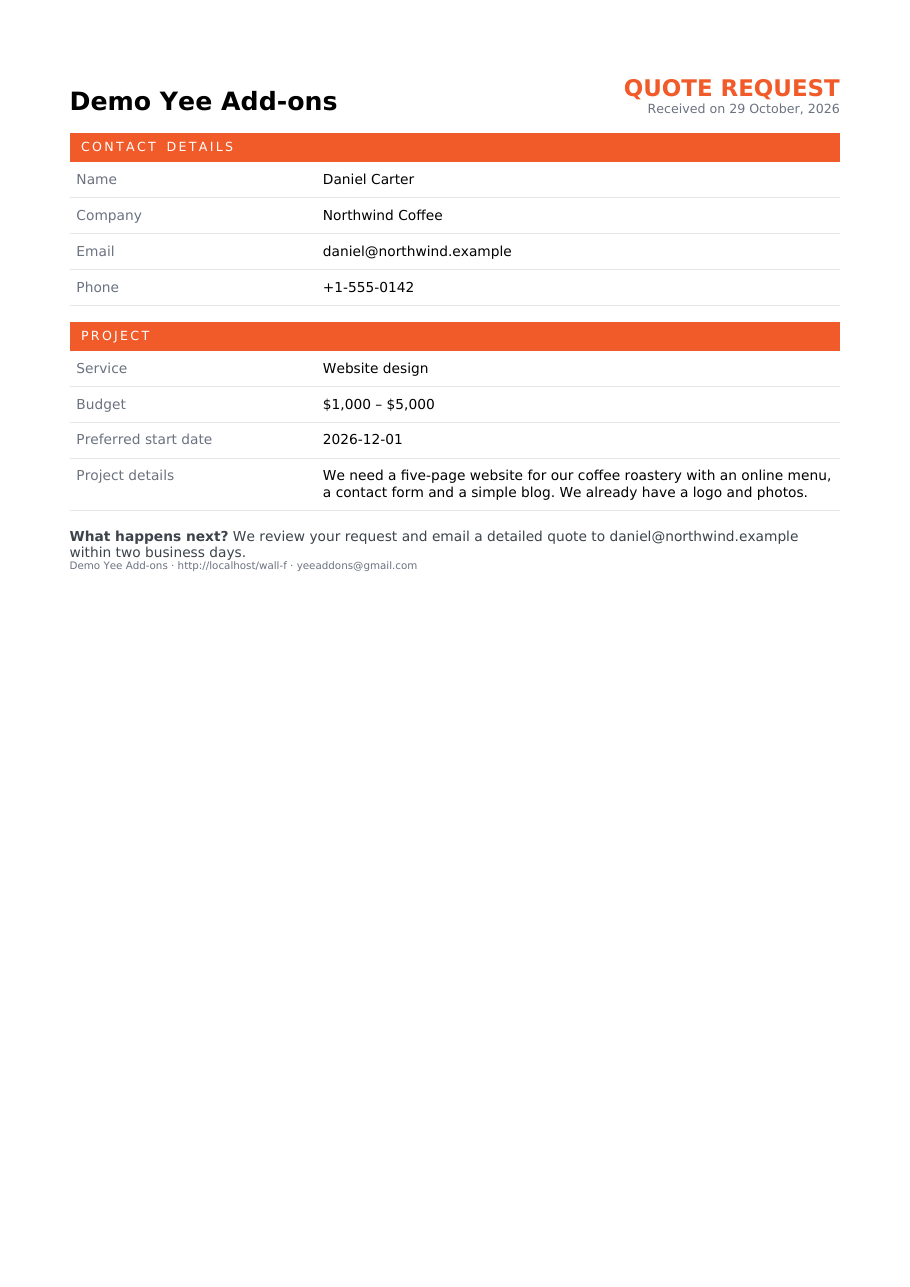
Elementor Pro forms collect great data, but by default the result is a plain-text email. PDF for Elementor Forms + Drag And Drop Template Builder (free on WordPress.org, by add-ons.org) turns every submission into a designed PDF document: a quote request, a booking confirmation, a certificate, an application, a report. You design the PDF once with a drag-and-drop builder, insert the form fields as merge tags, and the plugin creates the file on every submission, attaches it to the Elementor email and stores the link with the submission. This guide builds a quote request summary from a “Request a Quote” form, from a blank template to the PDF in the inbox.
1. Requirements
- WordPress with Elementor and Elementor Pro (the Form widget is part of Elementor Pro).
- PDF for Elementor Forms + Drag And Drop Template Builder, installed and activated (Plugins → Add New → search “PDF for Elementor Forms”).
- An Elementor form on a published page. In this guide: a “Request a Quote” form with the fields Full Name, Email, Phone, Company, Service, Budget, Preferred start date and Project details.
- At least one test submission, so you can preview the PDF with real data.
The plugin adds a PDF Templates menu to the WordPress admin and new actions to the Elementor form: PDF, PDF 2, PDF 3 and so on (one per document) and Redirect Download PDF.
2. What the PDF Will Contain
| Block | Content | Merge tags |
|---|---|---|
| Header | Your site name, “QUOTE REQUEST” and the date the request arrived | Yee Add-ons, October 30, 2026 |
| Contact details | Name, company, email, phone | [field id='name'], [field id='company'], [field id='email'], [field id='phone'] |
| Project | Service, budget, preferred start date, project details | [field id='service'], [field id='budget'], [field id='start'], [field id='details'] |
| Footer | What happens next, site URL and contact email | [field id='email'], https://add-ons.org, [email protected] |
Each Elementor field becomes a merge tag [field id='…'], where the ID is the field’s ID in the form editor (Form Fields → field → Advanced → ID). [all-fields] prints every submitted field as a table if you want a quick “copy of the submission” PDF.
3. Create the PDF Template
Step 1: Name the template and choose the form
Go to PDF Templates → Add New. A Setup PDF Template window opens: enter a Template Name (“Quote Request Summary”) and pick the Target Form. The list shows every Elementor form on your site as form name – widget ID (page). Choosing the form tells the builder which merge tags to offer.
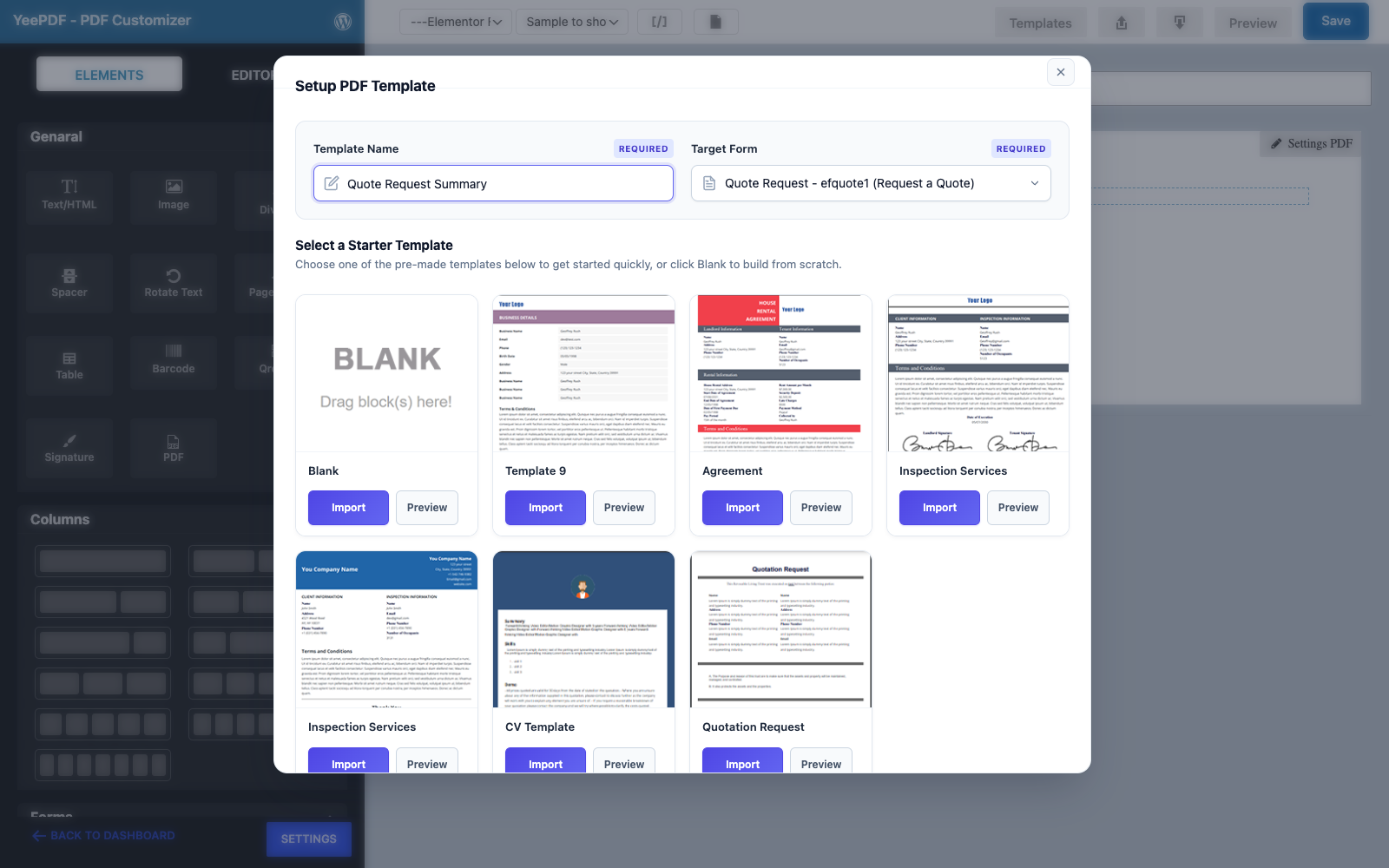
Step 2: Start from Blank (or a starter template)
Hover Blank and click Import. The starter templates (Quotation Request, Agreement, Inspection Services, CV, invoices…) are a good shortcut; we start from Blank to show every step.
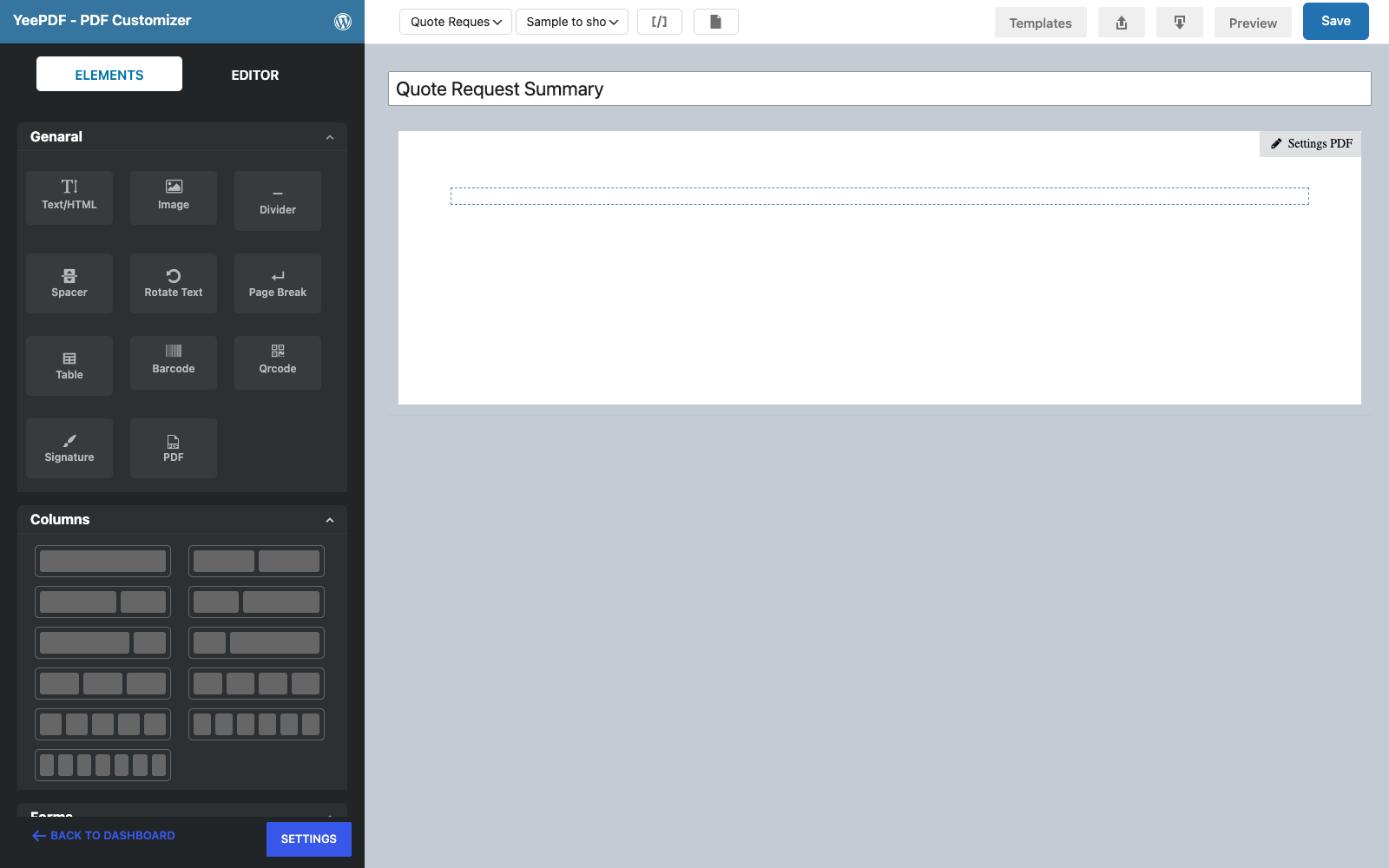
Step 3: Add the header
Drag a Text/HTML element onto the page. Click it, open Code in the editor and paste a two-column table: the site name on the left, the title and date on the right. Inline styles keep the builder canvas and the PDF identical.
<table width="100%"><tr>
<td><span style="font-size: 22px;"><strong>Yee Add-ons</strong></span></td>
<td align="right"><span style="font-size: 20px; color: #f15a29;"><strong>QUOTE REQUEST</strong></span><br>
<span style="font-size: 11px; color: #6b7280;">Received on October 30, 2026</span></td>
</tr></table>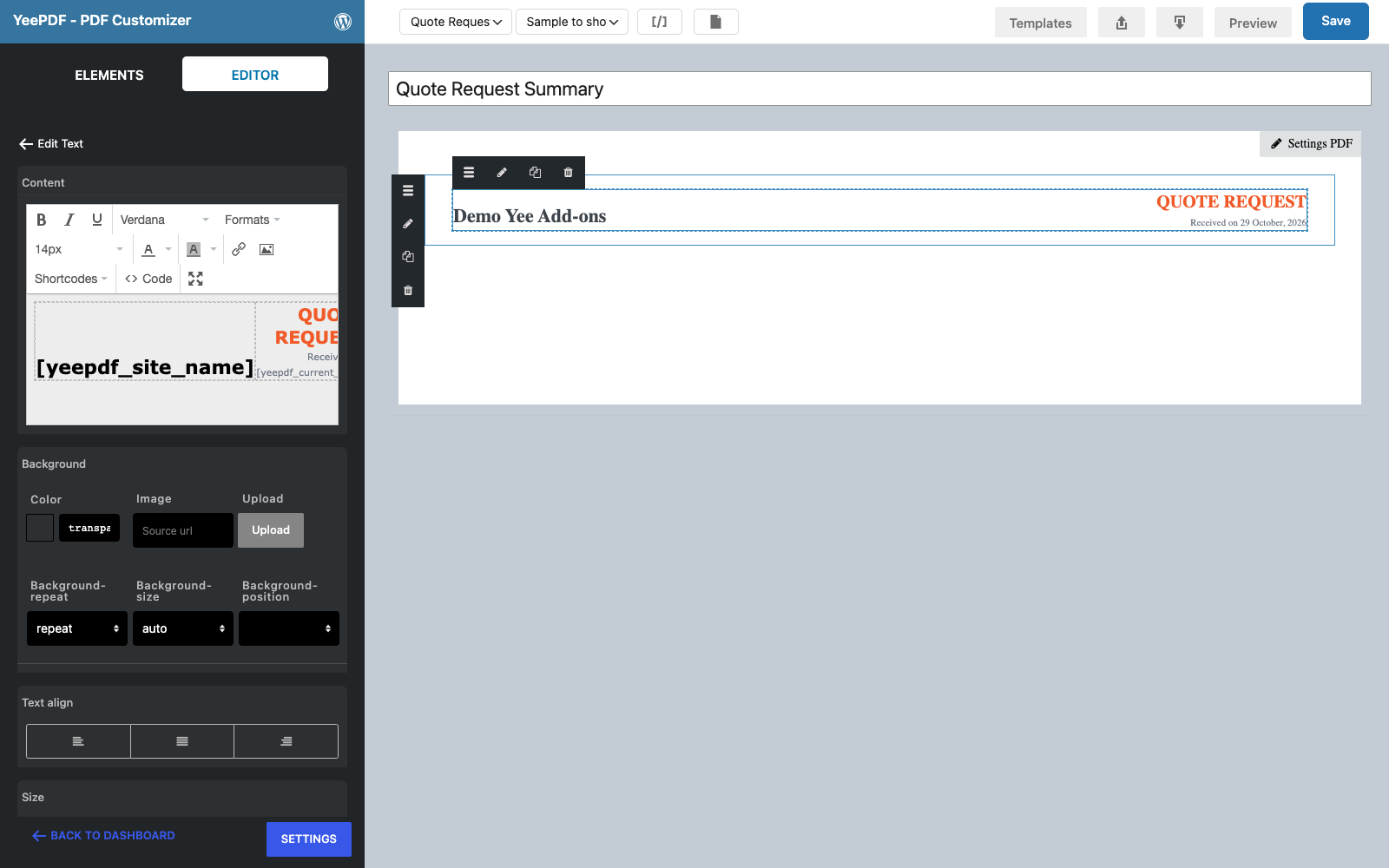
Step 4: Add the contact and project details
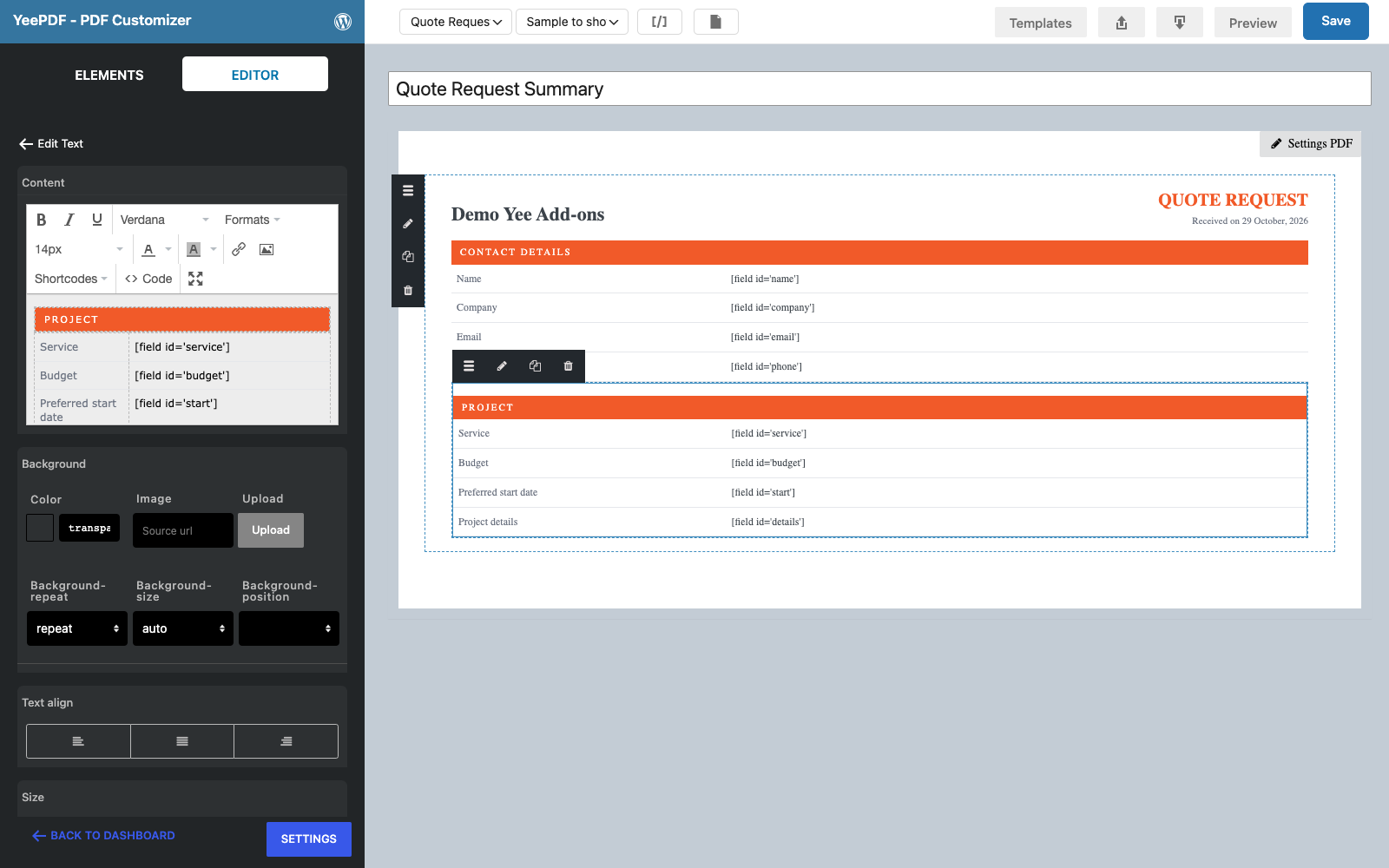
Drag two more Text/HTML elements below the header, one for Contact details and one for Project. Each one is an orange band and a two-column table of label / merge tag. New elements are added below the last one, so build the page from top to bottom.
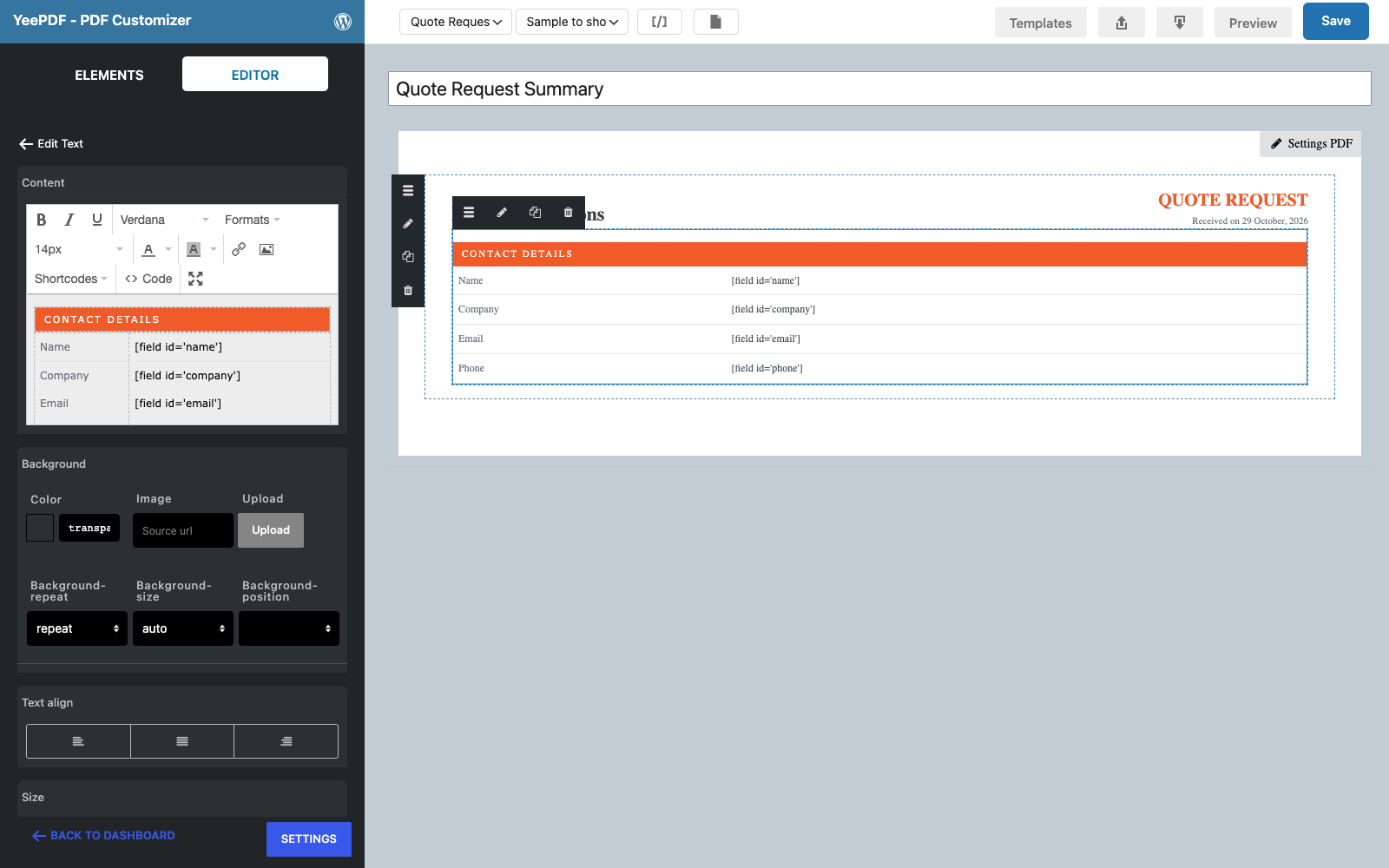
Step 5: Insert merge tags from the Shortcodes menu
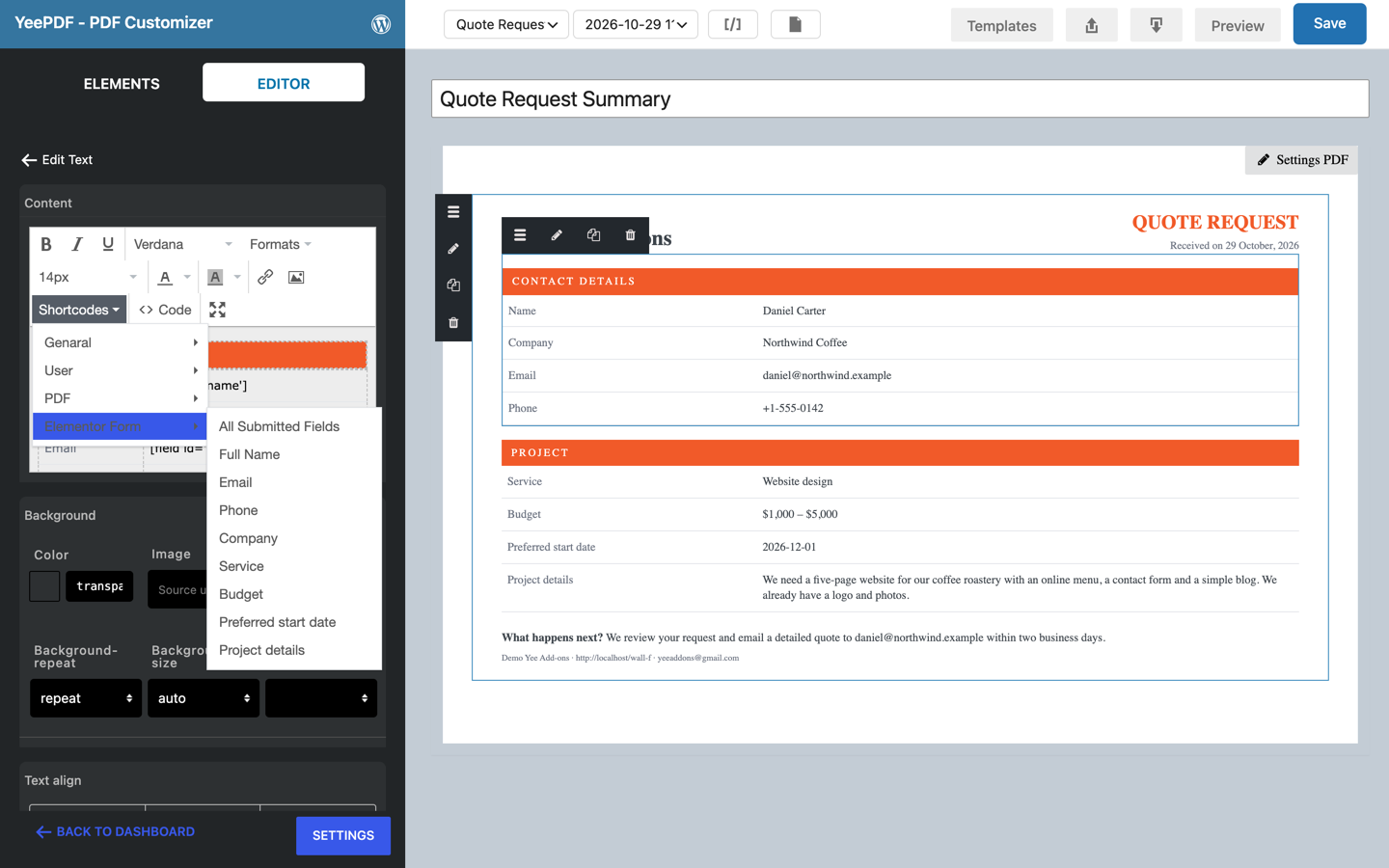
You don’t have to type the tags. In the text editor, open Shortcodes → Elementor Form: it lists All Submitted Fields and every field of the target form. Click one to insert it at the cursor. The General, User and PDF menus add site, date, user and page-number tags.
Step 6: Add the footer, choose a sample and save
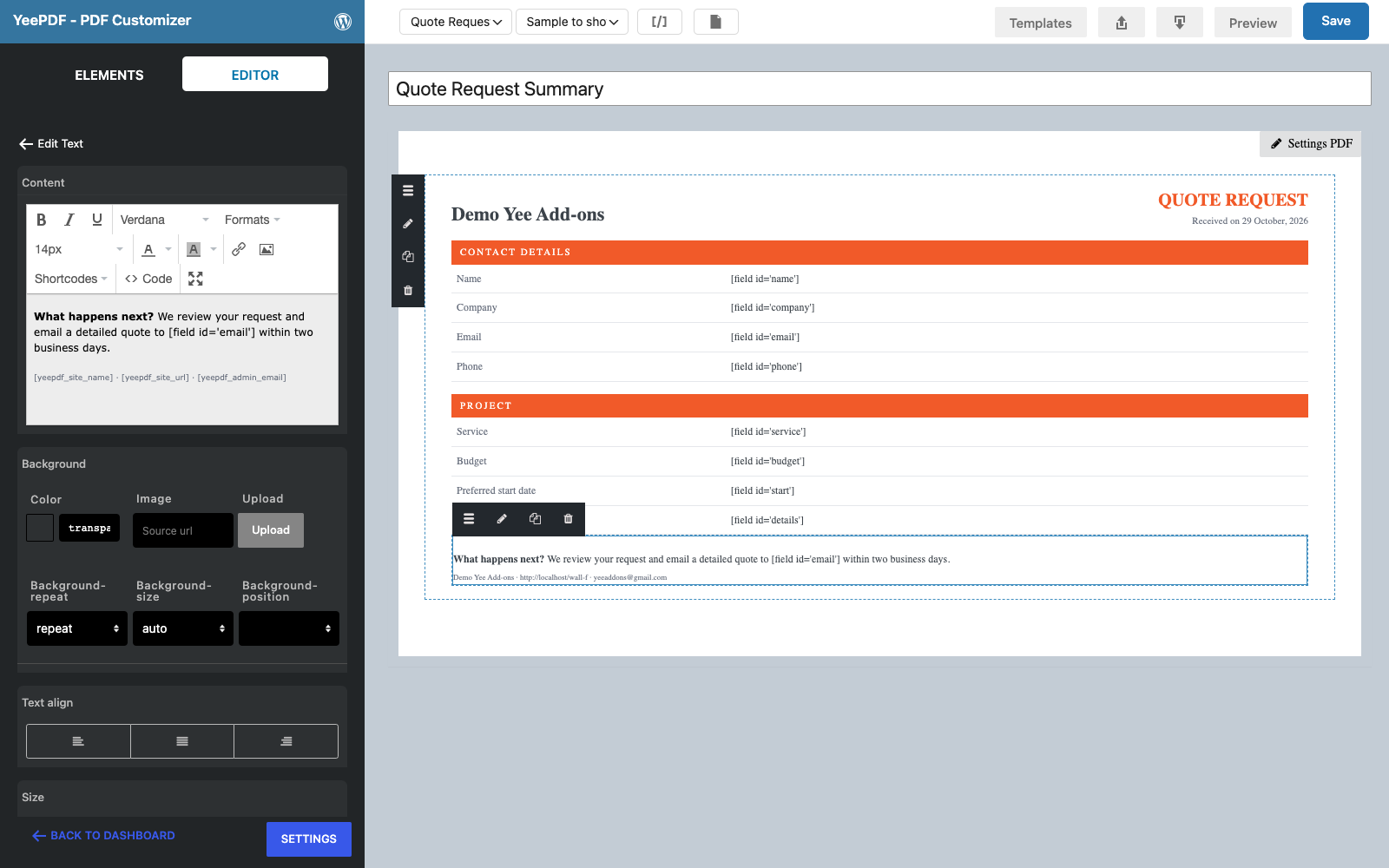
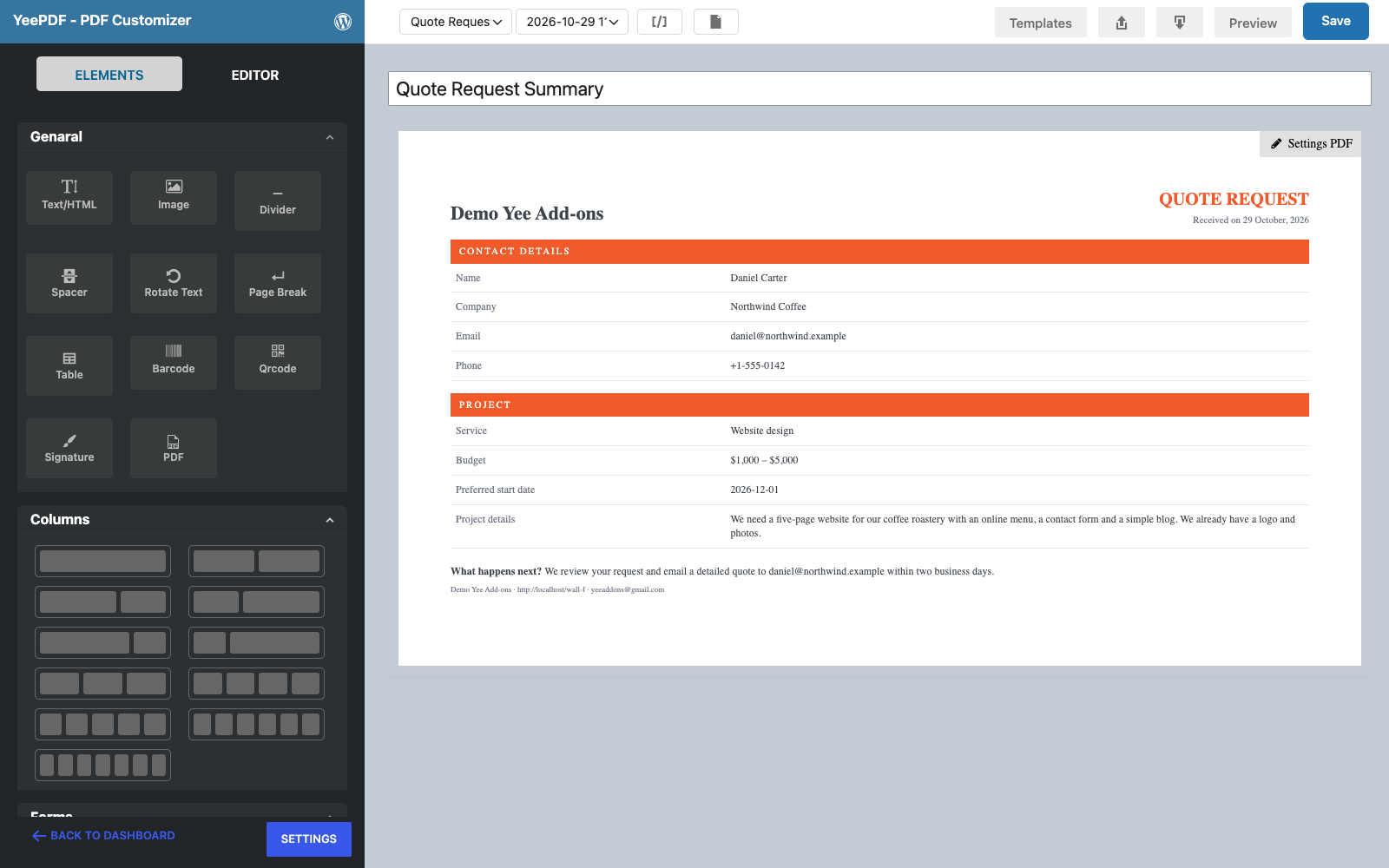
Add a last Text/HTML element with a “What happens next?” line and your contact details. In the top bar, the second drop-down (Sample to show) lists the latest submissions of the target form: pick one, and the canvas and the preview show real data. Click Save, then Preview to open the PDF.
4. Connect the Template to the Elementor Form
Step 7: Add the PDF action
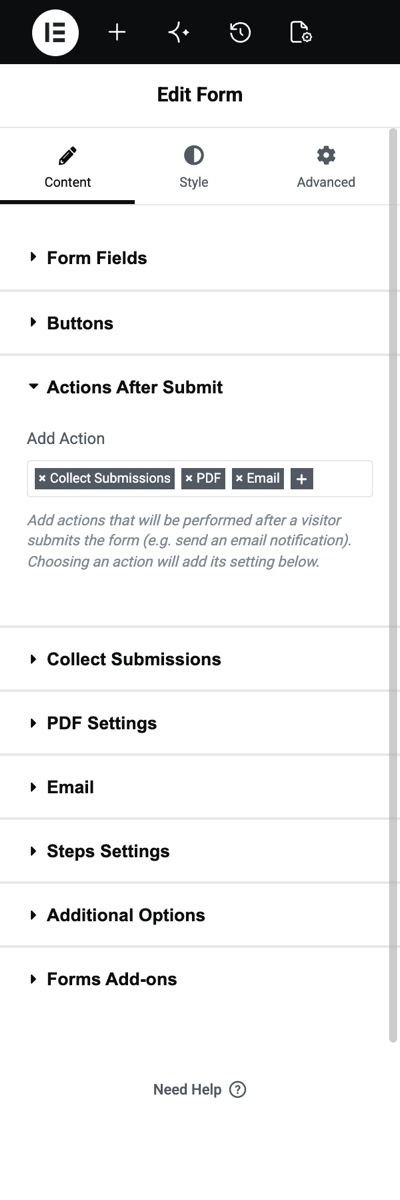
Edit the page with Elementor, click the form and open Actions After Submit. Add PDF to the actions. Keep Collect Submissions (so the PDF link is stored with each entry) and Email (so the PDF can be attached).
Step 8: Fill in PDF Settings
A new PDF Settings section appears. Choose the template and a file name, then click Update (or Publish).
![The PDF Settings section: Choose PDF Template Quote Request Summary, PDF Name quote-request-[field id=name], empty password, Attach PDF in email on, empty list of attached emails, Save PDF to Dropbox off](https://add-ons.org/wp-content/uploads/2026/10/efq-12-pdf-settings.png)
| Setting | Value in this guide | What it does |
|---|---|---|
| Choose PDF Template | Quote Request Summary | The template from section 3. Each template shows its ID, e.g. (1881). |
| PDF Name | quote-request-[field id="name"] | File name without .pdf; merge tags allowed. Daniel Carter gets quote-request-Daniel-Carter.pdf. |
| PDF Password | empty | Optional. See How to Password-Protect Elementor Form PDFs. |
| Attach PDF in email | Yes | Attaches the PDF to the form’s Email (and Email 2) actions. |
| List of attached emails | empty | Empty = every email gets the PDF. Enter addresses or merge tags to attach it only to those recipients. |
| Save PDF to Dropbox | No | Uploads a copy to Dropbox once you connect the Dropbox API in the plugin settings. |
| Conditional Logic | — | Create the PDF only when fields match rules; requires the free Conditional Logic for Elementor Forms add-on. |
5. Test the Form
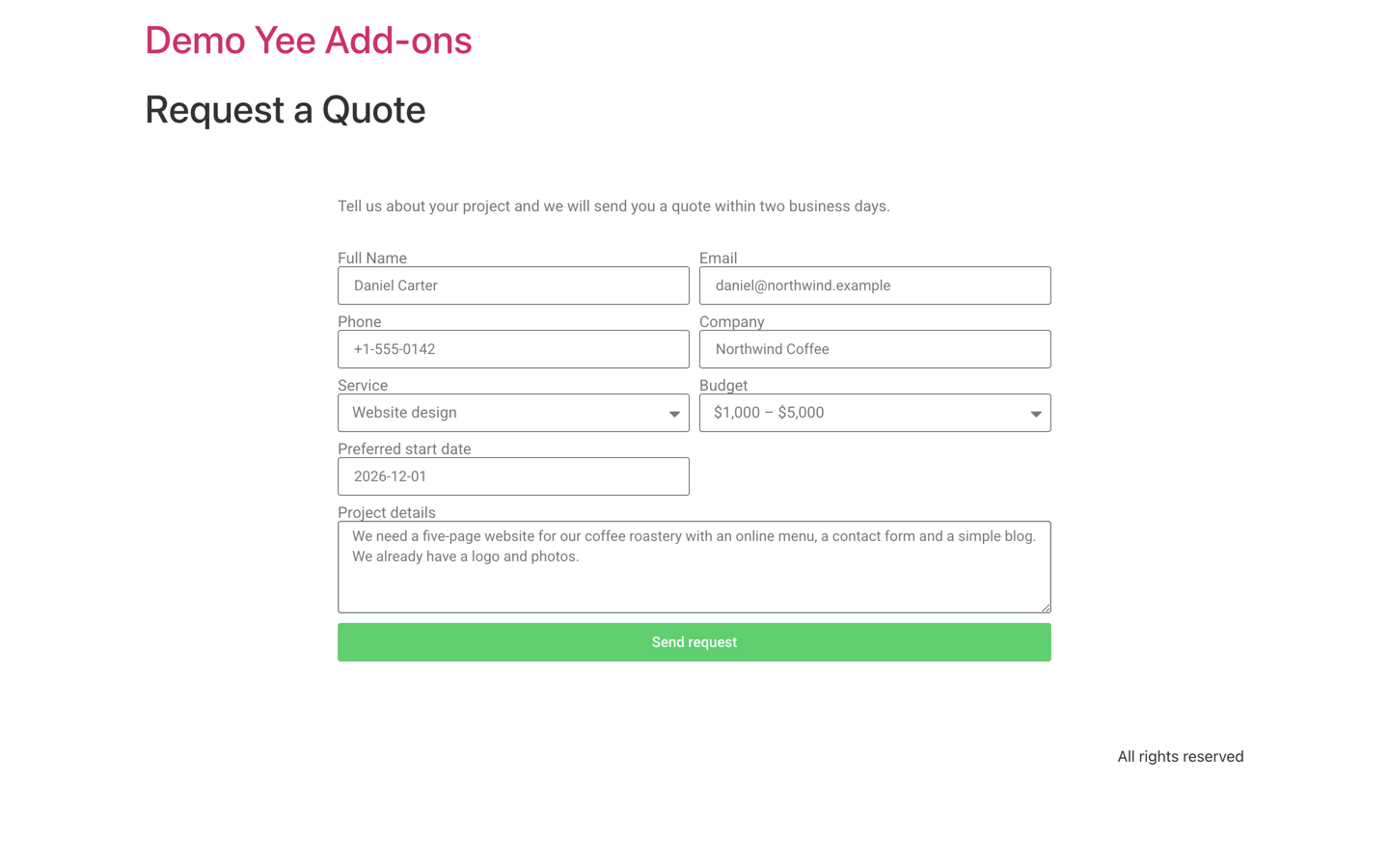
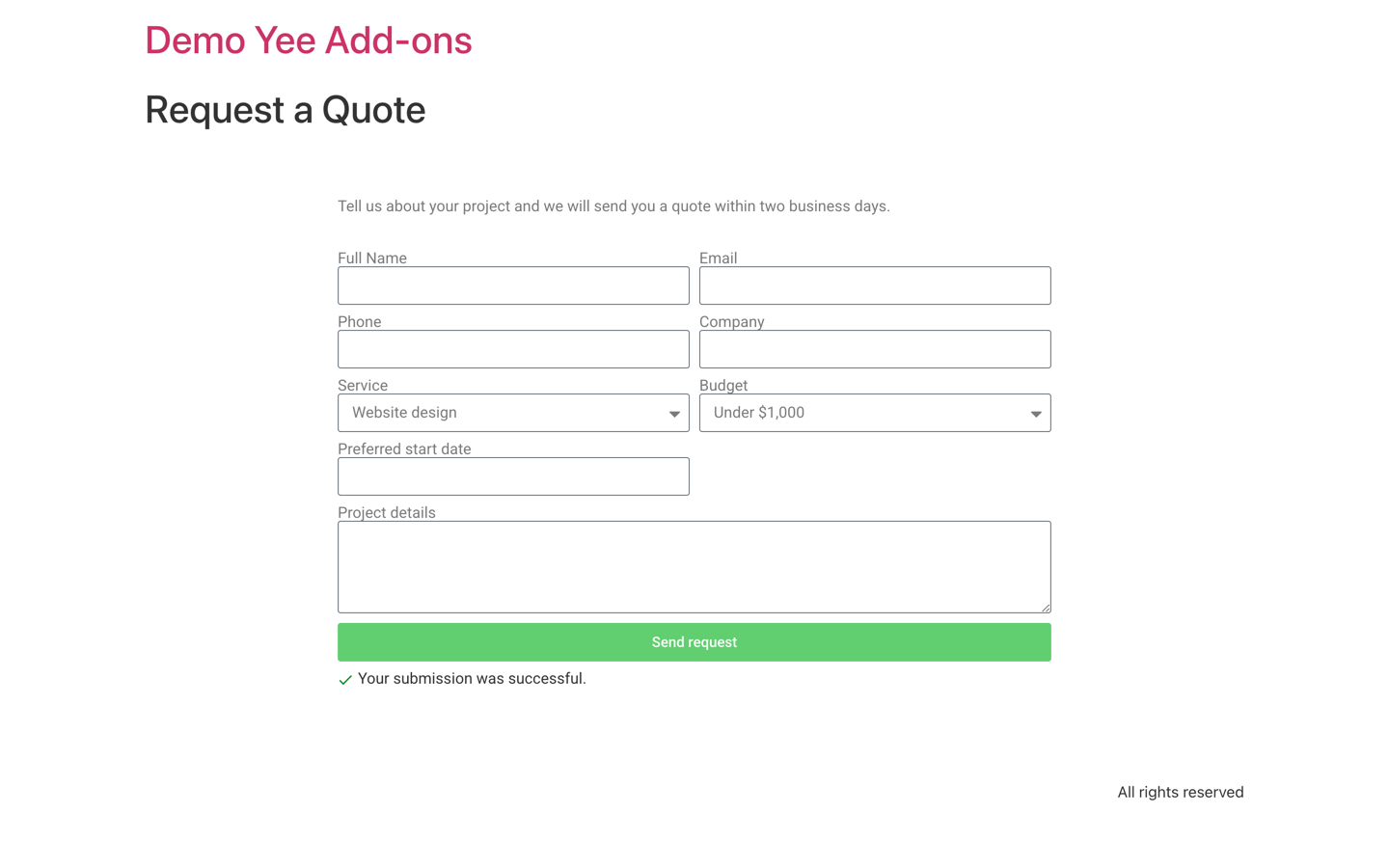
Open the page, fill in the form and submit it. The visitor sees your normal success message; behind the scenes the plugin renders the PDF and Elementor sends it with the email.
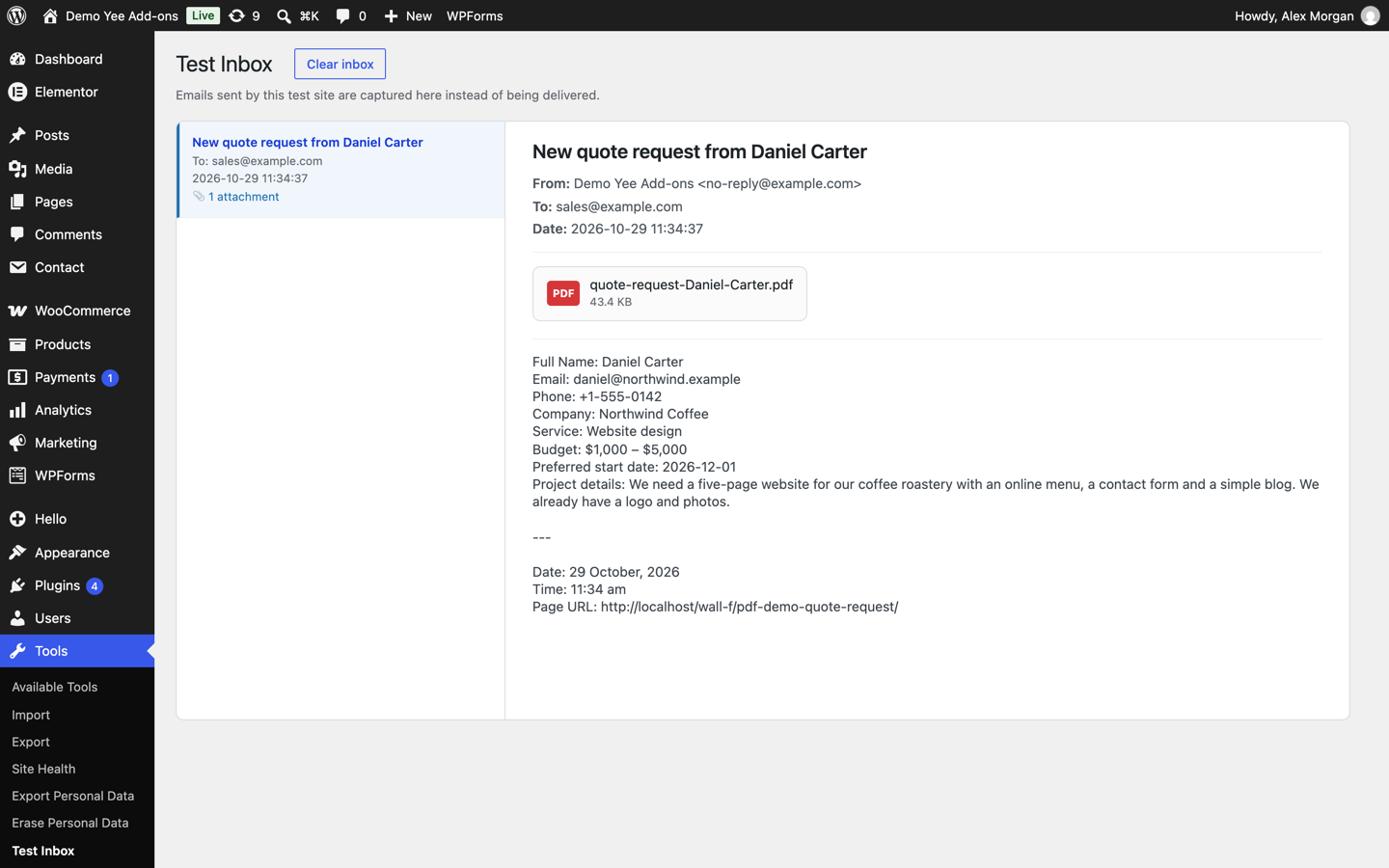
The email to [email protected] now carries quote-request-Daniel-Carter.pdf. (The screenshot shows a test inbox; on a live site it arrives in your mailbox.)
6. Where the PDF Files Are Stored
- Generated files are saved in
wp-content/uploads/pdfs/downloads/<random folder>/. The random folder name makes the URL hard to guess. - The link is added to the submission (Elementor → Submissions → entry → PDF) when Collect Submissions is on.
- PDF Templates → Settings lets you change the storage folder, turn off the random folder, add custom paper sizes, upload .ttf fonts and choose Do not save PDFs on the server (the file is deleted right after it is attached to the email, so there is no download link afterwards).
7. Tips
- Use field IDs you can read. Rename IDs like
field_3a2b1ctocompanybefore building the template; changing them later breaks the merge tags. - Inline styles. The canvas ignores the template’s Custom CSS, inline styles look the same in the builder and in the PDF.
- Tables for layout. mPDF, the PDF engine, handles tables best; avoid floats and flexbox.
- Start from a starter template when you need an invoice, quotation or agreement layout quickly.
- More than one PDF? Add the PDF 2, PDF 3… actions, each with its own template (see How to Create Multiple PDFs from One Elementor Form).
8. Frequently Asked Questions (FAQ)
Does it work with the free version of Elementor?
The Form widget belongs to Elementor Pro, so you need Elementor Pro. The PDF plugin itself is free; some builder elements (QR code, barcode, signature, table, page break) are part of the Pro version of the PDF plugin.
Why does my PDF show [field id=…] instead of the value?
The ID in the tag does not match the field ID in the form, or the template was built for another form. Pick the right Target Form and insert the tags from Shortcodes → Elementor Form.
Can the visitor download the PDF right after submitting?
Yes: add the Redirect Download PDF action. See How to Let Users Download a PDF After Submitting an Elementor Form.
Can I send the PDF only to the customer?
Yes: enter the email field tag in List of attached emails. See How to Attach a PDF to Elementor Form Emails.
Which paper sizes are supported?
A0–A10 and B0–B10 in portrait or landscape, plus your own sizes in millimetres under PDF Templates → Settings → Custom PDF Paper (one size per line, e.g. 216,279 for US Letter).
More Elementor Forms PDF Guides
- How to Attach a PDF to Elementor Form Emails
- How to Let Users Download a PDF After Submitting an Elementor Form
- How to Download Elementor Form Submissions as PDF
- How to Add Uploaded Images to an Elementor Form PDF
- How to Password-Protect Elementor Form PDFs
- How to Create Multiple PDFs from One Elementor Form
Plugin: PDF for Elementor Forms + Drag And Drop Template Builder on WordPress.org · Pro version