
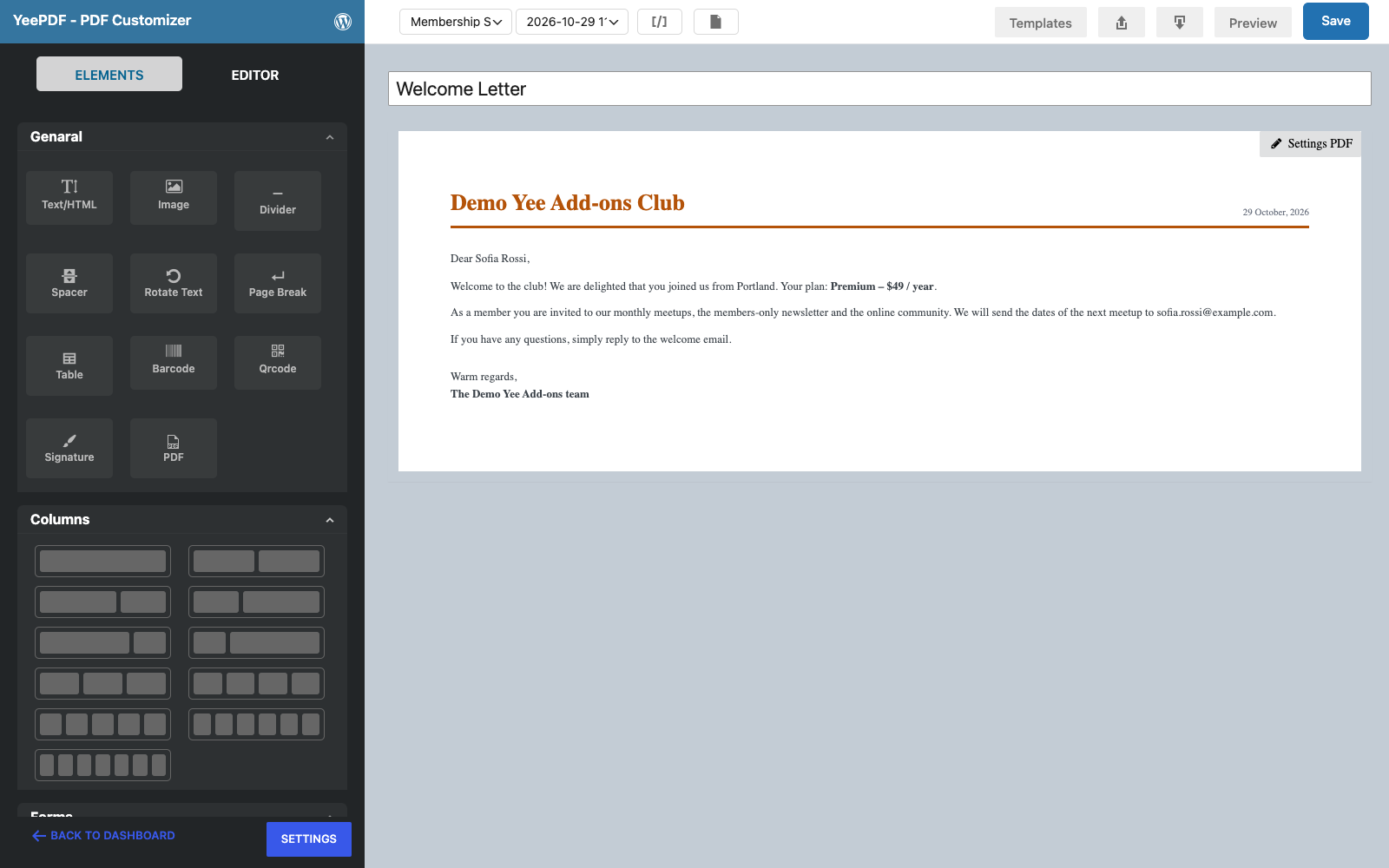
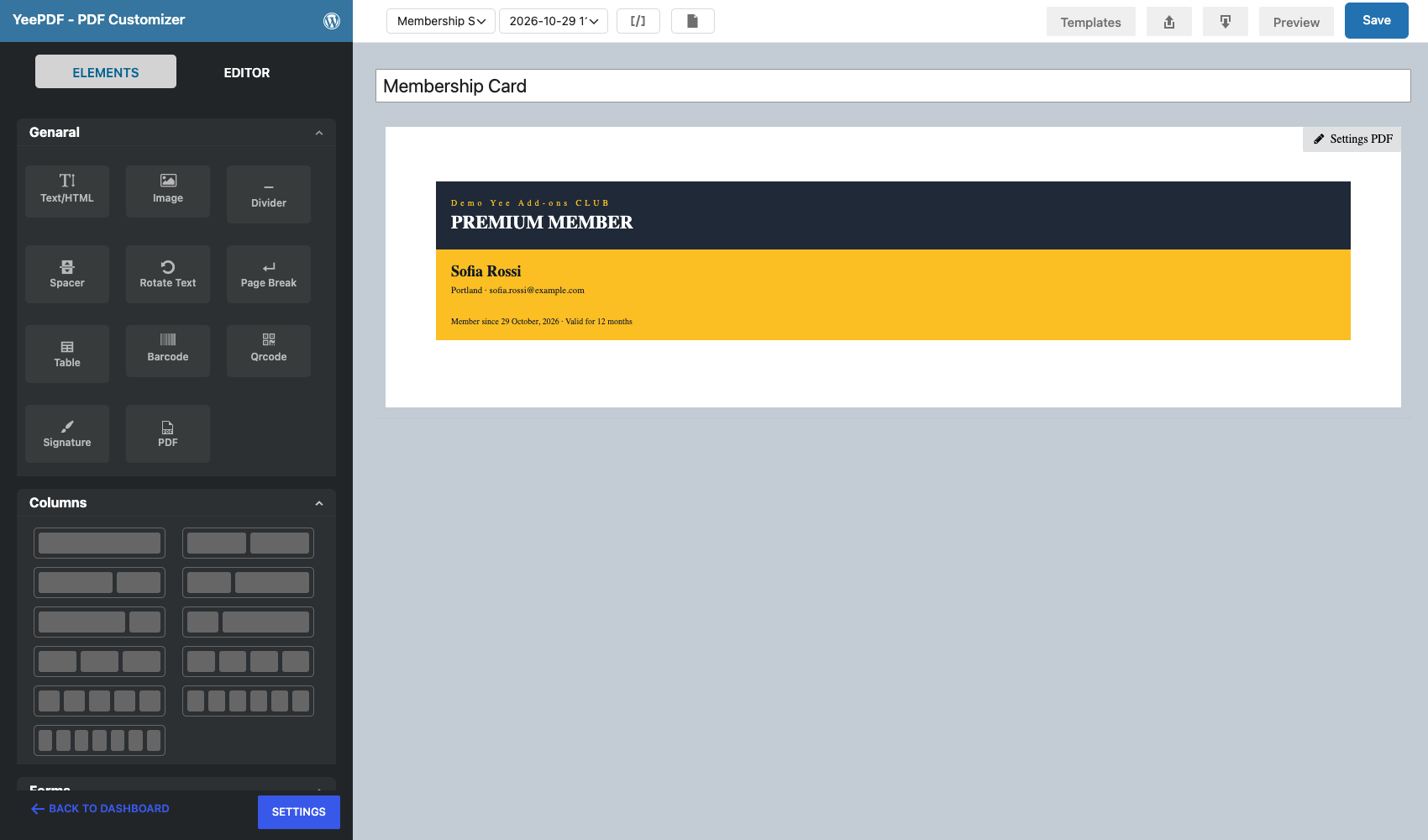
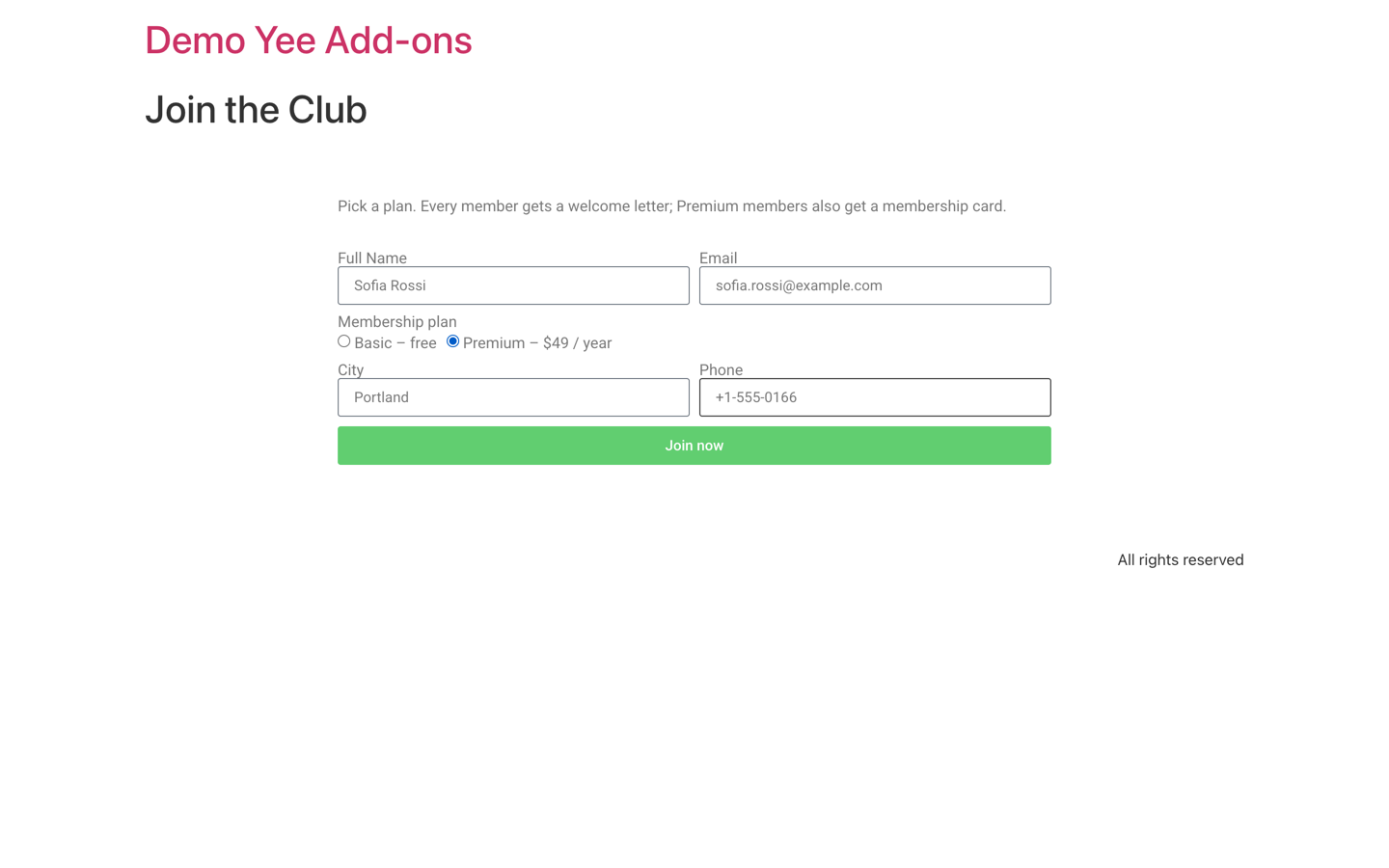
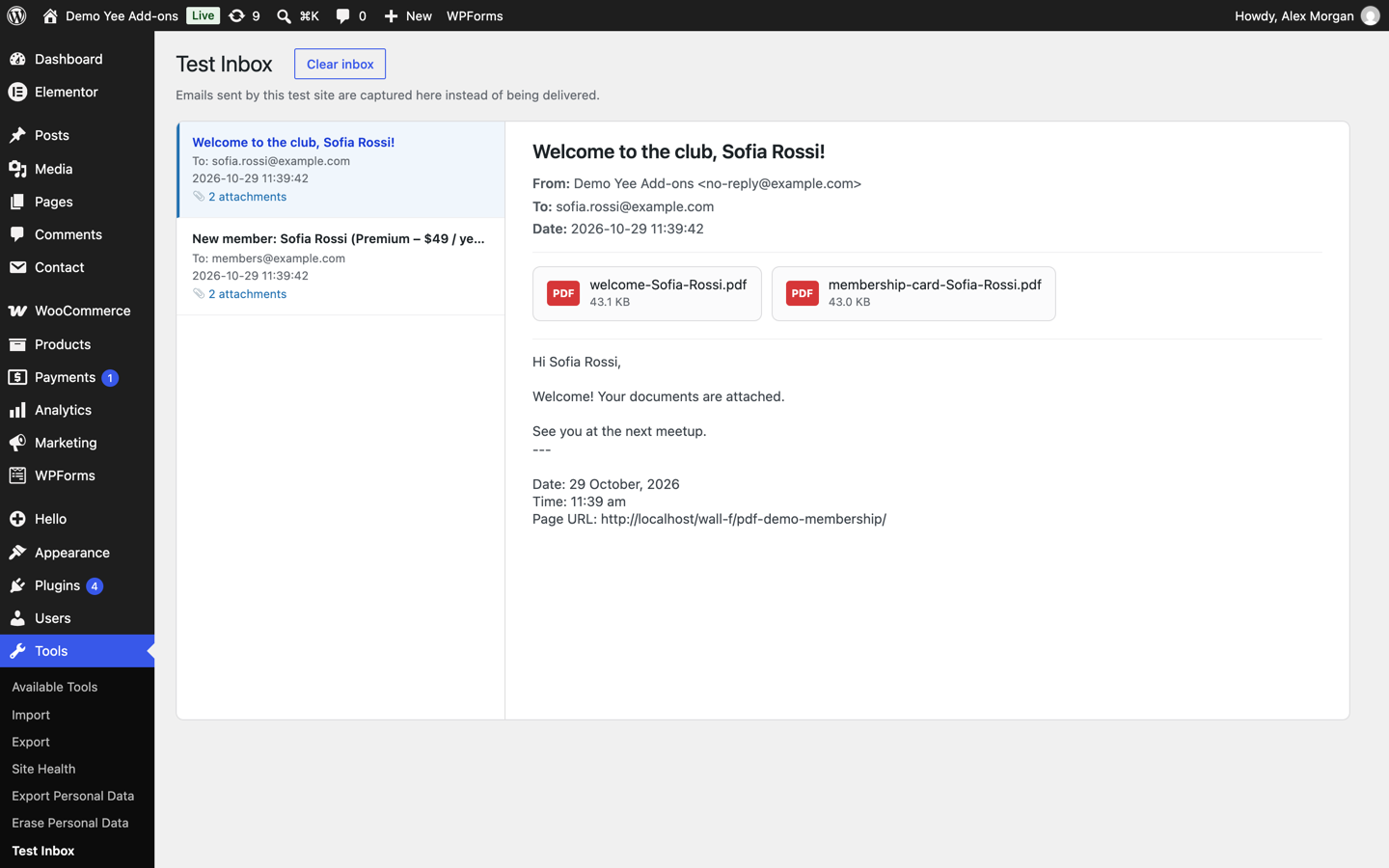
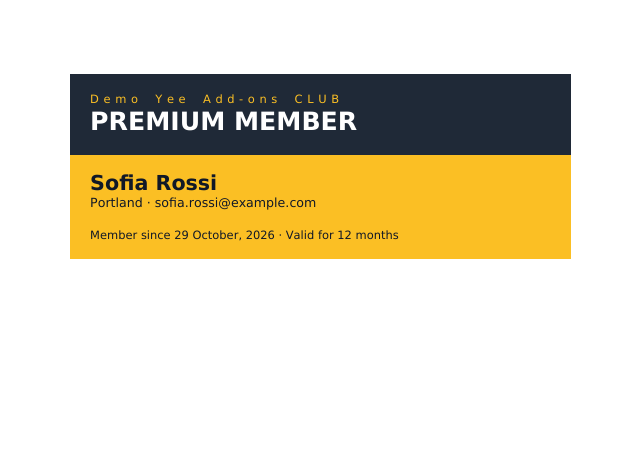
One submission often needs more than one document: a welcome letter and a membership card, an invoice and a receipt, a contract and a cover sheet. PDF for Elementor Forms + Drag And Drop Template Builder (free on WordPress.org) adds several PDF actions to the Elementor form: PDF, PDF 2, PDF 3… Each one has its own template, file name, password and recipients, and all of them can be attached to the same email. This guide sends a new club member a welcome letter (A4) and a membership card (A6) from one signup form. See How to Generate PDFs from Elementor Form Submissions for the basics.
1. Two Templates for One Form
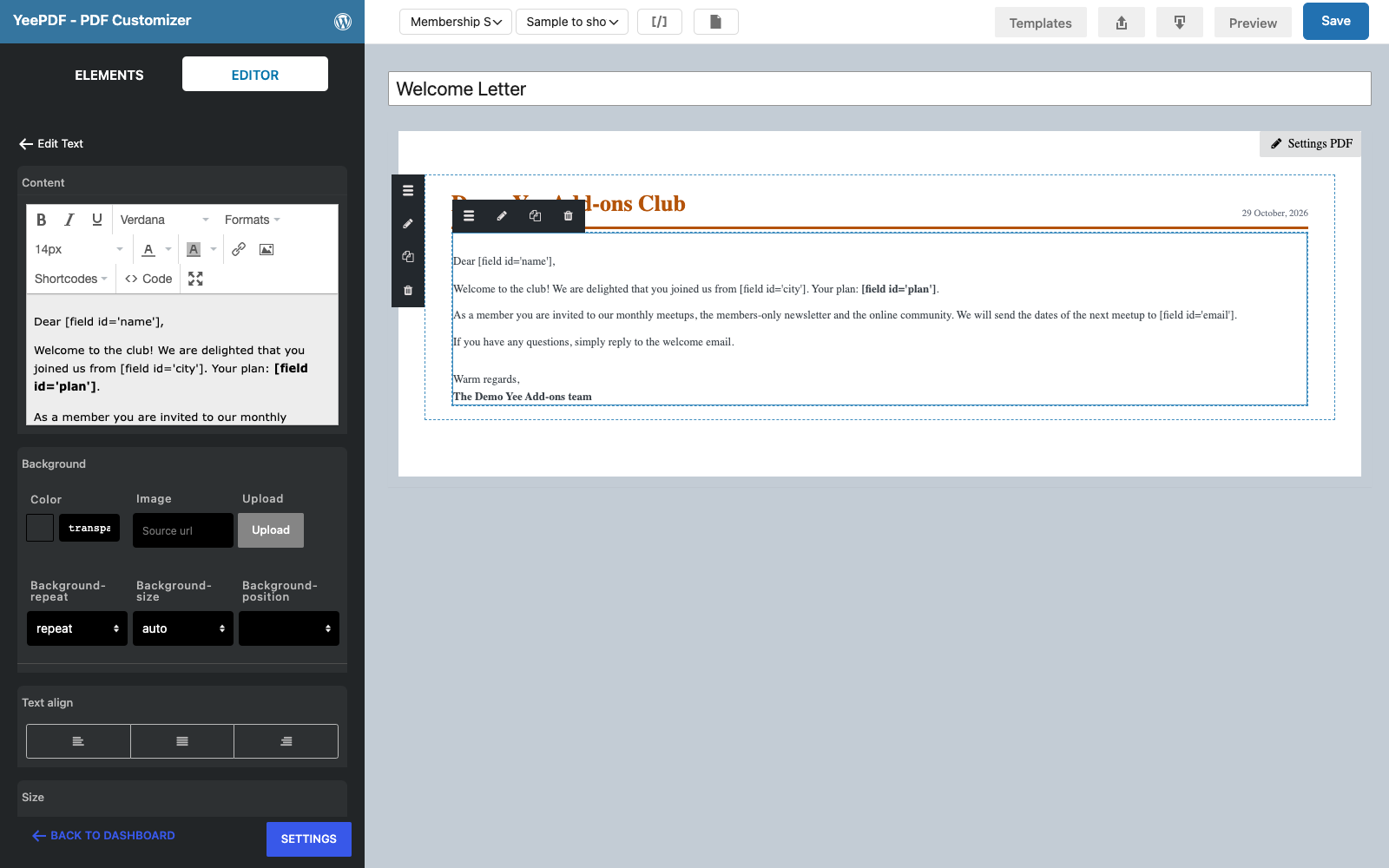
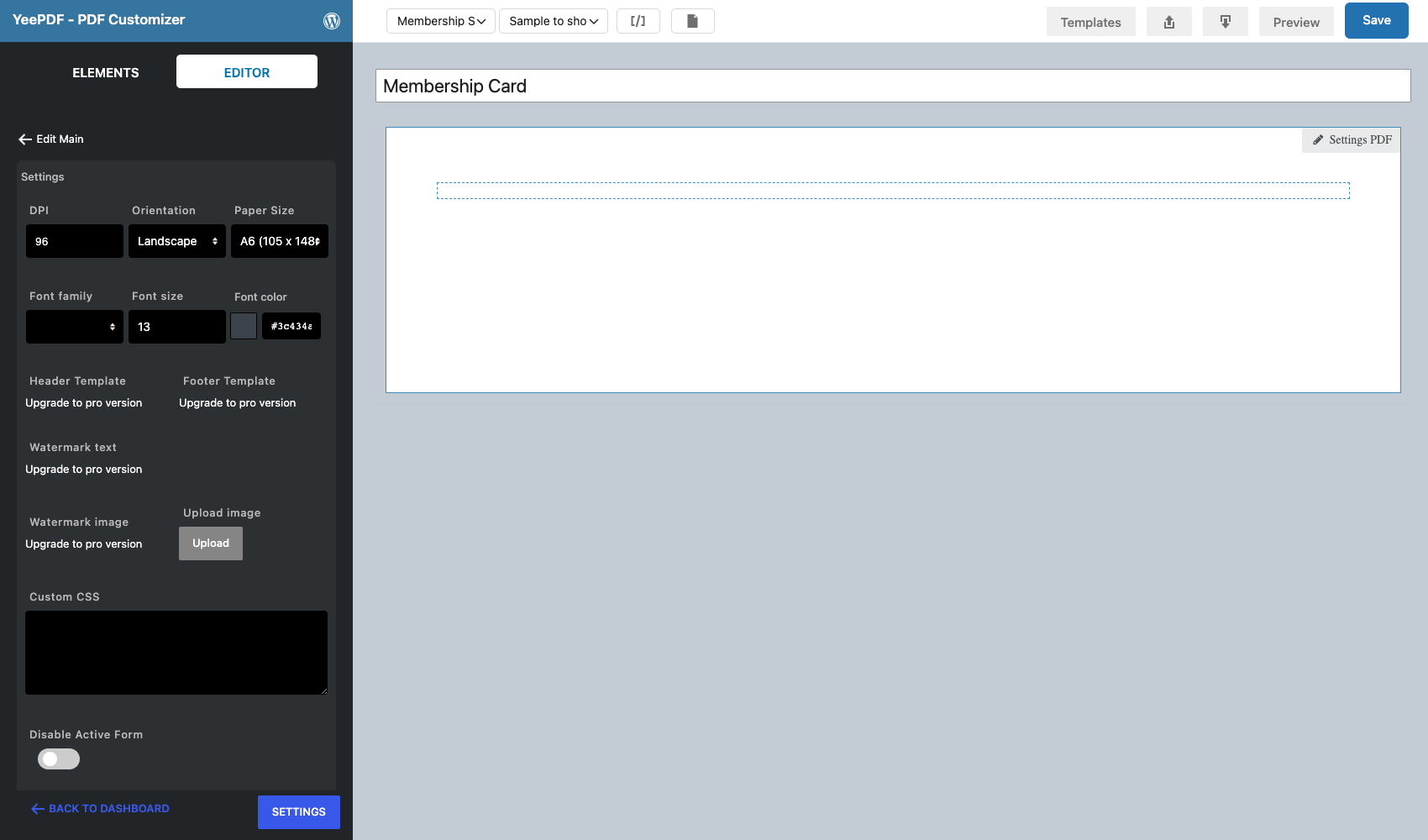
Create one template per document and point both at the same target form (Membership Signup).
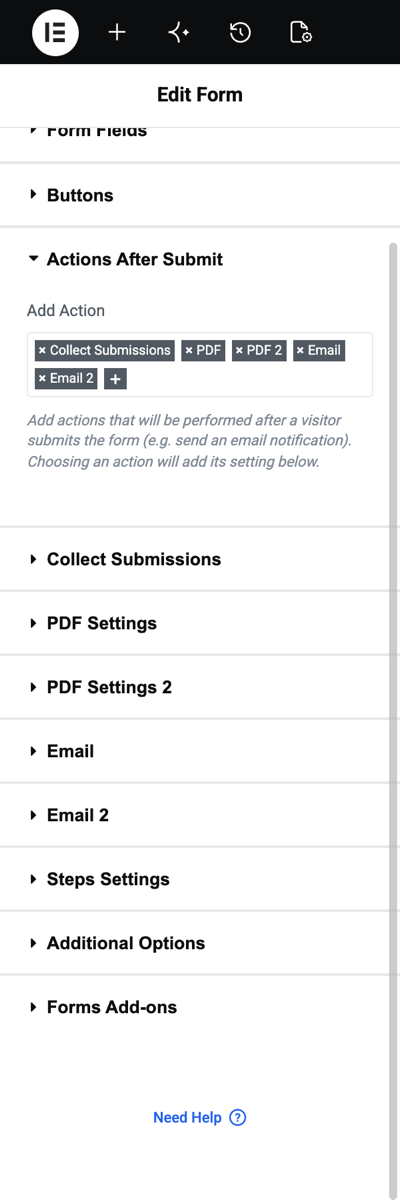
2. Add PDF and PDF 2 to the Form
In Elementor, open Actions After Submit and add PDF and PDF 2 (plus Collect Submissions, Email and Email 2). Each PDF action gets its own settings section.
![PDF Settings with the Welcome Letter template and the name welcome-[field id=name]](https://add-ons.org/wp-content/uploads/2026/10/efm-12-pdf-settings.png)
![PDF Settings 2 with the Membership Card template and the name membership-card-[field id=name]](https://add-ons.org/wp-content/uploads/2026/10/efm-12c-pdf-settings-2.png)
| Action | Template | PDF Name | Attach |
|---|---|---|---|
| Welcome Letter | welcome-[field id="name"] | Yes, all emails | |
| PDF 2 | Membership Card | membership-card-[field id="name"] | Yes, all emails |
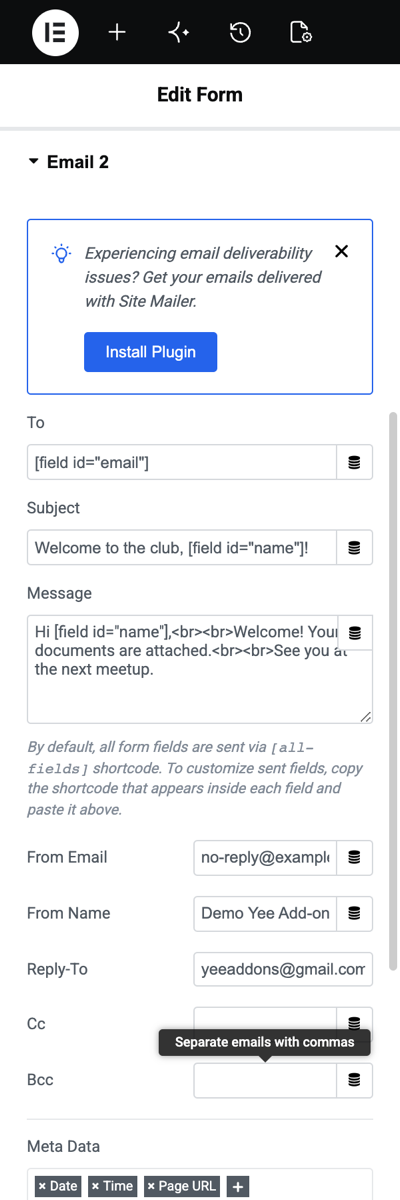
Email 2 goes to the member ([field id="email"]) with a short welcome; both PDFs travel with it.
3. The Result

4. Create a PDF Only When It Applies (Conditional Logic)
Basic members should get the letter but not the Premium card. Each PDF action has a Conditional Logic option that appears once the free Conditional Logic for Elementor Forms add-on is active:
| Setting | Value for the card (PDF 2) |
|---|---|
| Enable Conditional Logic | Yes |
| Display mode | Create if (or Disable if for the opposite) |
| When to Trigger | All rules match, or Any rule matches |
| Fields if | Field ID plan, operator contains, value Premium |
Operators include is, not is, empty, not empty, contains, does not contain, starts with, ends with, greater than, less than and list checks. Without the add-on, every PDF action runs on every submission.
5. Tips
- Different recipients per PDF. Use List of attached emails on each action: for example the invoice to the customer only, an internal sheet to the team only.
- Different passwords. Each action has its own PDF Password.
- Unique file names. Give every action a different PDF Name so recipients can tell the attachments apart.
- Submissions keep one link. The submission’s PDF row stores the link of the last PDF action; send the others by email or keep their names predictable.
- Download redirect. Redirect Download PDF opens one file, so use email for multi-document packs.
6. Frequently Asked Questions (FAQ)
How many PDFs can one form create?
The plugin registers several PDF actions (PDF, PDF 2, PDF 3 and more). Each one you add to Actions After Submit creates one file per submission.
Can two PDF actions use the same template?
Yes, for example the same contract with different passwords for the customer and for your archive.
Do multiple PDFs slow down the submission?
Each PDF adds a fraction of a second; templates with large images take longer. Keep images small.
Can I merge the documents into one PDF instead?
Put both layouts in one template and add a Page Break element (Pro) between them.
More Elementor Forms PDF Guides
- How to Generate PDFs from Elementor Form Submissions (Step-by-Step)
- How to Attach a PDF to Elementor Form Emails
- How to Let Users Download a PDF After Submitting an Elementor Form
- How to Download Elementor Form Submissions as PDF
- How to Add Uploaded Images to an Elementor Form PDF
- How to Password-Protect Elementor Form PDFs
Plugin: PDF for Elementor Forms + Drag And Drop Template Builder on WordPress.org · Pro version