
A booking, an order or a registration feels complete when the confirmation arrives as a proper document. With PDF for Elementor Forms + Drag And Drop Template Builder (free on WordPress.org) every Elementor form submission can produce a PDF that is attached to the form’s email notifications. You decide who gets it: the site owner, the visitor, or both. This guide sets up a workshop booking form that emails the customer a booking confirmation PDF, while the team gets a plain notification without the file. If you have never built a PDF template, start with How to Generate PDFs from Elementor Form Submissions.
1. How the Attachment Works
- When the form is submitted, the PDF action renders the PDF from your template and the submitted fields.
- Elementor’s Email and Email 2 actions then send their messages. If Attach PDF in email is on, the plugin adds the PDF file to those emails.
- List of attached emails limits the attachment to the recipients you list. Leave it empty to attach the PDF to every email the form sends.
- Files uploaded through an Elementor File Upload field set to “Attach to email” are still attached as usual, next to the PDF.
2. The Booking Form and the PDF Template
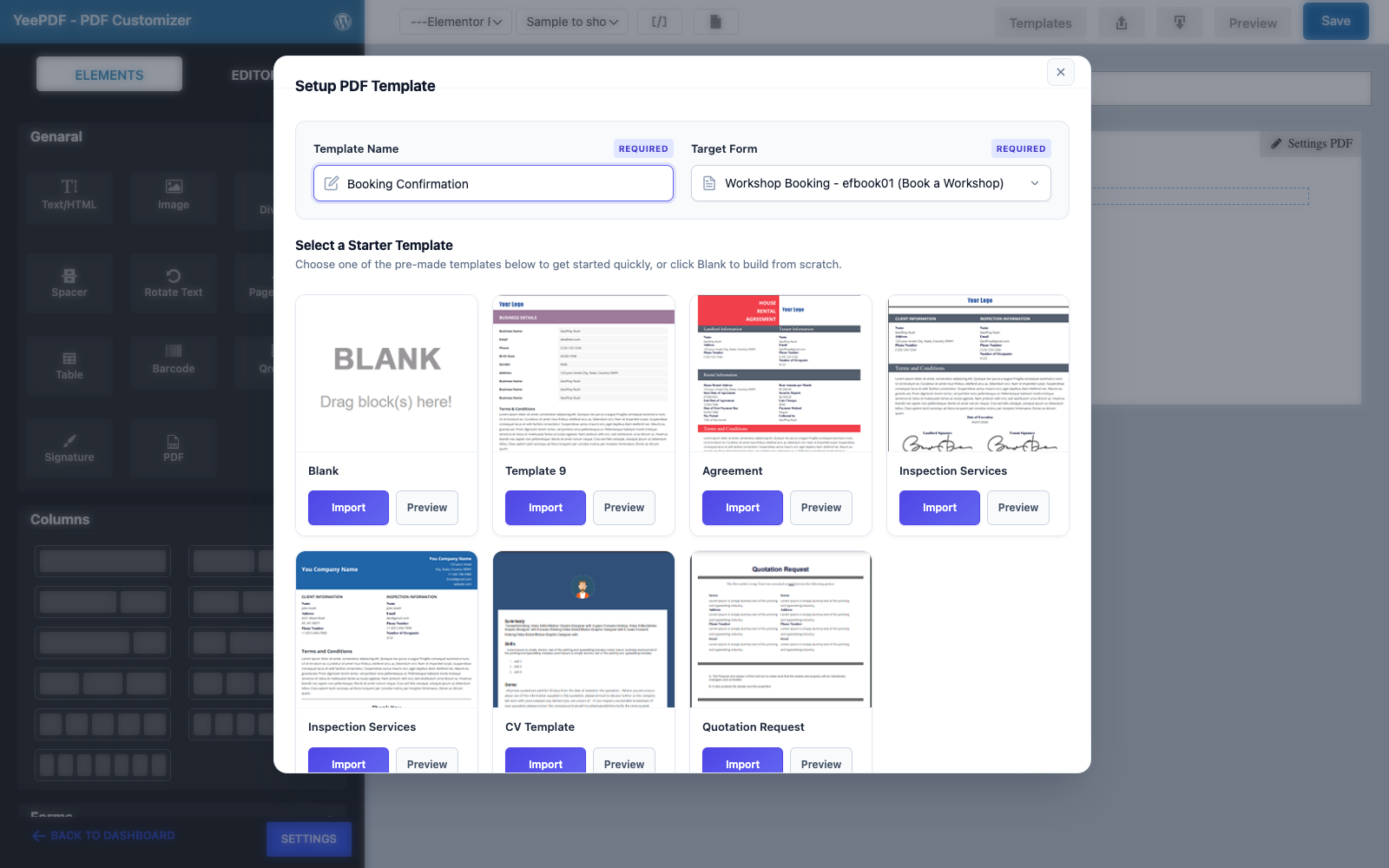
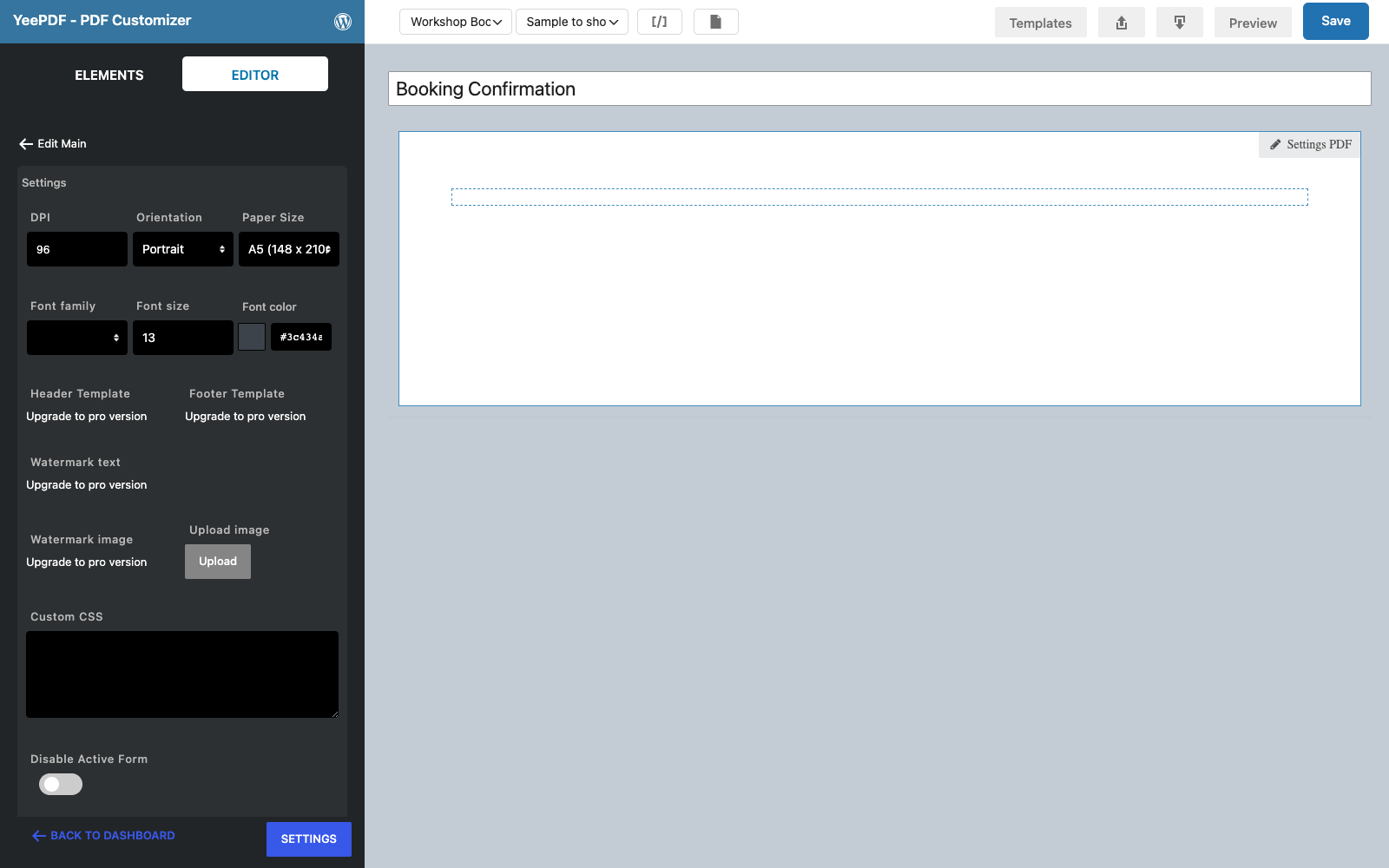
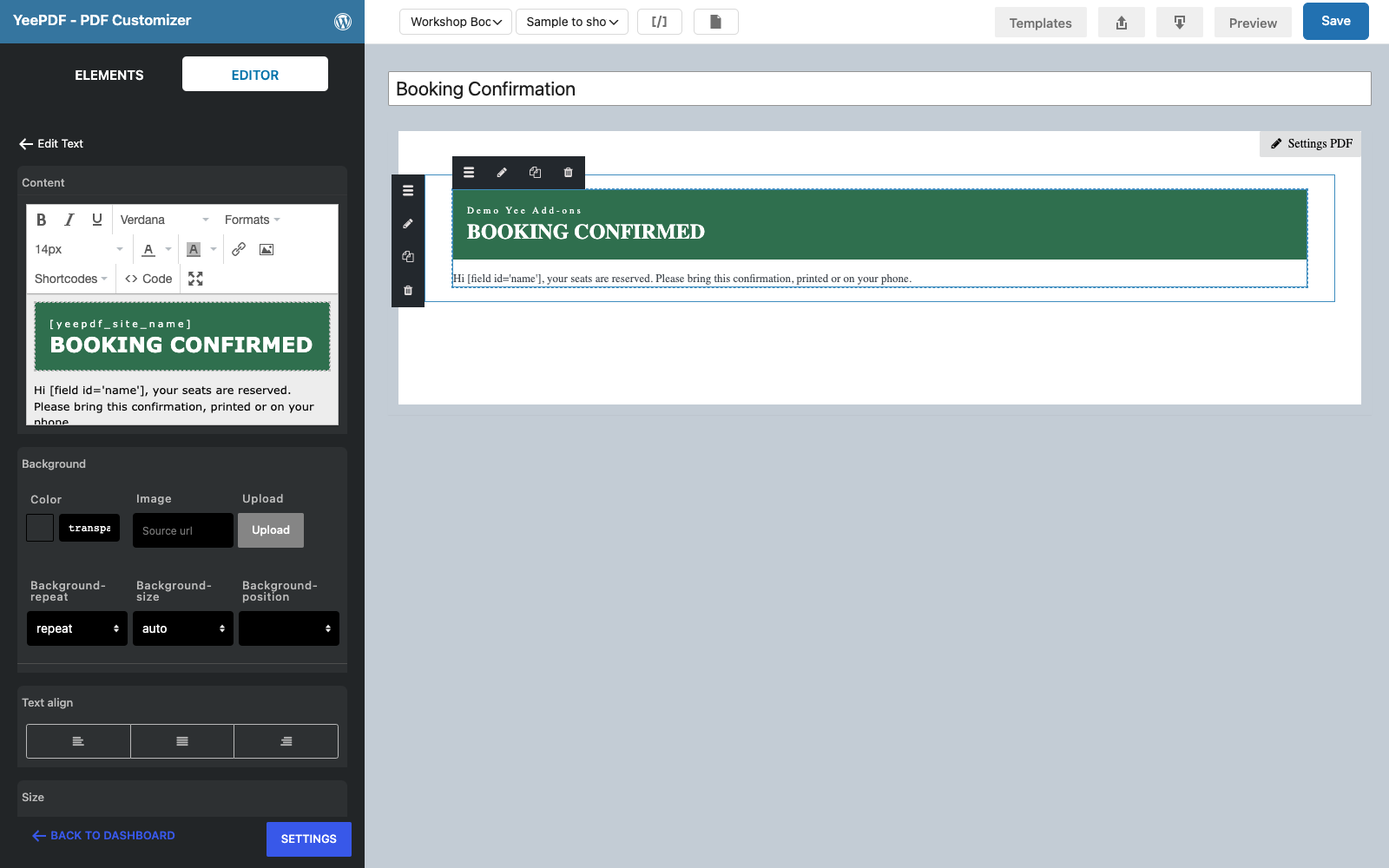
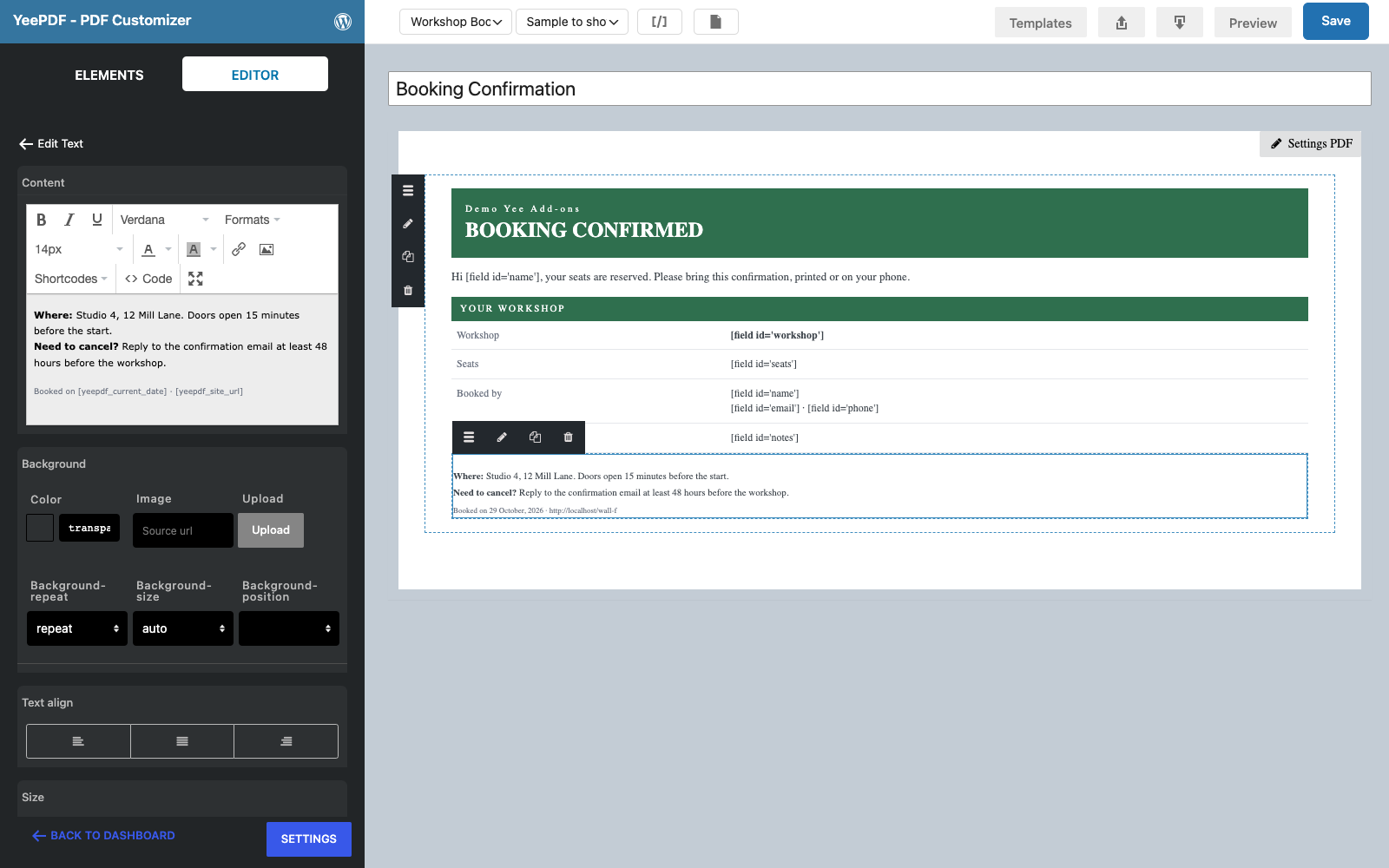
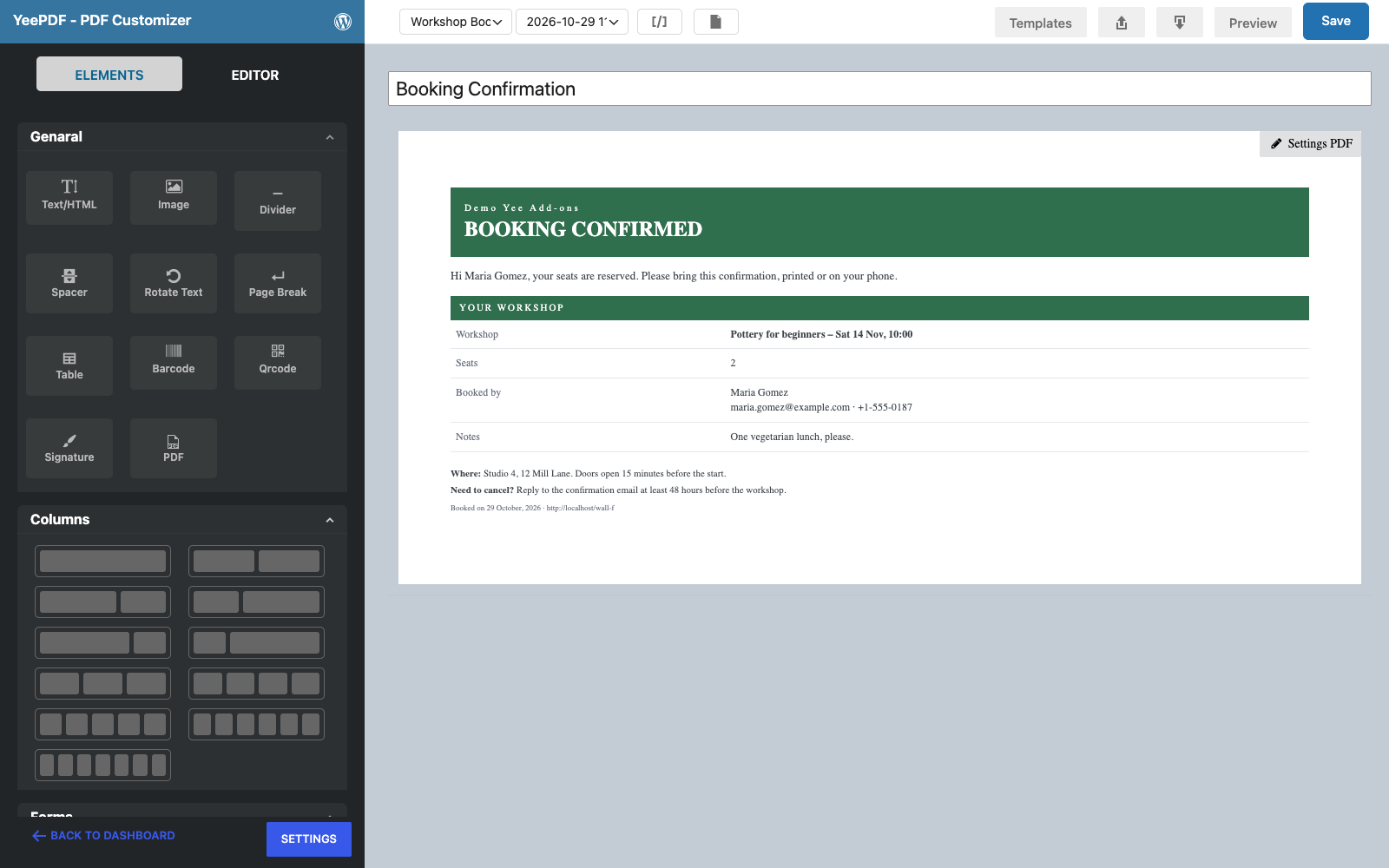
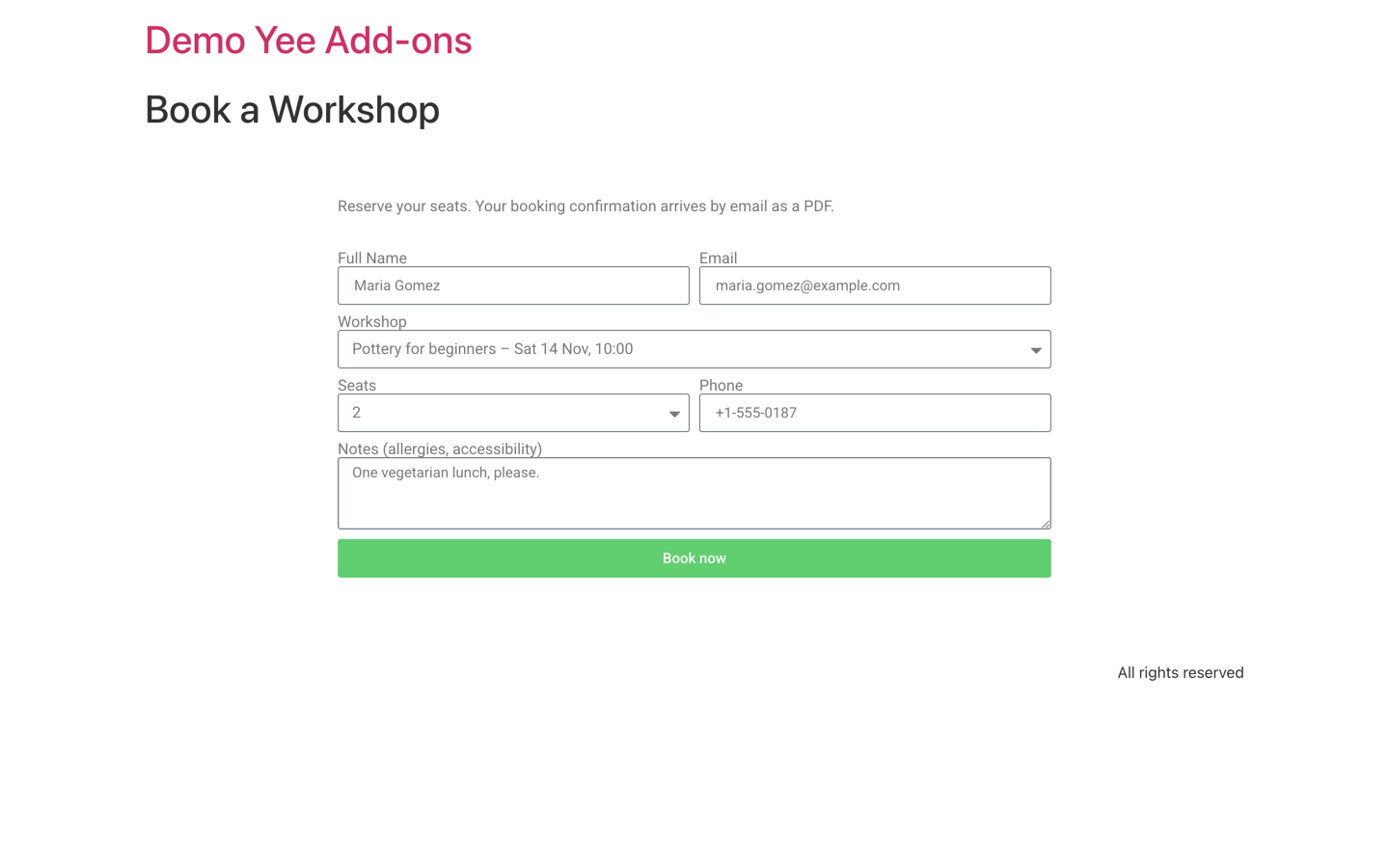
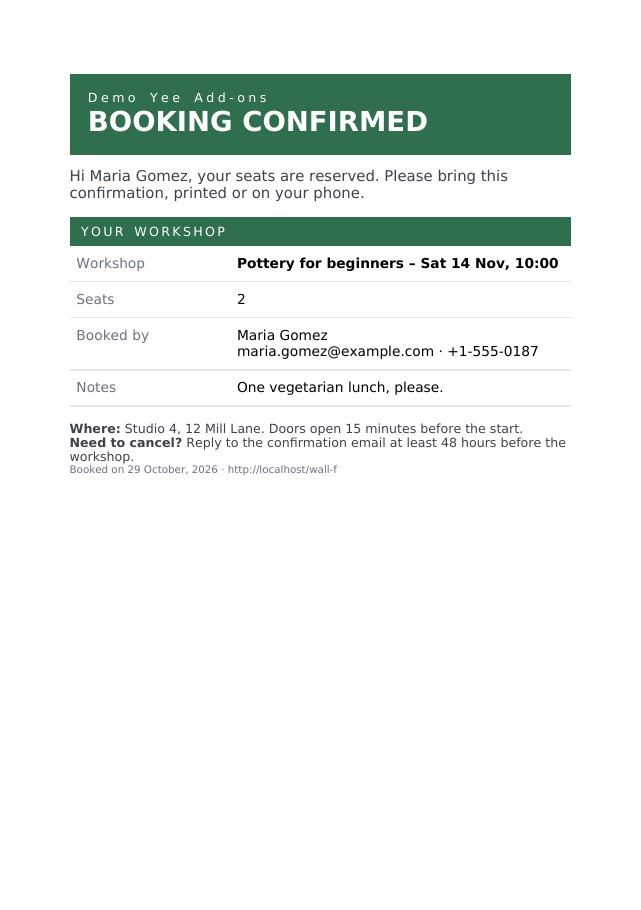
The demo form has Full Name, Email, Workshop (a select with dates), Seats, Phone and Notes. The template is an A5 page: a green “BOOKING CONFIRMED” header, a table with the workshop, seats and contact details, and the studio address.
Hi [field id='name'].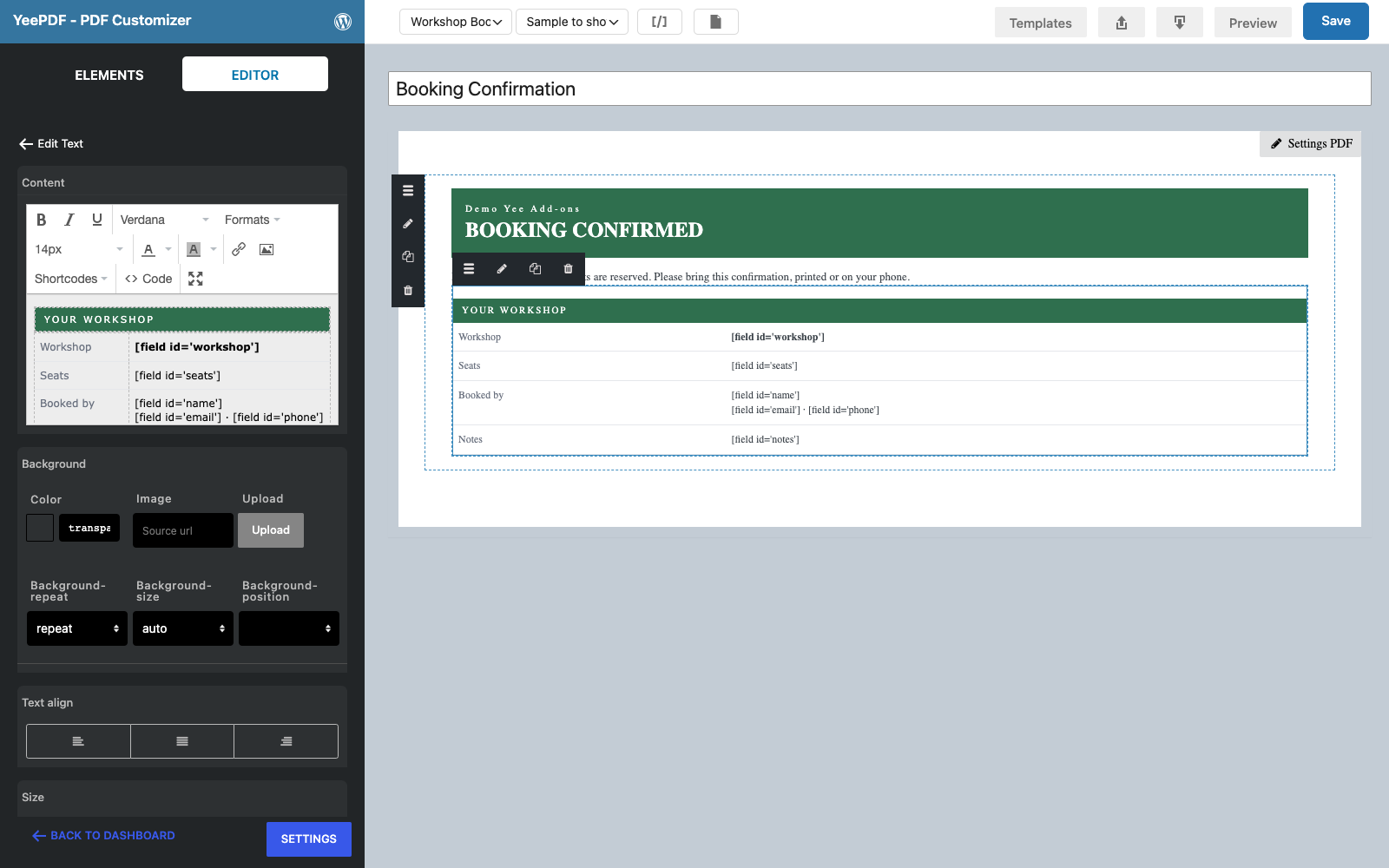
3. Set Up Email, Email 2 and PDF
Step 1: Add the actions
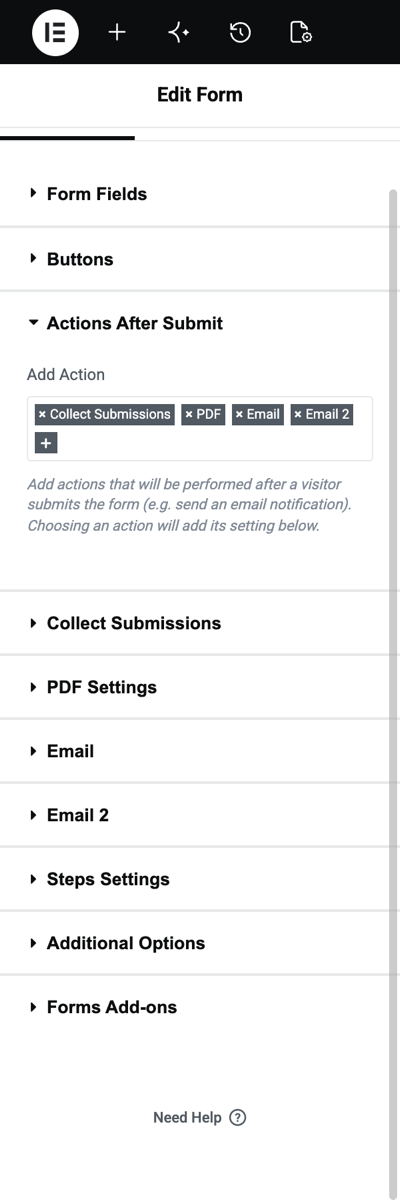
Edit the page with Elementor, select the form and open Actions After Submit. Add Collect Submissions, Email, Email 2 and PDF.
Step 2: Send Email 2 to the customer
Open Email 2 and set To to the email field: [field id="email"]. Write a short message; the PDF carries the details.
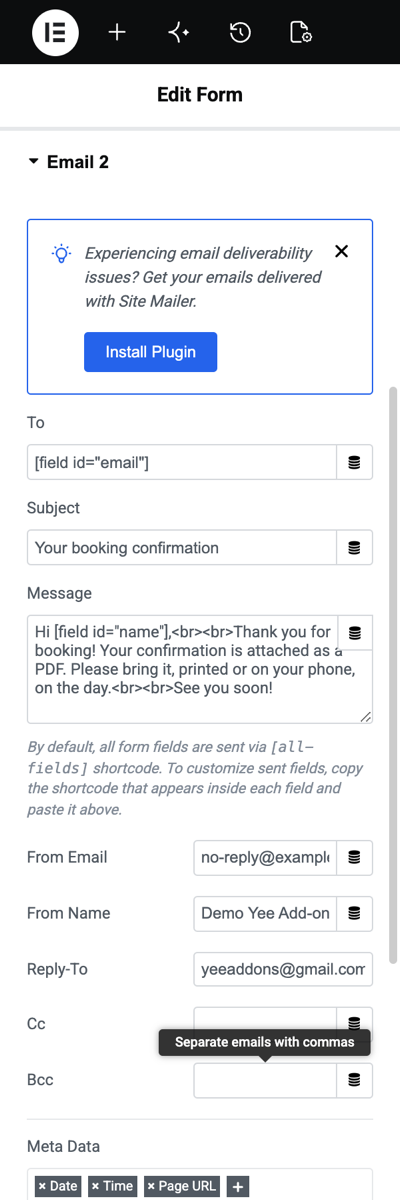
[field id="email"], Subject: Your booking confirmation.Step 3: Attach the PDF only to the customer’s email
Open PDF Settings, choose the Booking Confirmation template, set the file name and keep Attach PDF in email on. In List of attached emails enter the same tag, [field id="email"]. Only messages sent to that address get the file.
![PDF Settings with the Booking Confirmation template, the name booking-[field id=name], Attach PDF in email on and the list of attached emails set to the email field](https://add-ons.org/wp-content/uploads/2026/10/efb-12-pdf-settings.png)
| List of attached emails | Who receives the PDF |
|---|---|
| empty | Every email the form sends (Email and Email 2). |
[field id="email"] | Only the visitor (the address typed in the form). |
[email protected] | Only your team address. |
[email protected], [field id="email"] | Both; separate entries with commas. |
4. The Result
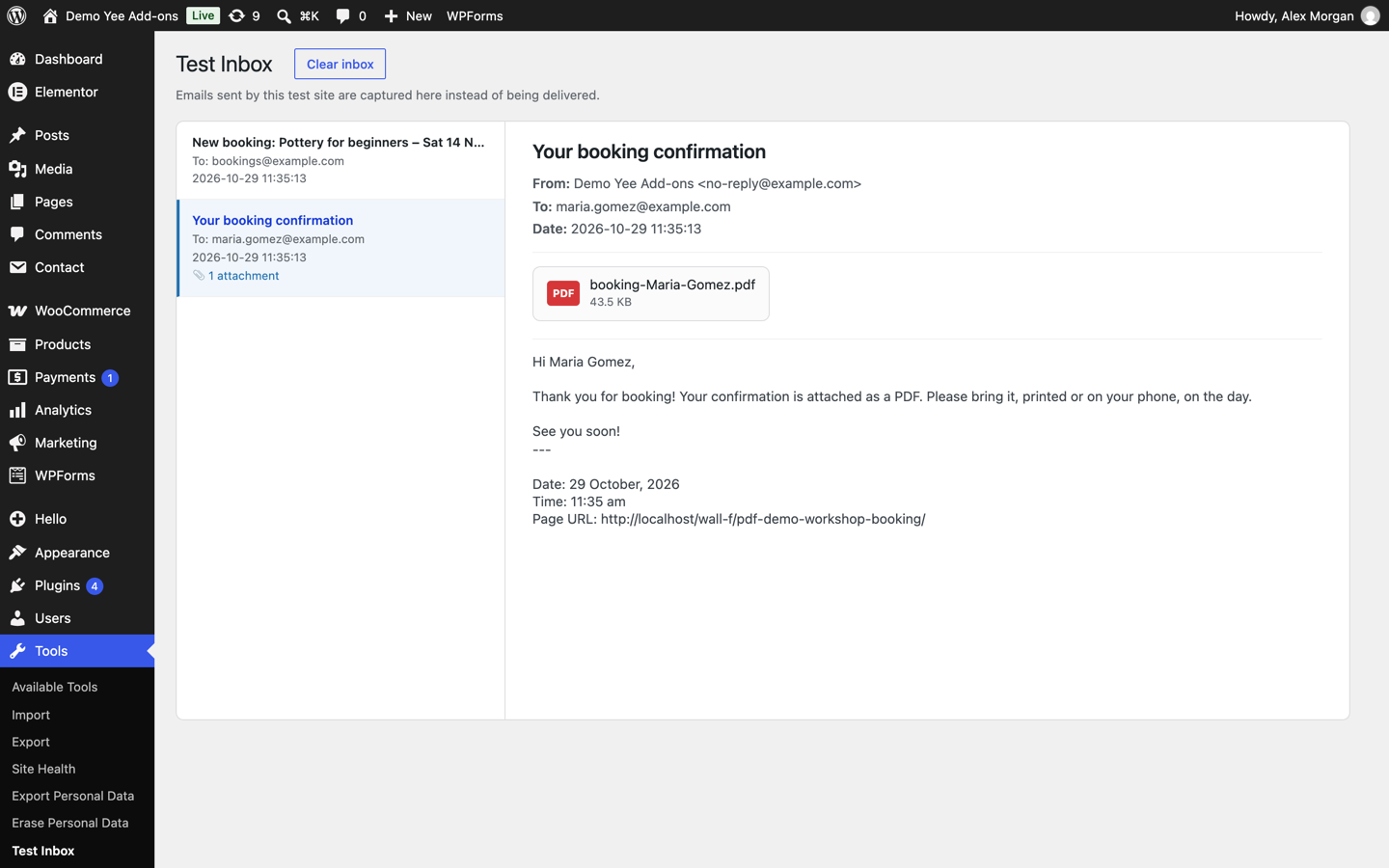
Two emails go out. The customer’s confirmation carries booking-Maria-Gomez.pdf:
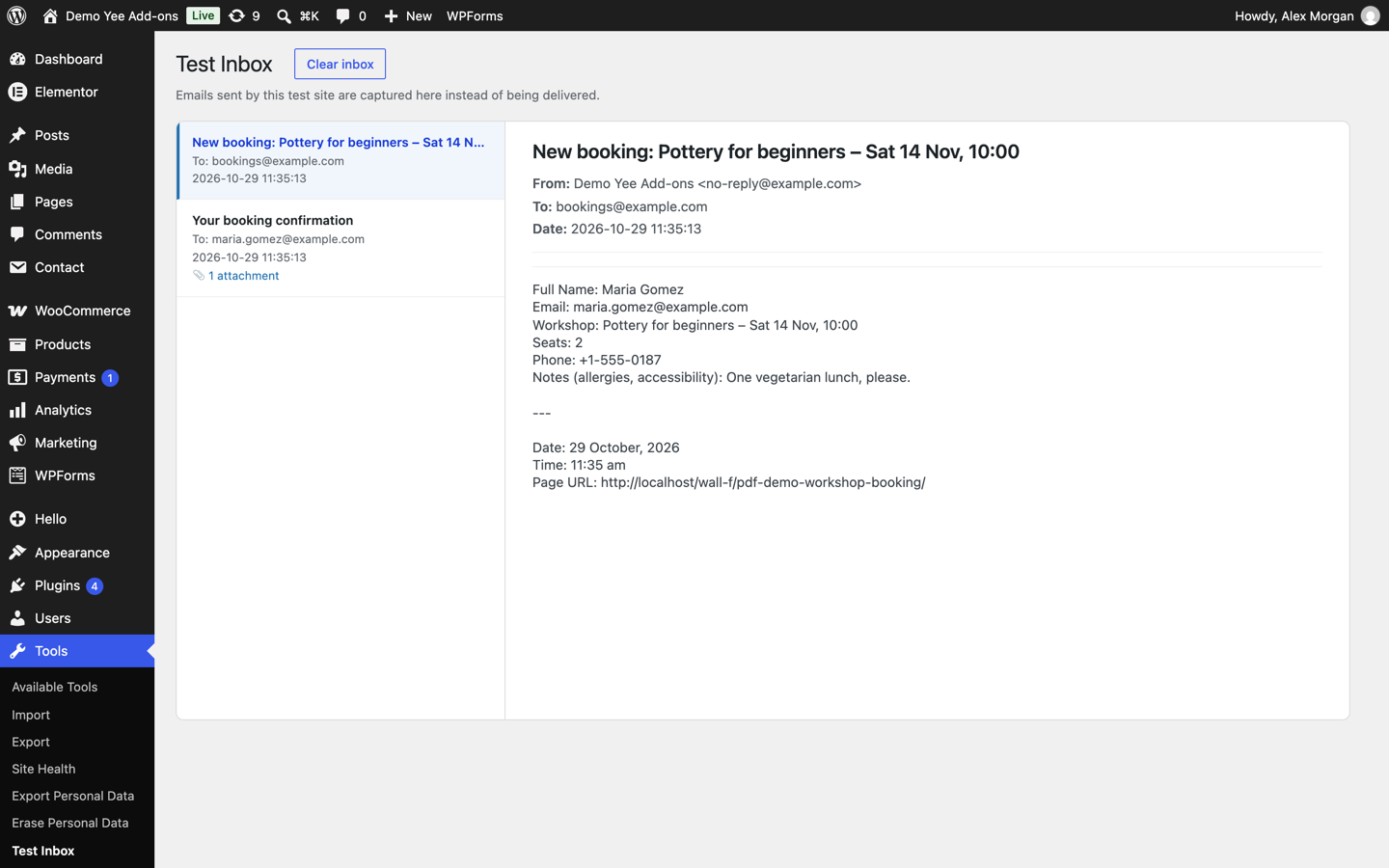
The team notification lists the fields but has no attachment, because the team address is not in the list:
5. Tips
- Match the addresses exactly. The list is compared with the email’s To address, so use the same tag or the same address in both places.
- Name the file for the reader.
booking-[field id="name"]is easier to find in a mailbox than “elementor-form.pdf”. - Large PDFs. Keep images in the template small (a 200 KB logo is plenty), some mail servers reject attachments over 10 MB.
- Deliverability. Send through an SMTP plugin so emails with attachments are not flagged as spam.
- Two different PDFs? Add a PDF 2 action with its own template and its own list of recipients.
6. Frequently Asked Questions (FAQ)
The email arrives without the PDF. What should I check?
Make sure the PDF action is in Actions After Submit, a template is chosen, Attach PDF in email is on and the recipient is in List of attached emails (or the list is empty). Then check that your mail plugin does not strip attachments.
Can I attach the PDF to the admin email only?
Yes. Put your admin address in List of attached emails.
Does it work with a multi-step form?
Yes. The PDF is created when the last step is submitted, with the values of every step.
Can I keep the PDF off my server?
Yes. PDF Templates → Settings → Do not save PDFs on the server deletes each file right after it is attached. The Submissions link and the download redirect then have no file to open.
More Elementor Forms PDF Guides
- How to Generate PDFs from Elementor Form Submissions (Step-by-Step)
- How to Let Users Download a PDF After Submitting an Elementor Form
- How to Download Elementor Form Submissions as PDF
- How to Add Uploaded Images to an Elementor Form PDF
- How to Password-Protect Elementor Form PDFs
- How to Create Multiple PDFs from One Elementor Form
Plugin: PDF for Elementor Forms + Drag And Drop Template Builder on WordPress.org · Pro version