
Logos for a print order, photos of damage for a claim, a passport photo for a membership card: when visitors upload images through an Elementor form, you usually want those images inside the PDF, not just as links. PDF for Elementor Forms + Drag And Drop Template Builder (free on WordPress.org) can bind an Image element to an upload field, so every PDF shows the files of that submission. This guide builds a sticker artwork proof: the customer uploads up to three designs and receives a PDF proof with the order details and the three images. The template basics are in How to Generate PDFs from Elementor Form Submissions.
1. One Upload Field per Image
The demo form has the usual contact and order fields (size, quantity, finish, shape, notes) and three File Upload fields: Design 1 (required), Design 2 and Design 3 (optional), each accepting one JPG or PNG up to 5 MB.
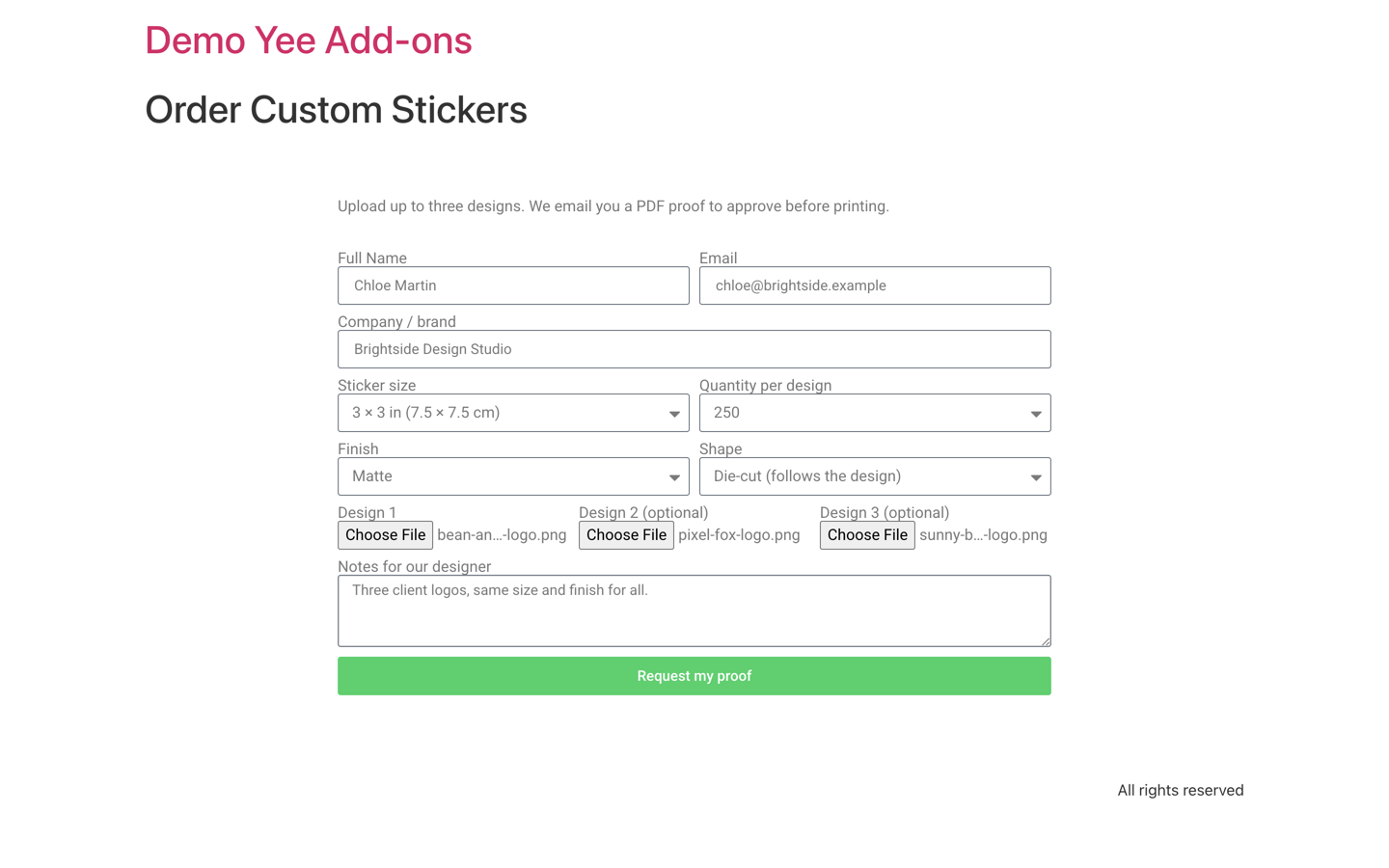
Why three fields instead of one field with “multiple files”? Elementor stores all files of a multiple-upload field as one comma-separated list of URLs. An Image element needs exactly one URL, so give every image its own upload field and bind each one separately.
| Upload field setting | Value |
|---|---|
| Allow Multiple Upload | off |
| Allowed file types | jpg,jpeg,png |
| Max. file size | 5 MB |
| Required | Design 1 only |
2. Build the Proof Template
Step 1: Header and order details
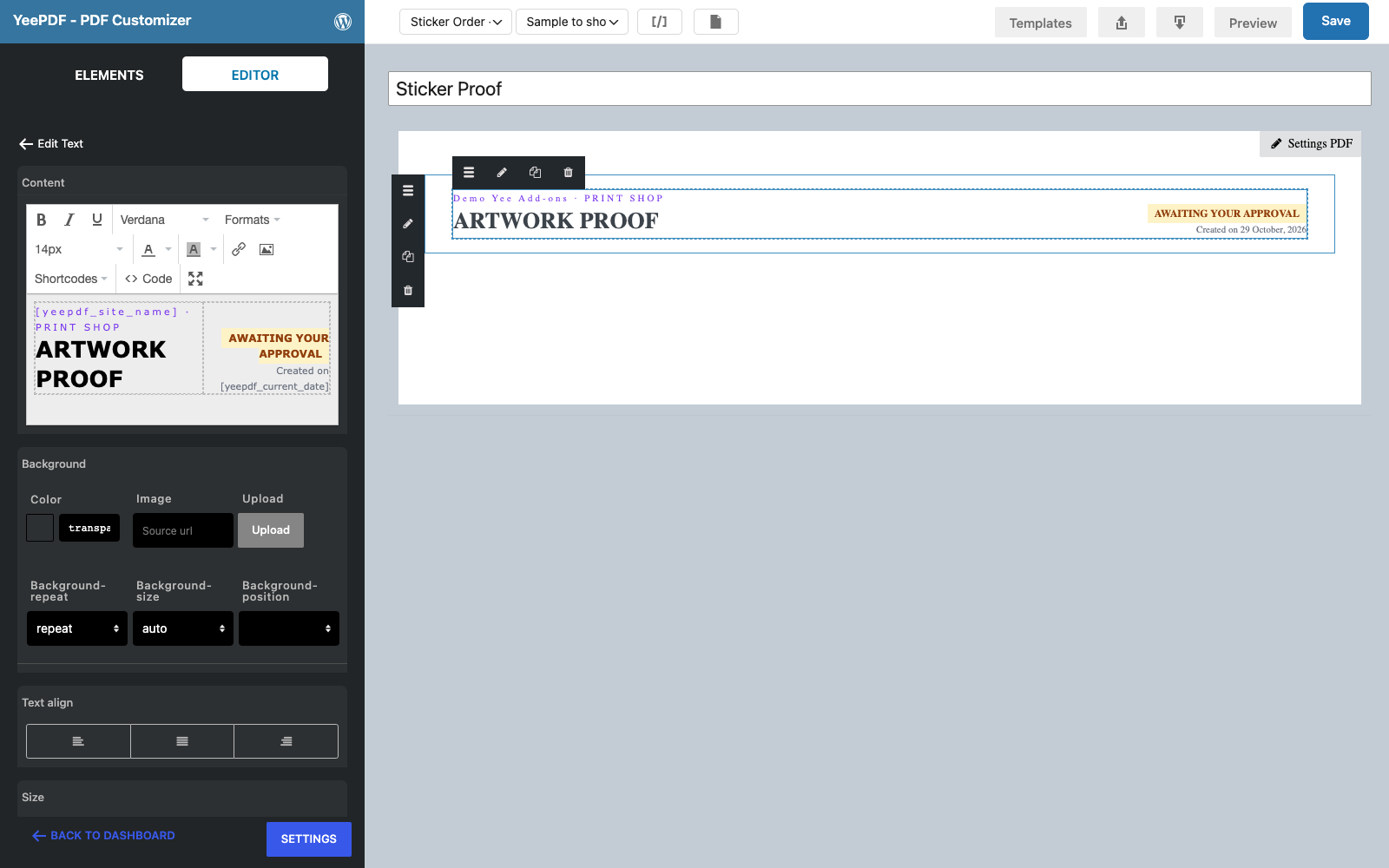
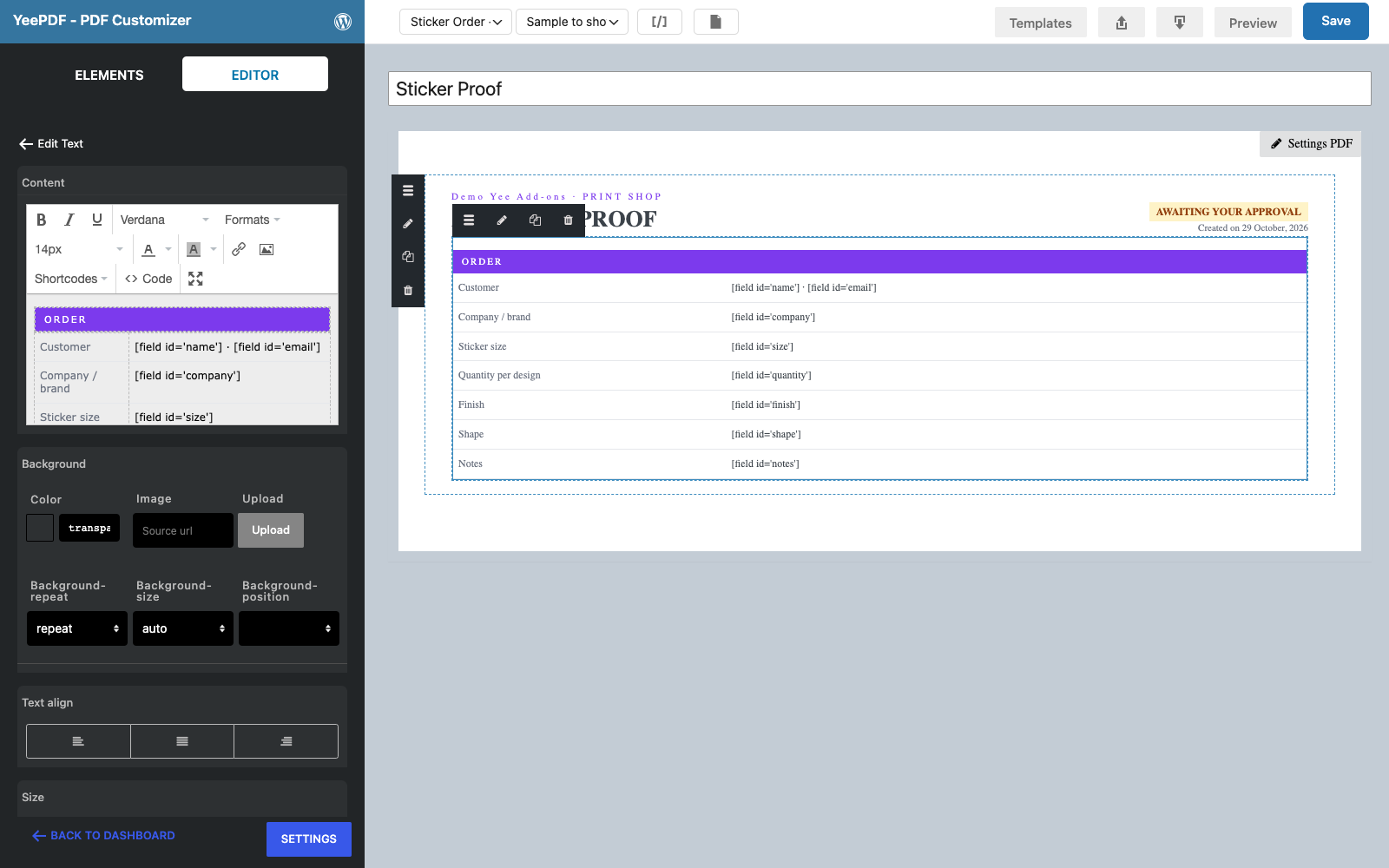
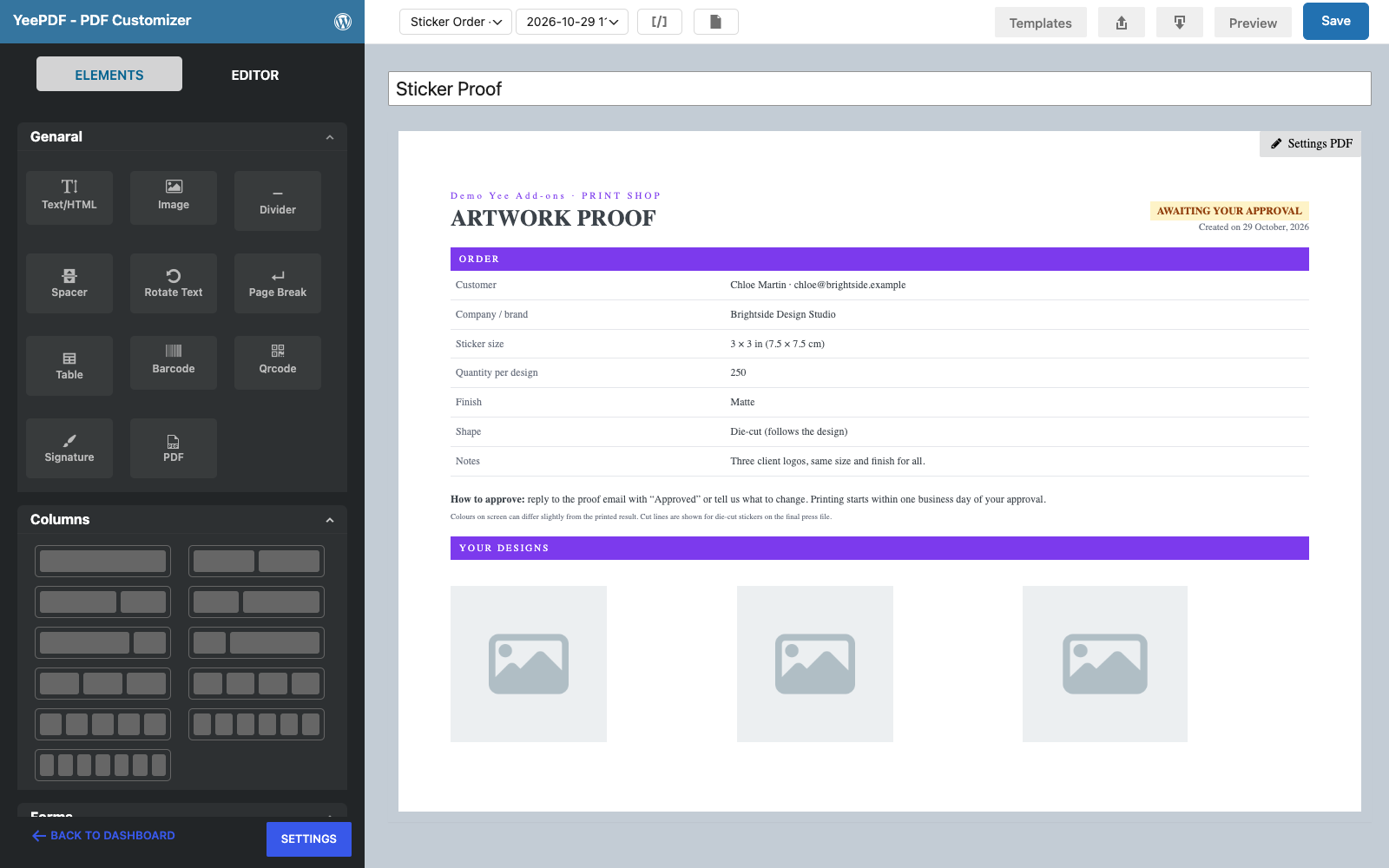
Create the template (PDF Templates → Add New, target form Sticker Order) and add two Text/HTML blocks: an “ARTWORK PROOF – awaiting your approval” header and an Order table with the size, quantity, finish, shape and notes.
Step 2: Add an Image List
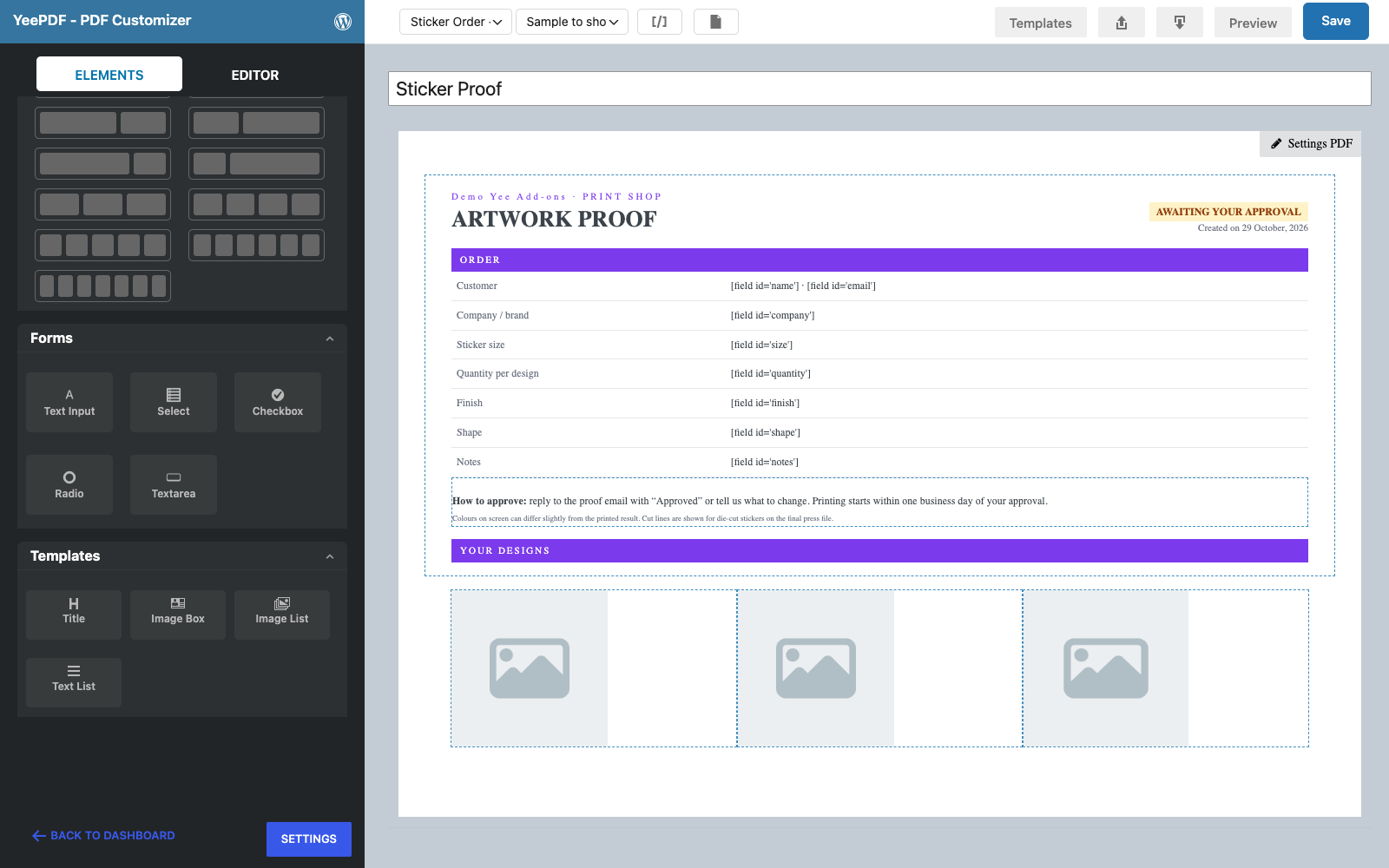
Below a “Your designs” band, drag an Image List block (in the template blocks of the Elements panel). It adds a row with three image slots side by side.
Step 3: Bind each image to an upload field
Click the first image. In the Editor panel, set Image → Type to Use Field and choose Design 1. Repeat for the second and third image with Design 2 and Design 3. Set the width and height (180 × 180 px here) so every design gets the same box.
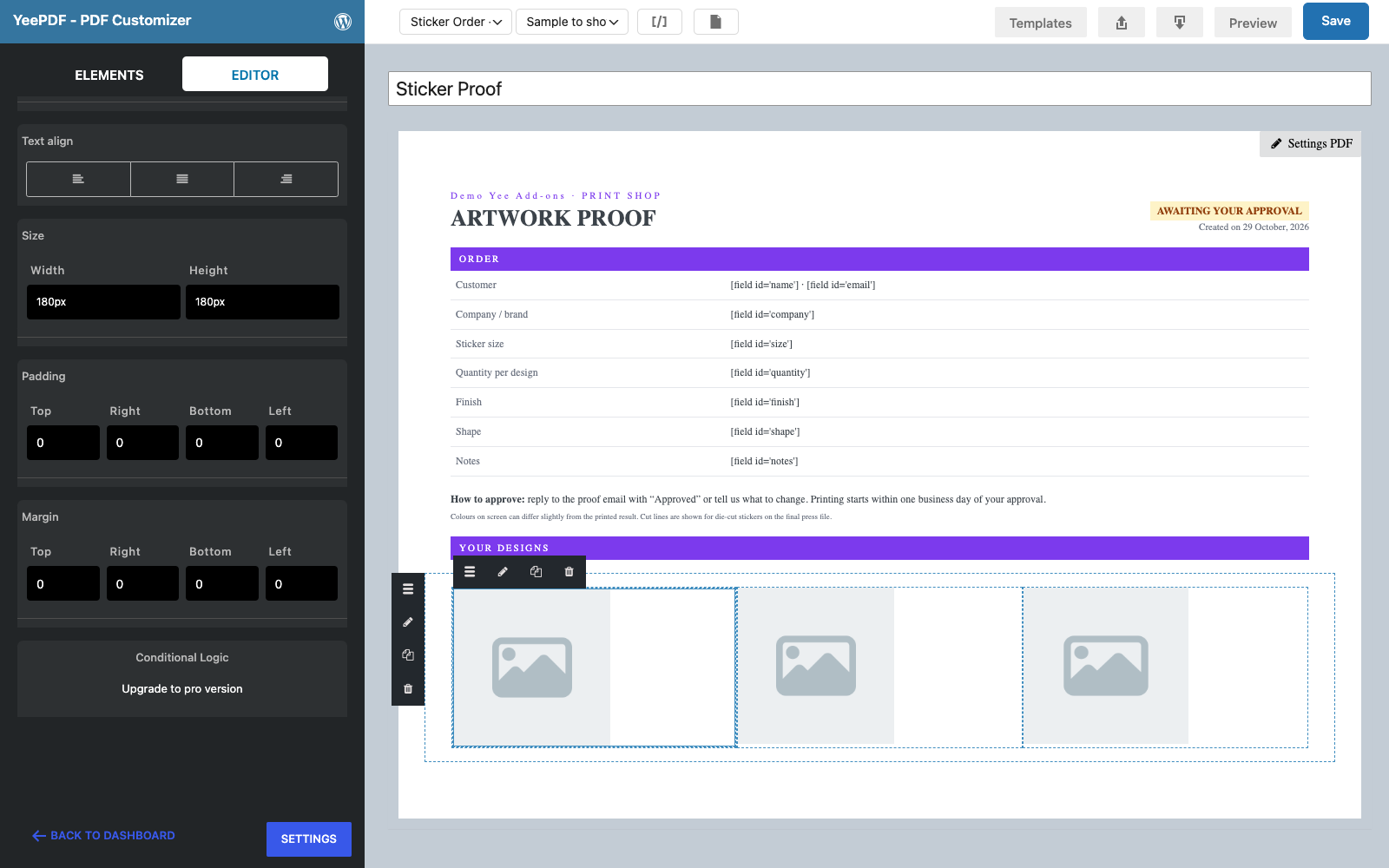
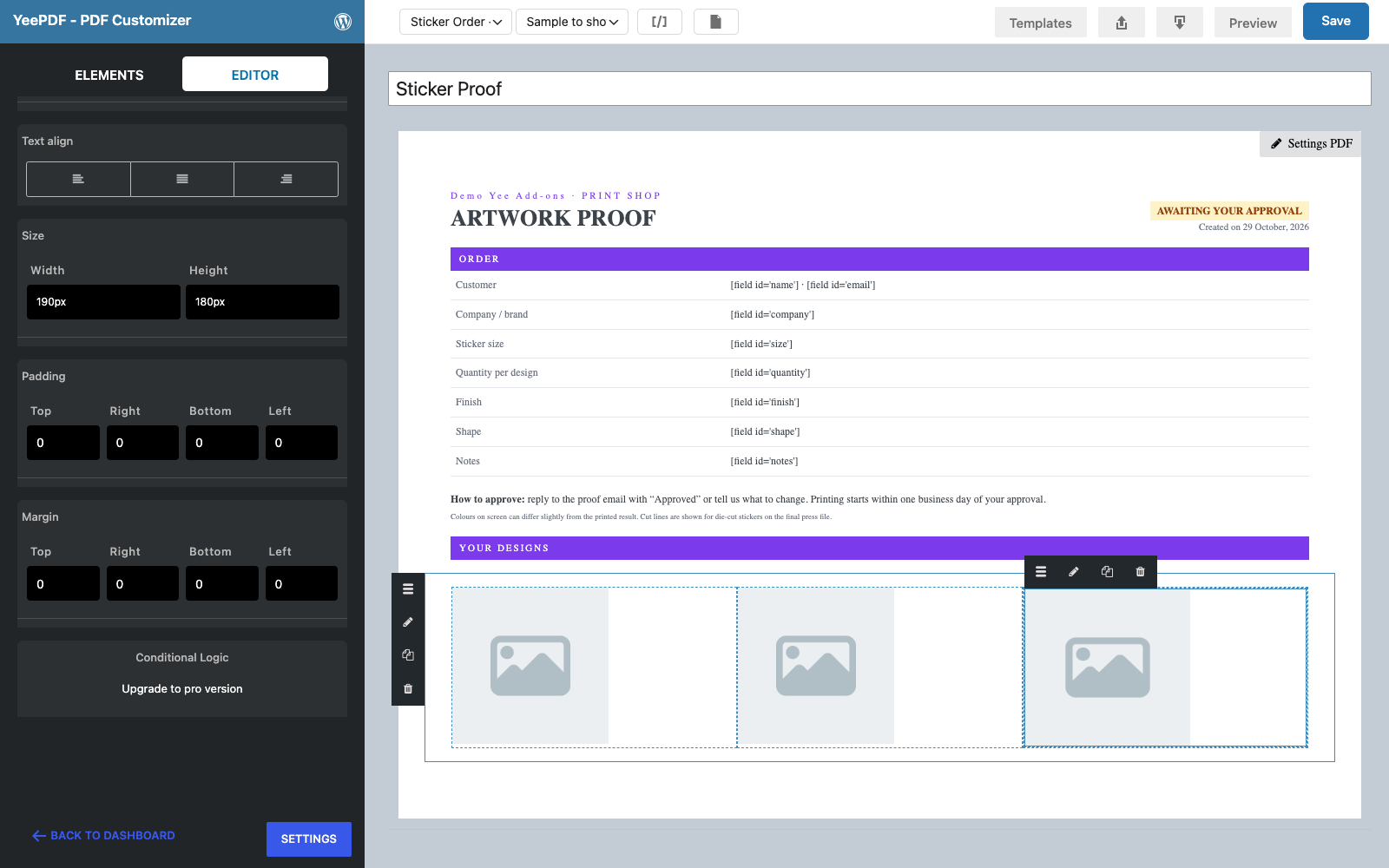
The canvas keeps showing placeholders; the real images appear in the preview and in the generated PDF.
3. Connect the Template and Send the Proof
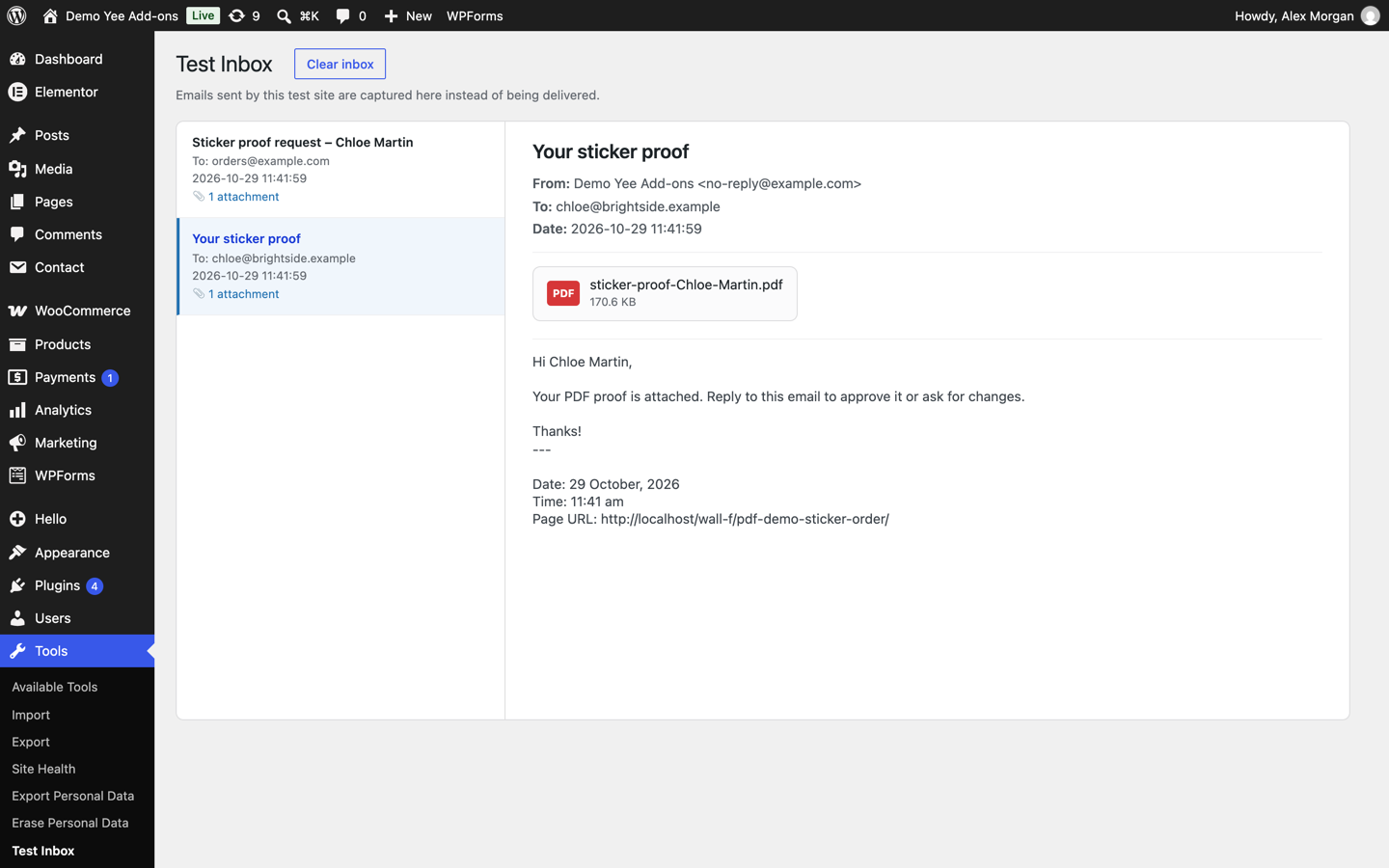
In Elementor, add PDF to Actions After Submit, choose the Sticker Proof template and name the file sticker-proof-[field id="name"]. Email 2 sends the proof to the customer.
![PDF Settings with the Sticker Proof template and the name sticker-proof-[field id=name]](https://add-ons.org/wp-content/uploads/2026/10/efs-12-pdf-settings.png)

4. Tips
- Optional uploads. If Design 2 or 3 is left empty, the image is simply left out of the PDF.
- Fixed box size. Set both width and height on each image so tall and wide uploads line up.
- File size. Large photos make large PDFs; limit uploads to a few MB, or the email attachment may be rejected.
- Single images. For one photo (an ID photo on a card, a signature image) use a plain Image element with Type: Use Field.
- Drag and drop uploads. For a nicer upload box see the Drag and Drop Multiple File Upload add-on; keep one field per image you want in the PDF.
5. Frequently Asked Questions (FAQ)
The PDF shows a broken image or nothing.
Check that the image slot uses Type: Use Field with the right upload field, that the upload field allows one file only, and that the file is a JPG or PNG.
Can I show all files of a multiple-upload field?
Not as images: the field stores one comma-separated list of URLs. Use one upload field per image, or print the list as text with the field’s merge tag.
Are uploaded files stored twice?
No. Elementor stores the upload in wp-content/uploads/elementor/forms/, and the PDF embeds the image when it is generated.
Does this need the Pro version of the PDF plugin?
No. Image, Image List and Use Field are part of the free plugin.
More Elementor Forms PDF Guides
- How to Generate PDFs from Elementor Form Submissions (Step-by-Step)
- How to Attach a PDF to Elementor Form Emails
- How to Let Users Download a PDF After Submitting an Elementor Form
- How to Download Elementor Form Submissions as PDF
- How to Password-Protect Elementor Form PDFs
- How to Create Multiple PDFs from One Elementor Form
Plugin: PDF for Elementor Forms + Drag And Drop Template Builder on WordPress.org · Pro version