
A gift voucher is the easiest product to sell and the hardest to deliver nicely: the buyer wants something they can print or forward, with the recipient’s name, a message, the value, a code and the validity. With PDF Invoice for WooCommerce + Drag and Drop Template Builder (plugin slug pdf-for-woocommerce, by add-ons.org) you sell the voucher as a normal (virtual) product, collect To, From and Message as item meta (a product add-ons plugin or the order screen), store the redemption code and the expiry as order meta, and the plugin generates an A5 landscape voucher PDF the moment the order is paid, attached to the “order received” email and kept in My Account. The code itself is a WooCommerce coupon you create (or let a snippet create) for the voucher value, so redemption needs nothing but the standard checkout. The event ticket guide and the booking confirmation guide use the same item-meta technique.
Video tutorial
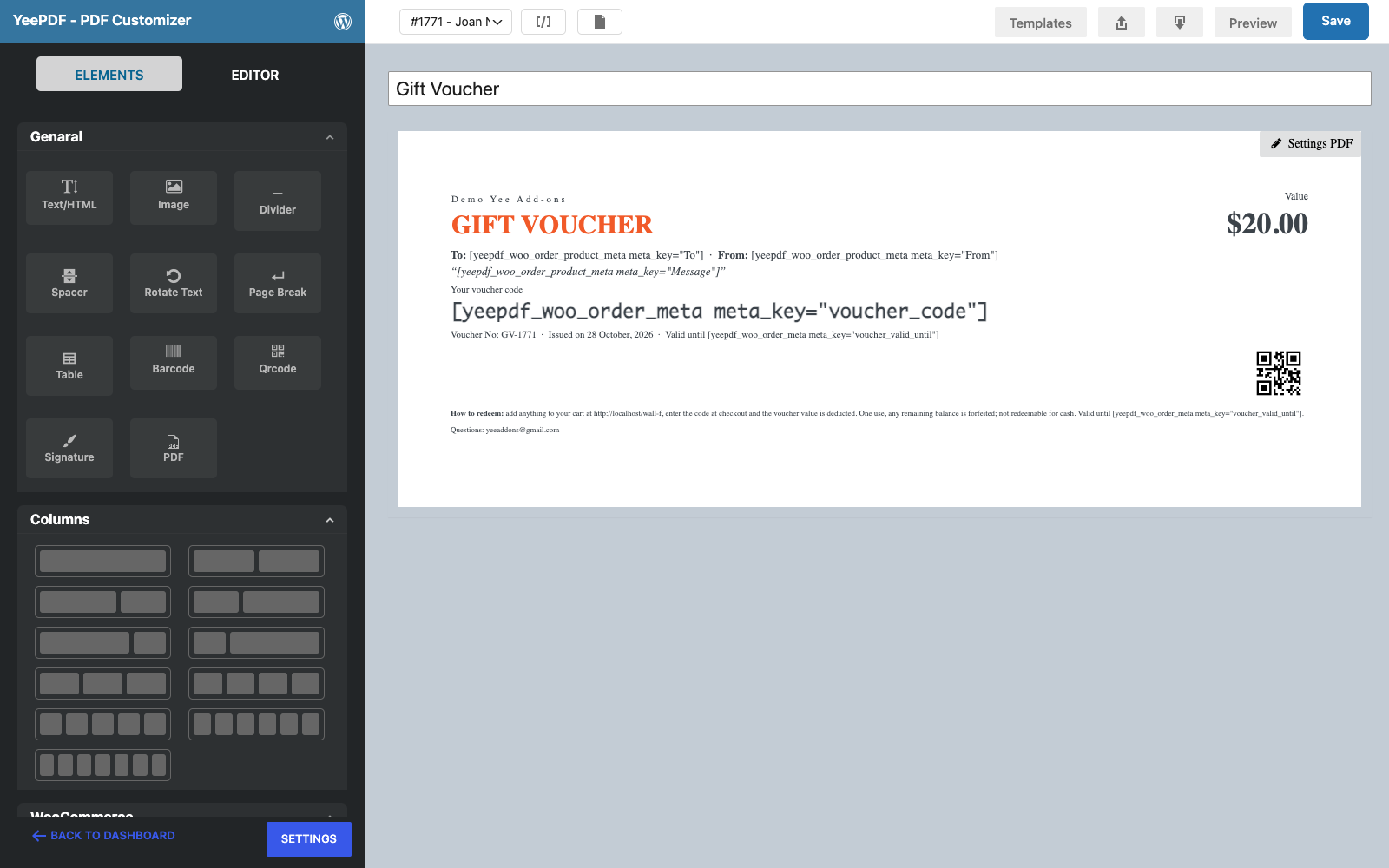
1. What the Voucher Contains
| Block | Content | Merge tags |
|---|---|---|
| Banner | Store name, “GIFT VOUCHER”, the value in a dashed box | Yee Add-ons, $19.00 |
| Message | To, From and the personal message | …"From", …"Message" |
| Code | The redemption code on a dark strip, voucher number, issue date, validity | GV-8448, August 28, 2026, …"voucher_valid_until" |
| QR code | The code, scannable at a till | |
| Footer | How to redeem, one use, not for cash, validity, contact | https://add-ons.org, [email protected] |
$19.00 prints the price of the first product in the order, i.e. the voucher value, so a “Gift Voucher – $25 / $50 / $100” variable product or three simple products all work with one template.
2. Build the Voucher Template
Builder note: a new element is inserted just above the element you drop it on. Create the footer first and drop every other block onto it in reading order.
Step 1: New template, A5 landscape, styles
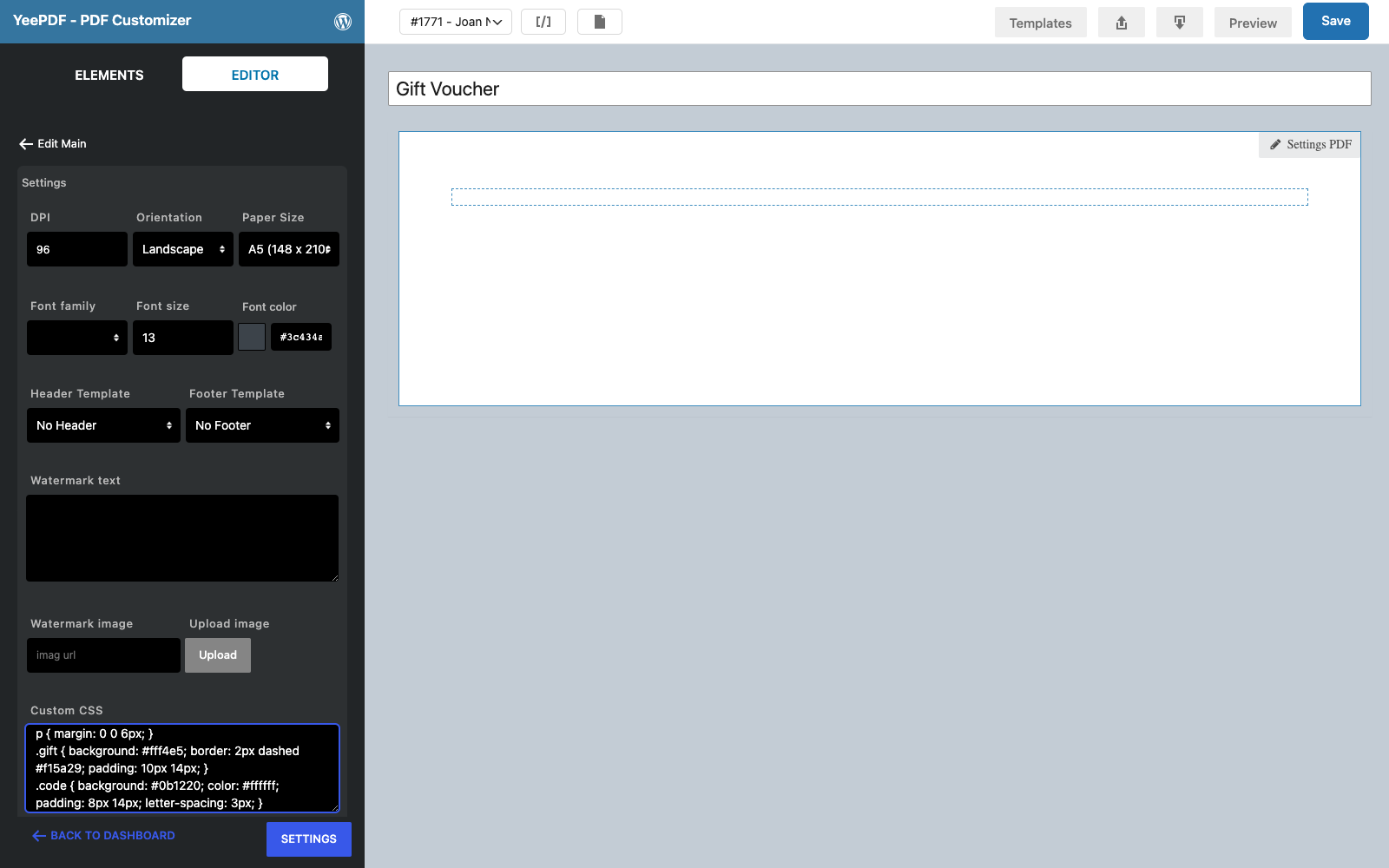
Go to PDF Templates → New Template and name it Gift Voucher. Click Settings PDF, set Orientation to Landscape, Paper Size to A5, and paste this under Custom CSS (the dashed gift box and the dark code strip):
p { margin: 0 0 6px; }
.gift { background: #fff4e5; border: 2px dashed #f15a29; padding: 10px 14px; }
.code { background: #0b1220; color: #ffffff; padding: 8px 14px; letter-spacing: 3px; }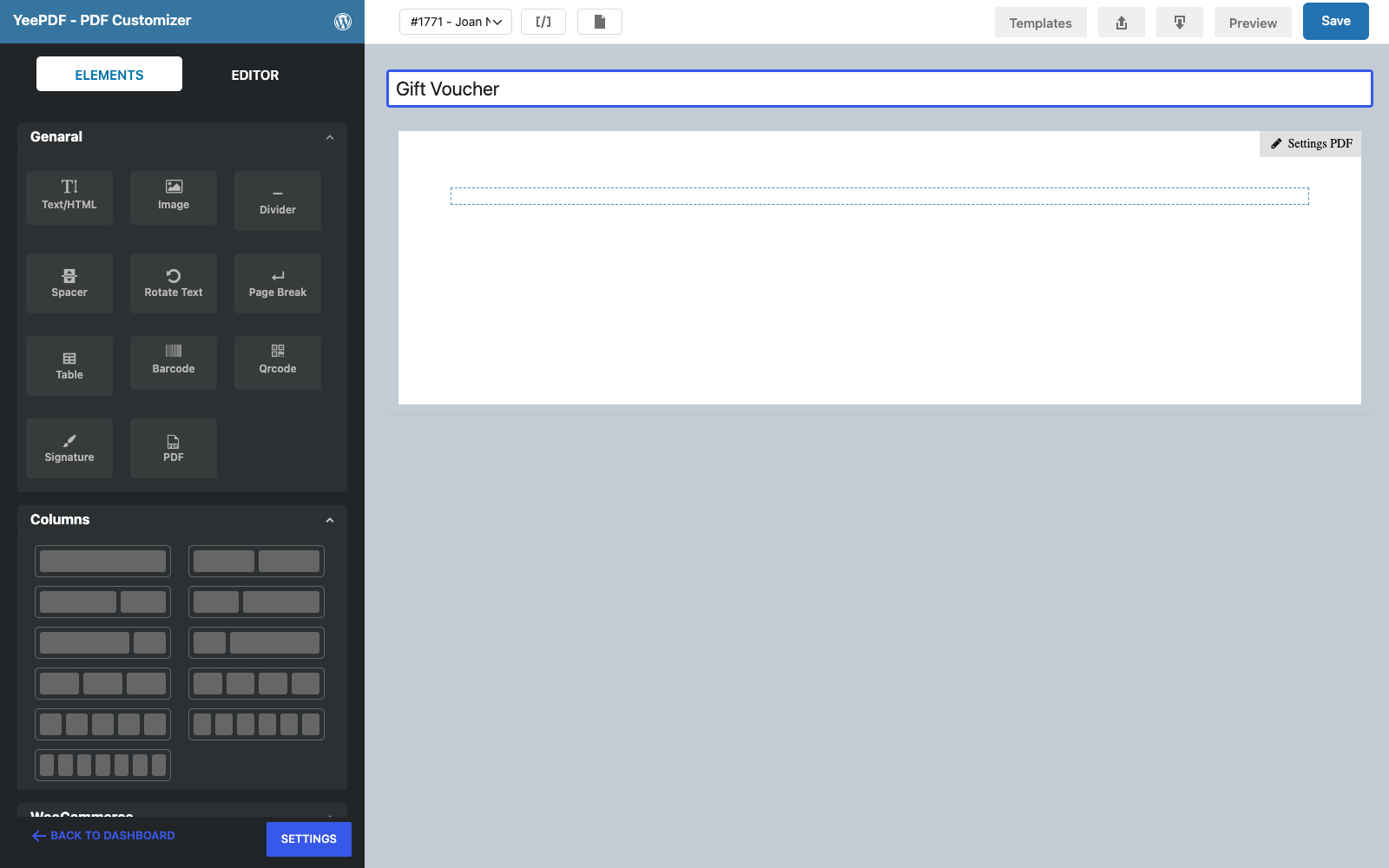
Step 2: Footer
Drag a Text/HTML element into the row and type, in 9 px:
How to redeem: add anything to your cart at https://add-ons.org, enter the code at checkout and the voucher value is deducted.
One use, any remaining balance is forfeited; not redeemable for cash. Valid until .
Questions: [email protected]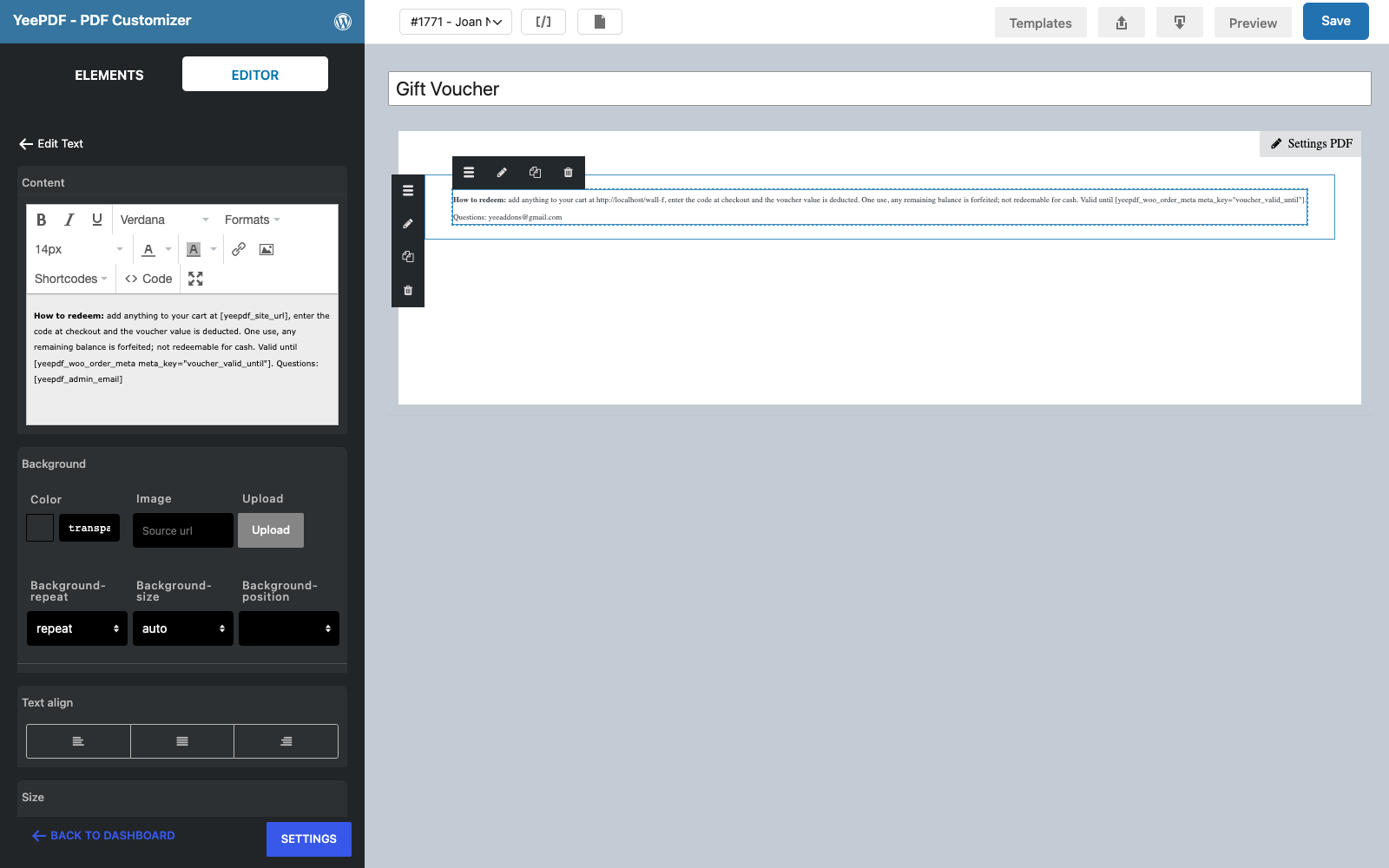
Step 3: Banner
Drop a Text/HTML element onto the footer and paste a one-row table with the gift class in the Code view:
<table class="gift" width="100%"><tr>
<td><span style="font-size: 11px; letter-spacing: 3px;">Yee Add-ons</span><br><span style="font-size: 30px; color: #f15a29;"><strong>GIFT VOUCHER</strong></span></td>
<td align="right"><span style="font-size: 12px;">Value</span><br><span style="font-size: 34px;"><strong>$19.00</strong></span></td>
</tr></table>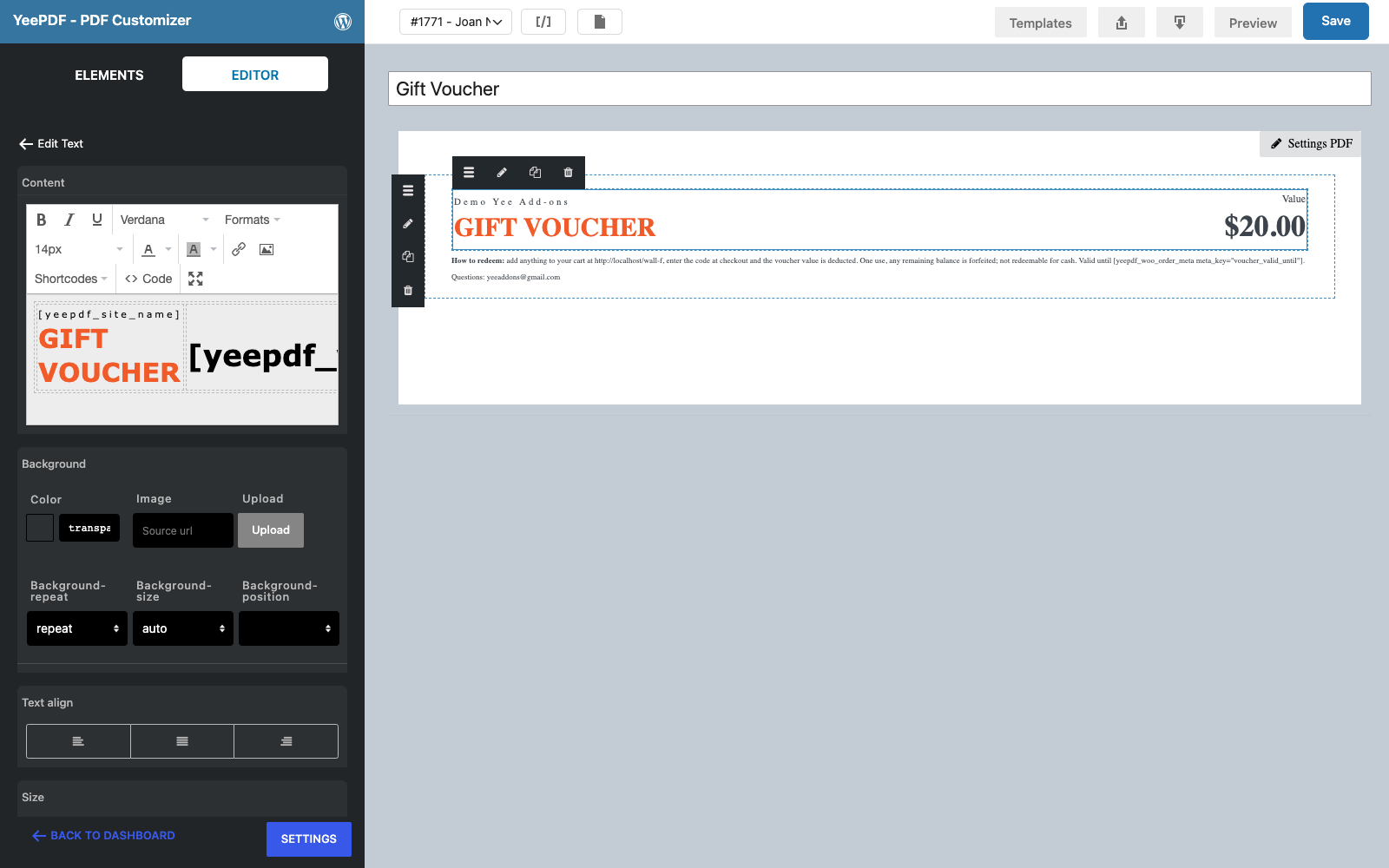
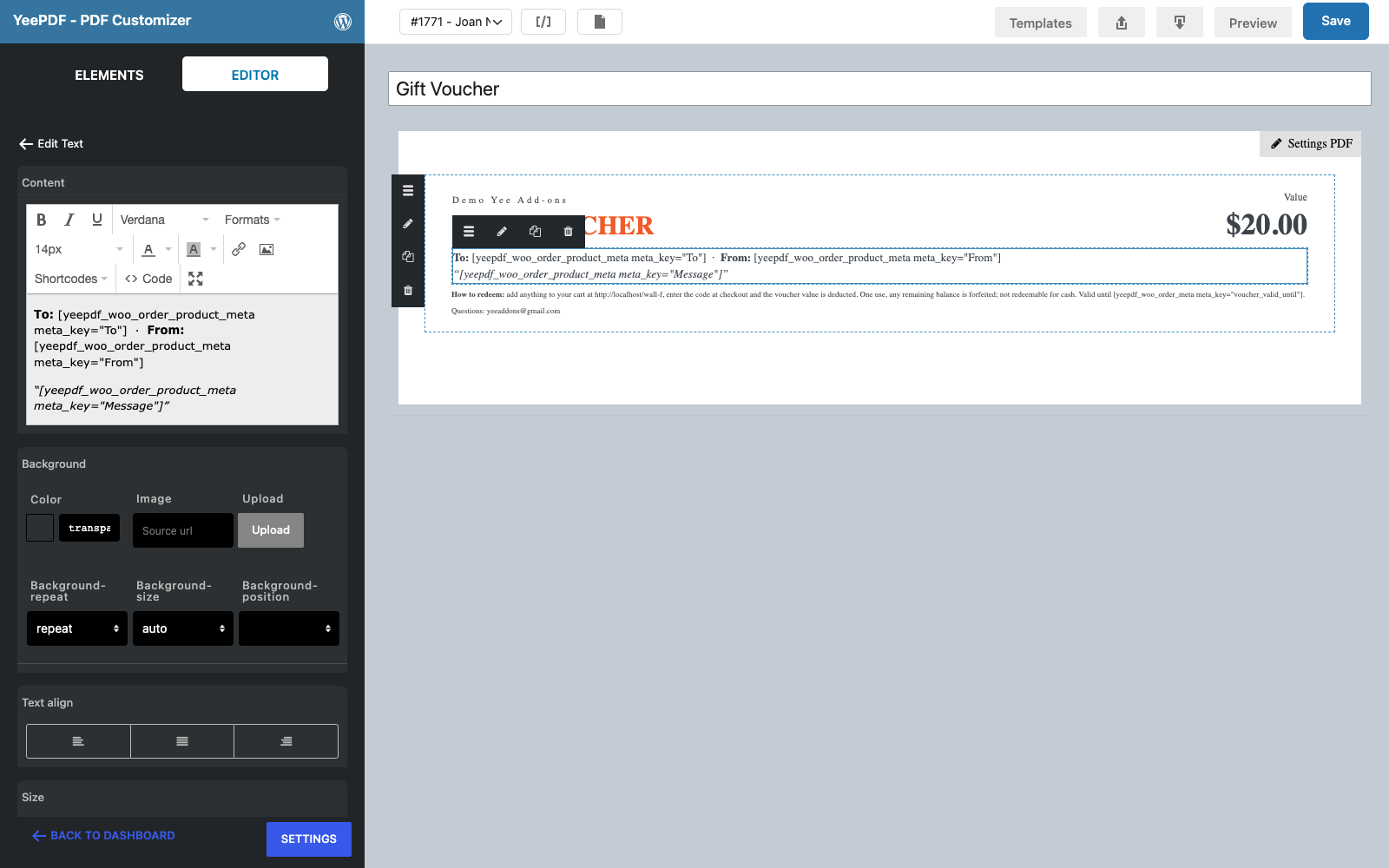
Step 4: To, From, Message
Drop a Text/HTML element onto the footer:
To:  · From:
“”
The three tags read the item meta of the voucher line. Product add-ons plugins save their fields exactly like this; use the labels you see under the product on the order screen as meta_key. On the canvas the sample order prints the tag names.
Step 5: Code
Drop a Text/HTML element onto the footer:
Your voucher code                                                        ← 11 px
<span class="code"></span>    ← 22 px bold, in the Code view
Voucher No: GV-8448 · Issued on August 28, 2026 · Valid until 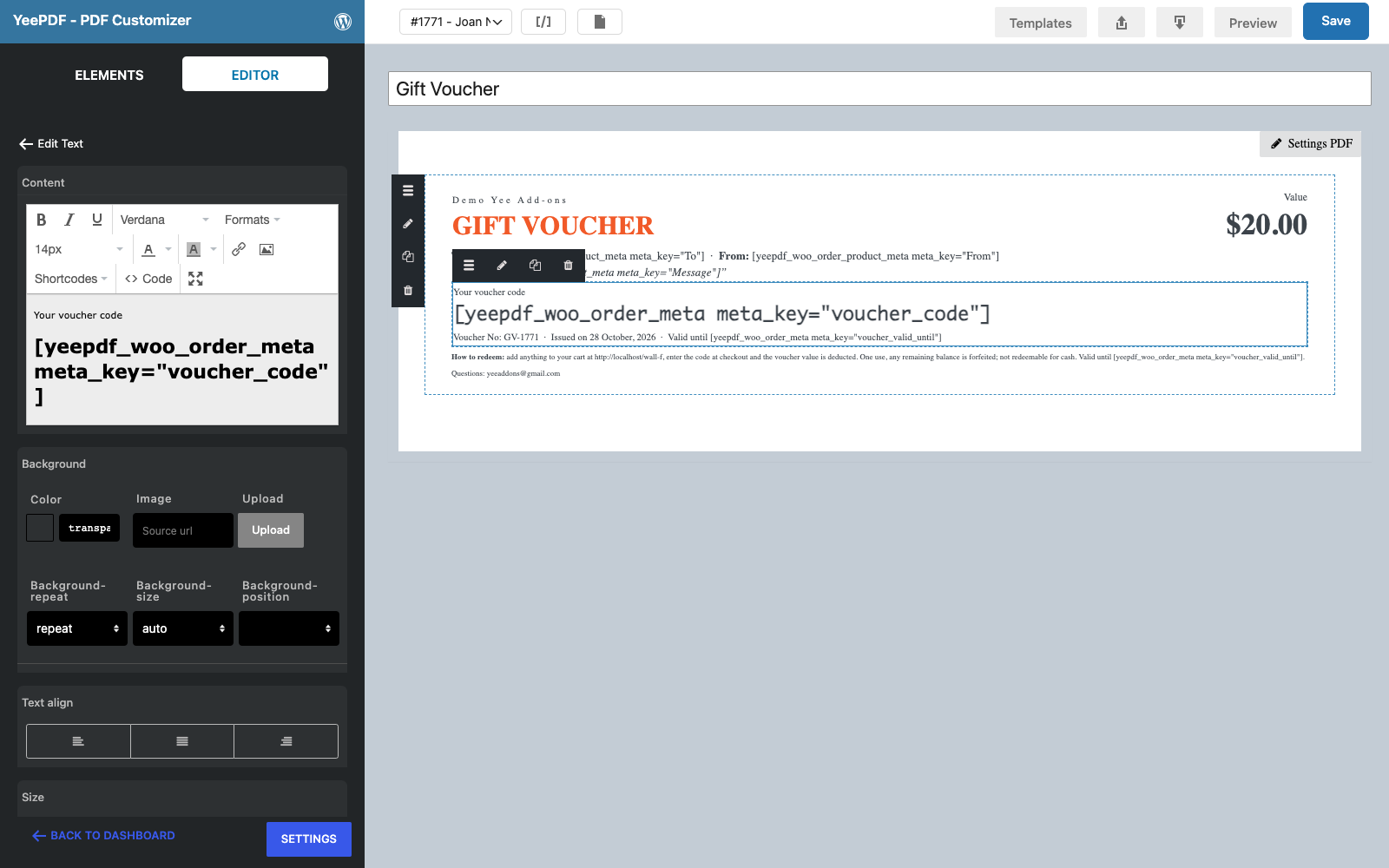
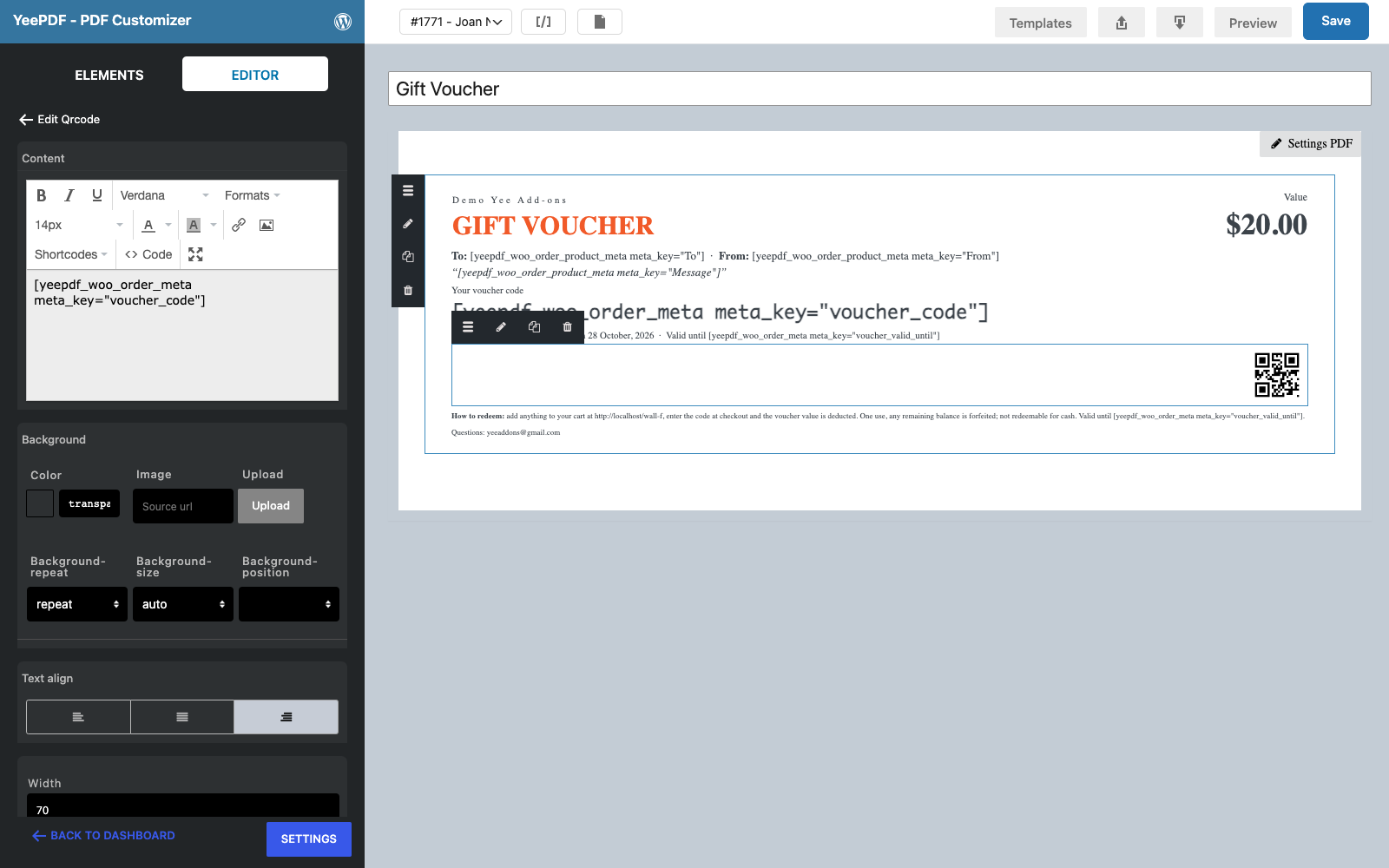
Step 6: QR code
Drop the Qrcode element onto the footer, set its Content to , the Width to 70 px and align it right. A till or a phone scans the code instead of typing it. Click Save.
3. Generate the Voucher When the Order Is Paid
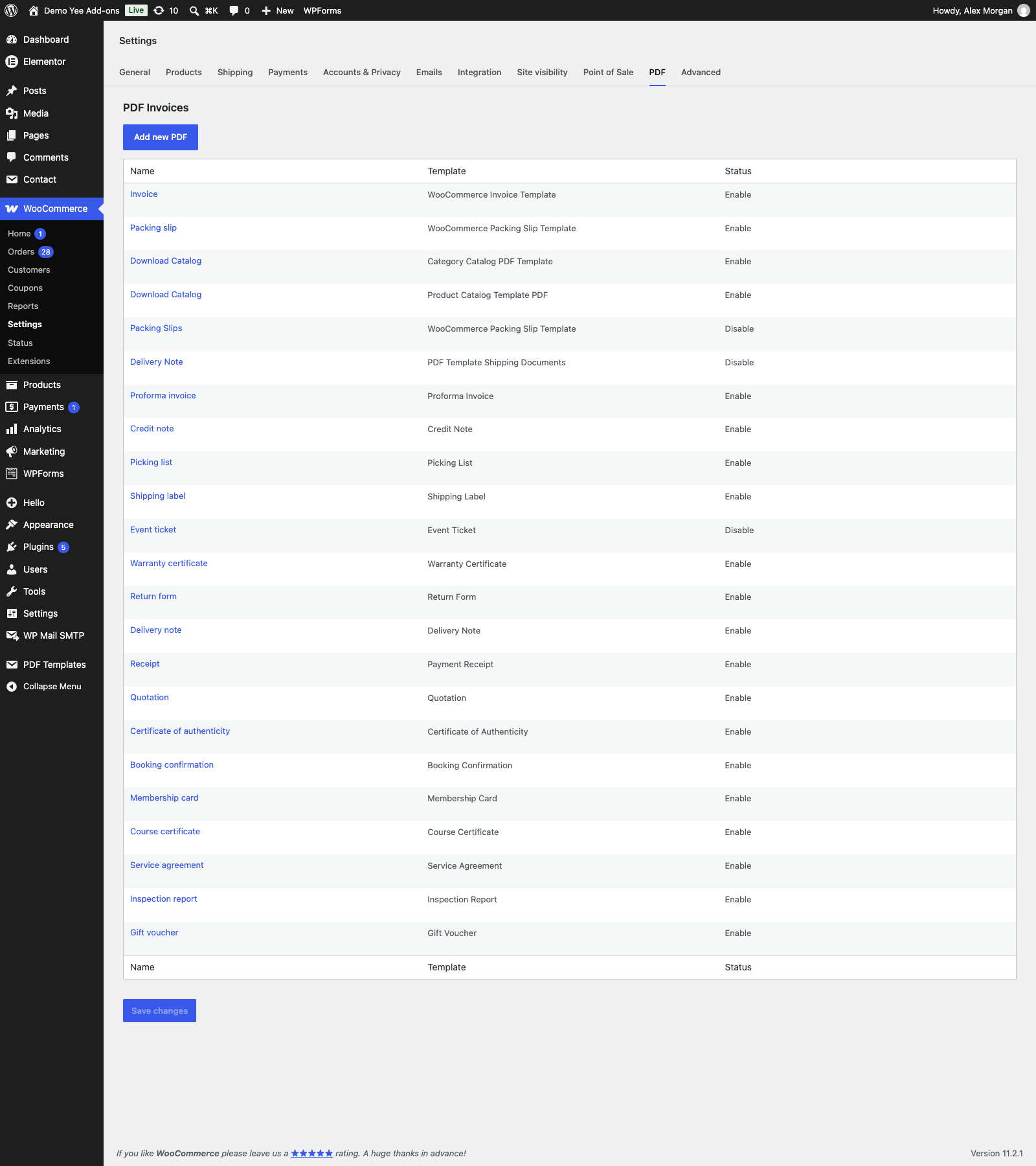
Go to WooCommerce → Settings → PDF → Add new PDF:
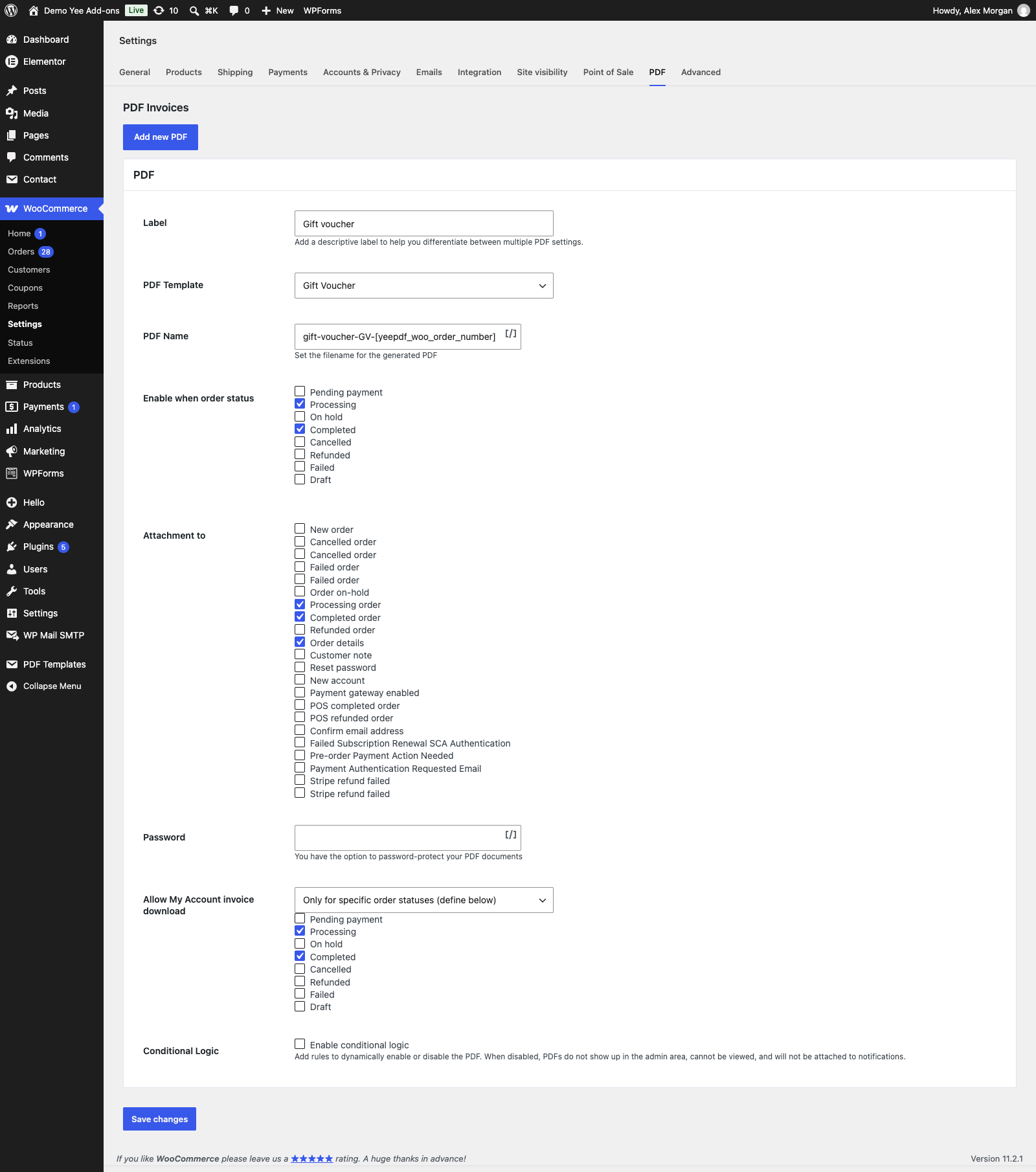
| Field | Value | Why |
|---|---|---|
| Enable this PDF | ticked | |
| Label | Gift voucher | Button label in the admin and in My Account. |
| PDF Template | Gift Voucher | The template from section 2. |
| PDF Name | gift-voucher-GV-8448 | e.g. gift-voucher-GV-1832.pdf |
| Enable when order status | Processing, Completed | Paid vouchers are Processing (or Completed at once for virtual products). |
| Attachment to | Processing order, Completed order, Order details | The voucher rides on the “order received” email; the buyer forwards or prints it. |
| Allow My Account invoice download | Only for specific order statuses → Processing, Completed | The buyer can download it again. |
4. The Code: a WooCommerce Coupon
The voucher is only as good as its code. The simplest reliable setup:
- When a voucher order comes in, create a coupon under Marketing → Coupons: type Fixed cart discount, amount = voucher value, Usage limit per coupon = 1, Individual use on, expiry = validity date. Use a code such as
GIFT-7K2M-50. - On the order screen add the Custom Fields
voucher_code(the coupon code) andvoucher_valid_until, click Update, then click Regenerate on the Gift voucher in the PDF box and re-send the email with Send order details to customer. - The recipient enters the code at checkout; WooCommerce deducts the value and the coupon is used up.
Stores that sell many vouchers automate step 1 and 2 with a small snippet on the woocommerce_payment_complete hook (create the coupon, write the two meta fields) so the PDF is generated with the code already in place, or with a gift-card plugin that writes its code to order meta: the template only needs the meta key changed.
What the buyer receives
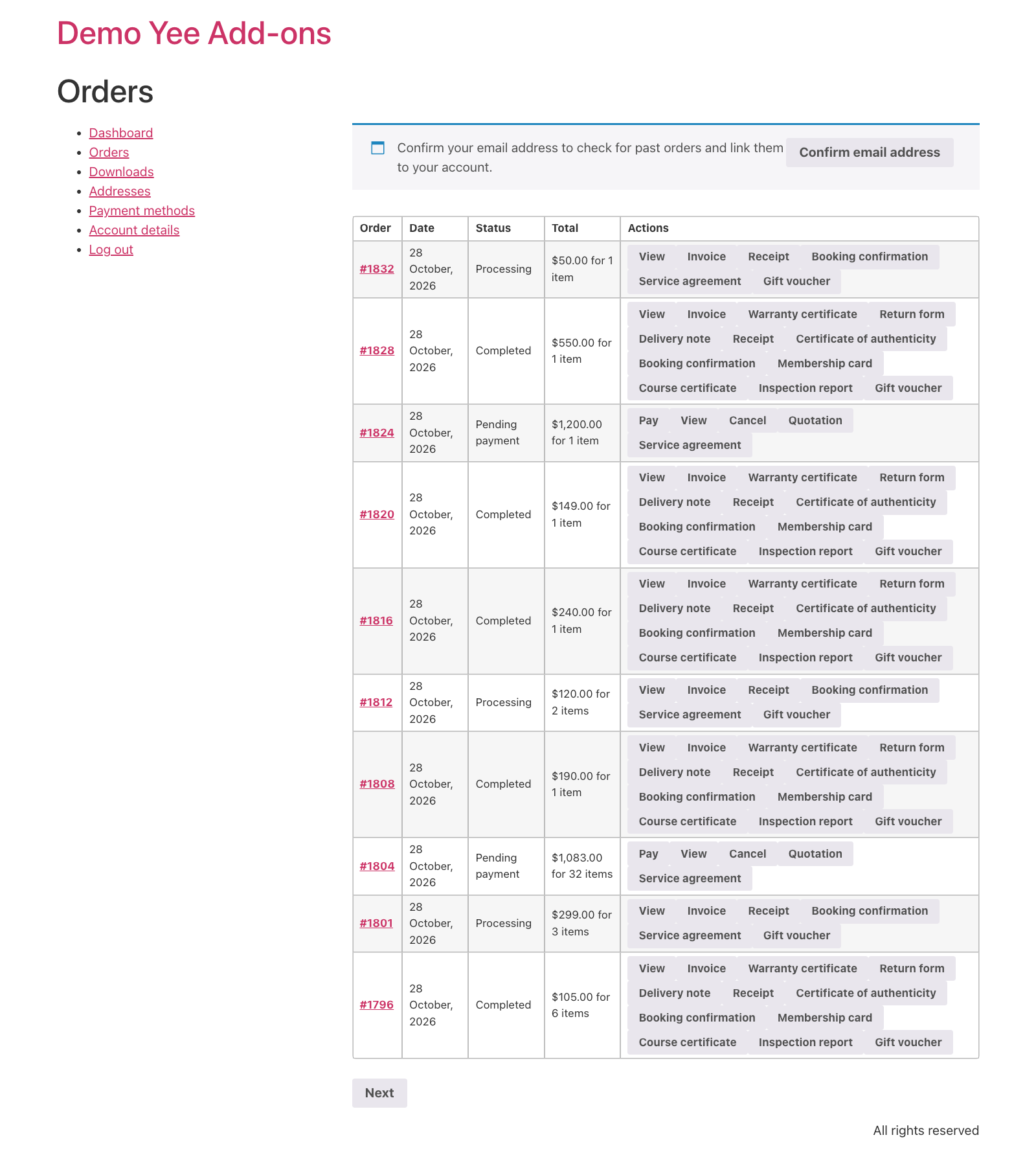
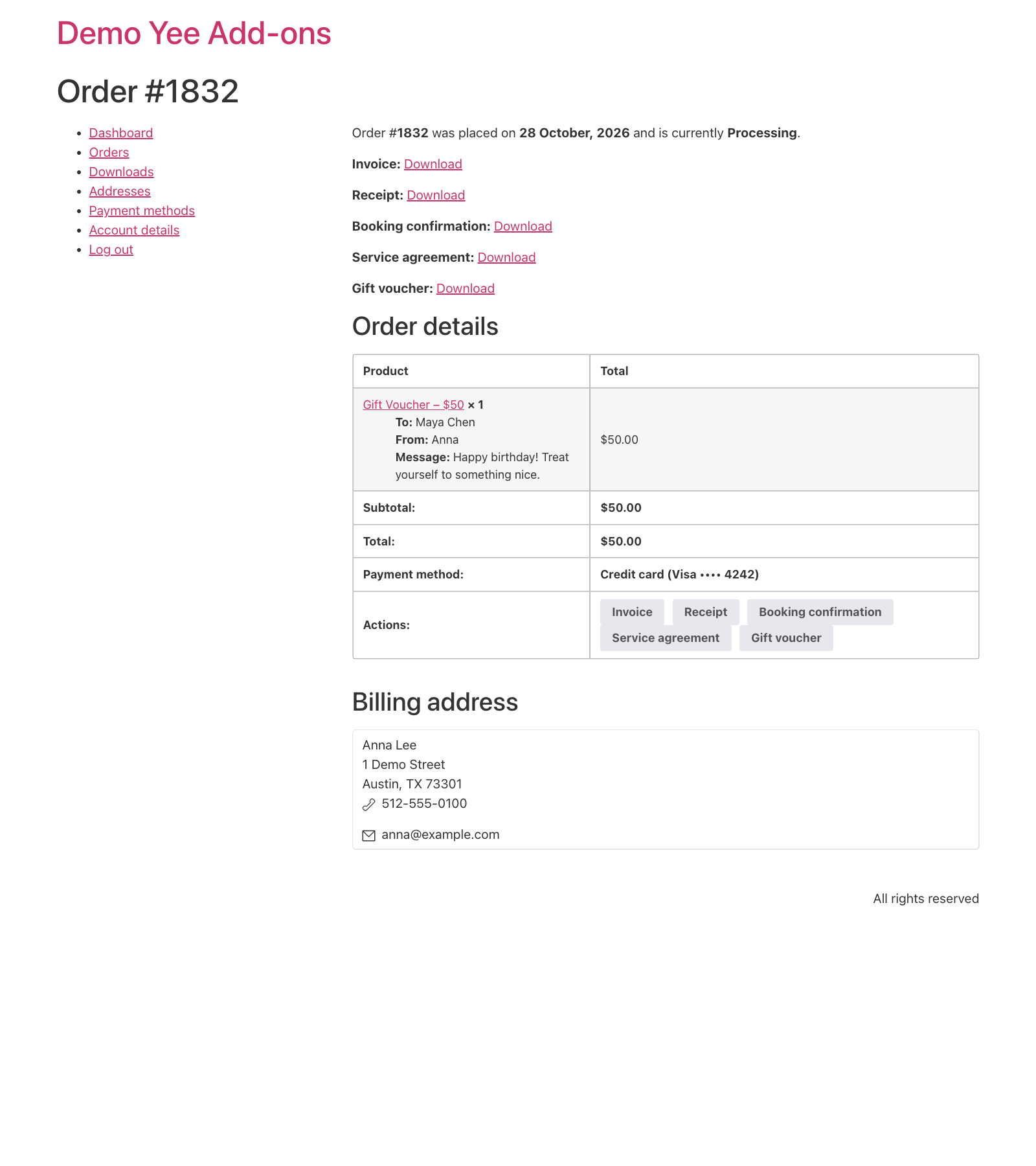
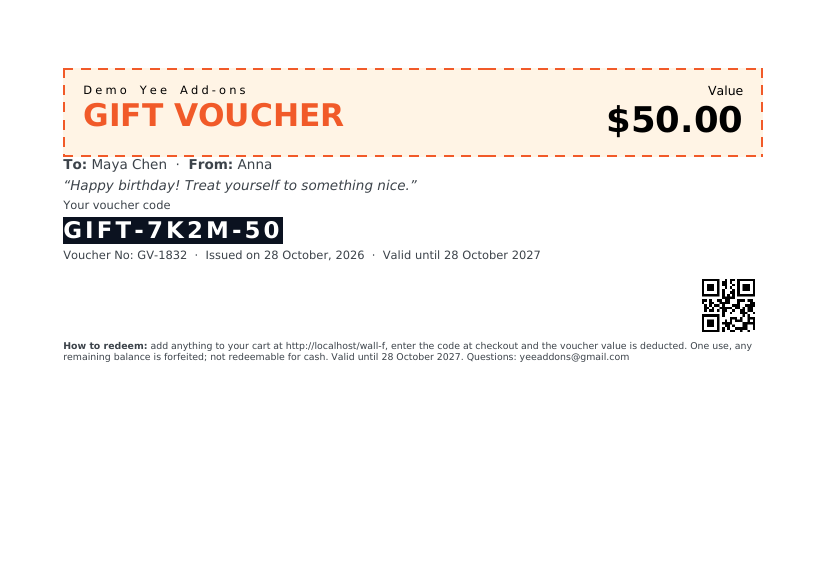
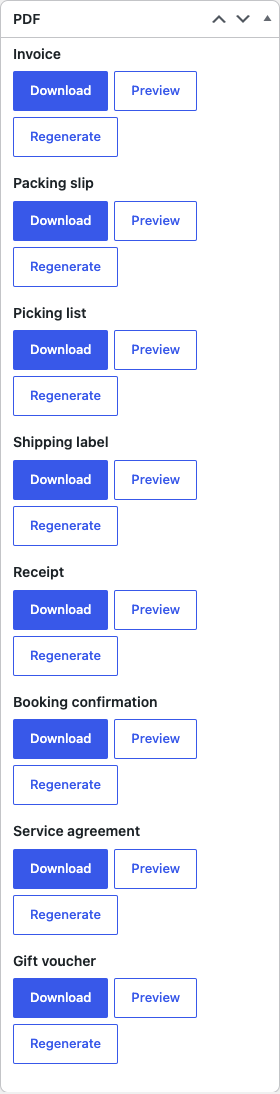
In the admin, the order screen lists it in the PDF box with Download, Preview and Regenerate.
5. Tips
- Collecting To / From / Message: any product add-ons or checkout-fields plugin that saves its fields as item meta works; the labels on the order screen are the meta keys.
- Design: add a background image (a pattern or photo) in Settings PDF and your logo with an Image element; keep the code strip high-contrast.
- Send it to the recipient: WooCommerce emails go to the buyer; for direct delivery add a “Recipient email” add-on field and forward the PDF from the order screen, or let the buyer forward the email.
- Several vouchers in one order: the product and item-meta tags print the first line; limit the quantity to 1 on the product so every voucher gets its own order and PDF.
- Balance vouchers: WooCommerce fixed-cart coupons do not keep a remaining balance; a gift-card plugin does, and its code can be printed the same way.
- Regenerate: after editing the template or the meta fields, click Regenerate on the order; emails attach the stored file.
6. Frequently Asked Questions (FAQ)
Why does the voucher say “Order meta voucher_code” in the builder?
The sample order has no such field. Preview it for a real voucher order, or change the sample order in the toolbar.
Can the code be generated automatically?
Yes, with a snippet or a gift-card plugin that writes the code to order meta before the PDF is generated; this guide shows the manual version.
Does the QR code work at a physical till?
It encodes the plain code text; a POS that applies WooCommerce coupons can scan it, otherwise staff type the code.
What value prints for a variable voucher product?
$19.00 prints the price of the ordered variation, so one template covers all values.
Can the buyer print it at home?
Yes: A5 landscape prints on A4 at 100 % scale with a margin, or choose Fit to page for a full-width print.