
Medical intake forms, HR documents, financial applications: some PDFs should not open for whoever happens to see the email. PDF for Elementor Forms + Drag And Drop Template Builder (free on WordPress.org) can encrypt every generated PDF with a password, and the password can come from the form itself, for example the person’s date of birth. This guide protects a new patient intake form: the patient and the front desk receive the PDF, and it only opens with the patient’s date of birth. For building the template itself, see How to Generate PDFs from Elementor Form Submissions.
1. The Intake Form and Template
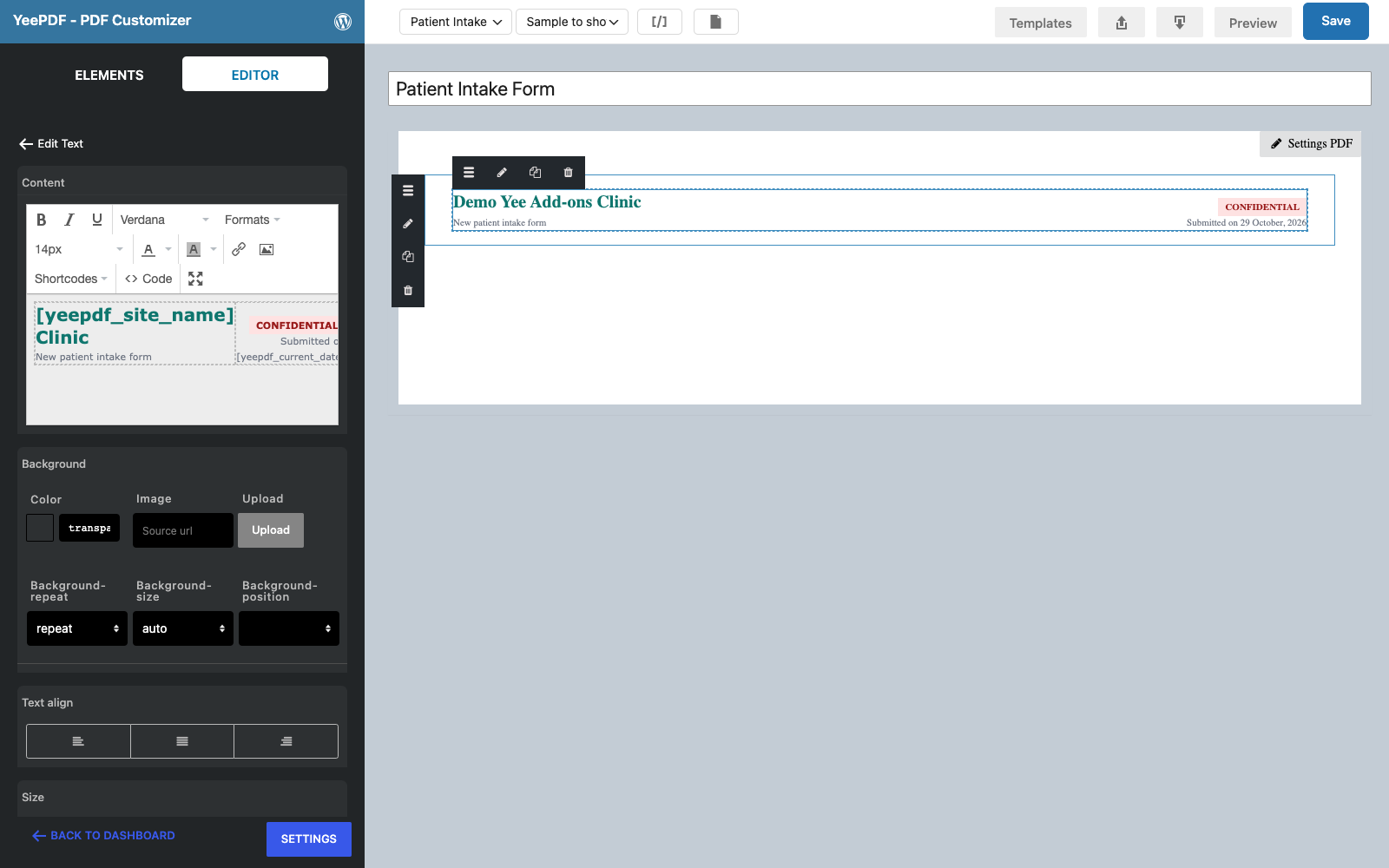
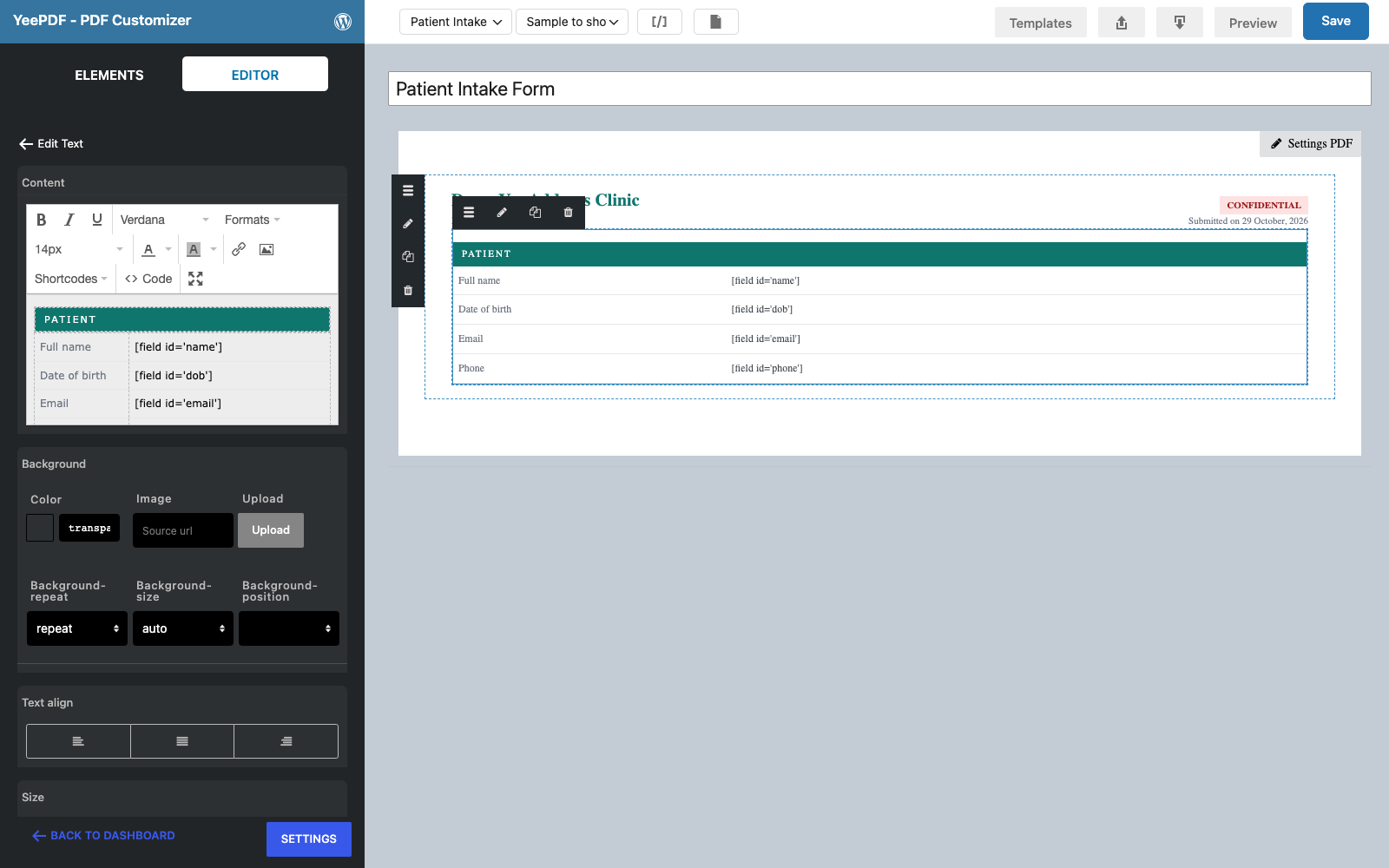
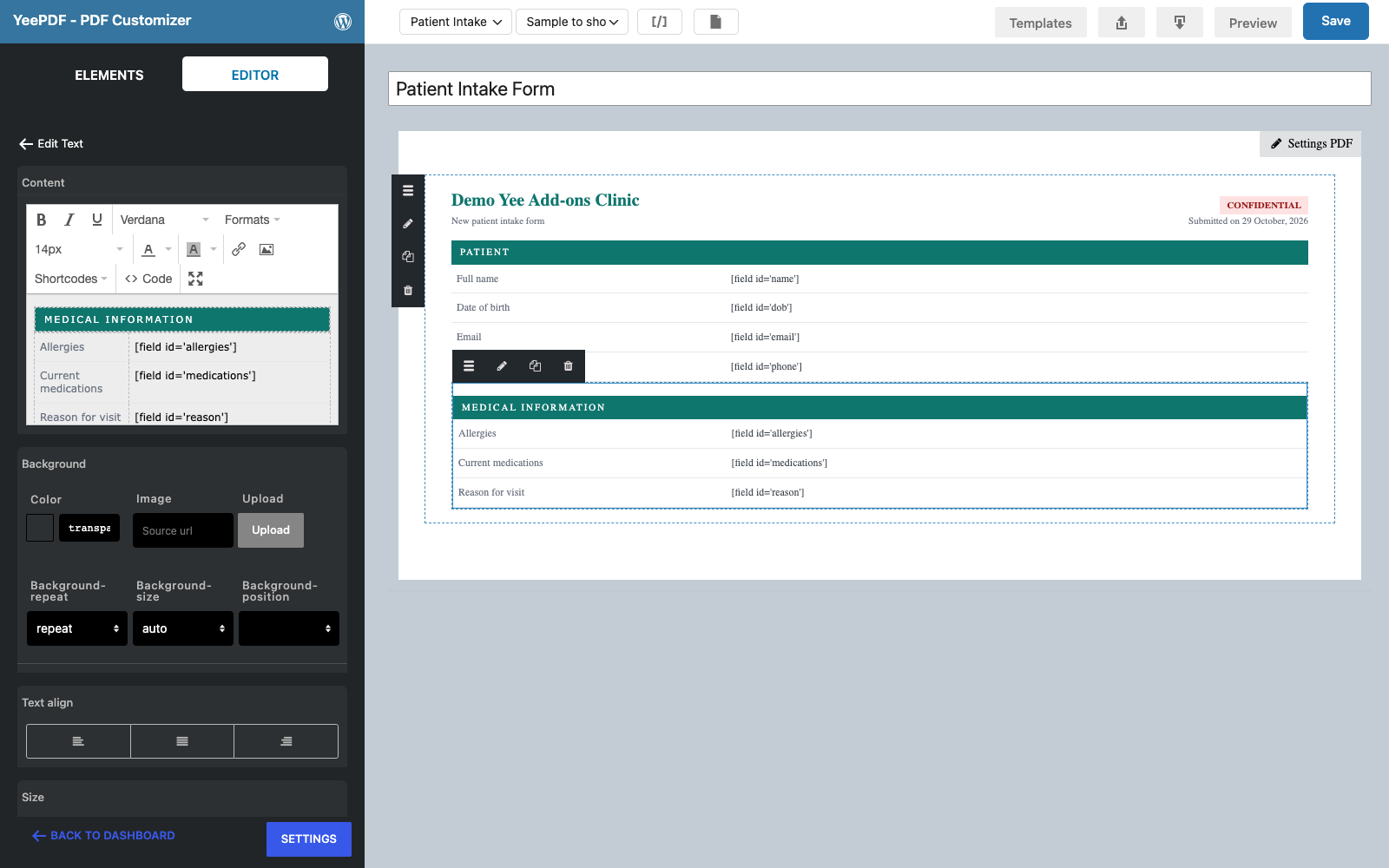
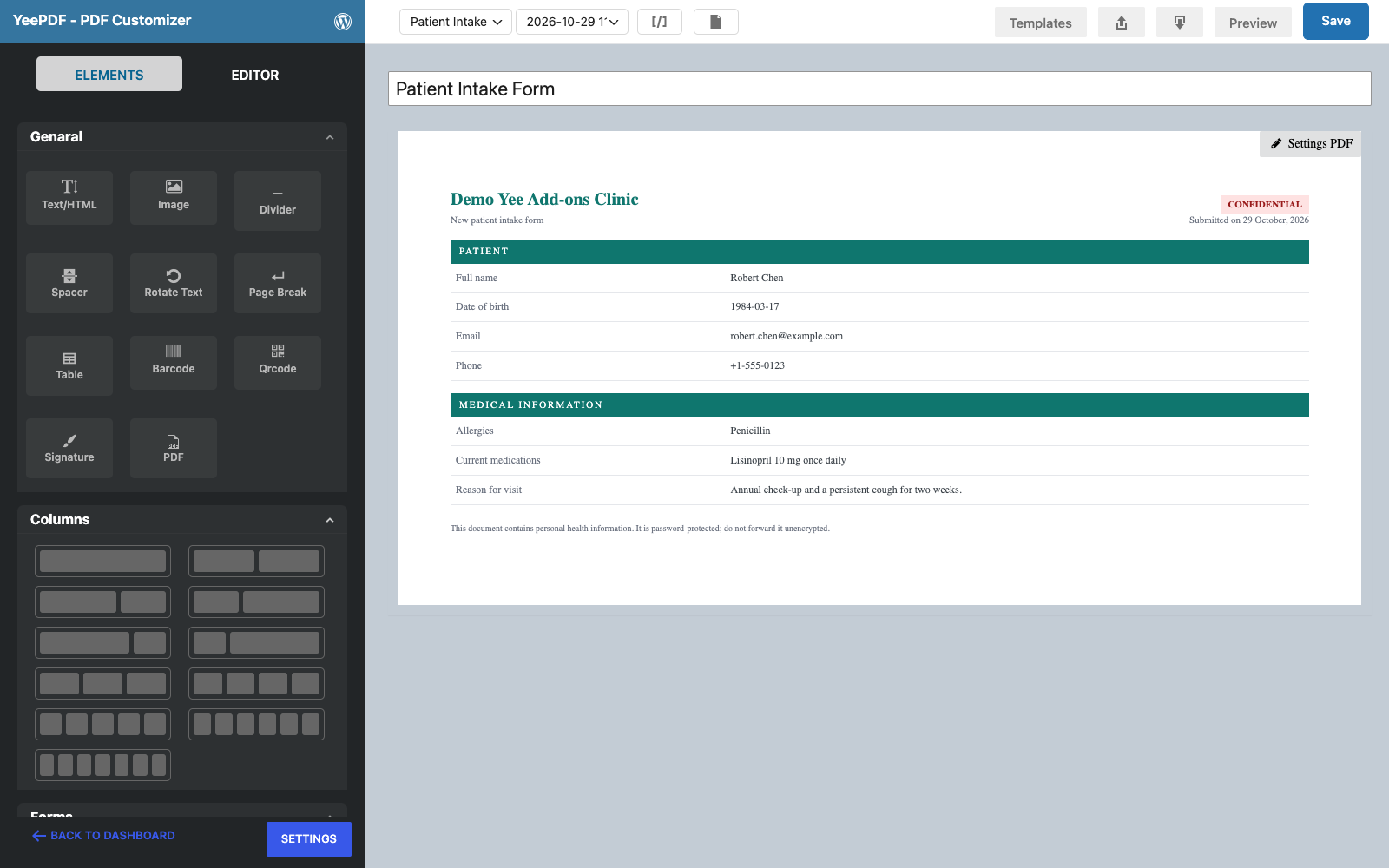
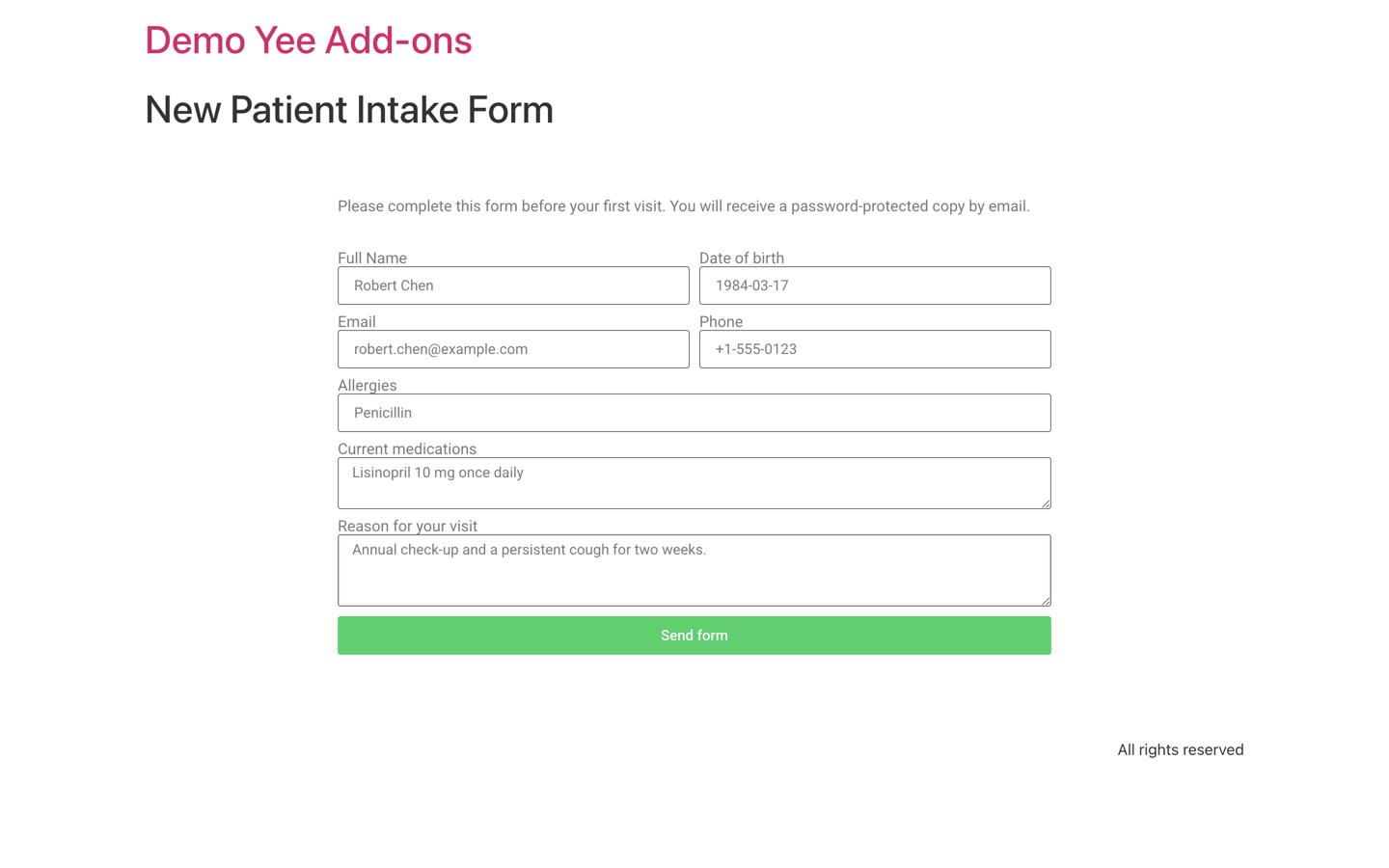
The form collects name, date of birth (an Elementor Date field), email, phone, allergies, current medications and the reason for the visit. The template is an A4 page with a clinic header, a CONFIDENTIAL label and two tables.
2. Set the PDF Password
In Elementor, open the form’s PDF Settings and type the password in PDF Password. It accepts plain text and merge tags:
![PDF Settings with the PDF Password set to [field id=dob]](https://add-ons.org/wp-content/uploads/2026/10/efp-12-pdf-settings.png)
[field id="dob"].| PDF Password | Result |
|---|---|
| empty | No protection (default). |
Clinic2026! | The same fixed password for every PDF; share it with your staff. |
[field id="dob"] | Each PDF opens with the value the person typed, here the date of birth as YYYY-MM-DD. |
[field id="phone"] | Any other field works too, as long as the person remembers what they typed. |
The value is used exactly as stored: Elementor’s Date field stores 1984-03-17, so that is the password. Tell people the format in the email.
3. Tell the Patient How to Open It
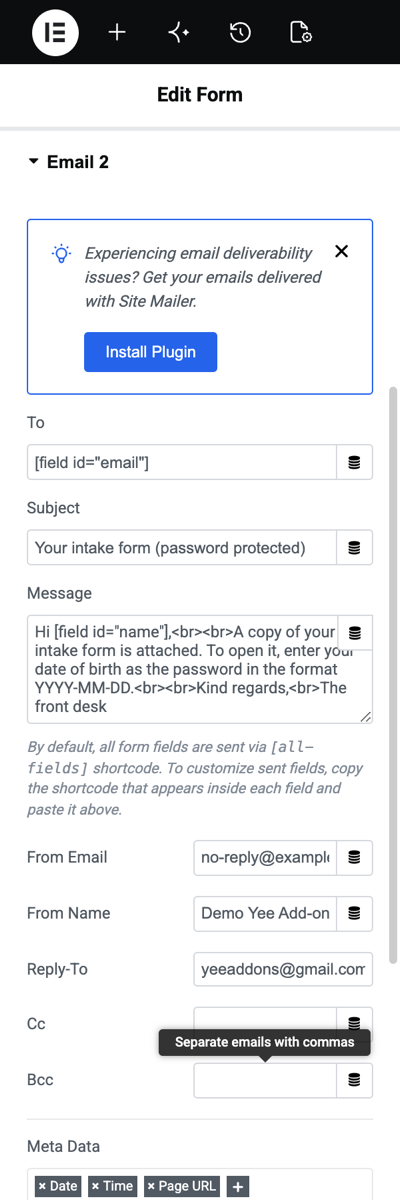
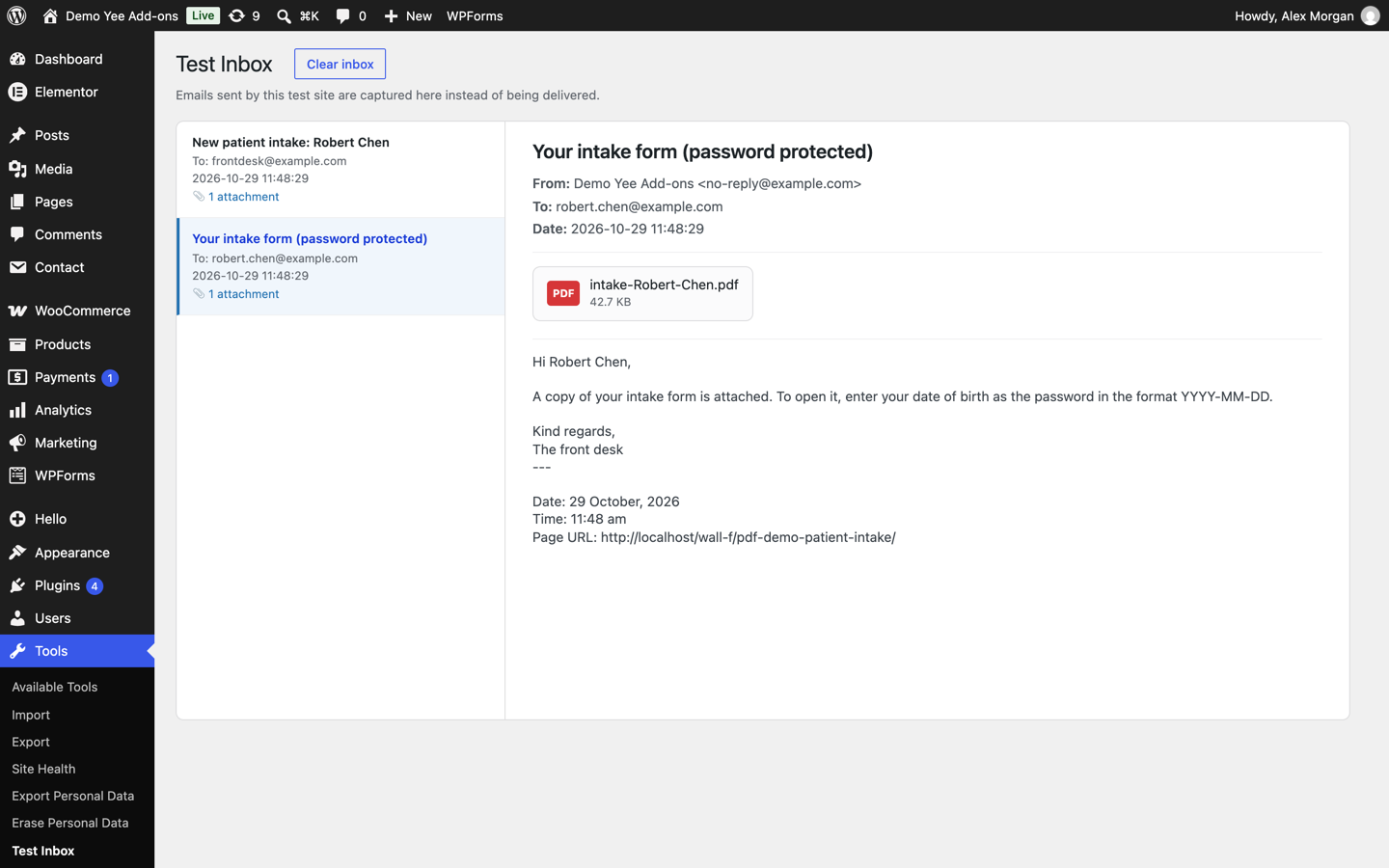
Email 2 goes to the patient with the PDF attached and a one-line explanation of the password. Never put the password itself in the same email.
4. Opening the Protected PDF
Any PDF reader (browser, Adobe Acrobat, macOS Preview, phone viewers) asks for the password before showing anything:
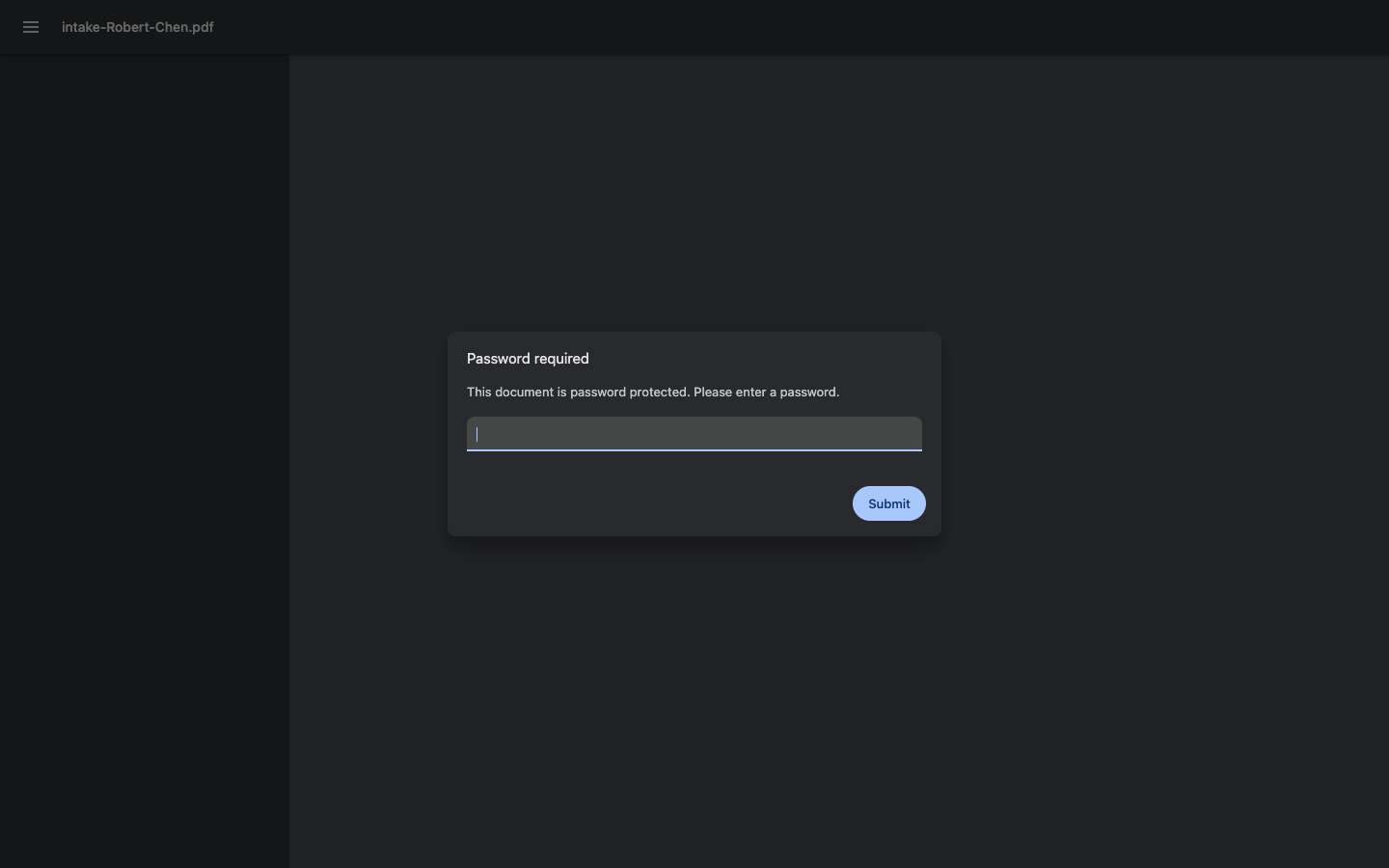
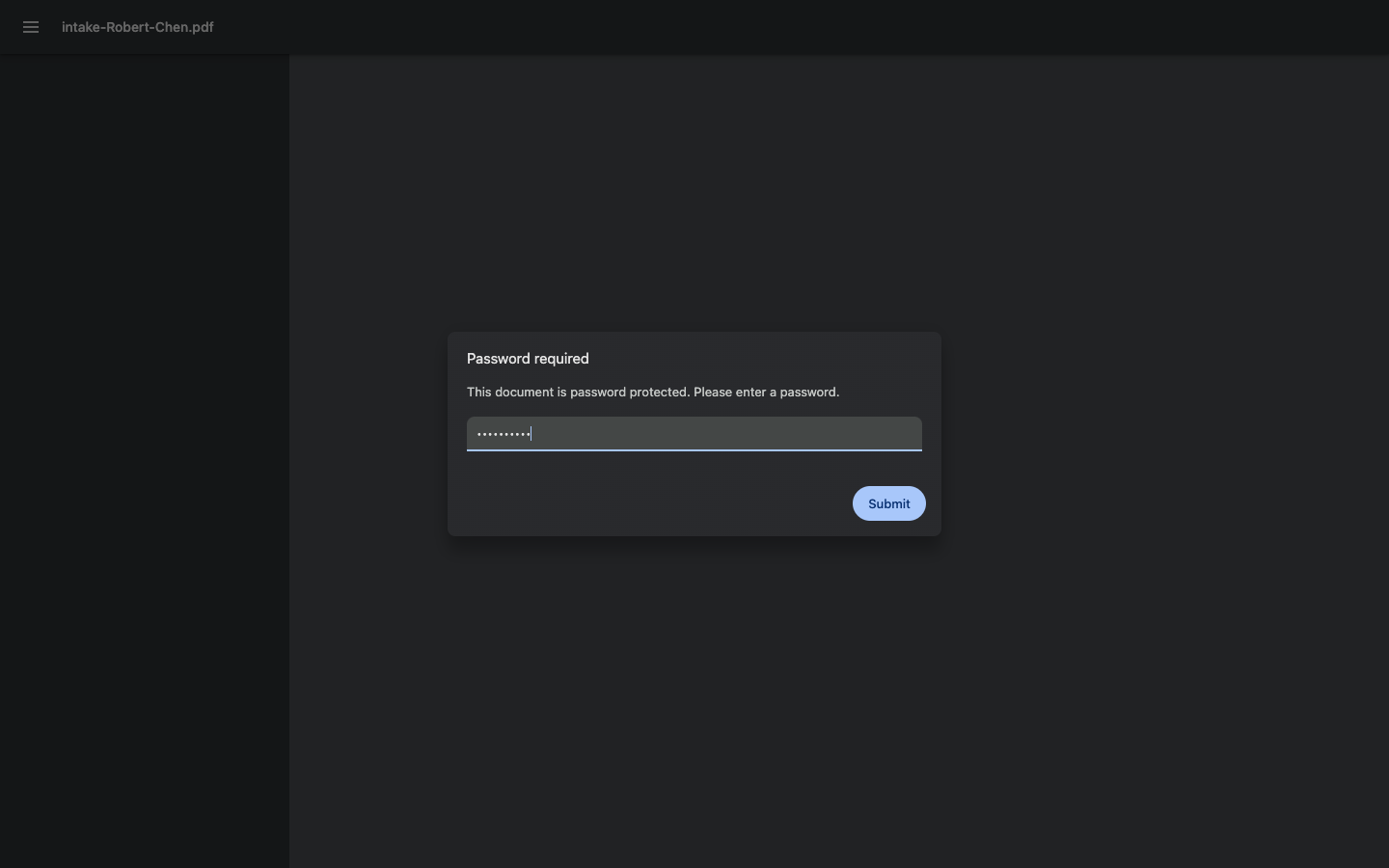
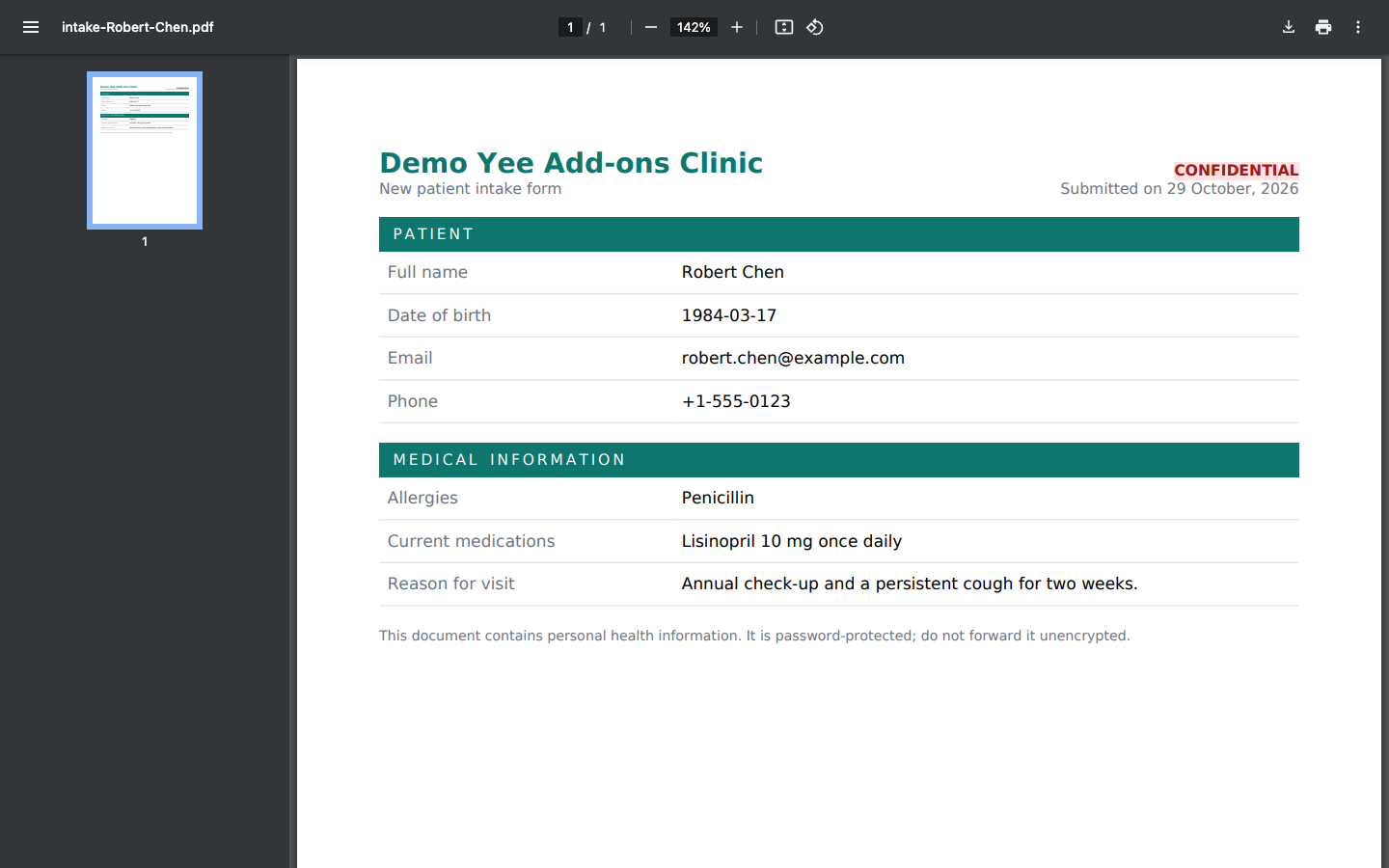
The same password protects the copy sent to the front desk, so staff open it with the patient’s date of birth as well.
5. Good Practice for Sensitive PDFs
- Don’t keep files you don’t need. Enable Do not save PDFs on the server in PDF Templates → Settings: the PDF is deleted after it is attached to the emails.
- Choose a value strangers don’t know. A date of birth is convenient but guessable by people who know the patient; combine fields or use a fixed staff password for internal copies.
- Use HTTPS and an SMTP provider with TLS so the email itself travels encrypted.
- Printing and copying: in the current version the encrypted PDF also blocks printing and copying text after it is opened. Keep that in mind for documents people need to print.
6. Frequently Asked Questions (FAQ)
Which encryption is used?
The PDF engine (mPDF) applies the standard PDF password protection that every reader supports; the current version uses RC4. It keeps the document closed to anyone without the password, but it is not strong encryption, so treat it as one layer next to HTTPS, TLS email and deleting files you no longer need.
Can each recipient get a different password?
One PDF action creates one file with one password. Use a second PDF action (PDF 2) with another password and another List of attached emails if staff and customer need different passwords.
What if the field is empty?
An empty password means no protection, so make the password field required.
Does the password work in the Submissions link and the download redirect?
Yes, it is the same file; whoever opens it is asked for the password.
More Elementor Forms PDF Guides
- How to Generate PDFs from Elementor Form Submissions (Step-by-Step)
- How to Attach a PDF to Elementor Form Emails
- How to Let Users Download a PDF After Submitting an Elementor Form
- How to Download Elementor Form Submissions as PDF
- How to Add Uploaded Images to an Elementor Form PDF
- How to Create Multiple PDFs from One Elementor Form
Plugin: PDF for Elementor Forms + Drag And Drop Template Builder on WordPress.org · Pro version