
Some PDFs should land in the visitor’s hands right away: a certificate, a personalised guide, a summary of what they just entered. PDF for Elementor Forms + Drag And Drop Template Builder (free on WordPress.org) adds a Redirect Download PDF action to Elementor forms: as soon as the form is submitted, the browser opens the freshly generated PDF, ready to save or print. No email round-trip. This guide builds a webinar certificate of attendance that the attendee downloads straight from the form. New to the template builder? Read How to Generate PDFs from Elementor Form Submissions first.
1. The Form and the Certificate
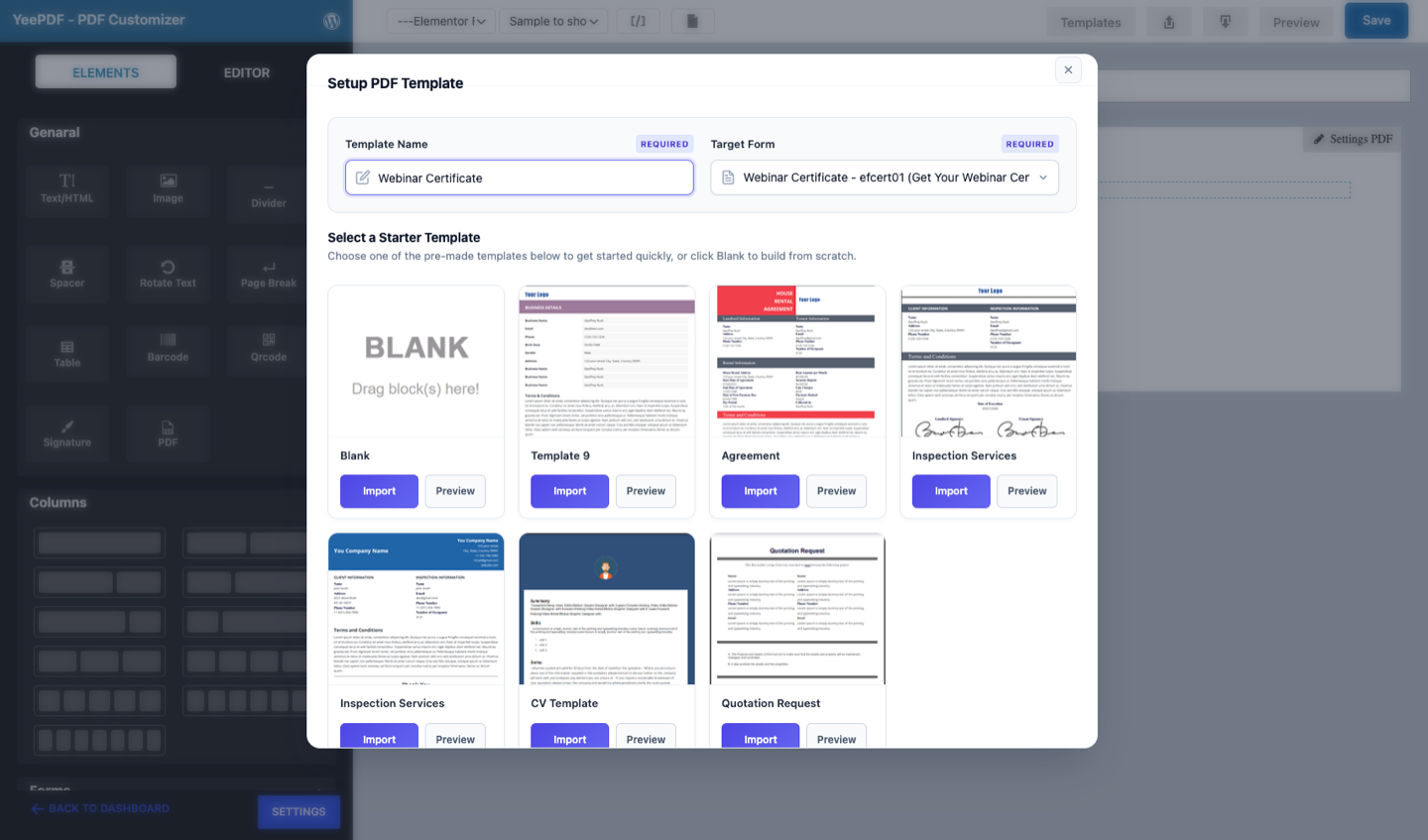
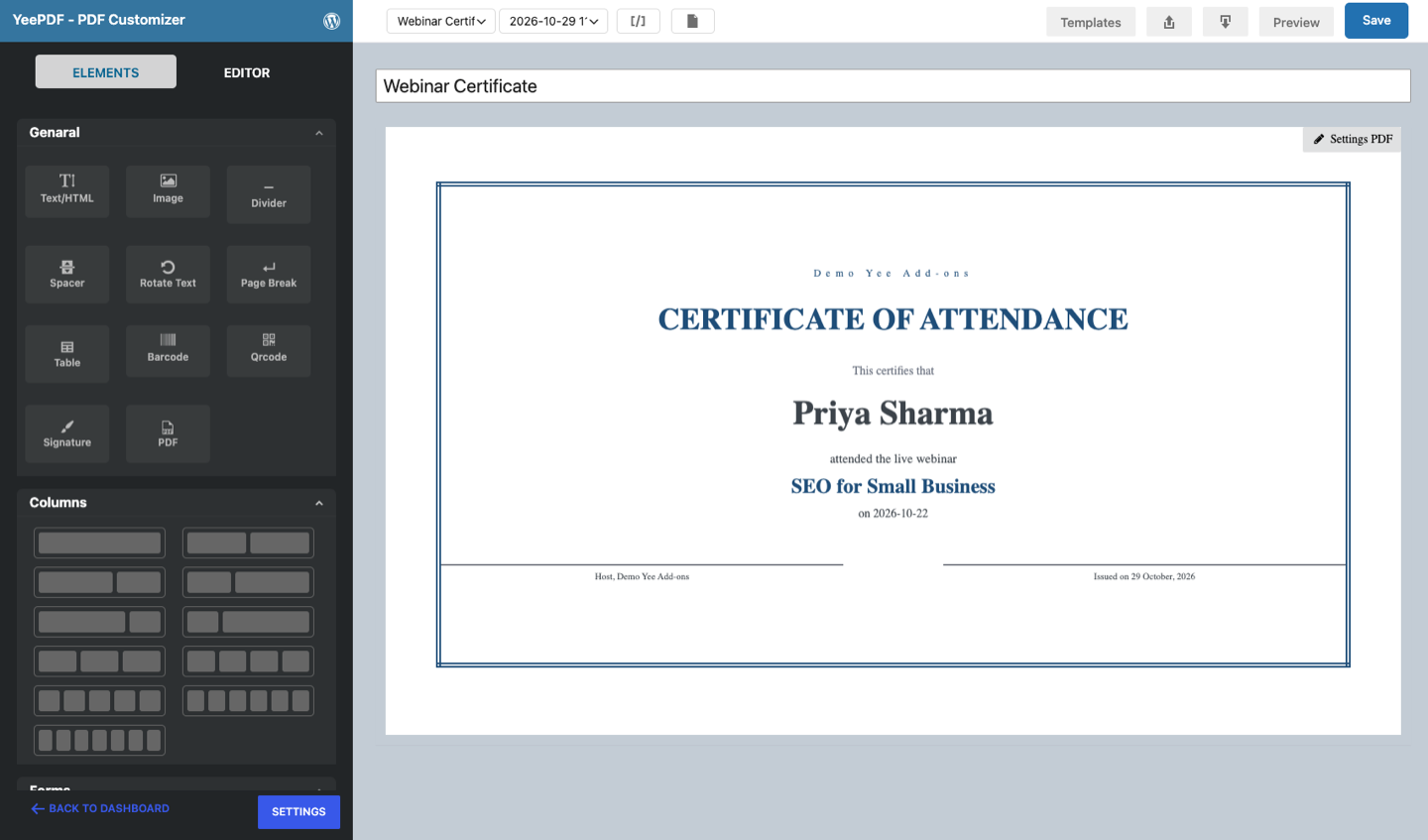
The form asks for the name to print on the certificate, an email, the webinar (a select) and the date attended. The template is an A4 landscape page with a double border, the attendee’s name in large type and two signature lines.
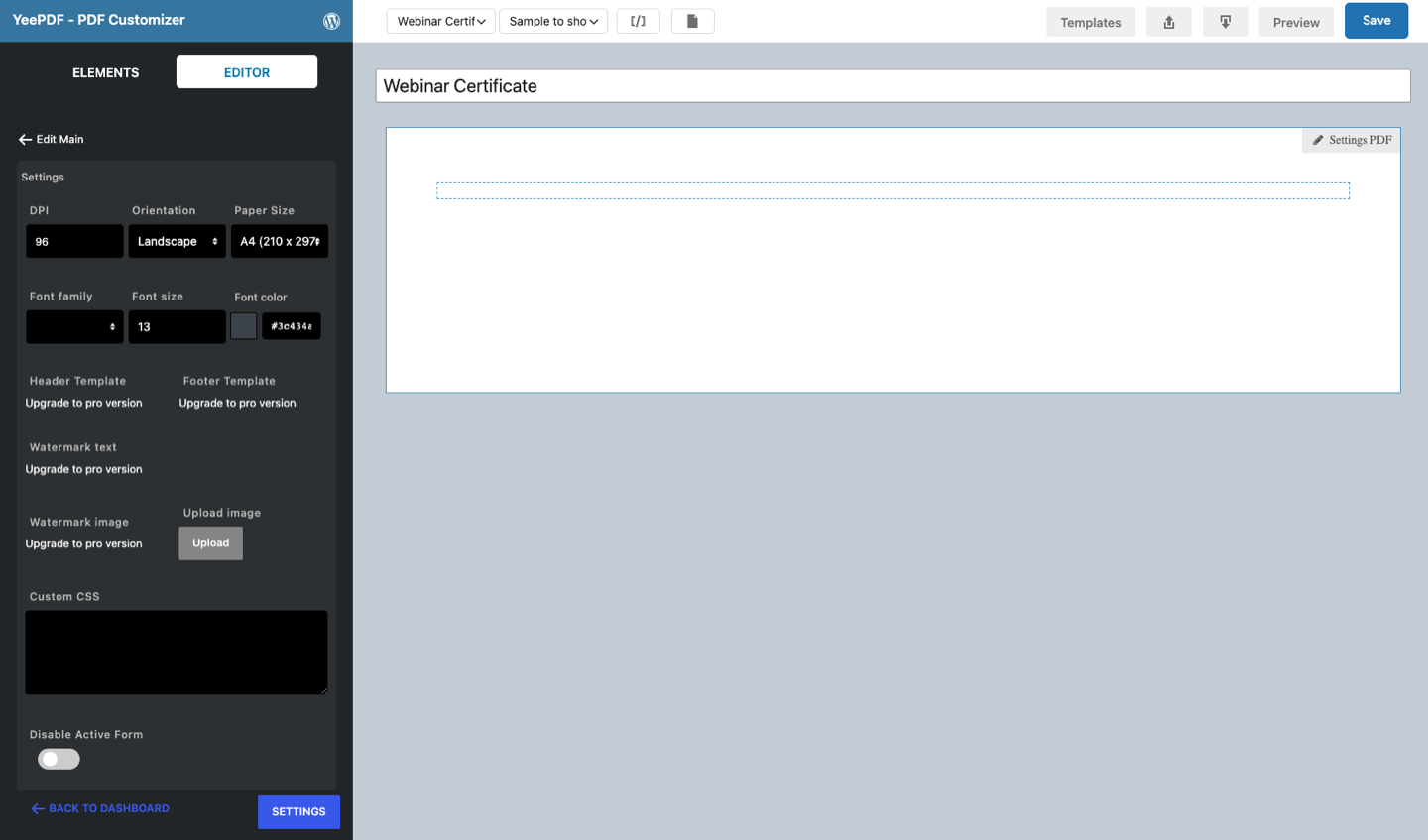
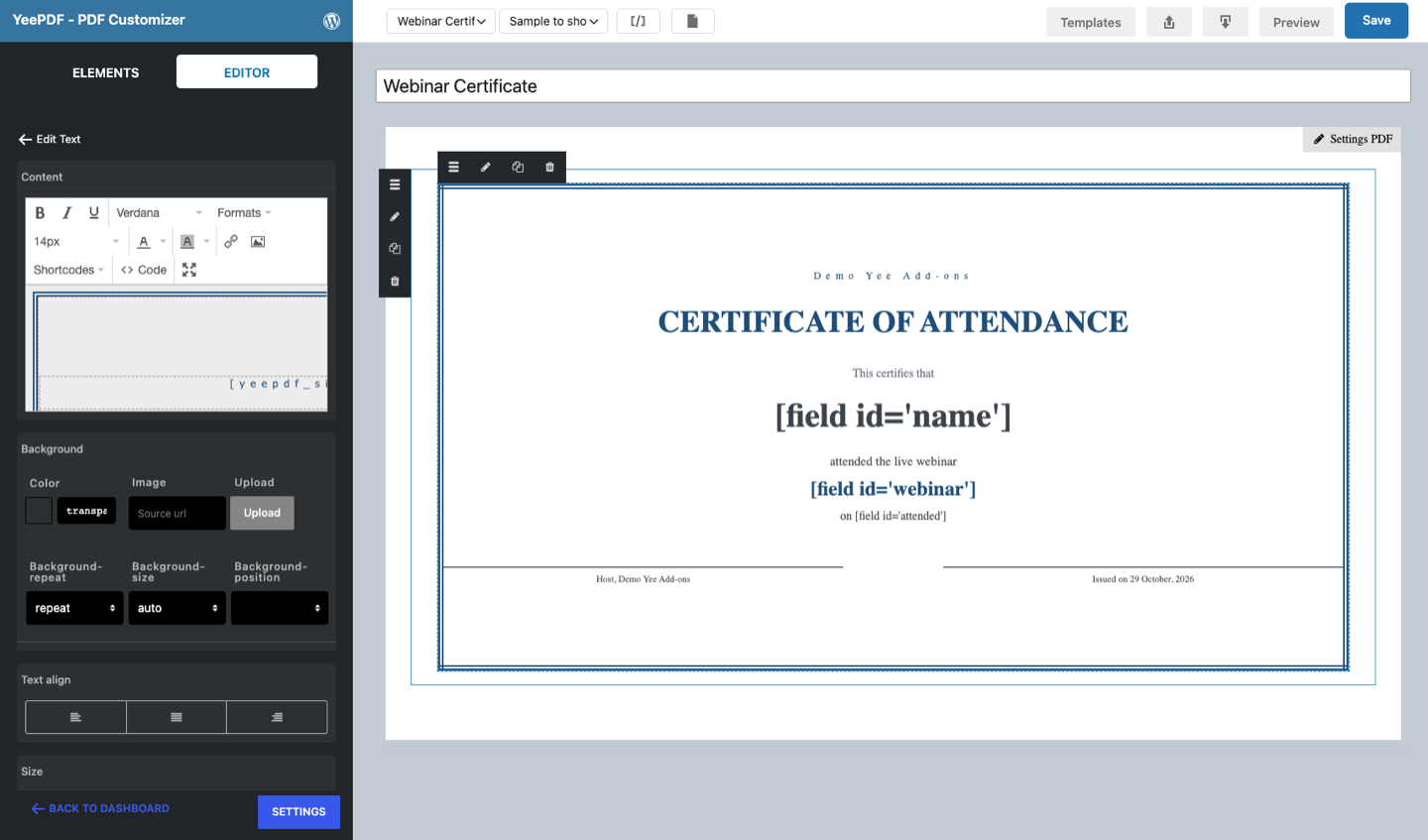
Tip: mPDF ignores paragraph margins inside table cells. Space the lines with table rows and padding-bottom, and give the outer cell a fixed height (for example height: 150mm) so the border fills the landscape page.
2. Add the PDF and Redirect Download PDF Actions
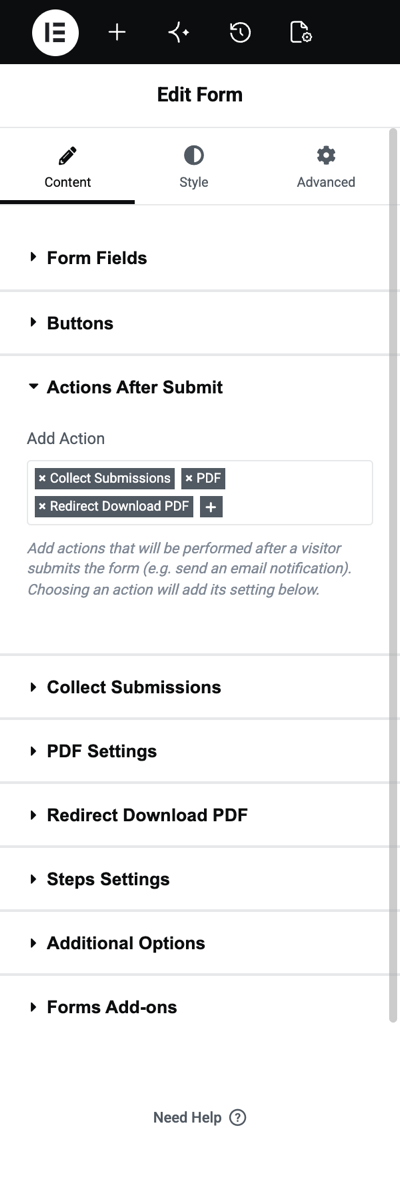
Step 1: Actions After Submit
In Elementor, select the form, open Actions After Submit and add Collect Submissions, PDF and Redirect Download PDF. There is no Email action in this demo; add one if you also want a copy by email.
Step 2: PDF Settings
Choose the Webinar Certificate template and the file name certificate-[field id="name"]. Attach PDF in email can stay off.
![PDF Settings with the Webinar Certificate template and the PDF name certificate-[field id=name]](https://add-ons.org/wp-content/uploads/2026/10/efc-12-pdf-settings.png)
Redirect Download PDF has no settings of its own: it takes the PDF created by the PDF action in the same submission. Put it after the PDF action, and do not combine it with Elementor’s own Redirect action (only one redirect can win).
3. What the Visitor Sees
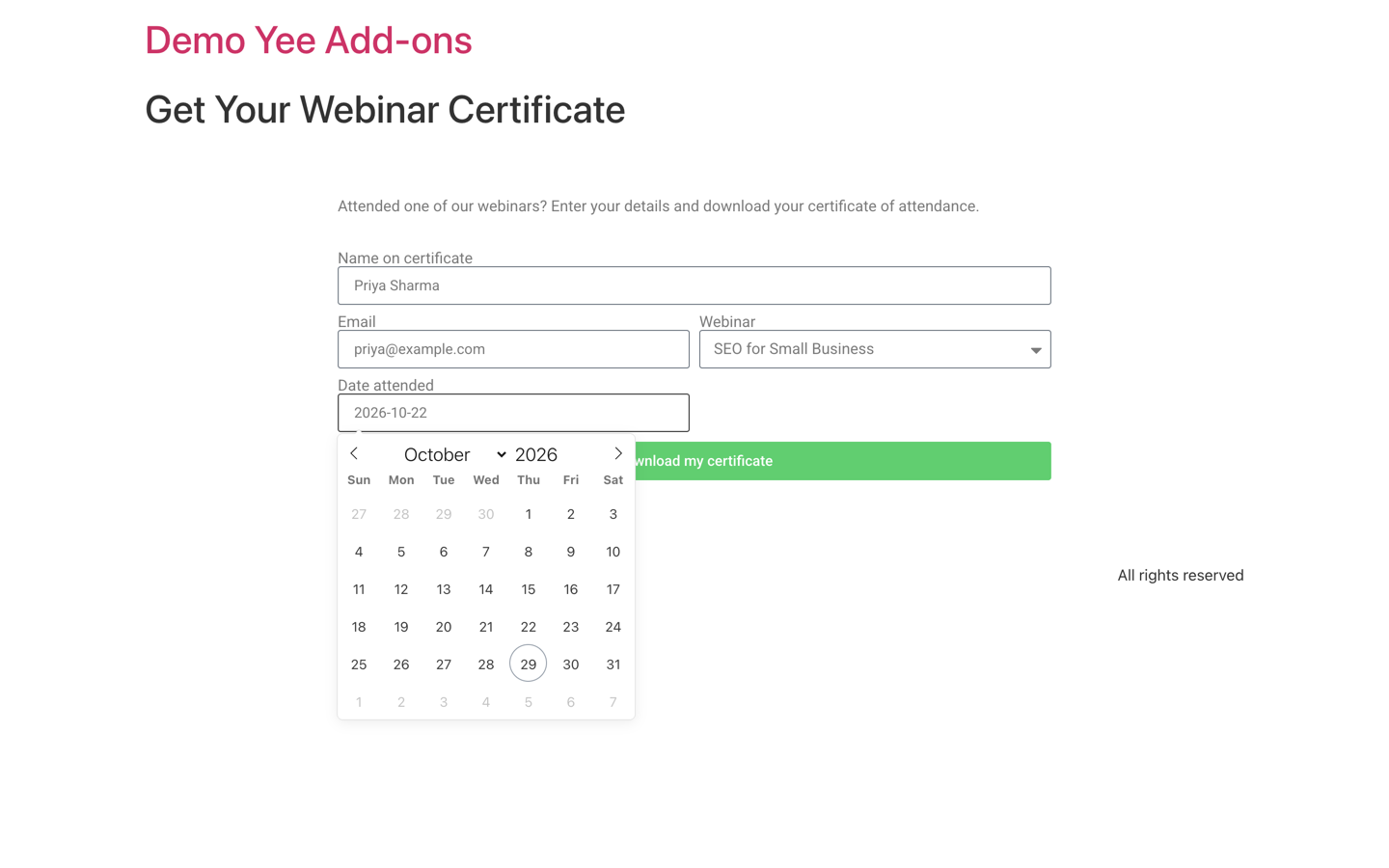
After clicking Download my certificate, the browser opens the PDF in the same tab; the visitor can save or print it from the PDF toolbar.


4. Other Ways to Offer the Download
| Option | How | When to use it |
|---|---|---|
| Redirect Download PDF | Add the action after PDF. | Instant download, the visitor stays in control of the file. |
| Email attachment | Add Email or Email 2 and keep Attach PDF in email on. | The visitor needs the file later, or you need proof it was sent. |
| Submissions | Keep Collect Submissions on; the PDF link is stored with the entry. | Your team downloads the PDF later from Elementor → Submissions. |
5. Tips
- Keep the PDF on the server. With Do not save PDFs on the server enabled in PDF Templates → Settings, the file is deleted after the email step and the redirect has nothing to open.
- One PDF per redirect. If the form creates several PDFs (PDF, PDF 2…), the redirect opens one of them; send the others by email.
- Mobile browsers open the PDF in their own viewer or download it; both work.
- Validate the name field (required, sensible length) so certificates are not generated with an empty name.
6. Frequently Asked Questions (FAQ)
Nothing happens after the submission. Why?
Check that both PDF and Redirect Download PDF are in Actions After Submit, that the PDF action has a template, and that the form submits without validation errors.
Can I force a download instead of opening the PDF?
Browsers decide how to show a PDF link. The viewer always has a download button, and most browsers can be set to download PDFs instead of opening them.
Is the PDF URL public?
The file sits in wp-content/uploads/pdfs/downloads/ inside a randomly named folder, so the URL cannot be guessed, but anyone who has the exact link can open it. Use a PDF password for sensitive documents.
Can I show a thank-you message and the download?
The redirect replaces the success message. If you want both, skip the redirect and email the PDF instead.
More Elementor Forms PDF Guides
- How to Generate PDFs from Elementor Form Submissions (Step-by-Step)
- How to Attach a PDF to Elementor Form Emails
- How to Download Elementor Form Submissions as PDF
- How to Add Uploaded Images to an Elementor Form PDF
- How to Password-Protect Elementor Form PDFs
- How to Create Multiple PDFs from One Elementor Form
Plugin: PDF for Elementor Forms + Drag And Drop Template Builder on WordPress.org · Pro version