
Elementor Pro keeps every form entry under Elementor → Submissions, but an entry is a screen, not a document you can file, print or forward. PDF for Elementor Forms + Drag And Drop Template Builder (free on WordPress.org) creates a PDF for each submission and saves the PDF link inside the submission, so your team can open the document from the entry at any time. This guide does it for a job application form: every application becomes a one-page PDF with the candidate’s details, the motivation and a box for the hiring team. For the template basics, see How to Generate PDFs from Elementor Form Submissions.
1. The Application PDF
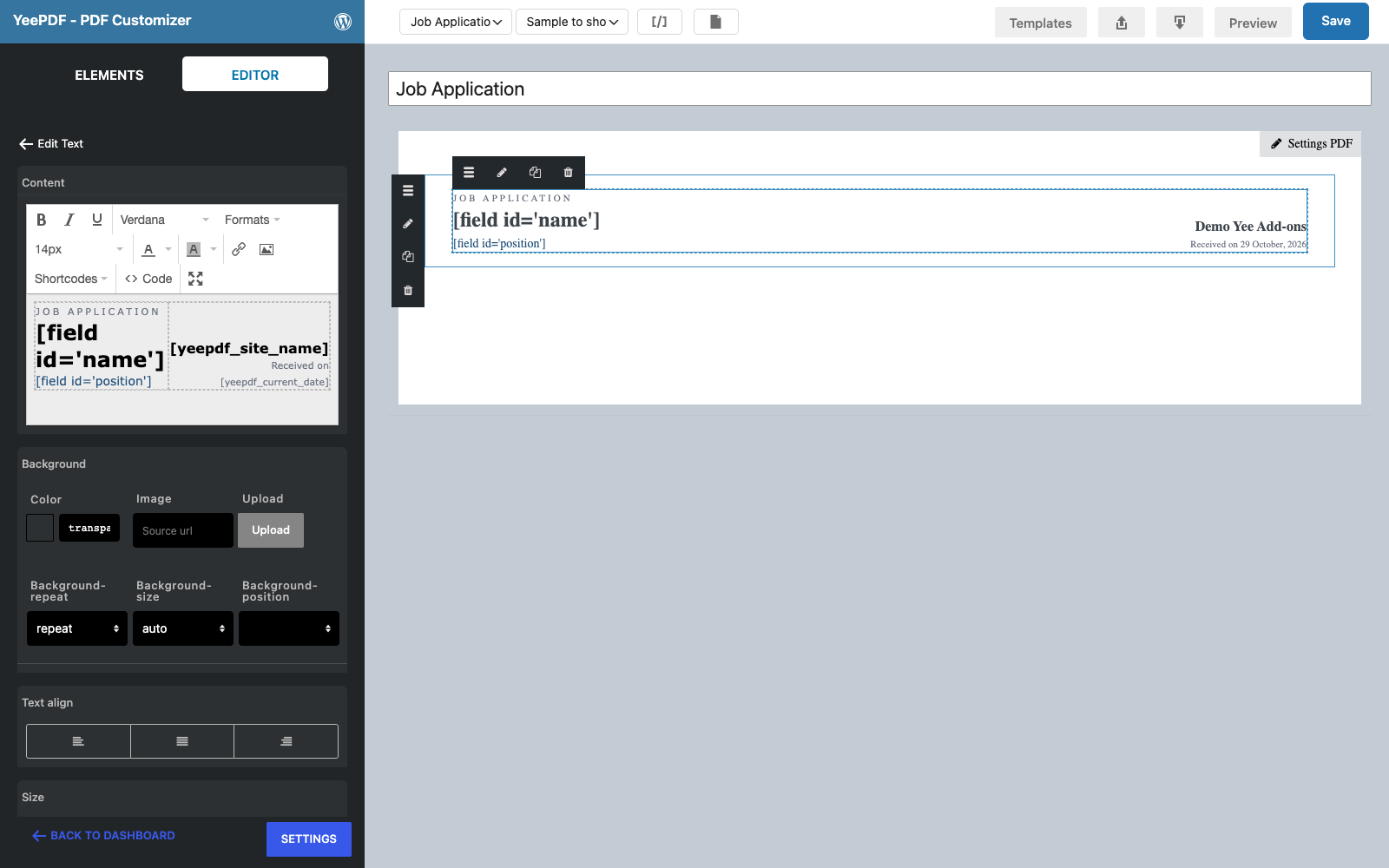
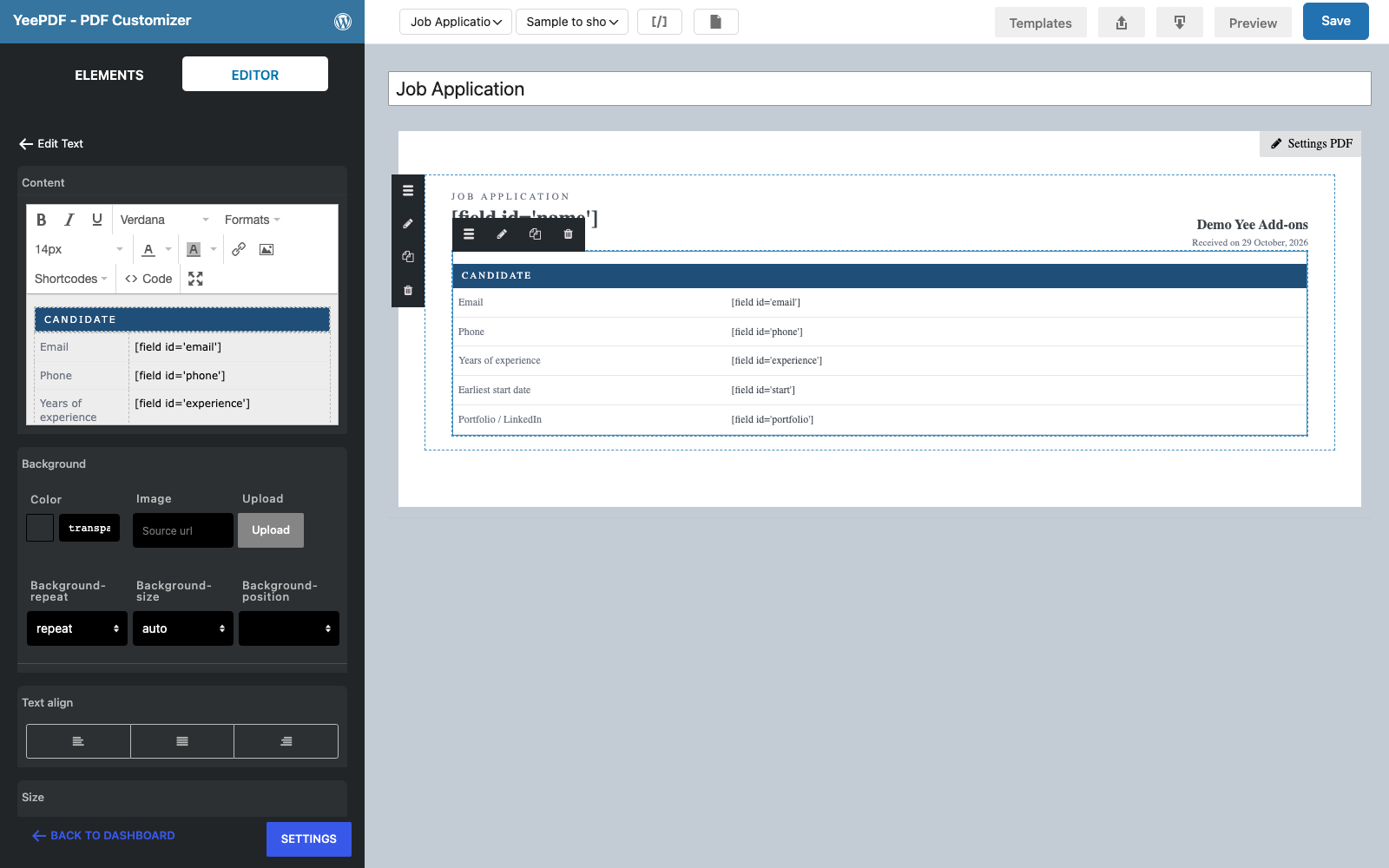
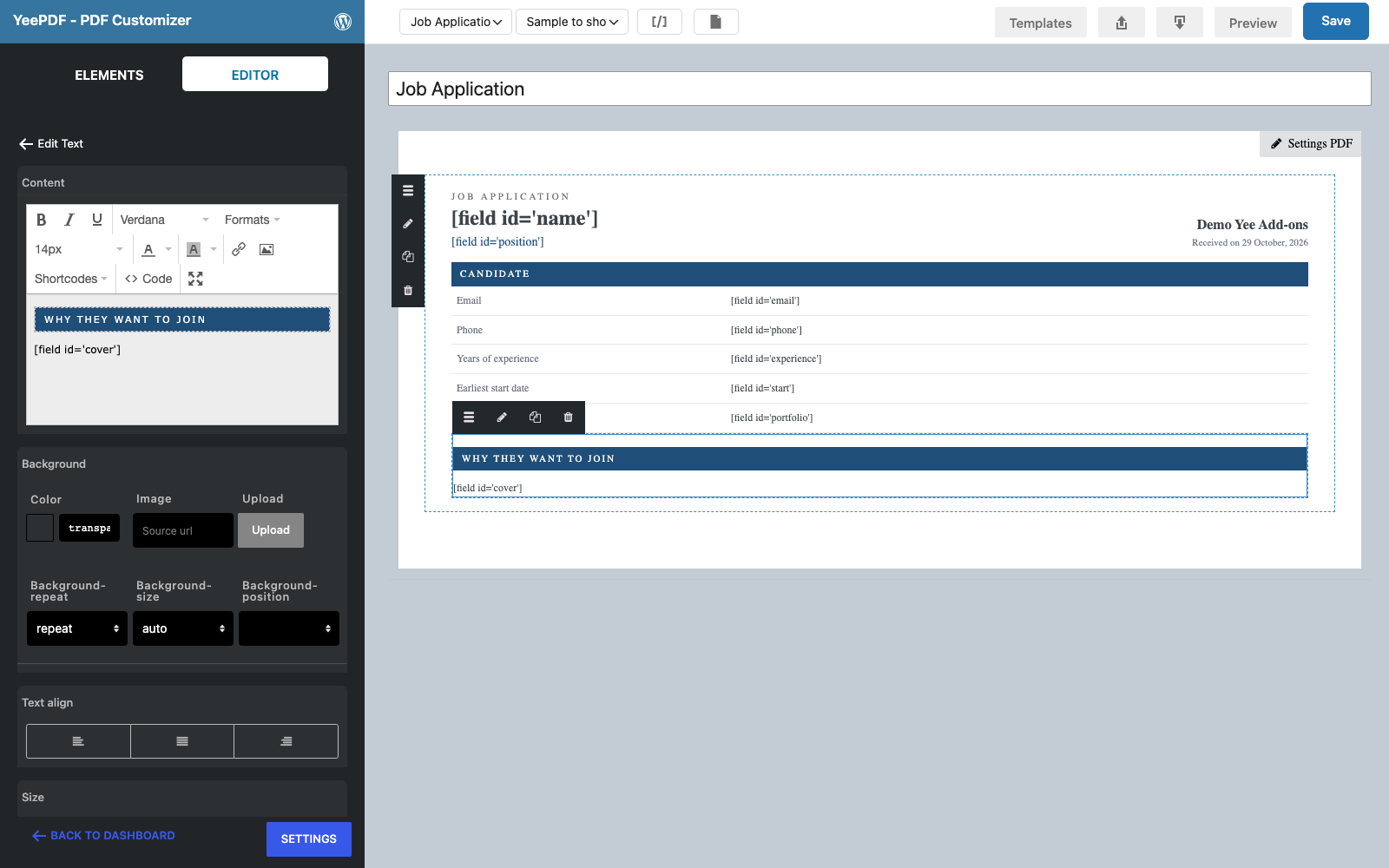
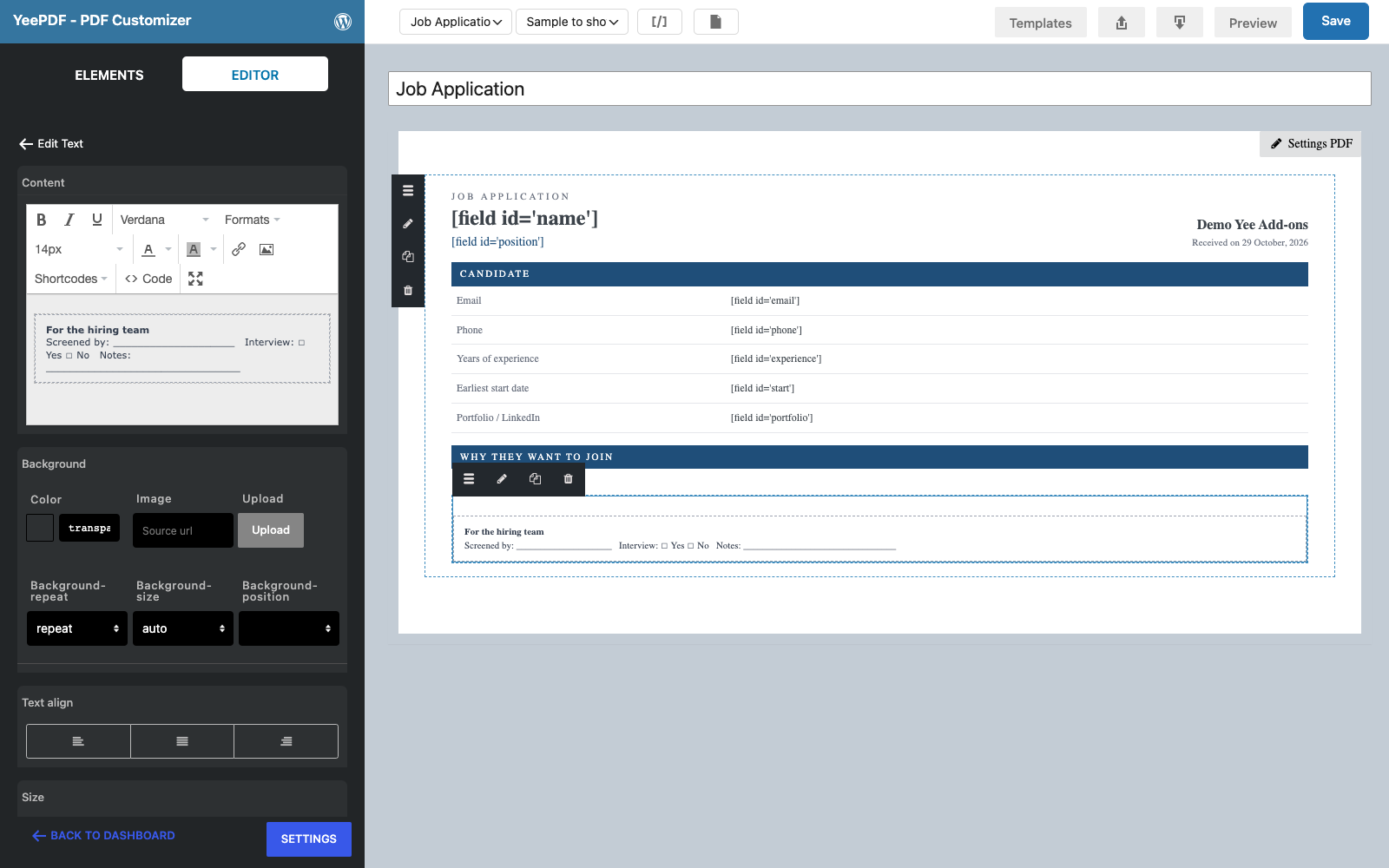
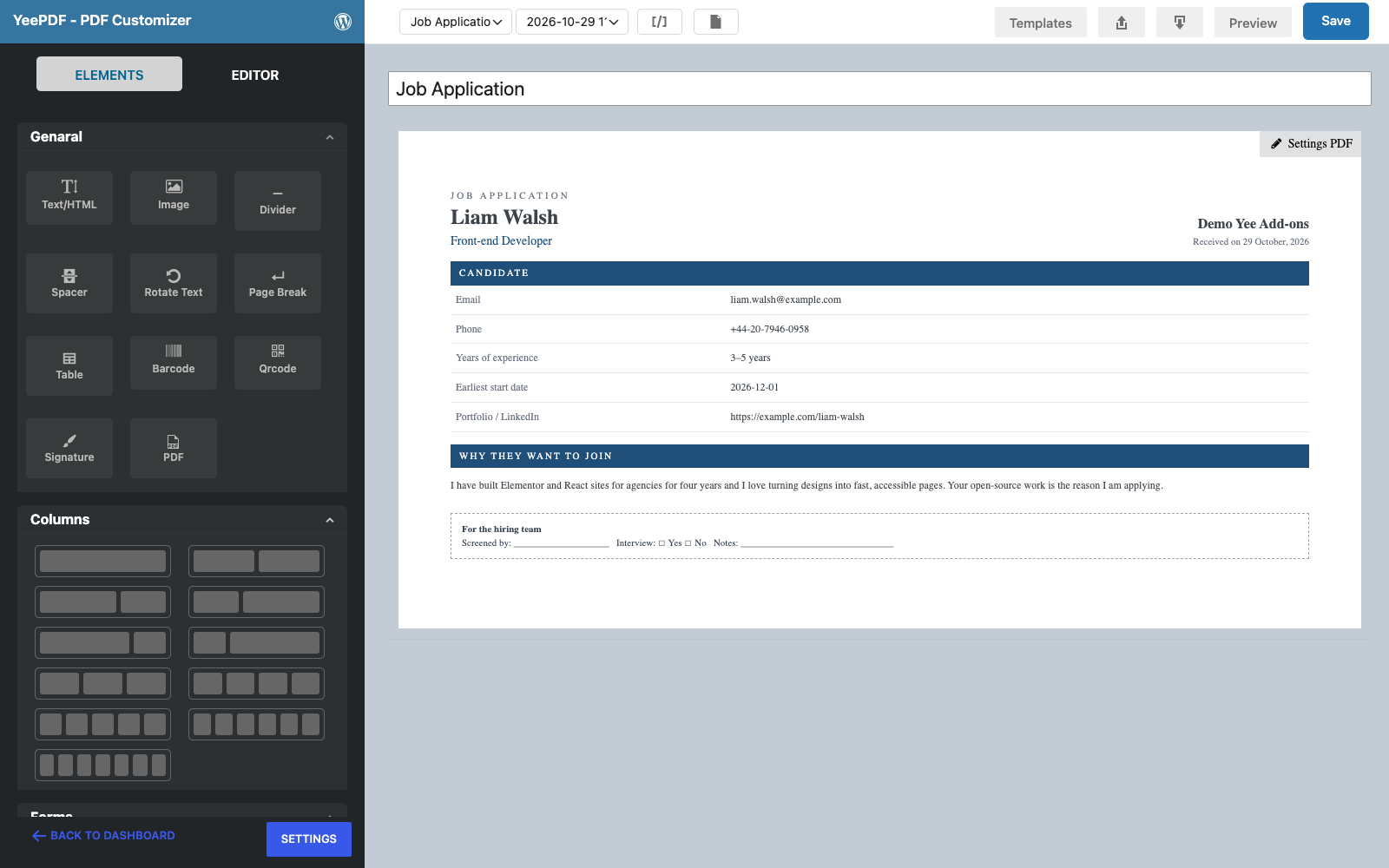
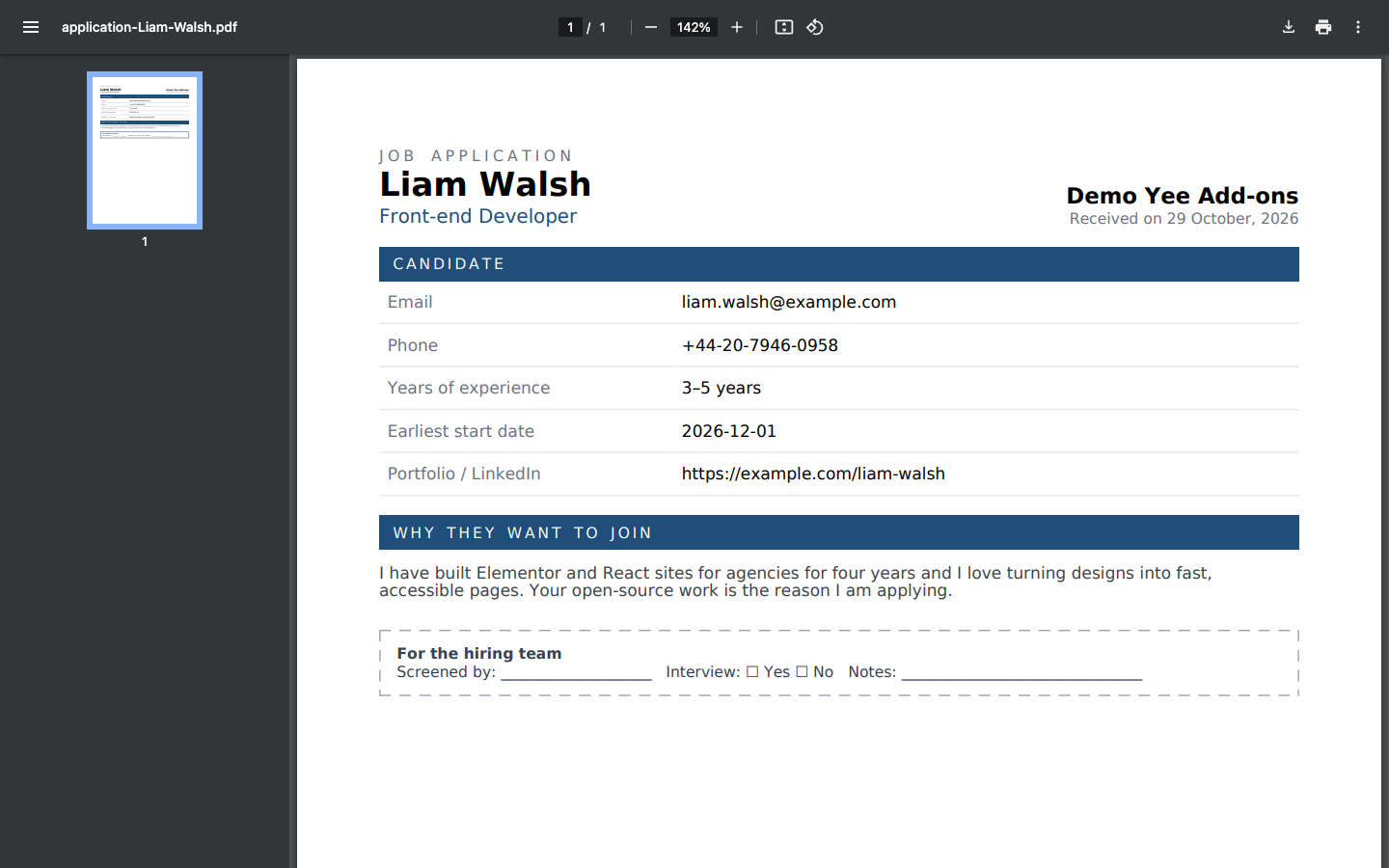
The template has four Text/HTML blocks: a header with the candidate’s name and the position, a Candidate table (email, phone, experience, start date, portfolio), the answer to “Why do you want to join us?” and a dashed box the hiring team fills in by hand.
2. Turn On Collect Submissions and PDF
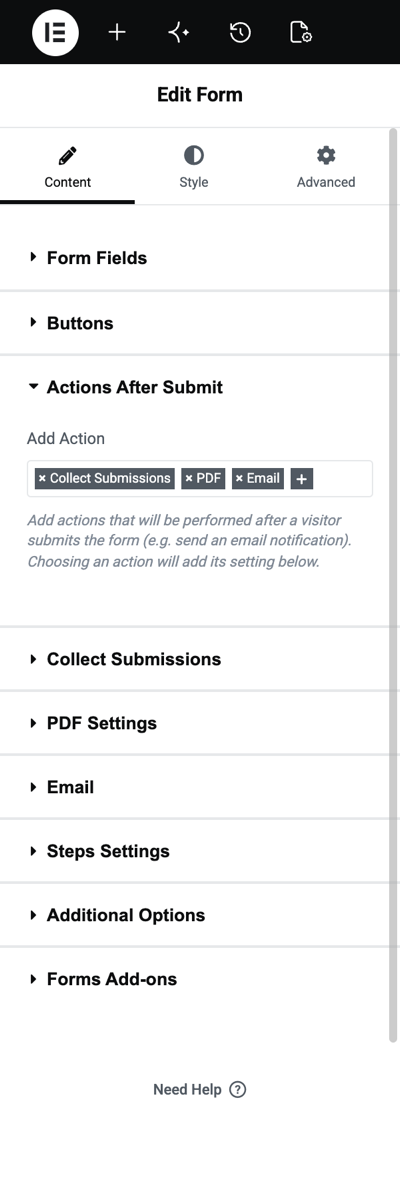
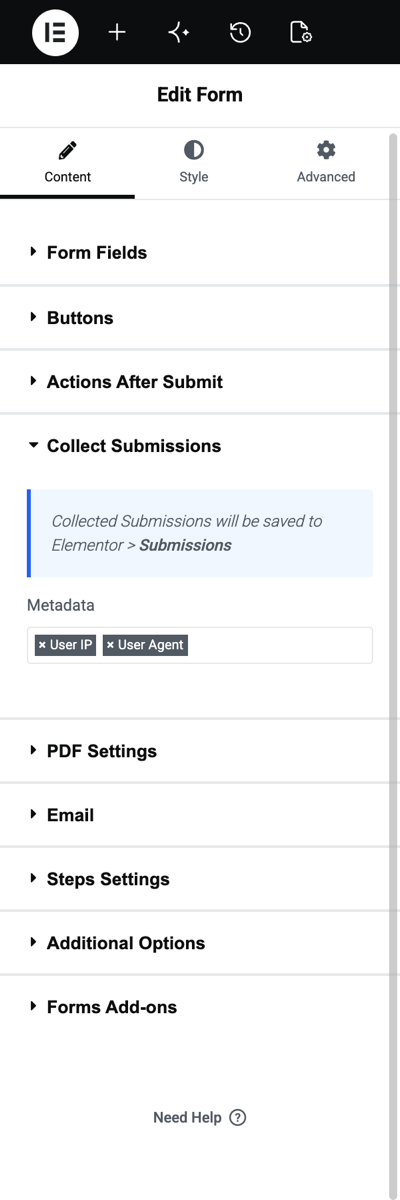
In Elementor, select the form and open Actions After Submit. The PDF link is written into the submission, so Collect Submissions must be one of the actions, next to PDF (and Email if the team also wants the file by email).
![PDF Settings with the Job Application template and the name application-[field id=name]](https://add-ons.org/wp-content/uploads/2026/10/efj-12-pdf-settings.png)
3. Find the PDF in Elementor → Submissions
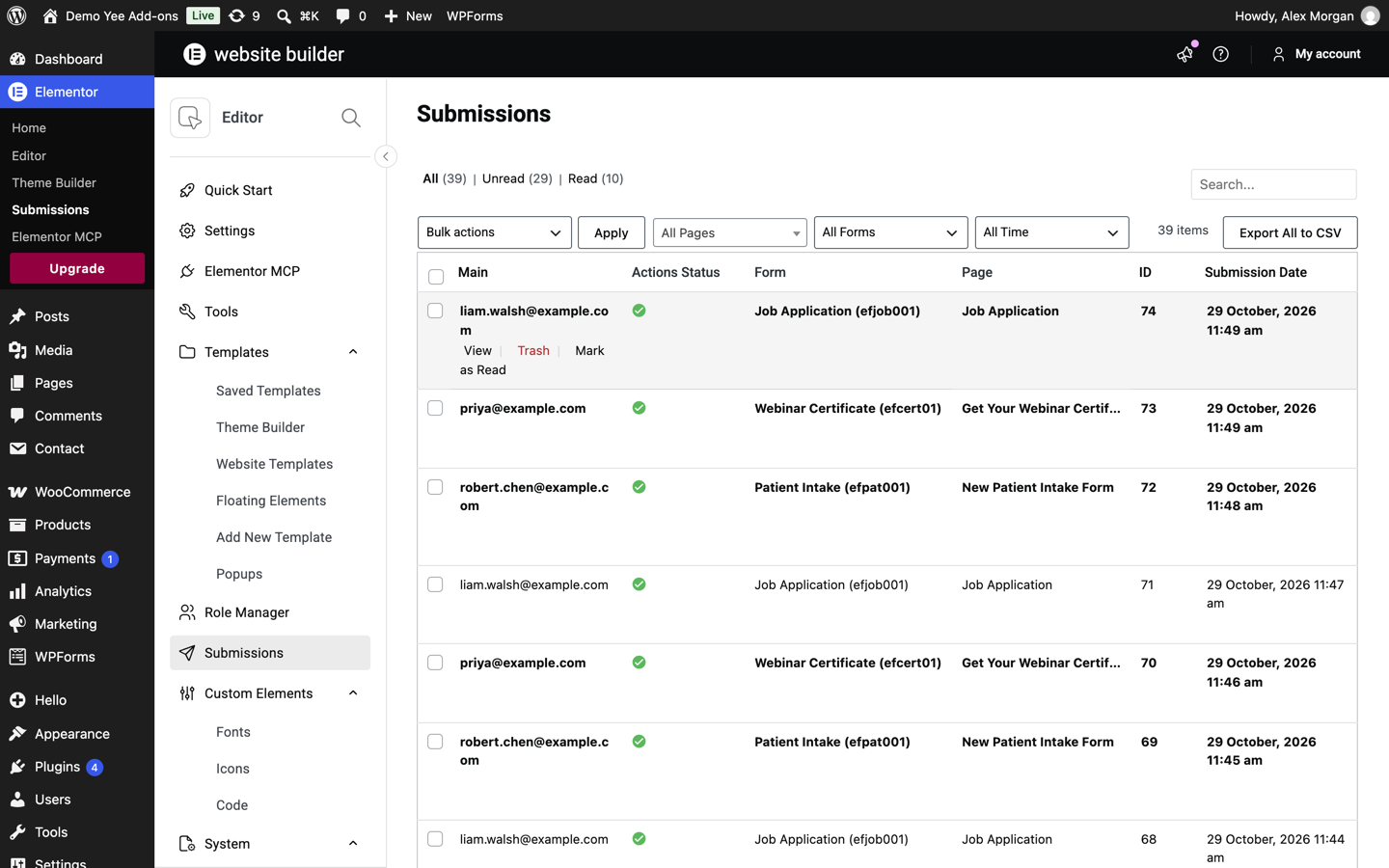
Go to Elementor → Submissions. Every application is listed with its form, page and date. Hover a row and click View.
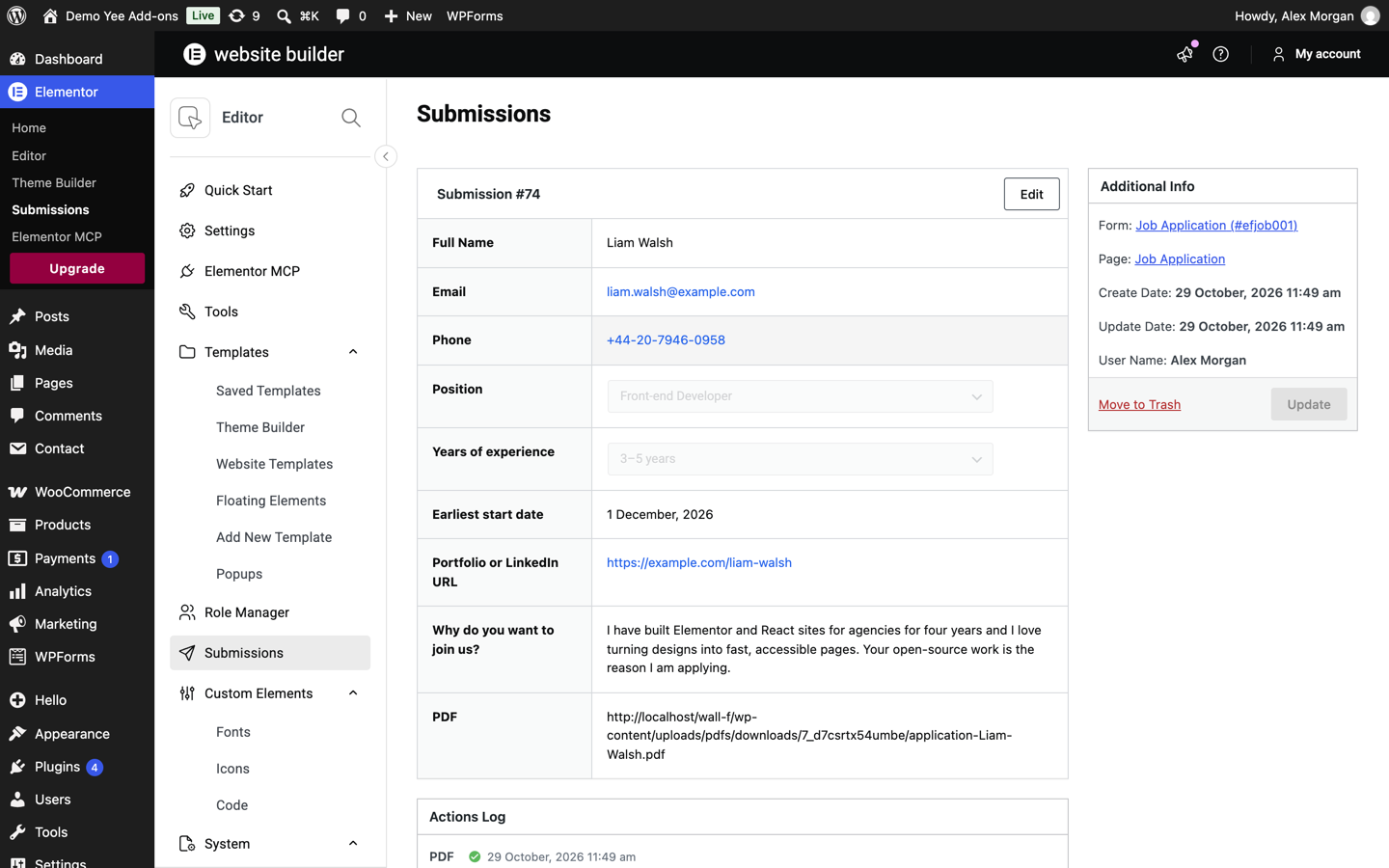
The entry shows each field and an extra row called PDF with the address of the generated file. The Actions Log confirms that the PDF action ran.
Copy the address into a new browser tab to open the PDF, or right-click → Open link in new tab if your Elementor version shows it as a link.
4. Export Several Applications
- Export All to CSV on the Submissions screen downloads a ZIP with one CSV file per form; each CSV has a PDF column with the file link of every entry.
- Filter by form, page or date before exporting to get, for example, all applications for one position.
- Need the files offline? Open the links from the CSV, or copy the
wp-content/uploads/pdfs/downloads/folder from the server.
5. Tips
- Generate PDFs for new entries only. The PDF is created at submission time; entries that existed before you added the PDF action have no PDF row.
- Keep the files. Leave Do not save PDFs on the server off, otherwise the link in the submission points to a deleted file.
- One PDF row per entry. If the form has several PDF actions, the submission keeps the link of the last one.
- Privacy. Applications contain personal data; delete old submissions and their PDFs according to your retention policy.
6. Frequently Asked Questions (FAQ)
I don’t see a PDF row in the submission.
Collect Submissions must be enabled, the PDF action must have a template, and the entry must have been submitted after the PDF action was added.
Can I regenerate the PDF for an old submission?
Not from the submission screen. Open the template, choose that submission under Sample to show, click Save, then Preview to view or download it.
Who can open the PDF link?
Anyone with the exact URL. The random folder name keeps it unguessable; add a PDF password for sensitive documents.
Does the PDF appear in the CSV export?
Yes, as a column named PDF with the file URL (the export is a ZIP with one CSV per form).
More Elementor Forms PDF Guides
- How to Generate PDFs from Elementor Form Submissions (Step-by-Step)
- How to Attach a PDF to Elementor Form Emails
- How to Let Users Download a PDF After Submitting an Elementor Form
- How to Add Uploaded Images to an Elementor Form PDF
- How to Password-Protect Elementor Form PDFs
- How to Create Multiple PDFs from One Elementor Form
Plugin: PDF for Elementor Forms + Drag And Drop Template Builder on WordPress.org · Pro version