
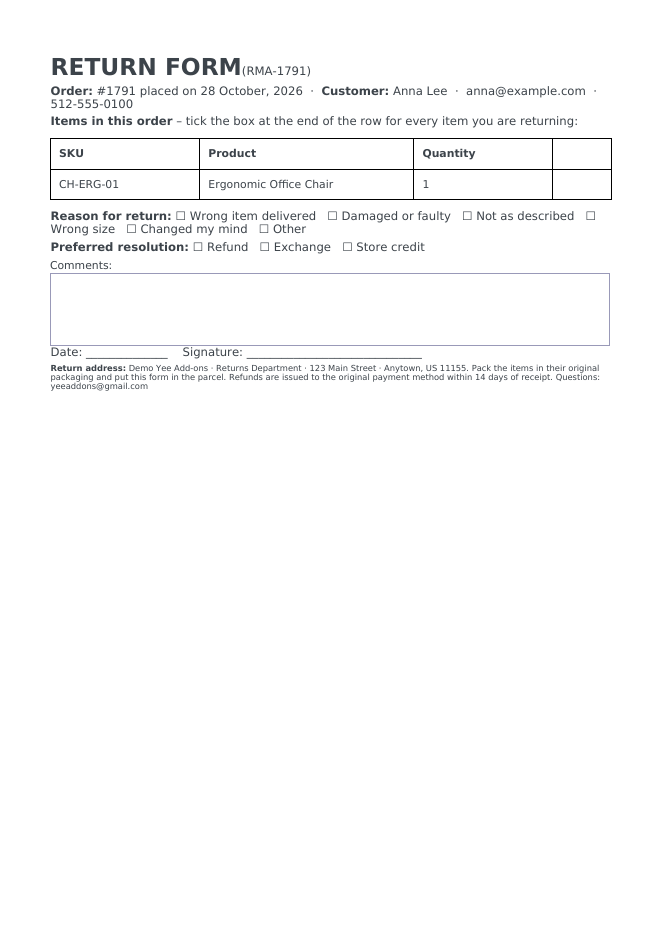
A return form (also called an RMA form, for return merchandise authorisation) is the sheet the customer prints, fills in and puts in the parcel when sending something back: the order and customer details, the list of items with a tick box per line, the reason for the return, the preferred resolution and a comments field. With PDF Invoice for WooCommerce + Drag and Drop Template Builder (plugin slug pdf-for-woocommerce, by add-ons.org) you build the form once, and every completed order gets its own pre-filled copy in My Account, so the customer never has to copy order numbers by hand and your warehouse gets a readable form with every return. This guide builds it from a blank template. The credit note guide covers the document you issue once the refund is booked.
Video tutorial
1. What the Return Form Contains
| Block | Content | Merge tags |
|---|---|---|
| Title | “RETURN FORM”, an RMA number built from the order number, order date, customer name, email and phone | RMA-8448, August 28, 2026, PIERLUIGI CIPRIANI, [email protected], 3286550379 |
| Instruction | One line: tick the box for every item you are returning | static text |
| Items table | SKU, product, quantity and an empty tick column; no prices | the Order Detail table block |
| Reasons | Tick boxes: wrong item, damaged, not as described, wrong size, changed my mind, other; preferred resolution: refund, exchange, store credit | static text with the ☐ character |
| Comments | An empty box, fillable in PDF readers | the Textarea form element |
| Date and signature | Blank lines | static text |
| Footer | Return address, packing instructions, refund policy, contact email | Yee Add-ons, [email protected] |
The RMA number is the order number with a prefix, so the returns desk can open the right order without a separate numbering system. Prices are left off on purpose: the customer is not asked to calculate anything, the refund amount is decided when the goods are inspected.
2. Build the Return Form Template
Builder note: a new element is inserted just above the element you drop it on. Create the footer (the last block) first and drop every other block onto it in reading order; the screenshots below follow that order.
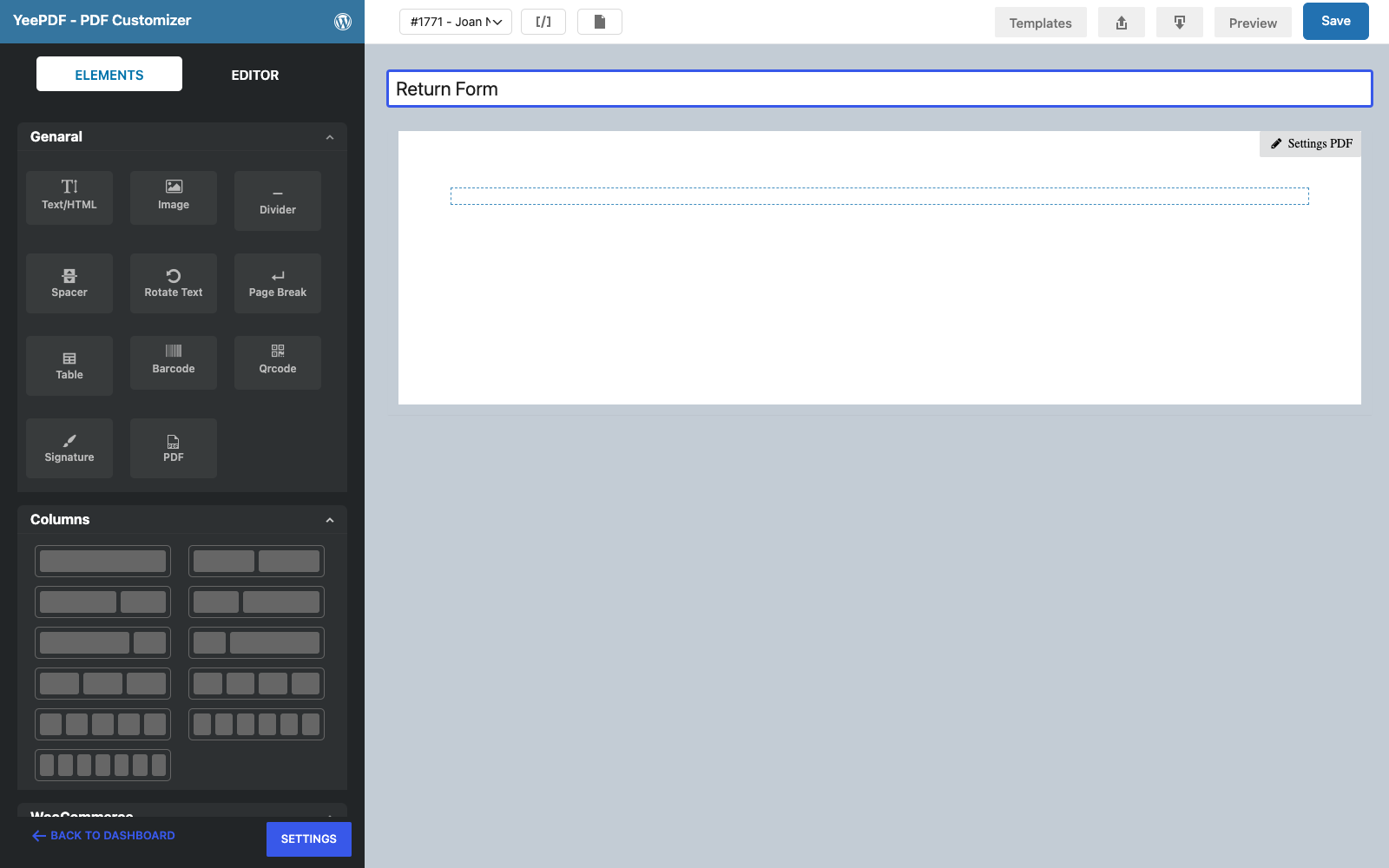
Step 1: New template
Go to PDF Templates → New Template and name it Return Form. Keep the default A4 portrait page.
Step 2: Footer
Drag a Text/HTML element into the row and type the return address and the policy in 10 px:
Return address: Yee Add-ons · Returns Department · 123 Main Street · Anytown, US 11155.
Pack the items in their original packaging and put this form in the parcel. Refunds are issued to the
original payment method within 14 days of receipt. Questions: [email protected]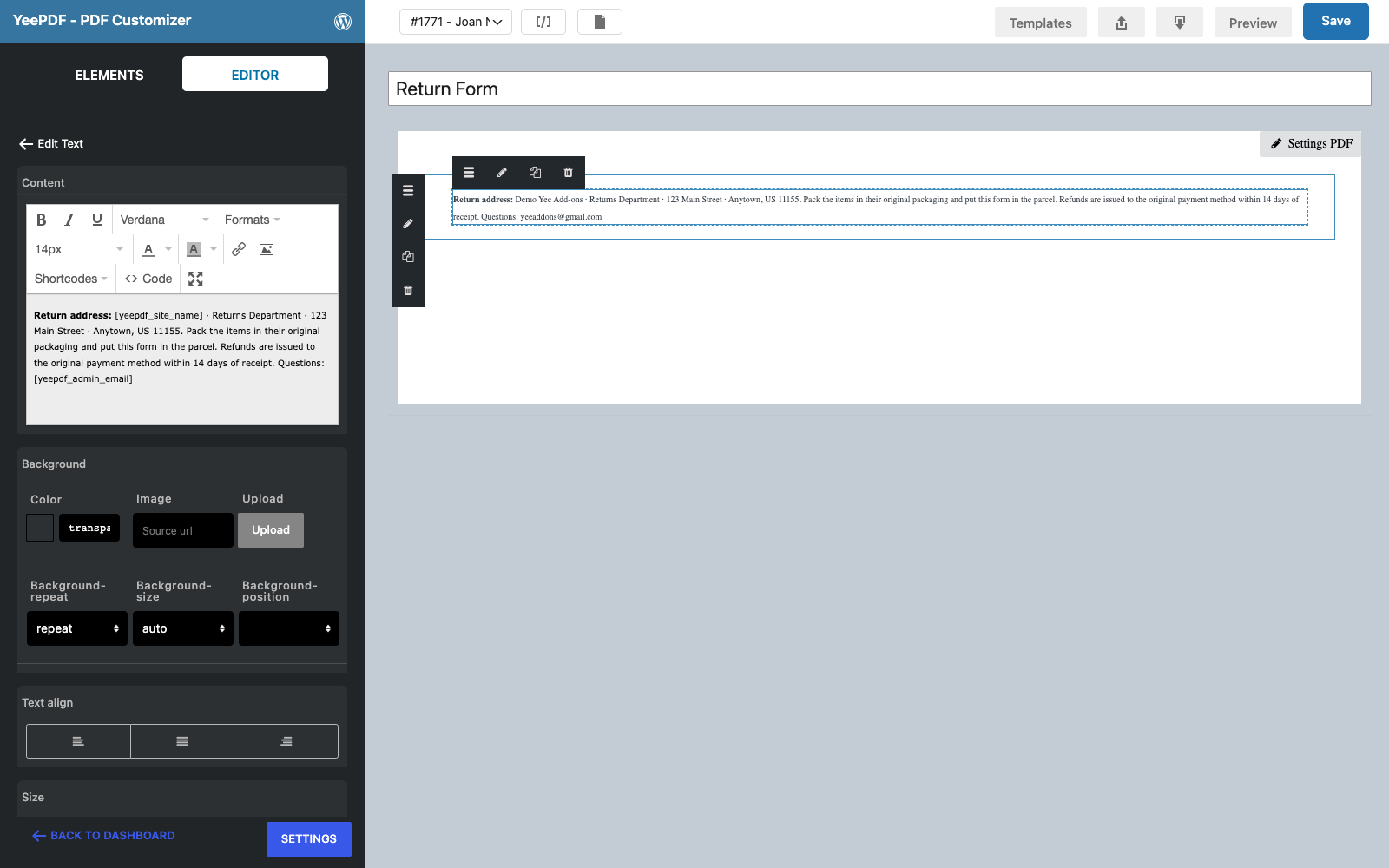
Step 3: Title
Drop a Text/HTML element onto the footer:
RETURN FORM (RMA-8448)        ← 28 px bold + 14 px
Order: #8448 placed on August 28, 2026 · Customer: PIERLUIGI CIPRIANI · [email protected] · 3286550379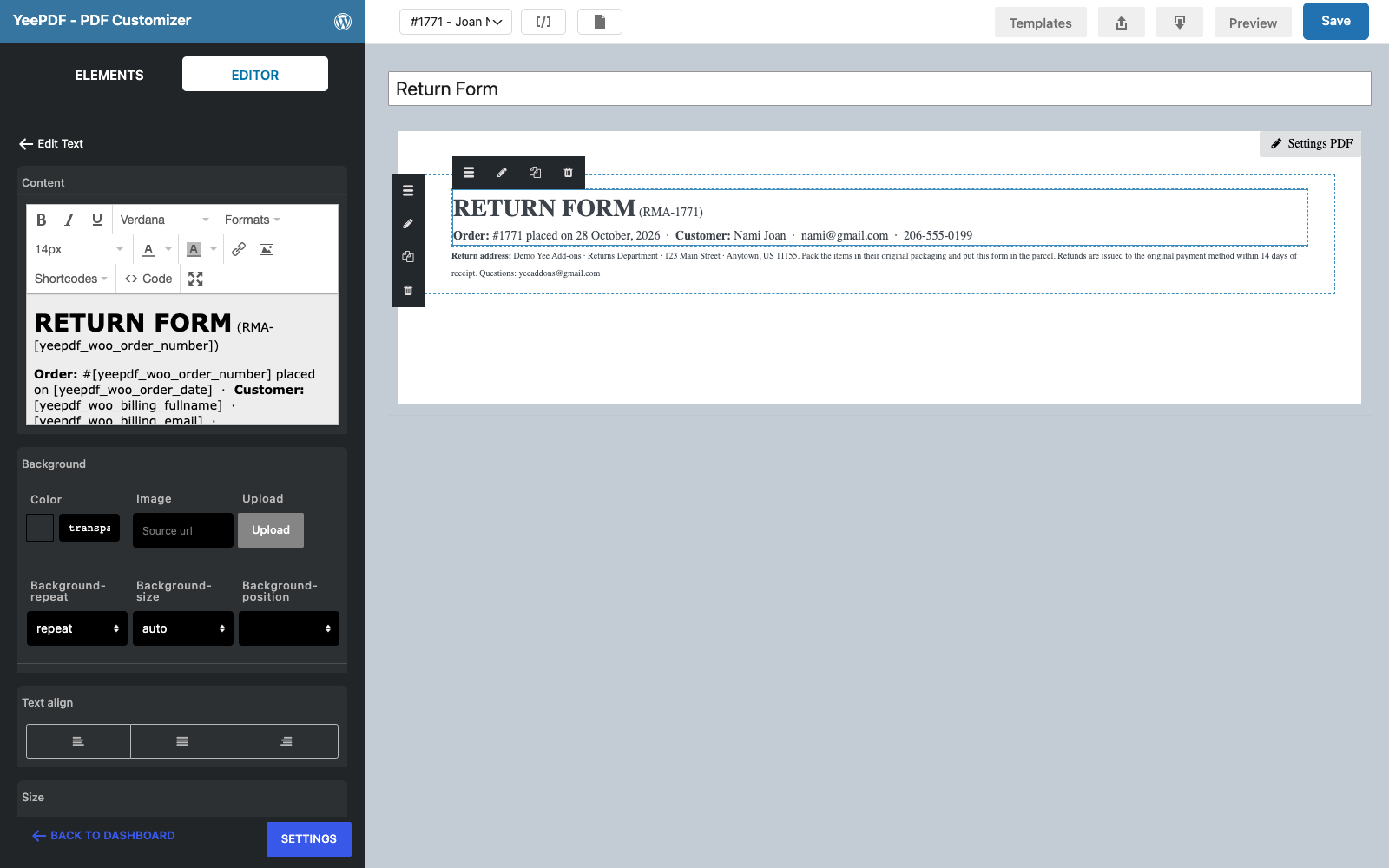
Step 4: Instruction line
Drop another Text/HTML element onto the footer with the instruction: Items in this order – tick the box at the end of the row for every item you are returning.
Step 5: Items table
In the WooCommerce section of the Elements panel, drag the Order Detail block onto the footer. Click the table and, in the Editor panel, tick Show SKU and untick Show image, Show description and Show totals.
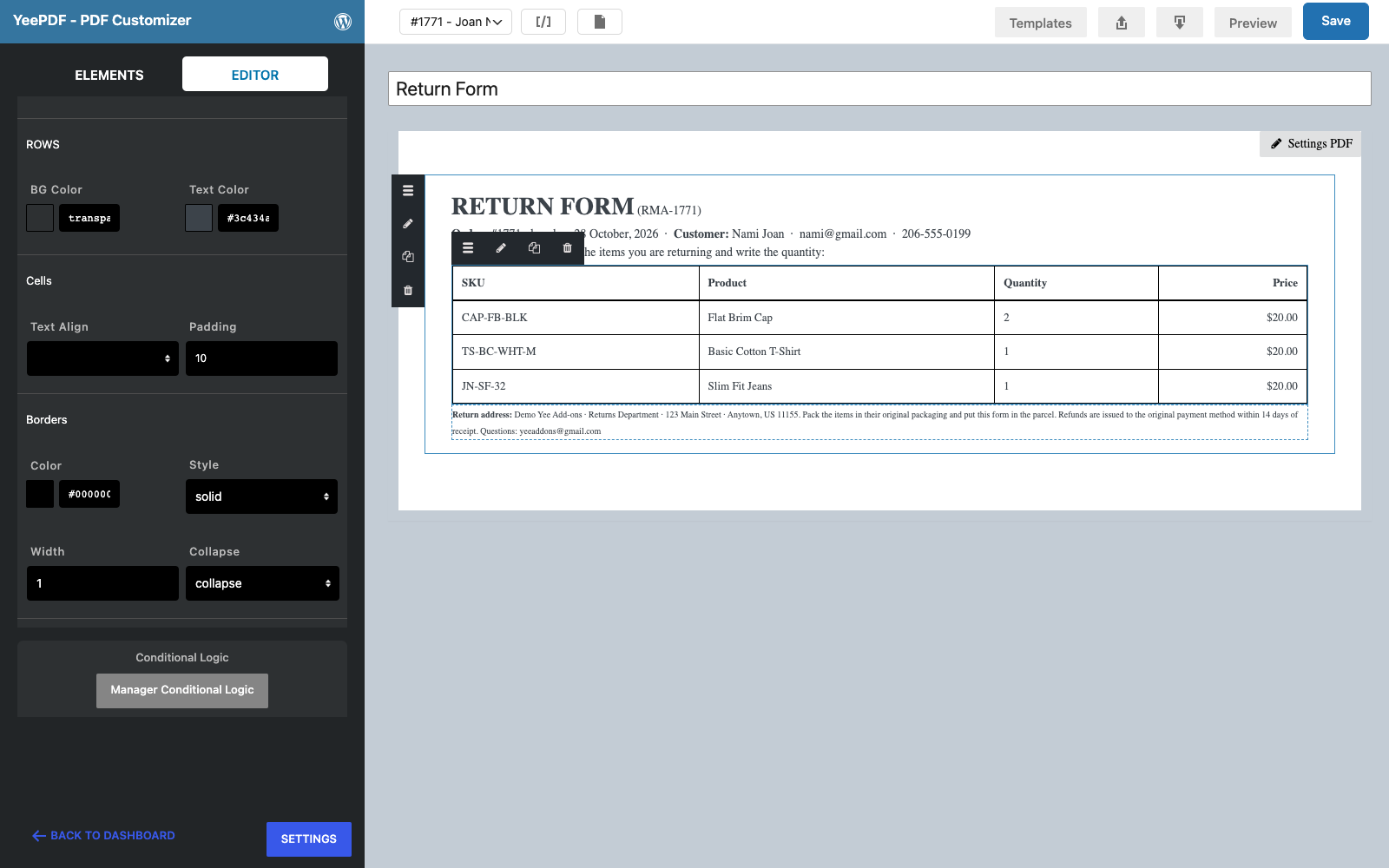
The table block always prints a price column and the options cannot switch it off. Turn it into the tick column instead: open Settings PDF (top right of the canvas) and paste this into Custom CSS:
/* keep the Price column as an empty tick column */
th.table-r, td.table-r { font-size: 0; color: #ffffff; width: 70px; }
/* breathing room between blocks */
p { margin: 0 0 6px; }
table { margin: 6px 0 12px; }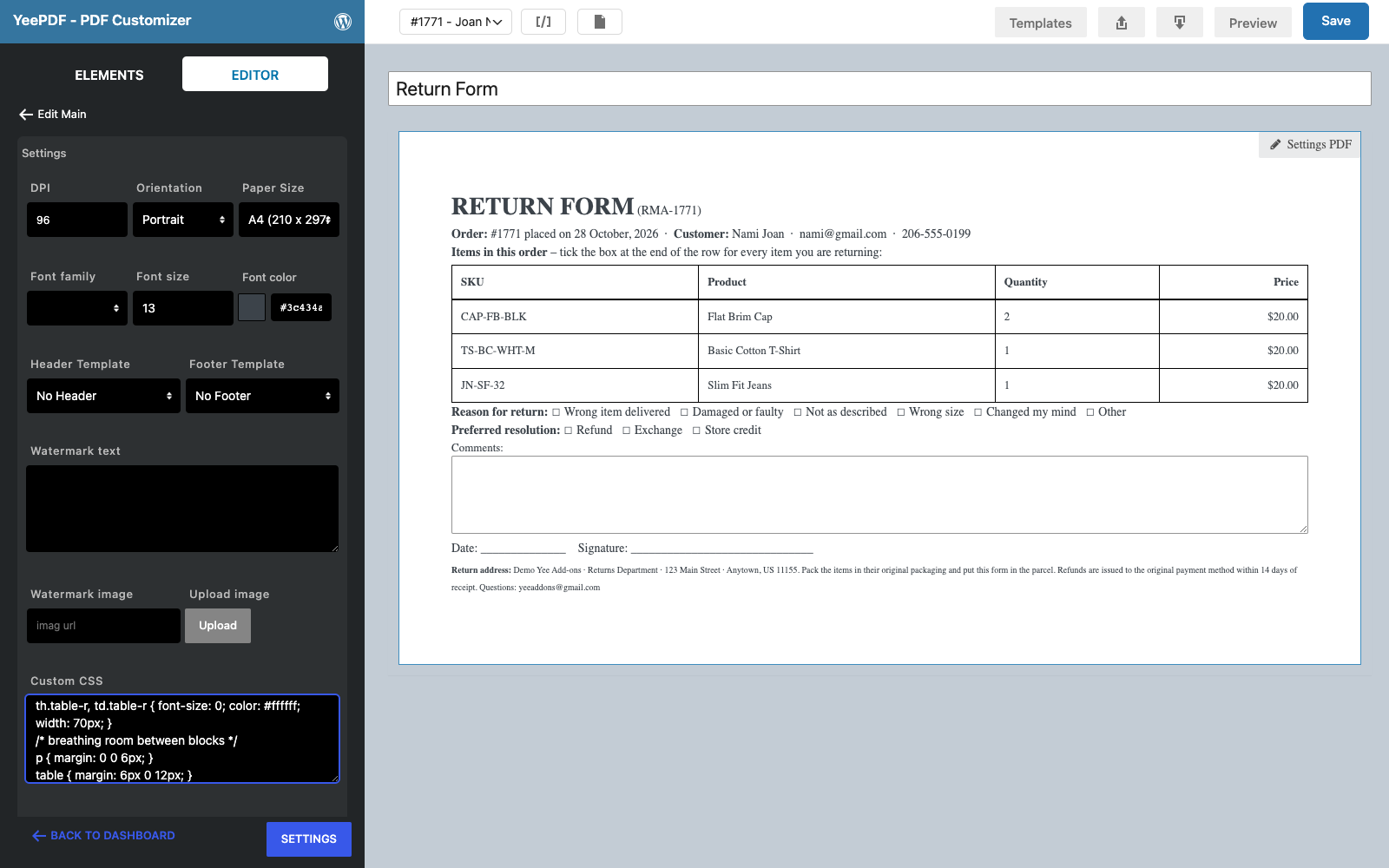
Step 6: Reasons and resolution
Drop a Text/HTML element onto the footer with the tick boxes (the ☐ character is ☐ in the HTML view):
Reason for return: ☐ Wrong item delivered  ☐ Damaged or faulty  ☐ Not as described  ☐ Wrong size  ☐ Changed my mind  ☐ Other
Preferred resolution: ☐ Refund  ☐ Exchange  ☐ Store credit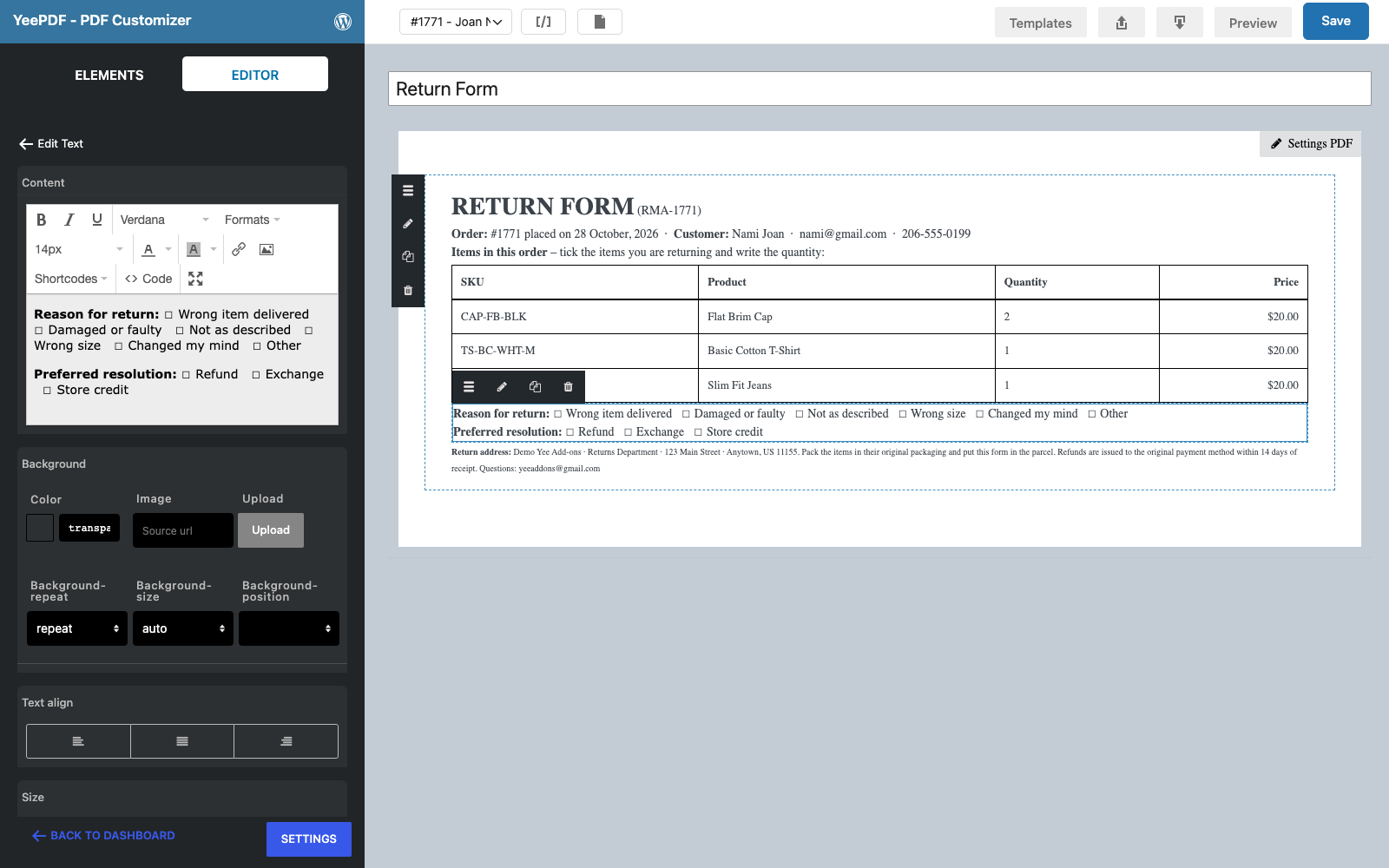
Step 7: Comments field
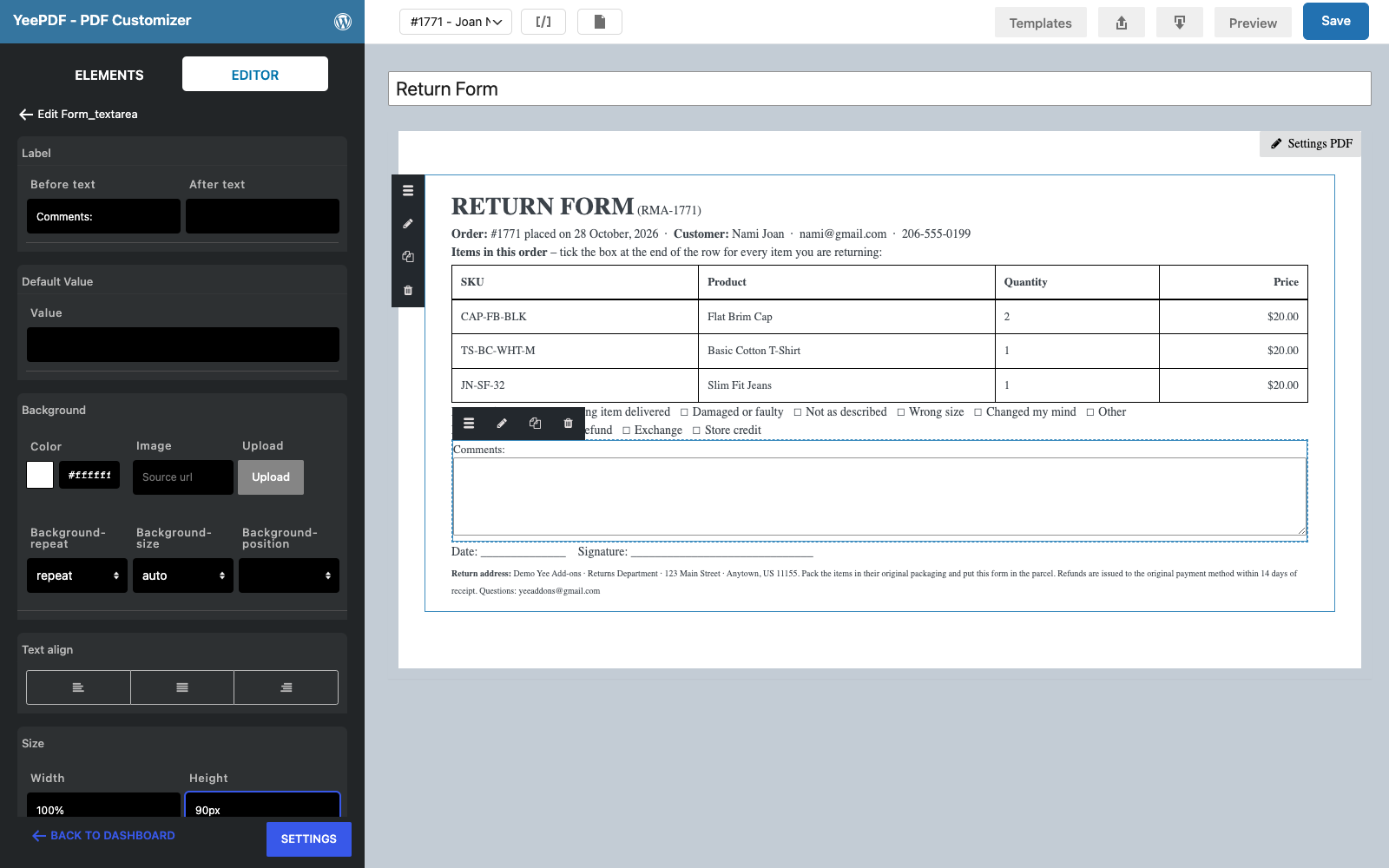
From the Forms section drag the Textarea element onto the footer. Set its Label to Comments: and its Height to 90px. On paper it prints as an empty box; in Acrobat and most PDF readers it is a real form field the customer can type into before printing.
Step 8: Date and signature
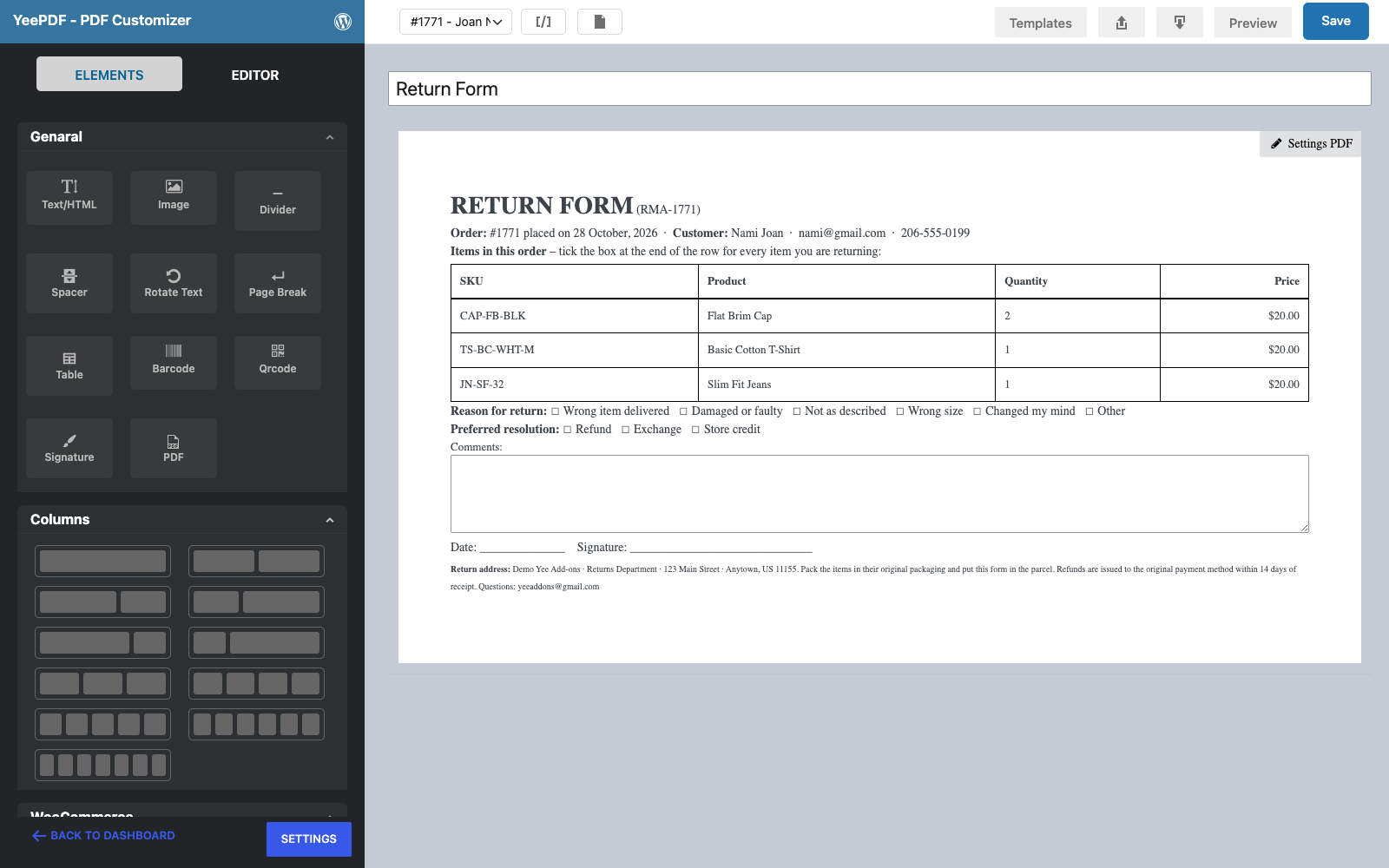
Drop a last Text/HTML element onto the footer with Date: ______________ Signature: ______________________________ and click Save.
3. Generate the Form for Completed Orders
Go to WooCommerce → Settings → PDF → Add new PDF:
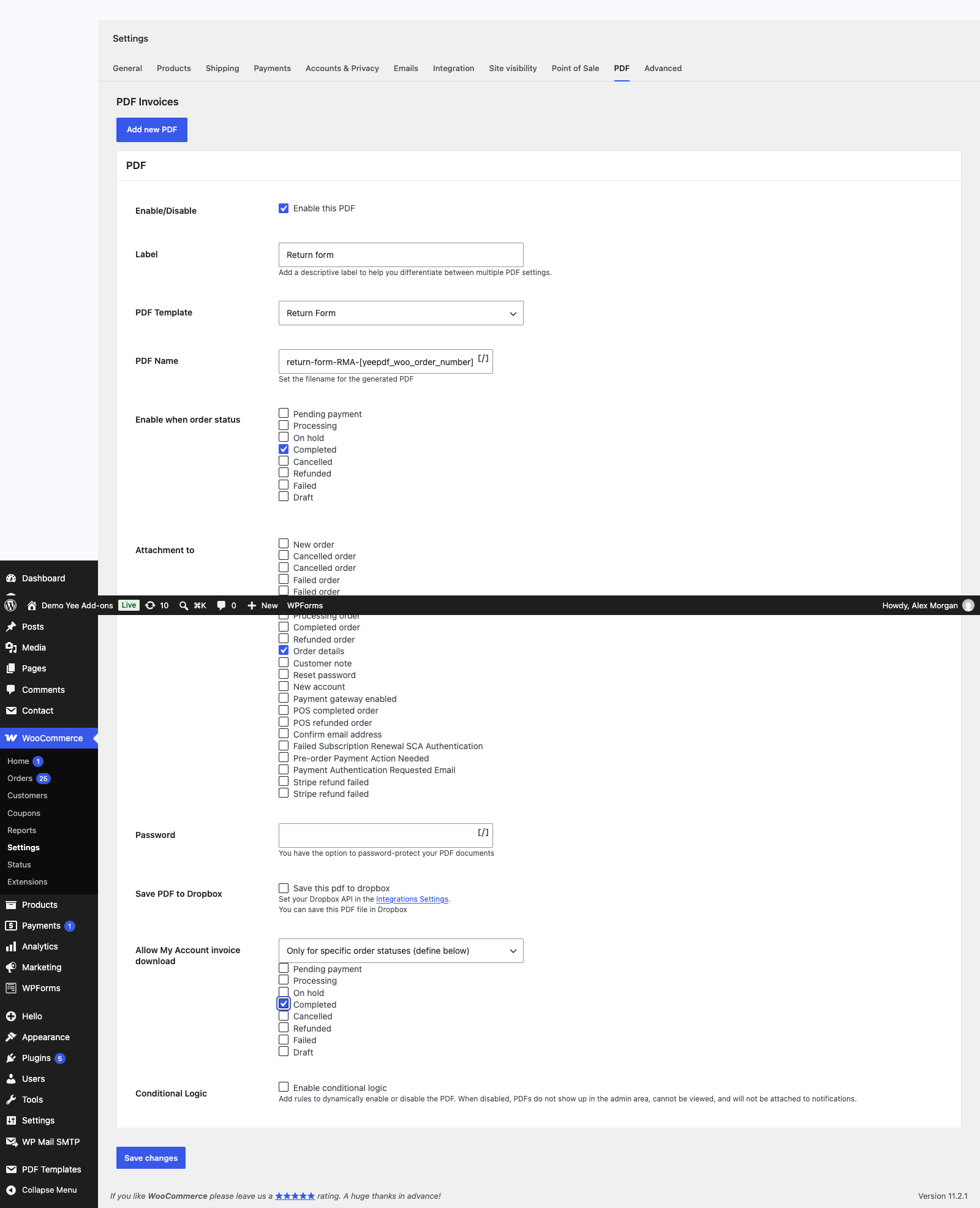
| Field | Value | Why |
|---|---|---|
| Label | Return form | Button label in My Account and on the order screen. |
| PDF Template | Return Form | The template from section 2. |
| PDF Name | return-form-RMA-8448 | e.g. return-form-RMA-1791.pdf |
| Enable when order status | Completed | Returns start after delivery. |
| Attachment to | Order details | Not sent automatically; you can email it from the order screen when a customer asks. |
| Allow My Account invoice download | Only for specific order statuses → Completed | Self-service: the customer downloads the form without contacting support. |
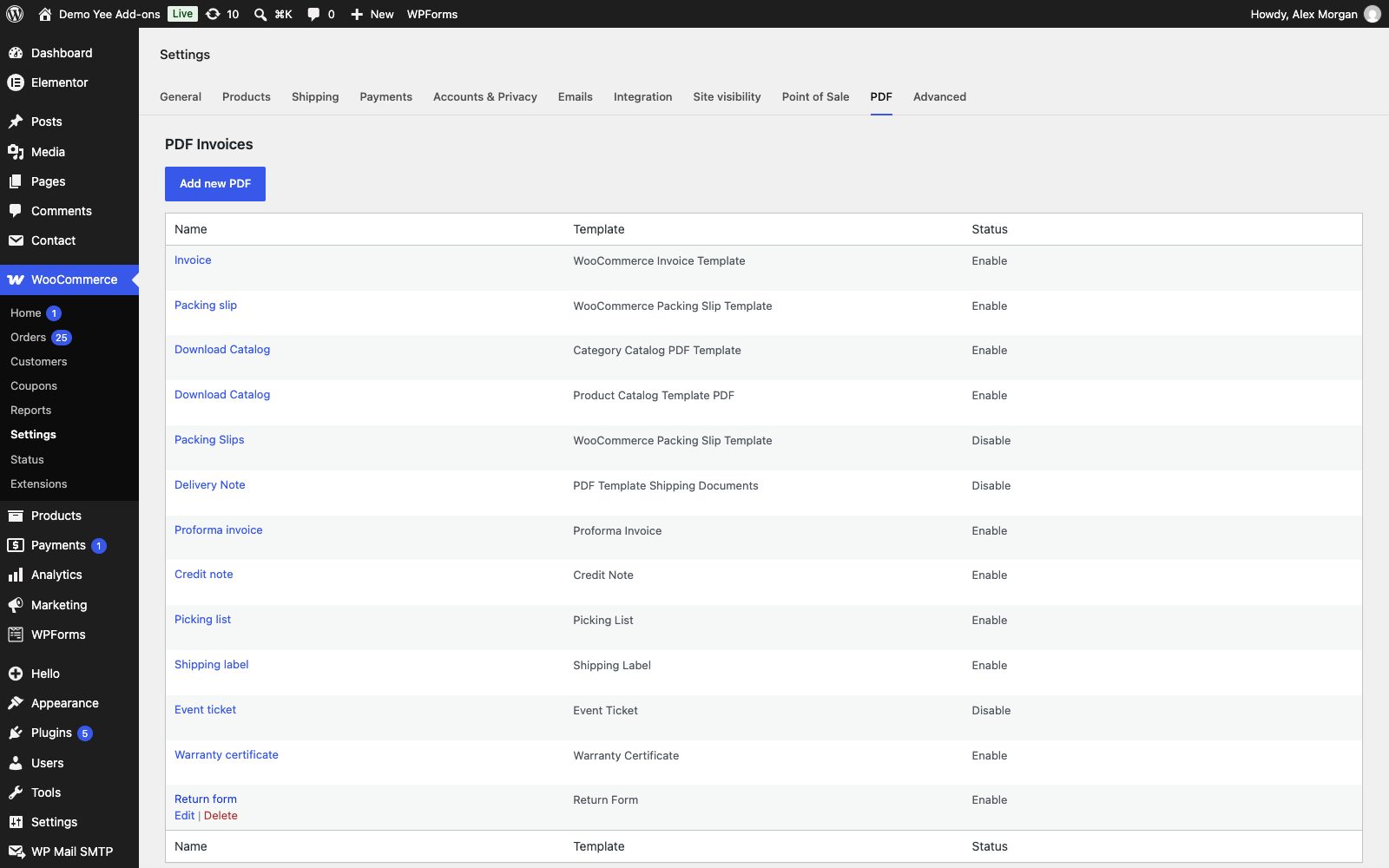
4. How the Customer Uses It
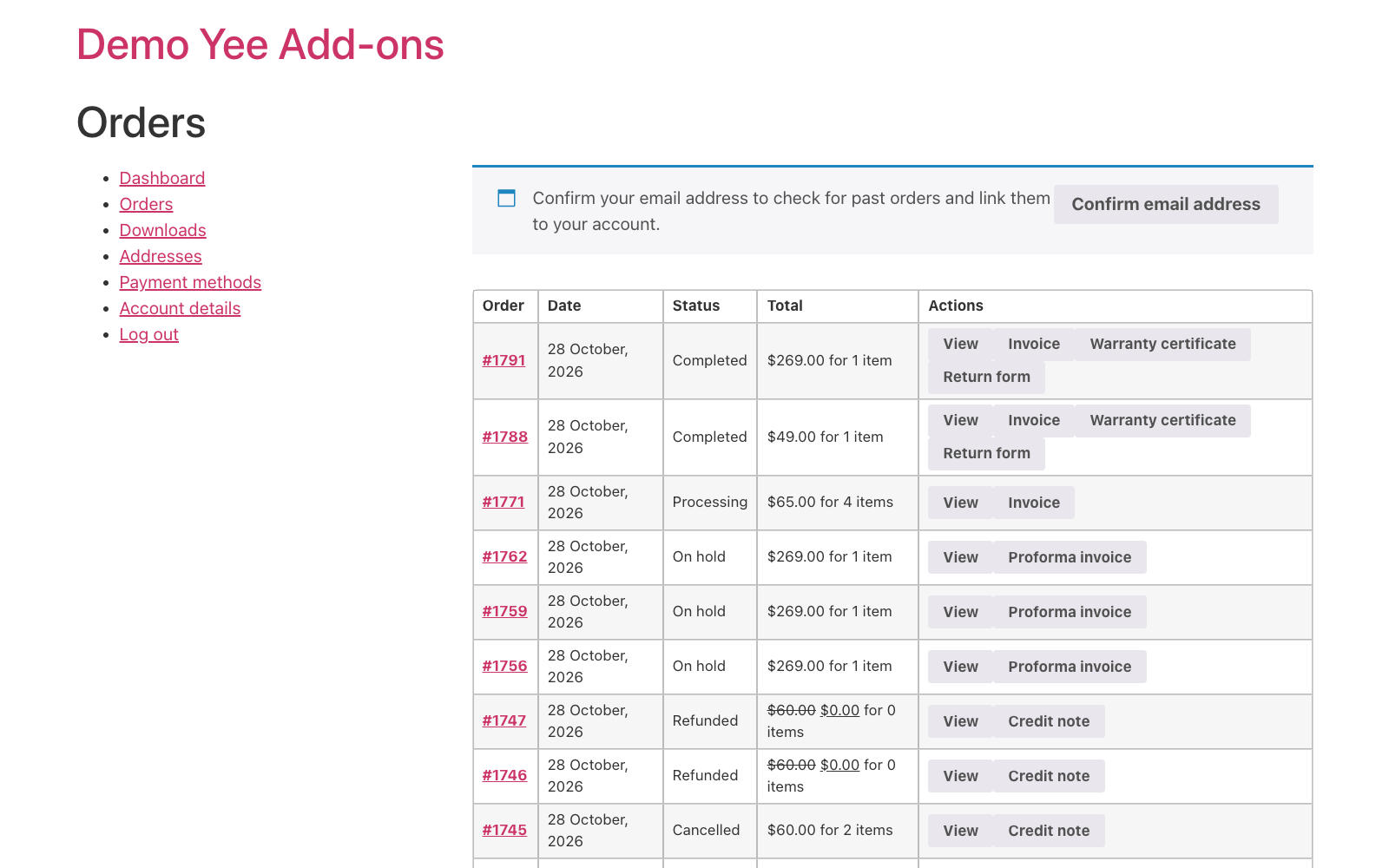
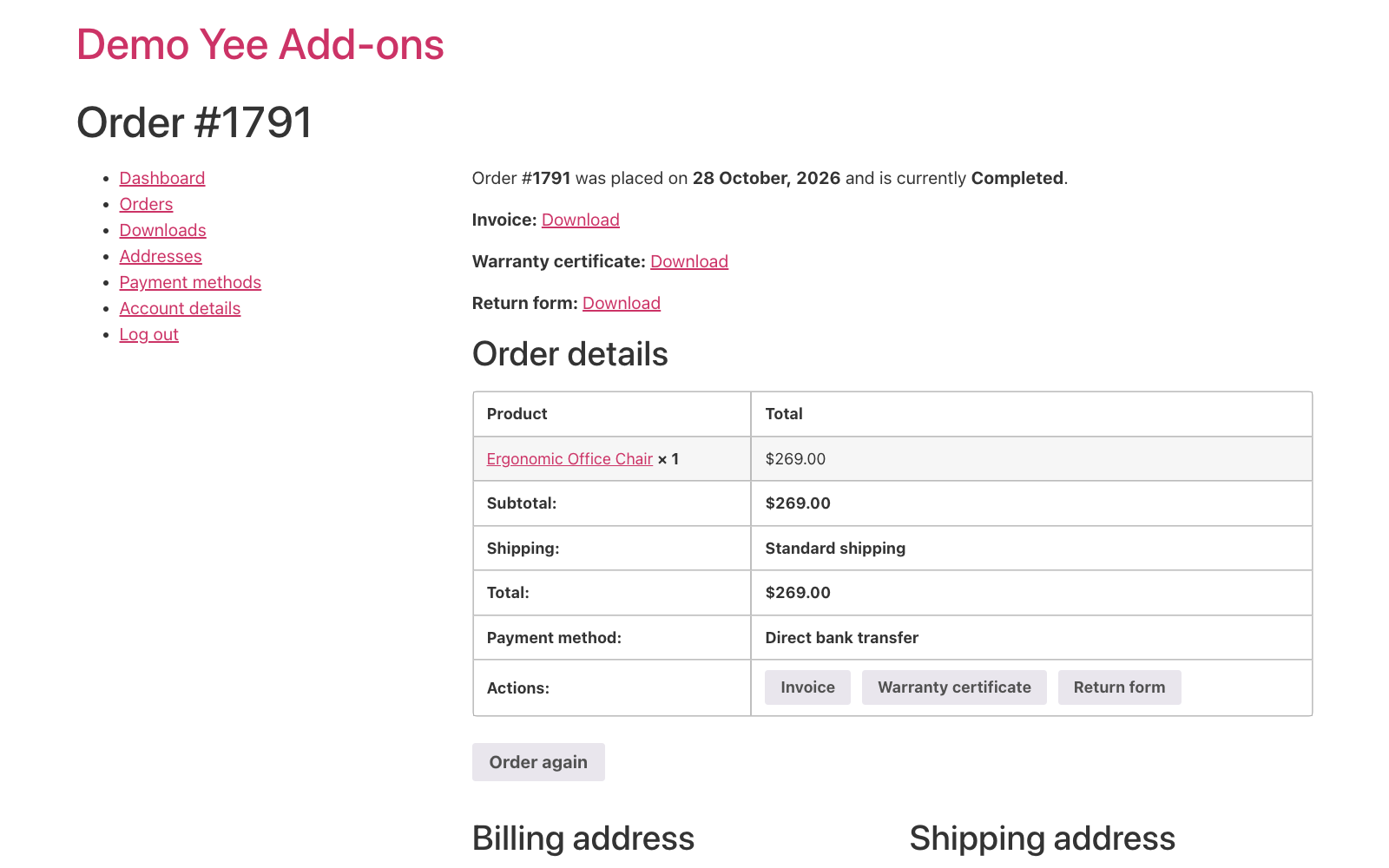
In My Account → Orders every completed order shows a Return form button; the order page lists it too. The customer prints the form, ticks the items and the reason, signs it and puts it in the parcel.
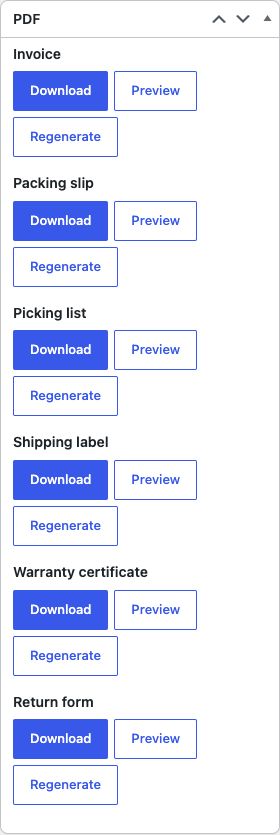
If a customer asks for the form by email, open the order and choose Send order details to customer under Order actions: the form is attached because Order details is ticked in the setting. The order screen also lists it in the PDF box with Download, Preview and Regenerate.
5. When the Parcel Comes Back
- Read the RMA number on the form (it equals the order number) and open the order in WooCommerce → Orders.
- Check the ticked items against the parcel, add an order note with the condition of the goods and the chosen resolution.
- Book the refund on the order; if you followed the credit note guide, the credit note PDF is generated and emailed automatically when the status changes to Refunded.
6. Tips
- Scannable RMA number: add a Barcode or Qrcode element with
RMA-8448if the returns desk scans parcels. - Return window: state it in the footer (“within 30 days of delivery”); the order date on the form lets the warehouse check it at a glance.
- On request only: set Allow My Account invoice download to Never and send the form from the order screen when a return is approved.
- Fillable fields: the Text input, Checkbox, Radio and Select elements under Forms work like the Textarea: use them if you want the reasons as real PDF form fields.
- Second language: duplicate the template and translate the static text; keep the merge tags unchanged.
- Regenerate: after editing the template, click Regenerate on an order to rebuild its stored form.
7. Frequently Asked Questions (FAQ)
Can the customer fill in the form on screen?
The Textarea element is a real PDF form field, so comments can be typed in Acrobat or Preview and the file printed or sent back. Tick boxes typed as text are printed only; use the Checkbox form element for clickable boxes.
Why not list prices on the return form?
The refund amount depends on what comes back and in what condition. The form records what the customer sends; the credit note records what you refund.
Can I use a separate RMA number?
Store it in an order meta field and print it with . Most stores simply use the order number with a prefix.
Can the form be limited to physical products?
Conditional logic in the setting compares generic fields such as the shipping method or a custom field, so you can skip orders without shipping (virtual products or downloads).
Does the form work for partially refunded orders?
Yes: the form lists all items and the customer ticks the ones returned. The stored PDF is generated once at completion; click Regenerate if the order was edited later.