
A delivery note travels with the goods and comes back signed: it lists what was delivered, without prices, and has a block where the recipient confirms the number of parcels, the date and their signature. For a shop with its own drivers, local deliveries or business customers it is the proof of delivery that settles every “it never arrived” discussion. With PDF Invoice for WooCommerce + Drag and Drop Template Builder (plugin slug pdf-for-woocommerce, by add-ons.org) you make it in ten minutes by copying the packing slip template, and the plugin generates one for every completed order, emails a copy to the customer and merges a whole delivery run into one PDF for the driver. The packing slip guide covers the warehouse documents and the shipping label guide the parcel label.
Video tutorial
1. Delivery Note vs. Packing Slip
| Packing slip | Delivery note | |
|---|---|---|
| Purpose | Inside the parcel: what was packed | Handed over with the goods: what was delivered, signed by the recipient |
| Who signs | Packer / checker (internal) | The recipient (proof of delivery) |
| Extra fields | Packed by, checked by | Delivery note number, delivery date, parcels, “received in good condition”, name, date, signature, a tick column per line |
| Generated at | Processing | Completed (the order is marked complete when it leaves for delivery) |
| Who gets it | The warehouse | The driver (bulk PDF), the customer (email + My Account), the signed copy goes back to the office |
2. Build the Delivery Note Template
The built-in packing slip already has the logo, the addresses and the order table, so the fastest way is to copy it. The builder has no duplicate button, but Export and Import do the same job.
Step 1: Export the packing slip
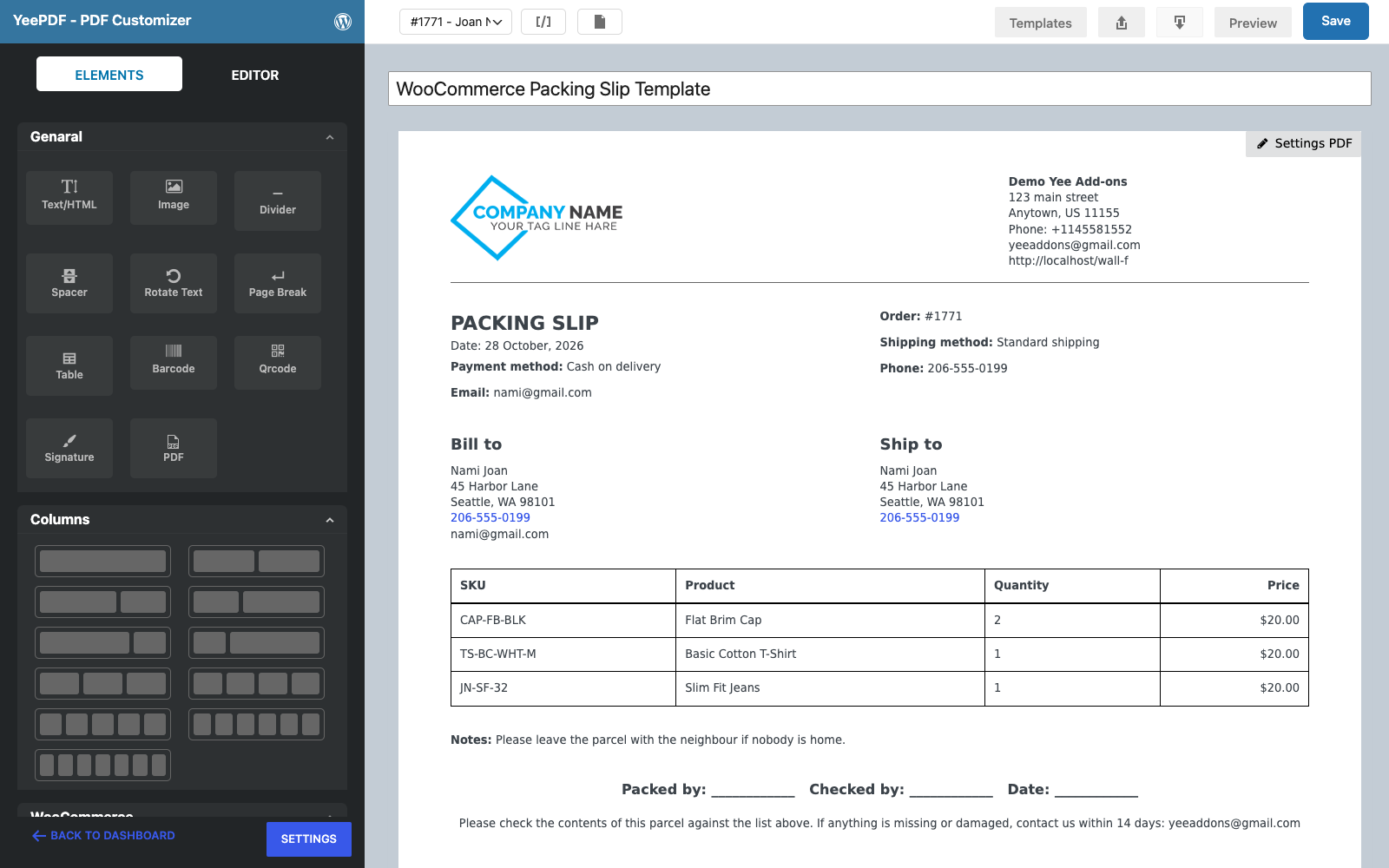
Open PDF Templates → WooCommerce Packing Slip Template and click the Export icon in the toolbar (the arrow next to Templates). A JSON file with the whole layout is downloaded.
Step 2: Import it into a new template
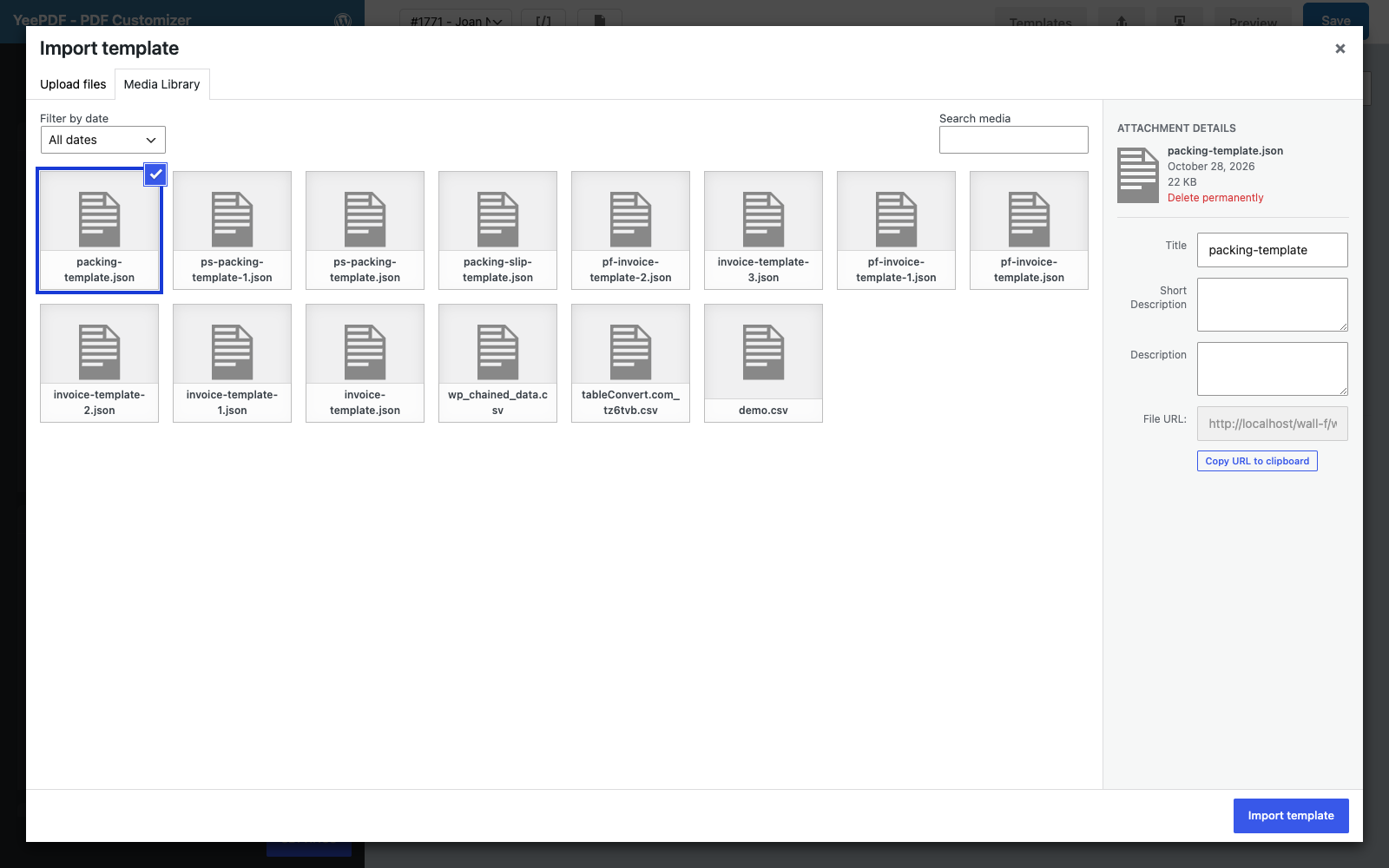
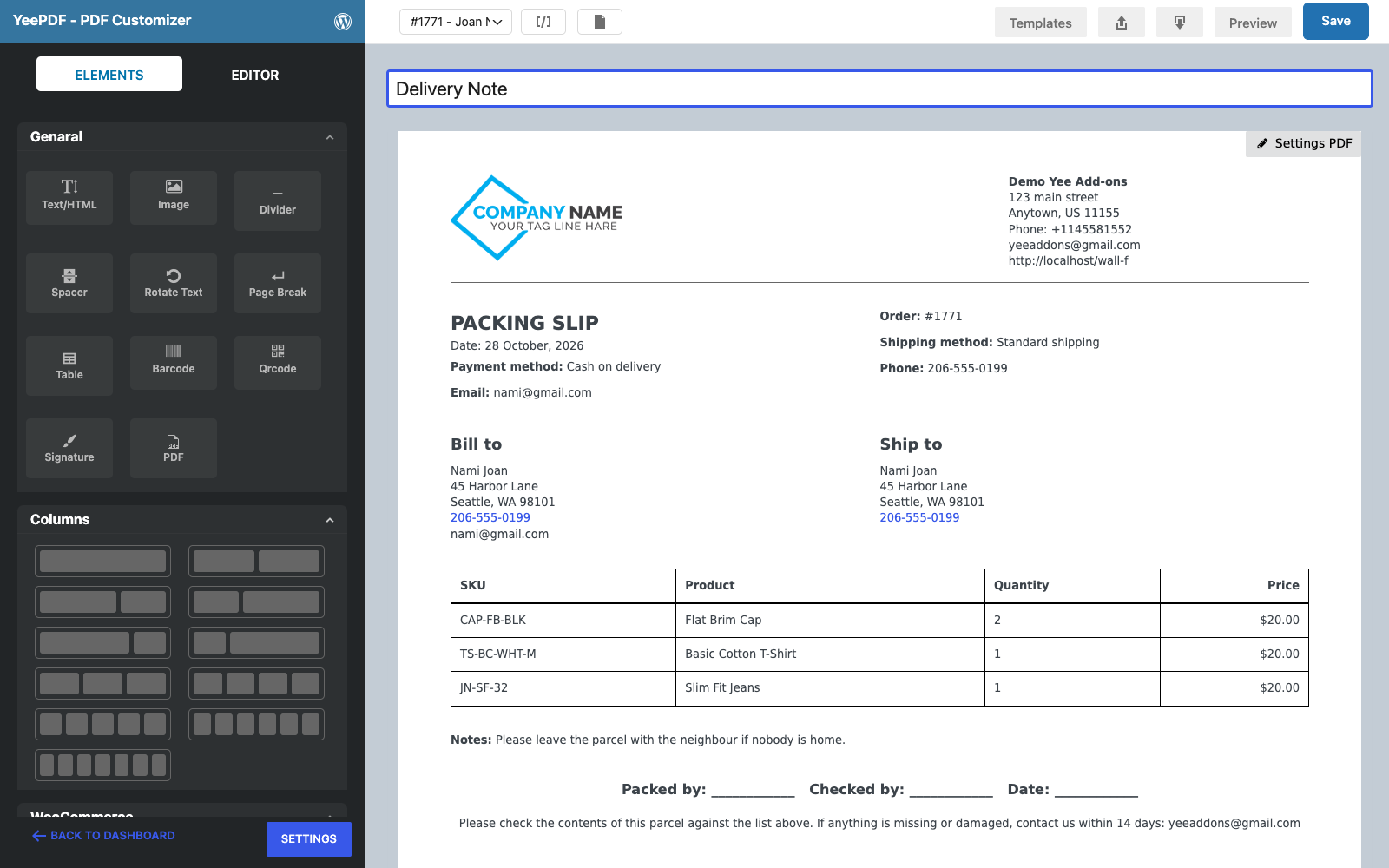
Go to PDF Templates → New Template, click the Import icon, upload the JSON file and click Import template. Name the template Delivery Note.
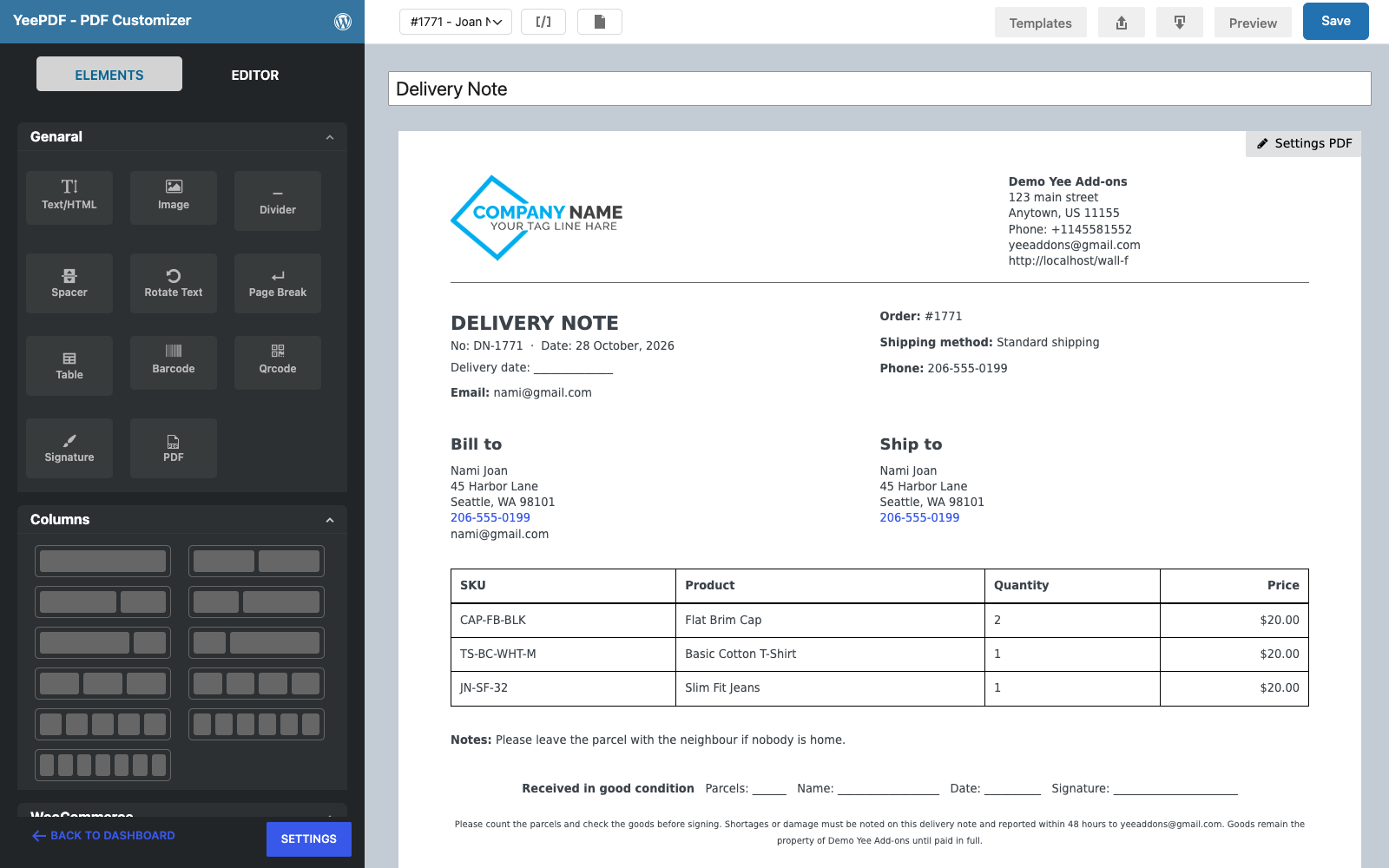
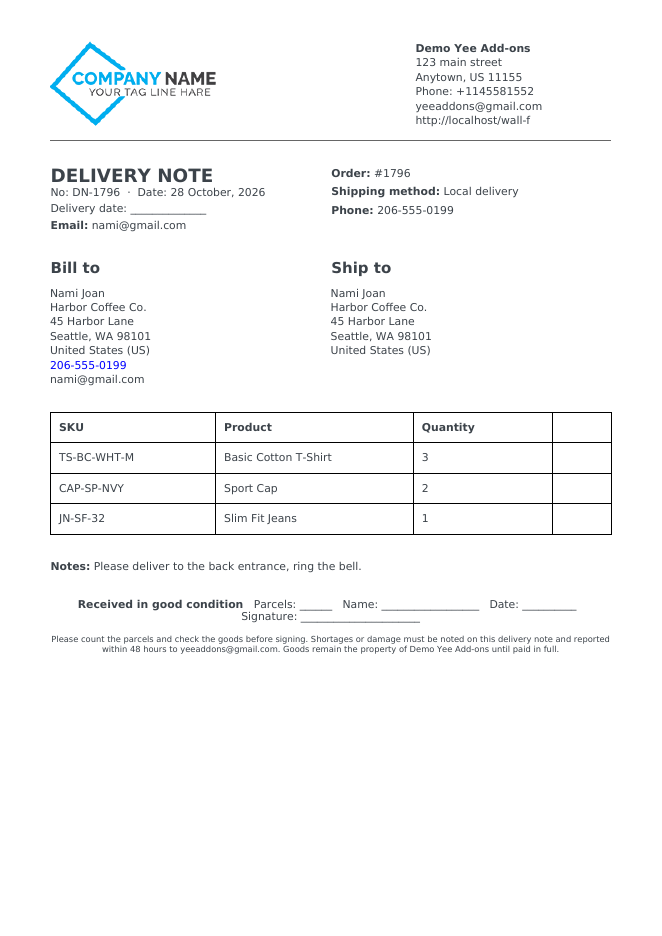
Step 3: Title and delivery note number
Click the PACKING SLIP text and replace it with:
DELIVERY NOTE                                  ← 22 px bold
No: DN-8448 · Date: August 28, 2026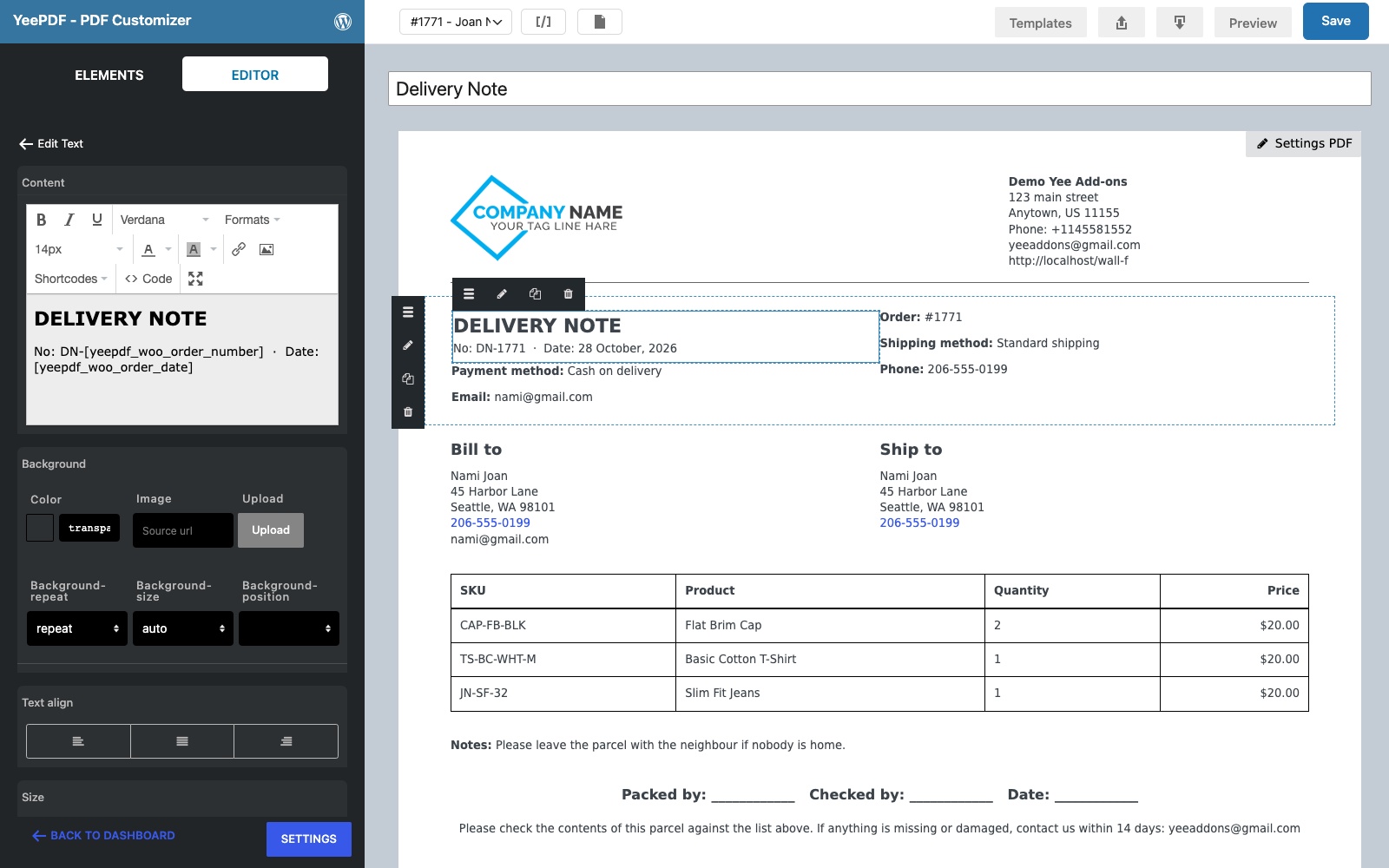
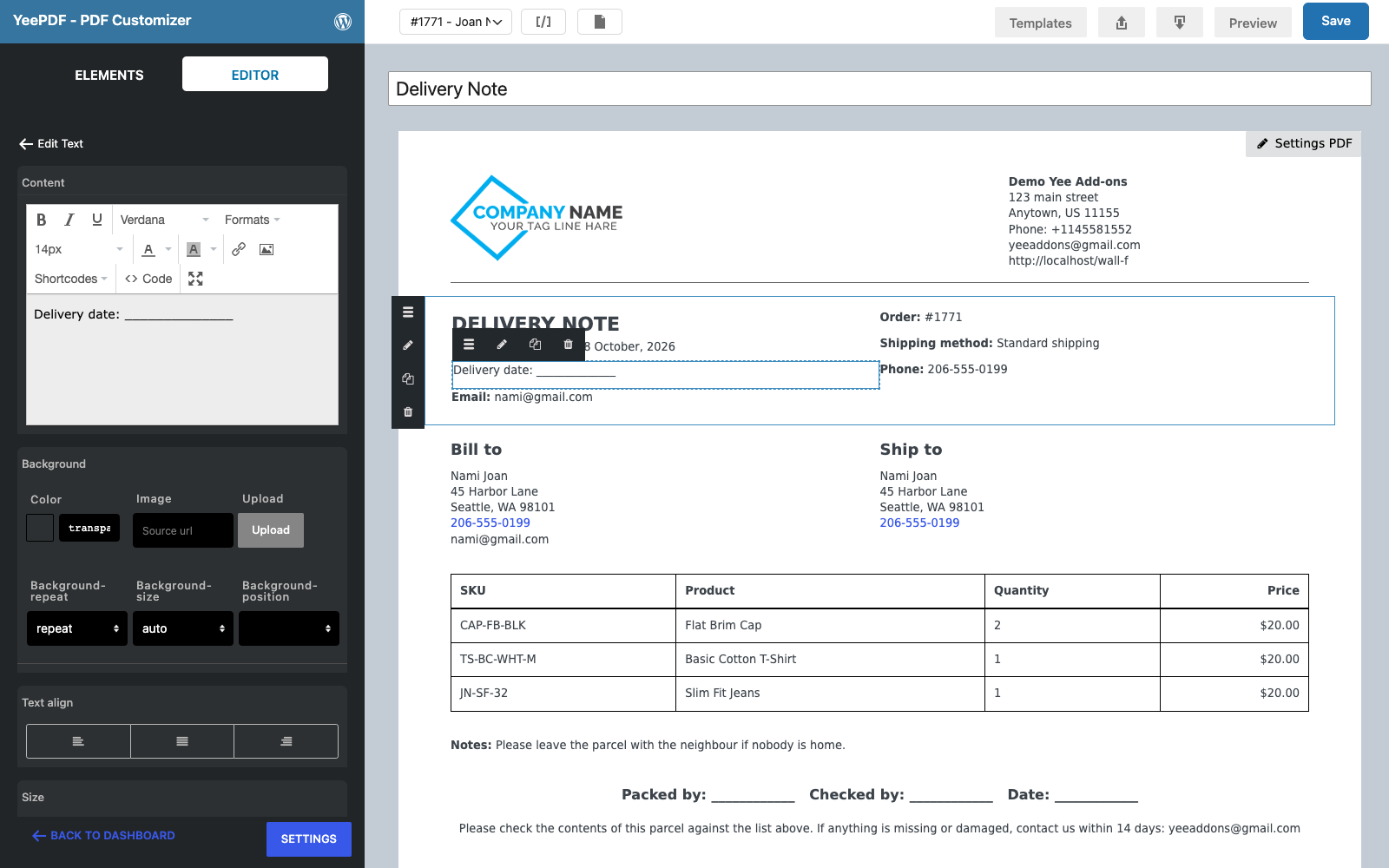
Step 4: Delivery date
The driver writes the actual delivery date by hand, so replace the Payment method line with Delivery date: ______________. Keep the order number, shipping method, phone and email: the driver needs them on the doorstep.
Step 5: Signature block
Scroll to the footer. Replace the Packed by / Checked by line with the proof-of-delivery line:
Received in good condition Parcels: ______ Name: __________________ Date: __________ Signature: ______________________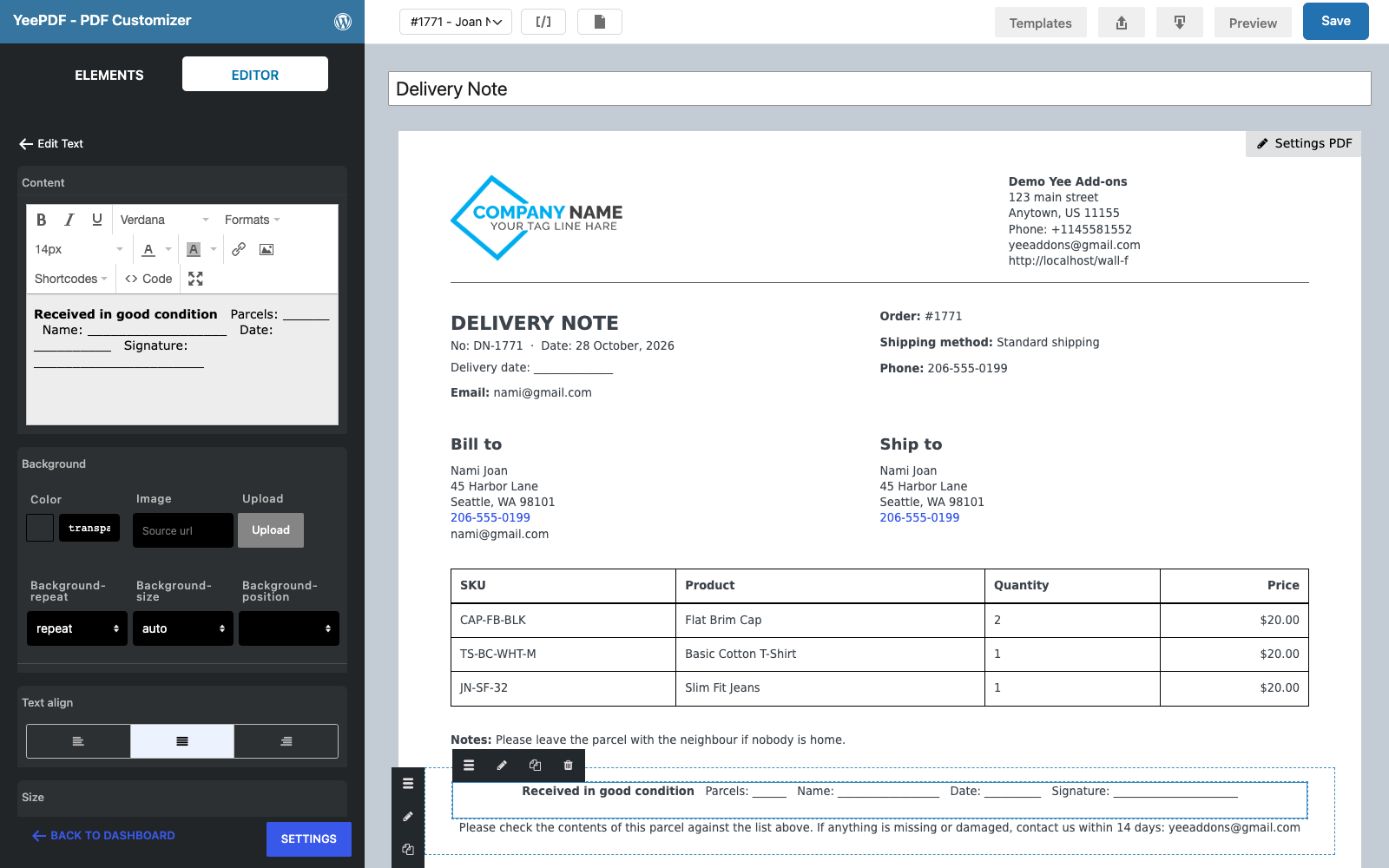
And replace the last line with the terms, in 10 px:
Please count the parcels and check the goods before signing. Shortages or damage must be noted on this
delivery note and reported within 48 hours to [email protected]. Goods remain the property of
Yee Add-ons until paid in full.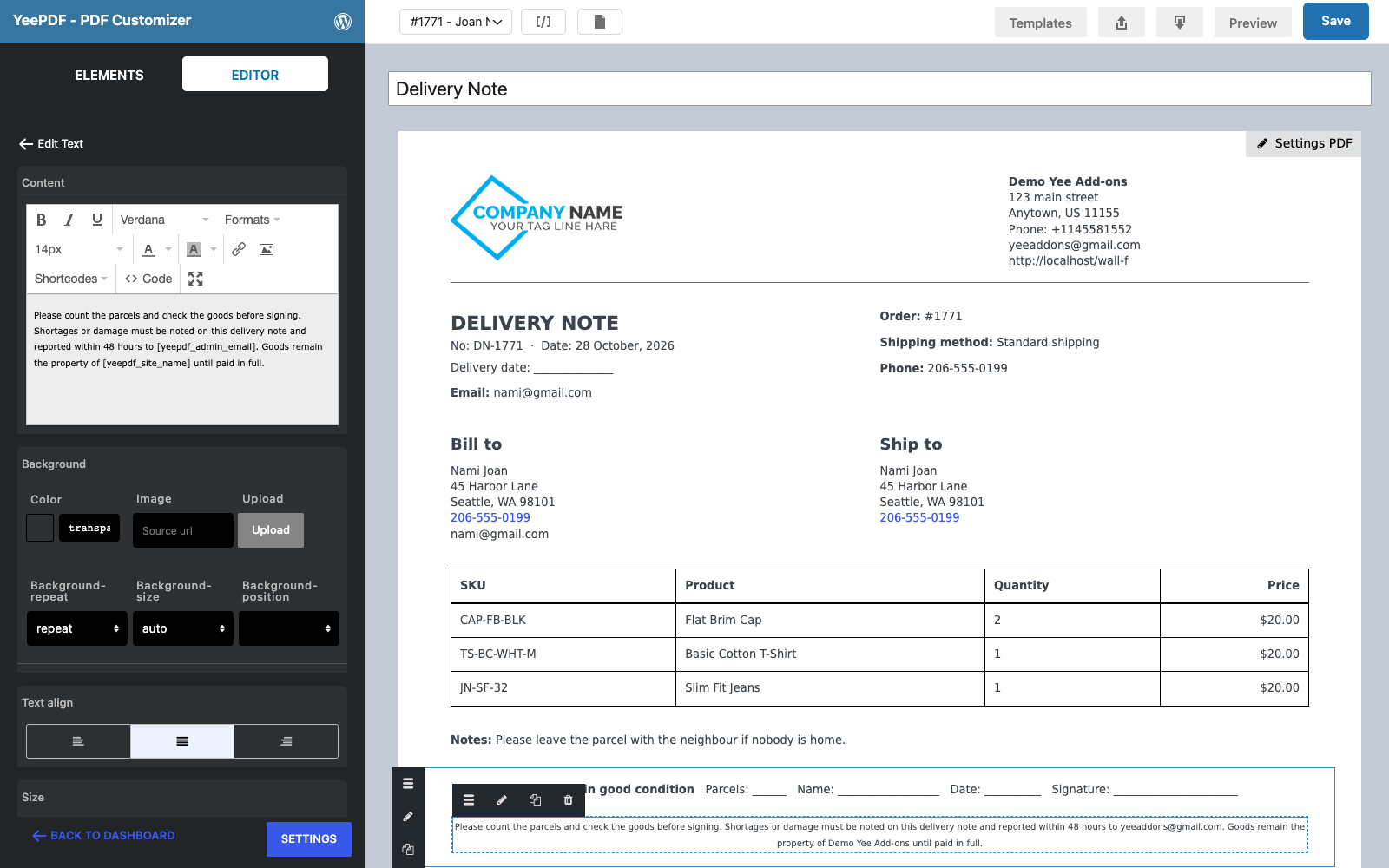
Step 6: Tick column instead of prices
The order table shows SKU, product and quantity (the packing slip already switched images, descriptions and totals off). The price column cannot be removed in the table options, so turn it into an empty tick column for the recipient: open Settings PDF and set Custom CSS to:
/* Price column becomes an empty "delivered" tick column */
th.table-r, td.table-r { font-size: 0; color: #ffffff; width: 70px; }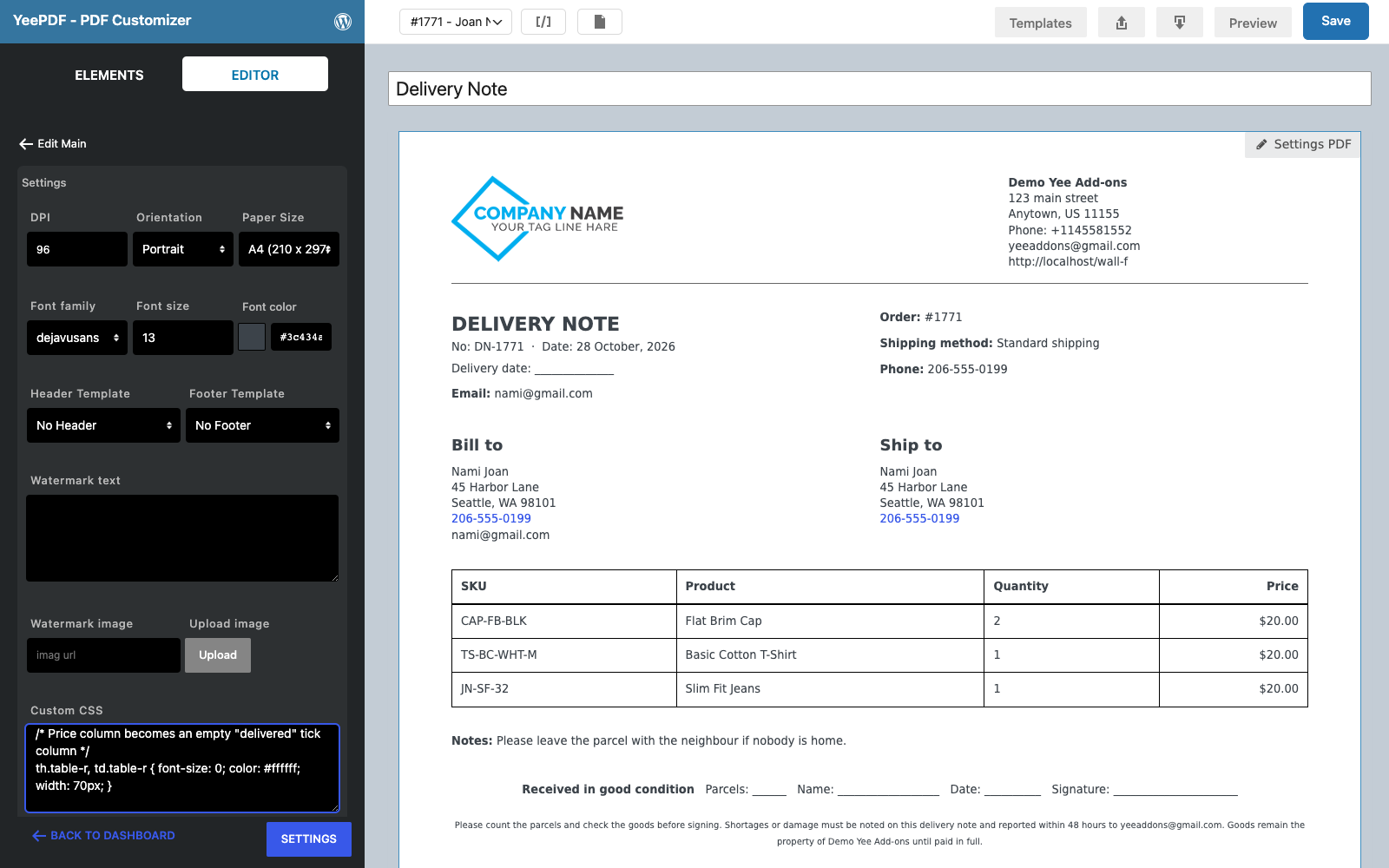
Click Save. Use the Preview button to check the result with the sample order.
3. Generate a Delivery Note for Every Completed Order
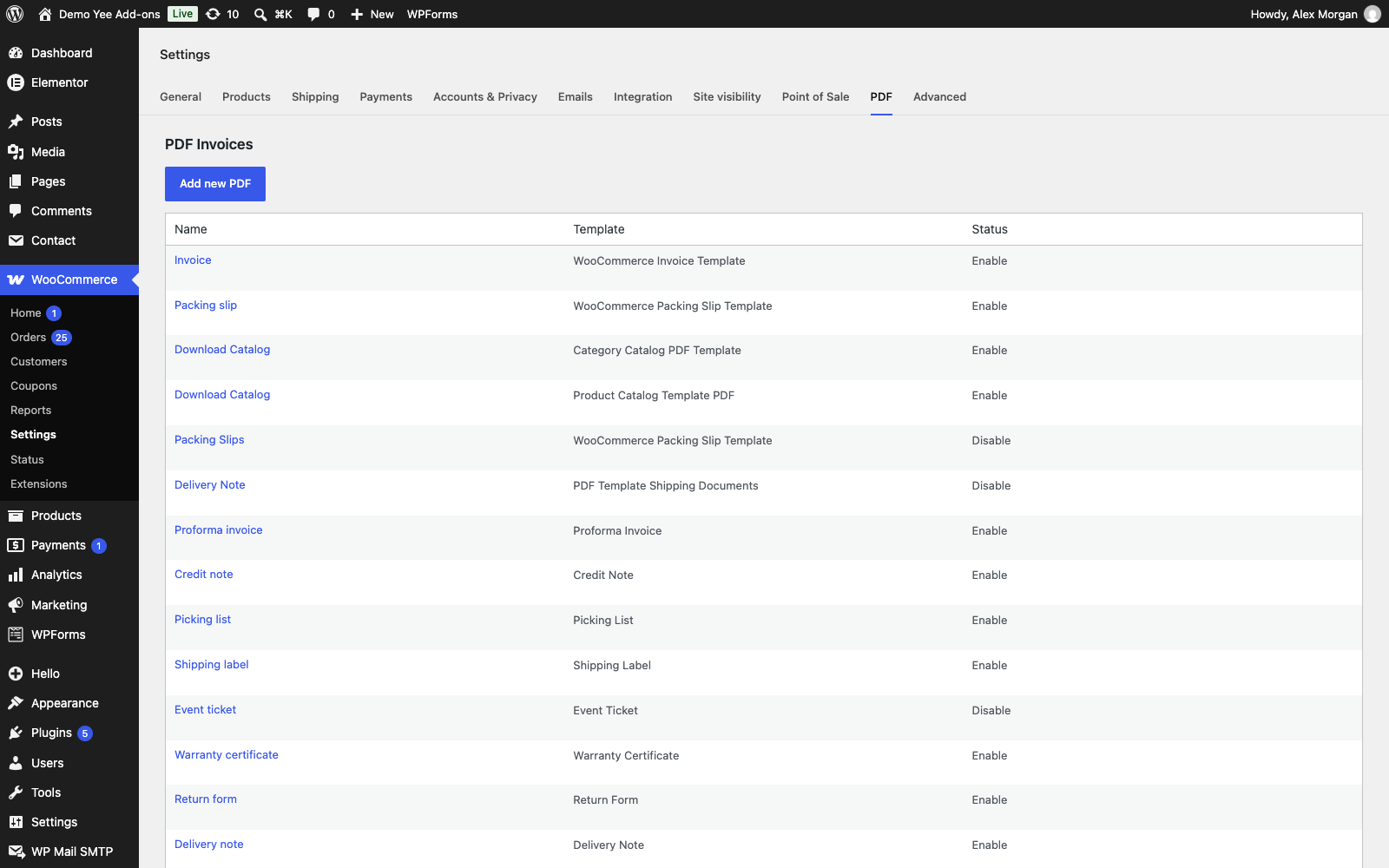
Go to WooCommerce → Settings → PDF → Add new PDF:
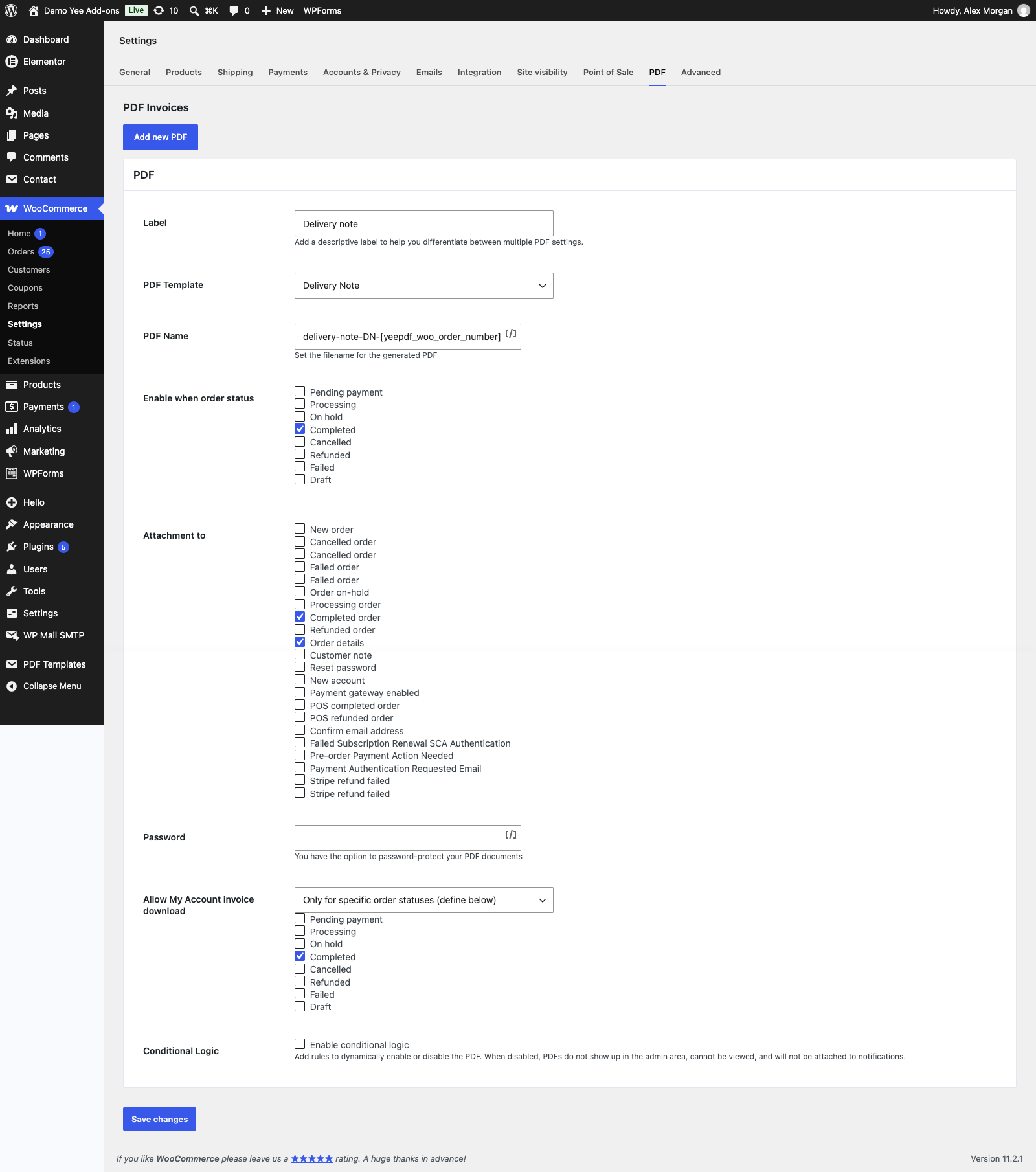
| Field | Value | Why |
|---|---|---|
| Enable this PDF | ticked | Nothing is generated while it is off. |
| Label | Delivery note | Button label in the admin and in My Account. |
| PDF Template | Delivery Note | The template from section 2. |
| PDF Name | delivery-note-DN-8448 | e.g. delivery-note-DN-1796.pdf |
| Enable when order status | Completed | Mark the order complete when it leaves for delivery; the note is generated at that moment. |
| Attachment to | Completed order, Order details | The customer receives an unsigned copy with the “order complete” email; you can re-send it from the order screen. |
| Allow My Account invoice download | Only for specific order statuses → Completed | The customer can download it again later. |
4. Print the Delivery Notes
One order
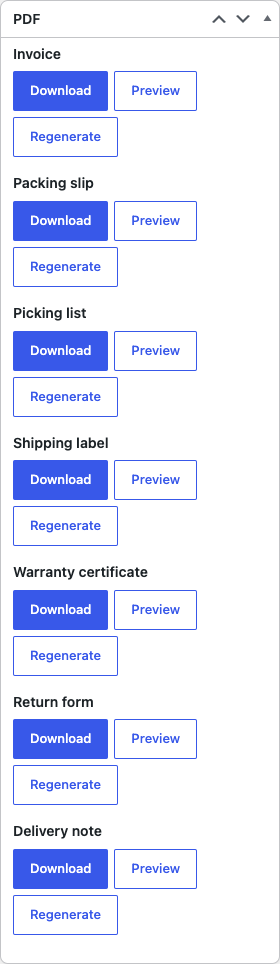
Open a completed order: the PDF box lists the Delivery note with Download, Preview and Regenerate. Print it, give it to the driver, and file the signed copy when it comes back.
A whole delivery run
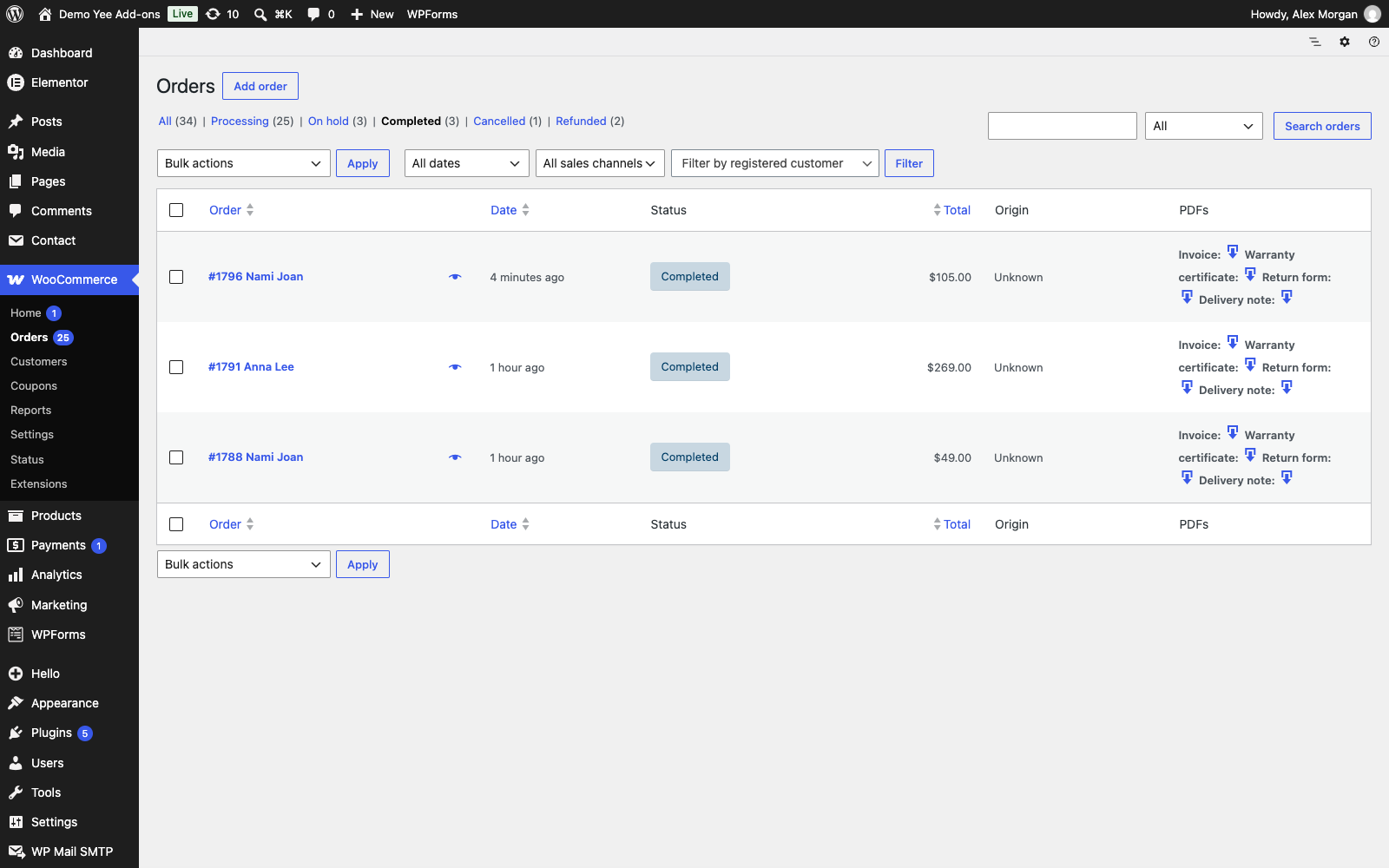
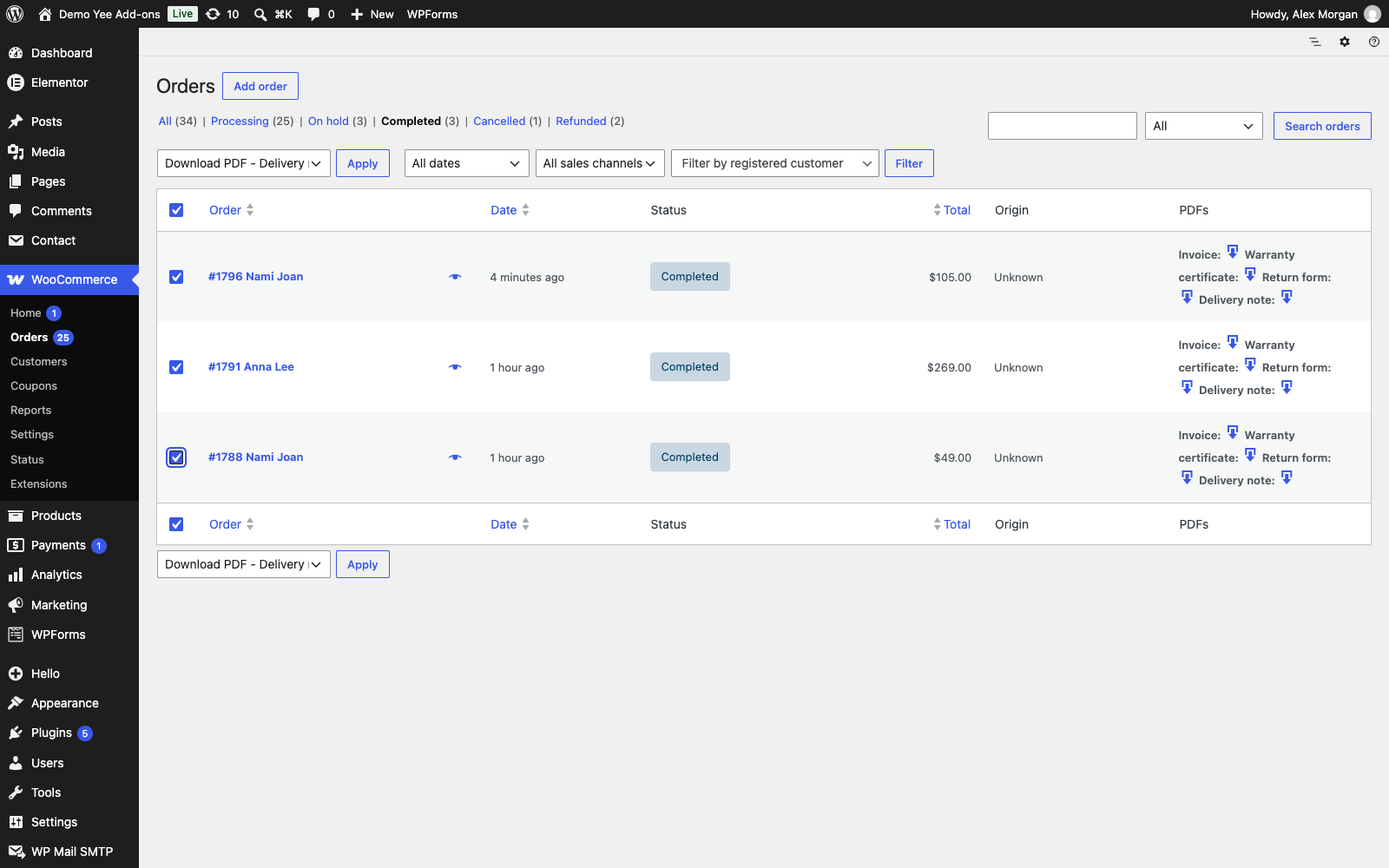
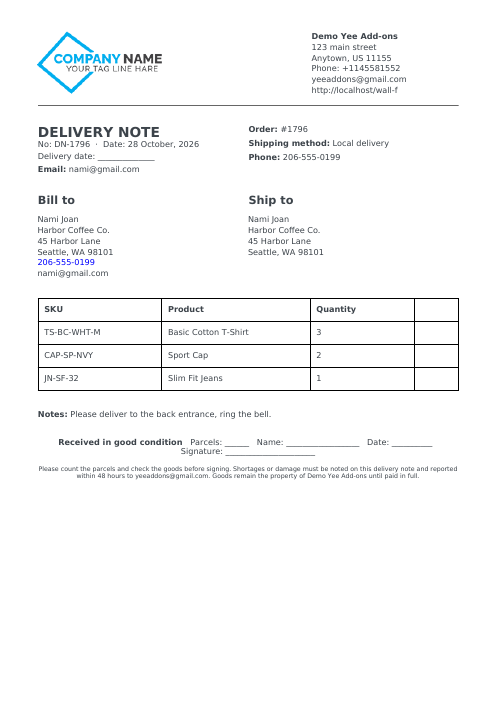
In WooCommerce → Orders filter on Completed, tick the orders on today’s run, choose Download PDF – Delivery note in the bulk actions and click Apply. One PDF with one delivery note per order is downloaded in list order; print it and the driver has the run sheet.
The customer’s copy
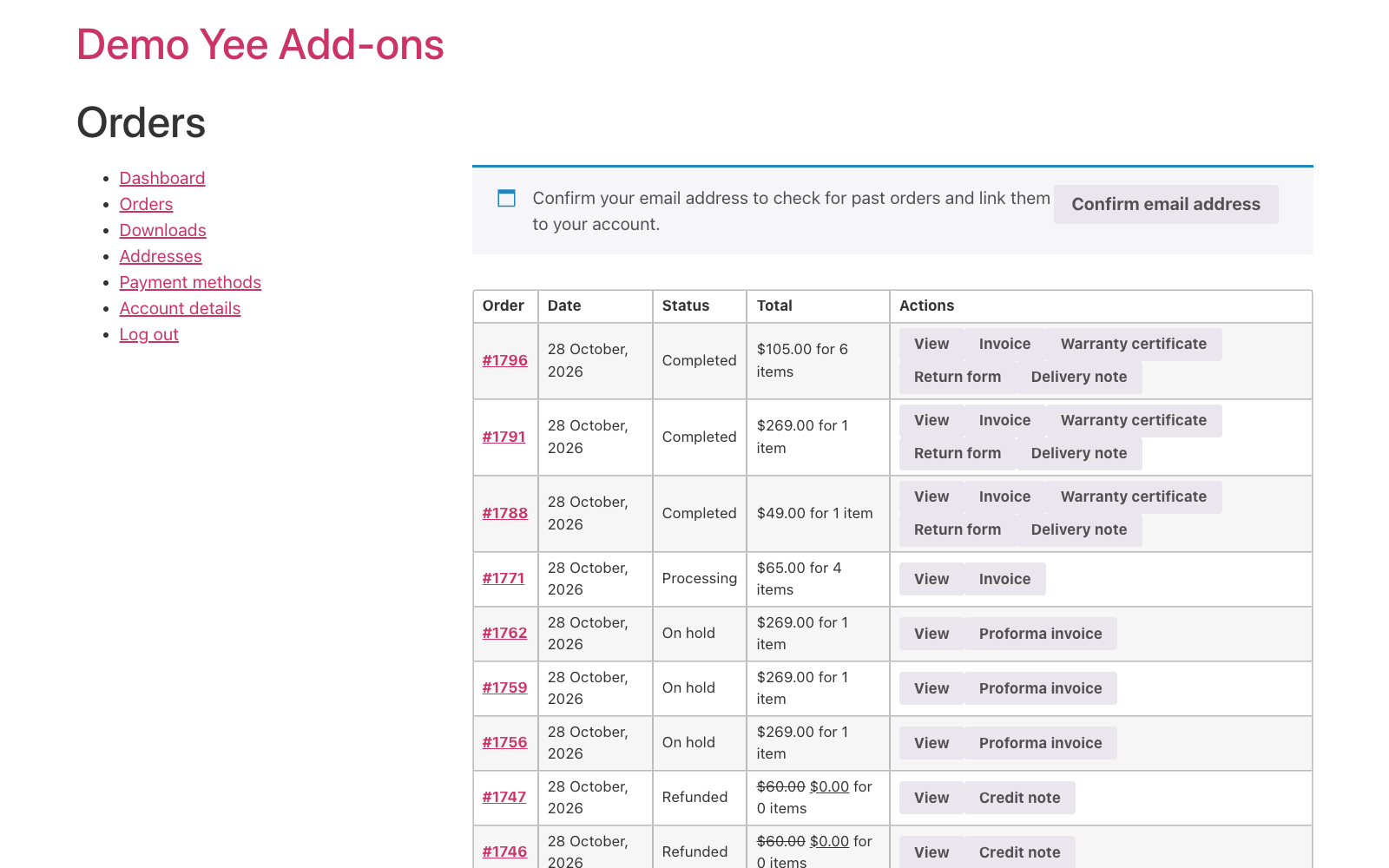
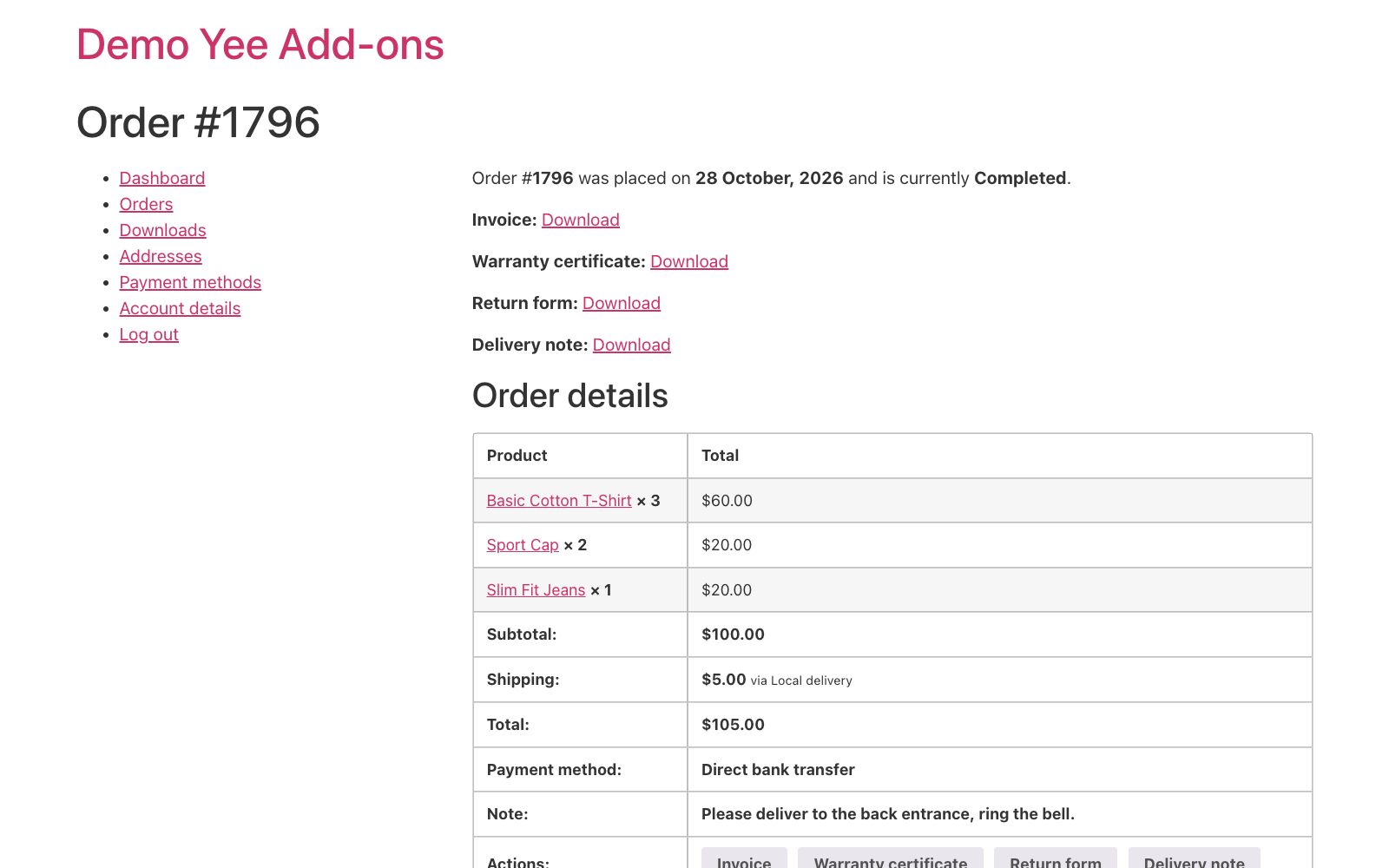
The unsigned copy is attached to the Your order is now complete email and listed in My Account → Orders and on the order page.
5. Tips
- Signed copy: scan or photograph the signed note and attach it to the order as a note (Order notes accept text only; upload the file to the Media library and paste its link).
- Partial deliveries: the recipient ticks the lines that arrived; for a back-order, duplicate the template as “Delivery note – part 2” and regenerate after editing the order.
- Driver details: add a line
Driver: __________ Vehicle: __________under the delivery date, or print the driver name from an order meta field with. - Scannable number: add a Barcode element with
DN-8448so the signed copies can be scanned back into the office. - Pick-up orders: use conditional logic in the setting to generate the note only for a given shipping method, or create a second setting for a counter receipt.
- Regenerate: after editing the template, click Regenerate on an order; the bulk download always renders fresh.
6. Frequently Asked Questions (FAQ)
Can the delivery date be filled automatically?
Merge tags print the order date and the date the PDF is generated; the actual handover date is written by hand, which is also what the signature refers to.
Why generate it at Completed and not at Processing?
Processing means paid and still in the warehouse (packing slip, picking list, label). Completed is the moment the goods leave; use a custom status such as “Out for delivery” if you want the note earlier and tick that status instead.
Does the customer see prices?
No. The table shows SKU, product and quantity; the invoice carries the prices.
Can the recipient sign on a tablet?
The PDF is static. Print it, or use the Text input and Signature elements under Forms to add fillable fields and collect the signature in a PDF reader.
Is the bulk PDF sorted?
It follows the order of the Orders list; sort the list by date or use the search before ticking the orders.