
A credit note is the document that cancels all or part of an invoice: when you refund or cancel a WooCommerce order, the customer (and your accountant) needs a PDF that states the refunded amount, refers to the original invoice and carries its own number. This guide builds a credit note with PDF Invoice for WooCommerce + Drag and Drop Template Builder (plugin slug pdf-for-woocommerce, by add-ons.org): a template based on the invoice layout with a refund block and merge tags, a PDF setting that generates it automatically when an order becomes Refunded or Cancelled, download buttons in the admin and in My Account, and the emails that can carry it. If you have not built a document with the plugin before, read the proforma invoice tutorial first: it explains the export/import workflow in more detail.
Video tutorial
1. How Refunds Trigger a Credit Note
- A full refund in WooCommerce (order screen → Refund → Refund manually or through the payment gateway) sets the order status to Refunded; a cancellation sets it to Cancelled.
- A PDF setting with those two statuses under Enable when order status generates the credit note at that moment and stores it with the order: it appears in the PDF box of the order, in the PDFs column of the orders list and, if allowed, in the customer’s My Account.
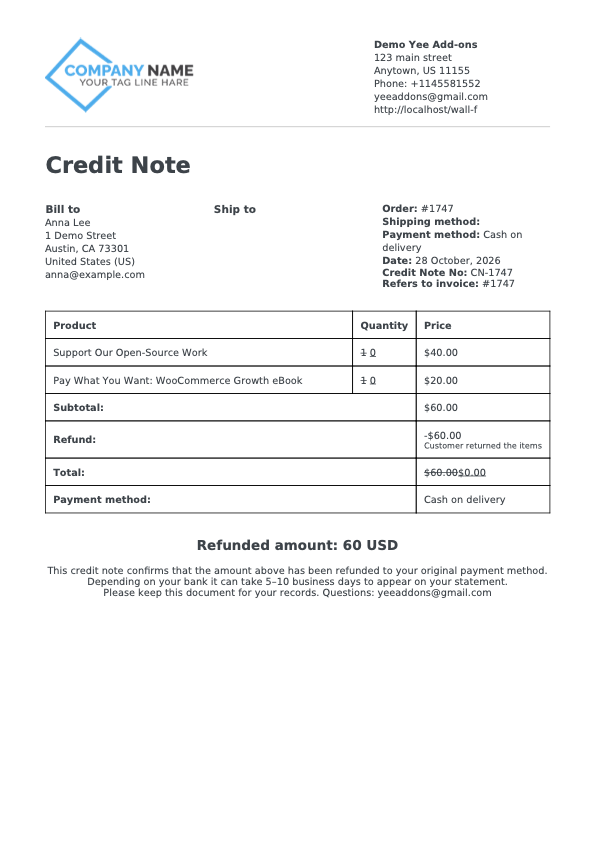
- The order table block prints the refunded lines with struck-through quantities, a Refund line and the net total, and the
0merge tag prints the total refunded amount. - Timing note: WooCommerce sends the Refunded order email at the instant the refund is created, before the status changes to Refunded, so the plugin cannot attach the credit note to that particular email. Use the Order details email (sent from the order screen) or the Cancelled order email, which is sent after the status change, to deliver it (see section 4).
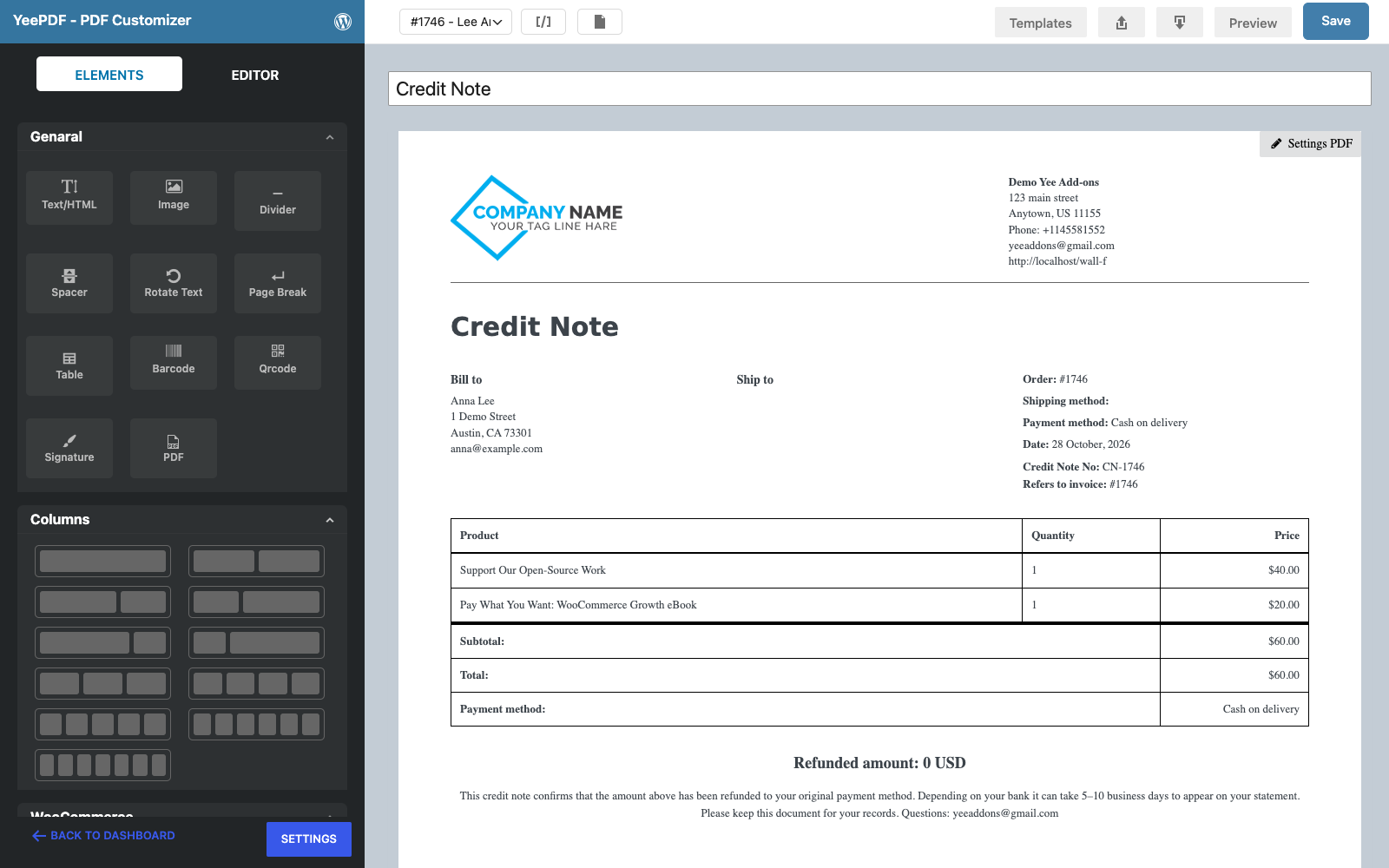
2. Create the Credit Note Template
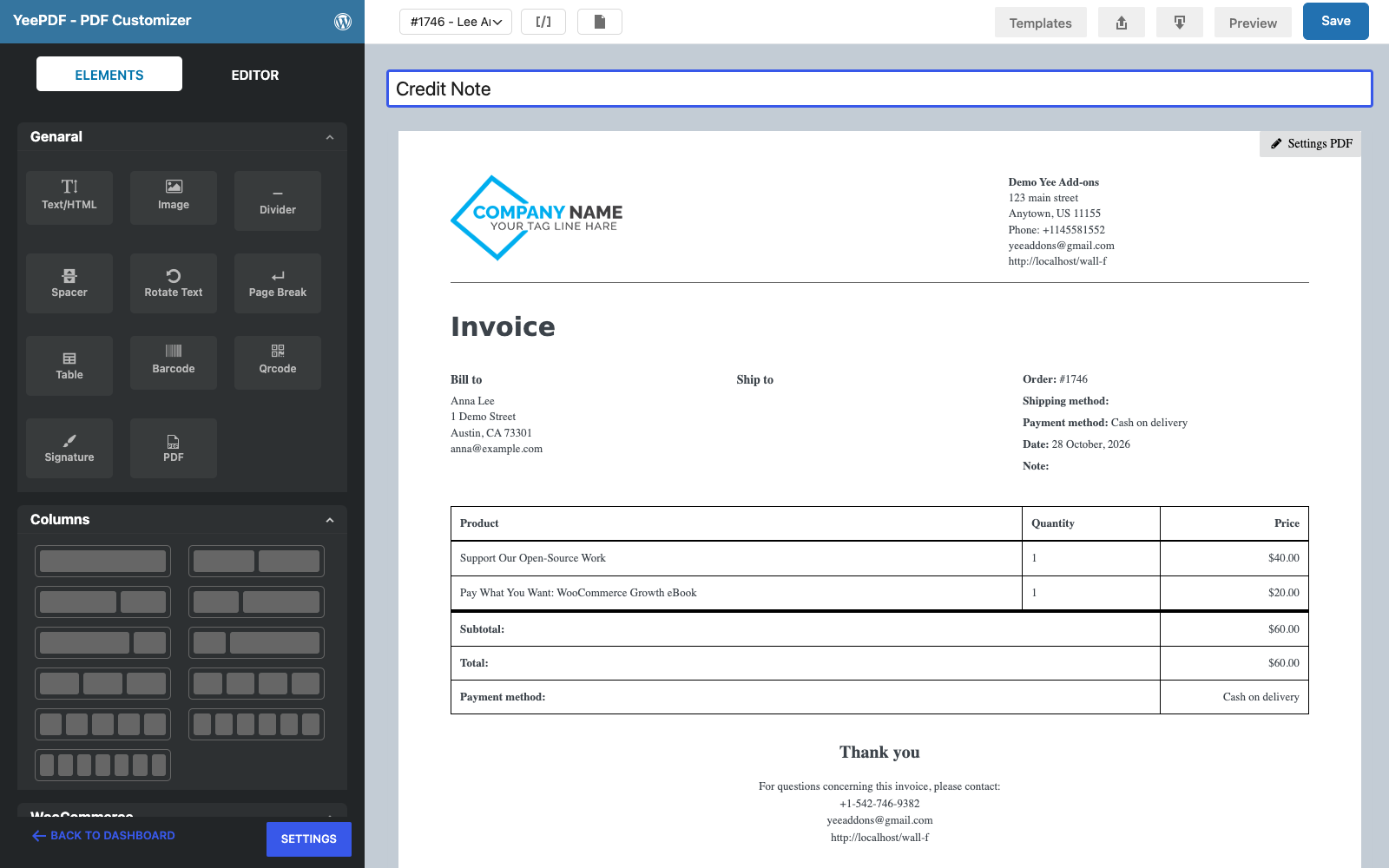
Step 1: Import the invoice layout into a new template
Go to PDF Templates → New Template, click the Import icon and upload the yeepdf.json file exported from the WooCommerce Invoice Template (export it from the toolbar of that template if you do not have it yet). Name the template Credit Note.
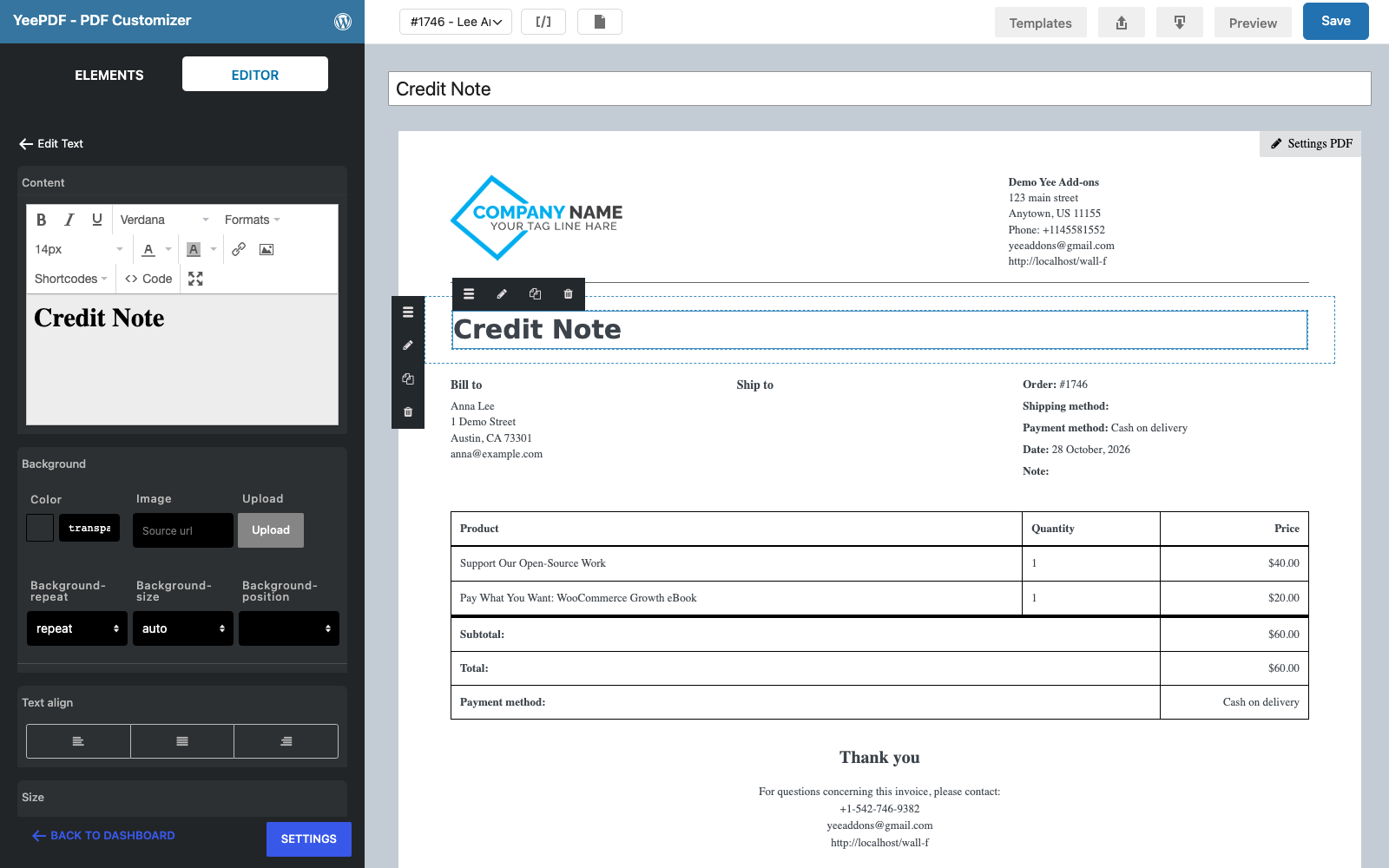
Step 2: Change the heading
Click the Invoice heading and replace it with Credit Note, keeping the bold 30 px style.
Step 3: Add the credit note number and the invoice reference
Click the Note: line in the order-info column and replace it with:
Credit Note No: CN-8448
Refers to invoice: #8448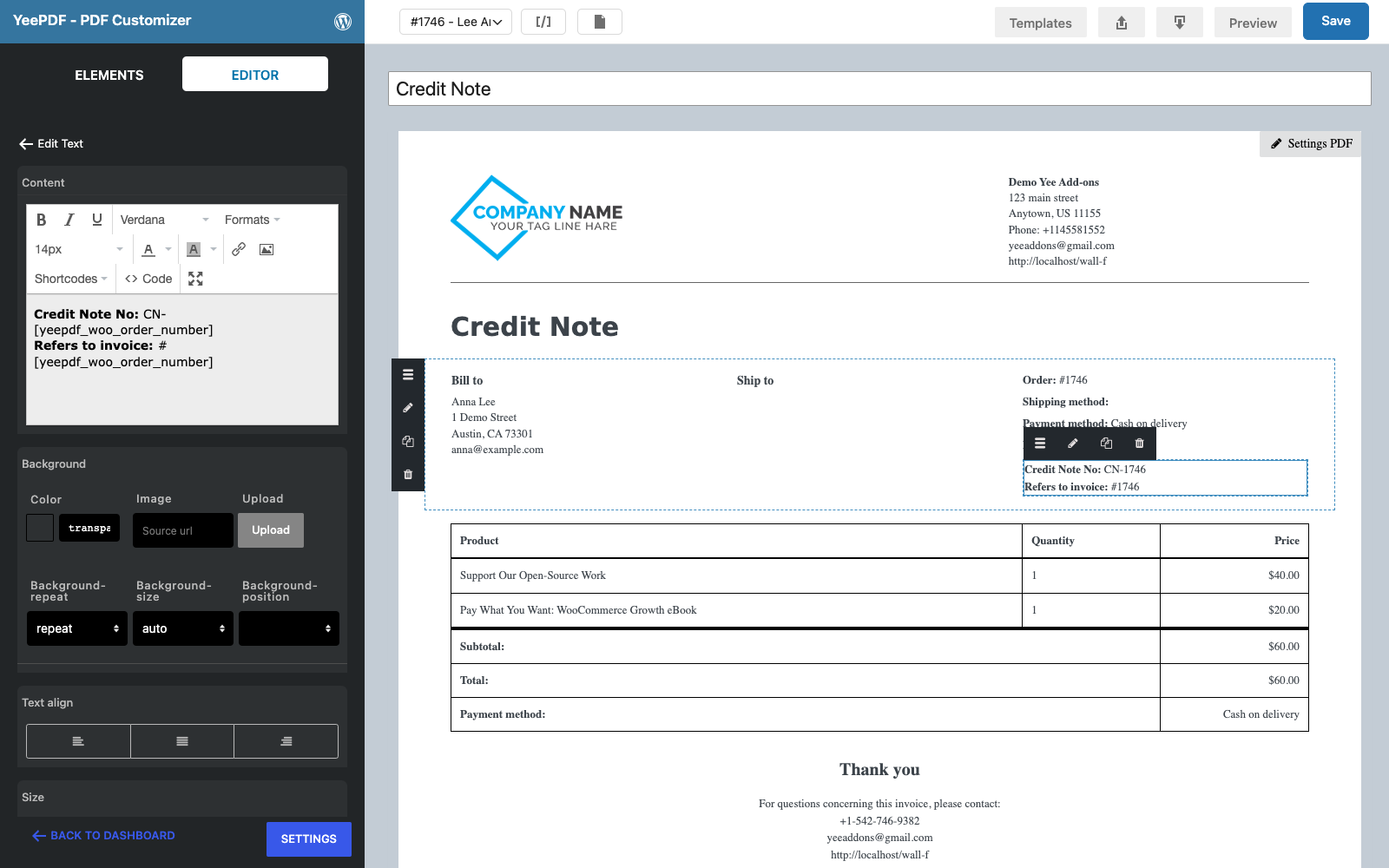
Step 4: Replace the footer with the refund block
Click the Thank you block and change it to the refunded amount using the refund merge tag, then replace the contact block with a short explanation:
Refunded amount: 0 USD

This credit note confirms that the amount above has been refunded to your original payment method.
Depending on your bank it can take 5–10 business days to appear on your statement.
Please keep this document for your records. Questions: [email protected]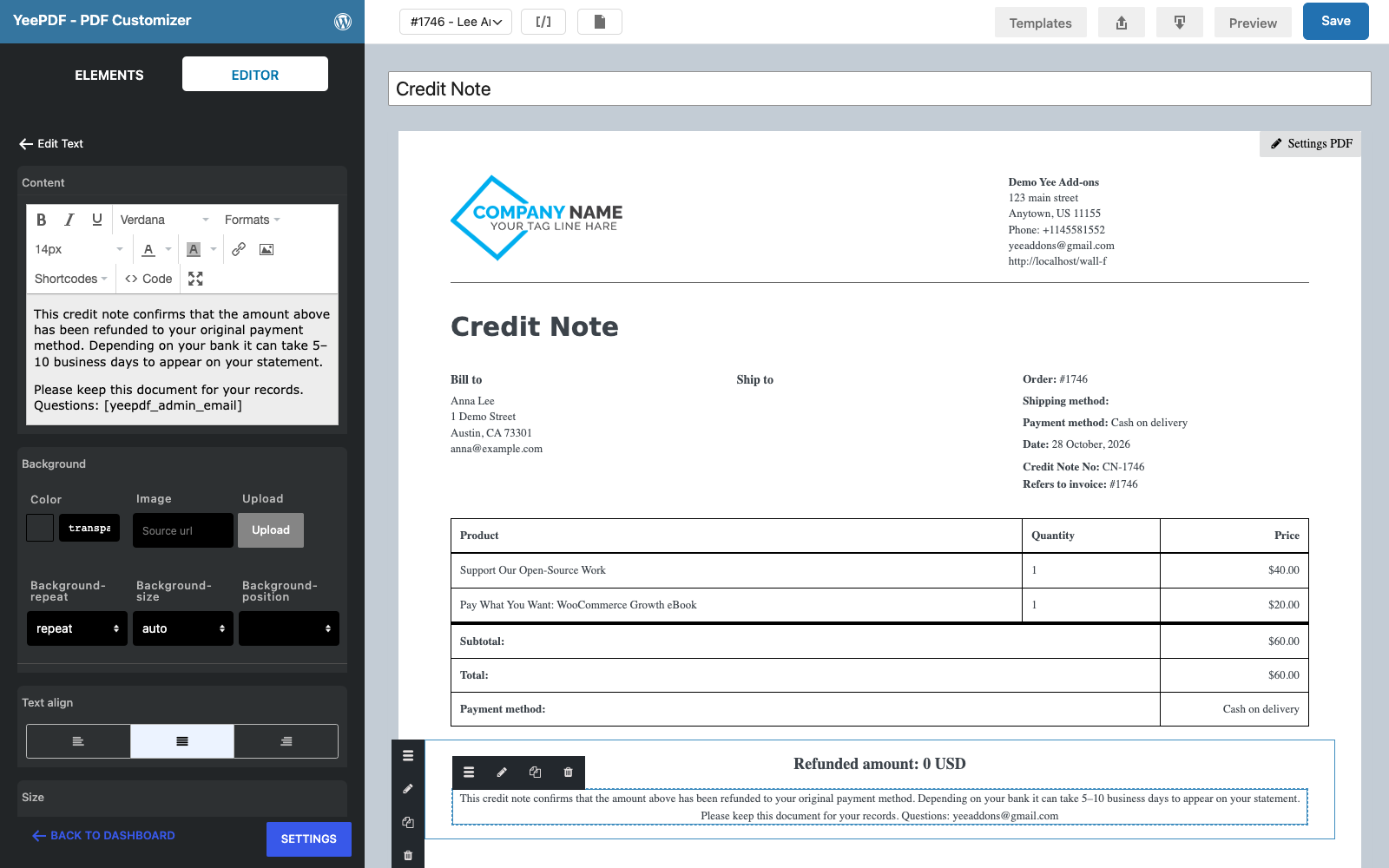
Click Save. The order table in the middle of the page needs no change: for a refunded order it automatically shows the refunded quantities and a Refund line.
3. Generate the Credit Note Automatically
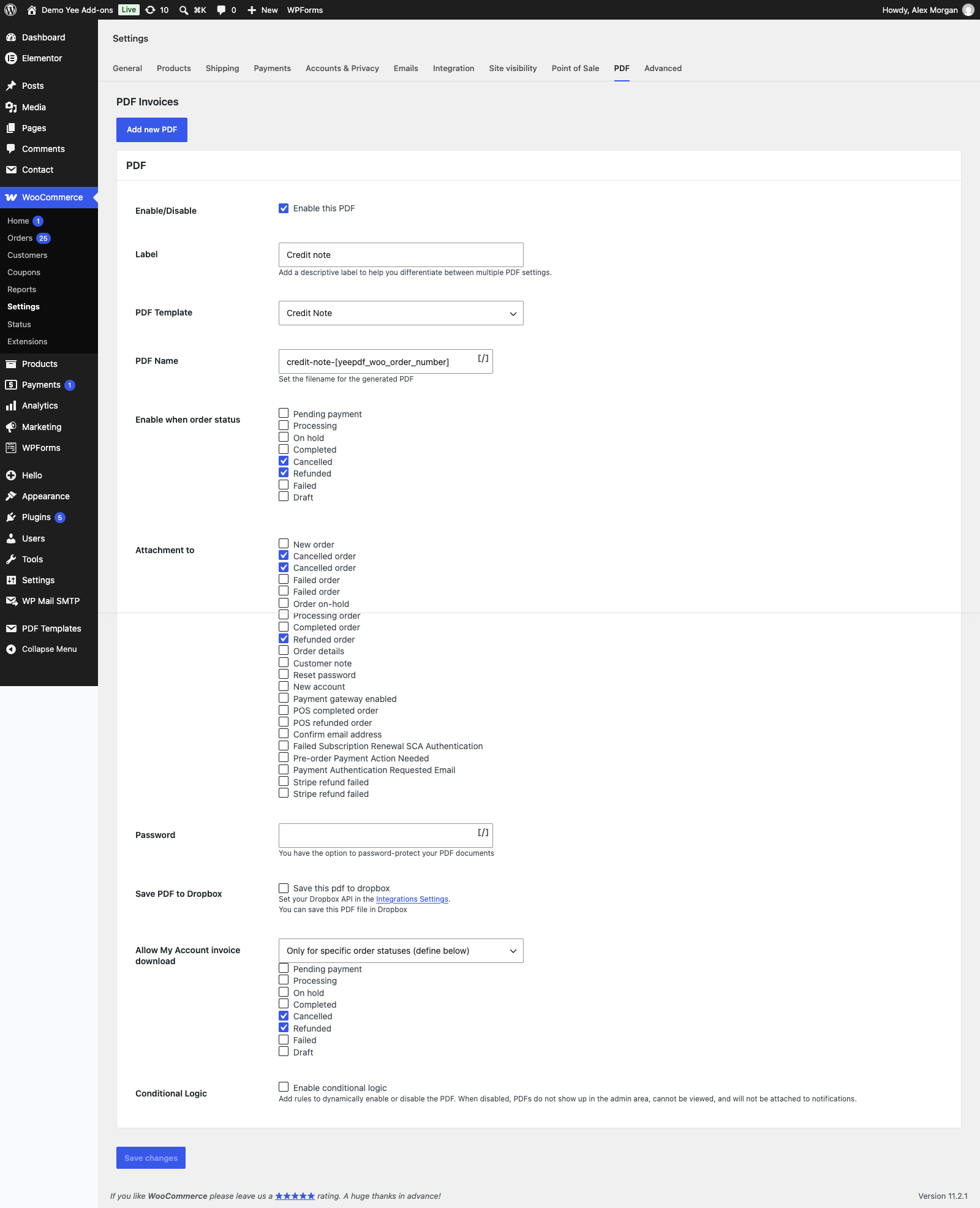
Go to WooCommerce → Settings → PDF → Add new PDF and fill in the setting:
| Field | Value | Why |
|---|---|---|
| Label | Credit note | Button label in the admin and in My Account. |
| PDF Template | Credit Note | The template from section 2. |
| PDF Name | credit-note-8448 | e.g. credit-note-1747.pdf |
| Enable when order status | Refunded, Cancelled | The PDF is generated when the order reaches one of these statuses. |
| Attachment to | Cancelled order, Customer cancelled order, Order details | Cancellation emails are sent after the status change and carry the file; Order details lets you email the credit note manually after a refund. |
| Allow My Account invoice download | Only for specific order statuses → Refunded, Cancelled | The customer can download it as soon as the refund is booked. |
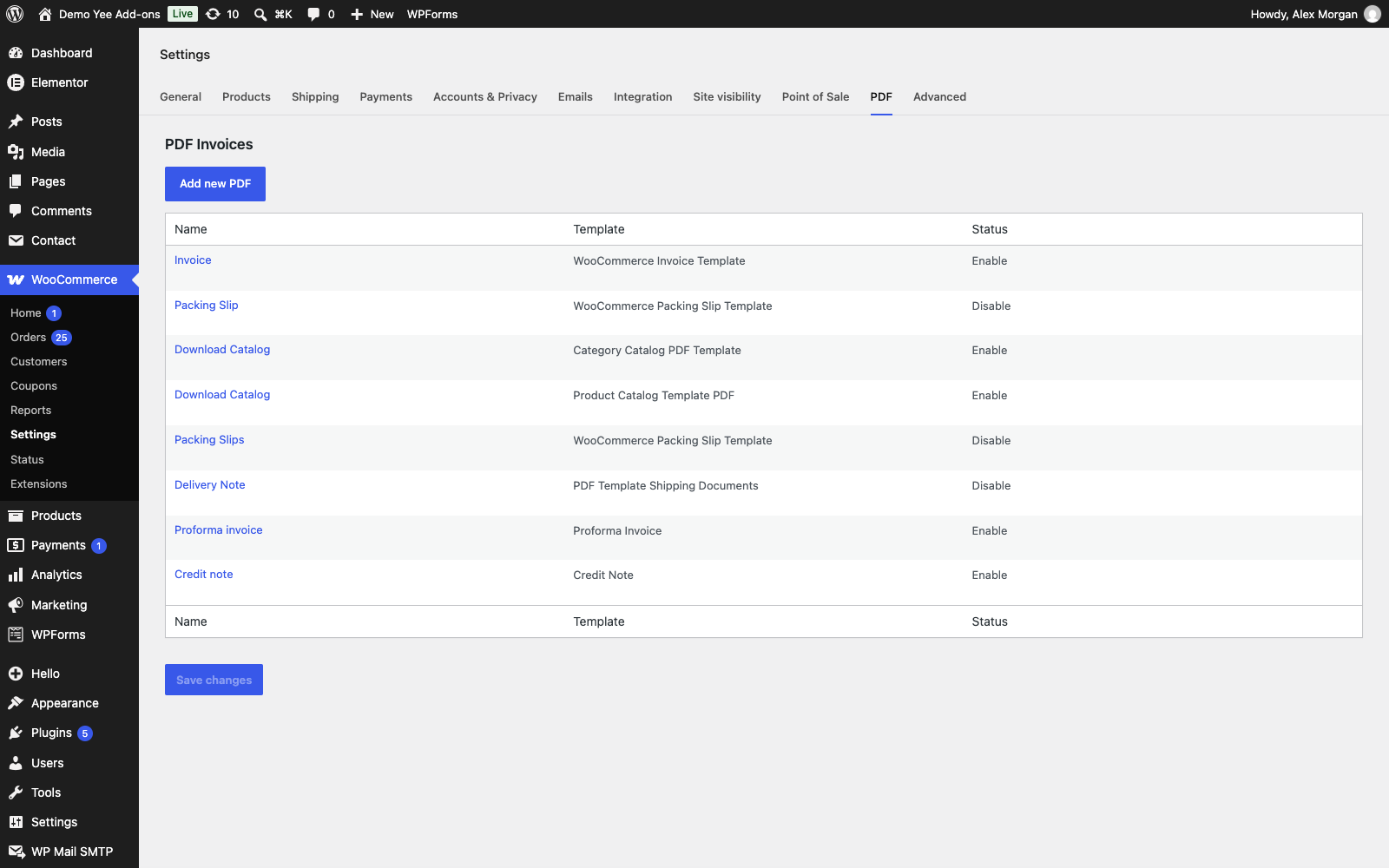
Click Save changes. The list now shows the Credit note row next to the invoice and proforma settings.
4. Refund an Order and Get the Credit Note
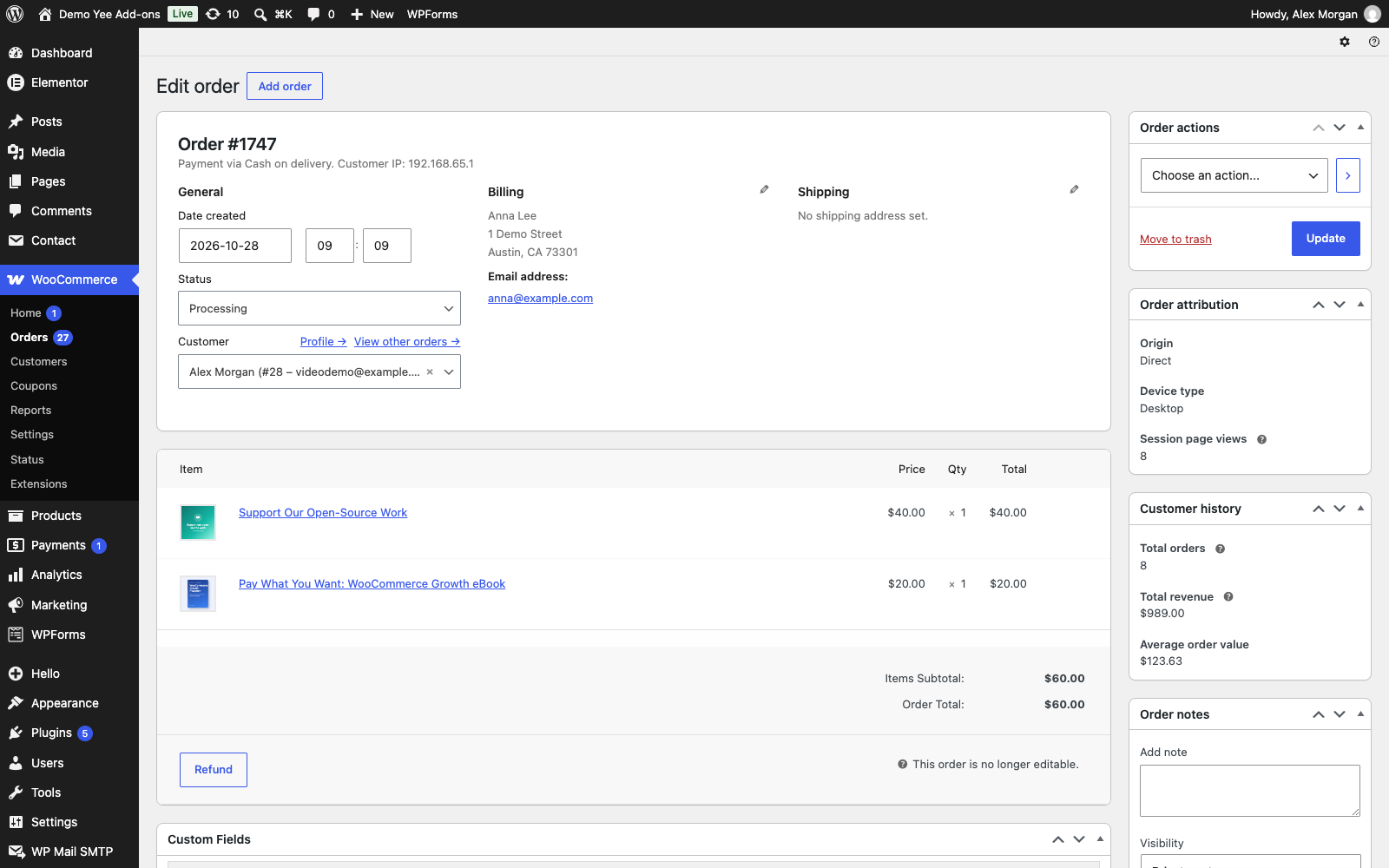
Step 1: Refund in the order screen
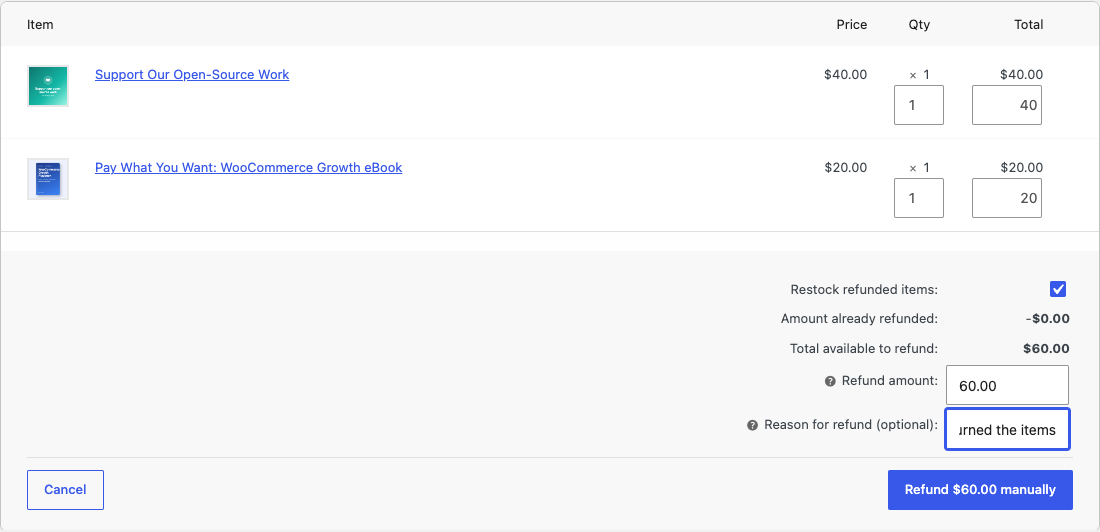
Open the order, click Refund, enter the quantities (or an amount), add a reason and click Refund manually (or the gateway button, e.g. Refund via Stripe).
Step 2: The credit note is ready
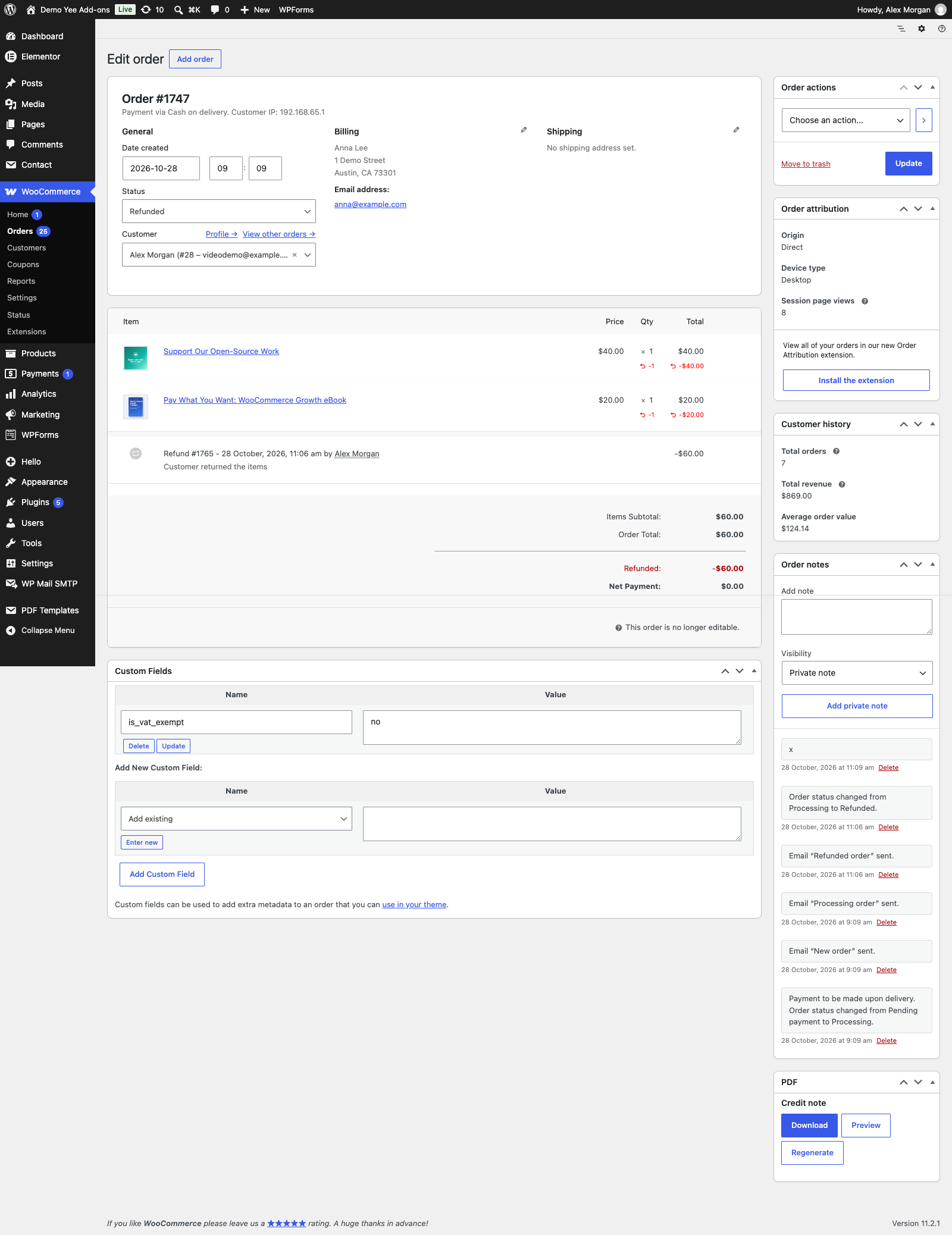
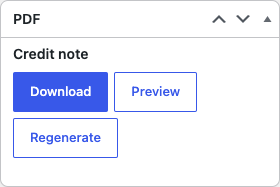
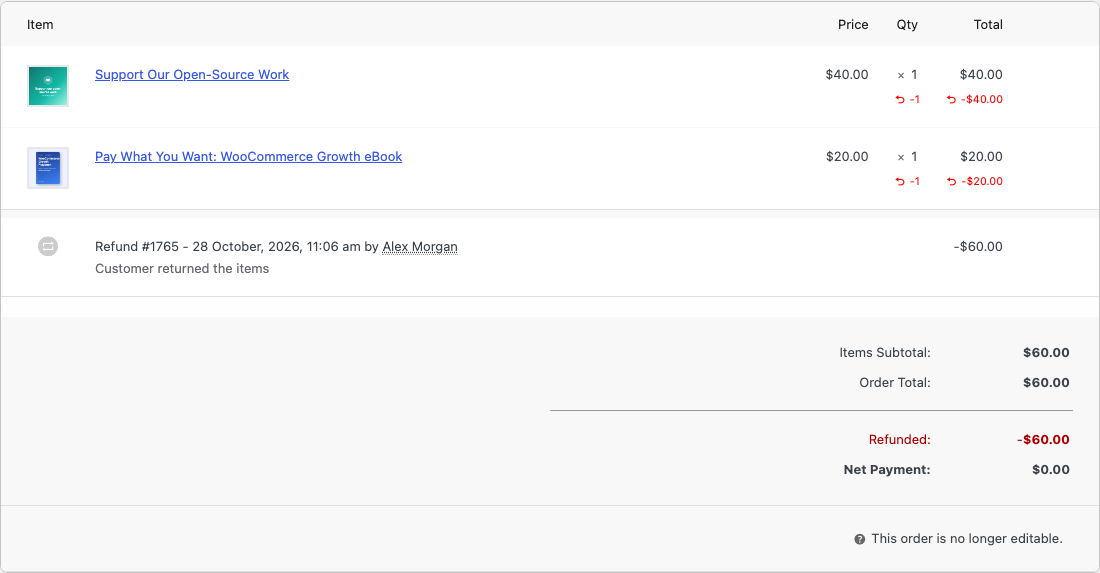
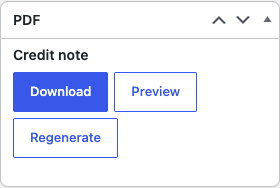
As soon as the status changes to Refunded, the credit note is generated. The PDF box on the order screen offers Download, Preview and Regenerate, and the item table shows the refunded quantities and the refund line that also appear in the PDF.
Step 3: Orders list and cancelled orders
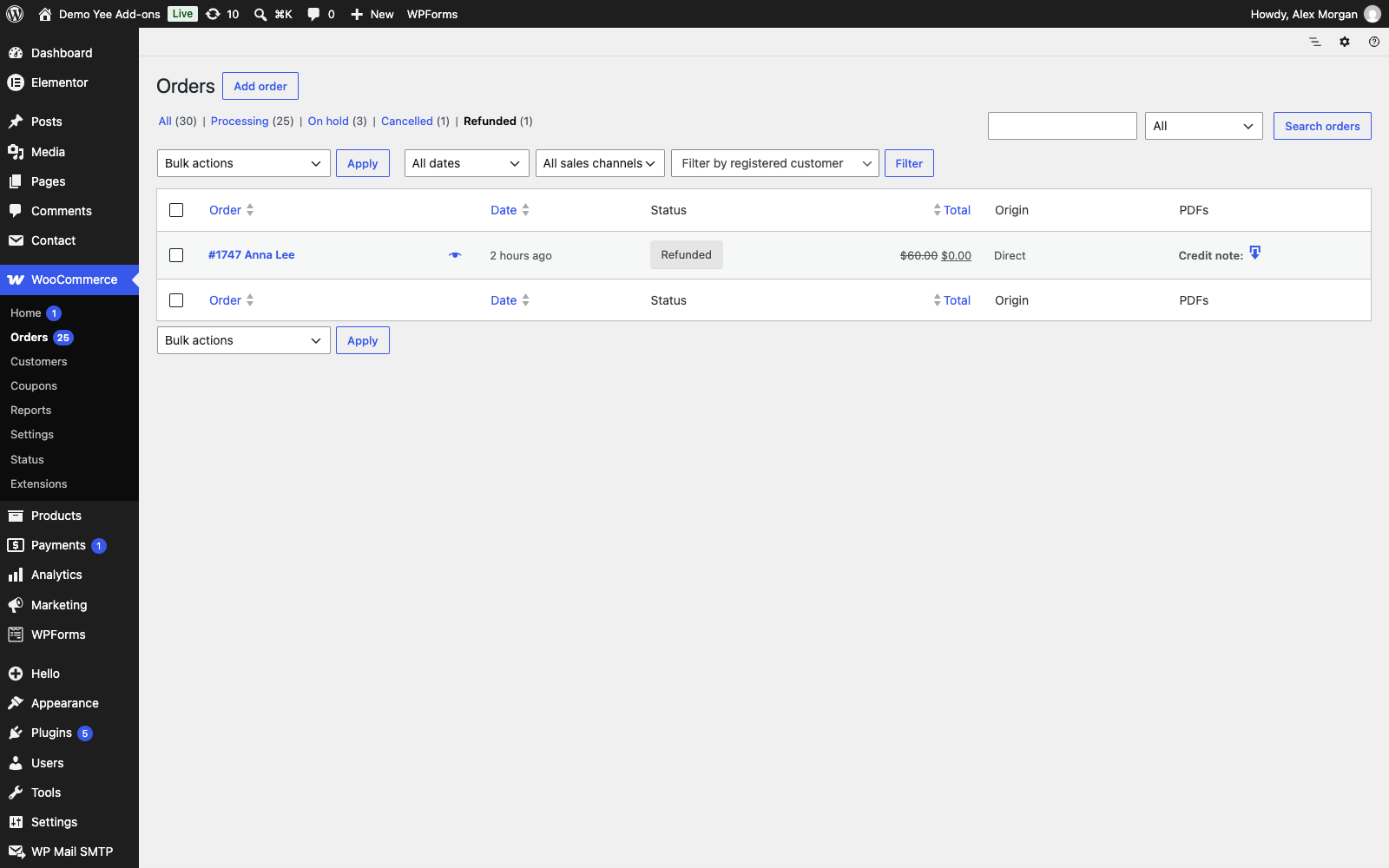
Cancelled orders work the same way. Because the Cancelled order emails are sent after the status change, the credit note is attached to them automatically.
Step 4: Send the credit note to the customer
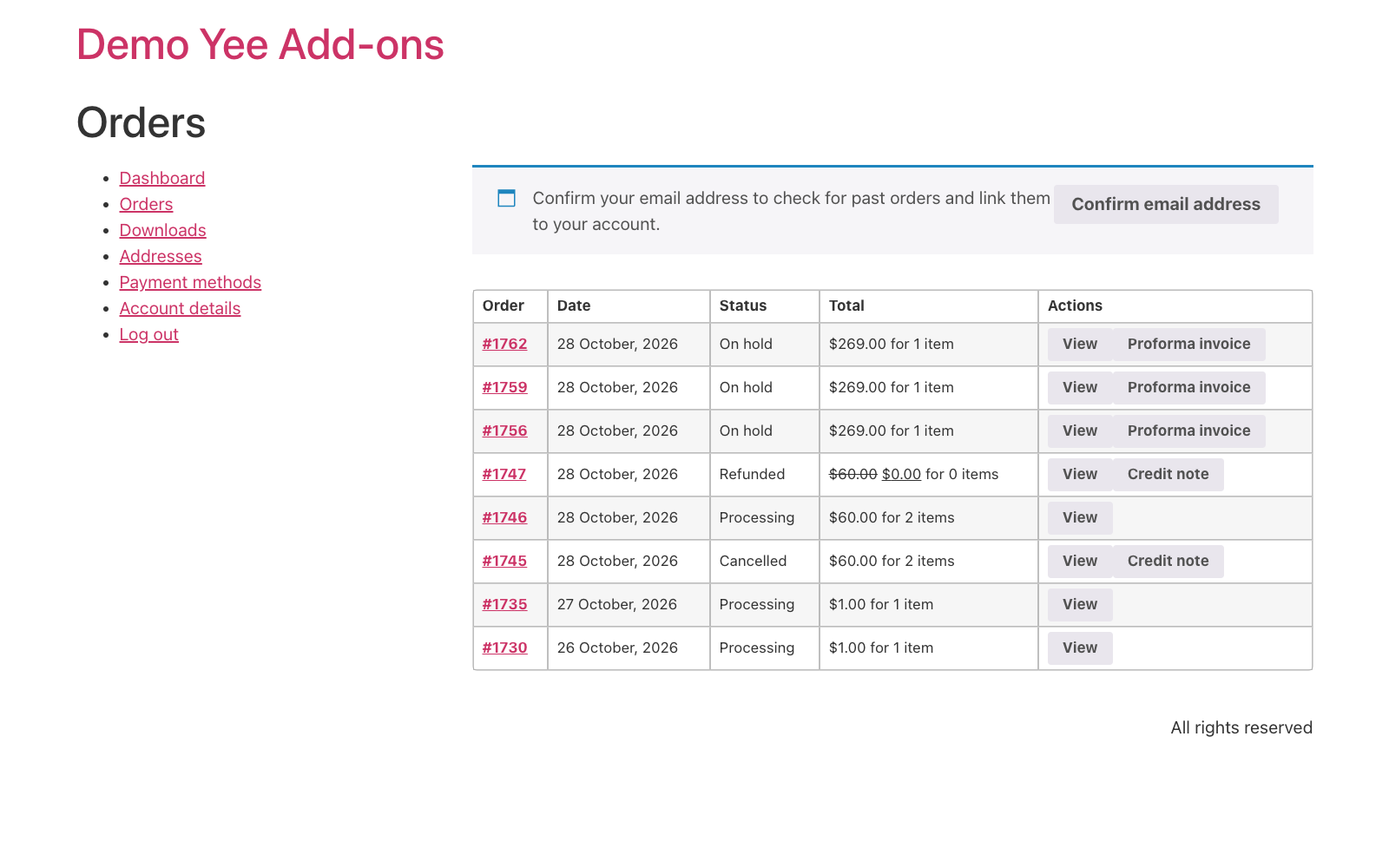
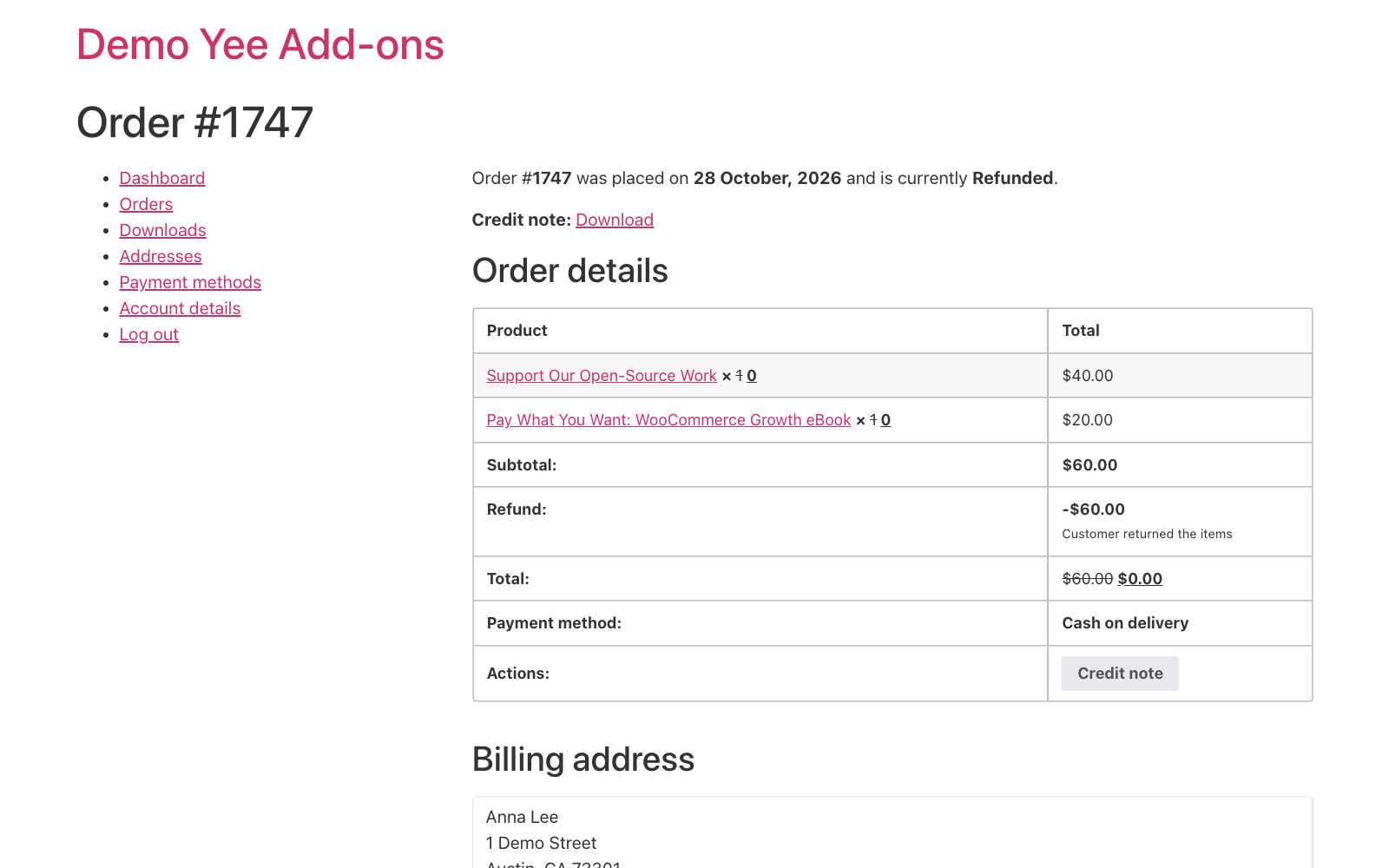
- My Account: the customer sees a Credit note button in My Account → Orders and a download link on the order page for refunded and cancelled orders.
- Email after a refund: choose Send order details to customer in the Order actions box; the Order details email is ticked under Attachment to, so the credit note is attached.
- Email after a cancellation: attached automatically to the cancellation emails.
5. Tips
- Partial refunds: a partial refund leaves the order in its current status. If you want a credit note for partial refunds too, add Processing and Completed to the statuses and send it manually with Send order details to customer; the refund block prints only the refunded amount.
- Numbering: keep the
CN-prefix so credit notes never collide with invoice numbers in your bookkeeping. - Reason on the document: the refund reason is stored on the refund, not on the order; add a static sentence or mention the reason in the My Account order note if you need it on the PDF.
- Regenerate: if you edit the template later, open the order and click Regenerate; stored files are not rebuilt automatically.
- Legal wording: some countries require the original invoice number and date on a credit note; both are available as
8448andAugust 28, 2026.
6. Frequently Asked Questions (FAQ)
Why is the credit note not attached to the “Your order has been refunded” email?
WooCommerce sends that email while the refund is being created, before the order status becomes Refunded, so no document exists yet at that moment. Send it afterwards with “Send order details to customer”, or let customers download it from My Account.
Does the credit note show negative amounts?
The order table shows the refunded items with struck-through quantities and a “Refund: -$60.00” line; the refund block prints the refunded amount as a positive number with the currency.
Can I create a credit note without refunding money?
Yes: cancel the order (status Cancelled) or, for a document only, add a status such as Completed to the setting and download it from the order screen.
Where is the file stored?
In wp-content/uploads/pdfs/downloads/, in a random sub-folder per document, and the link is saved on the order. The PDF box always points to the current file.
Can I use a different template for cancellations?
Yes. Create a second PDF setting with another template and only the Cancelled status; each setting is independent.