
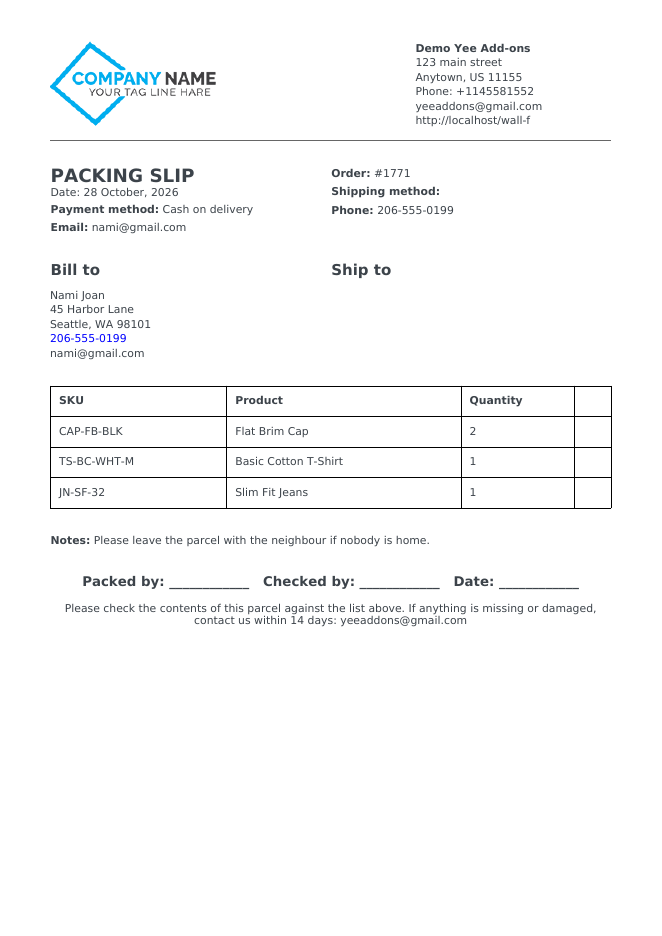
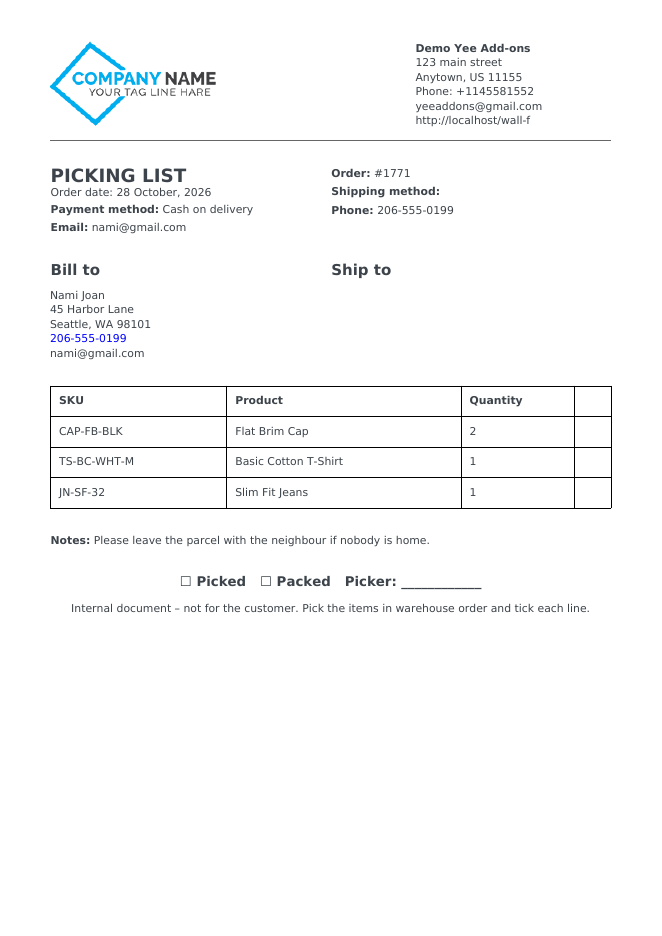
A packing slip goes into the parcel: it lists what was packed, without prices, so the customer can check the delivery. A picking list stays in the warehouse: SKU, product and quantity, one page per order, printed in batches so the picker can walk the shelves and tick each line. Both are built in minutes with PDF Invoice for WooCommerce + Drag and Drop Template Builder (plugin slug pdf-for-woocommerce, by add-ons.org). This guide adapts the built-in packing slip template, hides the price column, turns on the SKU column, creates a second warehouse template, and shows how to print the documents from the order screen and in bulk from the orders list. If the builder is new to you, the proforma invoice tutorial explains the export/import workflow step by step.
Video tutorial
1. Packing Slip vs. Picking List
| Packing slip | Picking list | |
|---|---|---|
| Who reads it | The customer, inside the parcel | Warehouse staff |
| Columns | SKU, product, quantity (no prices); thumbnails optional | SKU, product, quantity |
| Extras | Customer note, “Packed by / Checked by” line, return instructions | Picked / Packed tick boxes, picker name |
| Generated at | Processing and Completed | Processing |
| Delivered | Attached to the admin New order email, printed from the order | Bulk download from the orders list, one PDF for many orders |
| My Account | Never | Never |
2. Adapt the Built-in Packing Slip Template
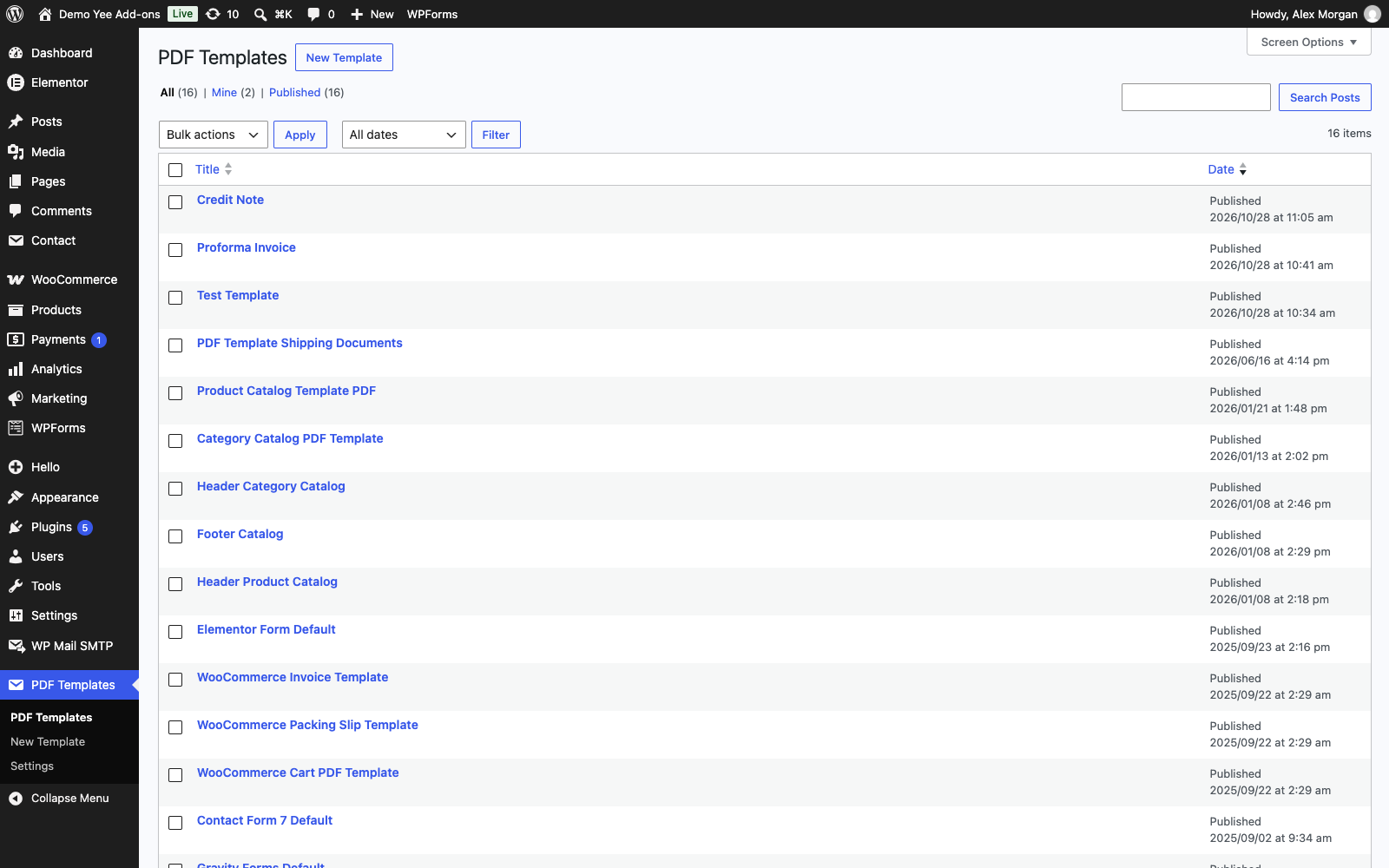
Step 1: Open the template
Go to PDF Templates and open WooCommerce Packing Slip Template. It already contains the logo, the store address, the date / payment / contact rows, the billing and shipping blocks, the order table, the customer note and a footer.
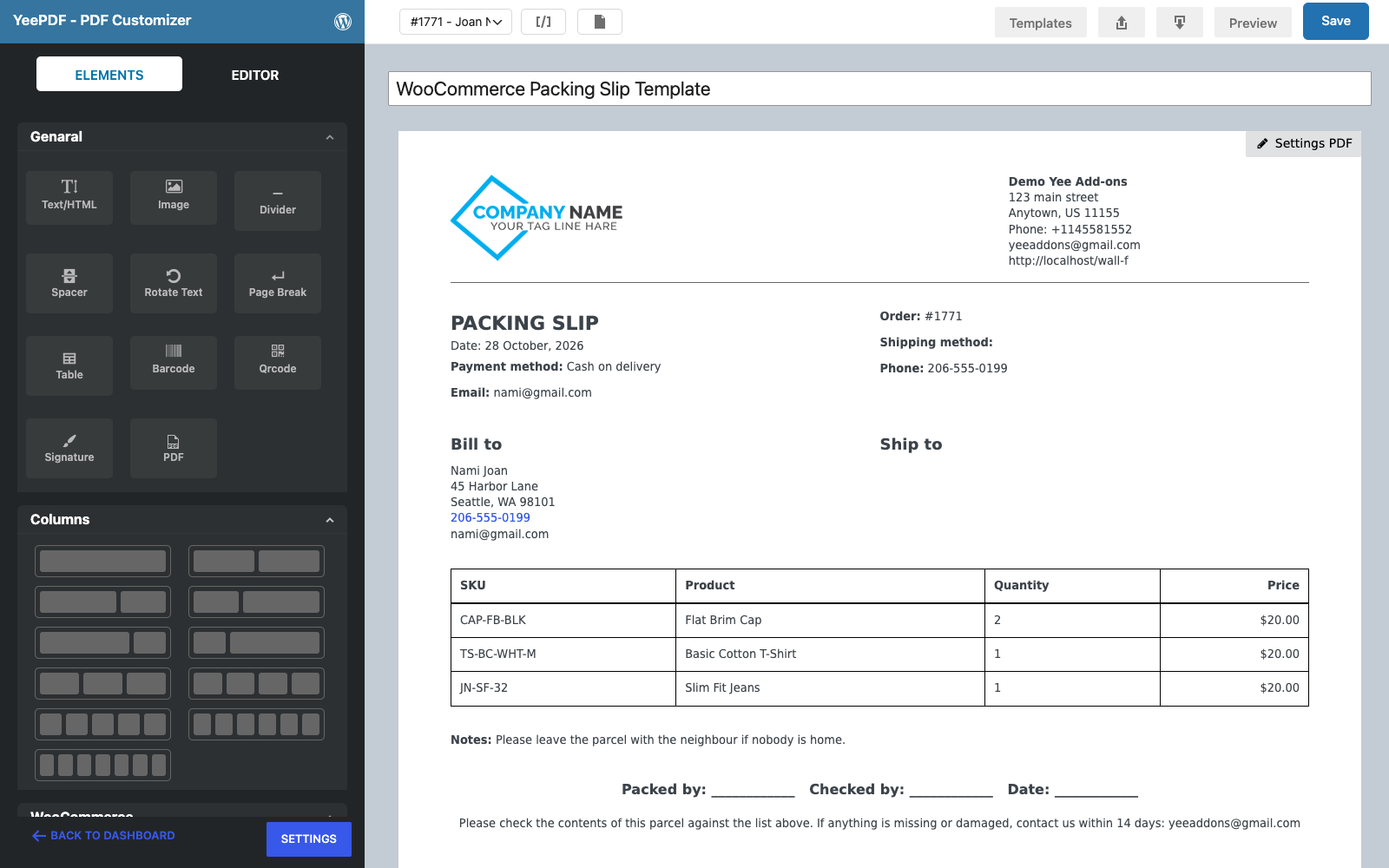
Step 2: Add a title
Click the Date: block in the top-left column and put a title above the date:
PACKING SLIP
Date: August 28, 2026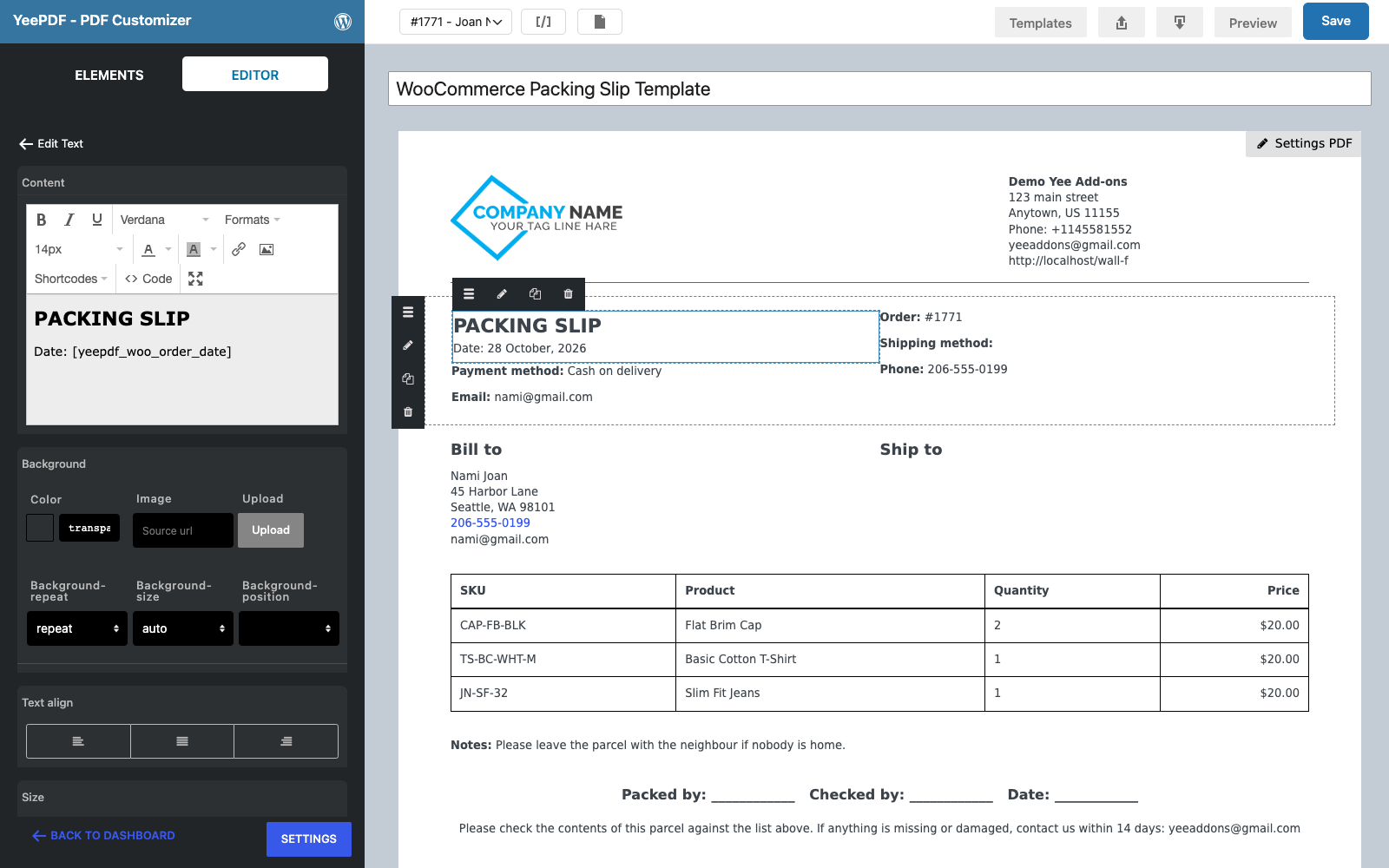
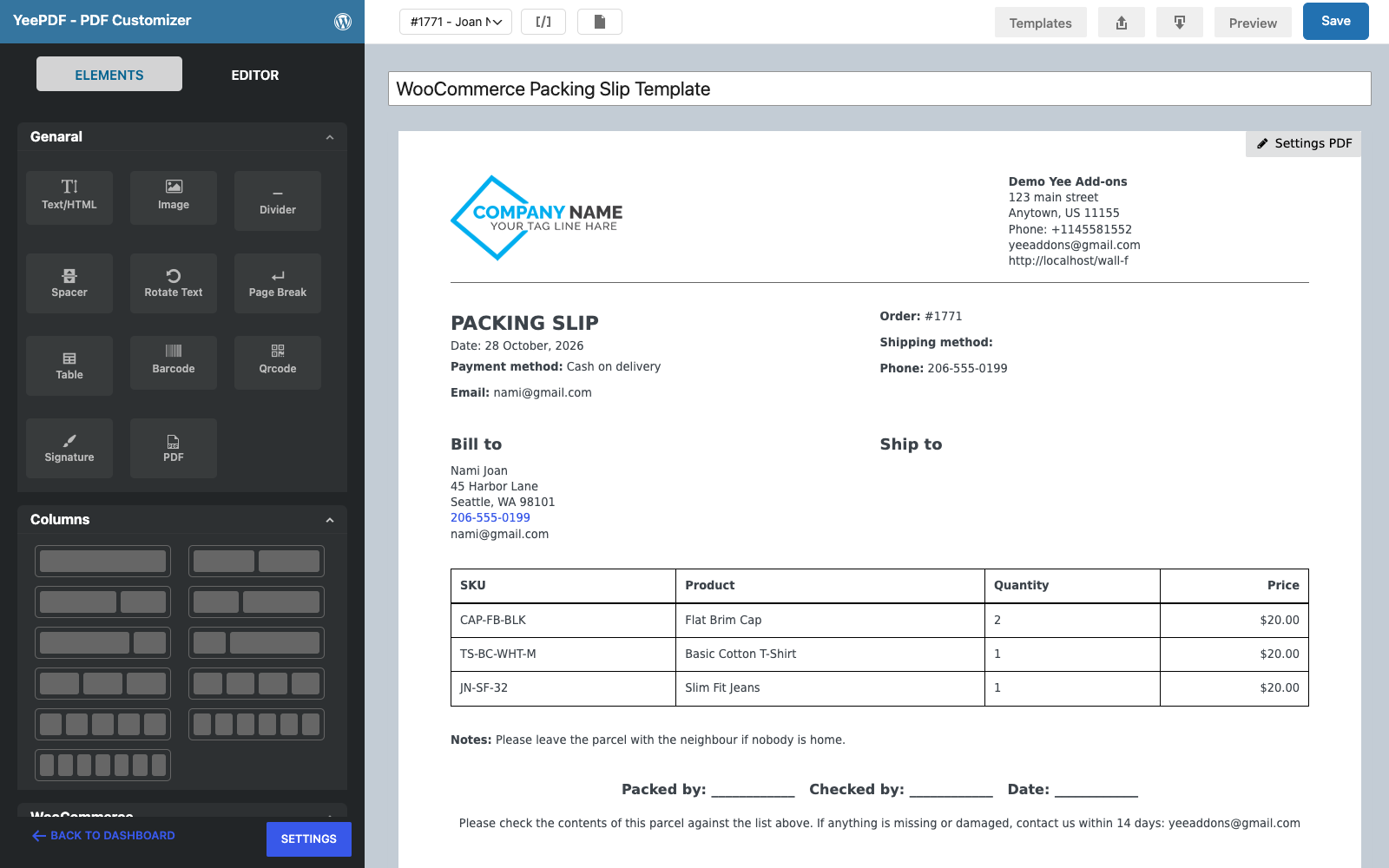
Step 3: Choose the table columns
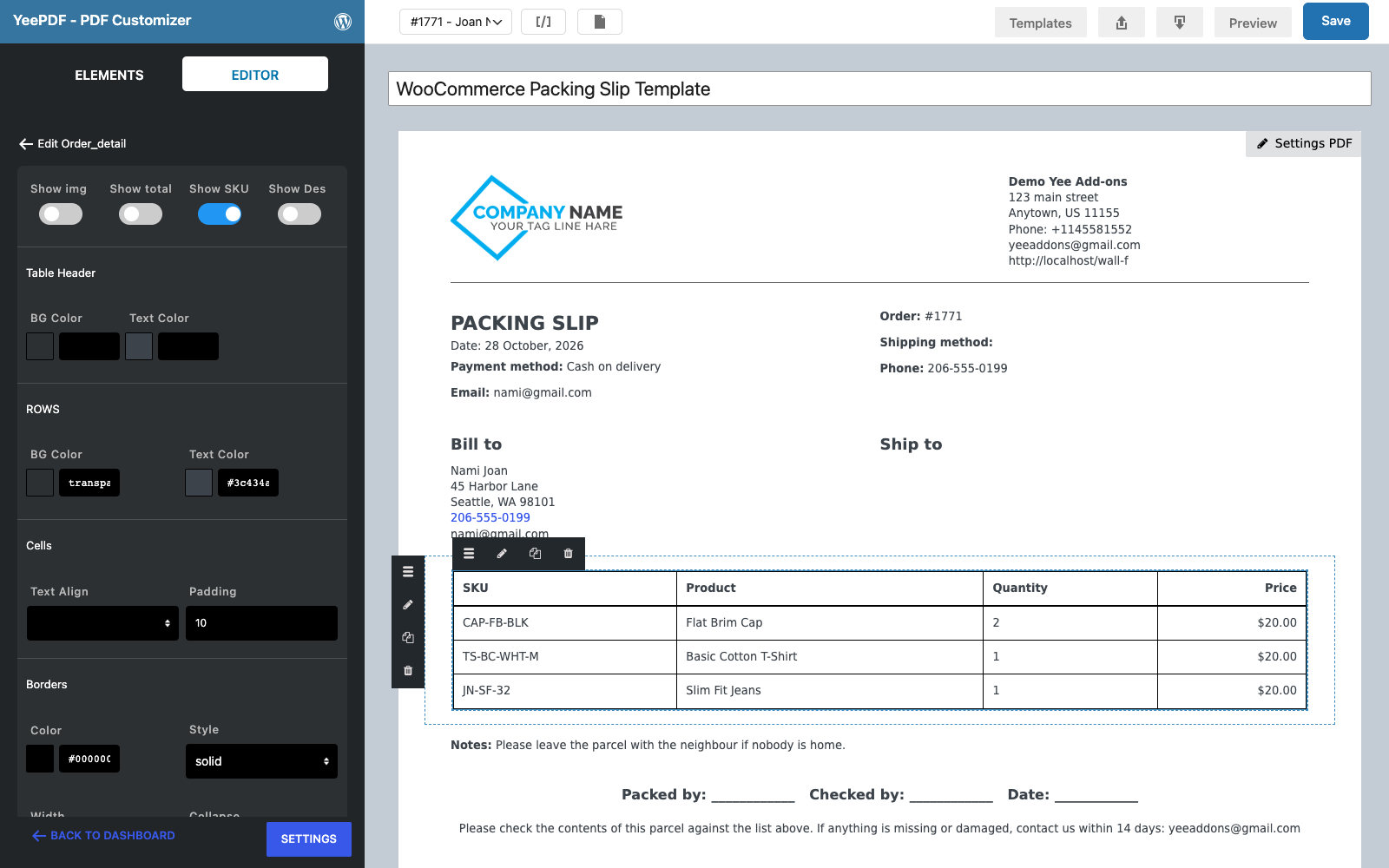
Click the order table. The Editor panel shows the table options: tick Show SKU and untick Show total so the subtotal, shipping and total rows disappear. Show img adds a 150 px product thumbnail per line (fine for one or two items, but long orders then spill onto a second page) and Show Des adds the product description.
Step 4: Replace the footer
Change the Thank you block into a sign-off line and the contact block into return instructions:
Packed by: ____________   Checked by: ____________   Date: ____________

Please check the contents of this parcel against the list above.
If anything is missing or damaged, contact us within 14 days: [email protected]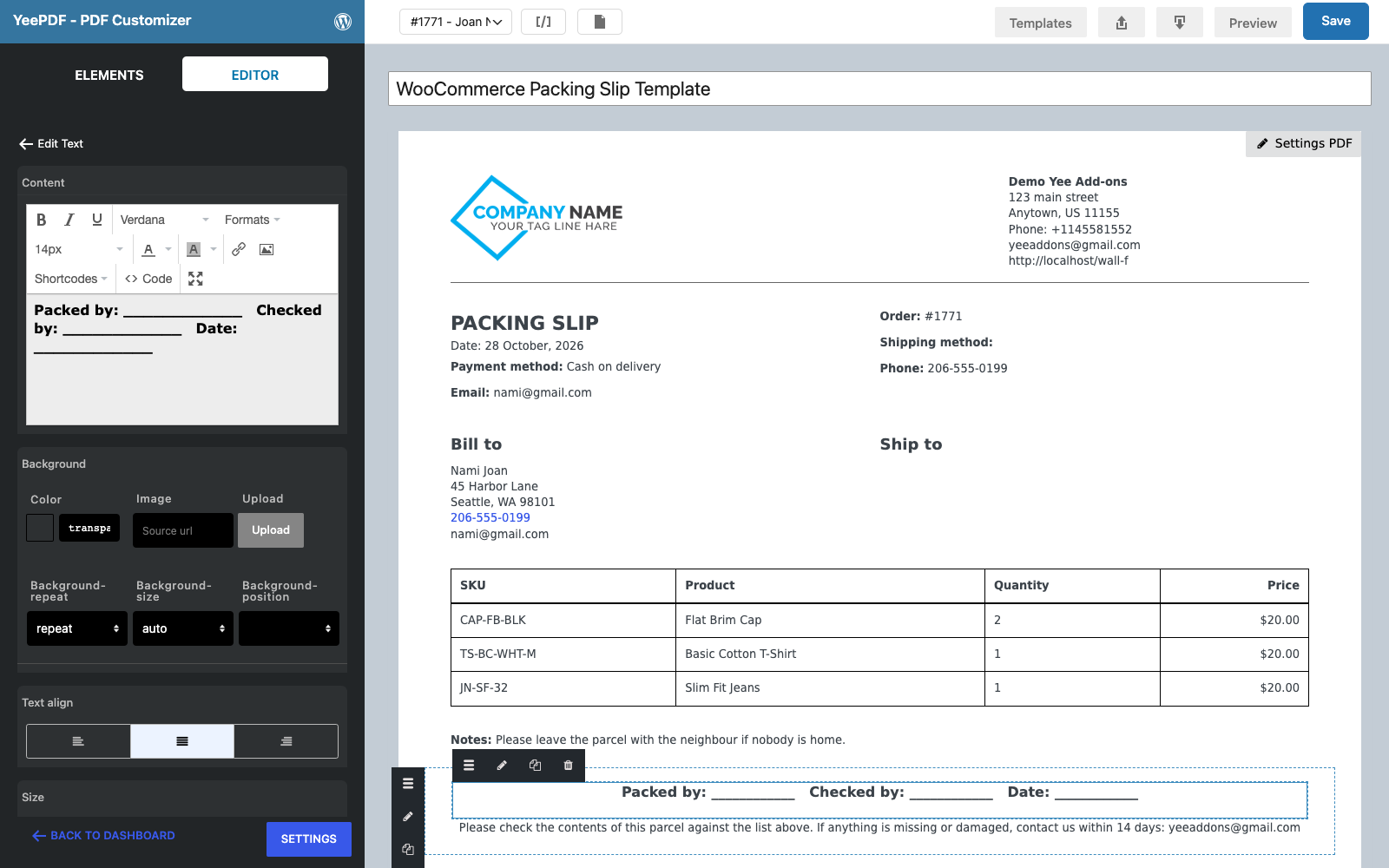
Step 5: Hide the price column with Custom CSS
The table block has no switch for the price column, so hide it with CSS. Click Settings PDF (top right of the canvas) and paste this into Custom CSS. The PDF engine ignores display: none on table cells, which is why the rule collapses the column instead:
/* hide the Price column */
td.table-r, th.table-r { width: 0; font-size: 0; color: #ffffff; padding: 0; border: 0; border-color: #ffffff; }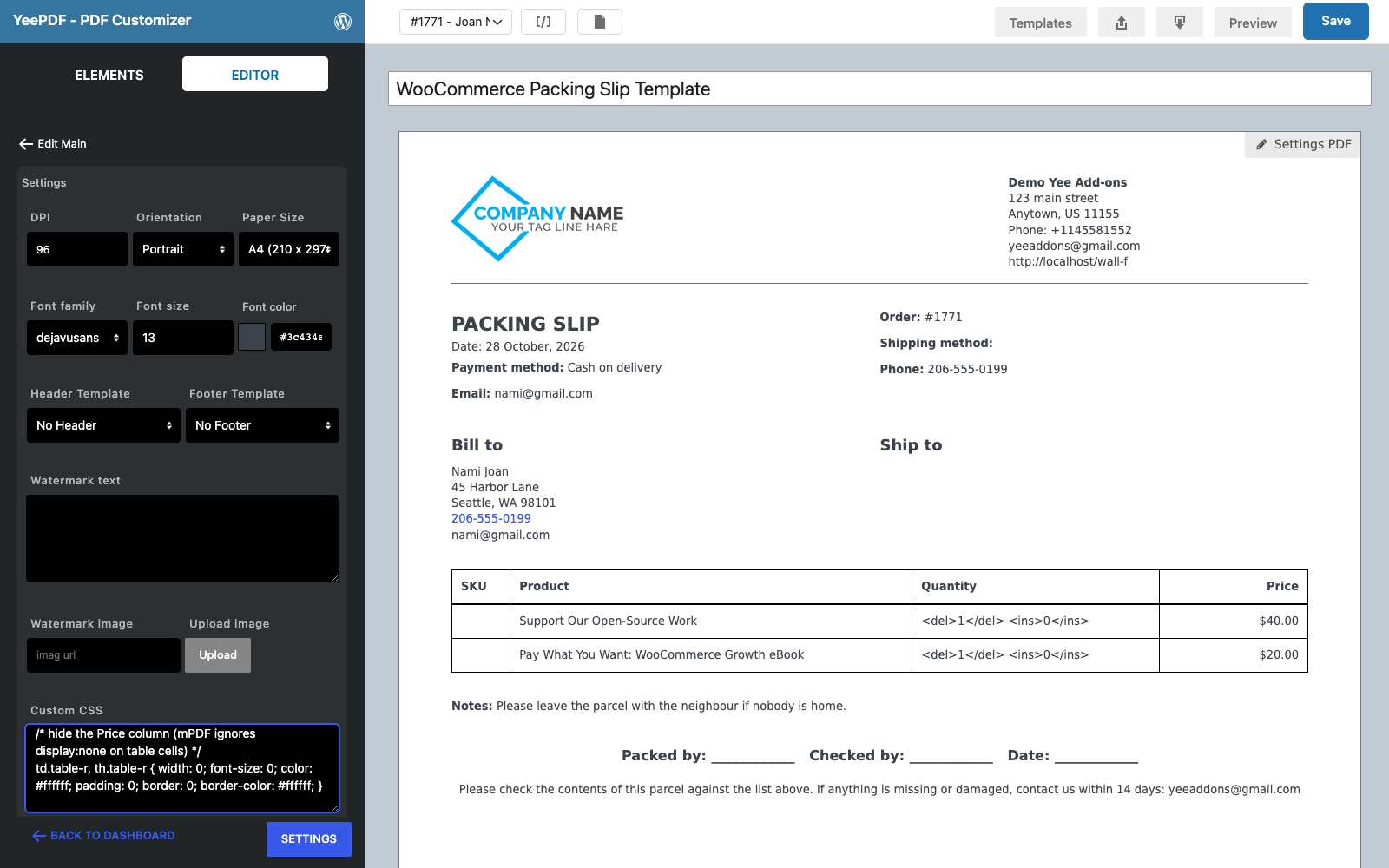
Click Save and use Preview with a sample order to check the result.
3. Create the Picking List Template
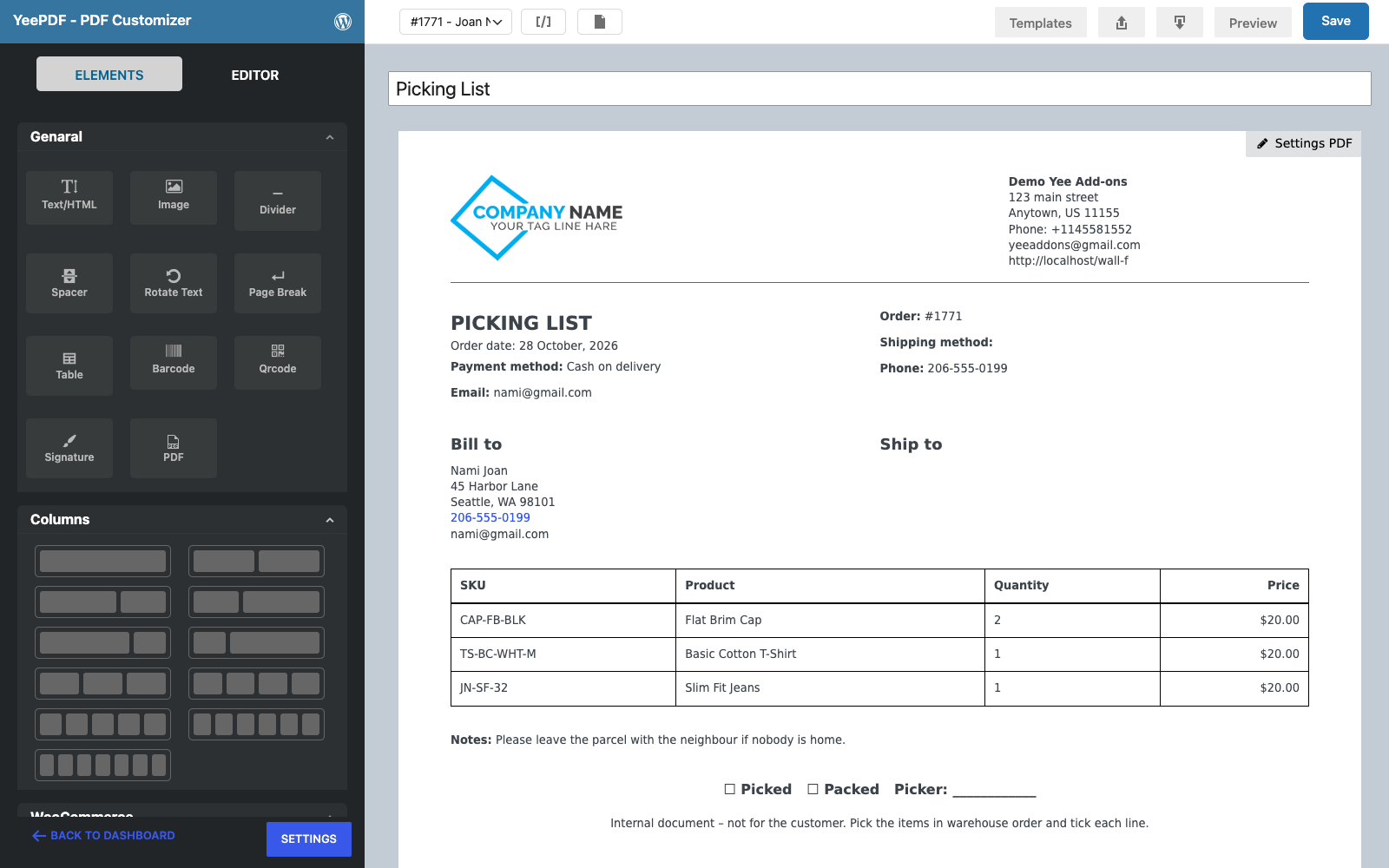
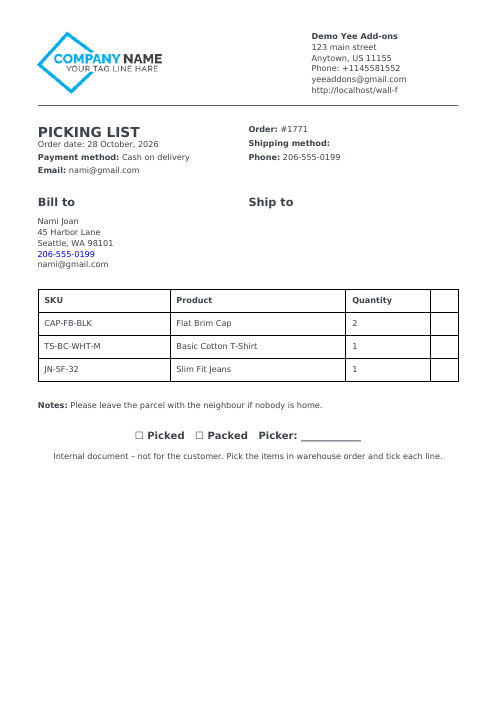
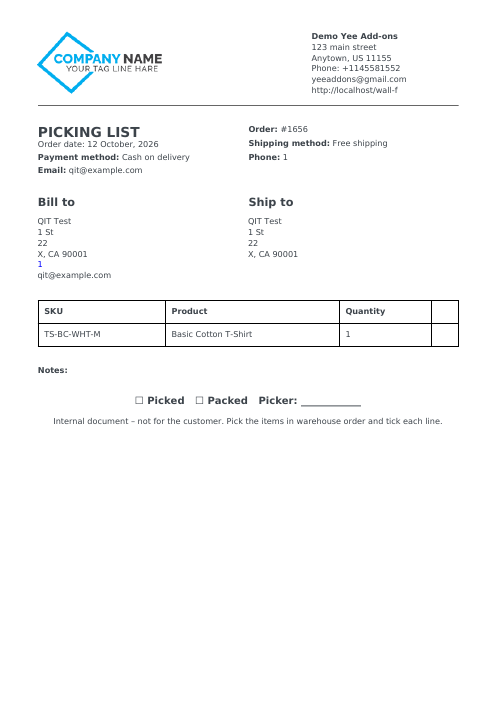
Export the packing slip template (toolbar → Export) and import the JSON into PDF Templates → New Template, named Picking List. Then make it a warehouse document:
- Title block:
PICKING LISTandOrder date: August 28, 2026. - Table options: Show SKU on, Show img, Show Des and Show total off.
- Footer:
☐ Picked ☐ Packed Picker: ____________and a note such as “Internal document – not for the customer. Pick the items in warehouse order and tick each line.” - Custom CSS: the same price-hiding rule, optionally with a larger font and more cell padding for easier reading on the shop floor.
4. PDF Settings
Packing slip
Open WooCommerce → Settings → PDF. A Packing Slip row already exists (disabled); open it and set:
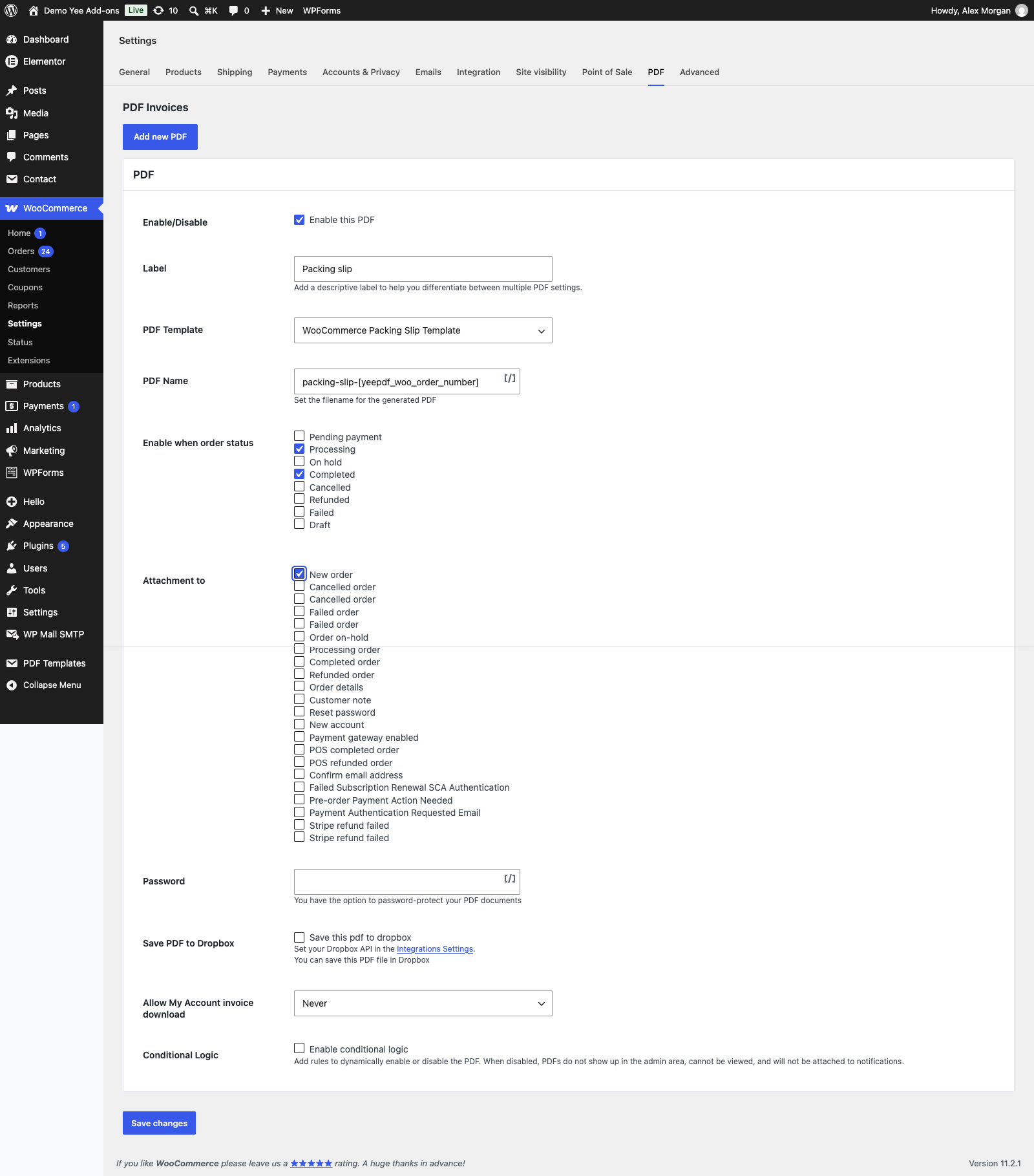
| Field | Value |
|---|---|
| Enable this PDF | ticked |
| Label | Packing slip |
| PDF Template | WooCommerce Packing Slip Template |
| PDF Name | packing-slip-8448 |
| Enable when order status | Processing, Completed |
| Attachment to | New order (the admin notification, so the warehouse has it as soon as the order is paid) |
| Allow My Account invoice download | Never |
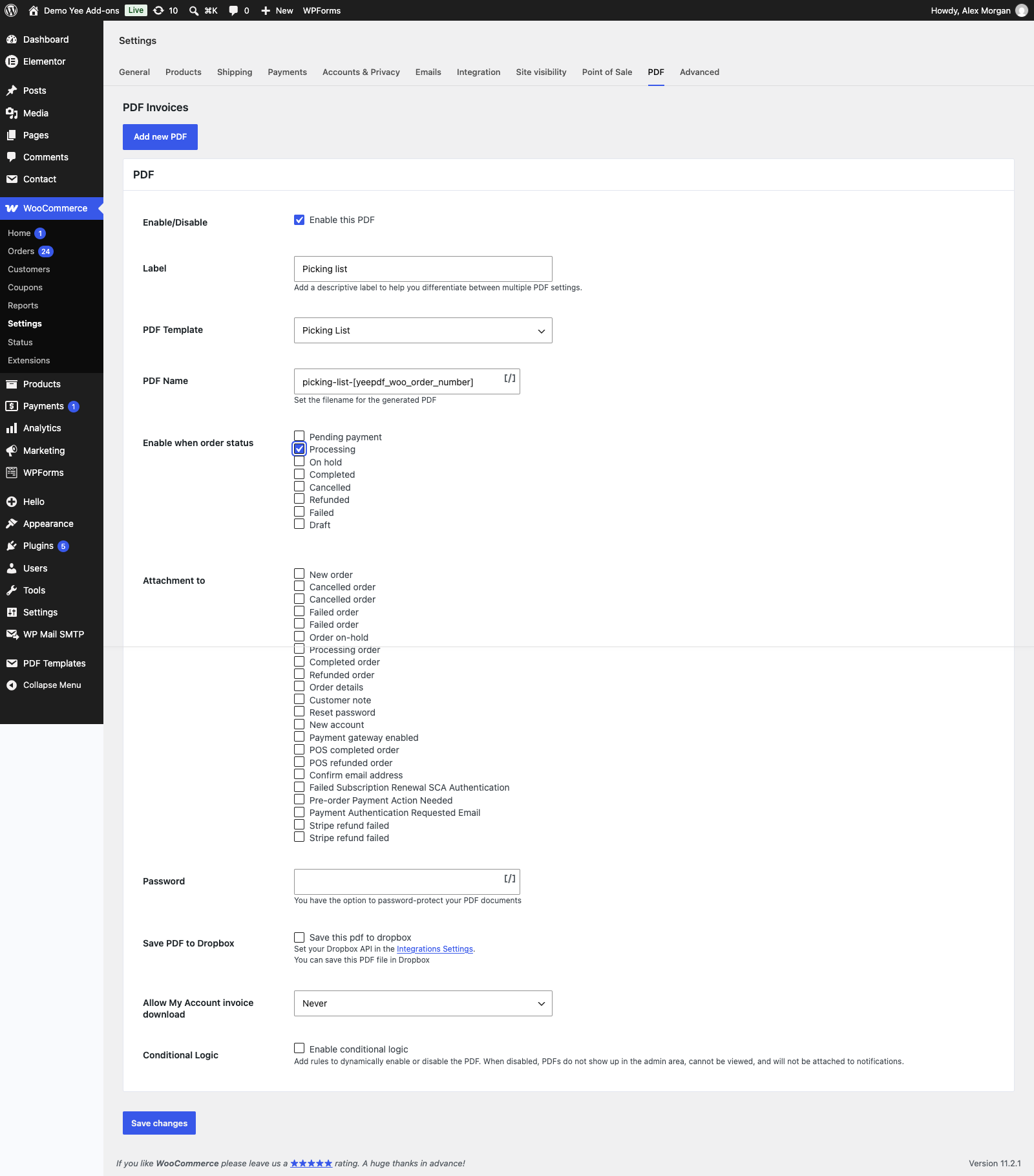
Picking list
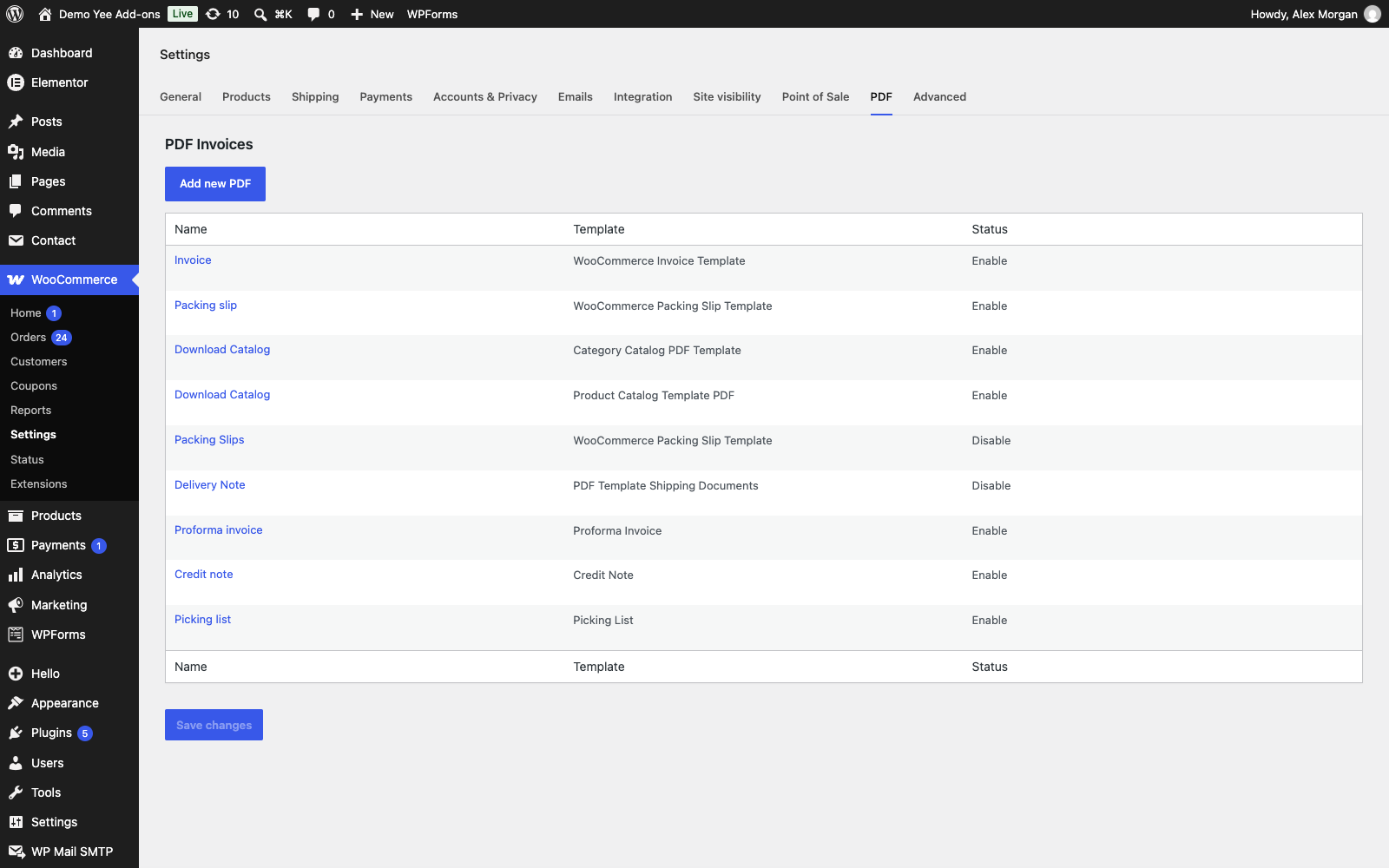
Click Add new PDF for the picking list: label Picking list, template Picking List, file name picking-list-8448, status Processing, no email attachment, My Account Never.
5. Print from the Order and in Bulk
Single order
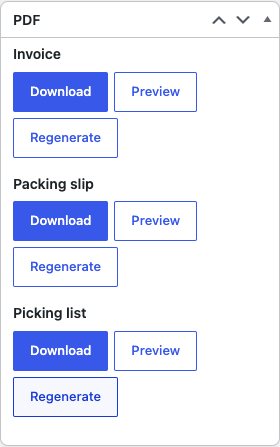
Open a processing order. The PDF box lists every document with Download, Preview and Regenerate. Preview opens the PDF in a new tab, ready to print.
Many orders at once
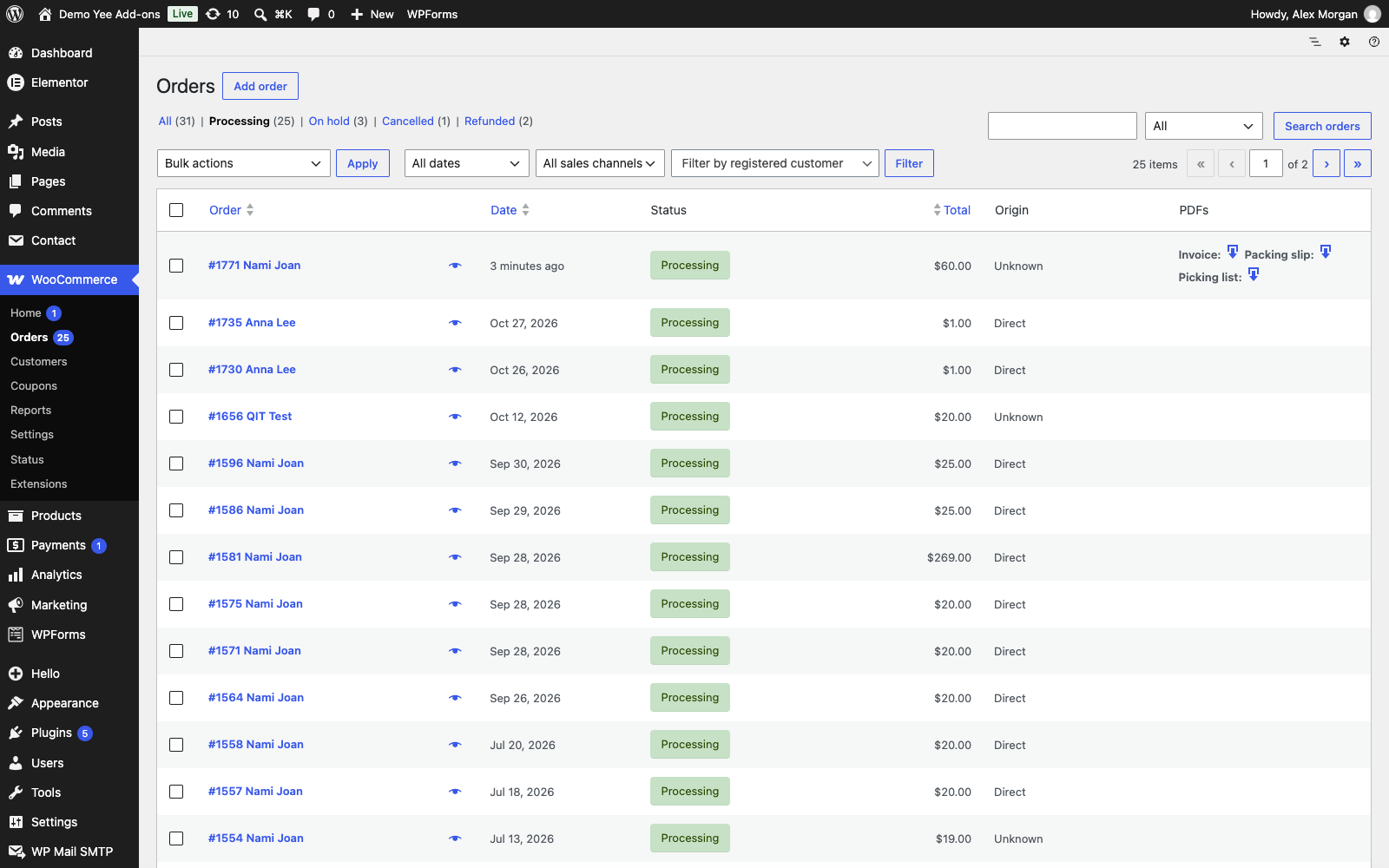
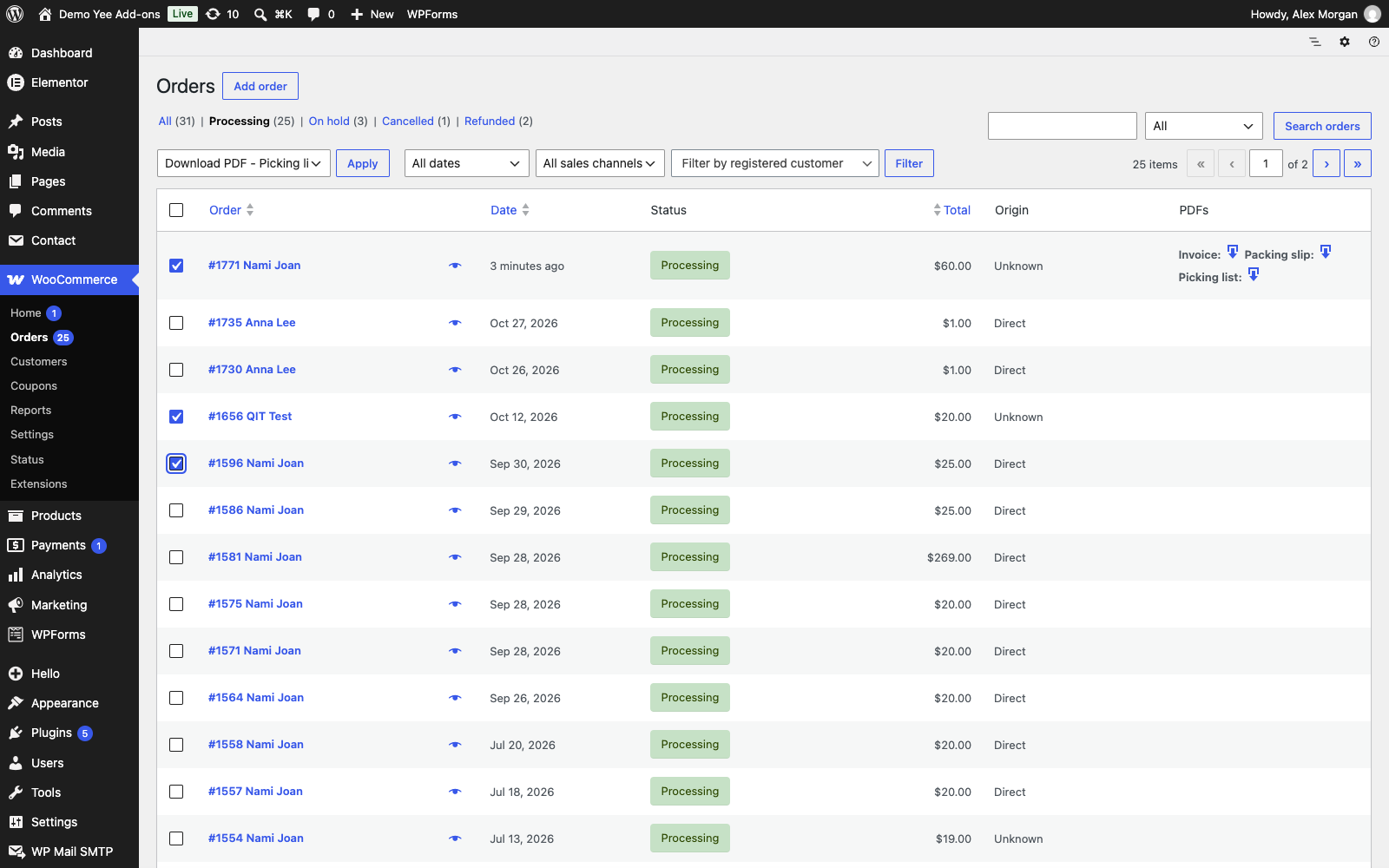
In WooCommerce → Orders, filter on Processing, tick the orders to pick, choose Download PDF – Picking list in the bulk actions and click Apply. The plugin merges one page per order into a single PDF that you can print for the whole picking round. The same works for packing slips and invoices.
6. Tips
- Shipping labels: duplicate the picking list, remove the table and keep only the shipping address block in a large font; set the paper size to A6 in Settings PDF and add a Qrcode element with
8448. - Warehouse order: items print in cart order. Put the bin location into the product SKU (e.g.
A12-CAP-FB-BLK) so the picker reads the location at a glance. - Customer note: the packing slip prints
; addnext to it when carriers need it. - Thumbnails: the Show img option prints 150 px images that cannot be resized from CSS; switch it on only for short orders.
- Regenerate: stored files are not rebuilt when you change a template; click Regenerate on the order or download again from the bulk action, which always renders fresh.
7. Frequently Asked Questions (FAQ)
Can I hide the price column without CSS?
Not in the current version: the table block only toggles SKU, image, description and totals. The CSS rule in step 5 collapses the column reliably in the PDF engine.
Why does my packing slip run to two pages?
Product images are printed at a fixed 150 px. Untick Show img in the table options, or reduce the page padding in Settings PDF.
Can the warehouse receive the picking list by email?
Yes: tick New order under Attachment to in the picking list setting and the file is attached to the admin notification. Keep it off the customer emails.
Does the bulk download work with HPOS?
Yes, the bulk actions are available on both the classic and the High-Performance Order Storage orders screens.
Can I show variation attributes or product meta?
The product column prints the item name as WooCommerce stores it, including variation attributes. Use in a text block for extra item meta.