
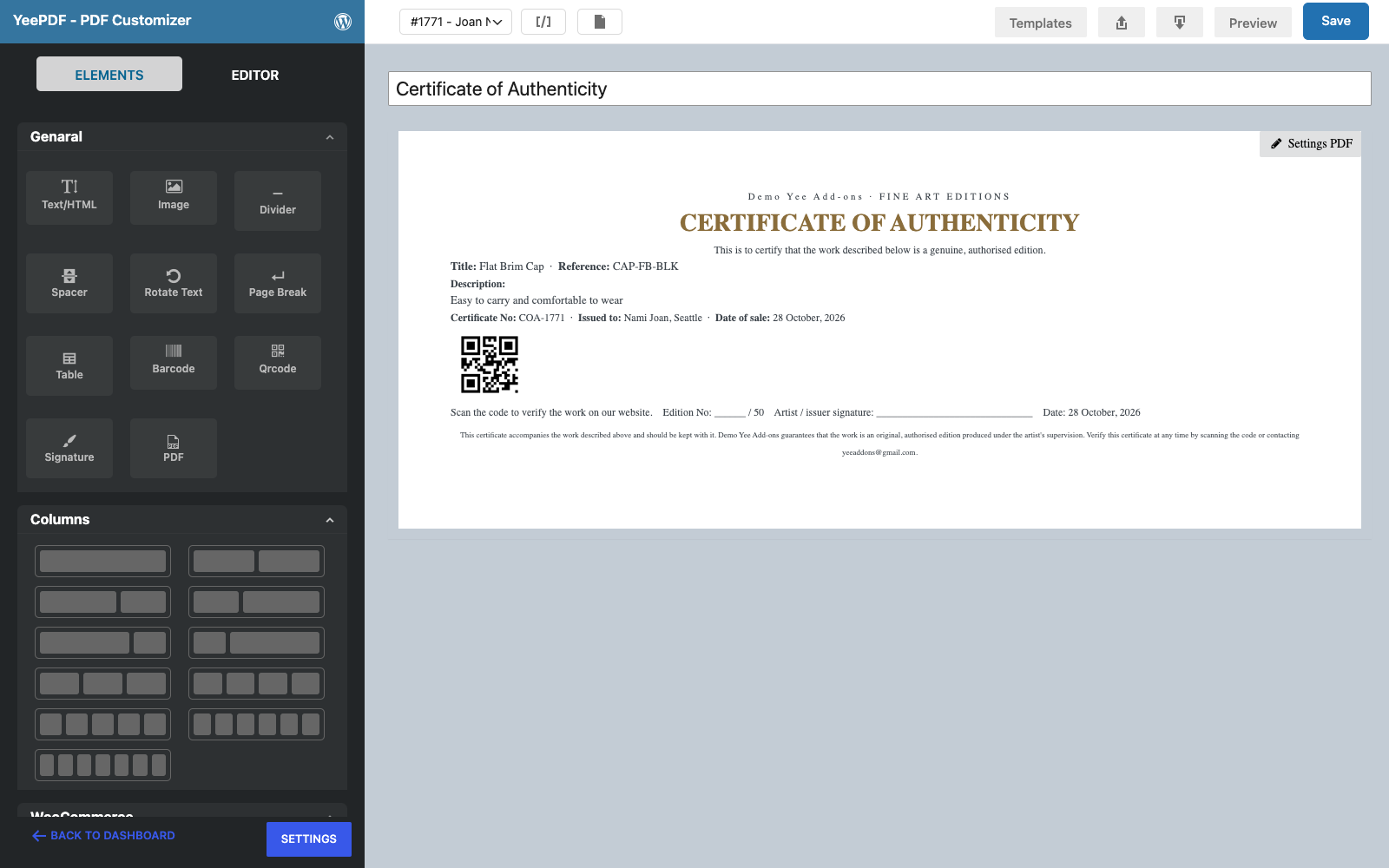
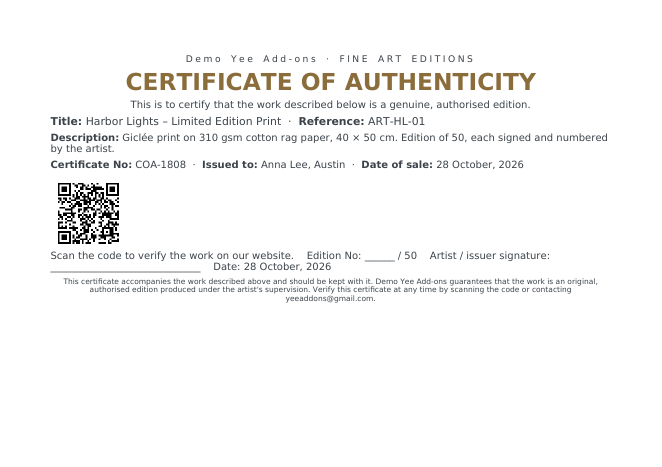
Limited-edition prints, handmade jewellery, signed books, collectibles and vintage pieces sell better, and resell better, with a certificate of authenticity (COA): a small, formal document that names the work, its reference and edition, the buyer and the date of sale, carries a certificate number and a signature line, and lets anyone verify it by scanning a QR code. With PDF Invoice for WooCommerce + Drag and Drop Template Builder (plugin slug pdf-for-woocommerce, by add-ons.org) the certificate is generated from the order itself, so the title, reference and description come straight from the product and the certificate number from the order number. This guide builds an A5 landscape certificate from a blank template. The warranty certificate guide covers the sister document for products with a guarantee.
Video tutorial
1. What the Certificate Contains
| Block | Content | Merge tags |
|---|---|---|
| Title | Issuer line, “CERTIFICATE OF AUTHENTICITY”, a one-line statement | Yee Add-ons + static text |
| The work | Title, reference, description, certificate number, buyer, date of sale | Dynamic Field for Elementor Forms Pro, COA-8448, PIERLUIGI CIPRIANI, VERCELLI, August 28, 2026 |
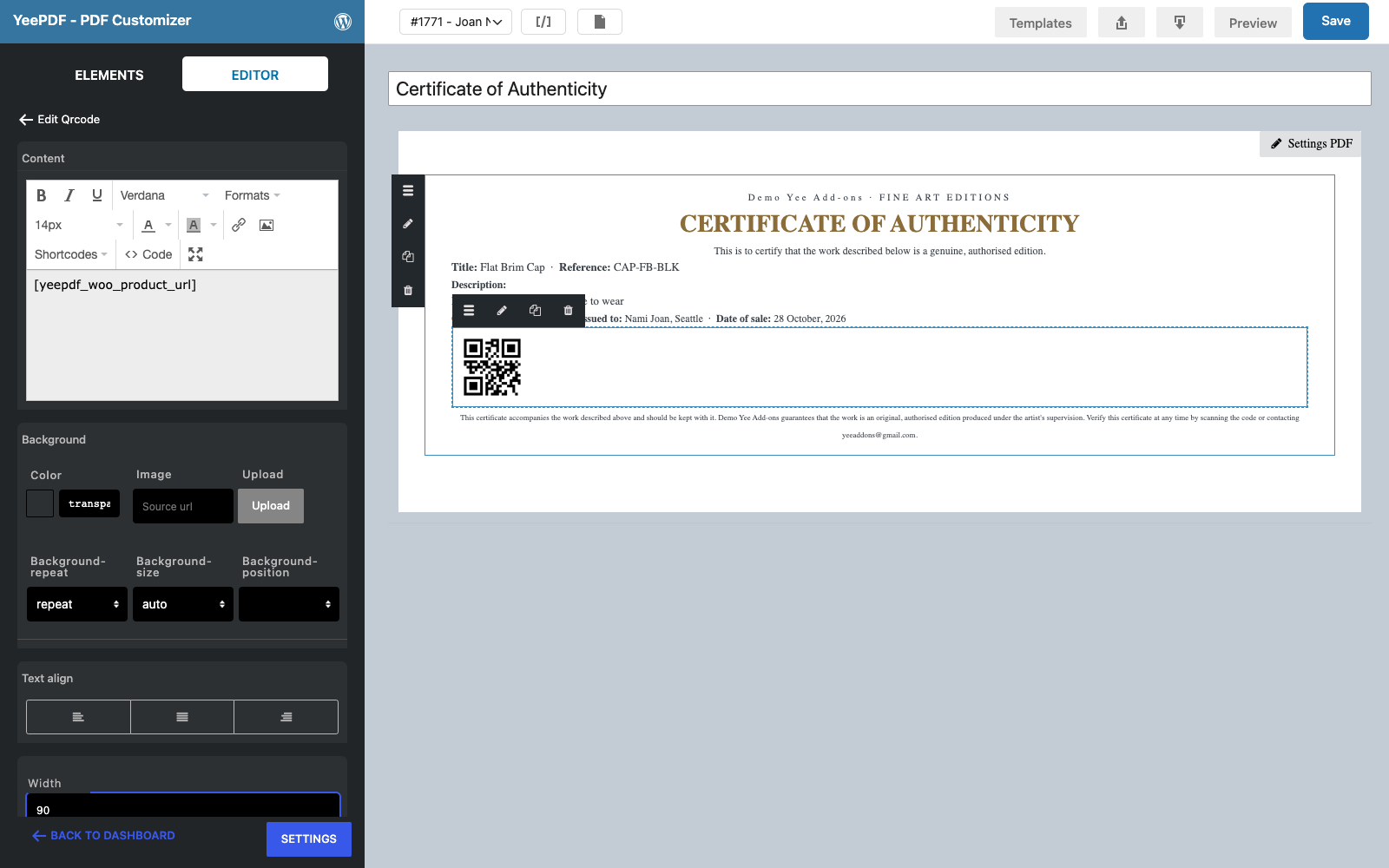
| Verification | A QR code that opens the product page | https://add-ons.org/plugin/dynamic-field-for-elementor-forms/ inside the Qrcode element |
| Signature | Edition number blank, artist / issuer signature, date | August 28, 2026 |
| Footer | Guarantee statement and contact | Yee Add-ons, [email protected] |
prints the short description of the first product in the order, so write the materials, dimensions and edition size there and they appear on every certificate for that work. The certificate number is the order number with a prefix: unique, and traceable to the sale in one search.
2. Build the Certificate Template
Builder note: a new element is inserted just above the element you drop it on. Create the footer (the last block) first and drop every other block onto it in reading order.
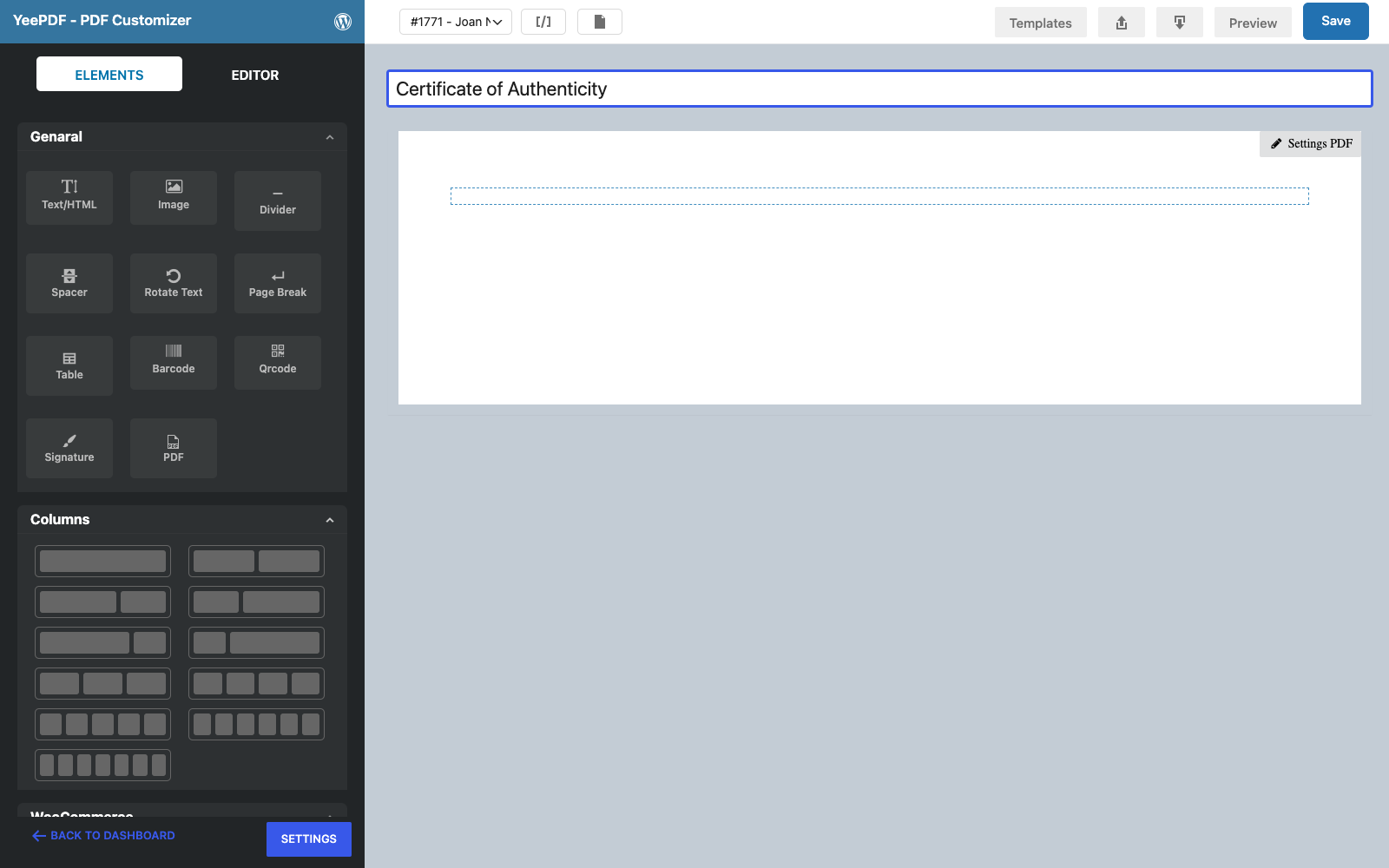
Step 1: New template, A5 landscape
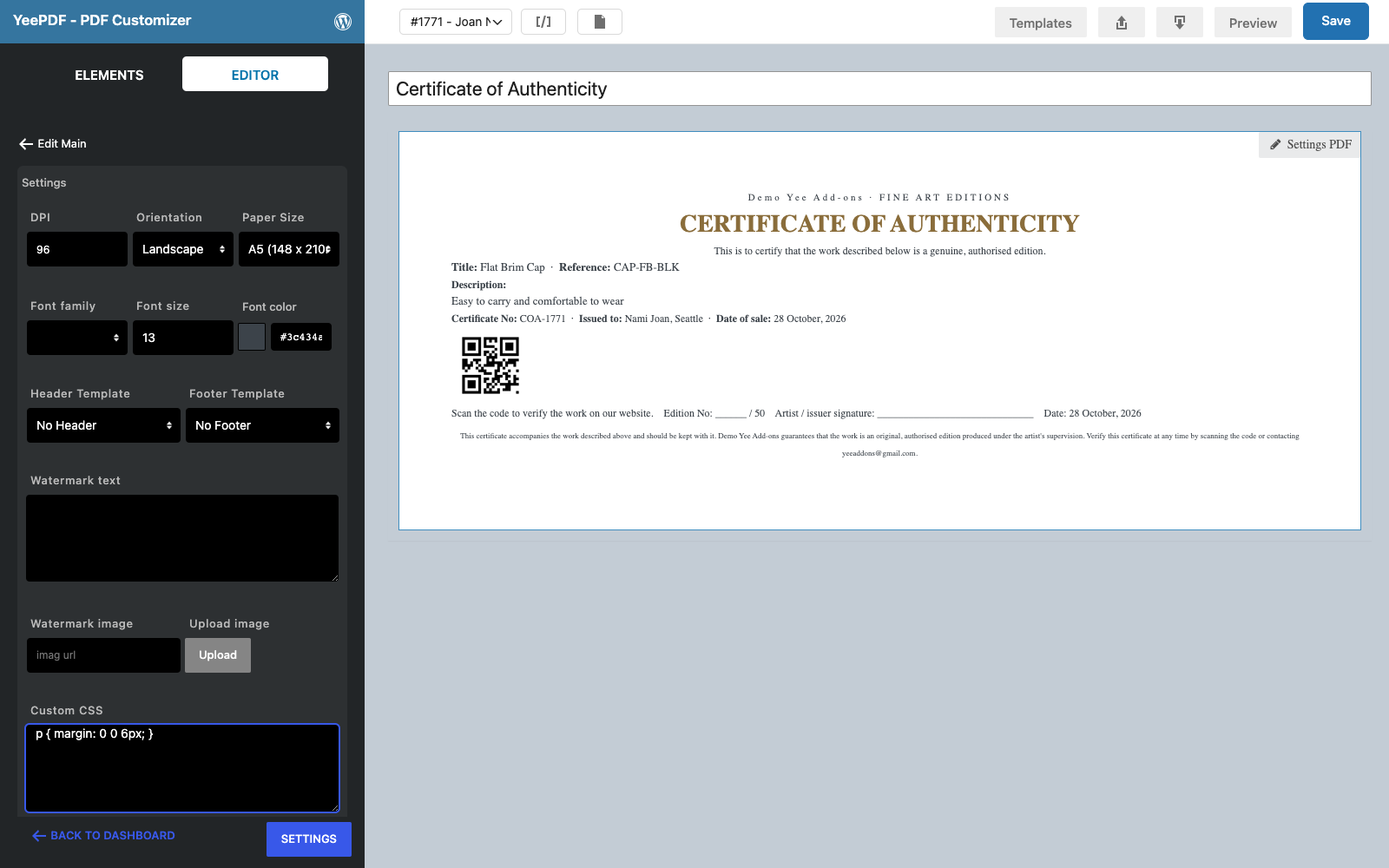
Go to PDF Templates → New Template and name it Certificate of Authenticity. Click Settings PDF, set Orientation to Landscape and Paper Size to A5, and add p { margin: 0 0 6px; } under Custom CSS for spacing.
Step 2: Footer
Drag a Text/HTML element into the row, centre it and type the guarantee in 9 px:
This certificate accompanies the work described above and should be kept with it. Yee Add-ons guarantees that the work
is an original, authorised edition produced under the artist's supervision. Verify this certificate at any time by scanning the code
or contacting [email protected].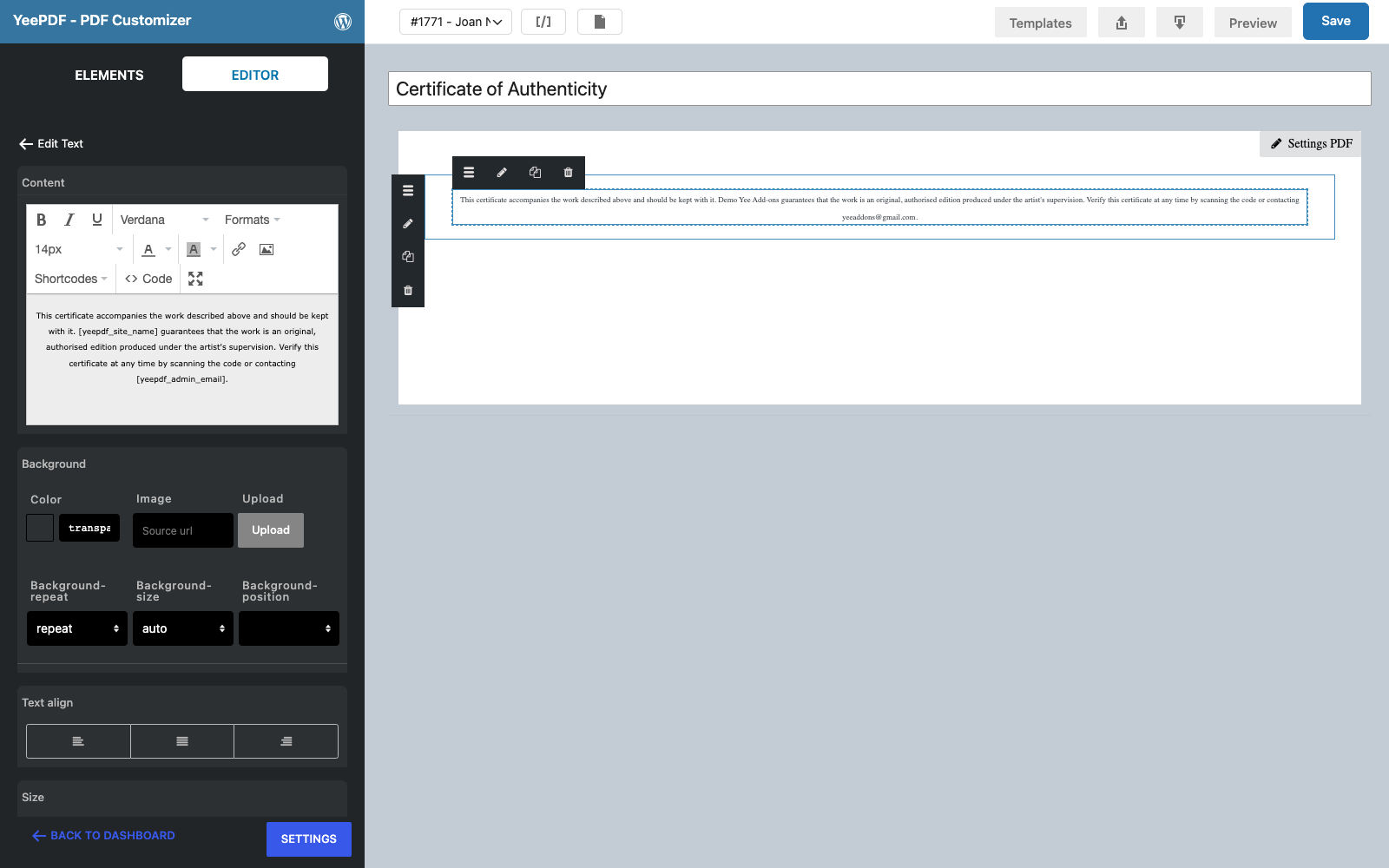
Step 3: Title
Drop a Text/HTML element onto the footer, centred:
Yee Add-ons · FINE ART EDITIONS                       ← 11 px, letter-spacing 3 px
CERTIFICATE OF AUTHENTICITY                                  ← 28 px bold, colour #8a6d3b
This is to certify that the work described below is a genuine, authorised edition.   ← 12 px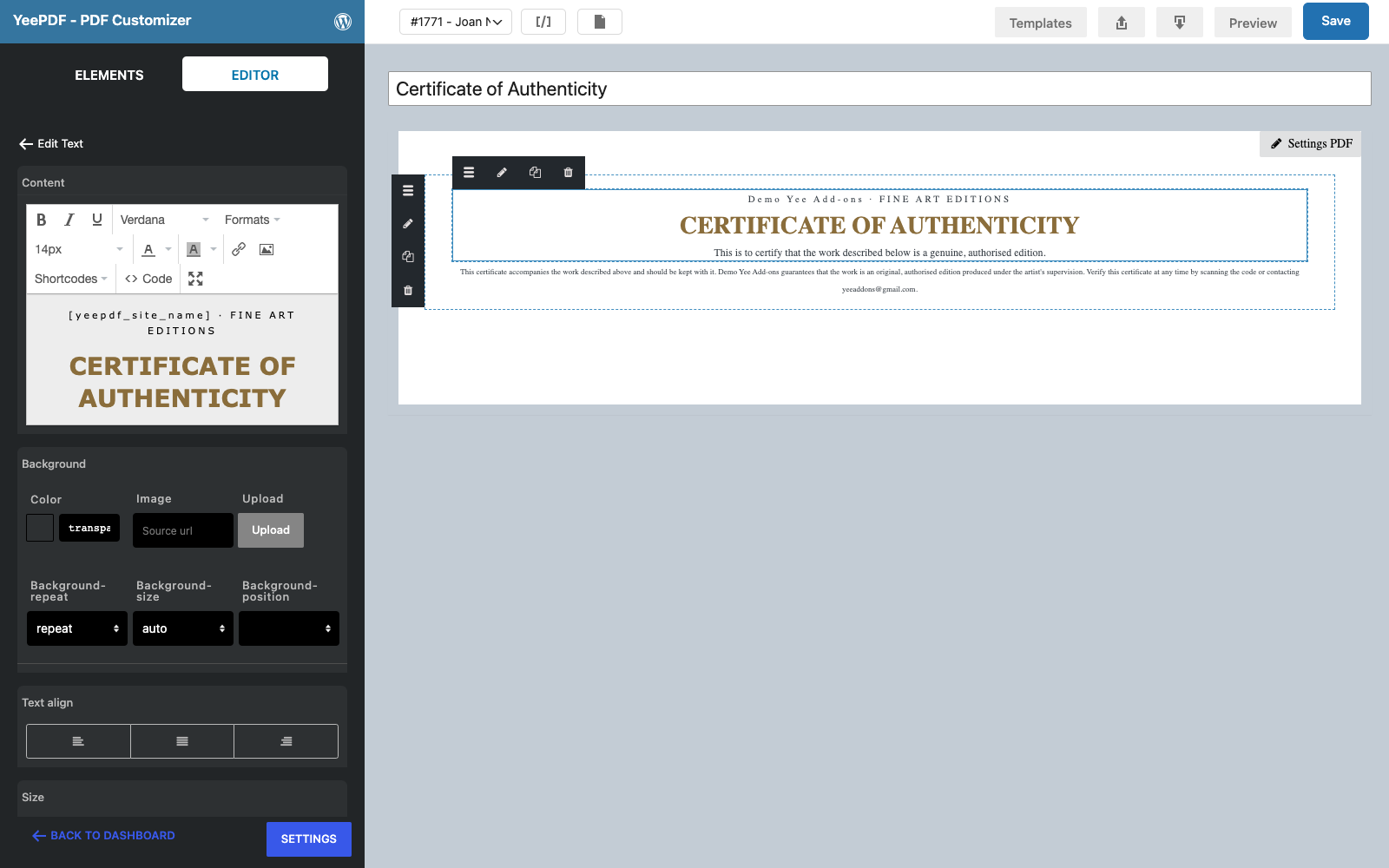
Step 4: The work
Drop another Text/HTML element onto the footer:
Title: Dynamic Field for Elementor Forms Pro · Reference:
Description:
Certificate No: COA-8448 · Issued to: PIERLUIGI CIPRIANI, VERCELLI · Date of sale: August 28, 2026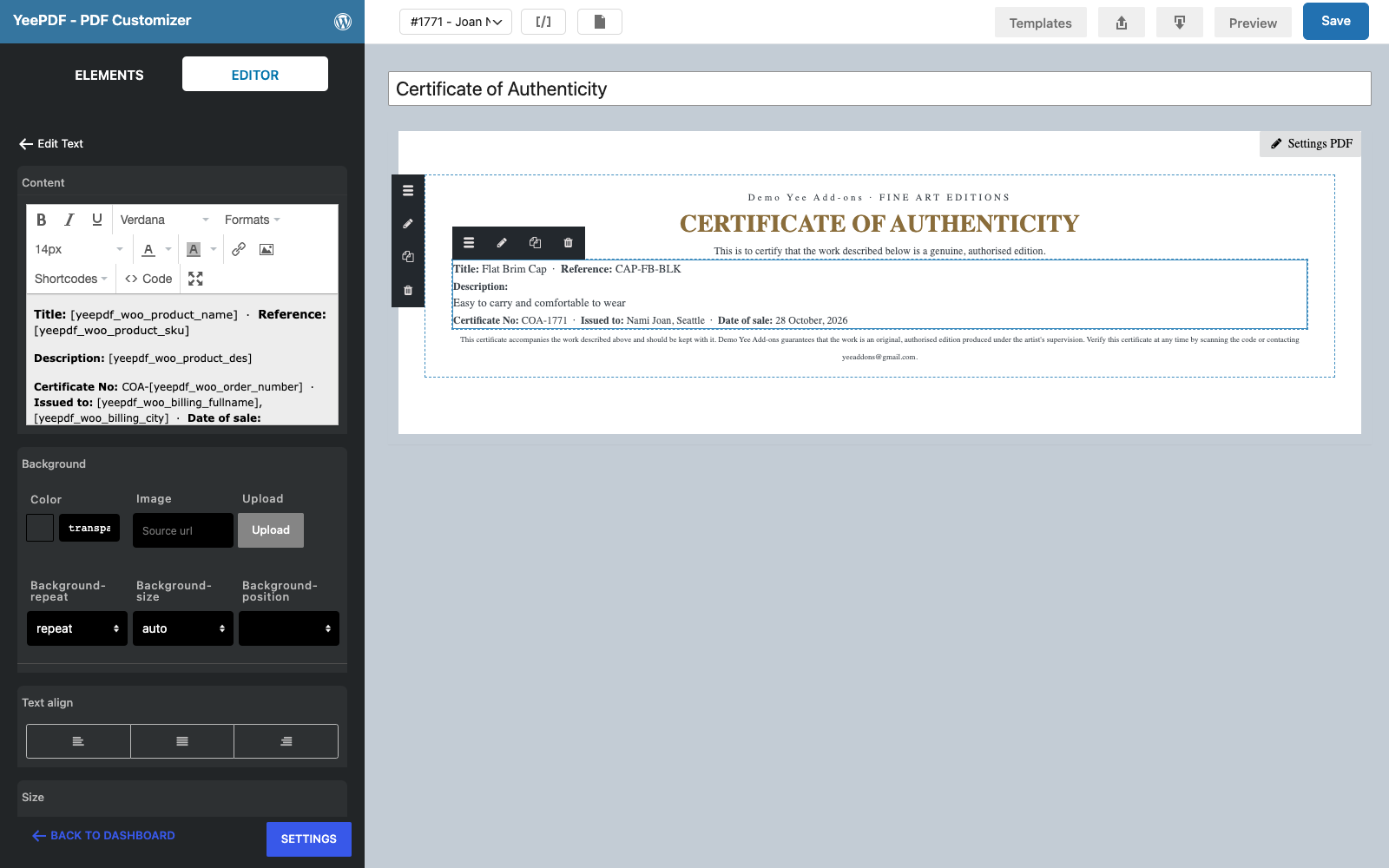
Step 5: Verification QR code
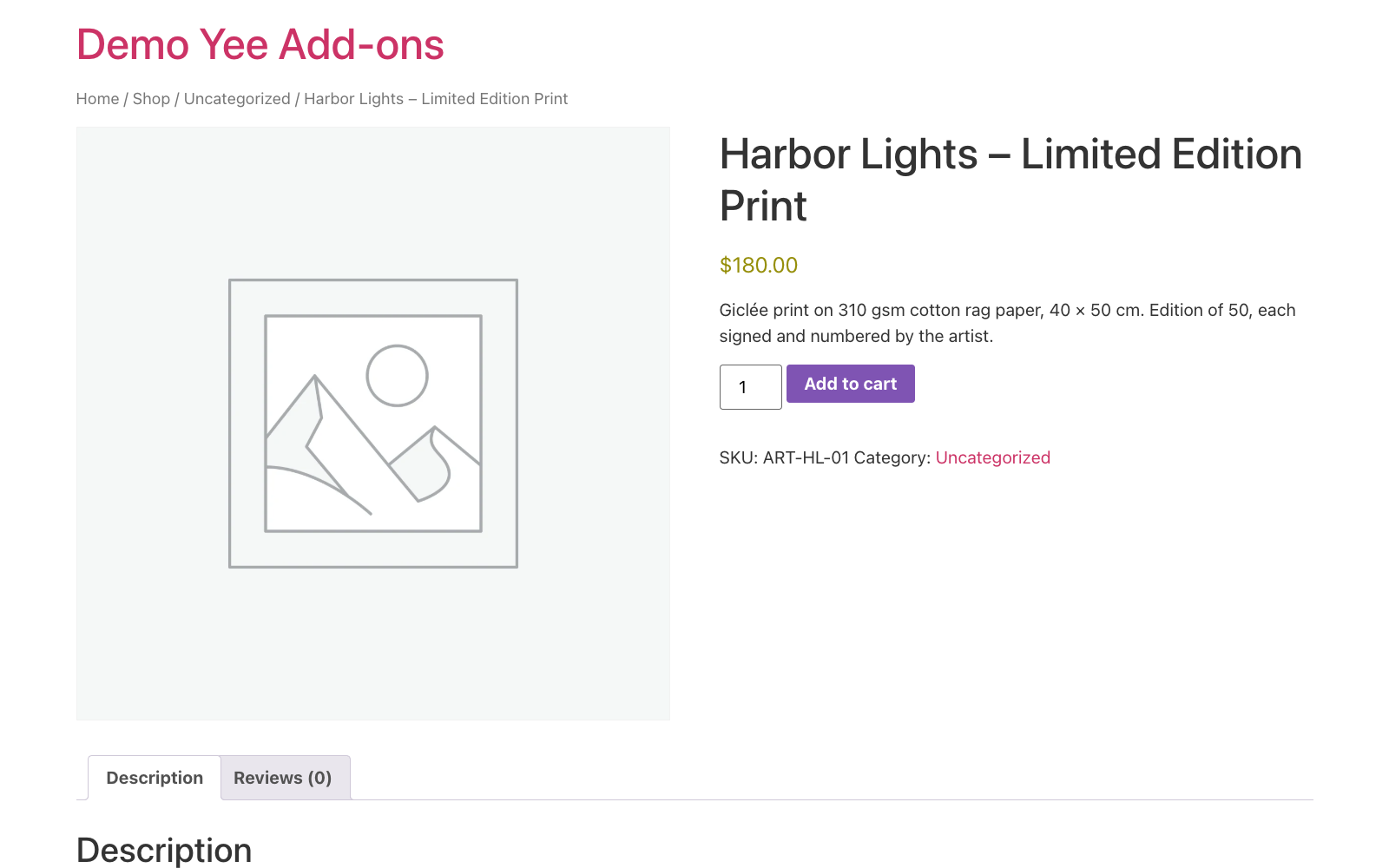
Drop the Qrcode element onto the footer, set its Content to https://add-ons.org/plugin/dynamic-field-for-elementor-forms/ and the Width to 90 px. Scanning the certificate opens the product page on your site, where the buyer, or a future buyer, can compare the work with the listing. Use COA-8448 as content instead if you keep a register of certificates.
Step 6: Edition and signature
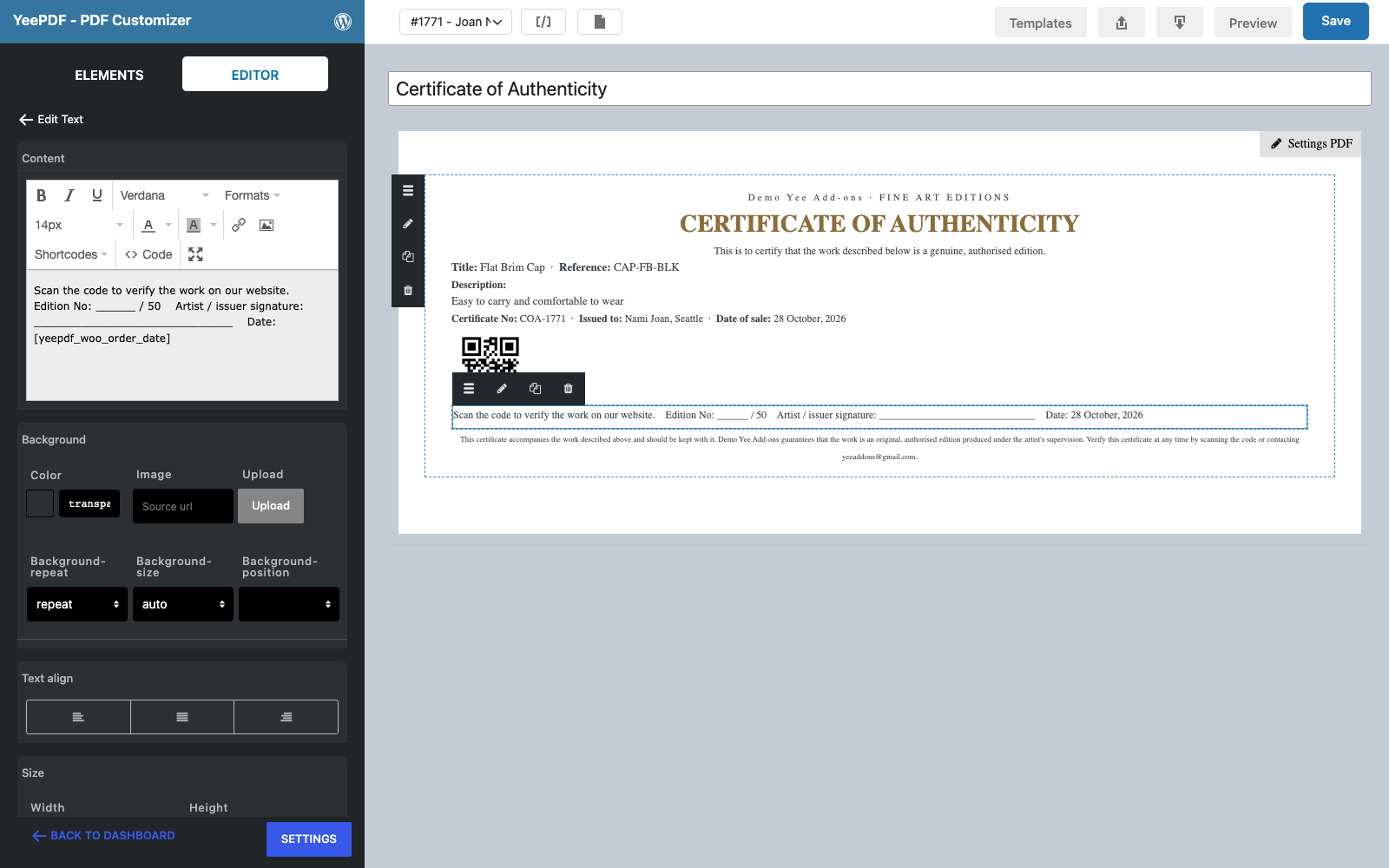
Drop a last Text/HTML element onto the footer:
Scan the code to verify the work on our website. Edition No: ______ / 50 Artist / issuer signature: ______________________________ Date: August 28, 2026The edition number is written by hand when the print is numbered; if you track it per order (an order meta field), print it with . Click Save.
3. Generate the Certificate on Completion
Go to WooCommerce → Settings → PDF → Add new PDF:
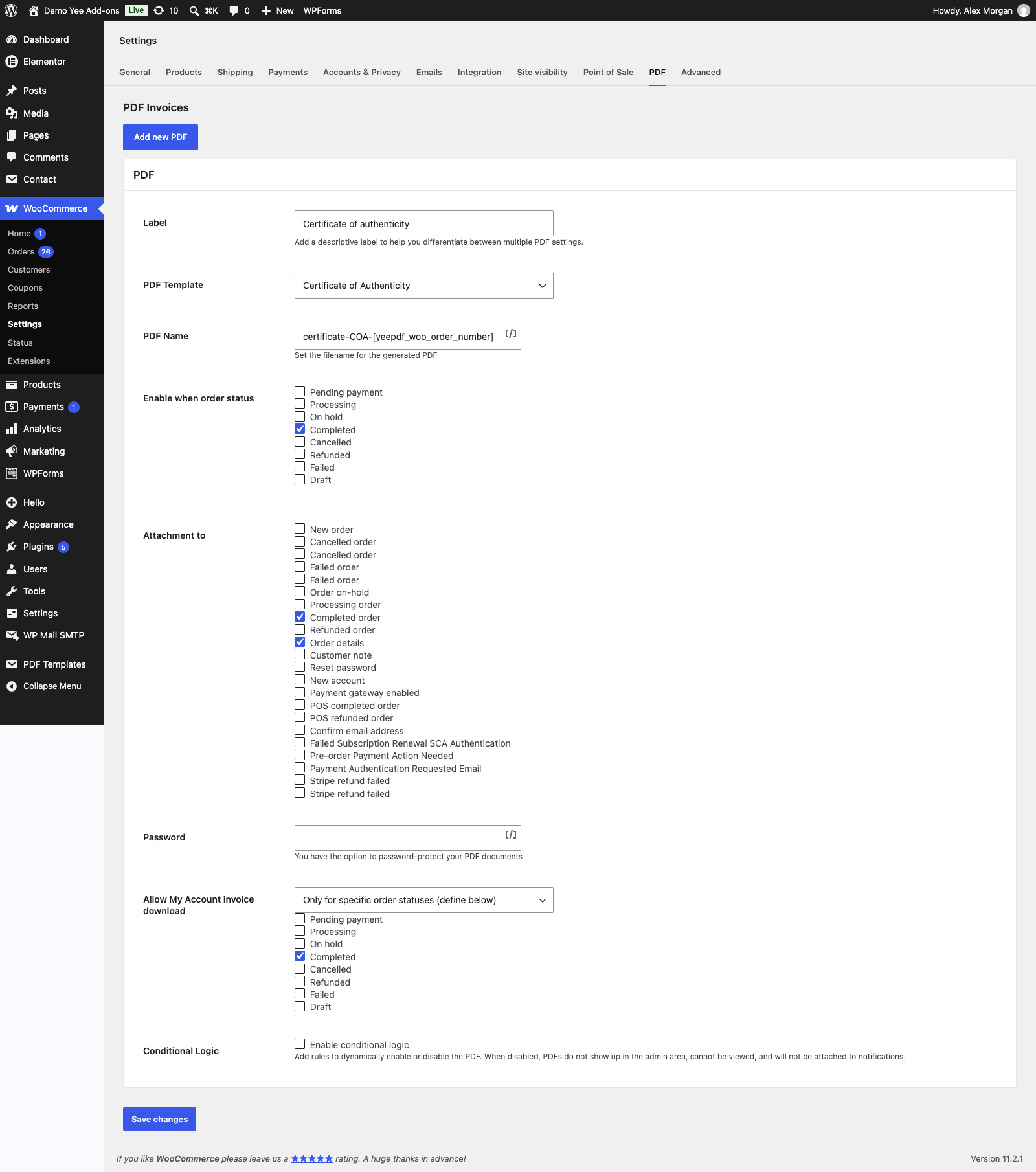
| Field | Value | Why |
|---|---|---|
| Enable this PDF | ticked | |
| Label | Certificate of authenticity | Button label in the admin and in My Account. |
| PDF Template | Certificate of Authenticity | The template from section 2. |
| PDF Name | certificate-COA-8448 | e.g. certificate-COA-1808.pdf |
| Enable when order status | Completed | The certificate is issued when the work ships. |
| Attachment to | Completed order, Order details | The buyer receives it with the “order complete” email; you can re-send it from the order screen. |
| Allow My Account invoice download | Only for specific order statuses → Completed | The buyer can download it again later, e.g. for a resale. |
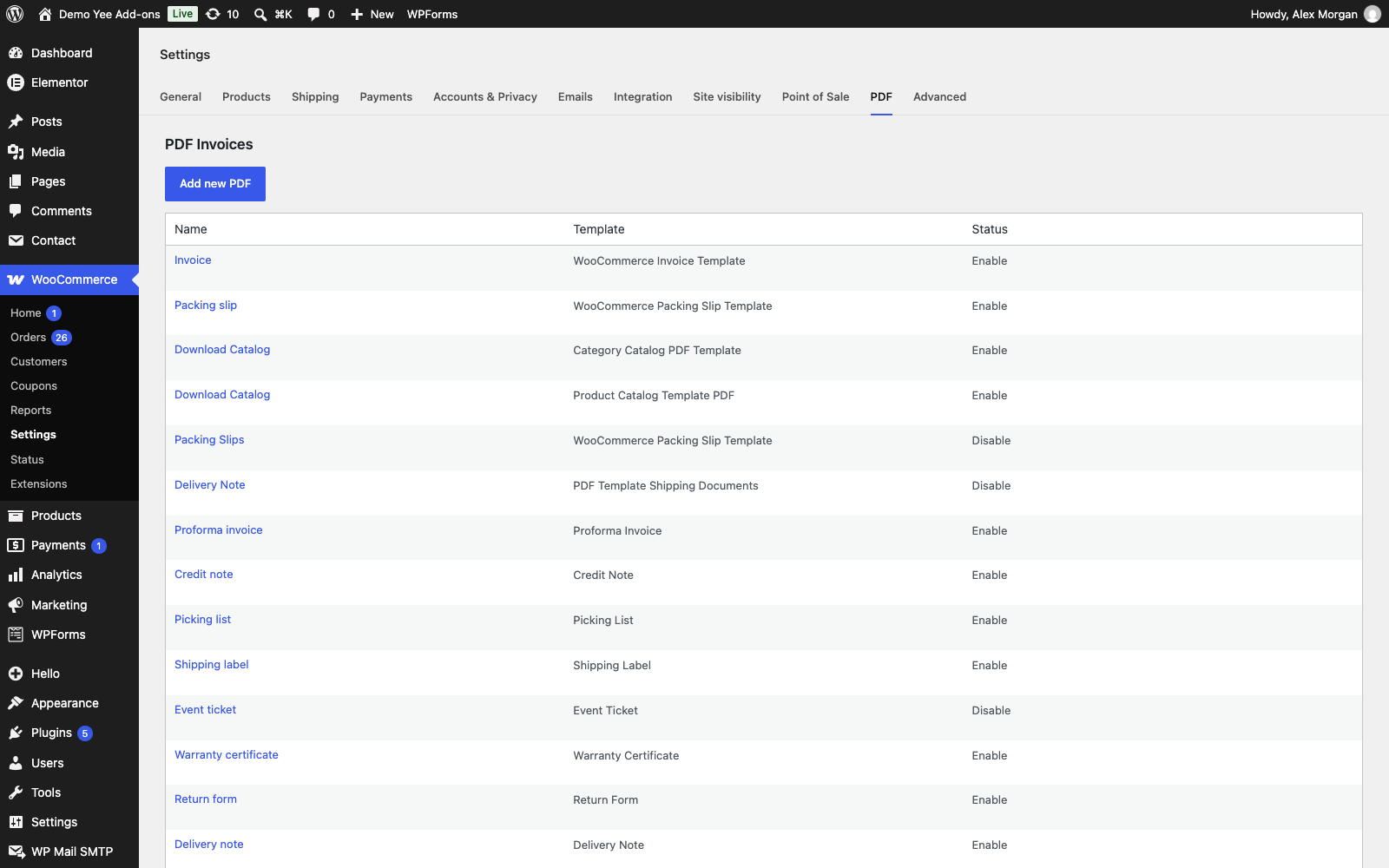
4. What the Buyer Receives
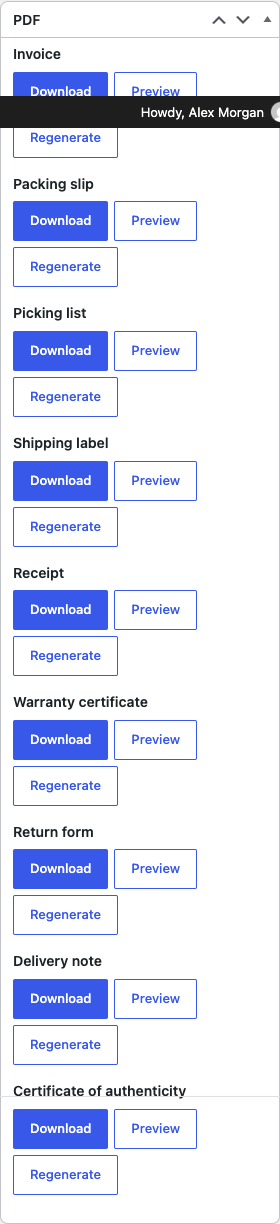
When you complete the order, the certificate is generated and attached to the Your order is now complete email. The buyer also finds a Certificate of authenticity button in My Account → Orders and on the order page. Print it on heavy paper, sign it and ship it with the work.
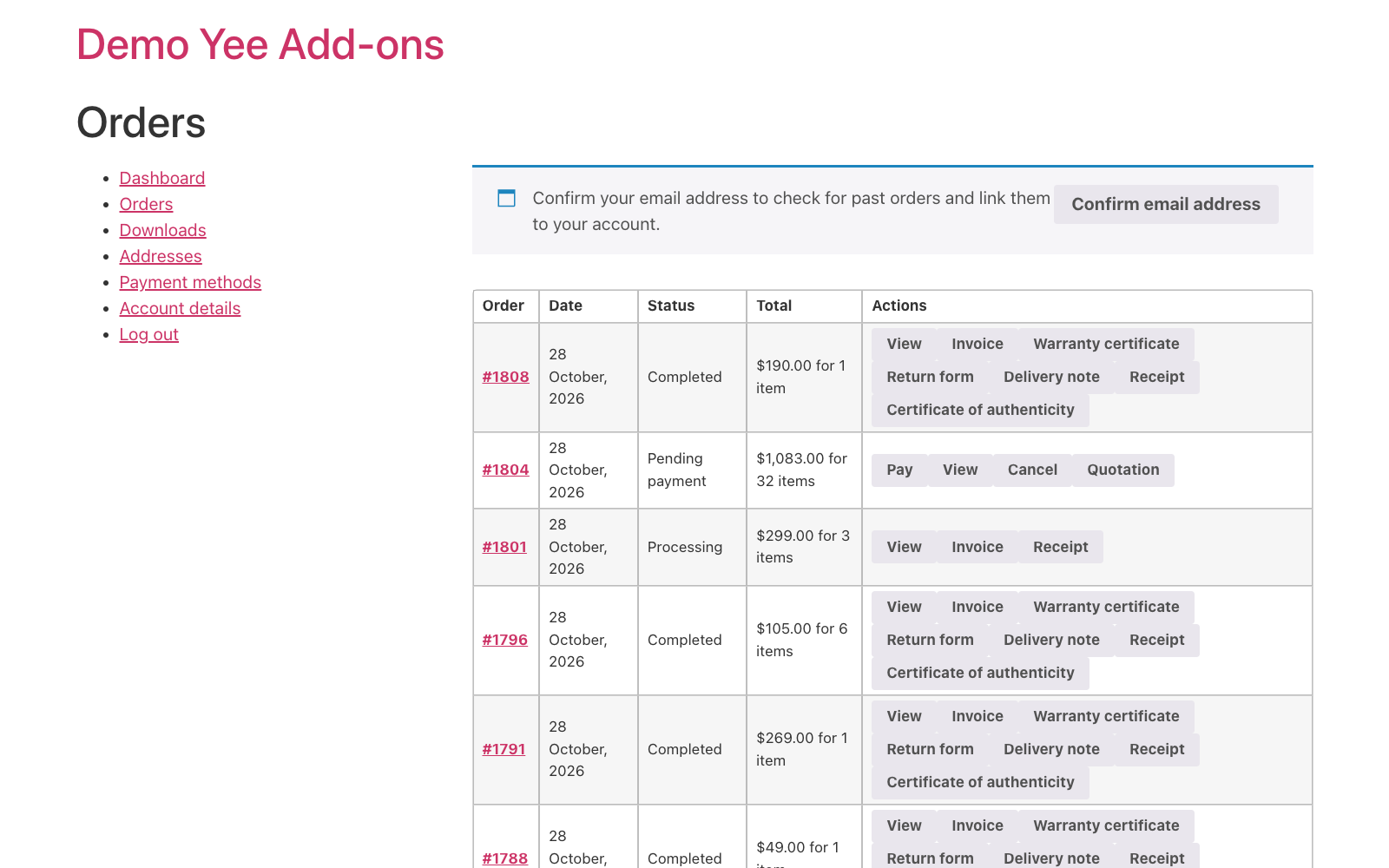
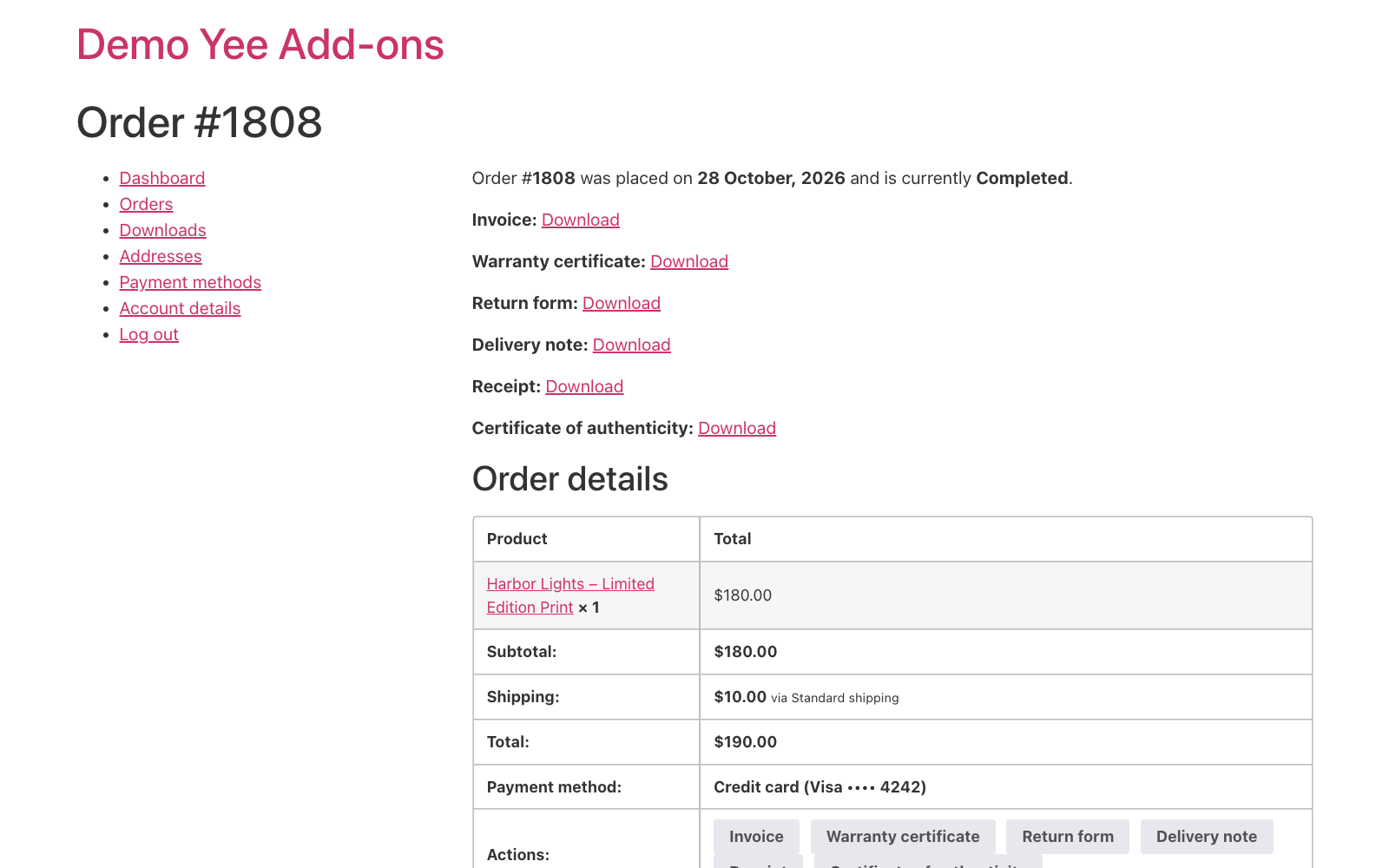
The QR code opens the product page, the listing the certificate refers to:
In the admin, the order screen lists the certificate in the PDF box with Download, Preview and Regenerate.
5. Tips
- Only for certified products: the current conditional logic compares generic fields, not products. Keep certified works in their own store section, or use a custom order field set at checkout and compare it in the setting’s conditional logic.
- Artist signature image: replace the blank with an Image element holding a scanned signature, or a Signature form element if the artist signs on screen.
- Several works in one order: the product tags print the first item. Sell one certified work per order, or switch to the Order Detail table (SKU on, prices hidden via Custom CSS, see the warranty guide).
- Decorative frame: mPDF ignores a border on the page body; use a background image in Settings PDF (a scanned border or watermark pattern) for a framed look.
- Register of certificates: the file name certificate-COA-<order> and the order itself are your register; the Orders list search finds a certificate number in one step.
- Regenerate: after editing the template, click Regenerate on an order; emails attach the stored file.
6. Frequently Asked Questions (FAQ)
Where does the description come from?
From the product’s short description. Keep it factual: medium, dimensions, edition size, year. The long description is not used.
Can I number the edition automatically?
Not from stock alone. Store the edition number in an order meta field when you ship (or let a checkout-fields plugin collect a reservation) and print it with the order meta tag.
Is the QR code safe to use for verification?
It proves the certificate points at your listing; for stronger verification encode COA-8448 and keep the orders as your register, so a number can be checked against a real sale.
Can the certificate be portrait A4?
Yes: change Orientation and Paper Size in Settings PDF; the blocks reflow. A5 landscape fits a frame-back pocket.
Can I attach it to the processing email instead?
Yes, tick Processing under Enable when order status and Processing order under Attachment to, if you prefer to send it before shipping.