
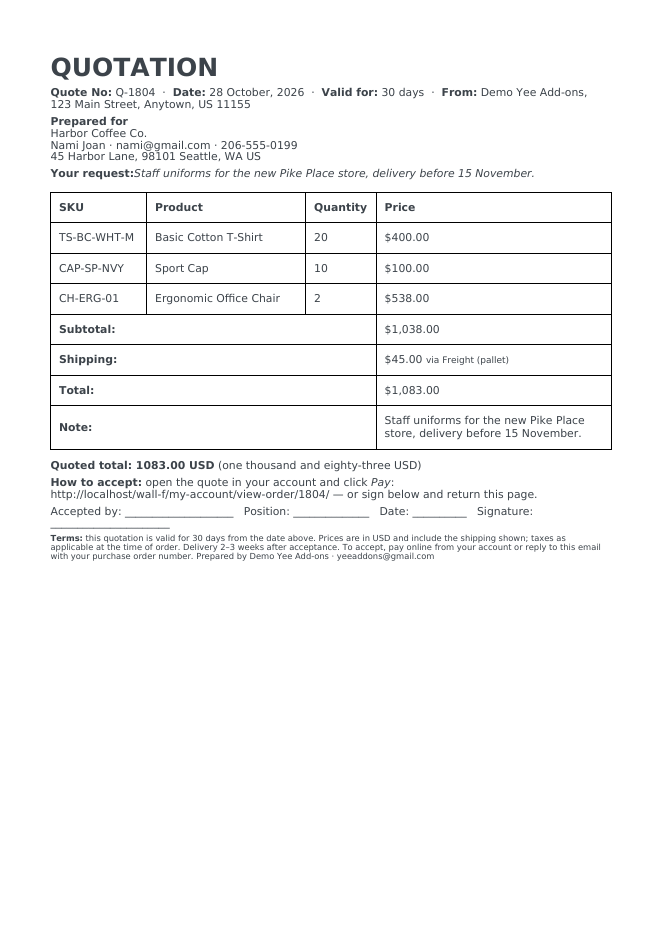
Business customers ask for a quotation before they order: a priced offer with a validity period, the delivery terms and a way to accept. In WooCommerce the natural place for a quote is a pending order that you create in the admin: it holds the products, the quantities, the prices you agreed and the customer; when the customer accepts and pays, the same order simply moves on to Processing. With PDF Invoice for WooCommerce + Drag and Drop Template Builder (plugin slug pdf-for-woocommerce, by add-ons.org) that pending order gets a Quotation PDF with a quote number, the customer’s request, the priced lines, the total in words, an acceptance block and the terms, and WooCommerce’s own Send order details to customer action sends it with a pay link. This guide builds it from a blank template. The proforma invoice guide covers the document for bank-transfer orders and the receipt guide the one after payment.
Video tutorial
1. Quote, Proforma, Invoice
| Quotation | Proforma invoice | Invoice | |
|---|---|---|---|
| When | Before the customer decides | Order placed, payment pending (bank transfer) | Order paid or shipped |
| Order status | Pending payment (created in the admin) | On hold / Pending | Processing / Completed |
| Purpose | Offer with validity and acceptance | Payment request with bank details | Tax document |
| Sent with | Send order details to customer (manual) | On-hold email | Processing / completed email |
2. Build the Quotation Template
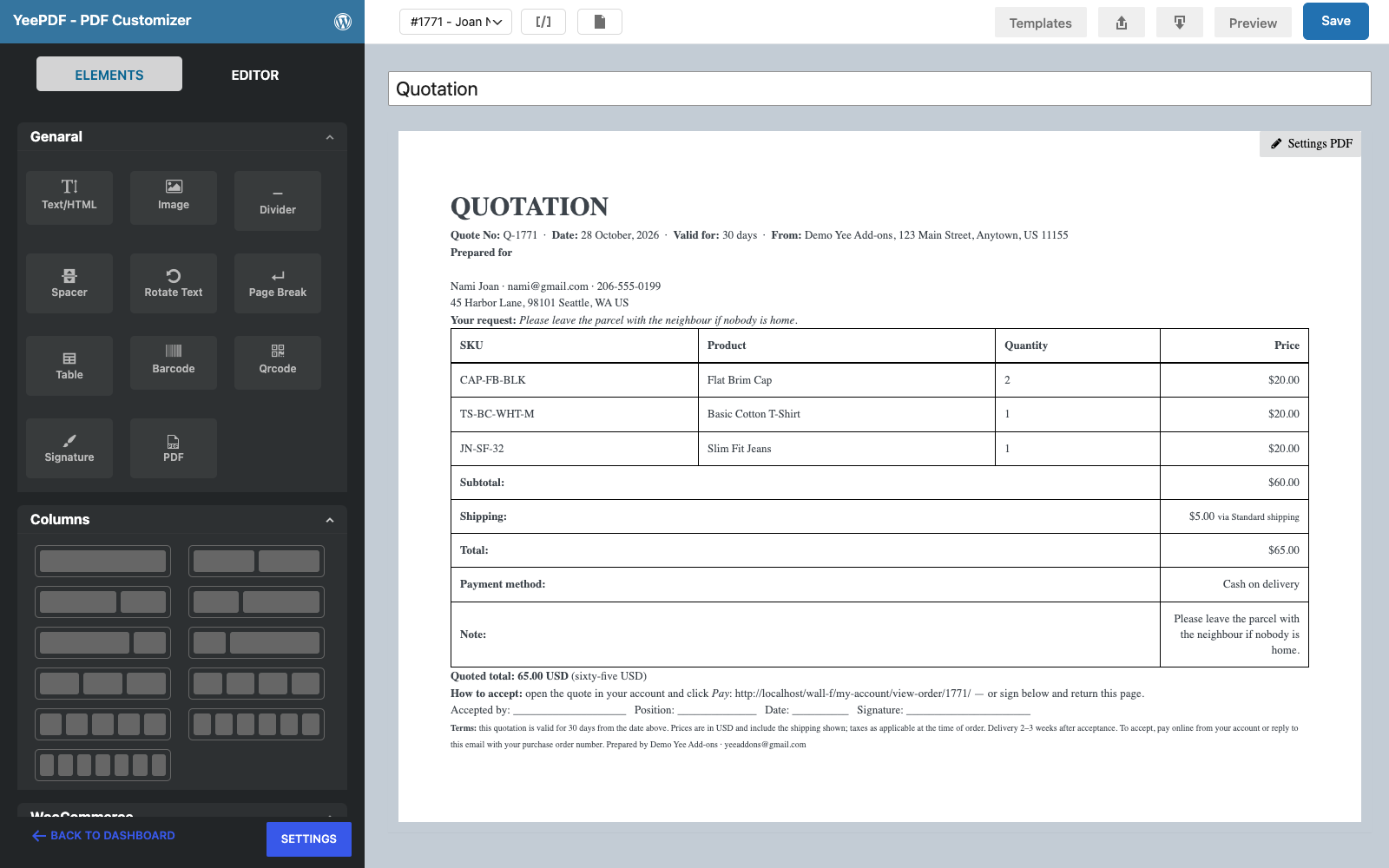
Builder note: a new element is inserted just above the element you drop it on. Create the terms (the last block) first and drop every other block onto it in reading order.
Step 1: New template
Go to PDF Templates → New Template and name it Quotation. Keep A4 portrait.
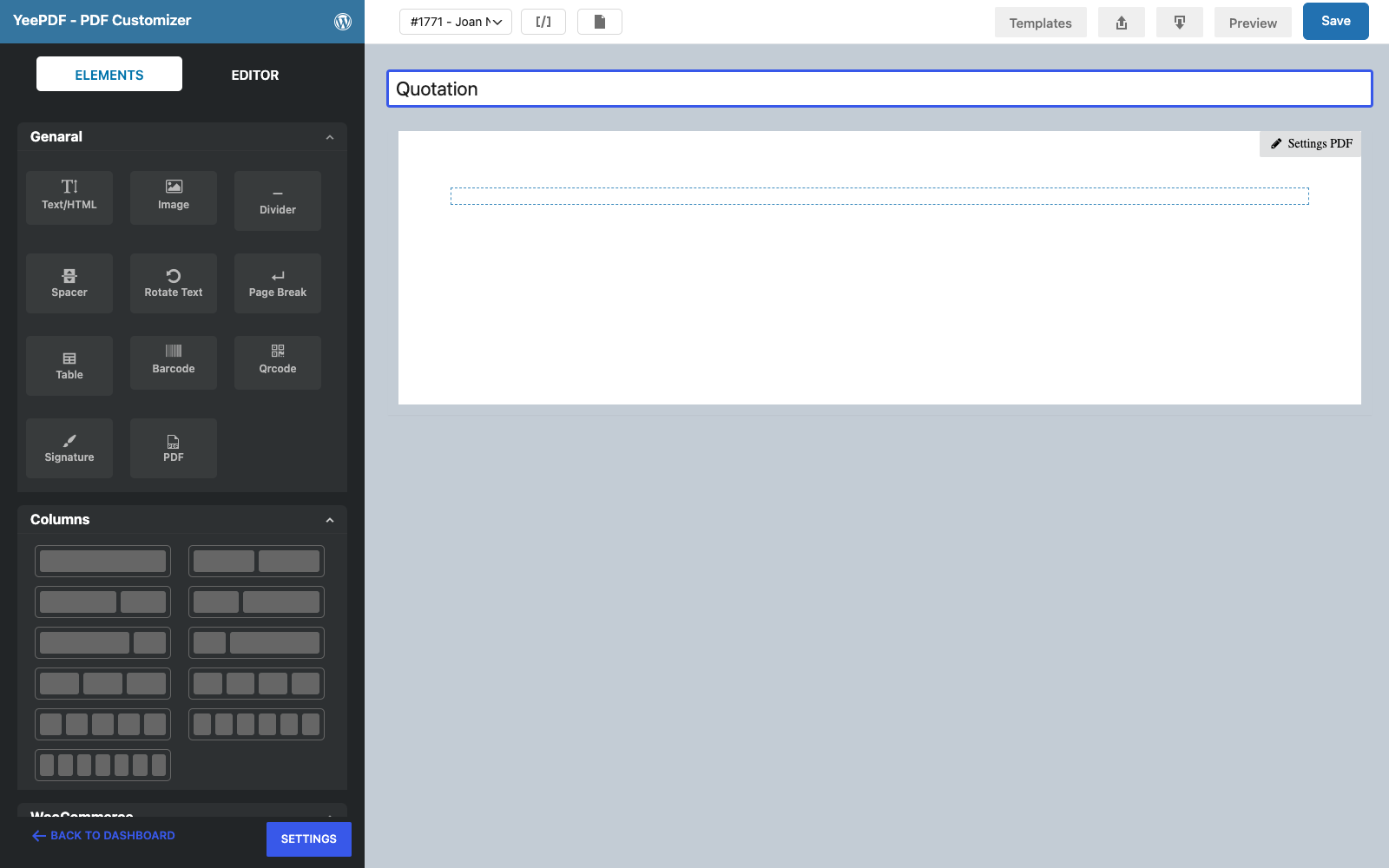
Step 2: Terms
Drag a Text/HTML element into the row and type the terms in 10 px:
Terms: this quotation is valid for 30 days from the date above. Prices are in USD and include the
shipping shown; taxes as applicable at the time of order. Delivery 2–3 weeks after acceptance. To accept, pay online
from your account or reply to this email with your purchase order number. Prepared by Yee Add-ons · [email protected]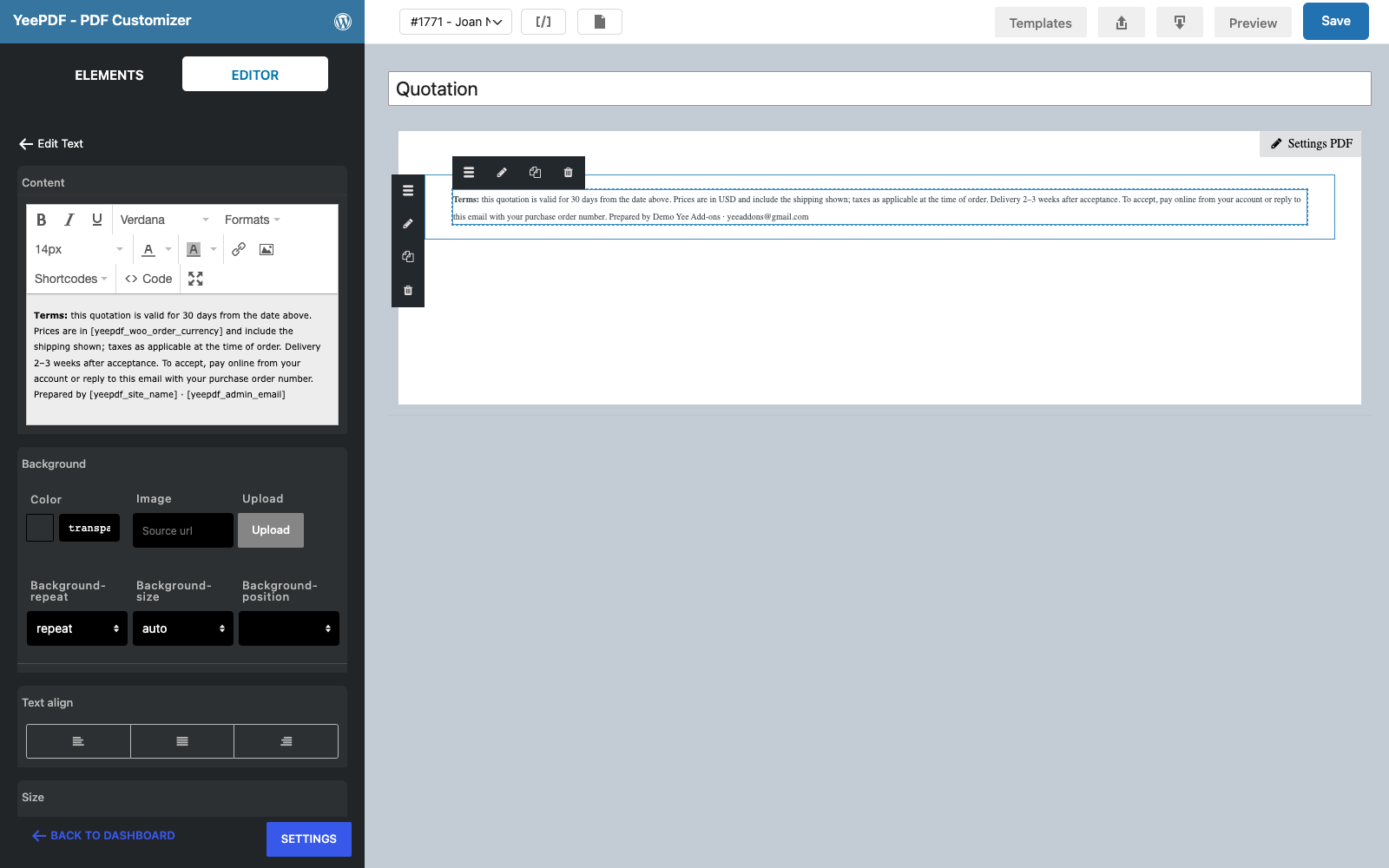
Step 3: Title
Drop a Text/HTML element onto the terms:
QUOTATION                                                            ← 30 px bold
Quote No: Q-8448 · Date: August 28, 2026 · Valid for: 30 days · From: Yee Add-ons, 123 Main Street, Anytown, US 11155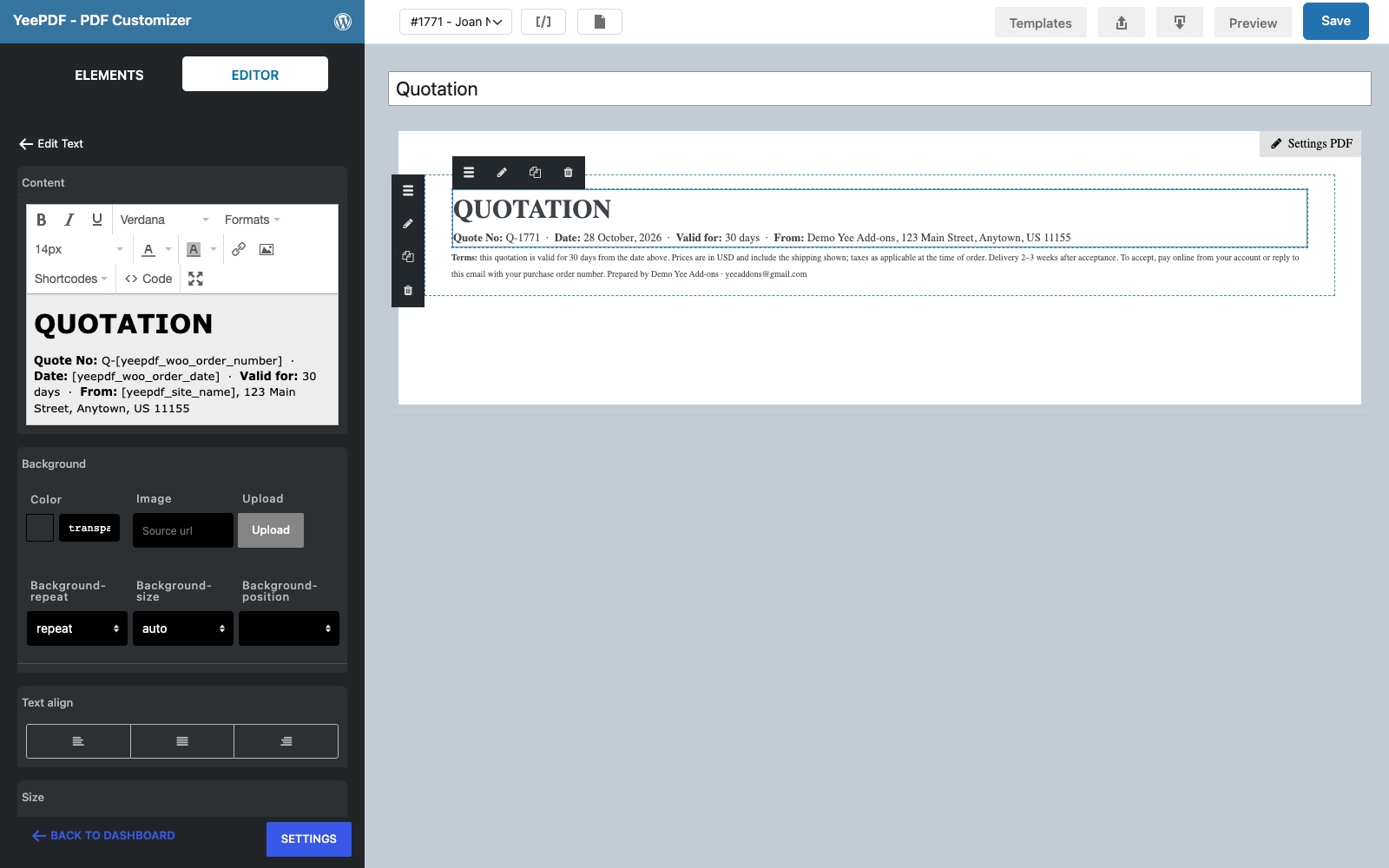
Step 4: Prepared for
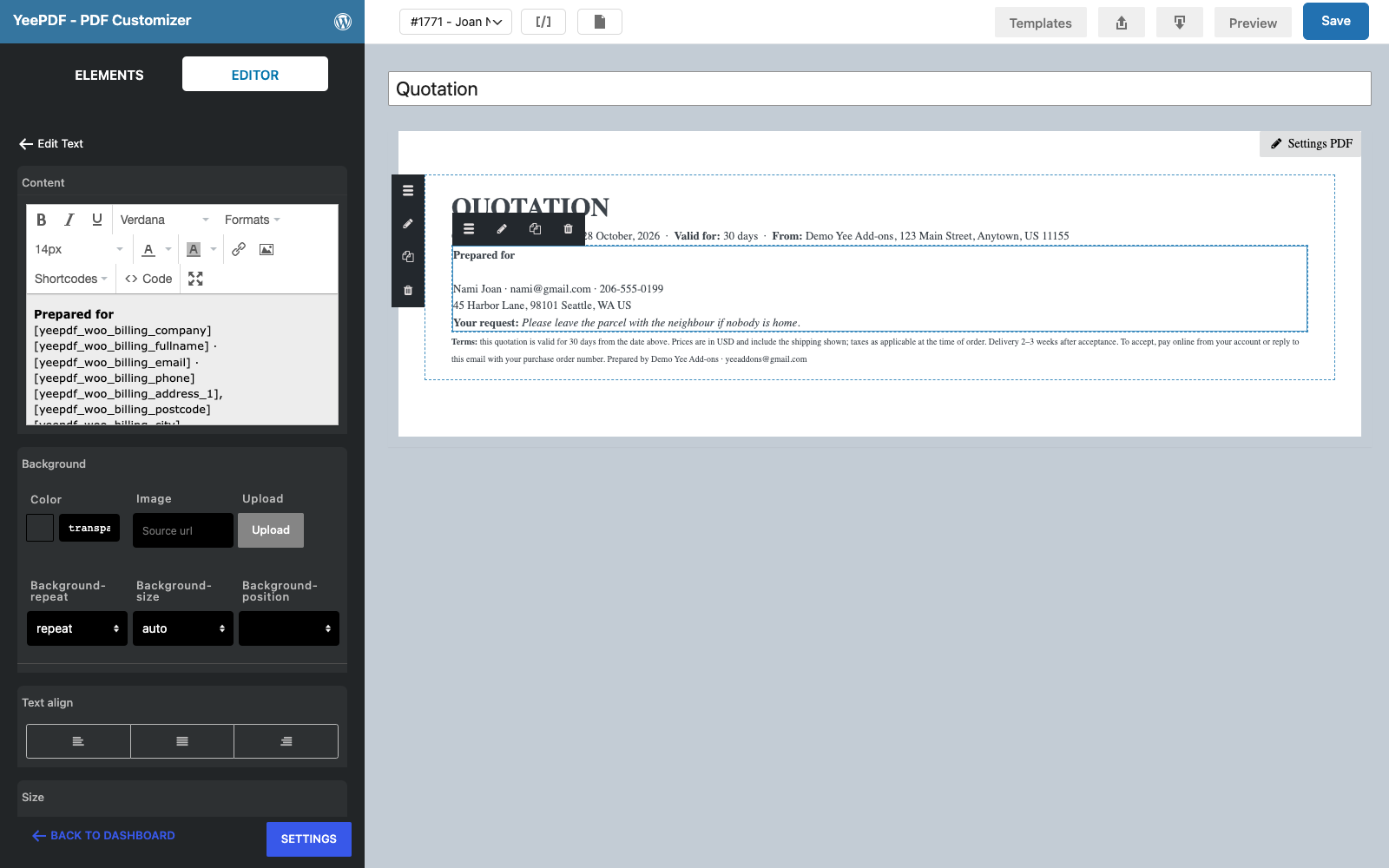
Drop another Text/HTML element onto the terms with the customer and their request:
Prepared for
YEE S.R.L.
PIERLUIGI CIPRIANI · [email protected] · 3286550379
VIA NELSON MANDELA 4, 13100 VERCELLI, VC IT
Your request:
prints the Customer provided note of the order; when you create the order in the admin, type the customer’s request there and it appears on the quote.
Step 5: Quoted lines
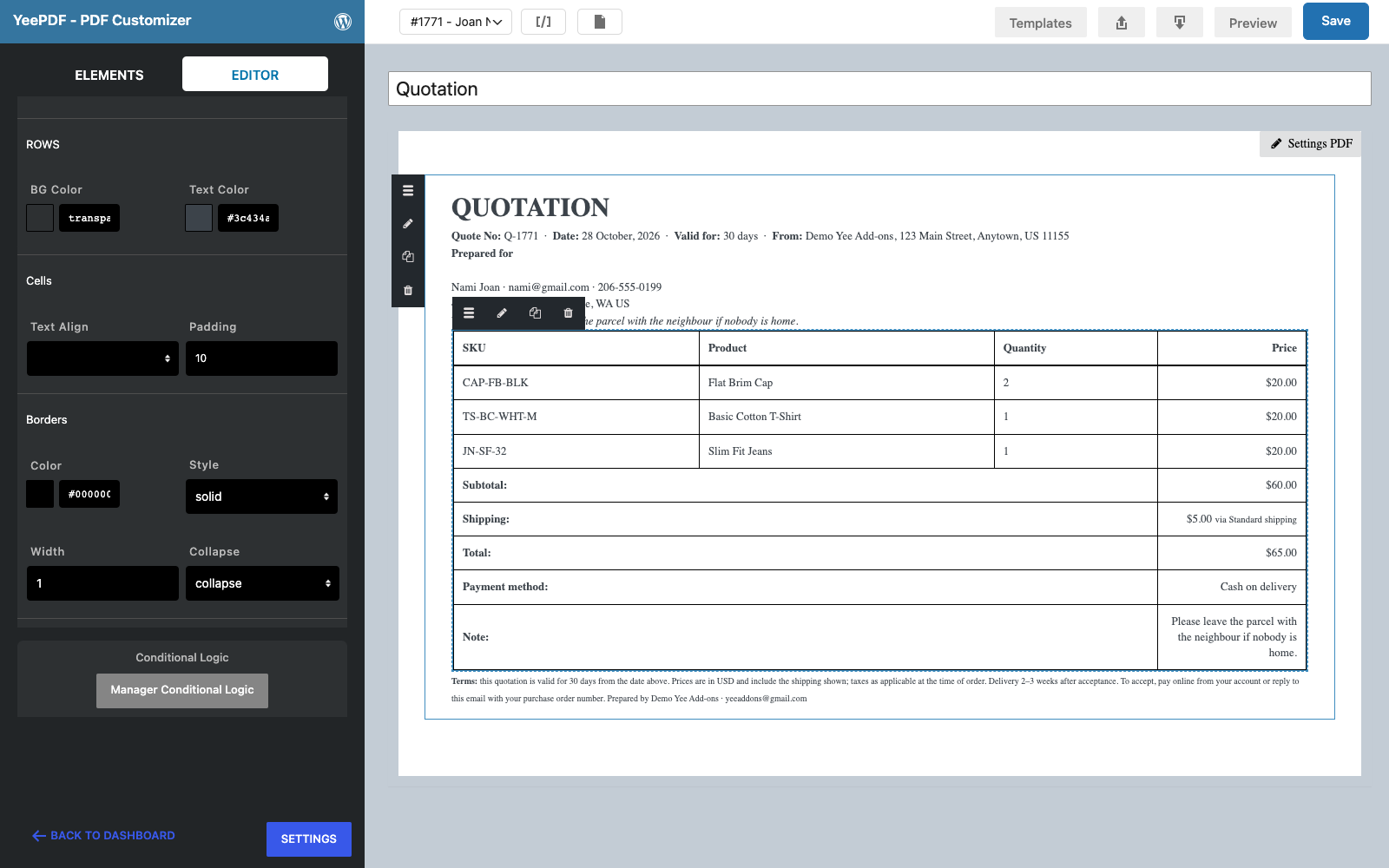
In the WooCommerce section drag the Order Detail block onto the terms. Click the table and tick Show SKU and Show totals; untick image and description.
Step 6: Total and acceptance
Drop a last Text/HTML element onto the terms:
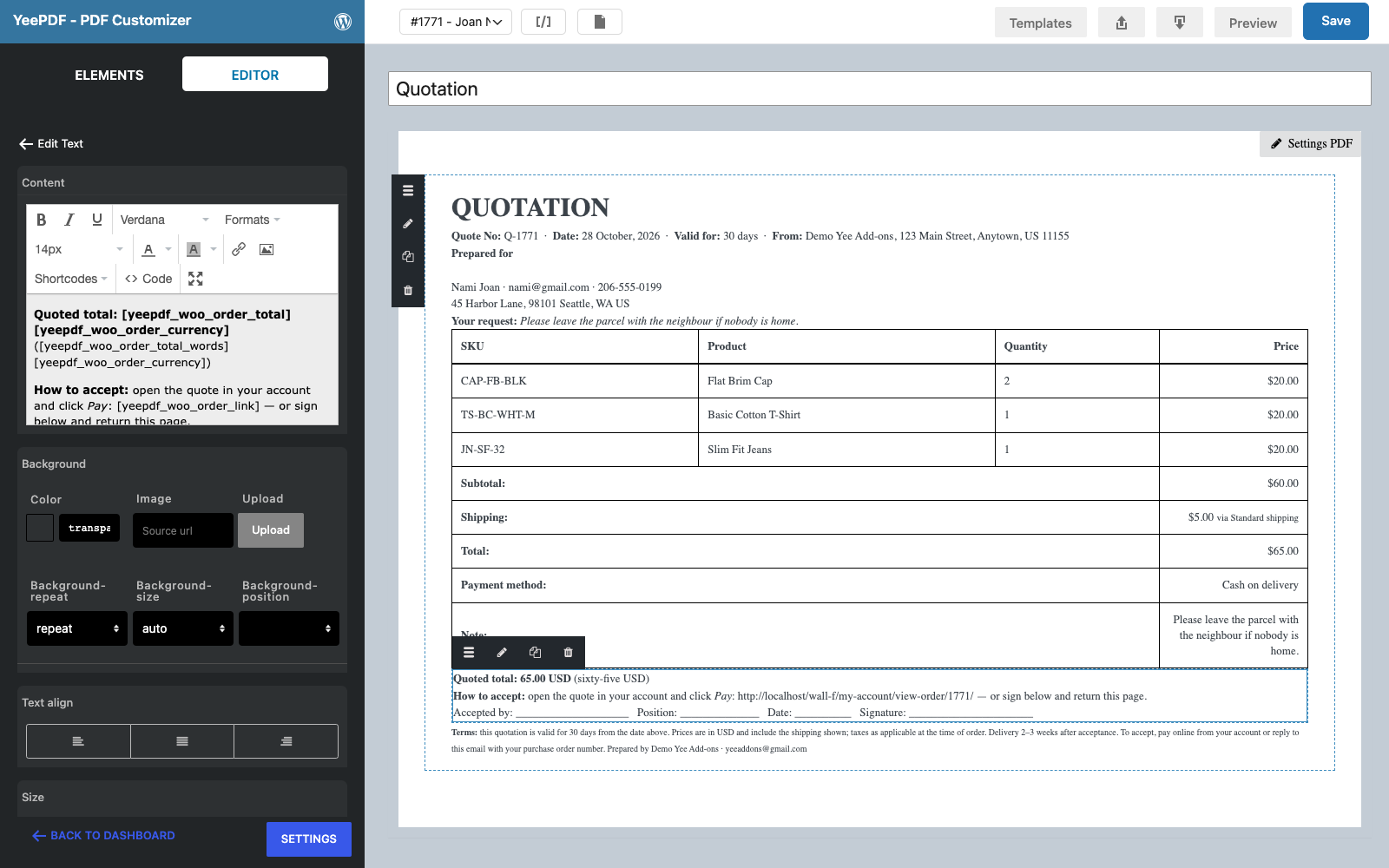
Quoted total: 19.00 USD (nineteen USD)
How to accept: open the quote in your account and click Pay: https://add-ons.org/my-account/view-order/8448/ — or sign below and return this page.
Accepted by: ____________________  Position: ______________  Date: __________  Signature: ______________________
https://add-ons.org/my-account/view-order/8448/ prints the order’s page in My Account, where a pending order shows a Pay button. Add p { margin: 0 0 6px; } table { margin: 8px 0 12px; } under Settings PDF → Custom CSS for spacing and click Save.
3. Generate the Quote for Pending Orders
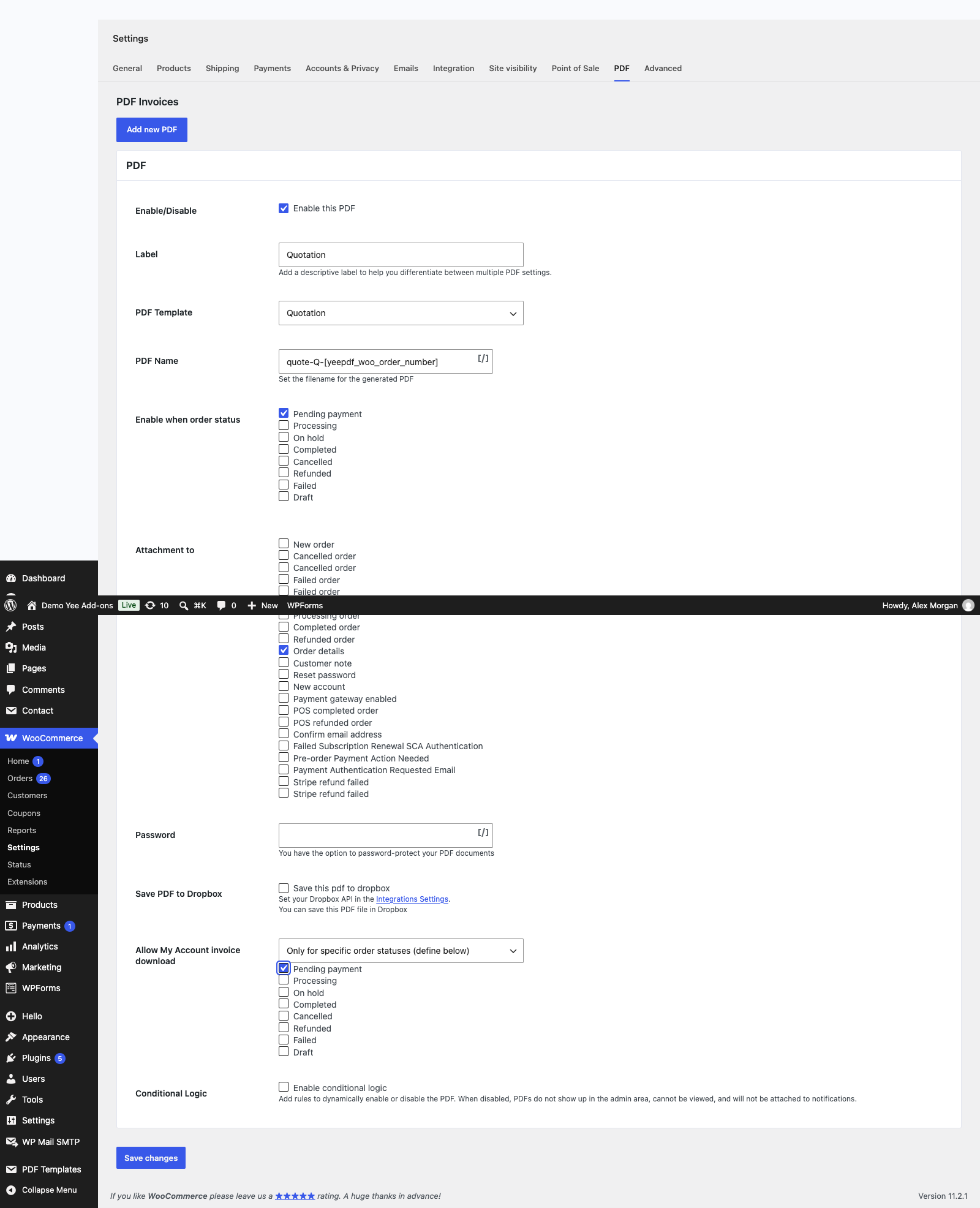
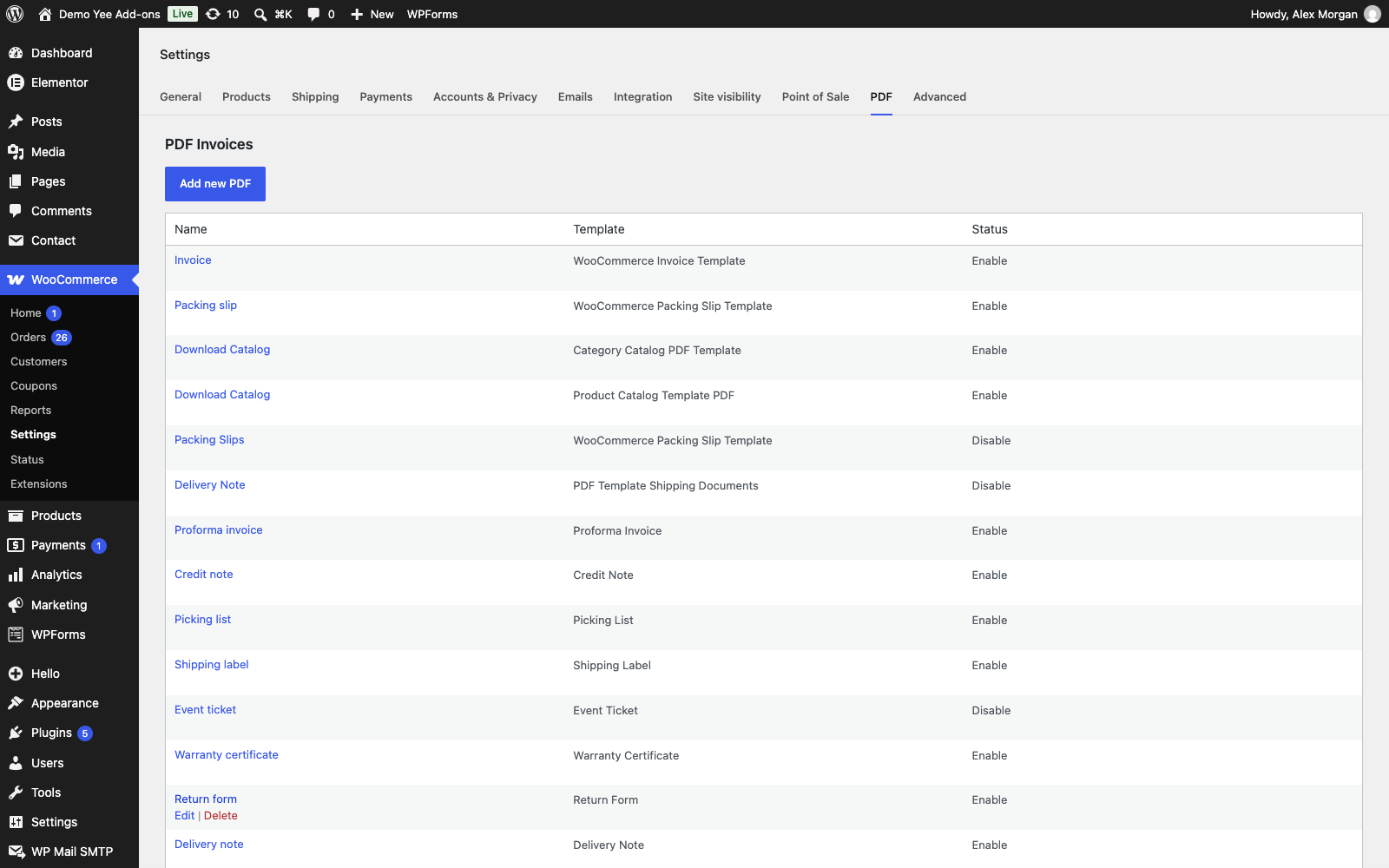
Go to WooCommerce → Settings → PDF → Add new PDF:
| Field | Value | Why |
|---|---|---|
| Enable this PDF | ticked | |
| Label | Quotation | Button label in the admin and in My Account. |
| PDF Template | Quotation | The template from section 2. |
| PDF Name | quote-Q-8448 | e.g. quote-Q-1804.pdf |
| Enable when order status | Pending payment | An admin-created order starts as Pending payment; checkout orders pass through it too, but they move on within seconds. |
| Attachment to | Order details | The Send order details to customer action sends this email; the quote rides on it together with the pay link. |
| Allow My Account invoice download | Only for specific order statuses → Pending payment | The customer can re-open the quote next to the Pay button. |
4. Send a Quote
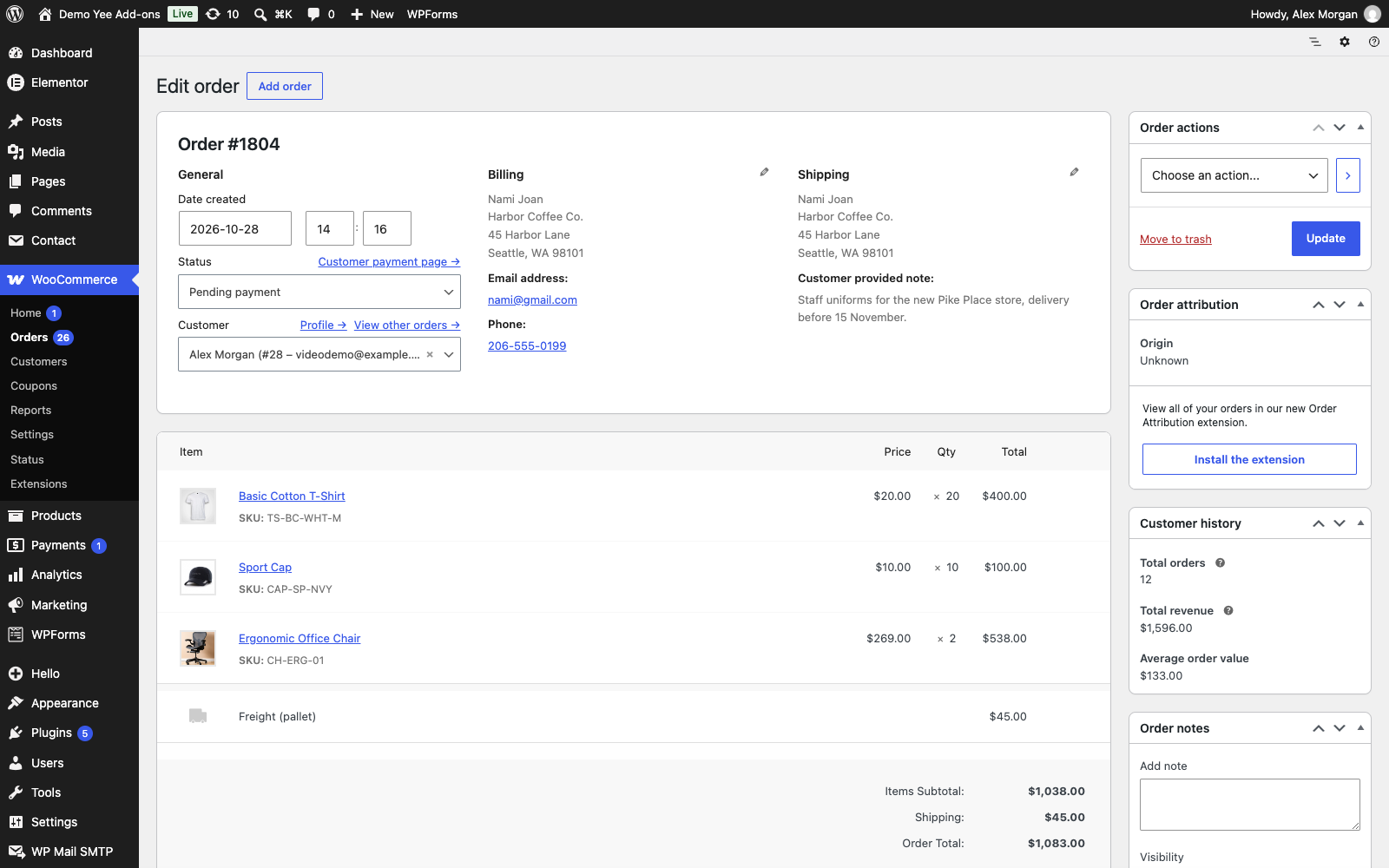
- Go to WooCommerce → Orders → Add order. Pick the customer, add the products with the agreed quantities and prices (edit the line totals for a special price), add a shipping line and type the customer’s request in Customer provided note. Leave the status at Pending payment and click Create.
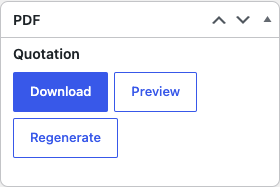
- The quote PDF is generated at once and listed in the PDF box with Download, Preview and Regenerate.
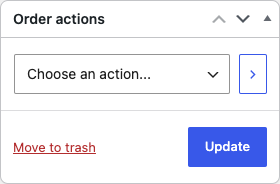
- Under Order actions choose Send order details to customer and click the arrow. The customer receives the order details, the pay link and the quote PDF.
What the customer sees
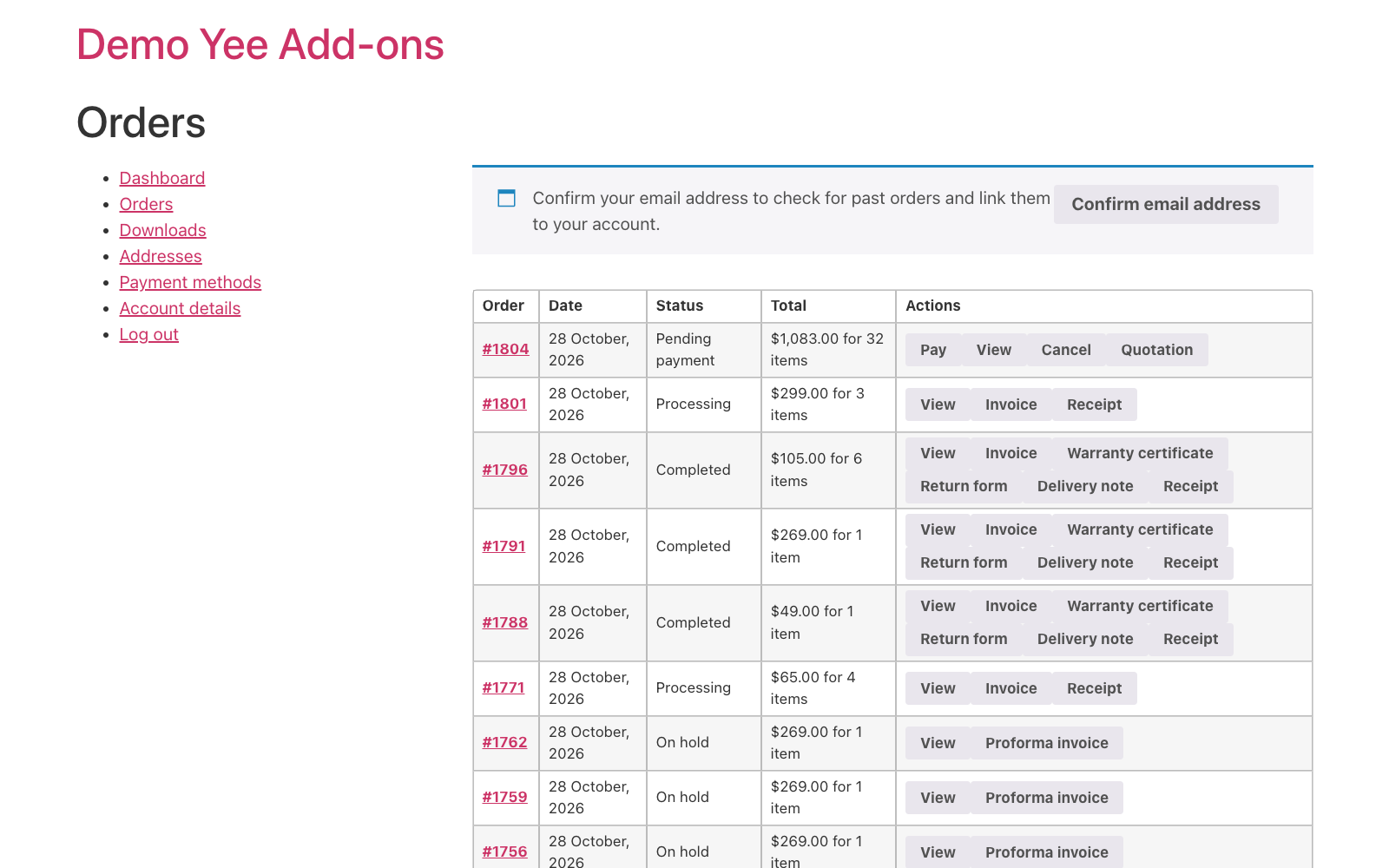
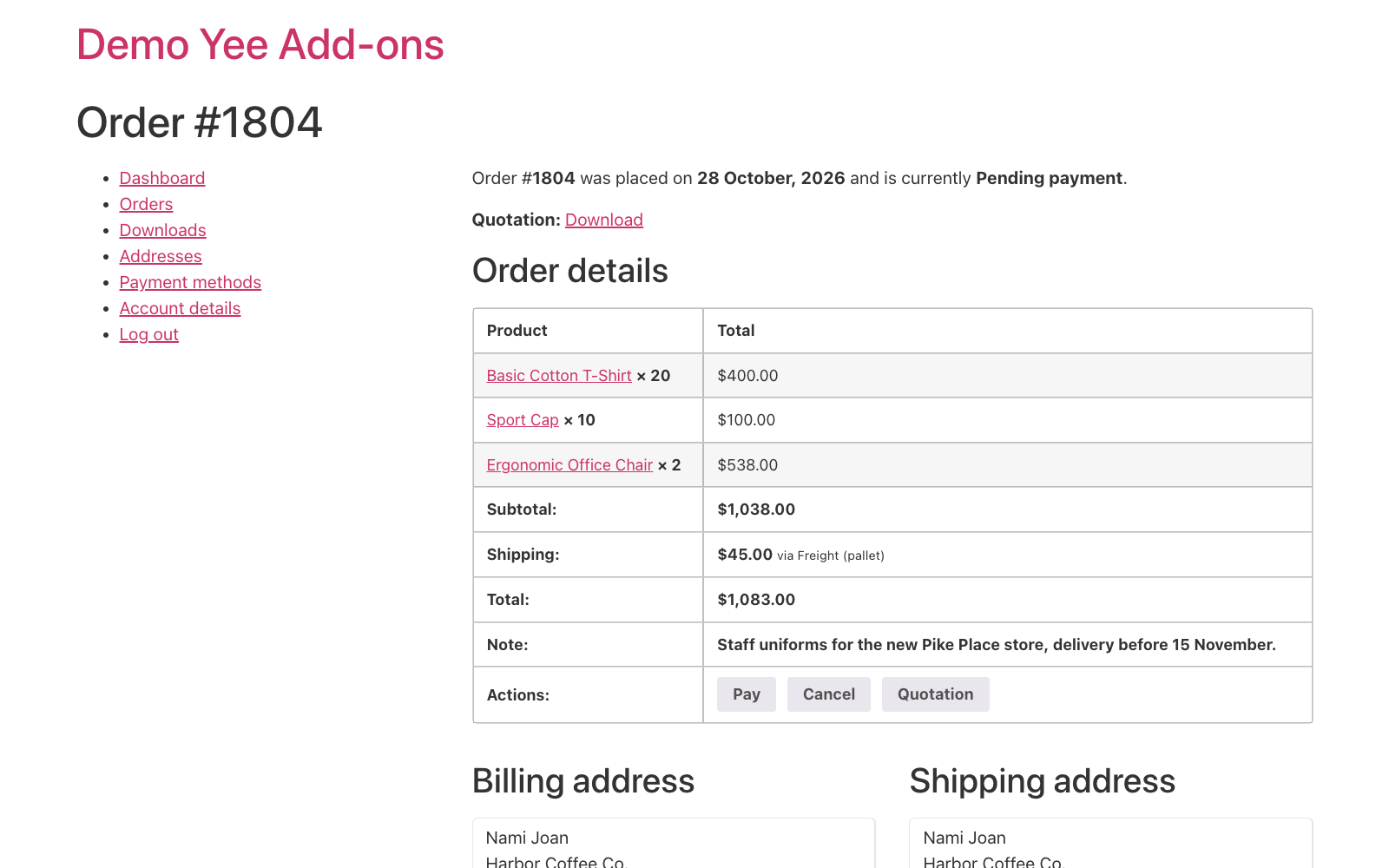
In My Account → Orders the pending order shows Pay, Cancel and the Quotation button; the order page has the same. Paying moves the order to Processing, and your invoice and receipt documents take over from there.
5. Tips
- Special prices: edit the line totals on the admin order; the quote prints what the order holds, not the catalogue price.
- Validity: the terms say 30 days; to print an actual expiry date add an order meta field (e.g. with a checkout-fields plugin) and print it with
. - Revisions: edit the order, then click Regenerate on the quote and send the email again; the quote number stays the same.
- Not accepted: cancel the order after the validity period so it leaves the pending list; a cancelled order keeps its quote PDF.
- Cart quotes: the Pro version adds a “Download PDF” button on the cart page that prints the cart with the built-in WooCommerce Cart PDF Template, for customers who want a price list before ordering.
- Stop checkout orders getting a quote: every checkout order is Pending for a moment, but the quote only matters if someone opens the PDF box or if a pending email carries it; leave Attachment to at Order details only and no automatic email ever includes it.
6. Frequently Asked Questions (FAQ)
Does the customer need an account?
The pay link works without login. The My Account link in the quote needs an account for the customer’s email; for guests give the pay link from the email instead.
Can I print the pay link itself on the PDF?
Not with a merge tag; the order link tag prints the My Account page, which has the Pay button. The pay link is in the email that carries the quote.
Can the quote include taxes?
Yes: enable taxes in WooCommerce and tick Show totals; the table prints the tax rows of the order.
What if I use a quote number sequence of my own?
Store it in an order meta field and print it with the order meta tag instead of Q-8448.
Can the customer accept by signing on screen?
The acceptance line is printed; for a fillable signature use the Signature element from the Forms section, or let the customer accept by paying.