
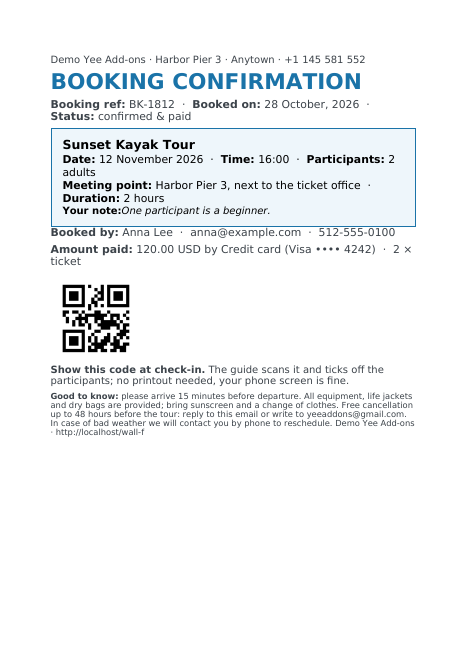
Tours, classes, workshops, rentals, appointments: whenever a customer books a date rather than buys a thing, they want one document that says what, when, where and who is coming, plus a code to show at check-in. With PDF Invoice for WooCommerce + Drag and Drop Template Builder (plugin slug pdf-for-woocommerce, by add-ons.org) that booking confirmation is generated the moment the booking is paid, attached to the “order received” email and kept in My Account. The date, time and number of participants come from the order item’s meta, the fields a booking or product-add-ons plugin saves with the line, so the template works with any booking plugin that stores its data on the order item. This guide builds it on A5 from a blank template. The event ticket guide covers the related ticket document.
Video tutorial
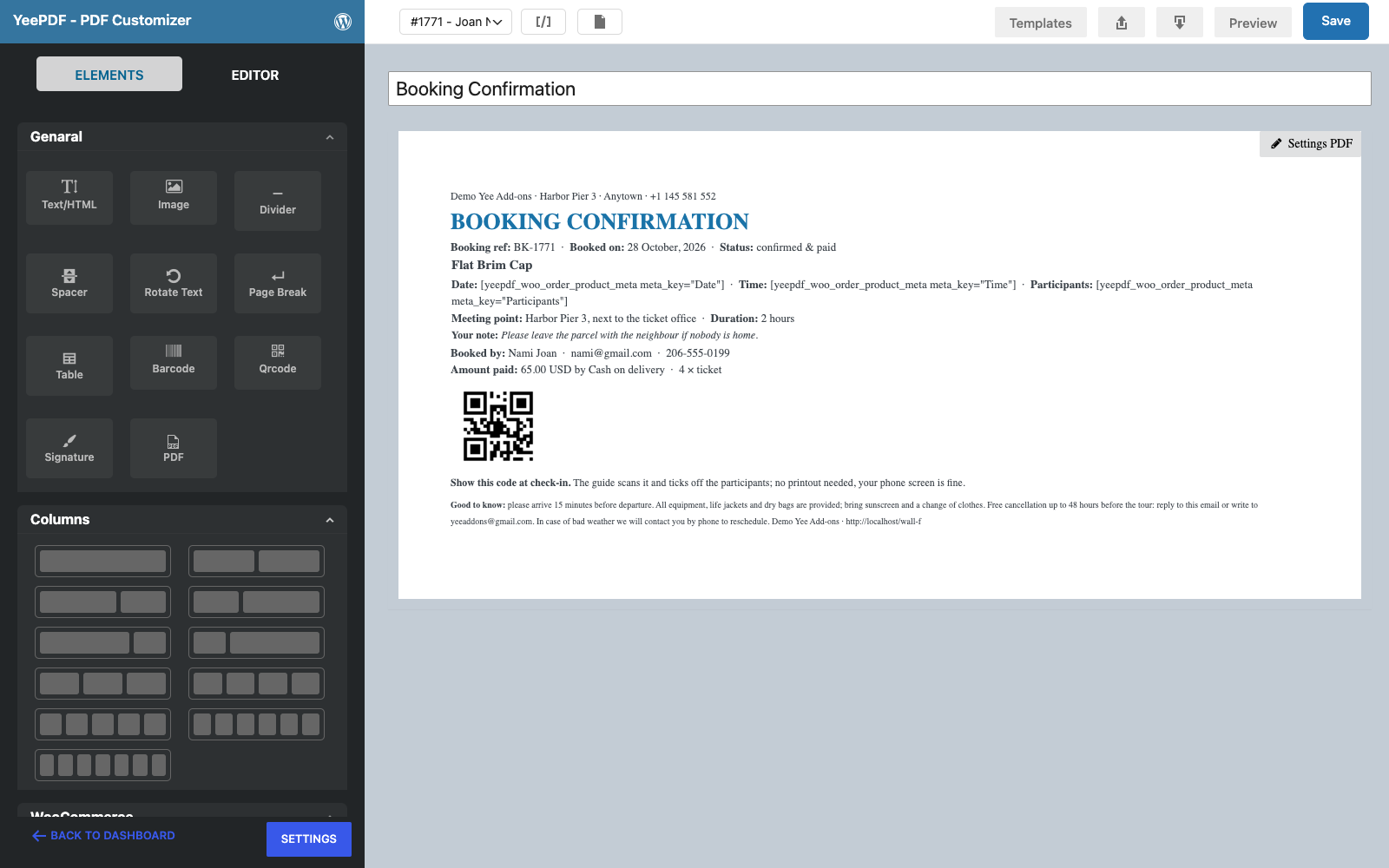
1. What the Confirmation Contains
| Block | Content | Merge tags |
|---|---|---|
| Header | Venue line, “BOOKING CONFIRMATION”, booking reference, booked-on date, status | Yee Add-ons, BK-8448, August 28, 2026 |
| Booking box | Product (the tour), date, time, participants, meeting point, duration, the customer’s note | Dynamic Field for Elementor Forms Pro, …meta_key="Time", …meta_key="Participants", |
| Booked by | Name, email, phone, amount paid, payment method, ticket count | PIERLUIGI CIPRIANI, 19.00, PayPal, 1 |
| Check-in code | A QR code with the booking reference | BK-8448 inside the Qrcode element |
| Good to know | Arrival time, what is provided, cancellation policy, weather | [email protected], https://add-ons.org |
prints a meta field of the first line item. Booking plugins and product add-ons store the chosen date, time slot, number of persons and similar options as item meta under the names you see on the order screen (the bold labels under the product line); use exactly those names as meta_key.
2. Build the Confirmation Template
Builder note: a new element is inserted just above the element you drop it on. Create the Good to know footer first and drop every other block onto it in reading order.
Step 1: New template, A5
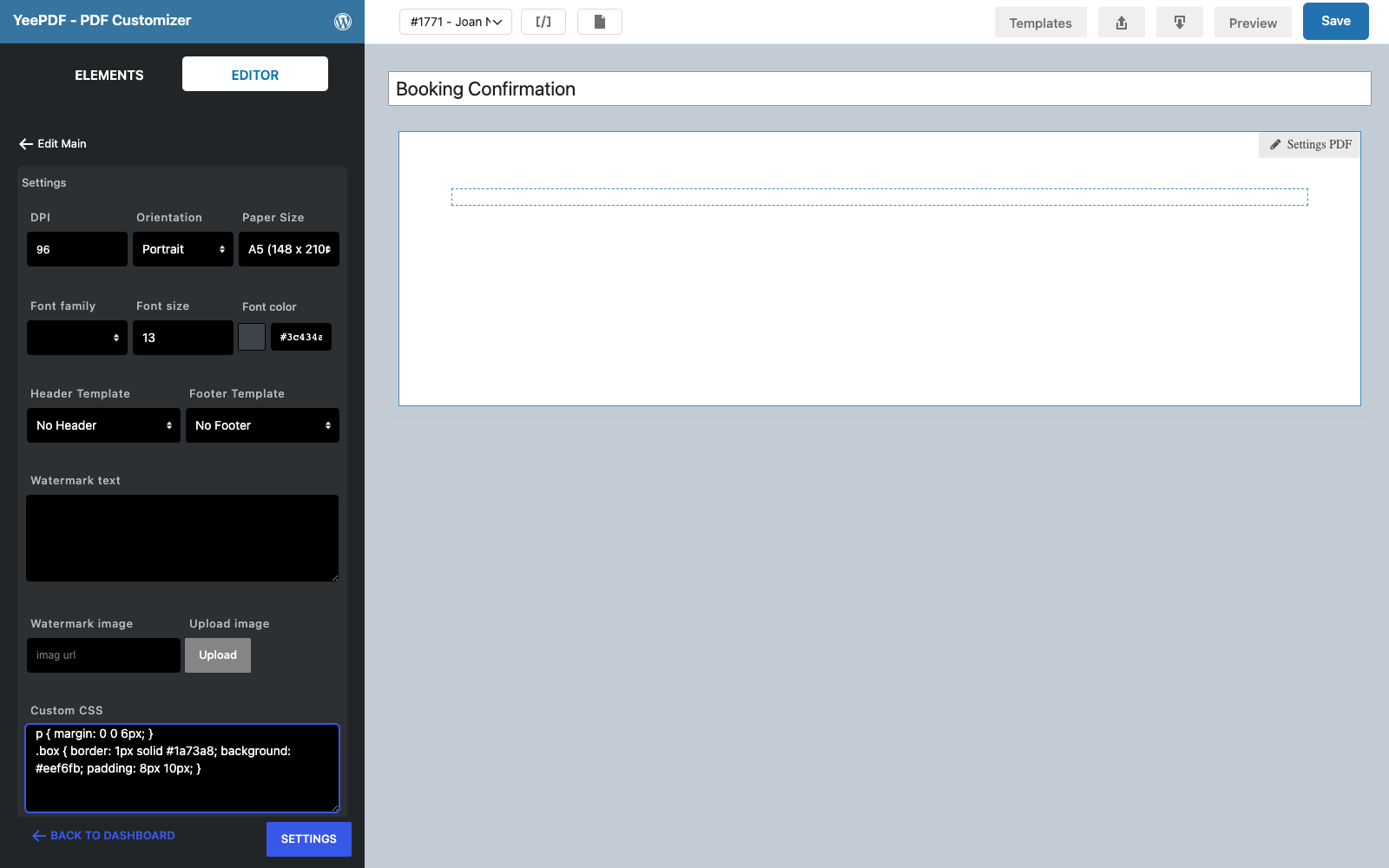
Go to PDF Templates → New Template and name it Booking Confirmation. Click Settings PDF, set Paper Size to A5 and paste this under Custom CSS, which styles the booking box used in step 4:
p { margin: 0 0 6px; }
.box { border: 1px solid #1a73a8; background: #eef6fb; padding: 8px 10px; }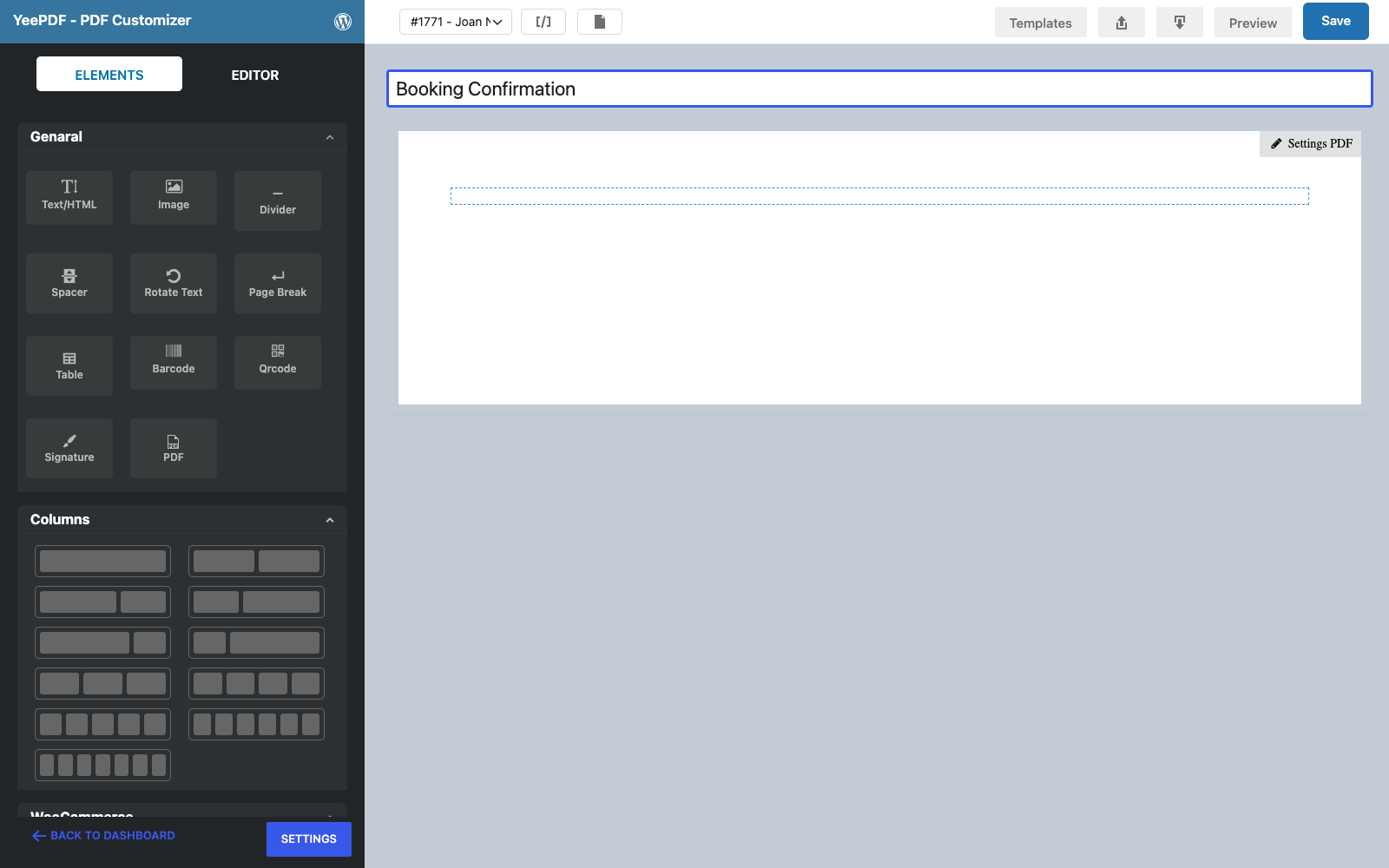
Step 2: Good to know (footer)
Drag a Text/HTML element into the row and type the practical information in 10 px:
Good to know: please arrive 15 minutes before departure. All equipment, life jackets and dry bags are provided; bring sunscreen
and a change of clothes. Free cancellation up to 48 hours before the tour: reply to this email or write to [email protected].
In case of bad weather we will contact you by phone to reschedule. Yee Add-ons · https://add-ons.org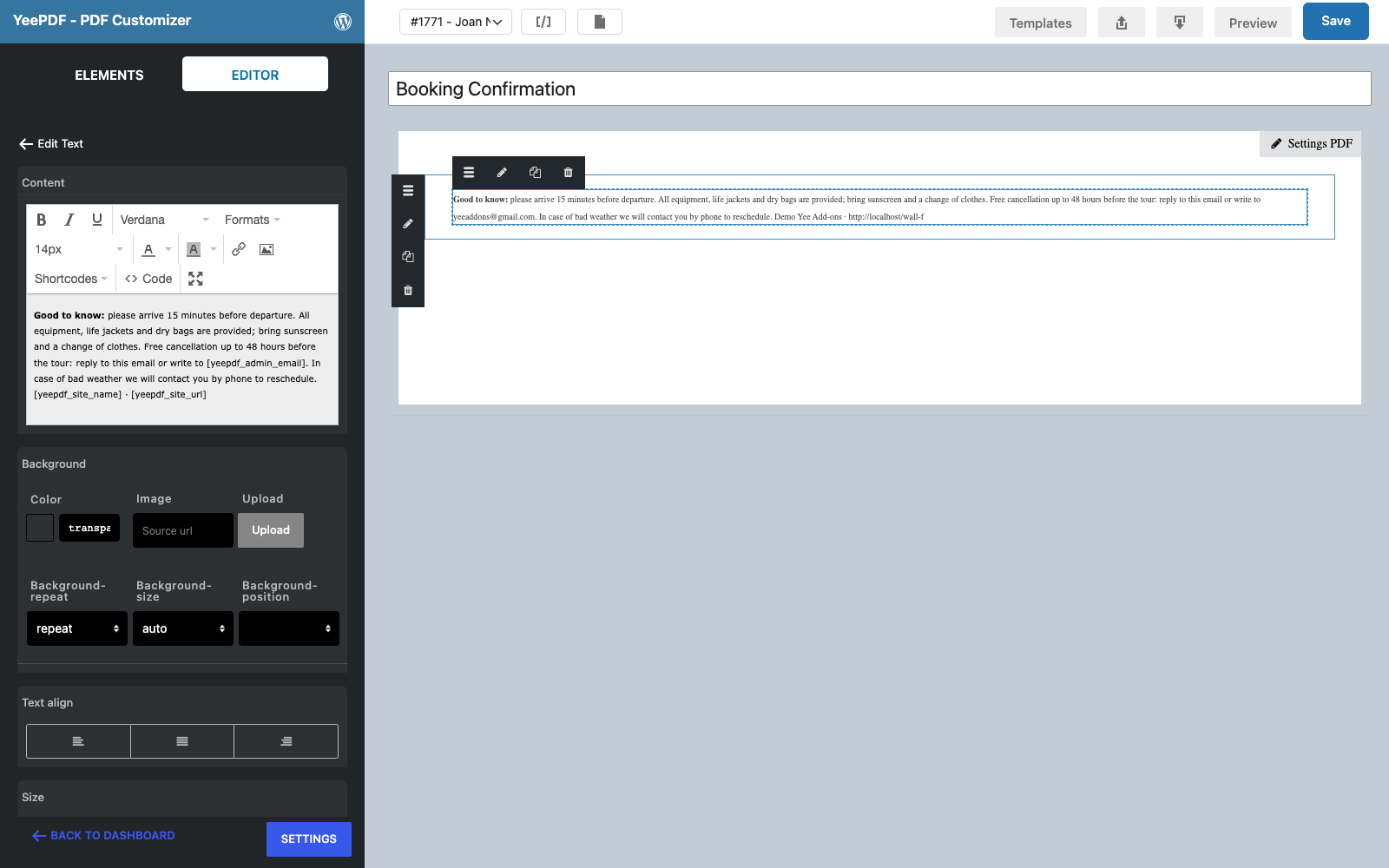
Step 3: Header
Drop a Text/HTML element onto the footer:
Yee Add-ons · Harbor Pier 3 · Anytown · +1 145 581 552                    ← 12 px
BOOKING CONFIRMATION                                                             ← 26 px bold, colour #1a73a8
Booking ref: BK-8448 · Booked on: August 28, 2026 · Status: confirmed & paid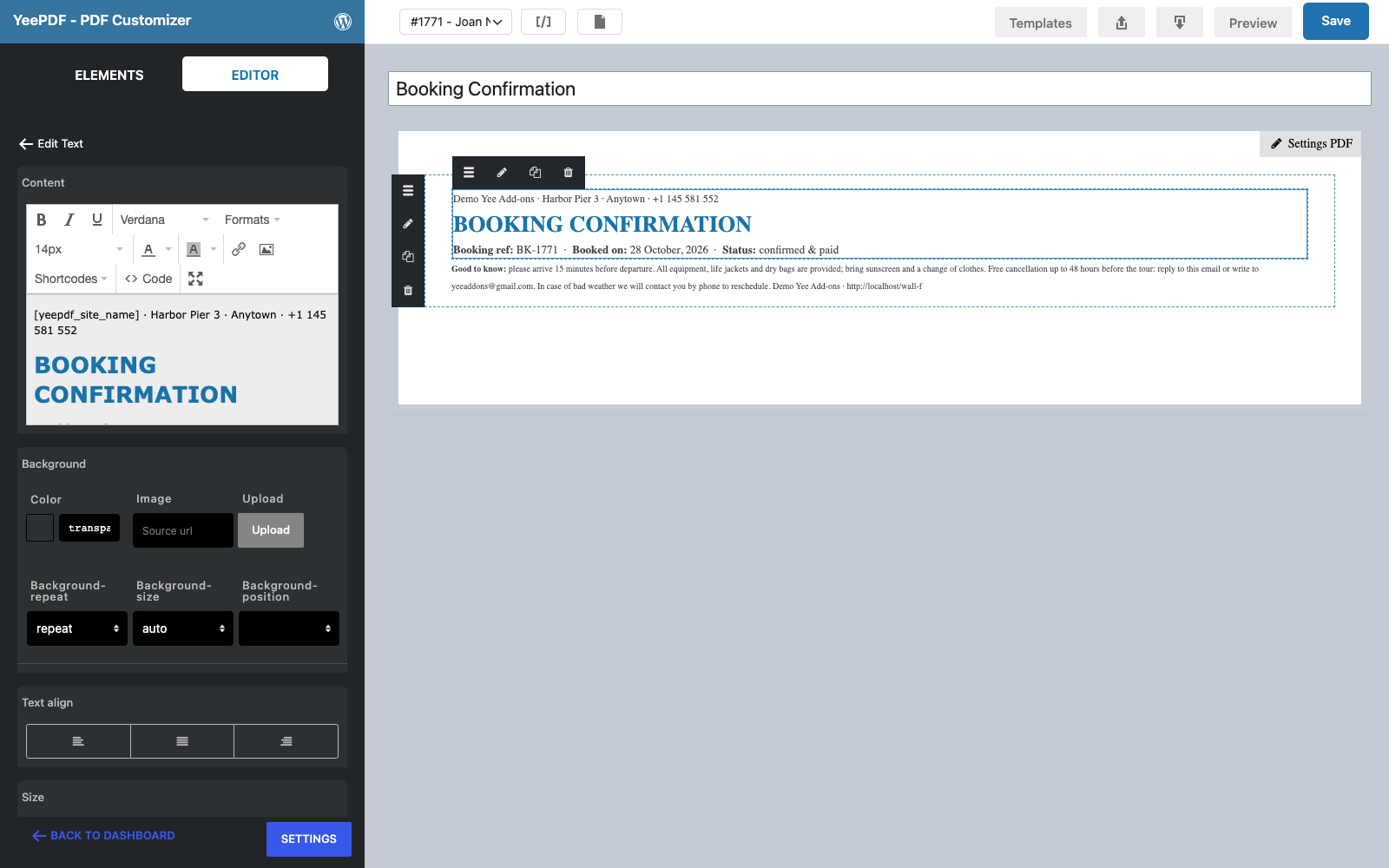
Step 4: Booking box
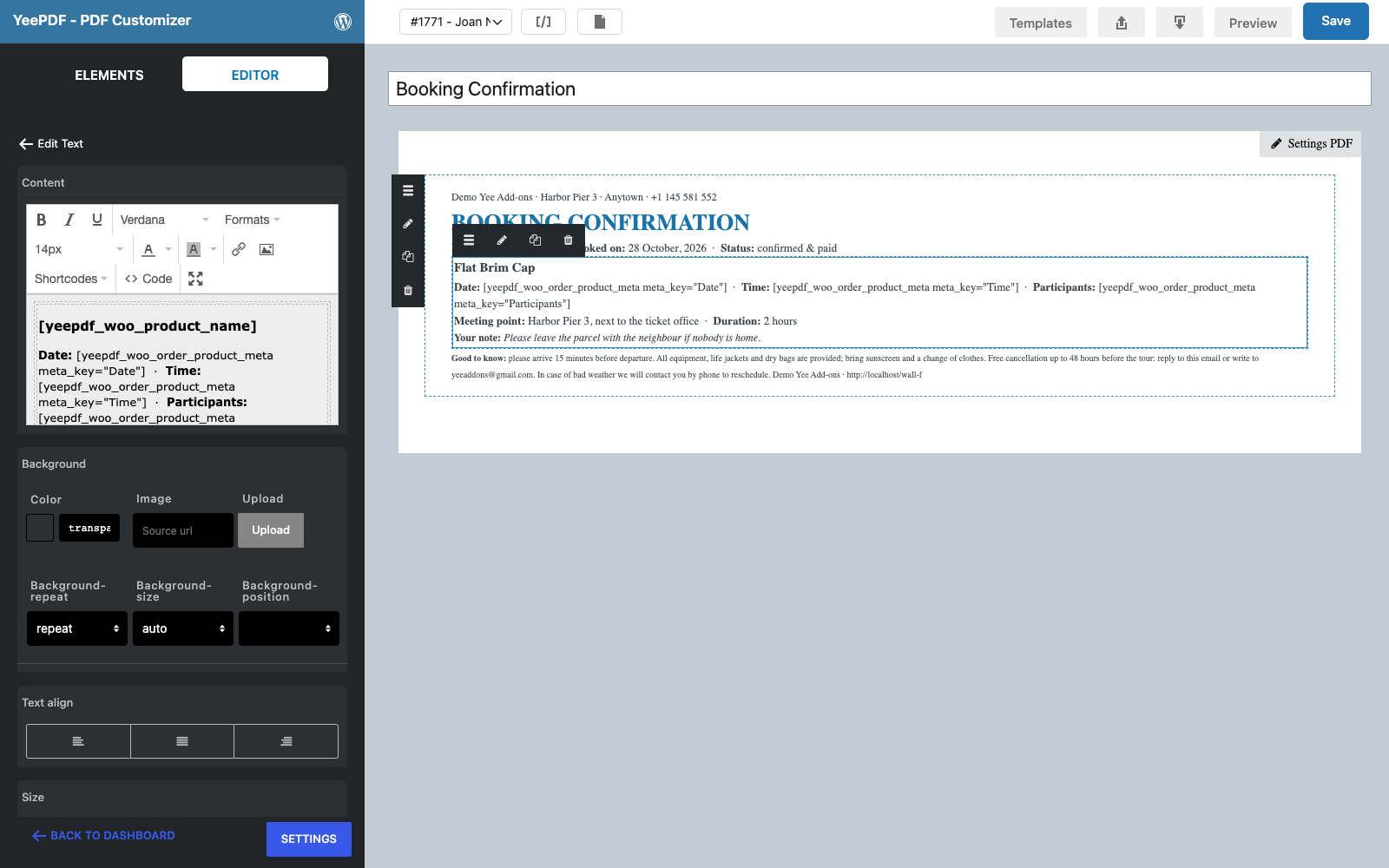
Drop another Text/HTML element onto the footer and switch the editor to Code view to paste a one-cell table with the box class, so the booking details sit in a tinted frame:
<table class="box" width="100%"><tr><td>
<p><strong>Dynamic Field for Elementor Forms Pro</strong></p>                                           ← 15 px
<p>Date:  · Time:  · Participants: </p>
<p>Meeting point: Harbor Pier 3, next to the ticket office · Duration: 2 hours</p>
<p>Your note: </p>
</td></tr></table>
On the canvas the sample order prints “Product meta Date” and so on, because the sample has no booking fields; a real booking fills them in.
Step 5: Booked by
Drop a Text/HTML element onto the footer:
Booked by: PIERLUIGI CIPRIANI · [email protected] · 3286550379
Amount paid: 19.00 USD by PayPal · 1 × ticket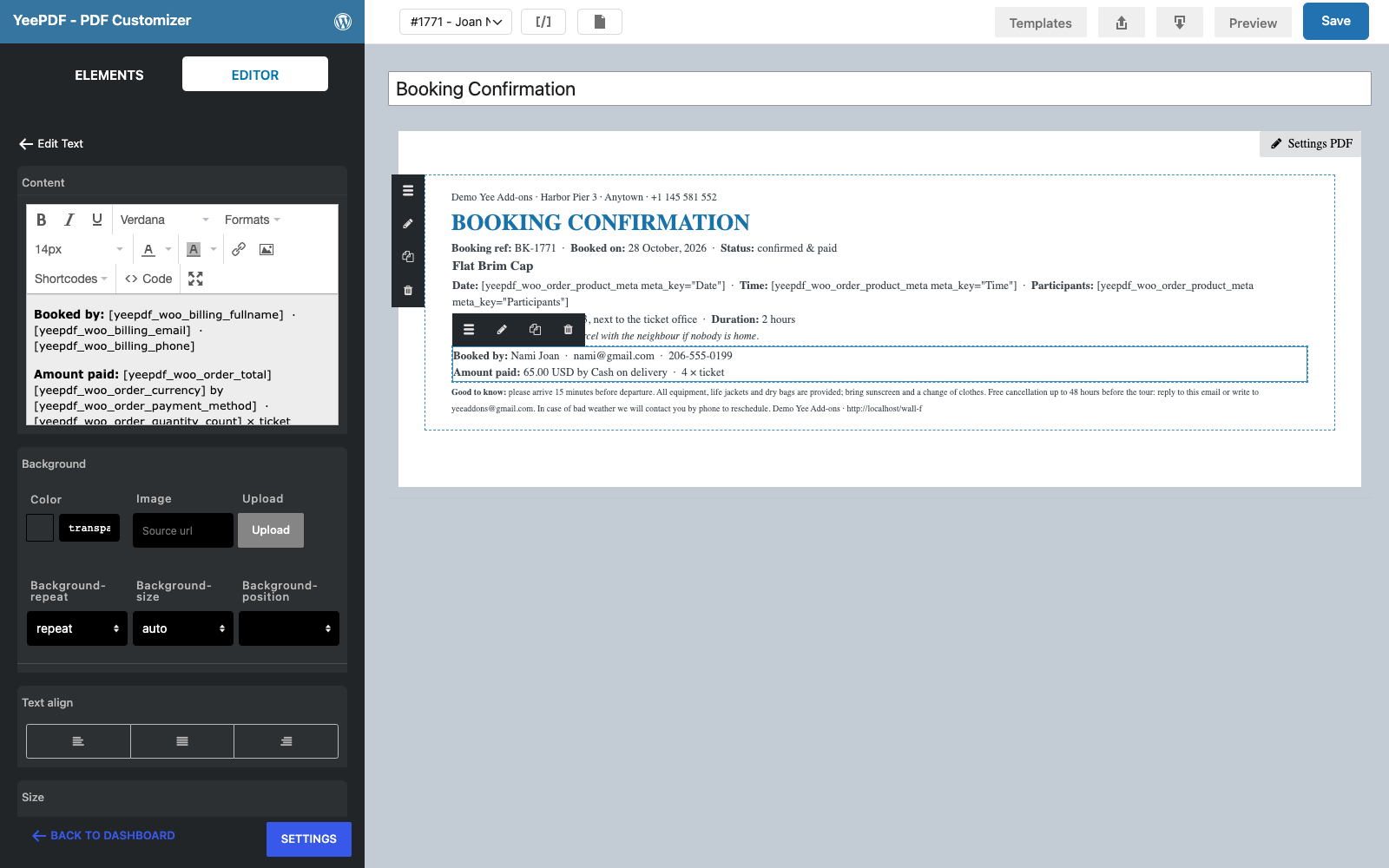
Step 6: Check-in code
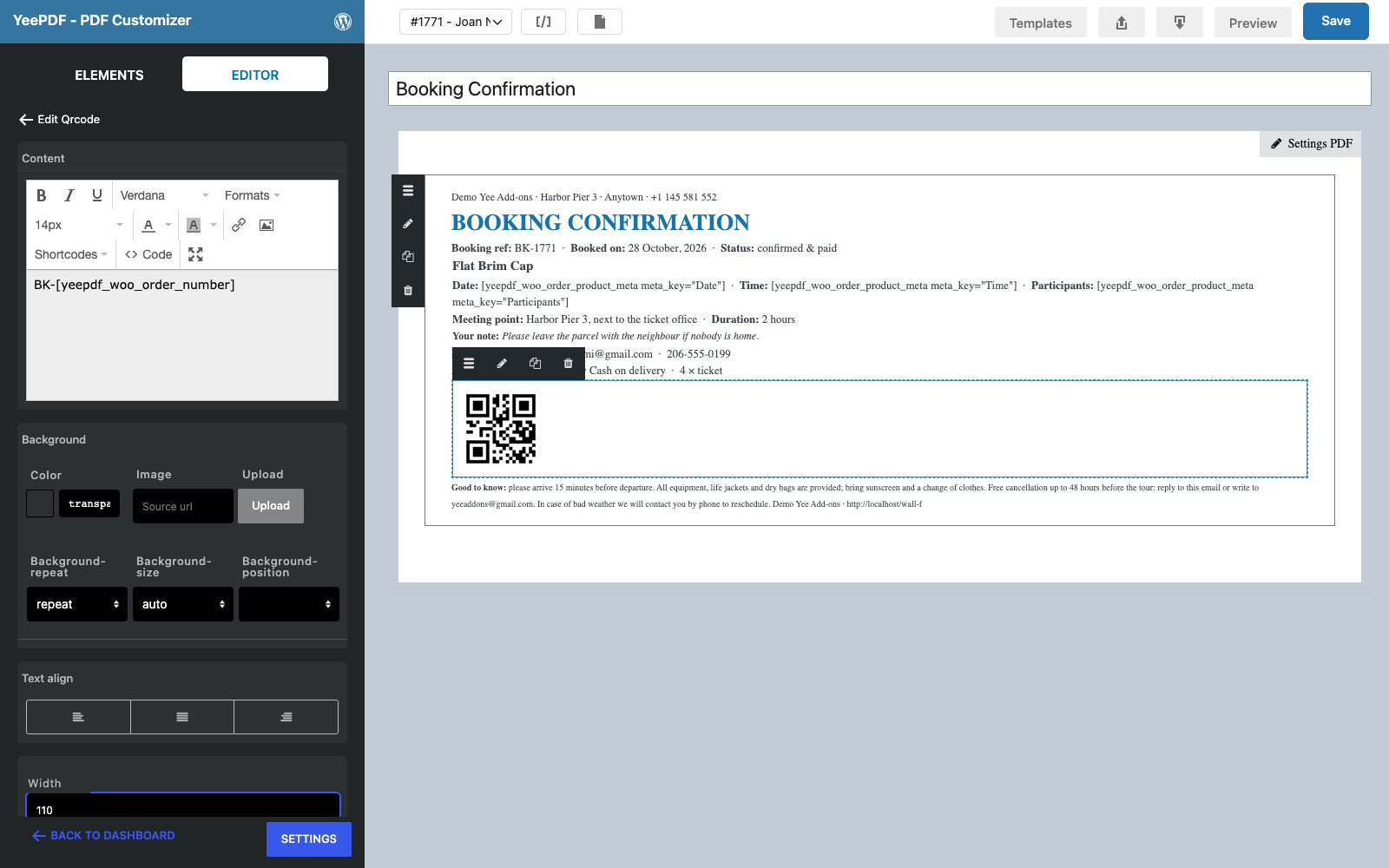
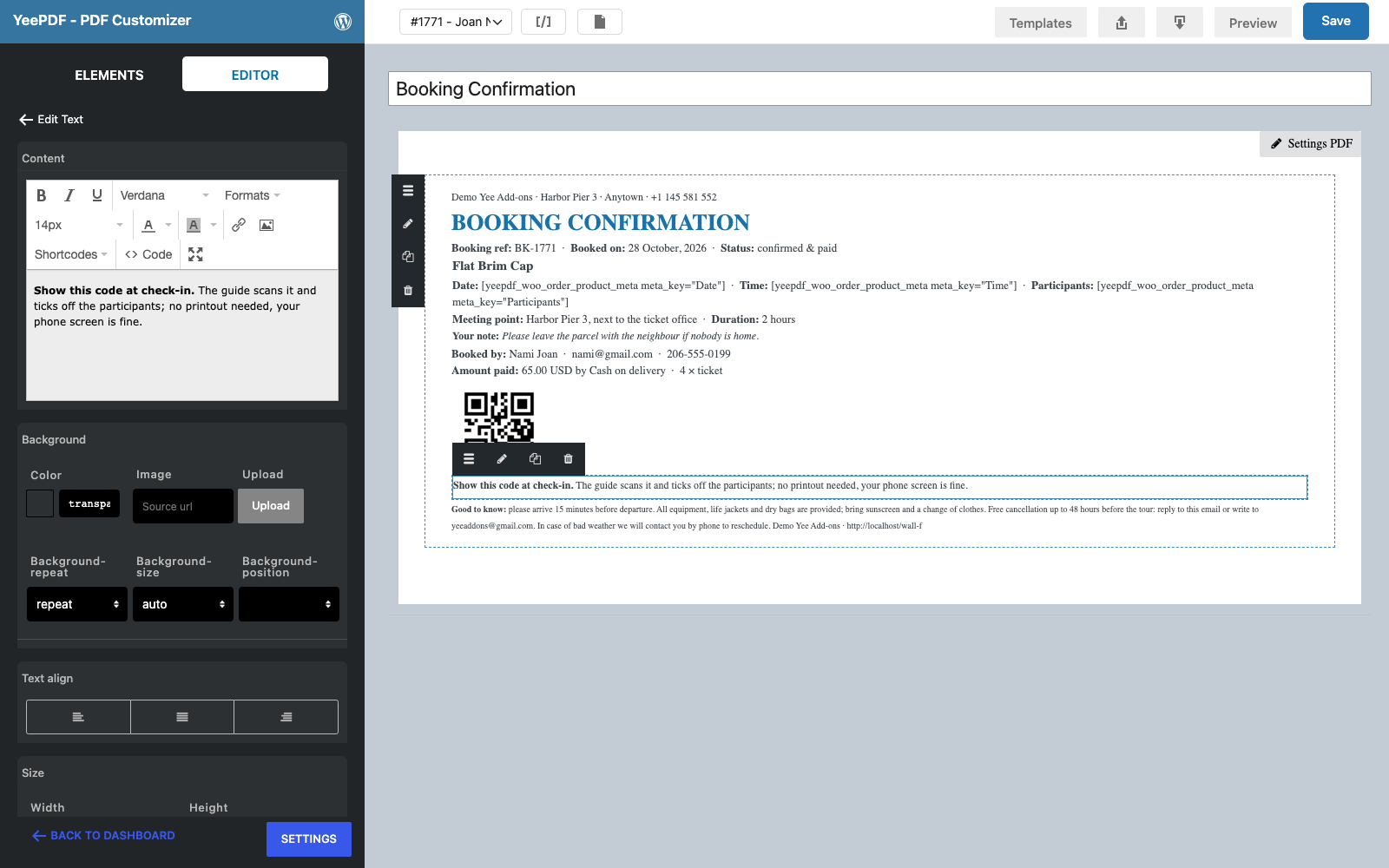
Drop the Qrcode element onto the footer, set its Content to BK-8448 and the Width to 110 px. Then drop a last Text/HTML element onto the footer: Show this code at check-in. The guide scans it and ticks off the participants; no printout needed, your phone screen is fine. Click Save.
3. Generate the Confirmation When the Booking Is Paid
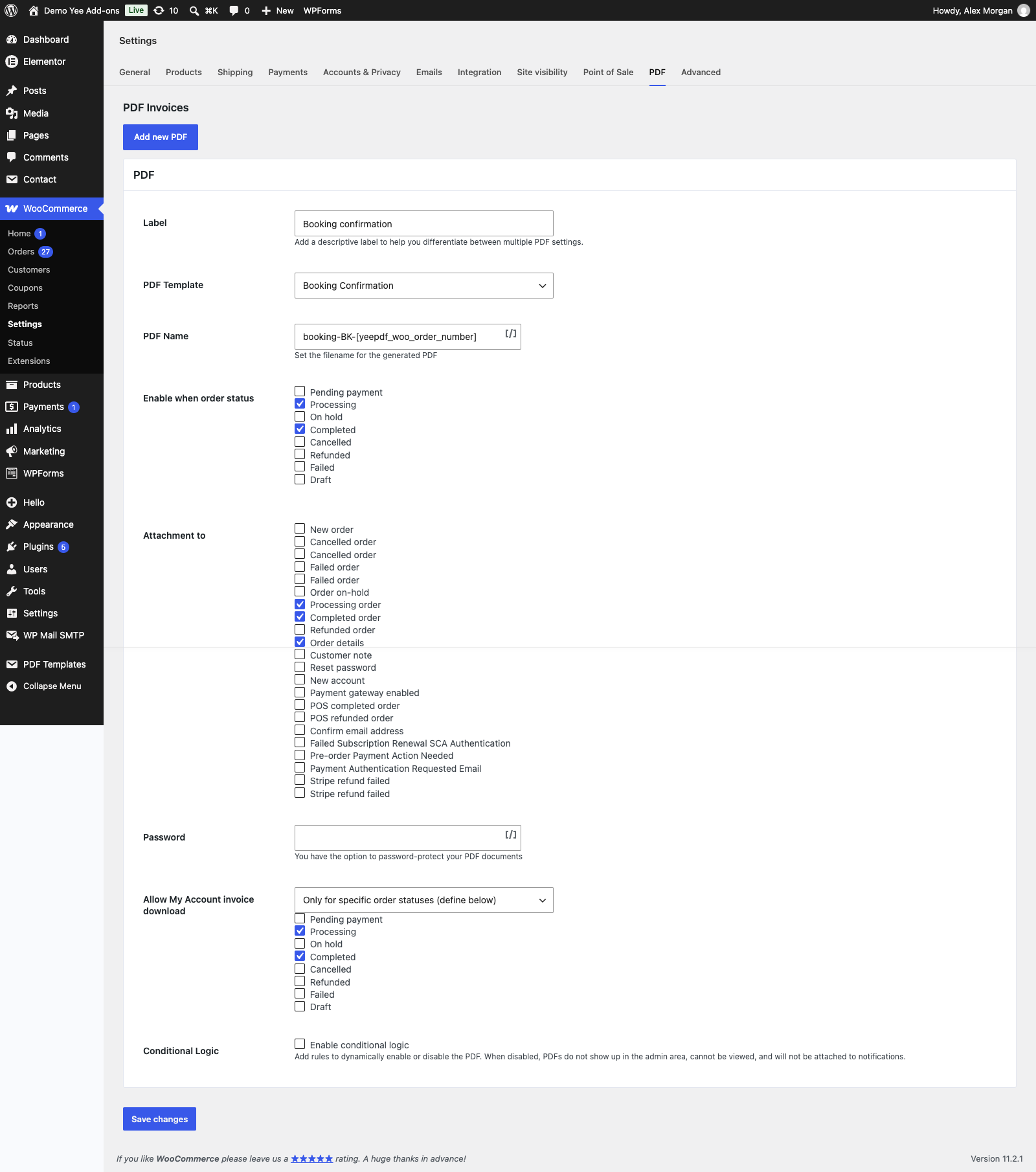
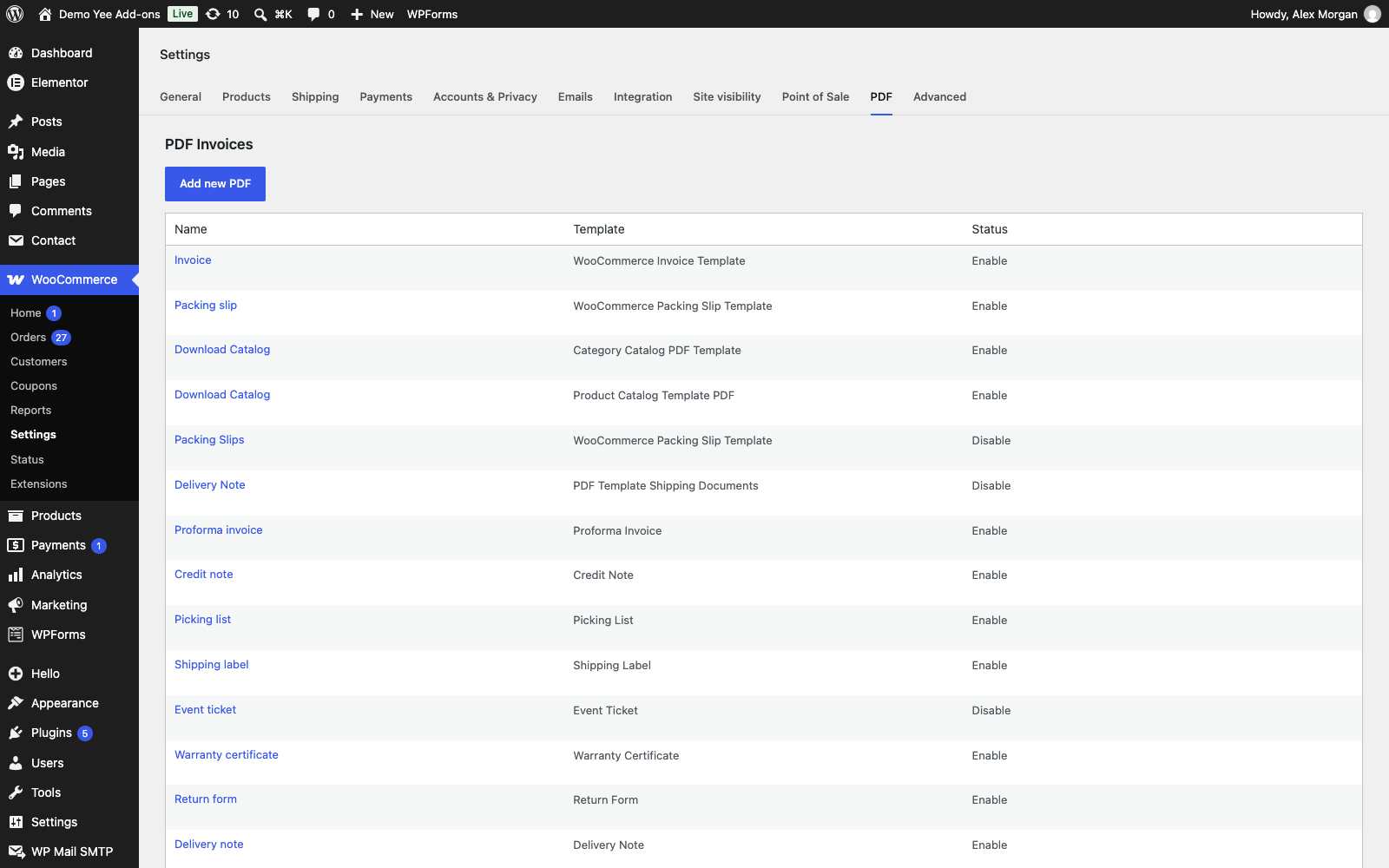
Go to WooCommerce → Settings → PDF → Add new PDF:
| Field | Value | Why |
|---|---|---|
| Enable this PDF | ticked | |
| Label | Booking confirmation | Button label in the admin and in My Account. |
| PDF Template | Booking Confirmation | The template from section 2. |
| PDF Name | booking-BK-8448 | e.g. booking-BK-1812.pdf |
| Enable when order status | Processing, Completed | A paid booking is Processing; virtual bookings may complete at once. |
| Attachment to | Processing order, Completed order, Order details | The confirmation rides on the “order received” email, right after payment. |
| Allow My Account invoice download | Only for specific order statuses → Processing, Completed | The customer can re-open it on the day. |
4. What the Customer Receives
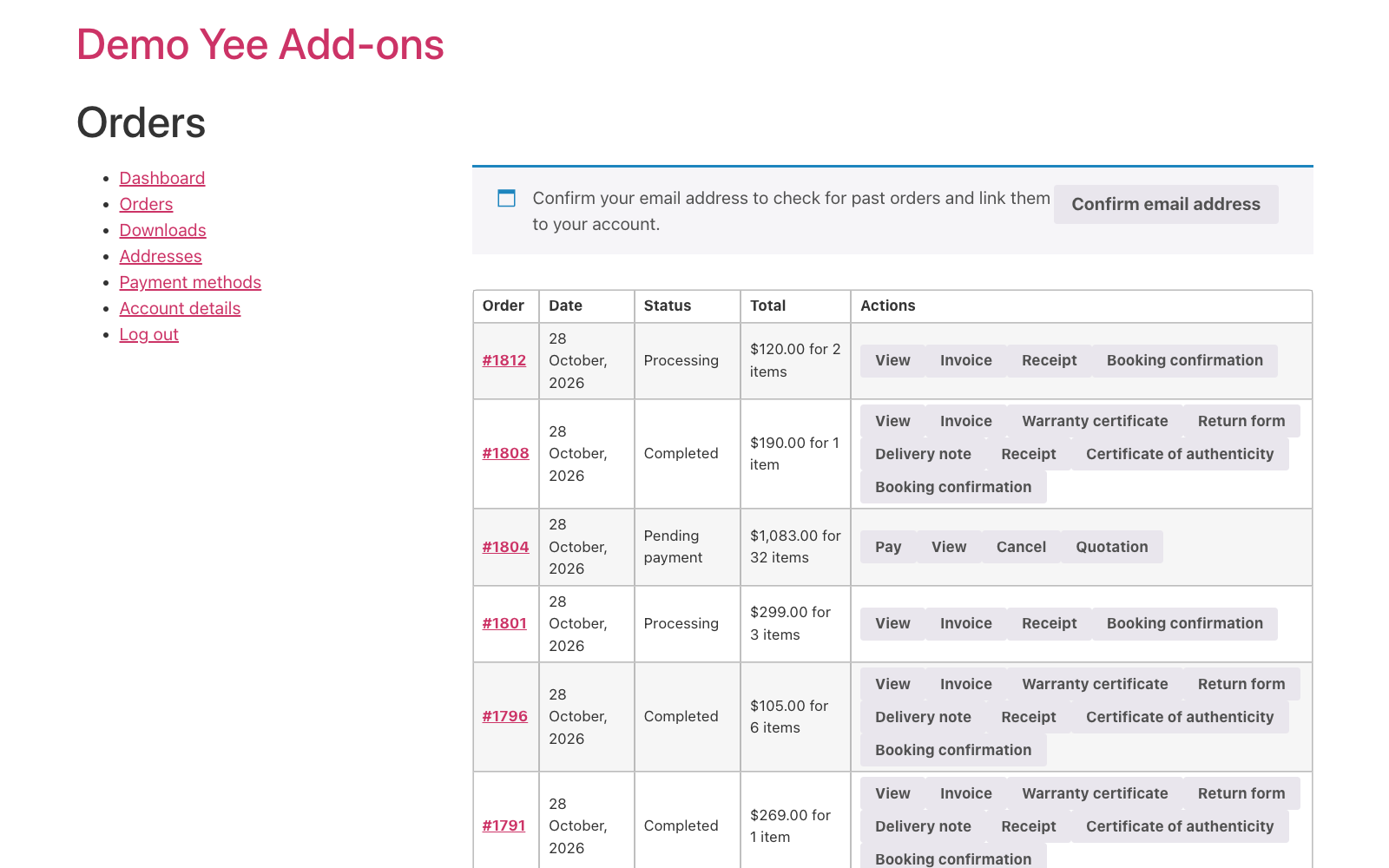
As soon as the payment is captured the order is Processing, the confirmation is generated and attached to the processing email. The customer also finds a Booking confirmation button in My Account → Orders and on the order page, handy on the day when the email is buried.
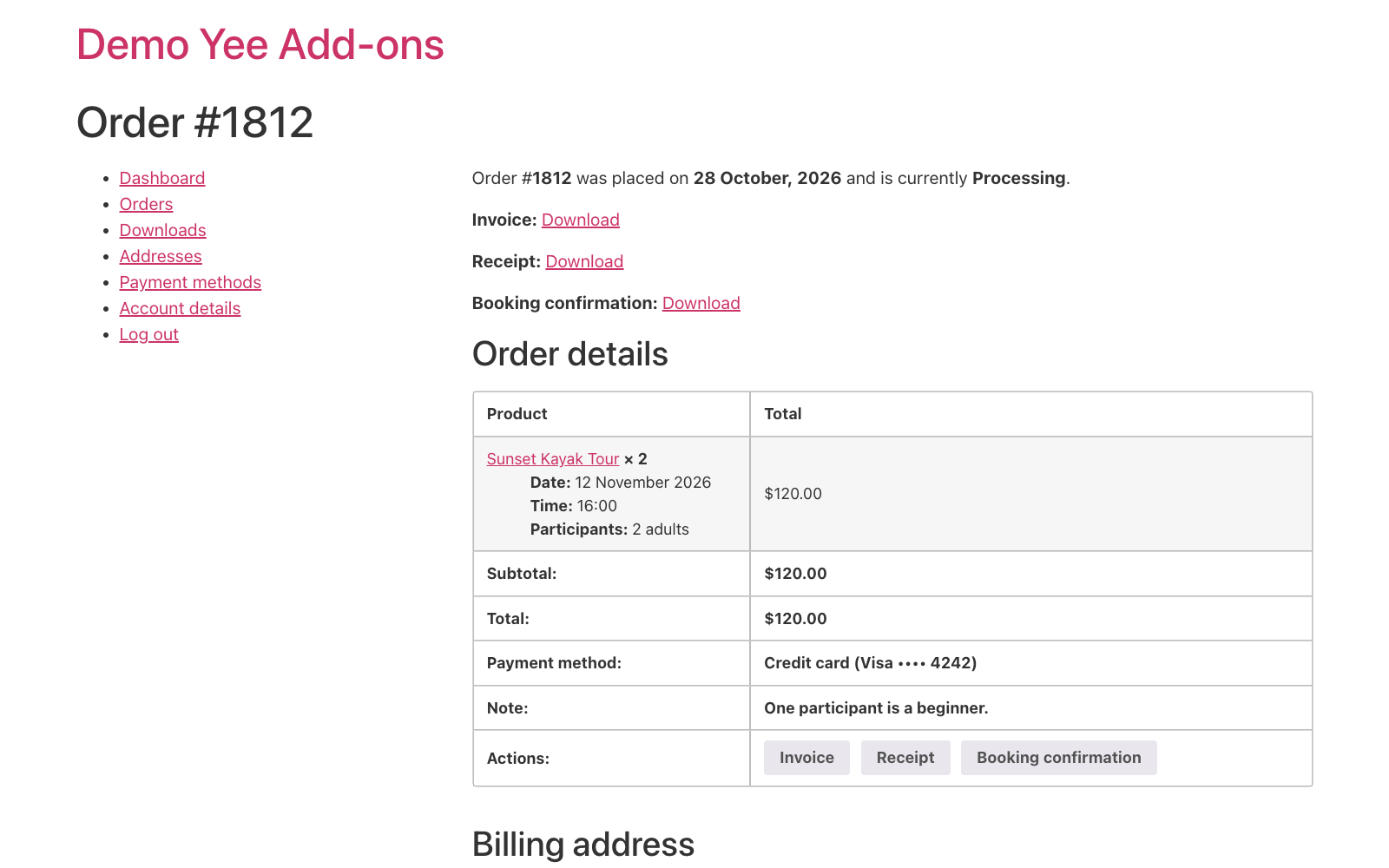
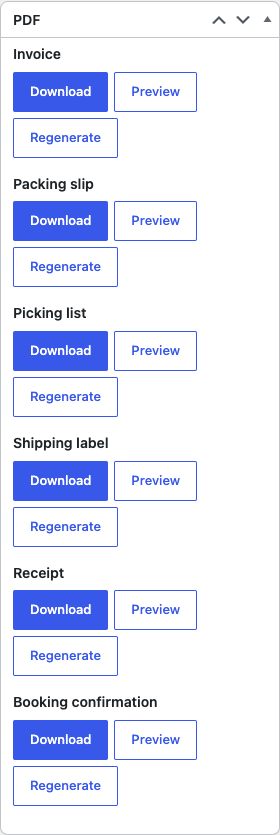
In the admin, the order screen lists it in the PDF box with Download, Preview and Regenerate; the item meta that feeds the template is shown under the product line of the order.
5. At Check-in
- Scan the QR code with a phone or scanner: it returns
BK-1812, the order number. - Open the order (search the number in WooCommerce → Orders), check the participants and add an order note “checked in”; mark the order Completed after the tour.
- For a daily list, filter processing orders and use the bulk action Download PDF – Booking confirmation: one PDF with one confirmation per booking.
6. Tips
- Meta key names: open a real booking order and copy the labels under the product line exactly (case and spaces matter); booking plugins often use names such as “Booking Date” or “booking_date”.
- Several bookings in one order: the product meta tag prints the first item. Sell one booking per order, or list the items with the Order Detail table (it prints product and quantity, not the item meta).
- Calendar link: add a text line with a link to your “add to calendar” page or to the venue map in Google Maps.
- Rentals: the same template with “Pick-up” and “Return” meta keys becomes a rental confirmation; add a deposit line from an order meta field.
- Reminders: the confirmation is attached to WooCommerce emails only; for a reminder the day before, send it from the order screen with Send order details to customer.
- Regenerate: after editing the template, click Regenerate on an order; emails attach the stored file.
7. Frequently Asked Questions (FAQ)
Which booking plugins work?
Any that saves the booking data as order item meta: the fields appear under the product on the order screen. Fields stored elsewhere (a separate booking post) are not reachable with merge tags.
Why does the canvas show “Product meta Date”?
The builder’s sample order has no booking fields, so the tag prints its own name. Preview or download the PDF for a real booking, or change the sample order in the toolbar to a booking order.
Can the QR code hold the date too?
Yes, the content is free text: BK-8448 works, as does the order link.
Can I print one confirmation per participant?
The plugin creates one PDF per order. Print the quantity on the confirmation, or sell one ticket per order.
What happens if the customer changes the date?
Edit the item meta on the order, then click Regenerate on the confirmation and re-send it with Send order details to customer.