
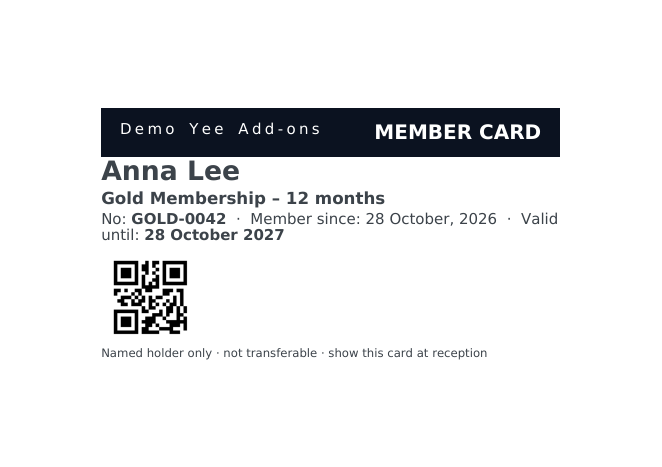
Gyms, clubs, co-working spaces, libraries and loyalty programmes sell memberships through WooCommerce as simple (virtual) products or subscriptions. What the new member wants in return is a membership card: their name, the plan, a member number, the validity and a code the front desk can scan. With PDF Invoice for WooCommerce + Drag and Drop Template Builder (plugin slug pdf-for-woocommerce, by add-ons.org) the card is an A7 landscape PDF (105 × 74 mm, a bit larger than a credit card) generated when the membership order is completed, emailed to the member and always available in My Account, so a lost card is a download away. This guide builds it from a blank template; the member number and the expiry date come from two order meta fields. The event ticket guide and the booking confirmation guide cover the other QR-code documents.
Video tutorial
1. What the Card Contains
| Block | Content | Merge tags |
|---|---|---|
| Band | Store name and “MEMBER CARD” on a dark strip | Yee Add-ons in a one-row table with the band class |
| Member | Member name (large), plan, member number, member since, valid until | PIERLUIGI CIPRIANI, Dynamic Field for Elementor Forms Pro, August 28, 2026, |
| QR code | The member number, scanned at reception | |
| Footer | Holder-only notice | static text |
The member number and the expiry date are order meta fields. A membership or subscription plugin usually writes such fields to the order; if yours does not, add them yourself with the Custom Fields box on the order screen (keys membership_number and membership_valid_until in this guide), or print the user ID with [yeepdf_woo_user_id] and the order date with a fixed “valid 12 months” text instead.
2. Build the Card Template
Builder note: a new element is inserted just above the element you drop it on. Create the footer first and drop every other block onto it in reading order.
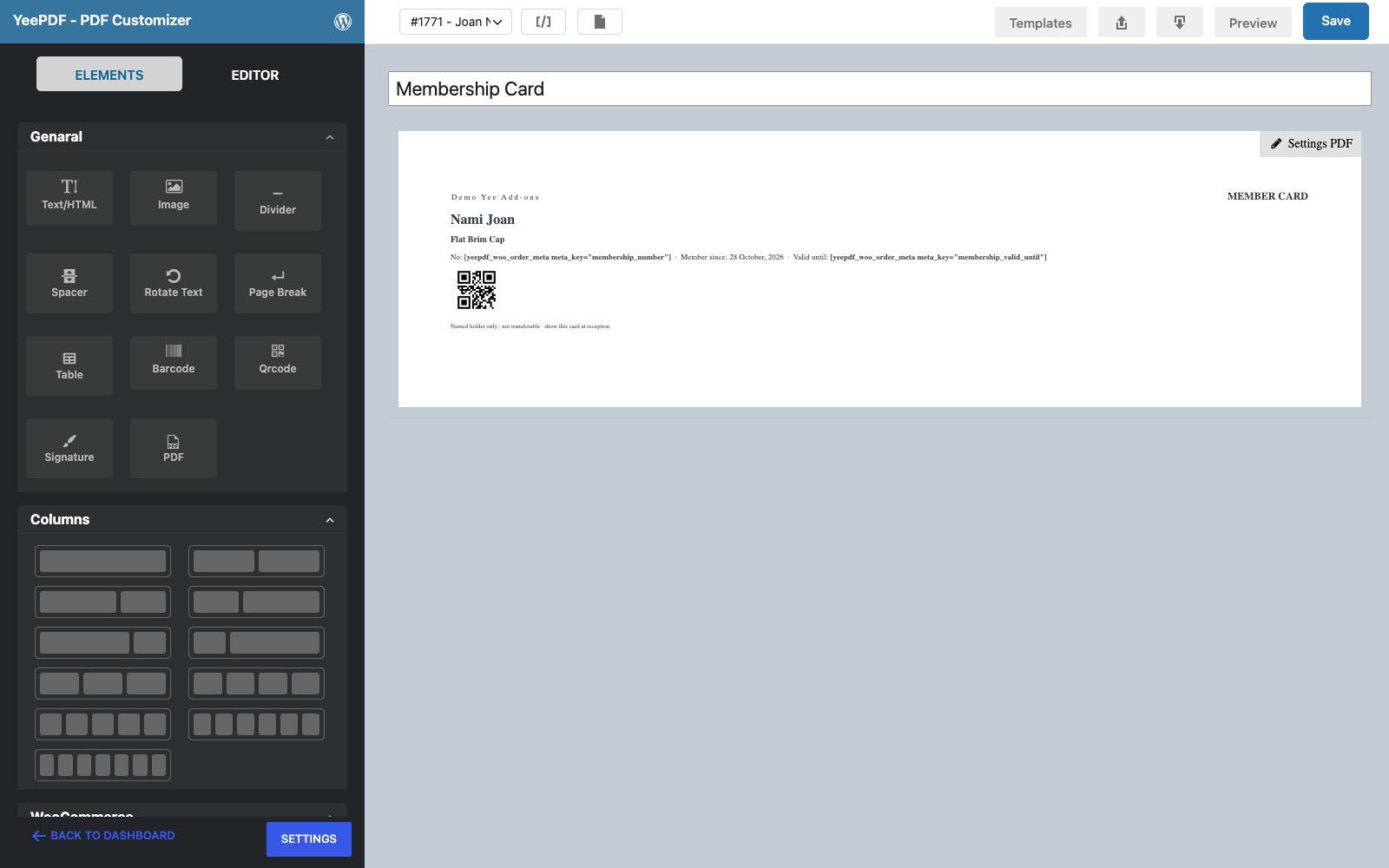
Step 1: New template, A7 landscape
Go to PDF Templates → New Template and name it Membership Card. Click Settings PDF, set Orientation to Landscape and Paper Size to A7, and paste this under Custom CSS (the band class styles the dark strip):
p { margin: 0 0 2px; }
.band { background: #0b1220; color: #ffffff; padding: 4px 8px; }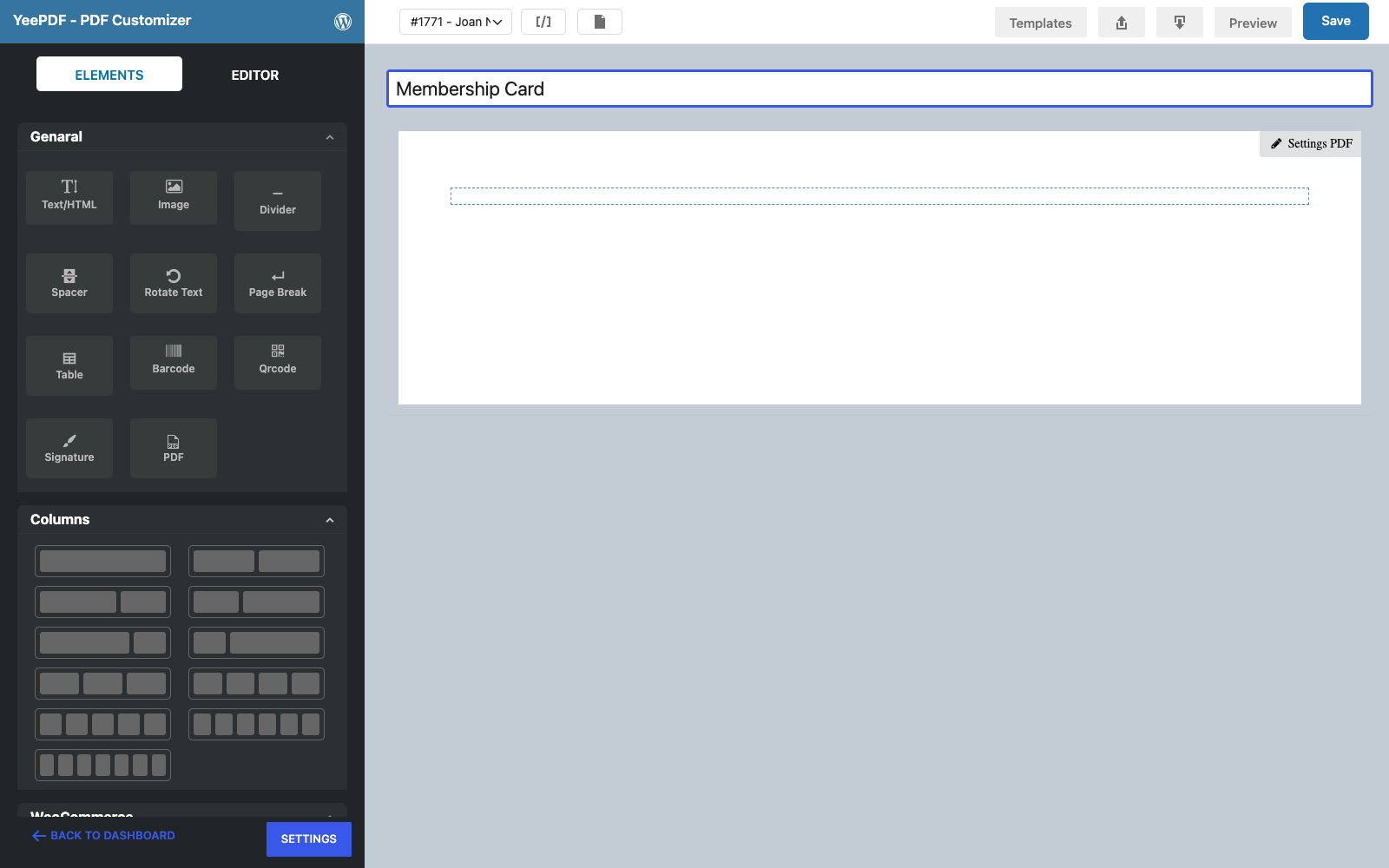
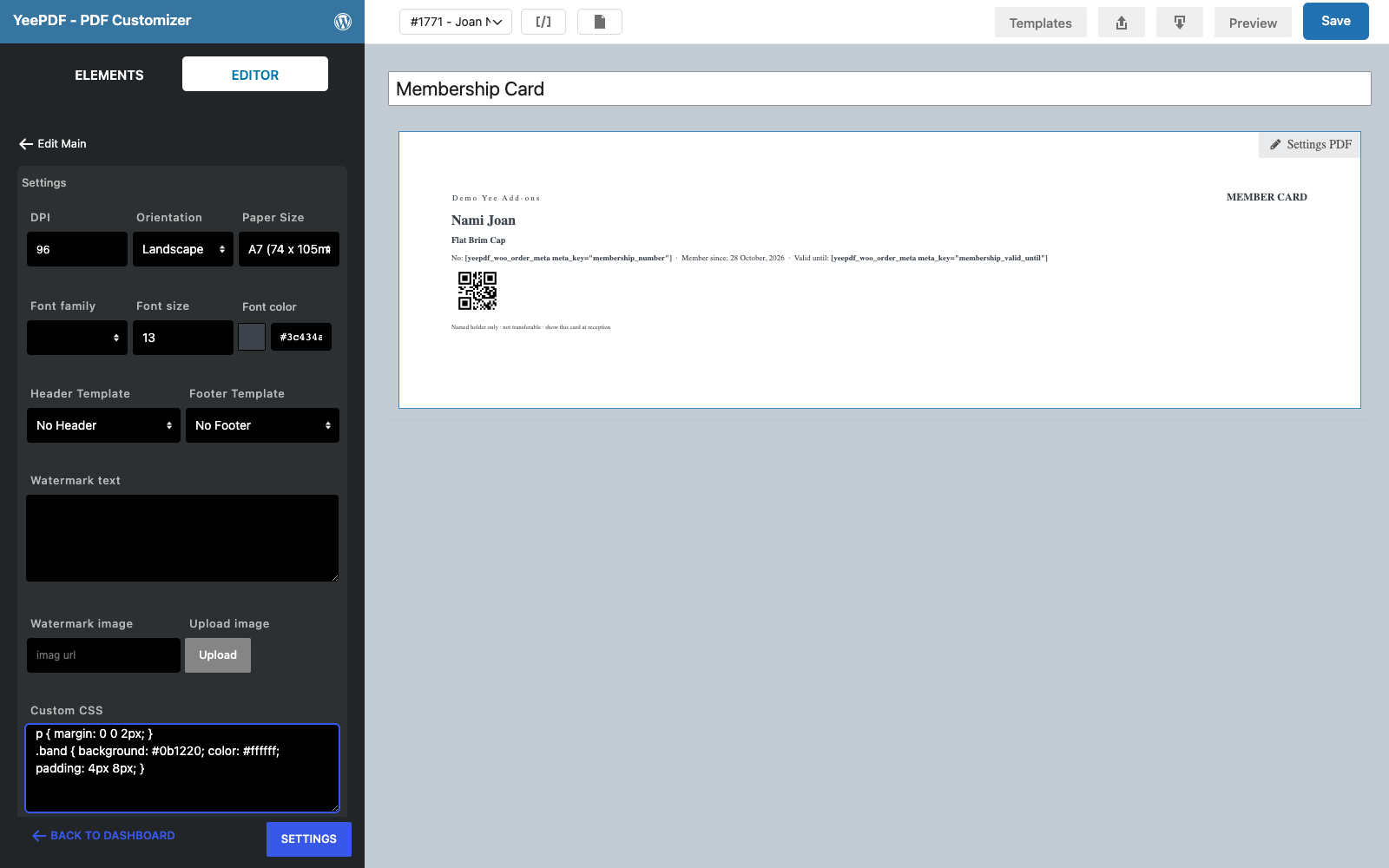
Step 2: Footer
Drag a Text/HTML element into the row and type, in 7 px: Named holder only · not transferable · show this card at reception. Everything on a card this small is 7 to 16 px.
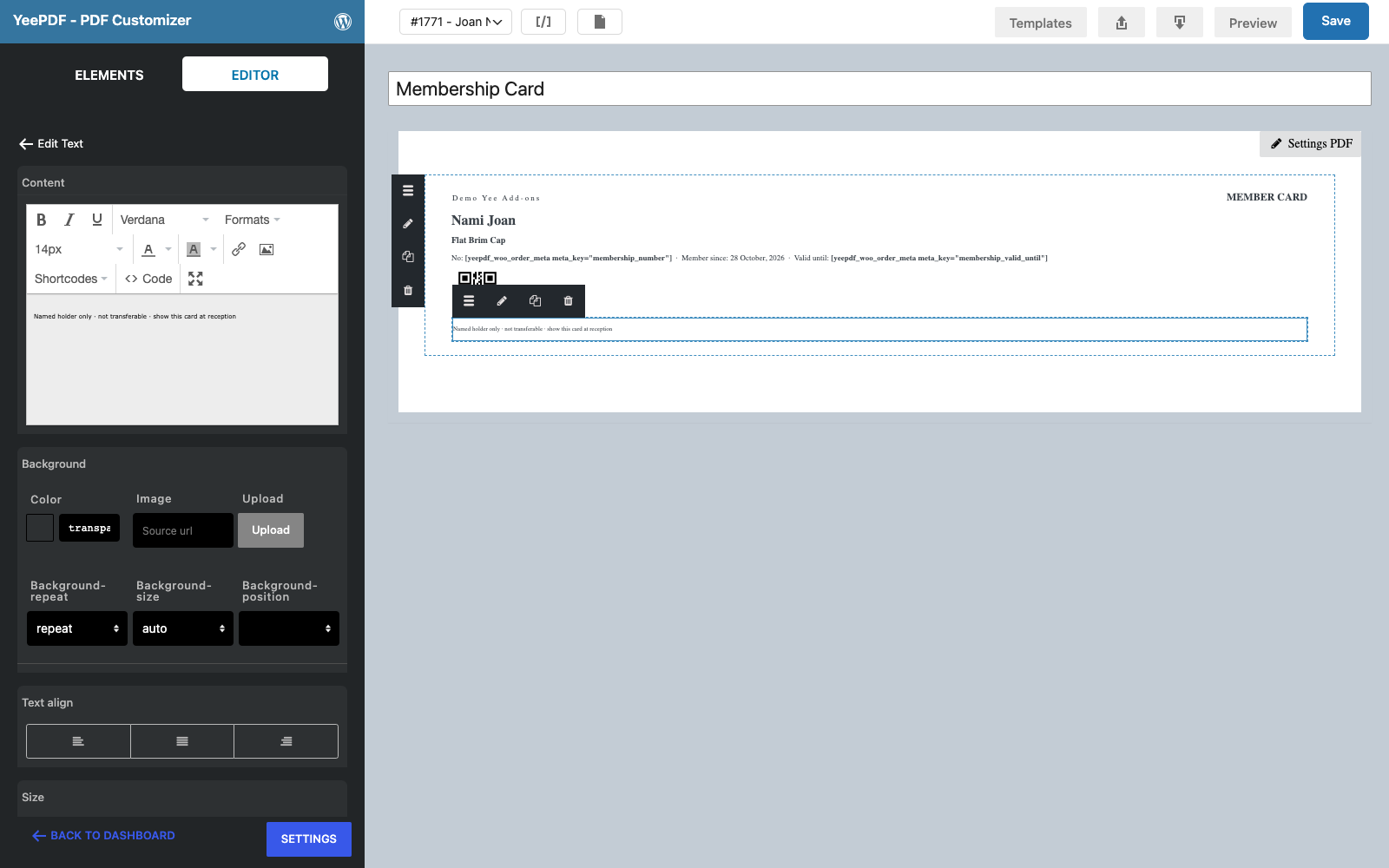
Step 3: Band
Drop a Text/HTML element onto the footer and, in the editor’s Code view, paste a one-row table with the band class:
<table class="band" width="100%"><tr>
<td><span style="font-size: 9px; letter-spacing: 2px;">Yee Add-ons</span></td>
<td align="right"><span style="font-size: 12px;"><strong>MEMBER CARD</strong></span></td>
</tr></table>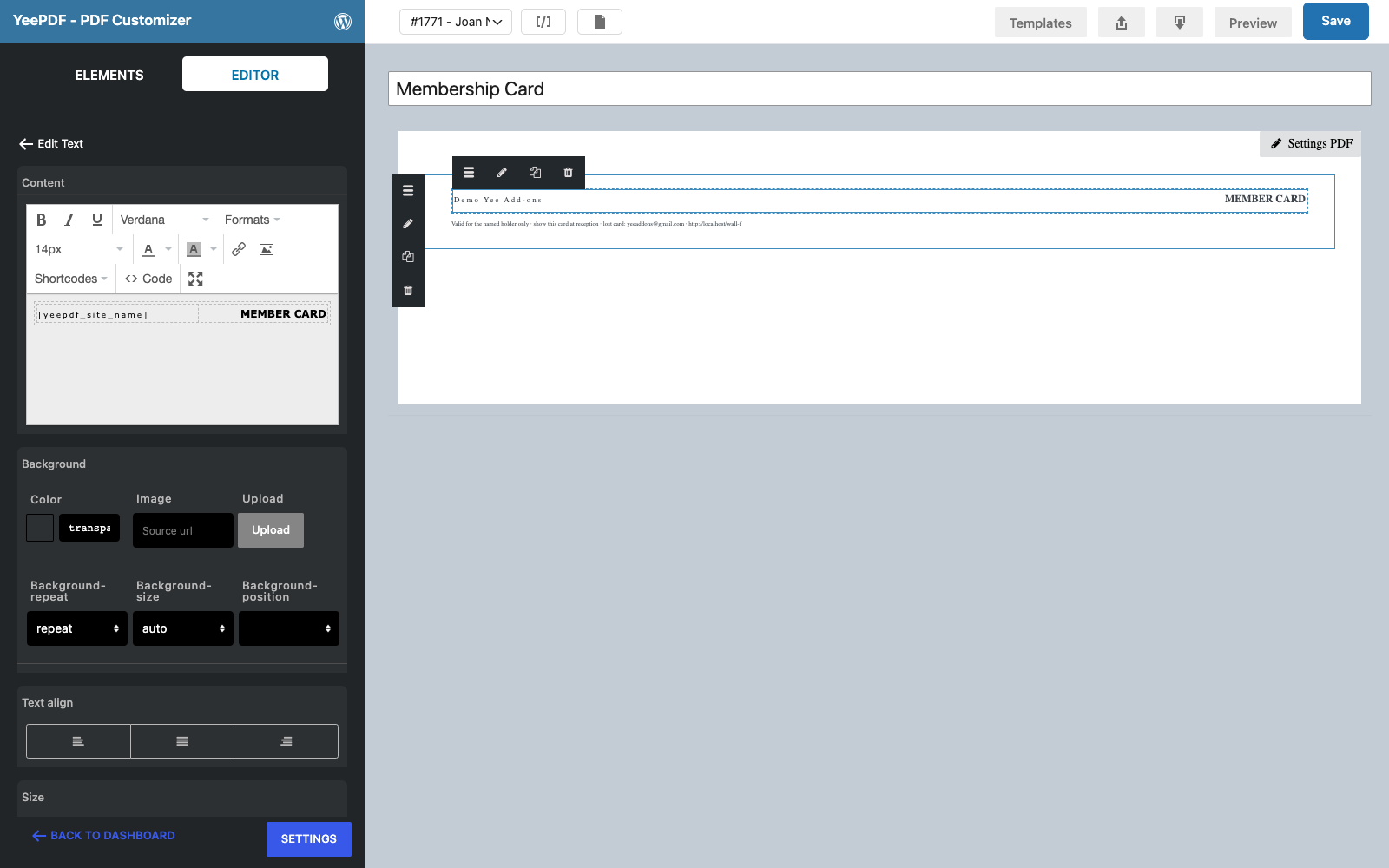
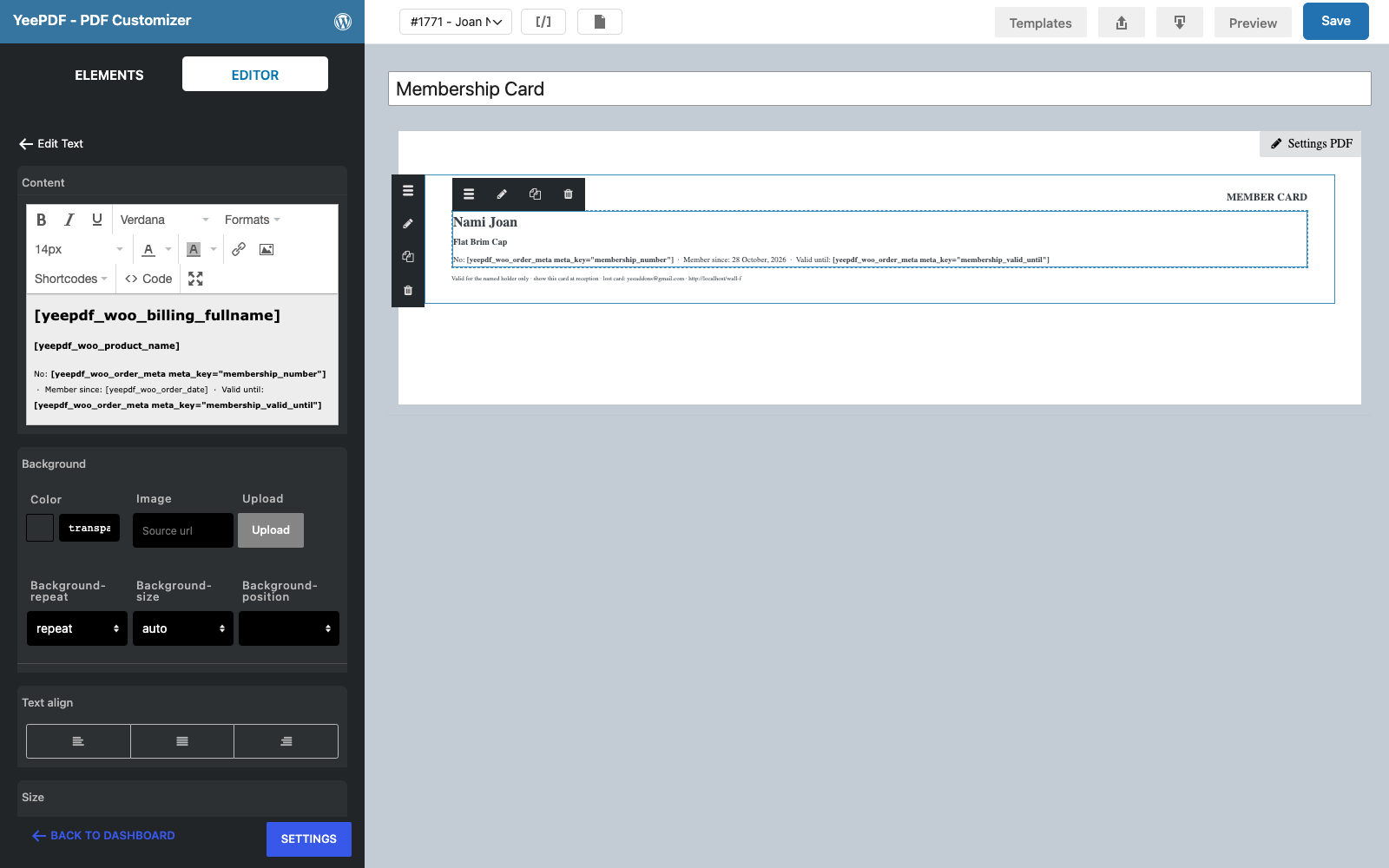
Step 4: Member block
Drop another Text/HTML element onto the footer:
PIERLUIGI CIPRIANI                                                   ← 16 px bold
Dynamic Field for Elementor Forms Pro                                                       ← 10 px bold
No:  · Member since: August 28, 2026 · Valid until:    ← 9 px
On the canvas the sample order prints “Order meta membership_number” because it has no such field; a real membership order fills it in.
Step 5: QR code
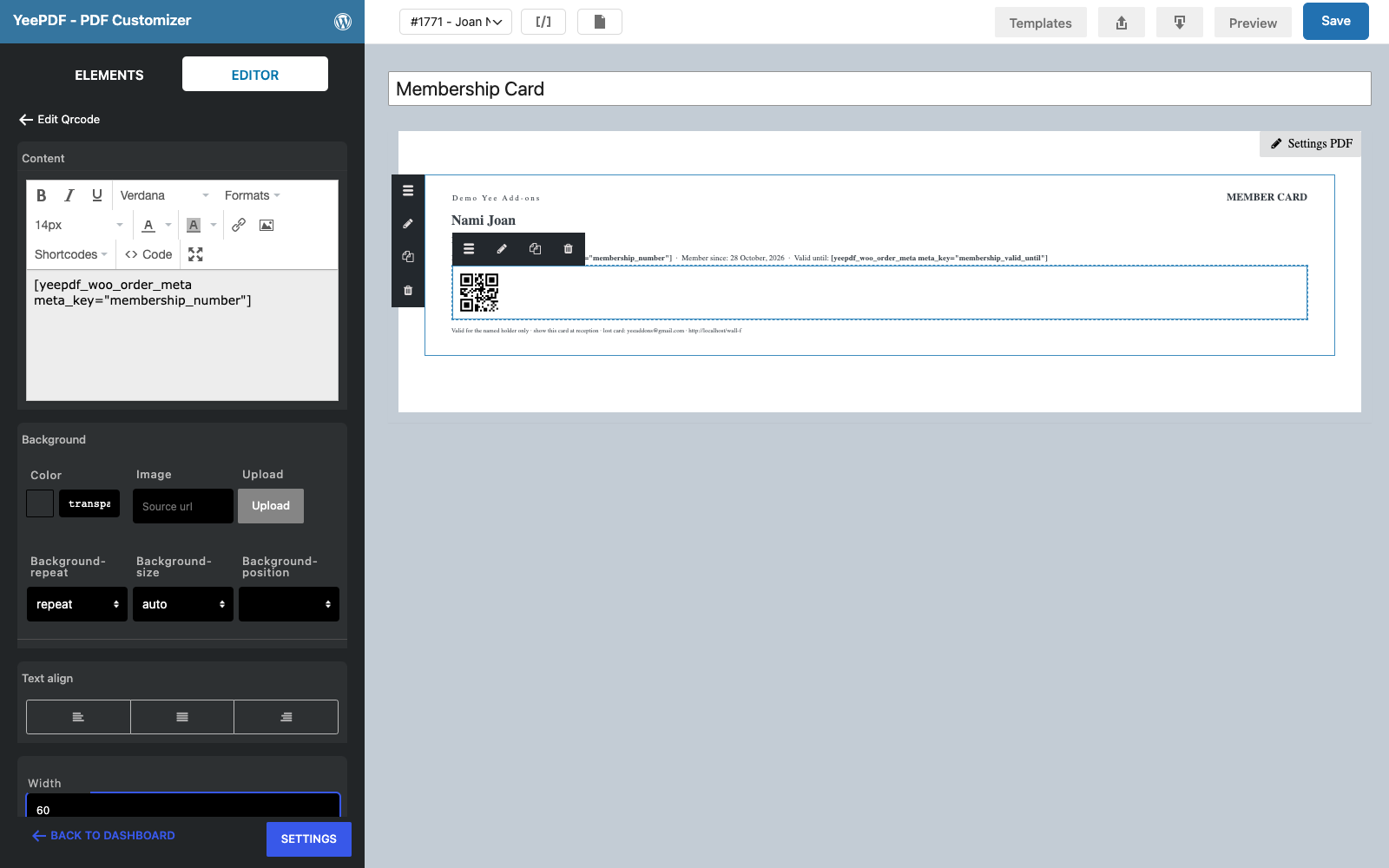
Drop the Qrcode element onto the footer, set its Content to and the Width to 60 px. The reception scans the card and gets the member number; use [yeepdf_woo_user_id] or the member’s email as content if your check-in app looks members up that way. Click Save.
3. Generate the Card When the Membership Starts
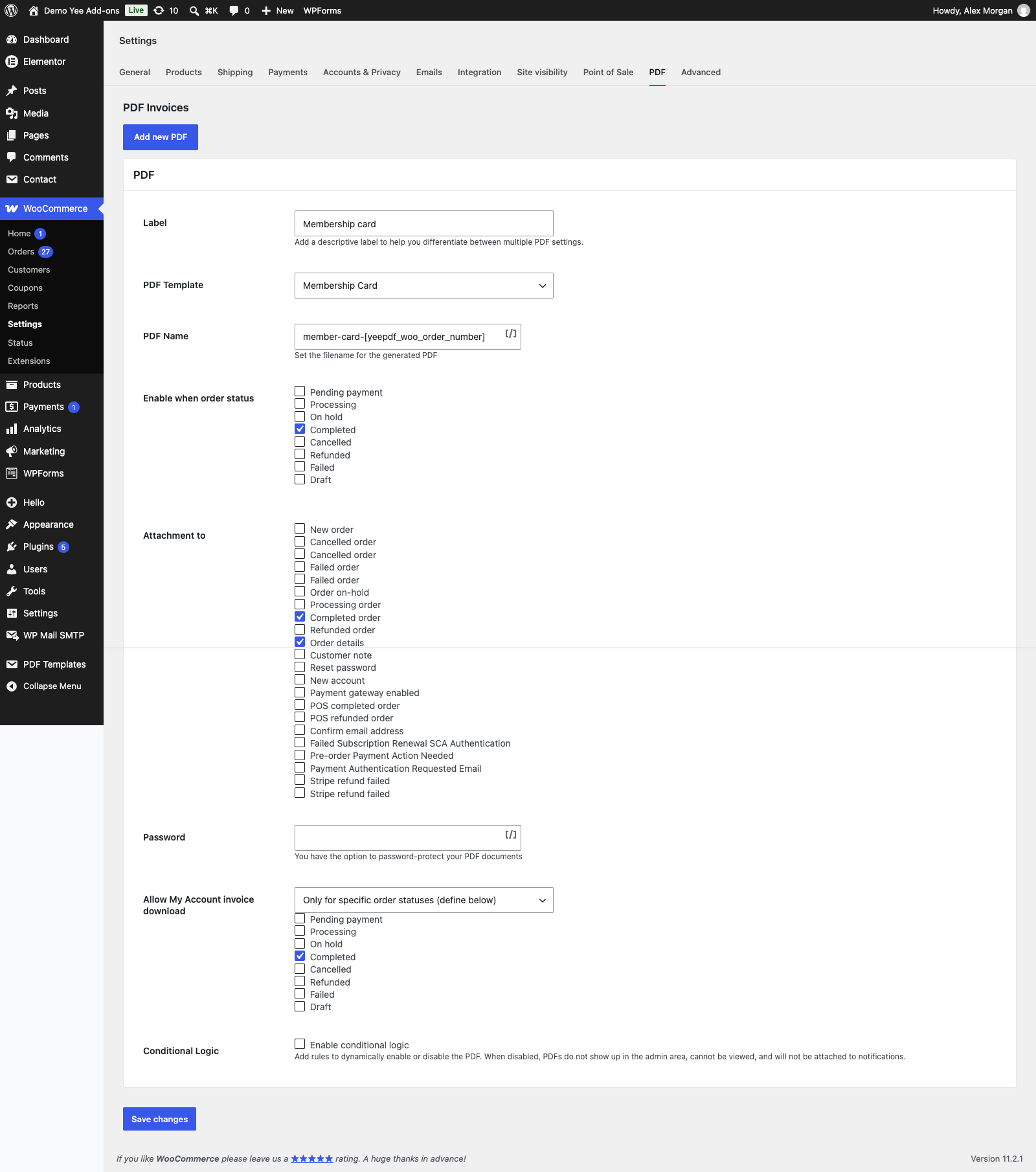
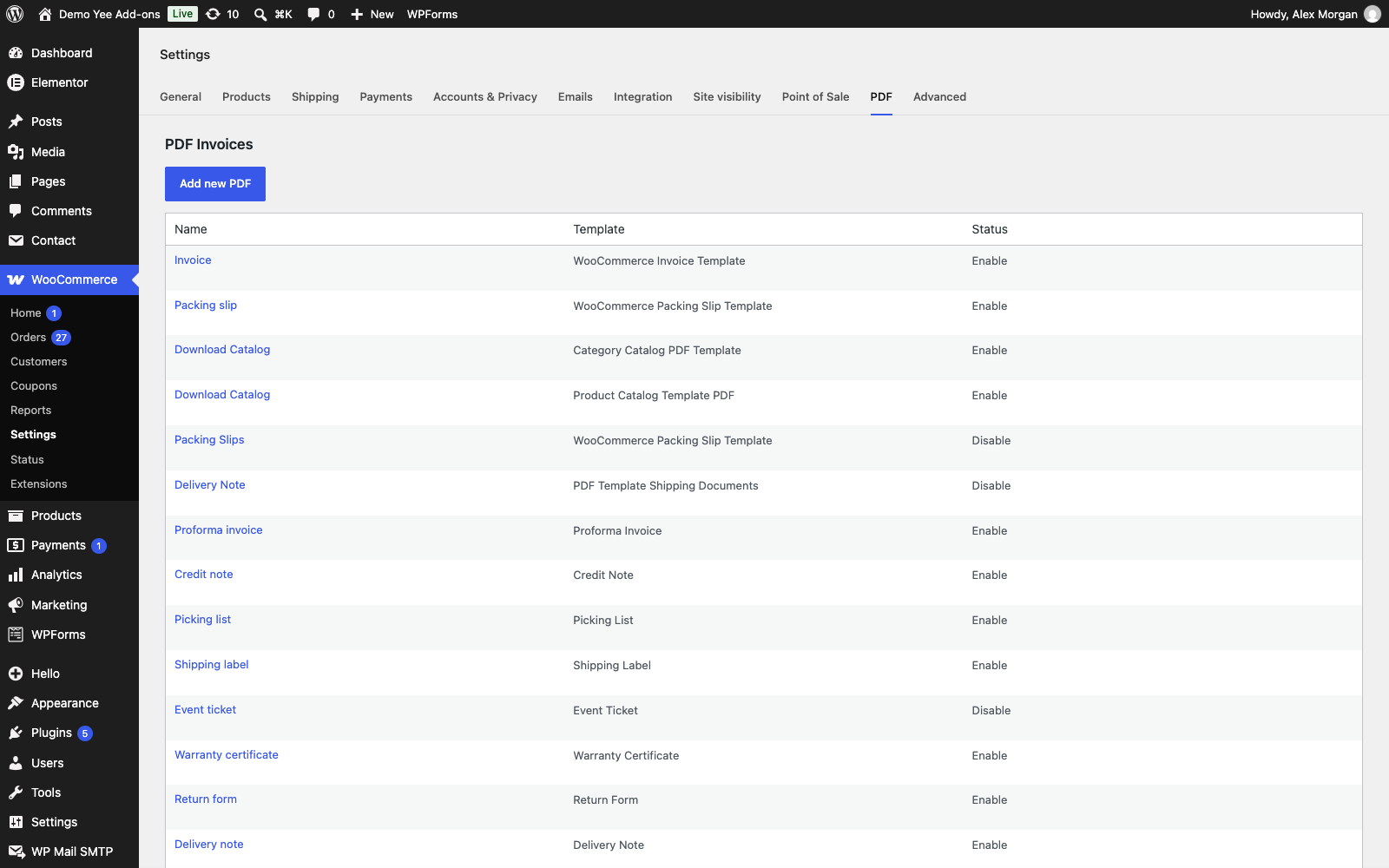
Go to WooCommerce → Settings → PDF → Add new PDF:
| Field | Value | Why |
|---|---|---|
| Enable this PDF | ticked | |
| Label | Membership card | Button label in the admin and in My Account. |
| PDF Template | Membership Card | The template from section 2. |
| PDF Name | member-card-8448 | e.g. member-card-1816.pdf |
| Enable when order status | Completed | Mark the order complete when the membership is activated (and the meta fields are filled). |
| Attachment to | Completed order, Order details | The card travels with the “order complete” email; re-send it from the order screen any time. |
| Allow My Account invoice download | Only for specific order statuses → Completed | A lost card is a download away. |
4. What the Member Receives
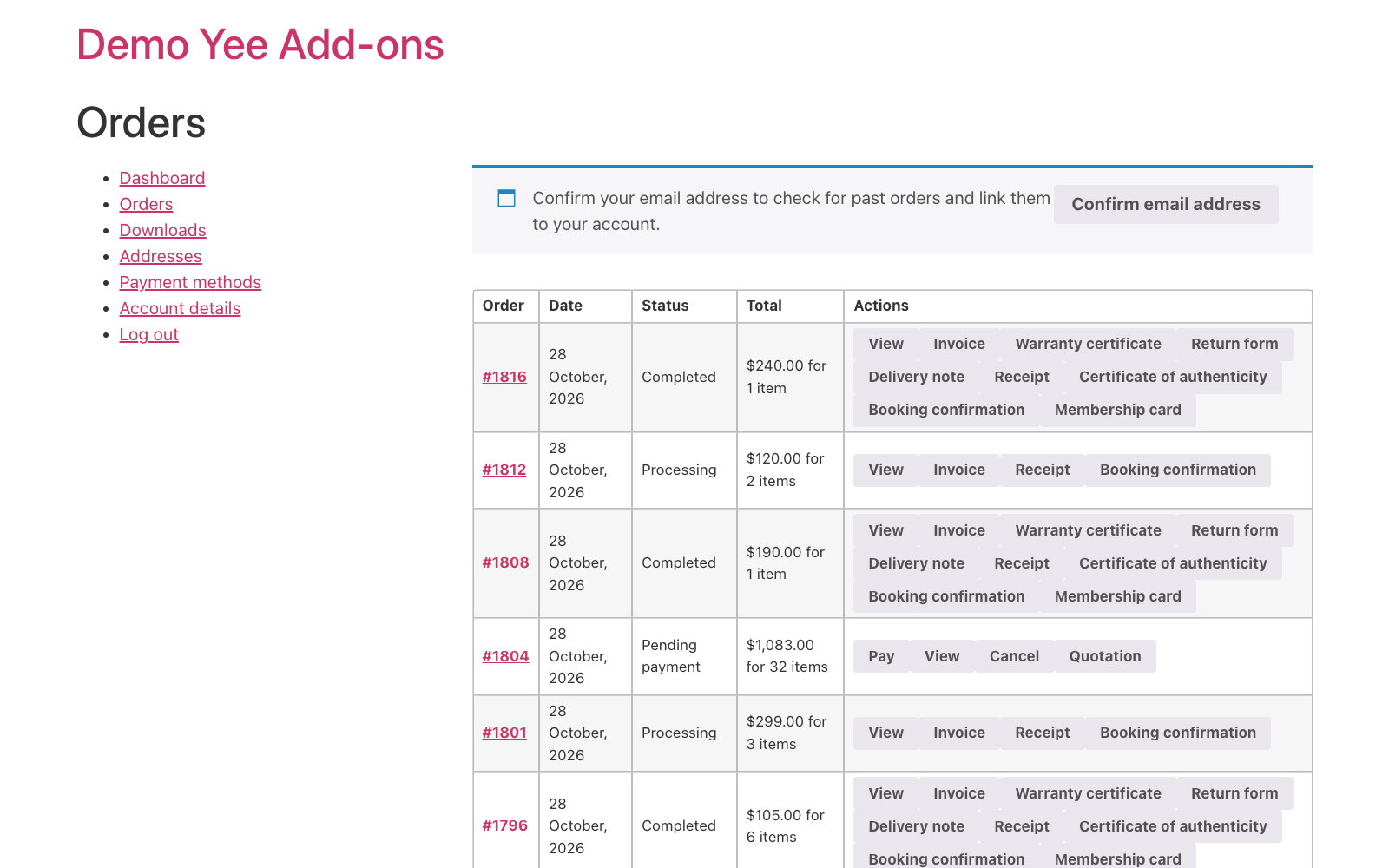
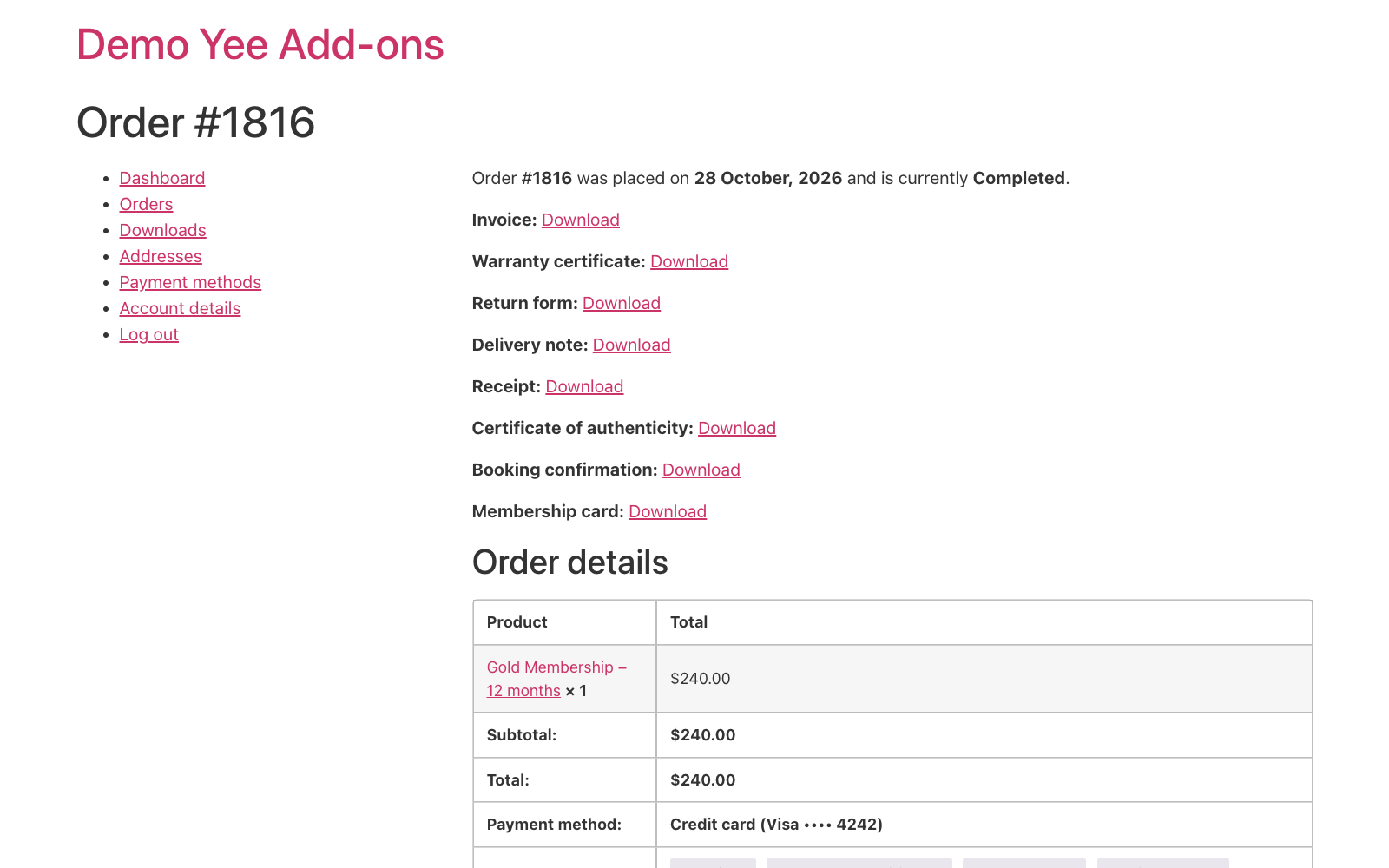
When you complete the membership order, the card is generated and attached to the Your order is now complete email. The member also finds a Membership card button in My Account → Orders and on the order page.
In the admin, the order screen lists the card in the PDF box with Download, Preview and Regenerate.

5. Tips
- Filling the meta fields: on the order screen open Custom Fields (Screen Options → Custom Fields if hidden), add
membership_numberandmembership_valid_until, update the order and then set it to Completed, so the card is generated with the values. - Subscriptions: with WooCommerce Subscriptions the renewal order is a new order; keep the card on the parent order, or tick Processing as well so each renewal issues a fresh card with the new date.
- Photo: the card has no photo field; add an Image element with a placeholder, or print the card at reception and stick a photo on.
- Wallet-friendly: A7 landscape prints on a sheet with margins; for true credit-card size (85 × 54 mm) print at scale and cut, or laminate the A7 card.
- Expired members: the card keeps its printed expiry date; the QR code still points at the member number, so the desk checks the date in WooCommerce, not on the card.
- Regenerate: after editing the template or the meta fields, click Regenerate on the order; emails attach the stored file.
6. Frequently Asked Questions (FAQ)
Why does the card show “Order meta membership_number” in the builder?
The sample order has no such field. Preview the card for a real membership order, or change the sample order in the toolbar.
Can the number be generated automatically?
Use [yeepdf_woo_user_id] (the WordPress user ID) or MEM-8448 instead of a meta field if you do not need a custom numbering scheme.
Can I print the card front and back?
Add a Page Break element and build the back (rules, contact) on page 2; print duplex.
Does the QR code work offline?
Yes. It is rendered into the PDF as an image; scanning returns the text you put in the Content field.
Can members get the card before the order is completed?
Tick Processing under Enable when order status and Processing order under Attachment to; the meta fields must then be filled before payment, e.g. by a checkout-fields plugin.