
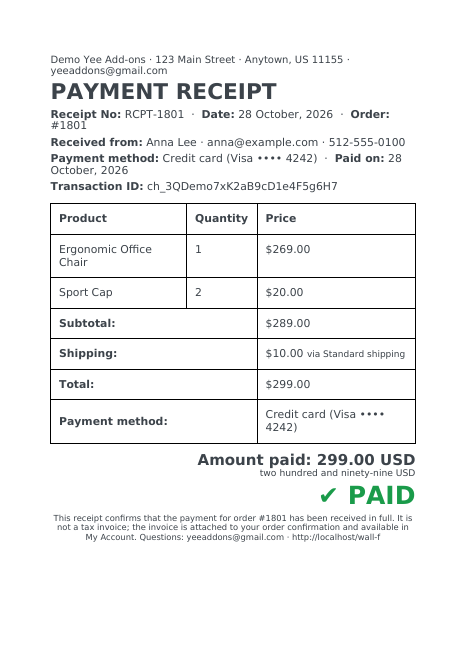
An invoice asks for money; a payment receipt confirms that it arrived. Customers who pay by card or wallet expect one straight away, business customers file it with their expenses, and support teams answer “did my payment go through?” with it. With PDF Invoice for WooCommerce + Drag and Drop Template Builder (plugin slug pdf-for-woocommerce, by add-ons.org) the receipt is a small A5 document with the amount paid, the payment method, the gateway transaction ID and a big green PAID mark, generated the moment the order becomes Processing (paid) and attached to the “order received” email. This guide builds it from a blank template. The proforma invoice guide covers the document before payment and the credit note guide the one after a refund.
Video tutorial
1. What the Receipt Contains
| Block | Content | Merge tags |
|---|---|---|
| Header | Store line, “PAYMENT RECEIPT”, receipt number, date, order number | Yee Add-ons, RCPT-8448, August 28, 2026 |
| Payment | Received from, payment method, paid on, transaction ID | PIERLUIGI CIPRIANI, PayPal, |
| Items | Product, quantity, price and the totals | the Order Detail table block with totals on |
| Amount paid | Total with currency, the amount in words, a green PAID mark | 19.00, USD, nineteen |
| Footer | What the receipt is (and is not), contact | [email protected], https://add-ons.org |
The transaction ID is the reference the payment gateway (Stripe, PayPal, Mollie…) stores on the order; printing it on the receipt lets the customer match the receipt to the line on their card statement and lets you find the payment in the gateway dashboard.
2. Build the Receipt Template
Builder note: a new element is inserted just above the element you drop it on. Create the footer (the last block) first and drop every other block onto it in reading order.
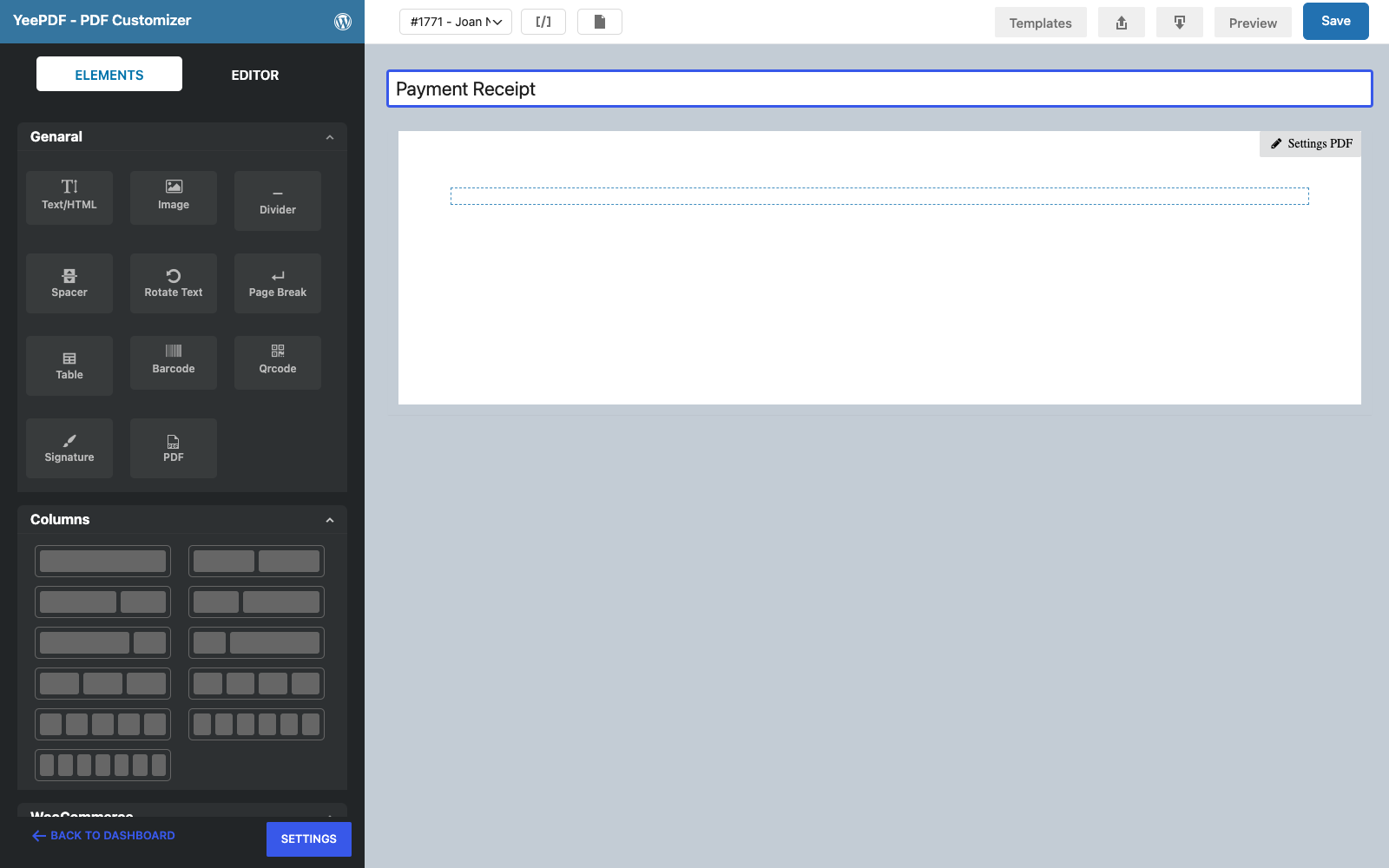
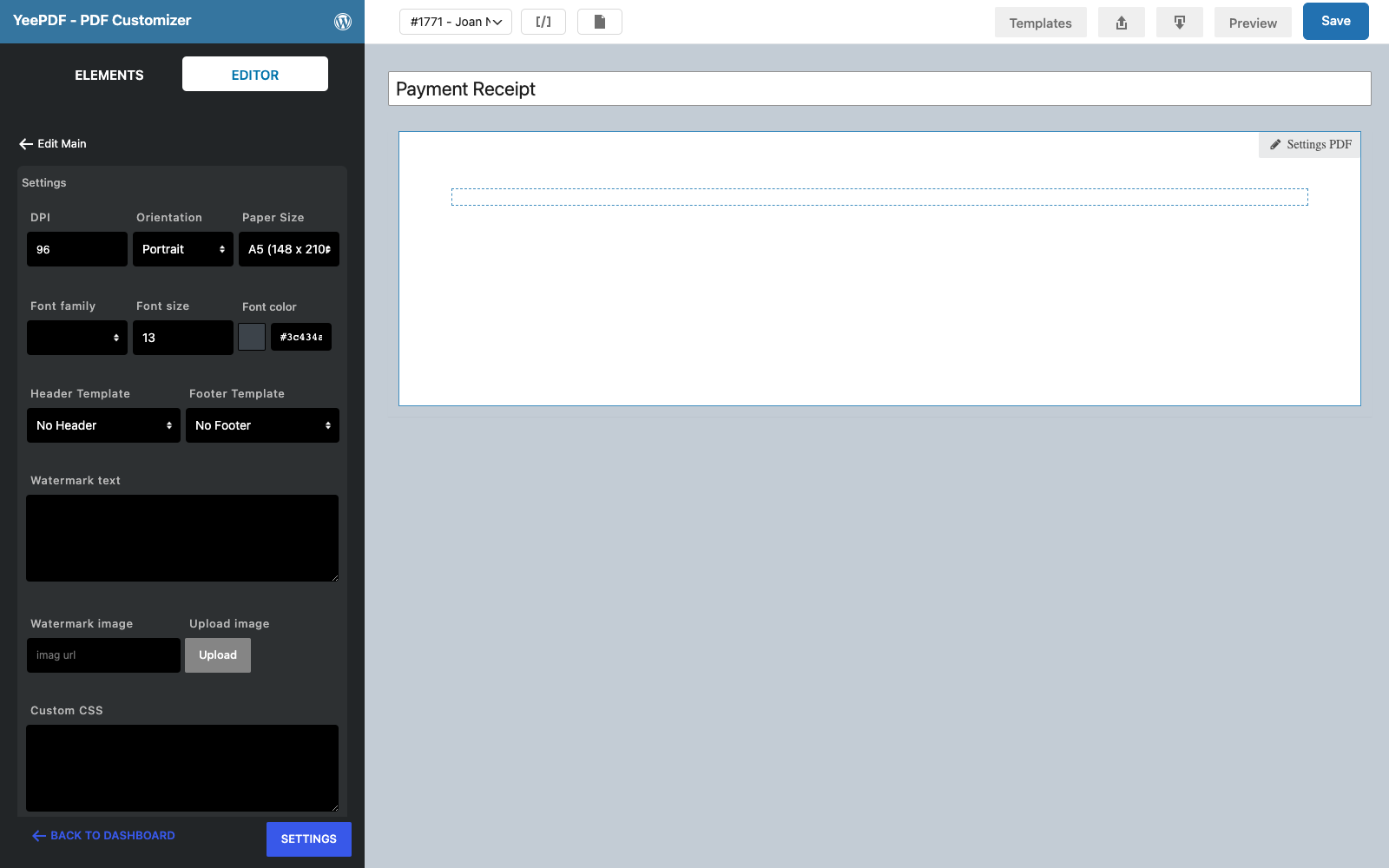
Step 1: New template, A5 page
Go to PDF Templates → New Template and name it Payment Receipt. Click Settings PDF and set Paper Size to A5: a receipt is short, and A5 looks right on screen and in print.
Step 2: Footer
Drag a Text/HTML element into the row, centre it and type the footer in 10 px:
This receipt confirms that the payment for order #8448 has been received in full.
It is not a tax invoice; the invoice is attached to your order confirmation and available in My Account.
Questions: [email protected] · https://add-ons.org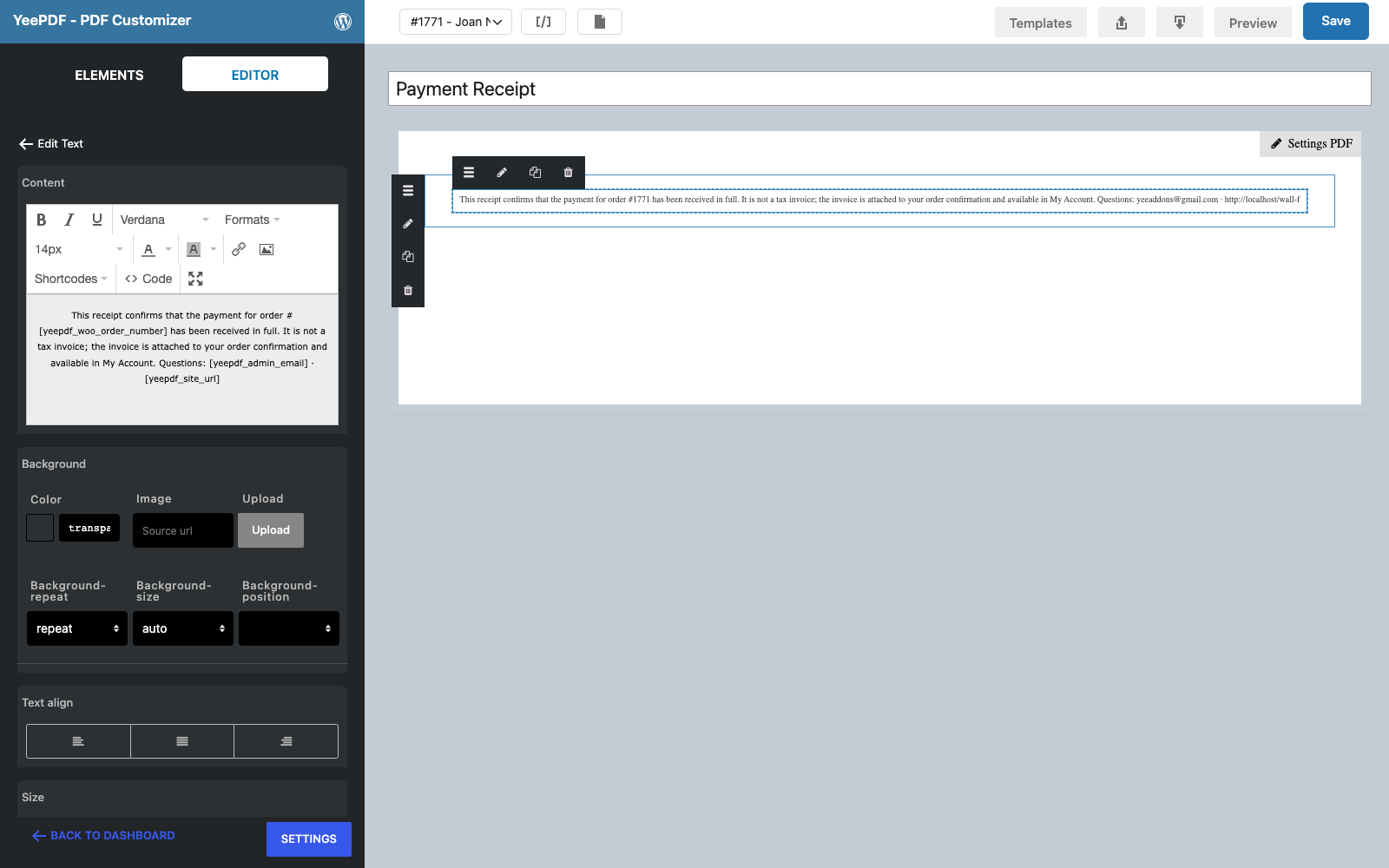
Step 3: Header
Drop a Text/HTML element onto the footer:
Yee Add-ons · 123 Main Street · Anytown, US 11155 · [email protected]       ← 12 px
PAYMENT RECEIPT                                                                  ← 26 px bold
Receipt No: RCPT-8448 · Date: August 28, 2026 · Order: #8448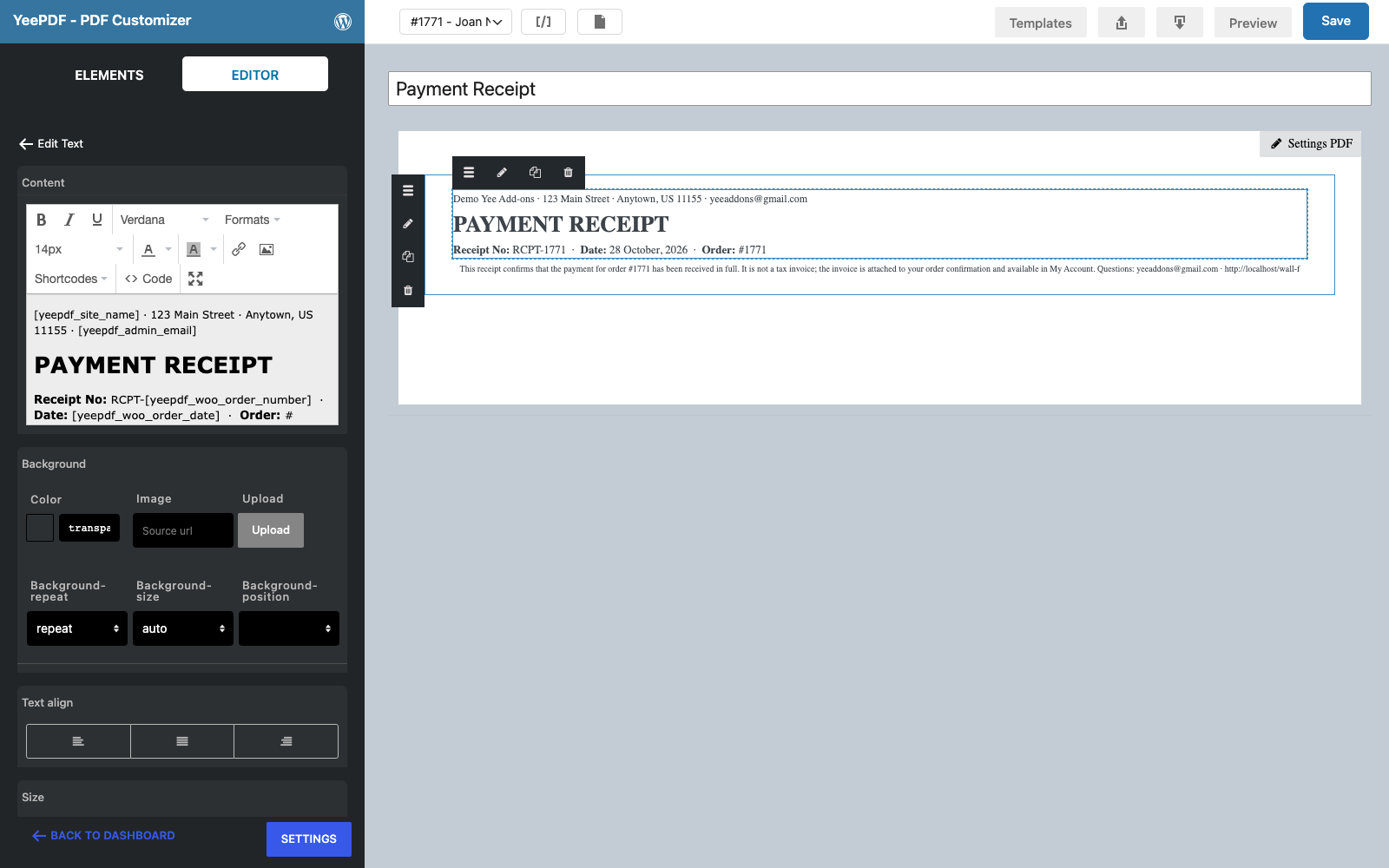
Step 4: Payment details
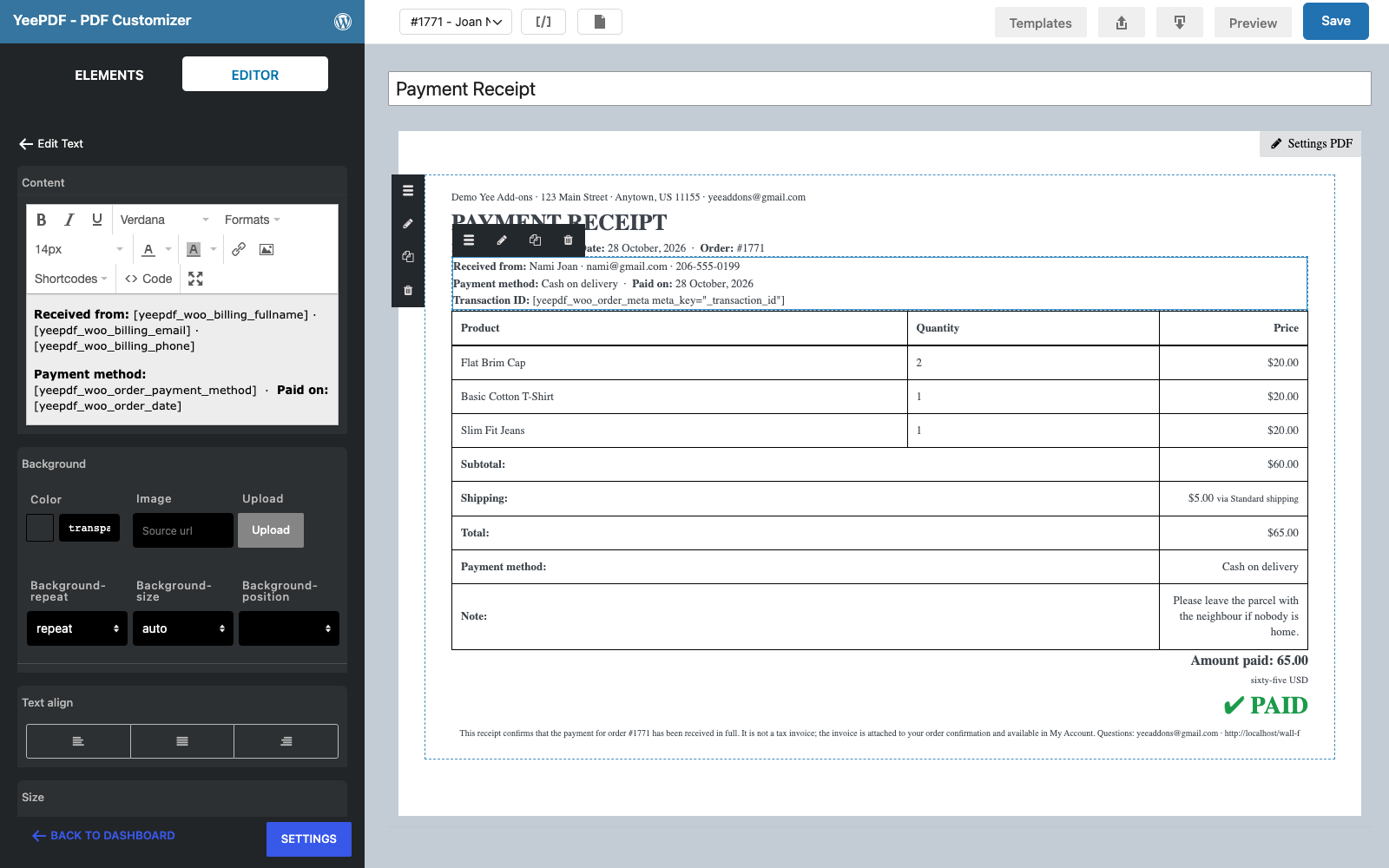
Drop another Text/HTML element onto the footer:
Received from: PIERLUIGI CIPRIANI · [email protected] · 3286550379
Payment method: PayPal · Paid on: August 28, 2026
Transaction ID:
prints any order field; _transaction_id is where WooCommerce stores the gateway reference. Use the Shortcodes menu in the editor for the other tags.
Step 5: Items and totals
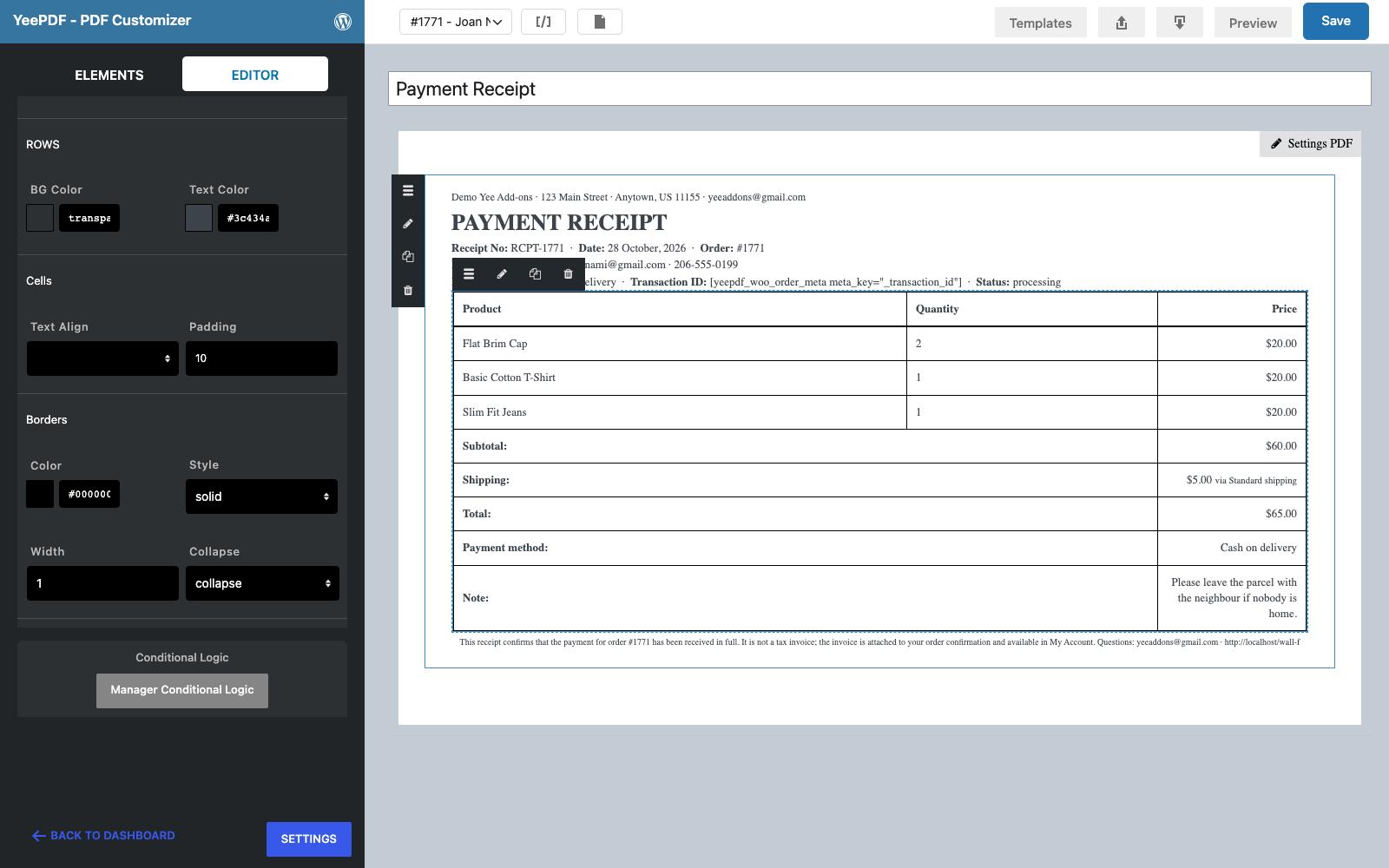
In the WooCommerce section drag the Order Detail block onto the footer. Click the table and keep Show totals on; switch SKU, image and description off so the table stays compact on A5.
Step 6: Amount paid
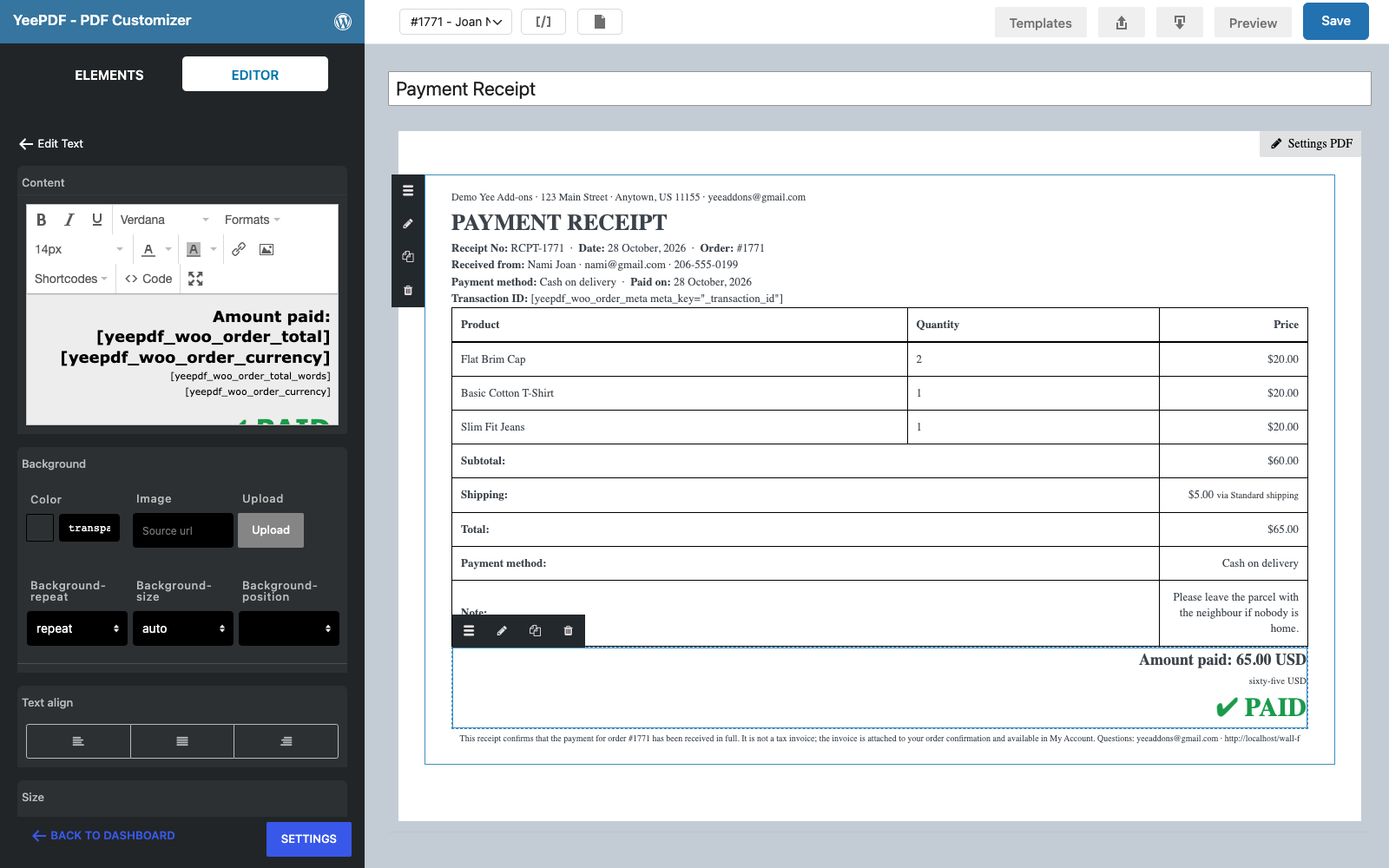
Drop a last Text/HTML element onto the footer, align it right:
Amount paid: 19.00 USD        ← 18 px bold
nineteen USD                  ← 11 px
✔ PAID                                                                      ← 30 px bold, colour #1a9b4a
Set the colour with the text colour button in the editor toolbar; the ✔ character comes from the Special character menu or can be pasted.
Open Settings PDF → Custom CSS and add a little spacing, then click Save:
p { margin: 0 0 5px; }
table { margin: 8px 0 10px; }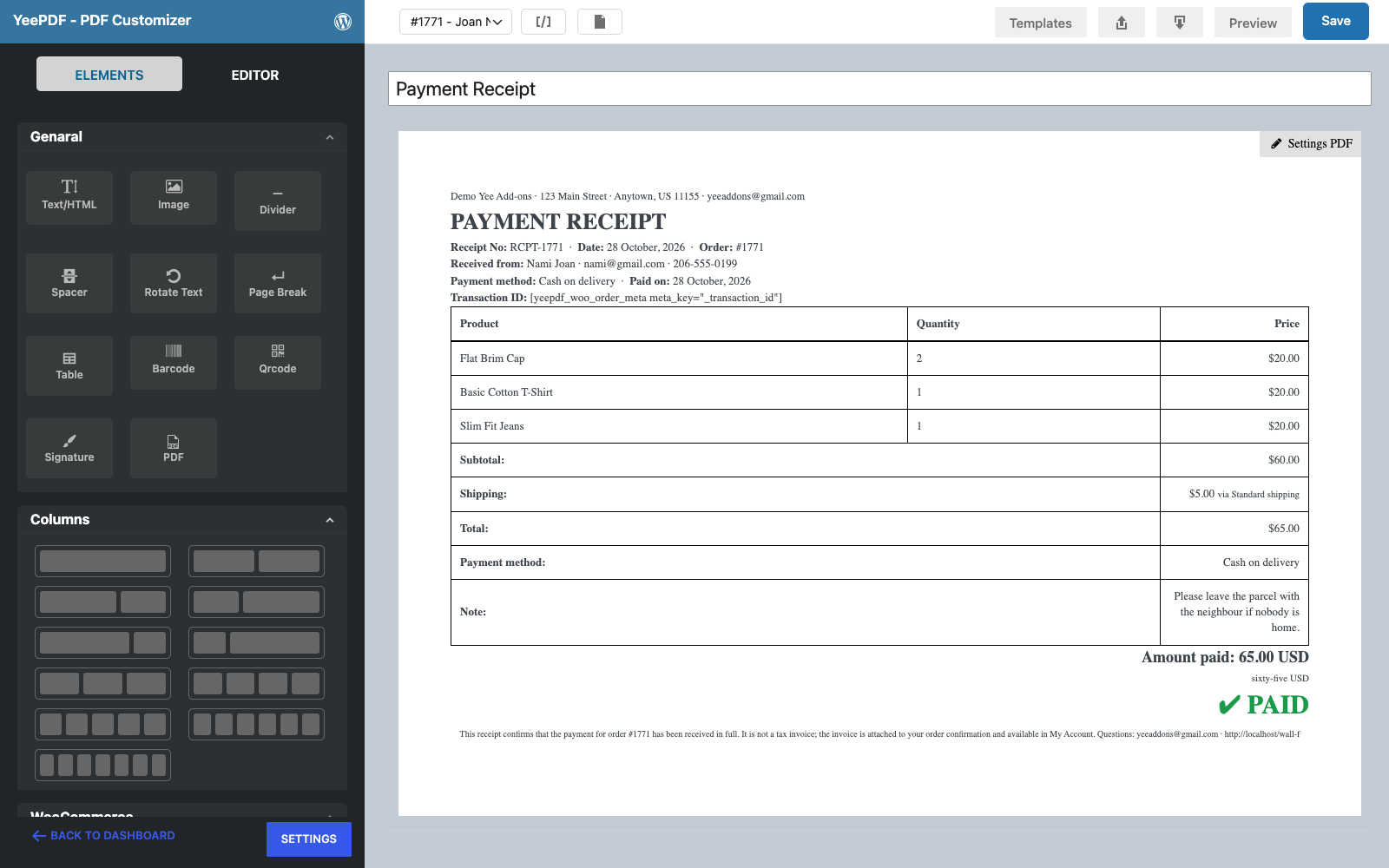
3. Generate the Receipt When the Order Is Paid
Go to WooCommerce → Settings → PDF → Add new PDF:
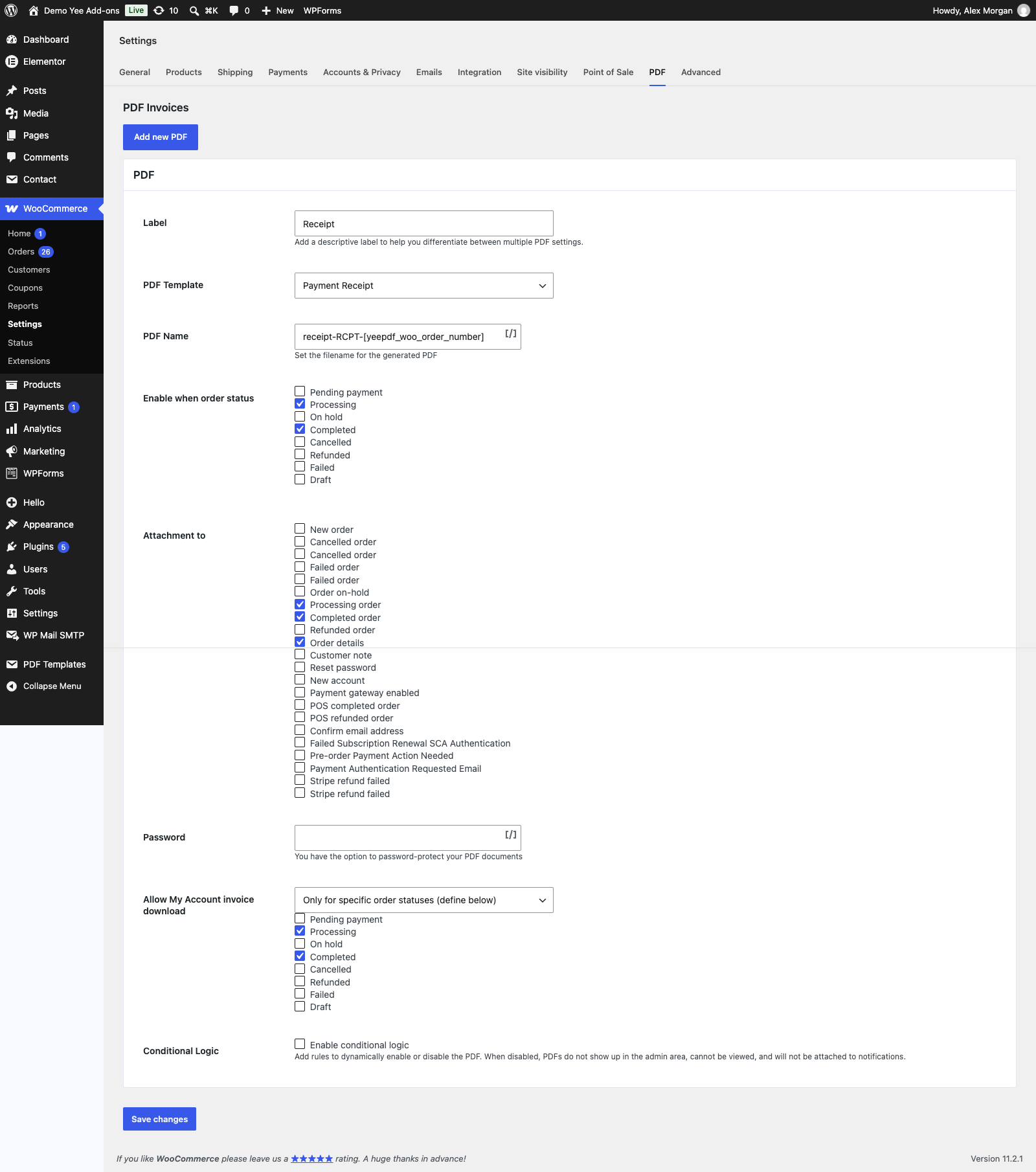
| Field | Value | Why |
|---|---|---|
| Enable this PDF | ticked | |
| Label | Receipt | Button label in the admin and in My Account. |
| PDF Template | Payment Receipt | The template from section 2. |
| PDF Name | receipt-RCPT-8448 | e.g. receipt-RCPT-1801.pdf |
| Enable when order status | Processing, Completed | Processing is the status WooCommerce sets when a payment is captured; Completed keeps the receipt for orders that go straight to complete (virtual products). |
| Attachment to | Processing order, Completed order, Order details | The receipt rides on the “we have received your order” email, i.e. right after payment. |
| Allow My Account invoice download | Only for specific order statuses → Processing, Completed | Self-service re-download. |
4. What the Customer Receives
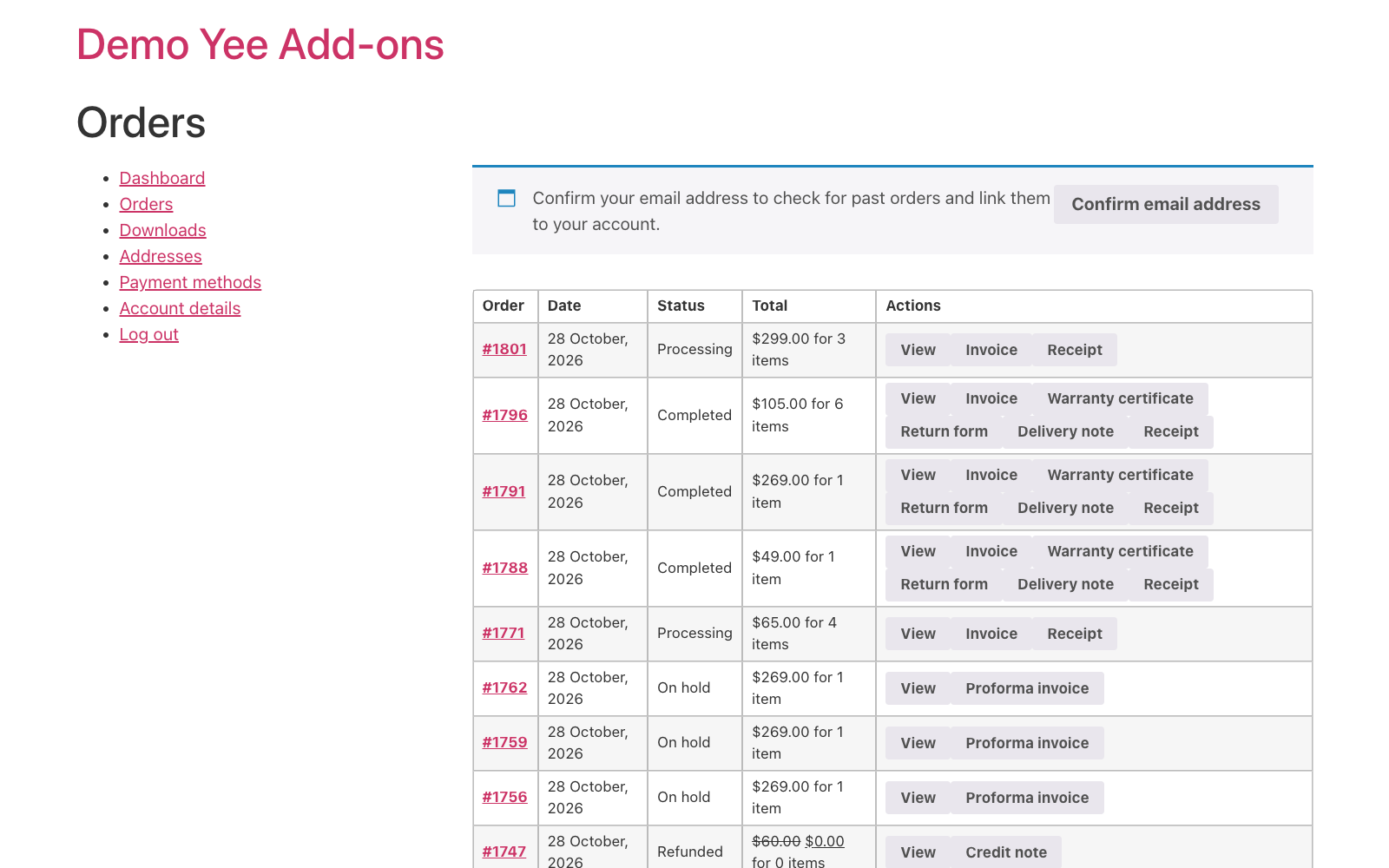
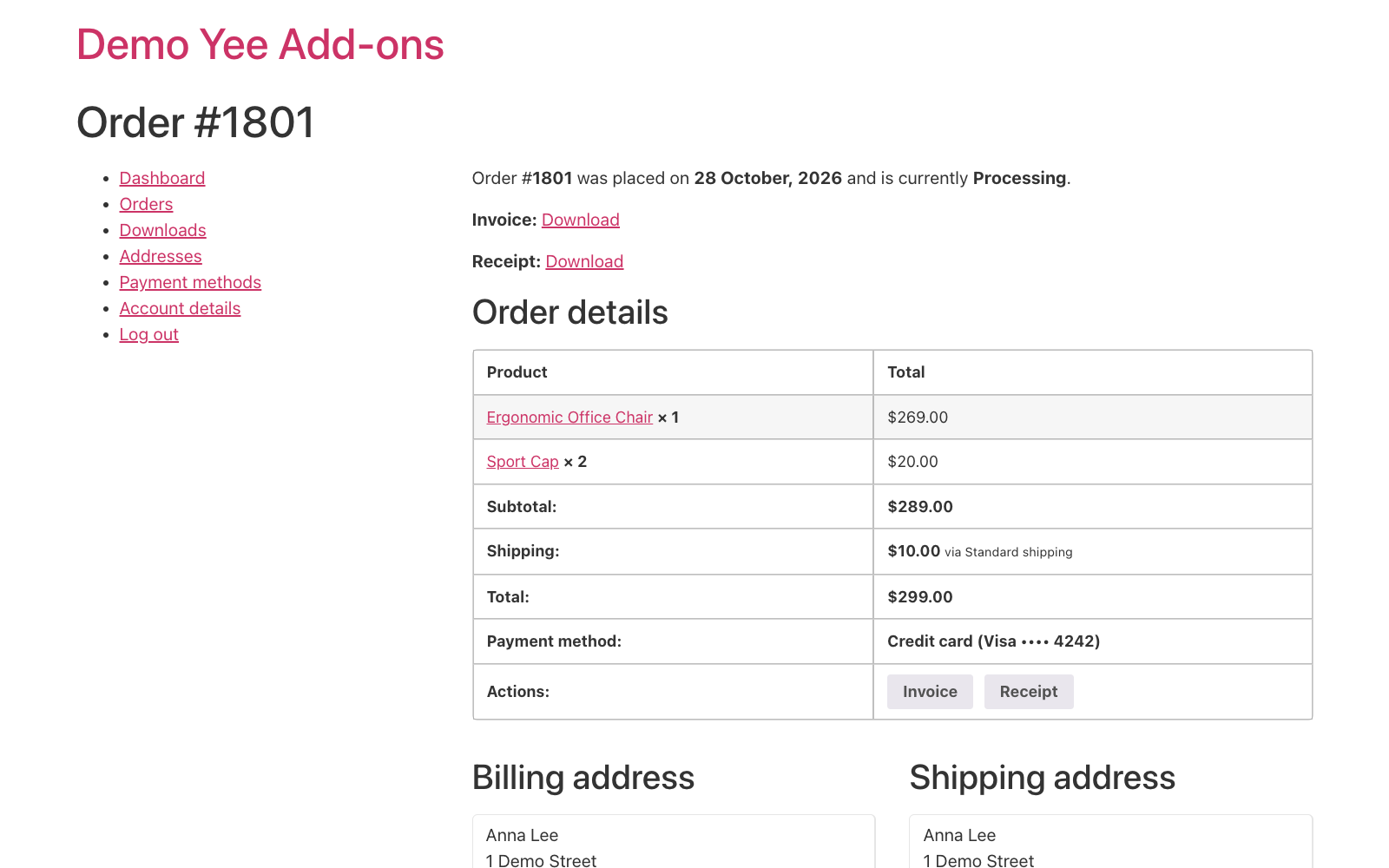
A card payment moves the order to Processing as soon as the gateway confirms it; the receipt is generated at that moment and attached to the processing email. The customer also finds a Receipt button in My Account → Orders and on the order page.
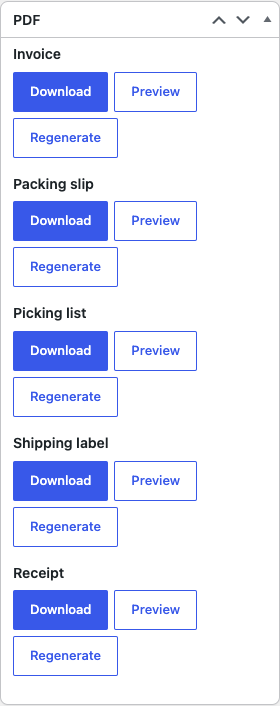
In the admin, the order screen lists the receipt in the PDF box with Download, Preview and Regenerate.
5. Tips
- Bank transfer orders: they sit in On hold until you confirm the money; the receipt is generated when you move the order to Processing, so the manual status change is the “payment received” step.
- Payment date: for card payments the order date is the payment date. If you need the exact capture time, print it from the gateway’s own meta field, e.g.
or the field your gateway writes. - Receipt vs. invoice: keep both: the invoice lists the tax details, the receipt proves payment. Attach the receipt to the processing email and the invoice to the completed email if you prefer one document per email.
- Partial payments / deposits: the receipt prints the order total; for deposits print the paid amount from the deposit plugin’s meta field instead.
- Thermal printer: for a counter receipt set Paper Size to a custom 80 mm width in Settings PDF and reduce the fonts.
- Regenerate: after editing the template, click Regenerate on an order; emails attach the stored file.
6. Frequently Asked Questions (FAQ)
Why does the canvas show “Order meta _transaction_id”?
The sample order in the builder has no transaction ID, so the merge tag prints its own name. Preview or download the receipt for a real paid order to see the reference.
Can the receipt show the last four digits of the card?
Most gateways put them in the payment method title (“Credit card (Visa •••• 4242)”), which PayPal prints. Otherwise print the gateway meta field with the order meta tag.
Is the amount in words available in other languages?
The tag prints English words. For another language type the words in the template or leave the line out.
Can I send the receipt only, without the invoice, on the processing email?
Yes: in the Invoice setting untick Processing order under Attachment to, and keep it ticked for the Receipt setting.
What about refunds?
A refund does not change the receipt. Issue a credit note (see the credit note guide) and keep the receipt as the record of the original payment.