
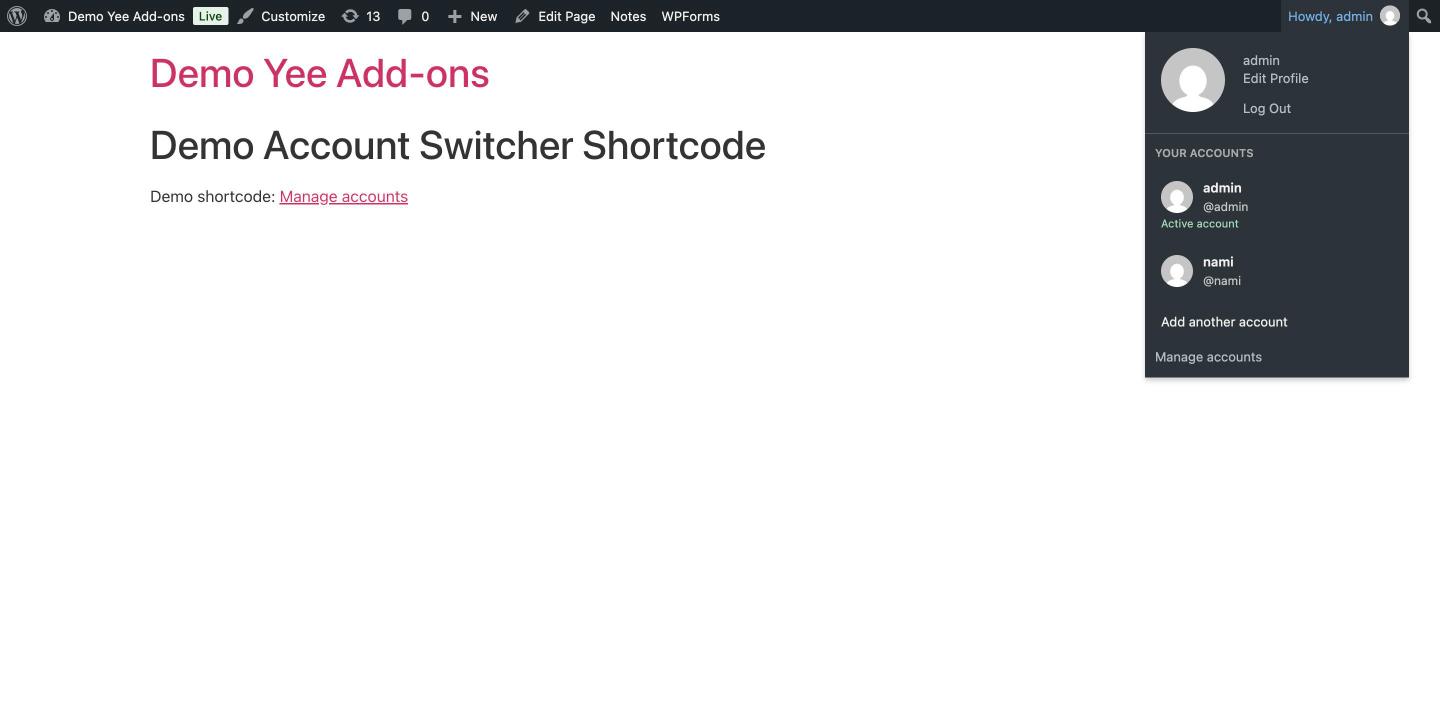
Welcome to the official documentation and user guide for Multi-User Account Switcher (by addonsorg). This plugin lets a signed-in user add other verified accounts to the same browser and switch between their active WordPress sessions in one click, from the toolbar or from a dedicated account manager page. It is built for store managers, support teams, editors, administrators and developers who regularly work with more than one account on the same site.
Video tutorial
1. Installation & System Requirements
- Log in to your WordPress Admin dashboard.
- Navigate to Plugins → Add New Plugin → Upload Plugin.
- Upload the plugin ZIP file and click Install Now.
- Click Activate. The plugin appears as Multi-User Account Switcher in the Plugins list.
Minimum requirements: WordPress 6.8 or higher, PHP 7.4 or higher. No settings page is needed: the plugin works right after activation, creates no custom database tables and stores no passwords.
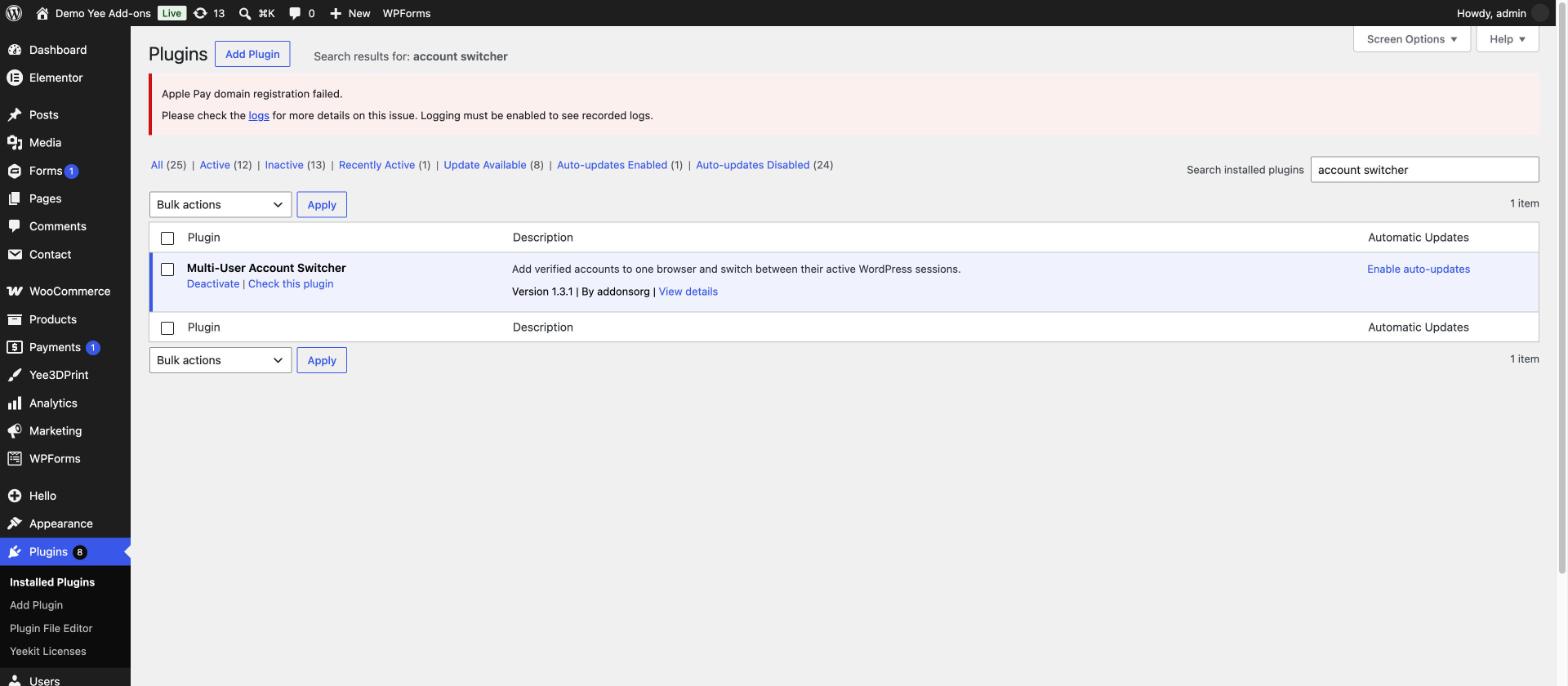
2. How It Works
The first time you open the toolbar account menu or the account manager, the plugin registers your current session as a saved account. Every additional account must complete the normal WordPress login form (username and password, plus any 2FA or captcha your site uses). Only accounts that have really authenticated in the current browser can be switched to. Up to five accounts can be saved per browser, and only one account is active at a time.
3. The Toolbar Account Menu
Hover over Howdy, [your name] in the top-right corner of the WordPress toolbar. A new Your accounts section is added below the standard profile links. It shows every saved account with its avatar, display name and @username, marks the current one as Active account, and offers two actions: Add another account and Manage accounts.
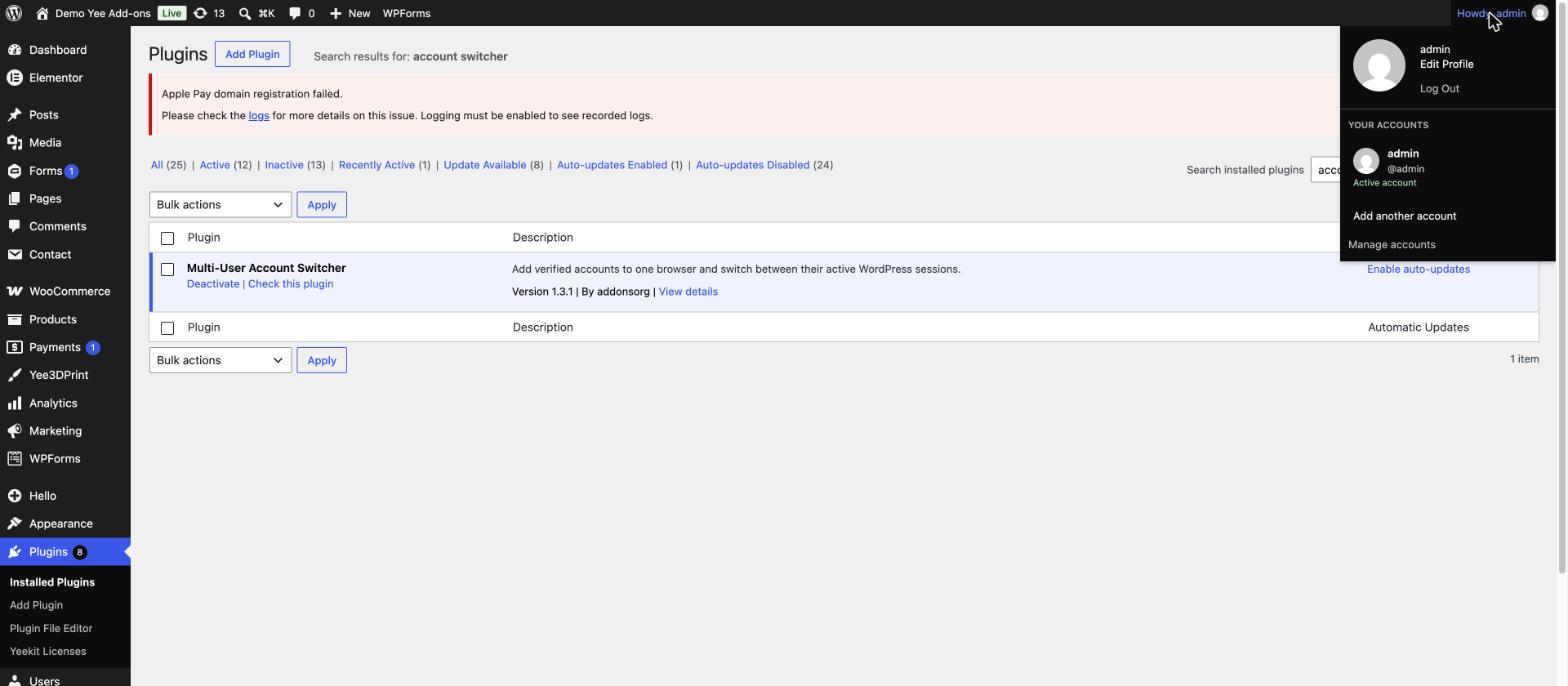
4. Adding a Second Account (Step-by-Step)
Step 1: Open the account manager
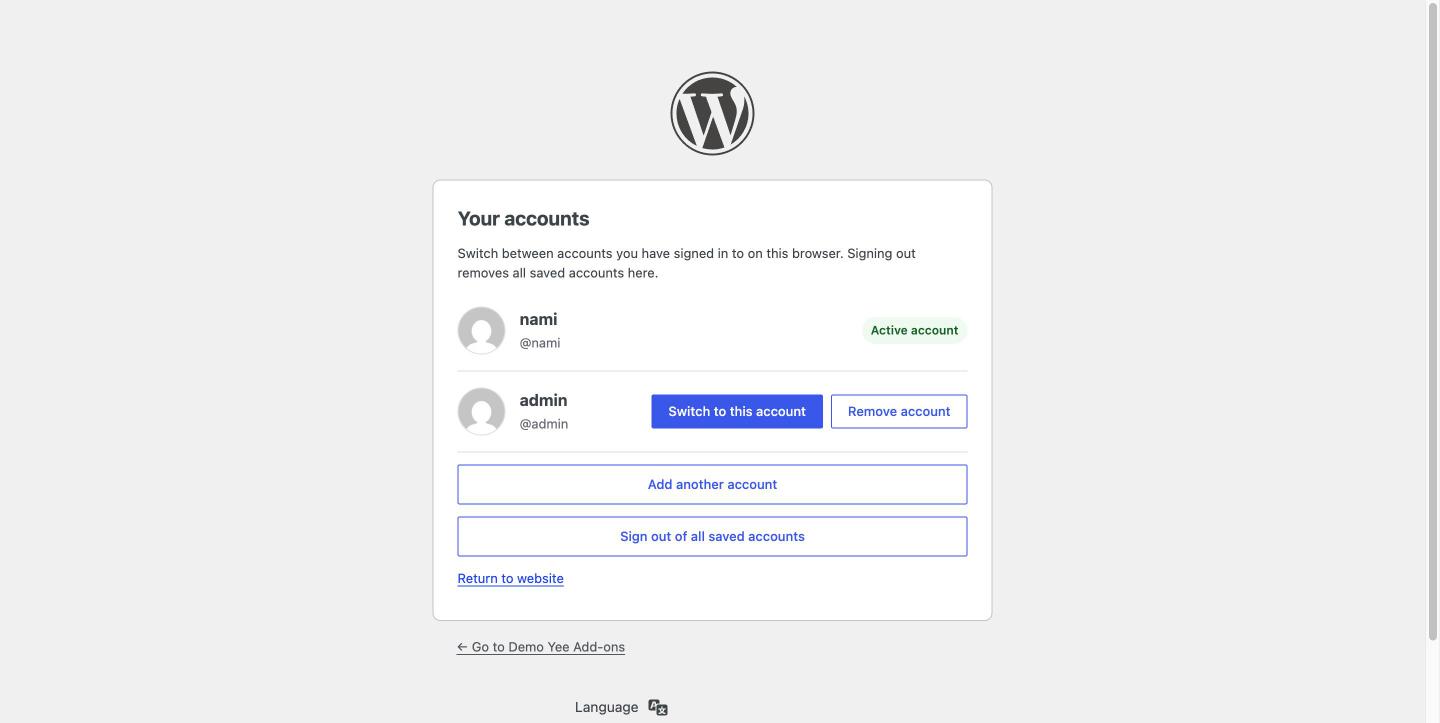
Click Manage accounts in the toolbar menu, or open /wp-login.php?action=yeekit_accounts. The Your accounts page lists your saved accounts, with the current one marked as active.
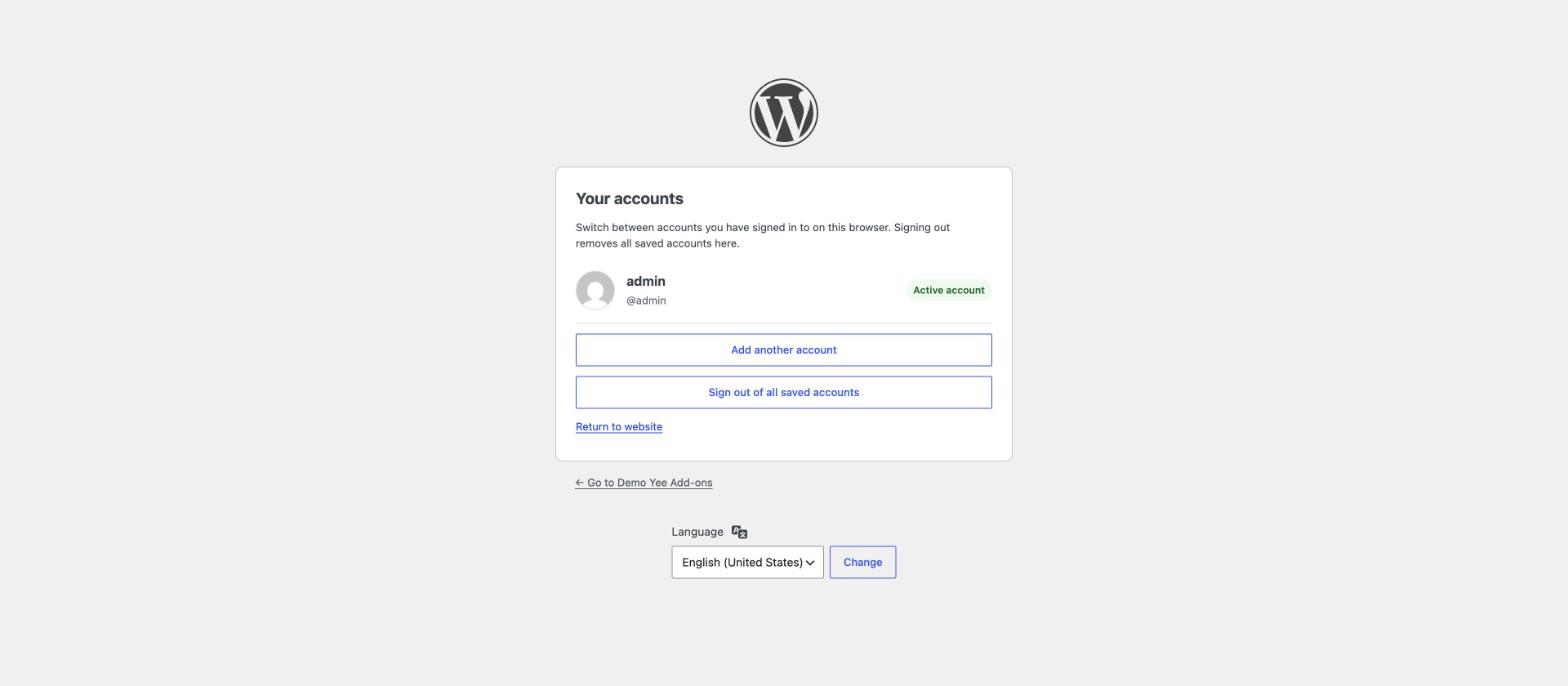
Step 2: Click “Add another account”
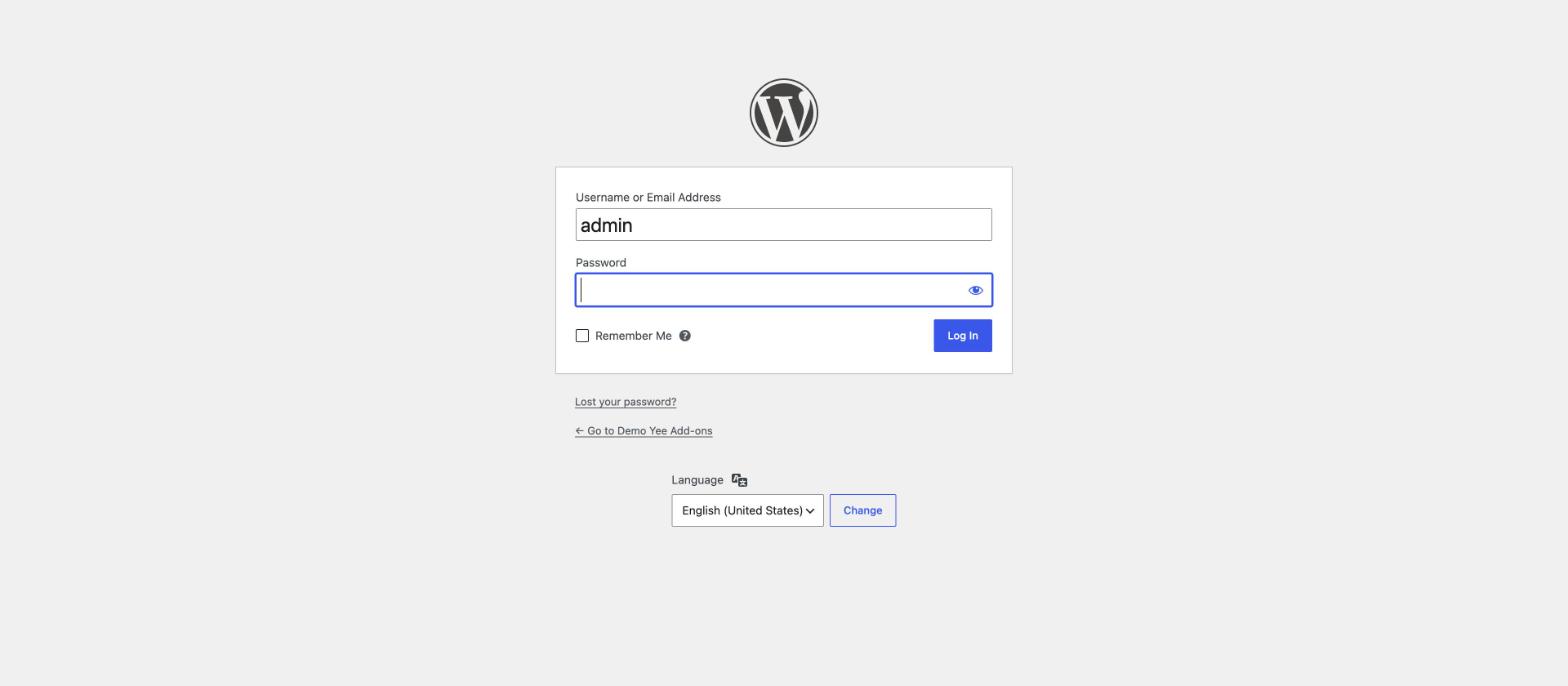
Click Add another account on the account page or in the toolbar menu. You are taken to the standard WordPress login screen. The plugin temporarily ignores your current login cookie for this request, so the form asks for full credentials even though you are already signed in.
Step 3: Sign in with the second account
Enter the username and password of the second account. Tick Remember Me if you want this account to stay available after the browser is closed (up to 14 days); without it the saved account uses a browser-session cookie. After login, you are redirected back to the account manager with both accounts listed. The account you just signed in with becomes the active one.
5. Switching Between Accounts
5.1 From the toolbar
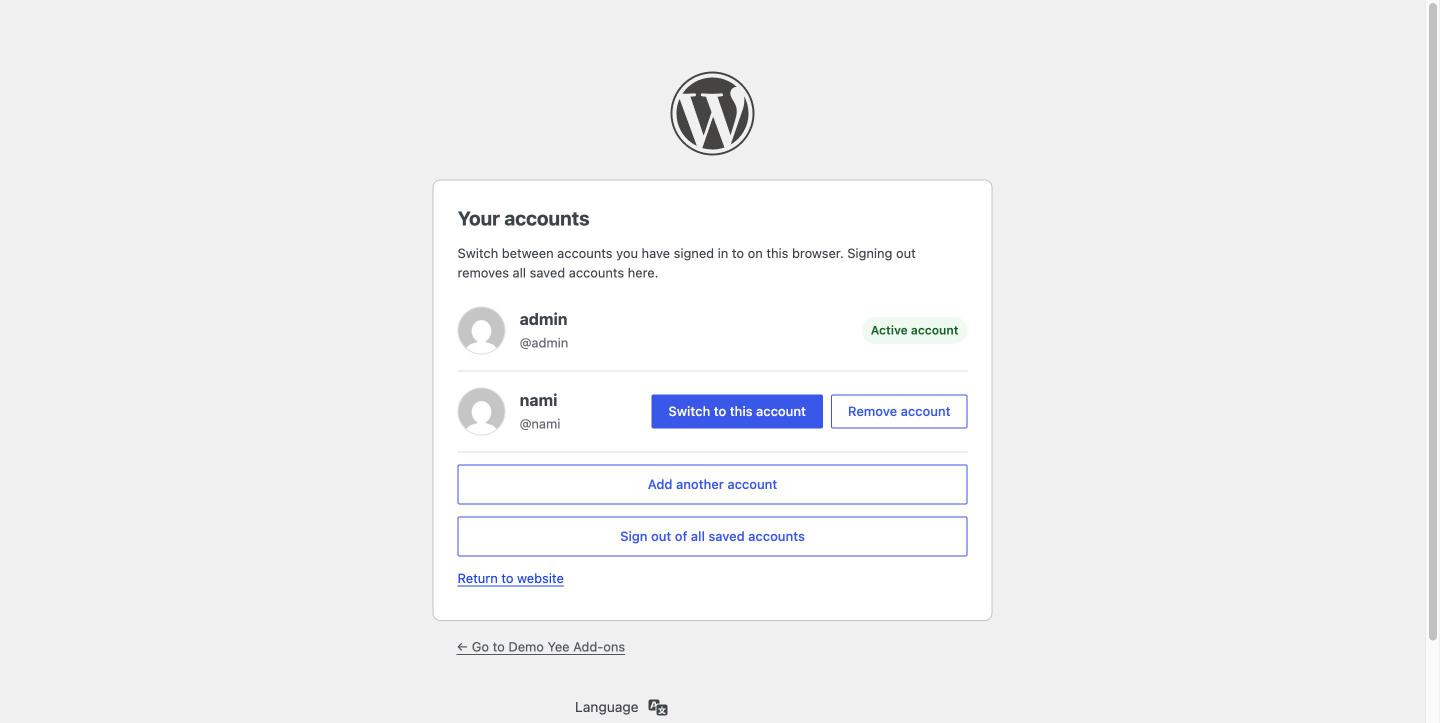
Hover over the toolbar account menu and click any non-active account in the Your accounts list. The switch is a secured POST request protected by a nonce, and after switching you are returned to the same page, path and query string you were on, so you can keep working without losing your place. Reload other open tabs after switching, because only one account is active per browser.
5.2 From the account manager
On the Your accounts page, every inactive account has a Switch to this account button. Before each switch the plugin verifies the signed session cookie, the expected user ID, the expiration time and the server-side WordPress session token. Switching reuses the existing authenticated session and does not extend its lifetime.
6. Removing an Account
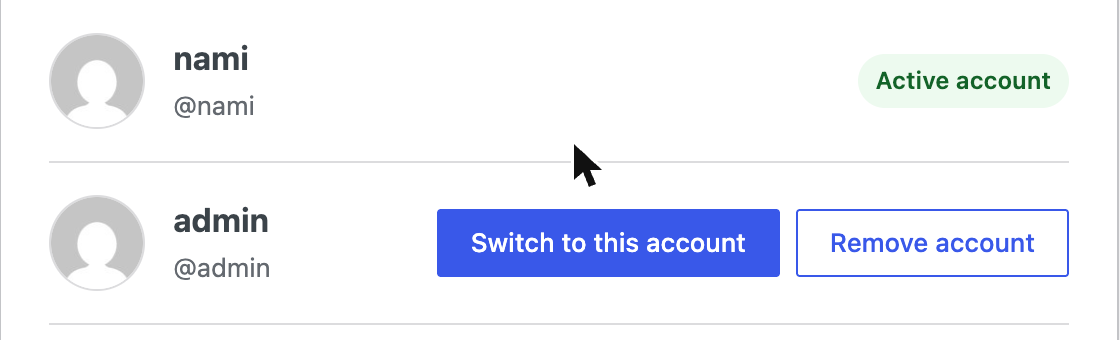
On the account manager page, click Remove account next to any inactive account. The plugin revokes the saved session token on the server and deletes the browser cookie for that account, so it can no longer be switched to without logging in again. The active account cannot be removed; switch to another account first.
7. Signing Out of All Saved Accounts
Click Sign out of all saved accounts at the bottom of the account manager, or use the normal WordPress Log Out link. Either action revokes every session saved by the plugin on this browser and clears all its cookies, then redirects you to the home page. This is the recommended step before leaving a shared computer.
8. Account Limit
Up to five accounts can be saved per browser. When the limit is reached, the Add another account button is replaced by the message “You can save up to five accounts. Remove one to add another.” Expired or invalid sessions (for example after a password reset) are removed automatically the next time the list is checked.
9. WooCommerce My Account Integration
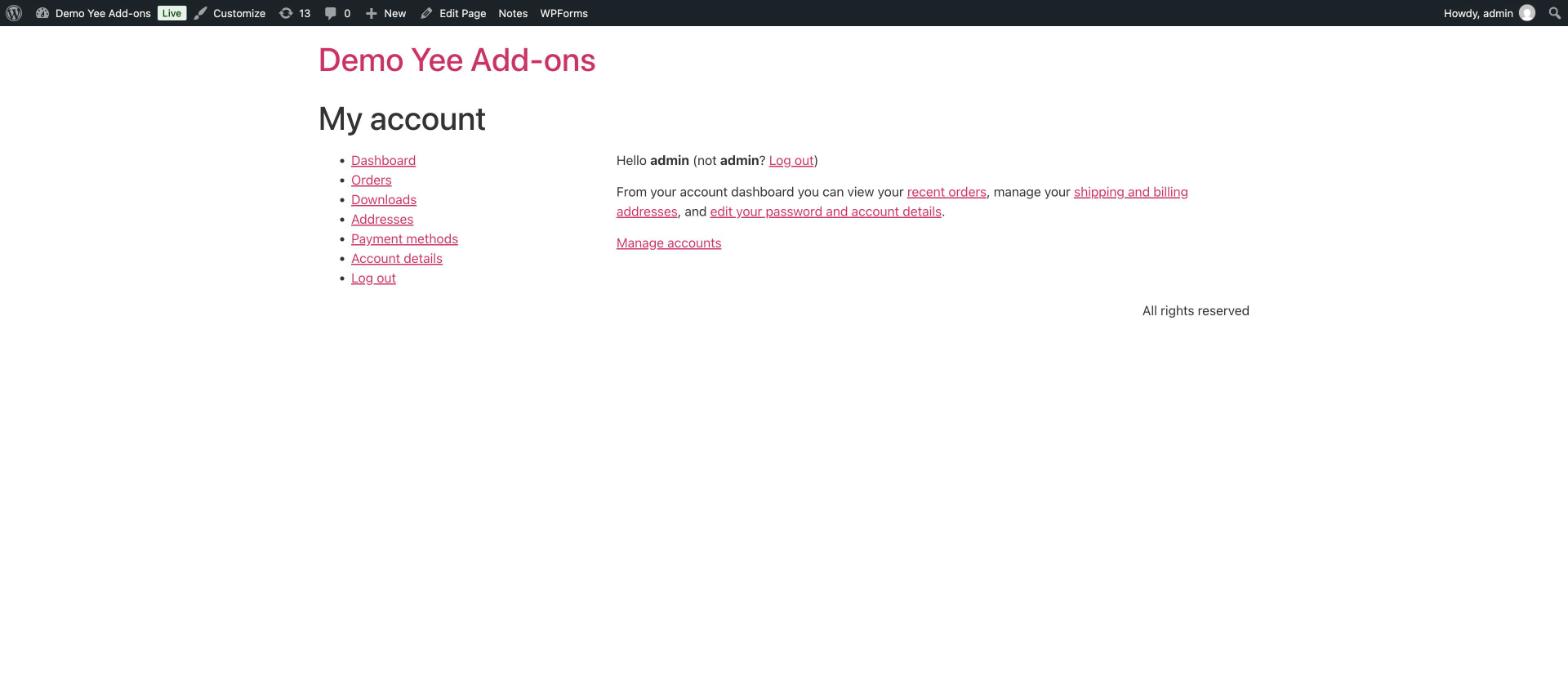
When WooCommerce is active, a Manage accounts link is added automatically to the My Account → Dashboard tab, so customers and store managers can reach the account manager from the front end without the admin toolbar. The plugin only changes the active WordPress identity: carts, orders, addresses and subscriptions are not merged between accounts.
10. Shortcode
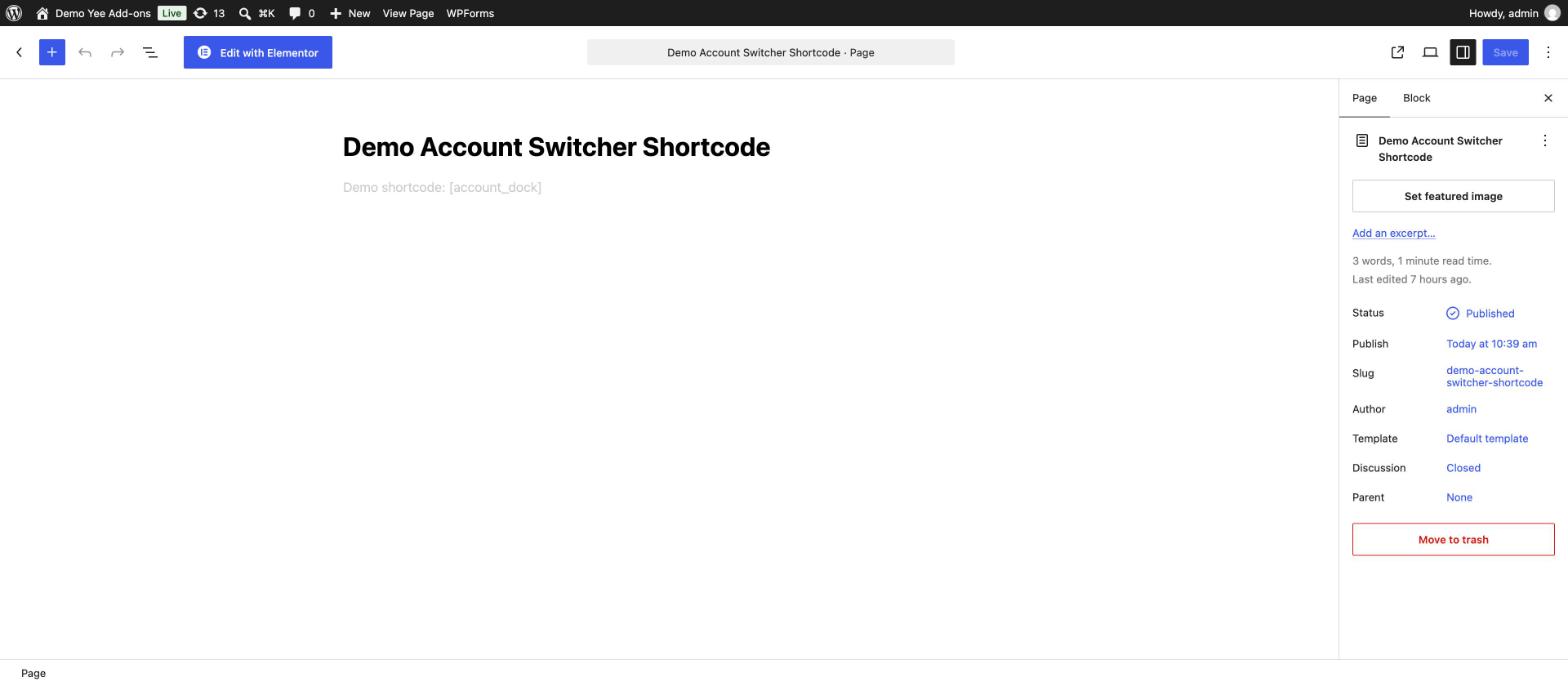
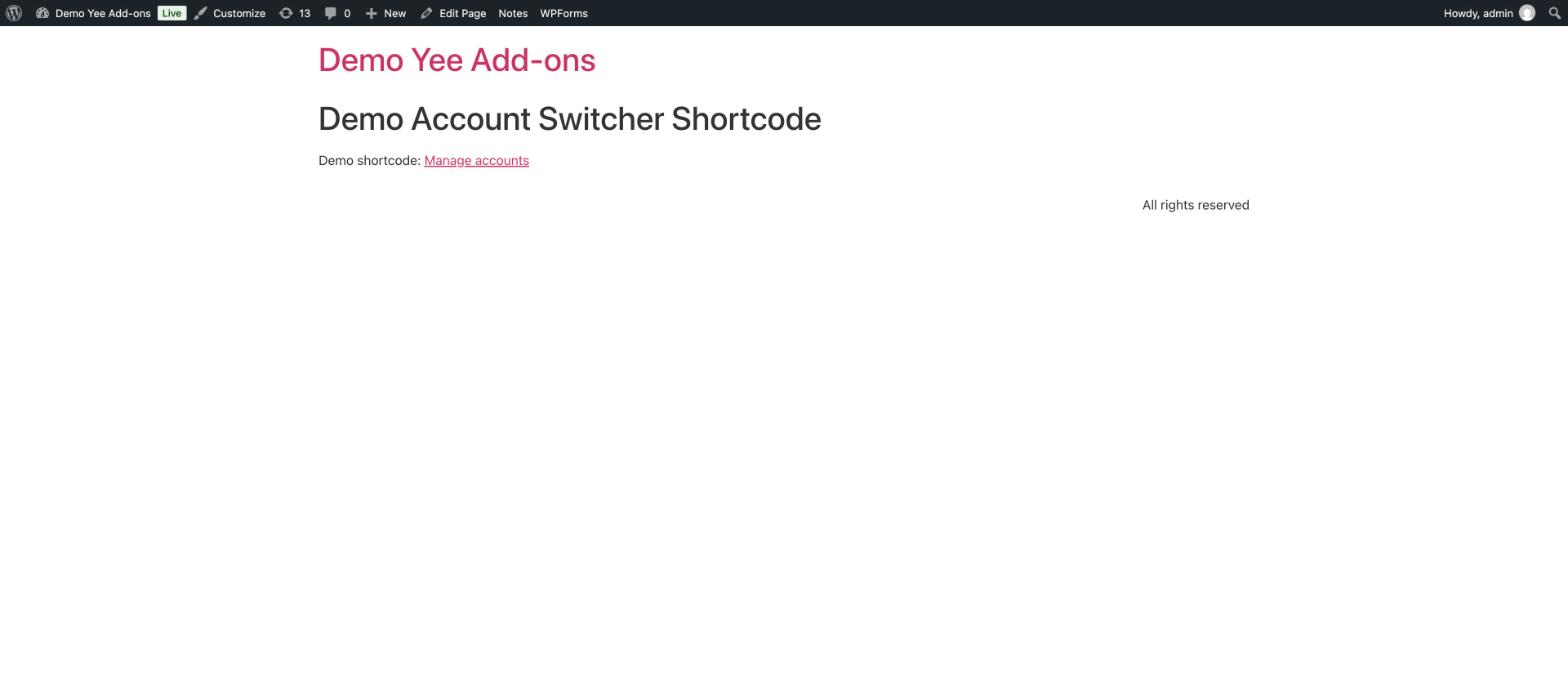
Add the shortcode [account_dock] to any post, page or widget area to output a Manage accounts link pointing to the account manager. The aliases [yeekit_account_switcher] and [yeekit_customer_account_switcher] produce the same link.
11. Developer Reference
| Hook / Item | Type | Description |
|---|---|---|
yeekit_auth_cookie_expiration | Filter | Change the lifetime of a saved session. Receives $duration (seconds), $user_id and $remember. Default: 14 days with Remember Me, 2 days without. |
wp-login.php?action=yeekit_accounts | URL | The account manager page. |
_yeekit_sessions | User meta | Hashed session tokens with creation and expiration time, used for server-side revocation. |
assets/toolbar.css, assets/login.css | Styles | Toolbar menu and account page styles. Override in your theme if needed. |
12. Security & Privacy Notes
- Passwords are never stored. The plugin keeps WordPress-signed session credentials in HttpOnly, SameSite=Lax cookies (Secure on HTTPS), scoped to the current site URL and blog ID.
- All account actions are POST requests protected by WordPress nonces.
- Removing an account or signing out revokes the related session tokens on the server.
- Anyone with access to the same unlocked browser can switch to any saved account. Do not save privileged accounts on shared devices and always use HTTPS.
- No analytics or telemetry is sent. Avatars are rendered through the standard
get_avatar()function.
13. Frequently Asked Questions (FAQ)
Q: Can I switch to any user on the site?
A: No. An account appears only after it has successfully logged in on the current browser. Knowing a username or email is not enough.
Q: Does switching ask for two-factor authentication again?
A: No. Switching reuses a session that already completed authentication. Test 2FA, SSO and captcha plugins on staging first, since some do not use the standard WordPress login hooks.
Q: Does it work on multisite?
A: Saved account lists are scoped to the current site. Only members of the current site are accepted; network-wide lists are not supported.
Q: What happens when the plugin is removed?
A: Nothing is left in the database except normal user meta. Sign out of saved accounts before deactivating; remaining cookies expire with their normal session lifetime.