
Maintenance plans, retainers, installations, rentals, coaching packages: services sold through WooCommerce often need a signed agreement before the work starts. With PDF Invoice for WooCommerce + Drag and Drop Template Builder (plugin slug pdf-for-woocommerce, by add-ons.org) the agreement is a PDF generated from the order: the parties, the service, the term and the fee come from the order and its meta fields, the clauses are your text, and the client signs it in any PDF reader thanks to the builder’s form fields (Text input, Textarea, Checkbox), which become real, fillable fields in the PDF. You create the order in the admin, send the agreement with the pay link, and the client returns the signed copy and pays. This guide builds the template from scratch. The quotation guide covers the offer before the agreement and the return form guide another fillable document.
Video tutorial
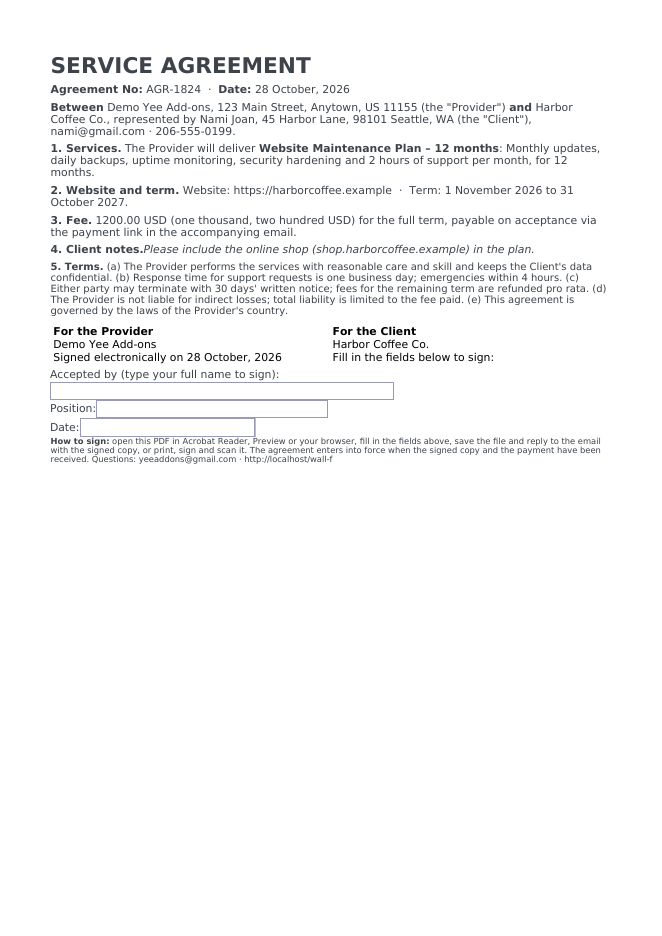
1. What the Agreement Contains
| Block | Content | Merge tags |
|---|---|---|
| Title | “SERVICE AGREEMENT”, agreement number, date | AGR-8448, August 28, 2026 |
| Parties | Provider (your store) and Client (billing company, representative, address, contact) | Yee Add-ons, YEE S.R.L., PIERLUIGI CIPRIANI, VIA NELSON MANDELA 4… |
| Clauses 1–4 | Services (product + short description), website and term, fee in figures and words, client notes | Dynamic Field for Elementor Forms Pro, …"agreement_start", …"agreement_end", 19.00, nineteen, |
| Clause 5 | Your standard terms (care, response time, termination, liability, law) | static text |
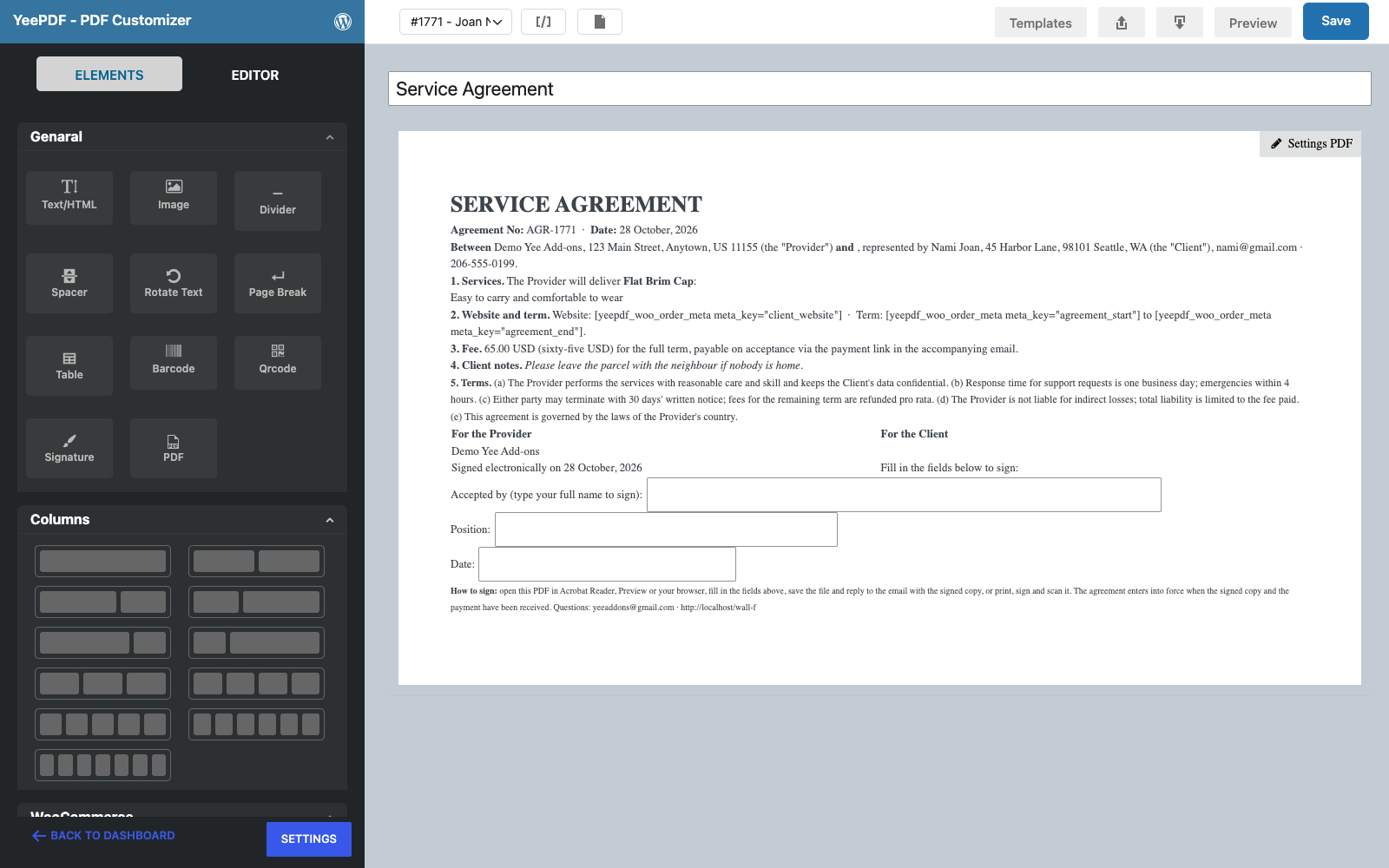
| Signatures | Provider signed electronically on the order date; Client: three fillable fields | Text input form elements |
| Footer | How to sign and return | [email protected], https://add-ons.org |
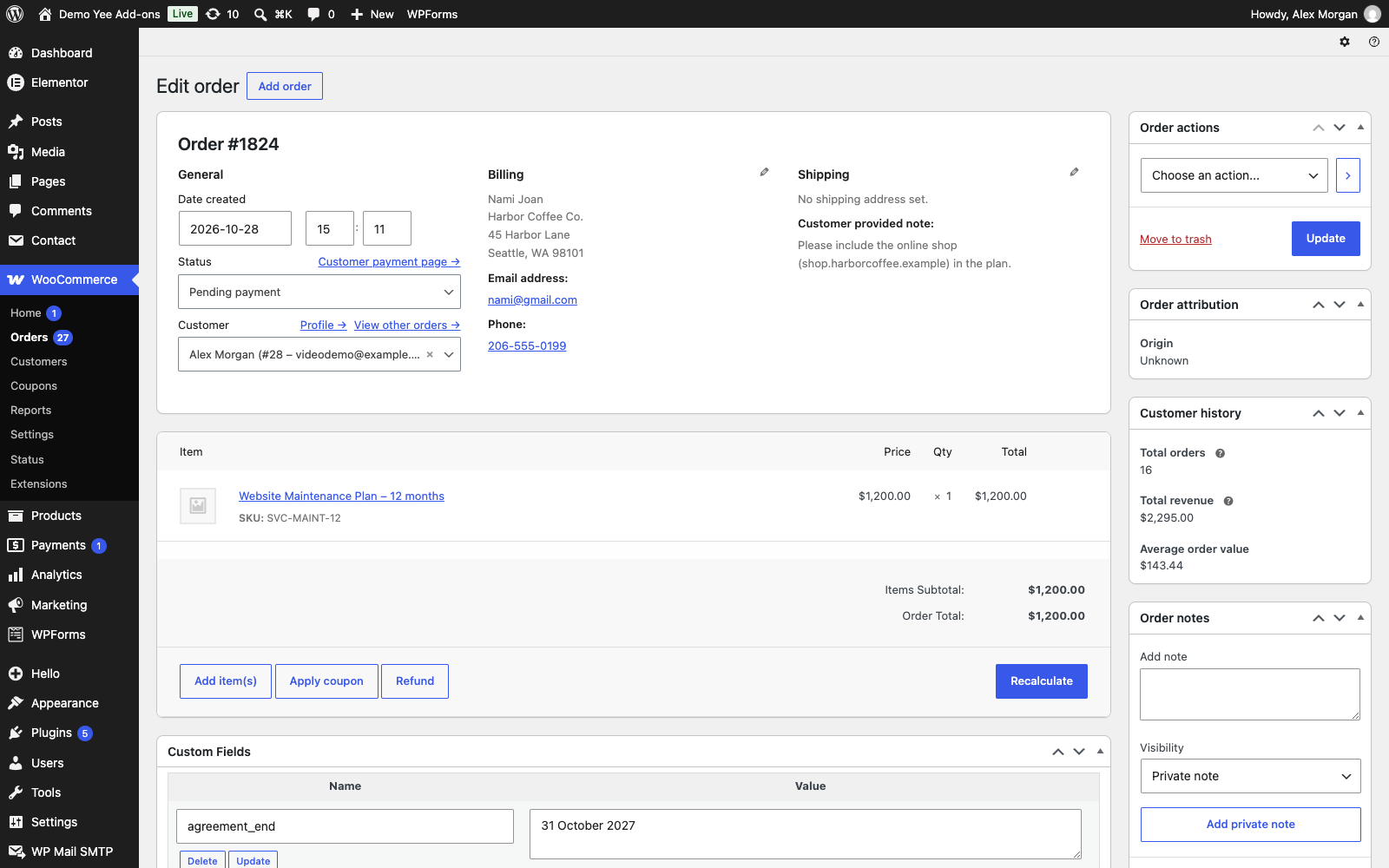
The website address and the term are order meta fields (client_website, agreement_start, agreement_end) that you type into the order’s Custom Fields box when you create the order; the short description of the service product becomes the scope clause, so it is written once per service.
2. Build the Agreement Template
Builder note: a new element is inserted just above the element you drop it on. Create the footer first and drop every other block onto it in reading order.
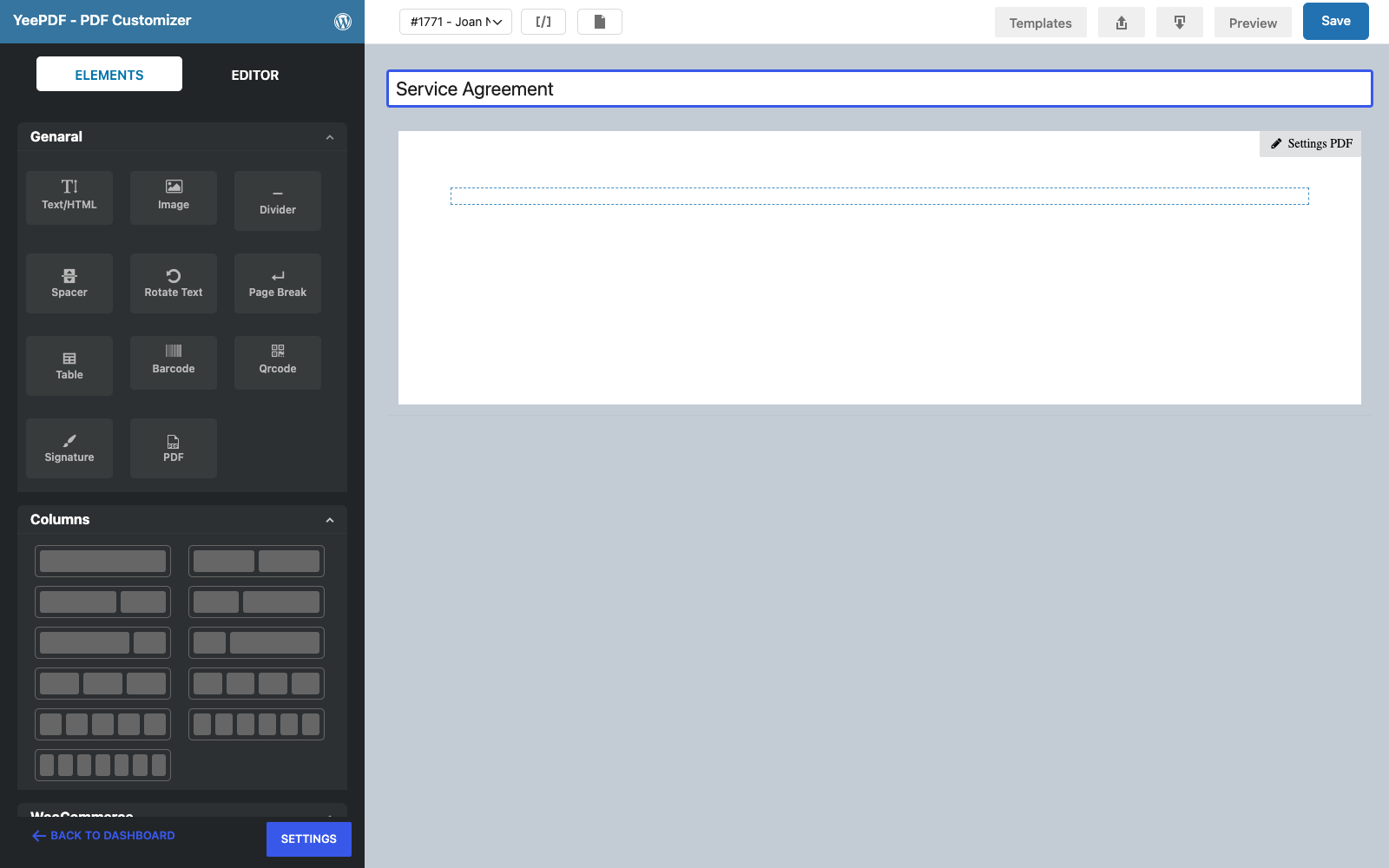
Step 1: New template
Go to PDF Templates → New Template and name it Service Agreement. Keep A4 portrait and add this under Settings PDF → Custom CSS: p { margin: 0 0 7px; }.
Step 2: Footer: how to sign
Drag a Text/HTML element into the row and type, in 10 px:
How to sign: open this PDF in Acrobat Reader, Preview or your browser, fill in the fields above, save the file and reply to the
email with the signed copy, or print, sign and scan it. The agreement enters into force when the signed copy and the payment
have been received. Questions: [email protected] · https://add-ons.org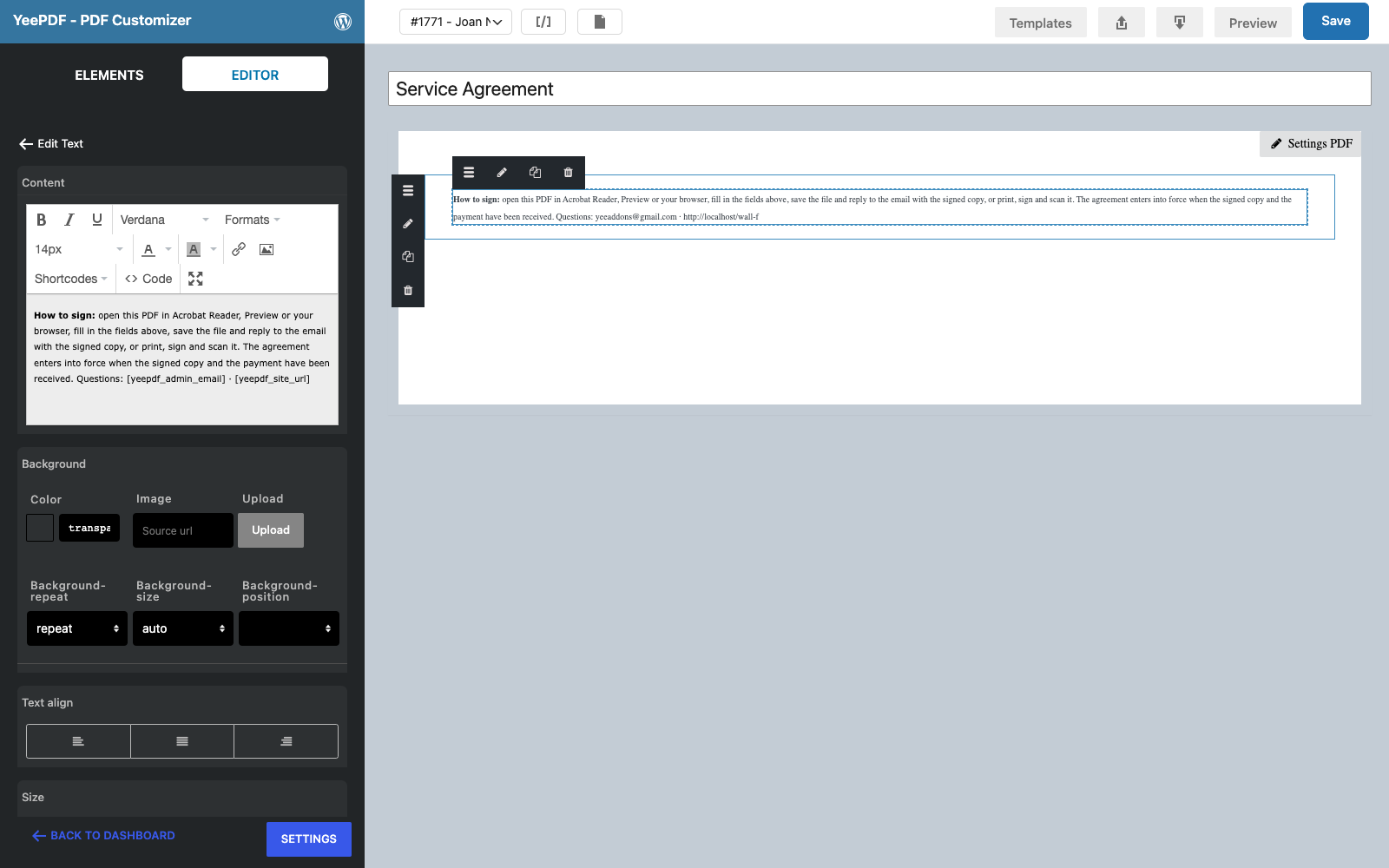
Step 3: Title
Drop a Text/HTML element onto the footer:
SERVICE AGREEMENT                                               ← 26 px bold
Agreement No: AGR-8448 · Date: August 28, 2026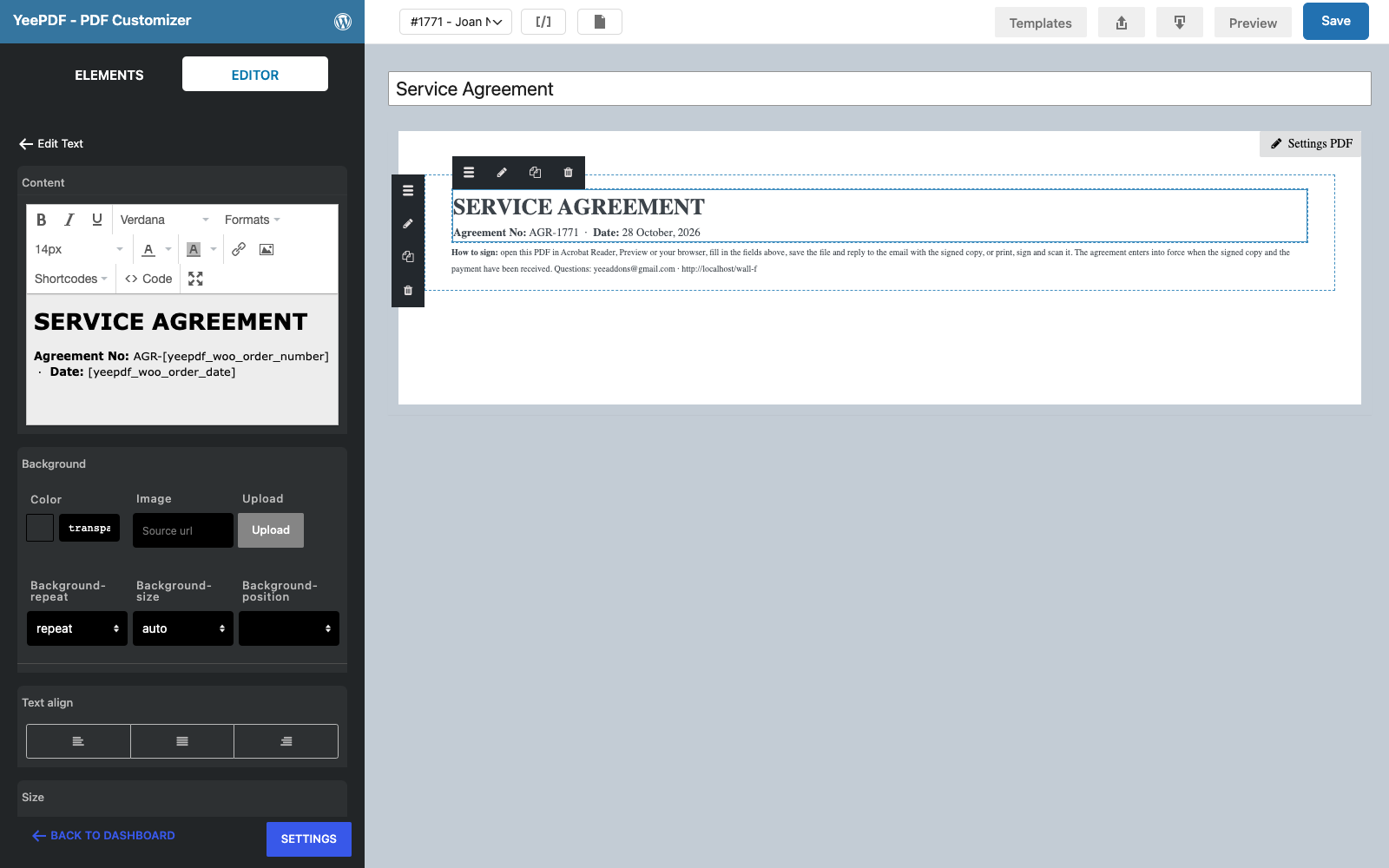
Step 4: Parties
Drop a Text/HTML element onto the footer:
Between Yee Add-ons, 123 Main Street, Anytown, US 11155 (the "Provider") and YEE S.R.L.,
represented by PIERLUIGI CIPRIANI, VIA NELSON MANDELA 4, 13100 VERCELLI,
VC (the "Client"), [email protected] · 3286550379.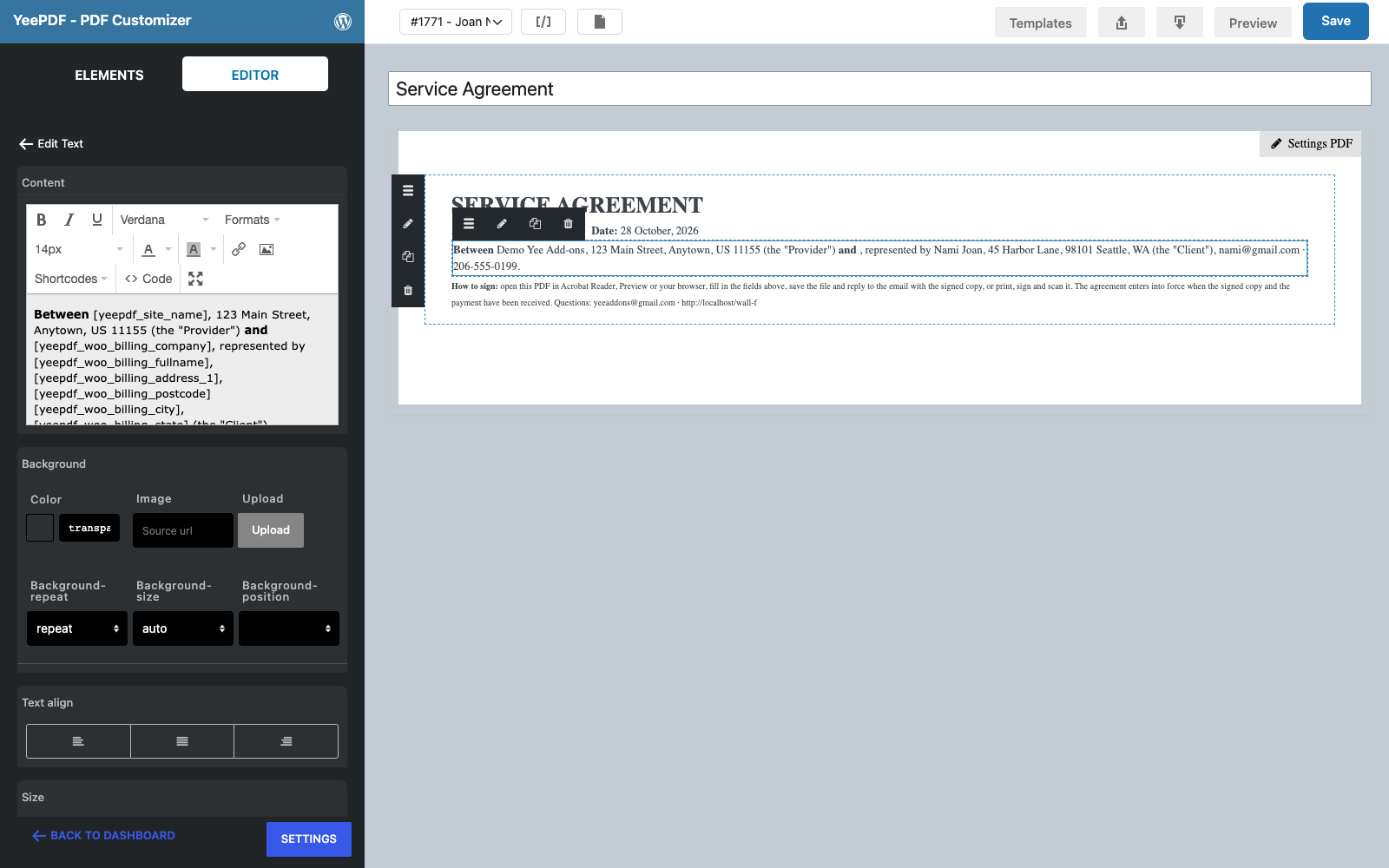
Step 5: Scope, term and fee
Drop a Text/HTML element onto the footer with clauses 1 to 4:
1. Services. The Provider will deliver Dynamic Field for Elementor Forms Pro:
2. Website and term. Website:  · Term:  to .
3. Fee. 19.00 USD (nineteen USD) for the full term, payable on acceptance via the payment link in the accompanying email.
4. Client notes. 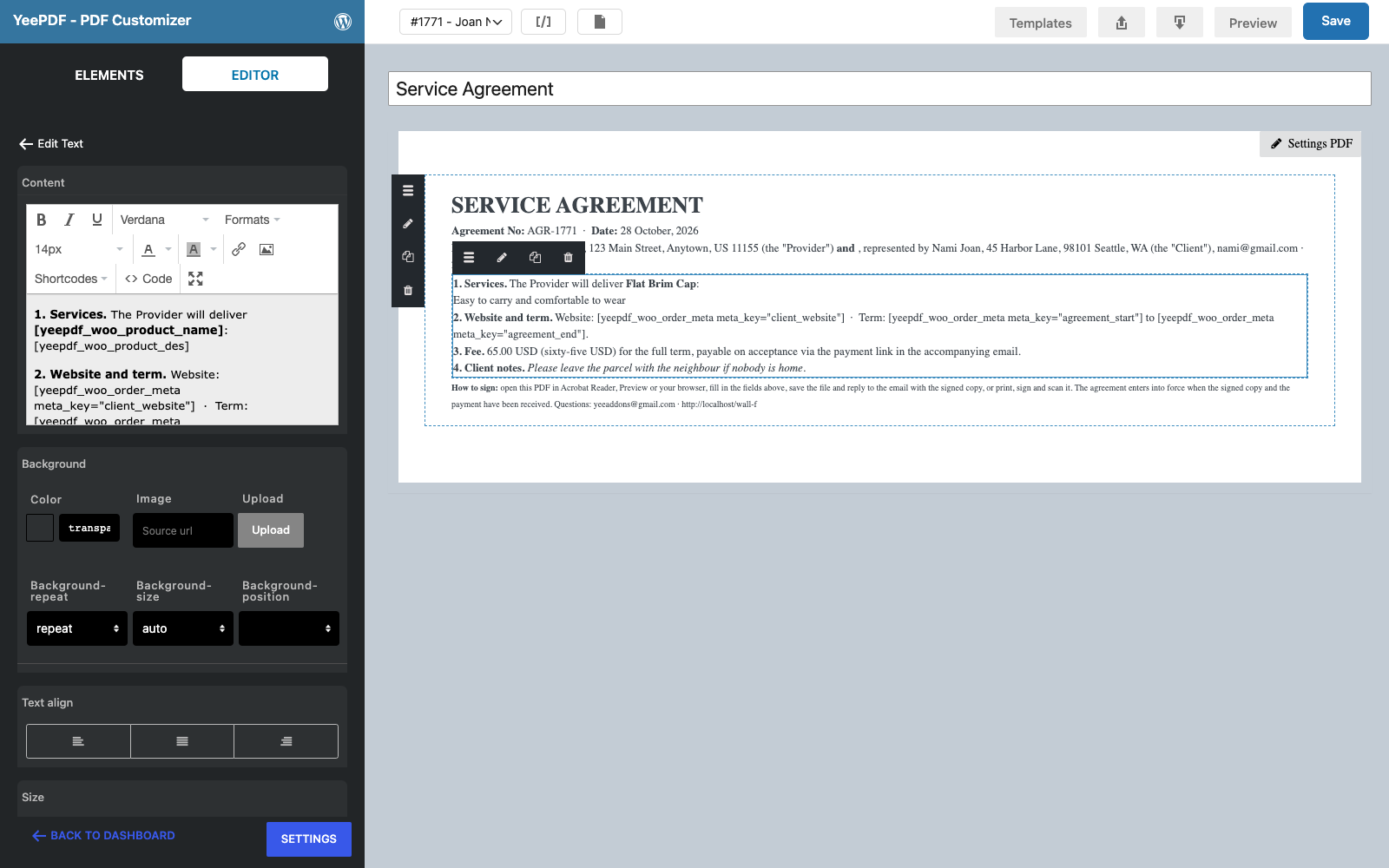
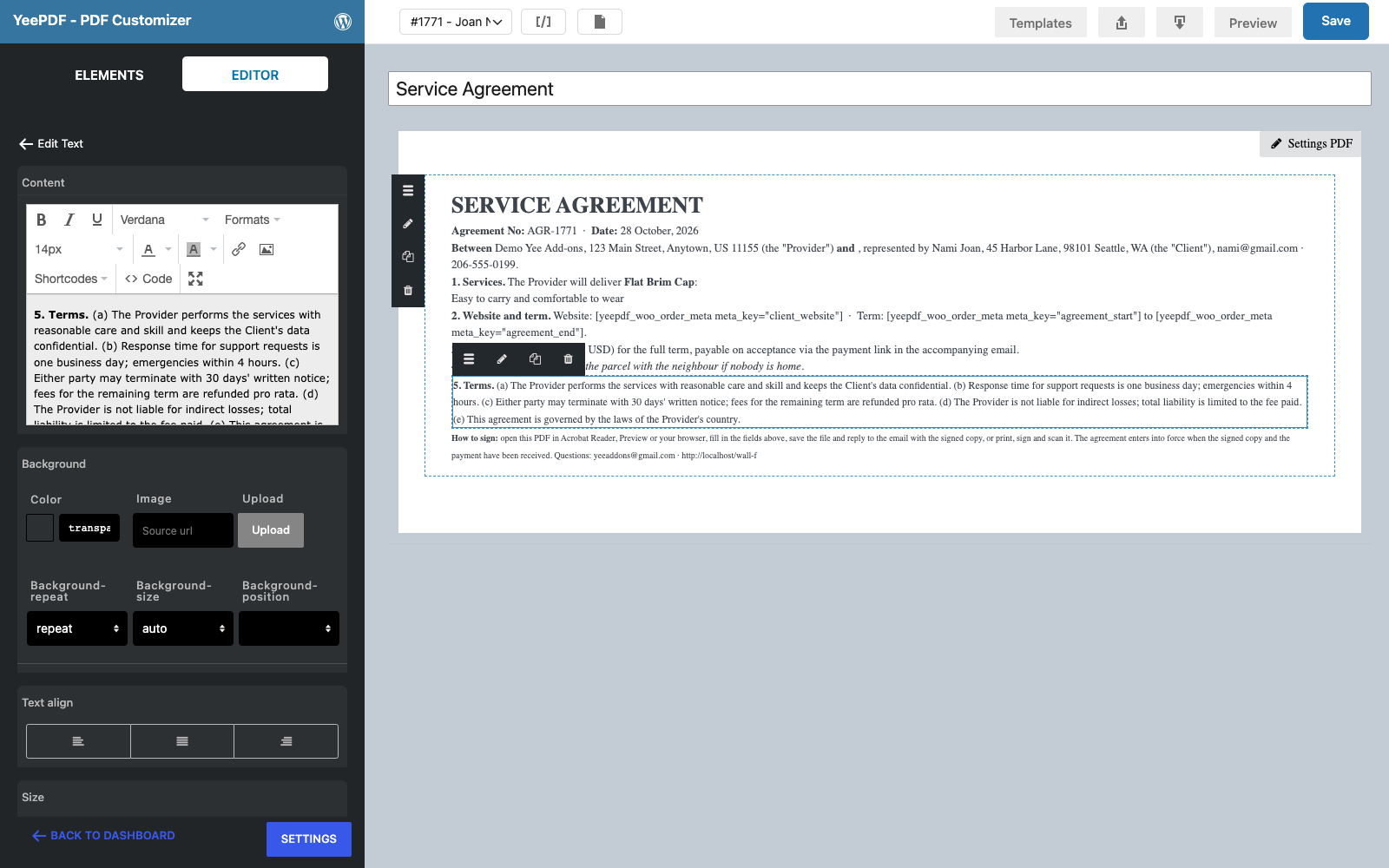
Step 6: Your terms
Drop a Text/HTML element onto the footer with clause 5, your standard terms in 12 px (care and confidentiality, response times, termination, liability, governing law). Keep it to the clauses that matter; long terms belong in a linked page.
Step 7: Signature block
Drop a Text/HTML element onto the footer and paste a two-column table in the Code view:
<table width="100%"><tr>
<td width="50%"><strong>For the Provider</strong><br>Yee Add-ons<br>Signed electronically on August 28, 2026</td>
<td width="50%"><strong>For the Client</strong><br>YEE S.R.L.<br>Fill in the fields below to sign:</td>
</tr></table>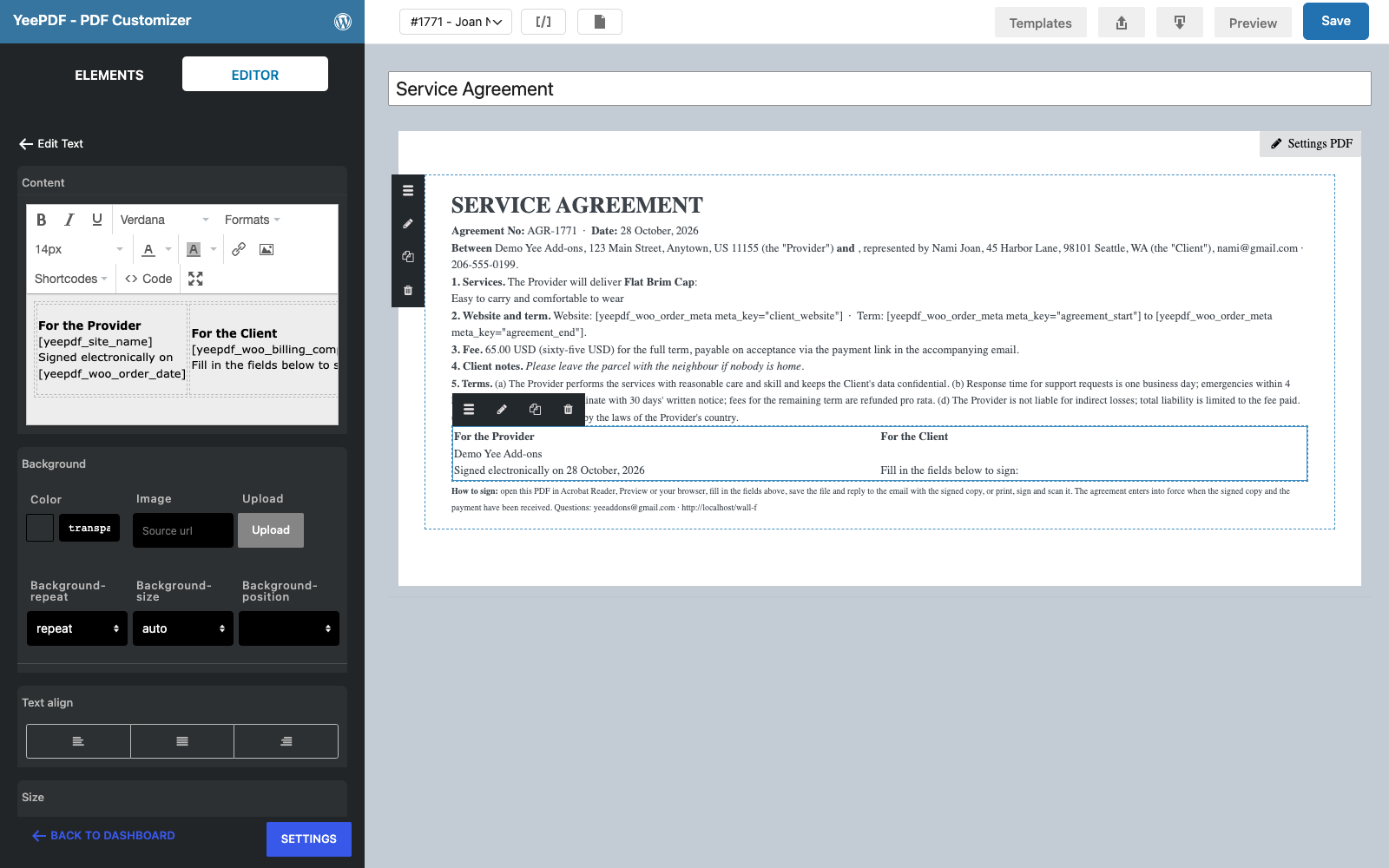
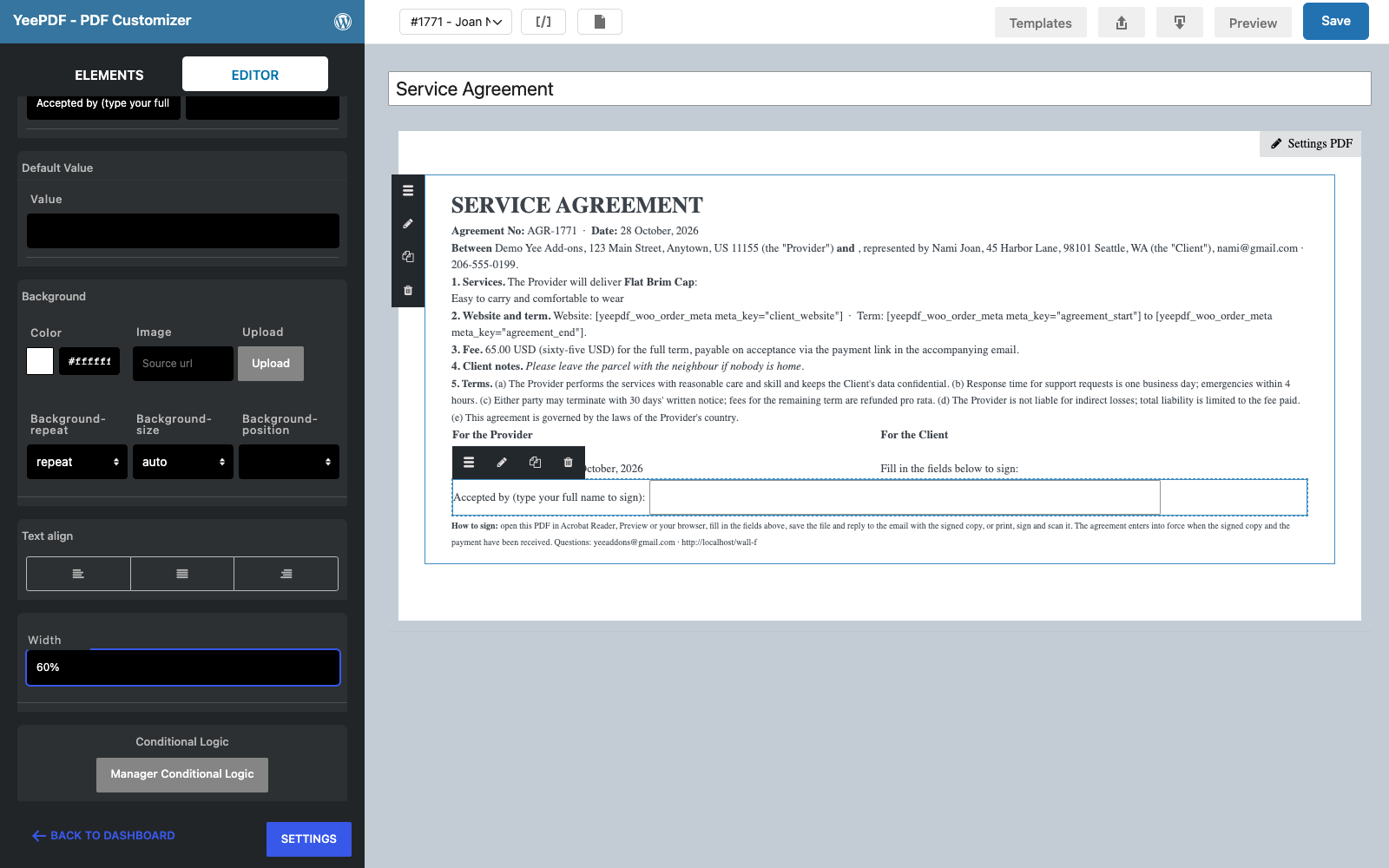
Step 8: Fillable fields
In the Forms section of the Elements panel drag a Text input element onto the footer. In its Editor panel set Before text to Accepted by (type your full name to sign): and Width to 60%. Repeat for Position: (40 %) and Date: (30 %). Each becomes a real form field in the PDF: the client clicks it in Acrobat, Preview or Chrome, types, and saves the file.
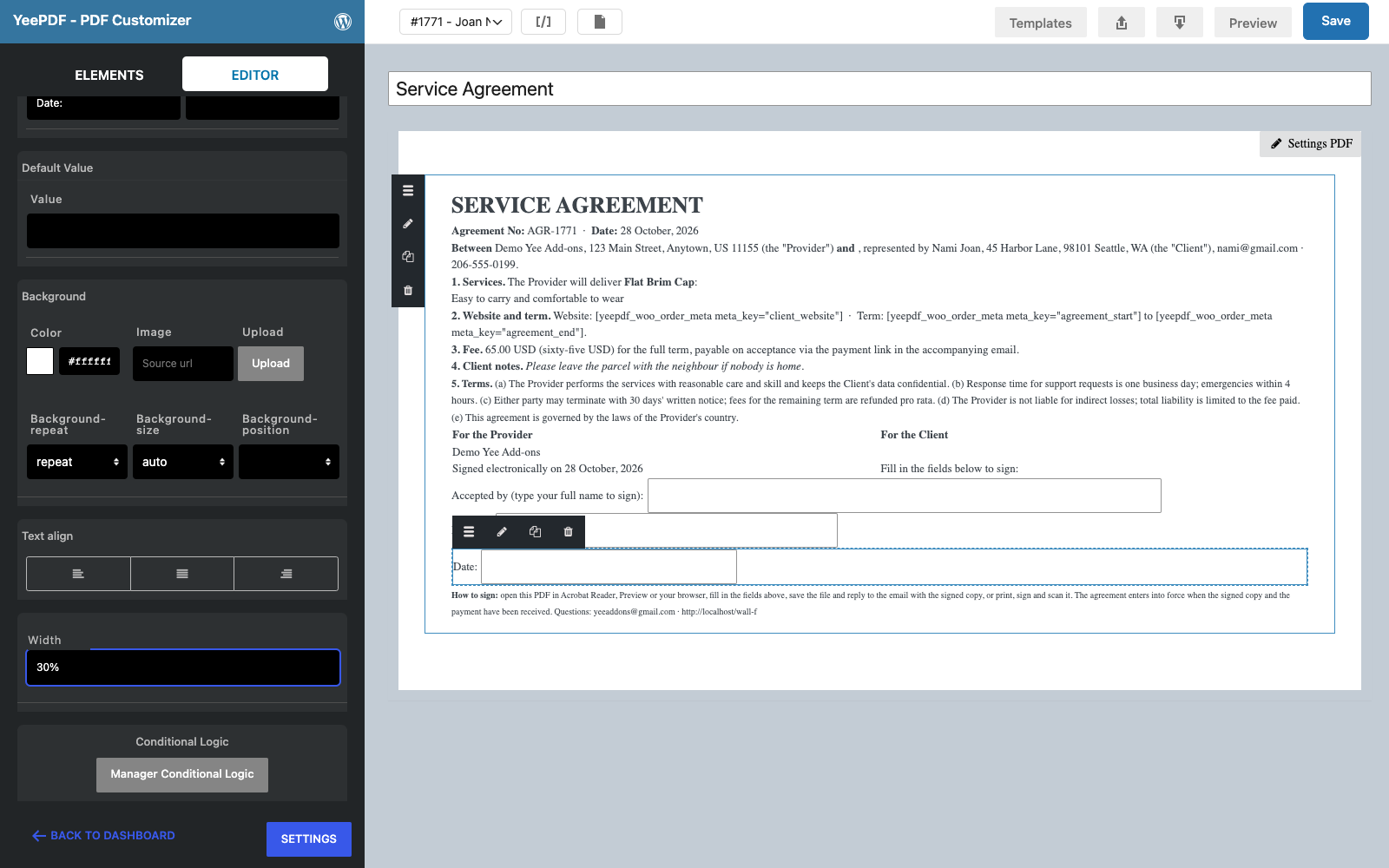
Click Save.
3. Generate the Agreement for New Service Orders
Go to WooCommerce → Settings → PDF → Add new PDF:
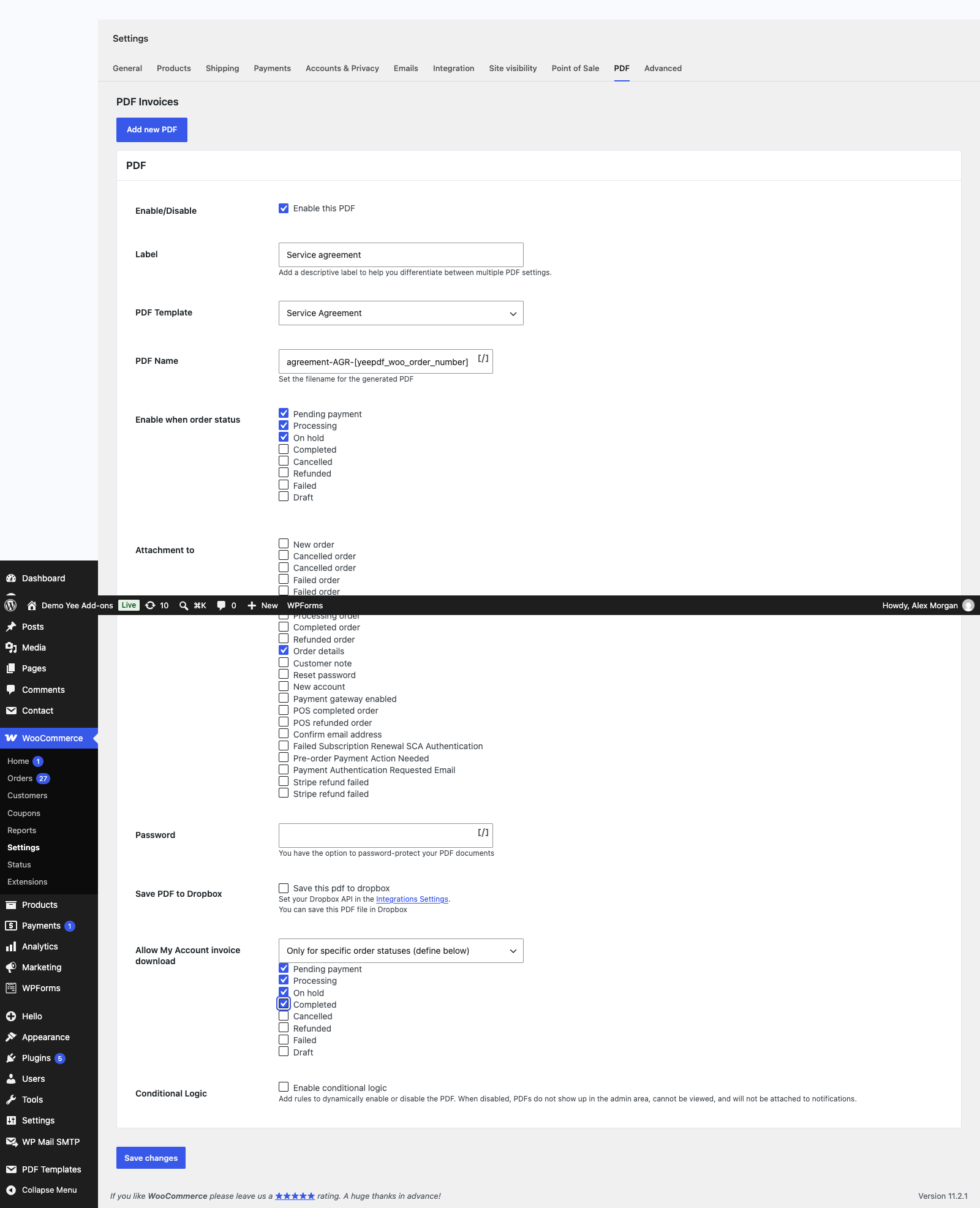
| Field | Value | Why |
|---|---|---|
| Enable this PDF | ticked | |
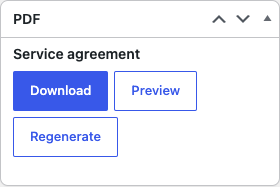
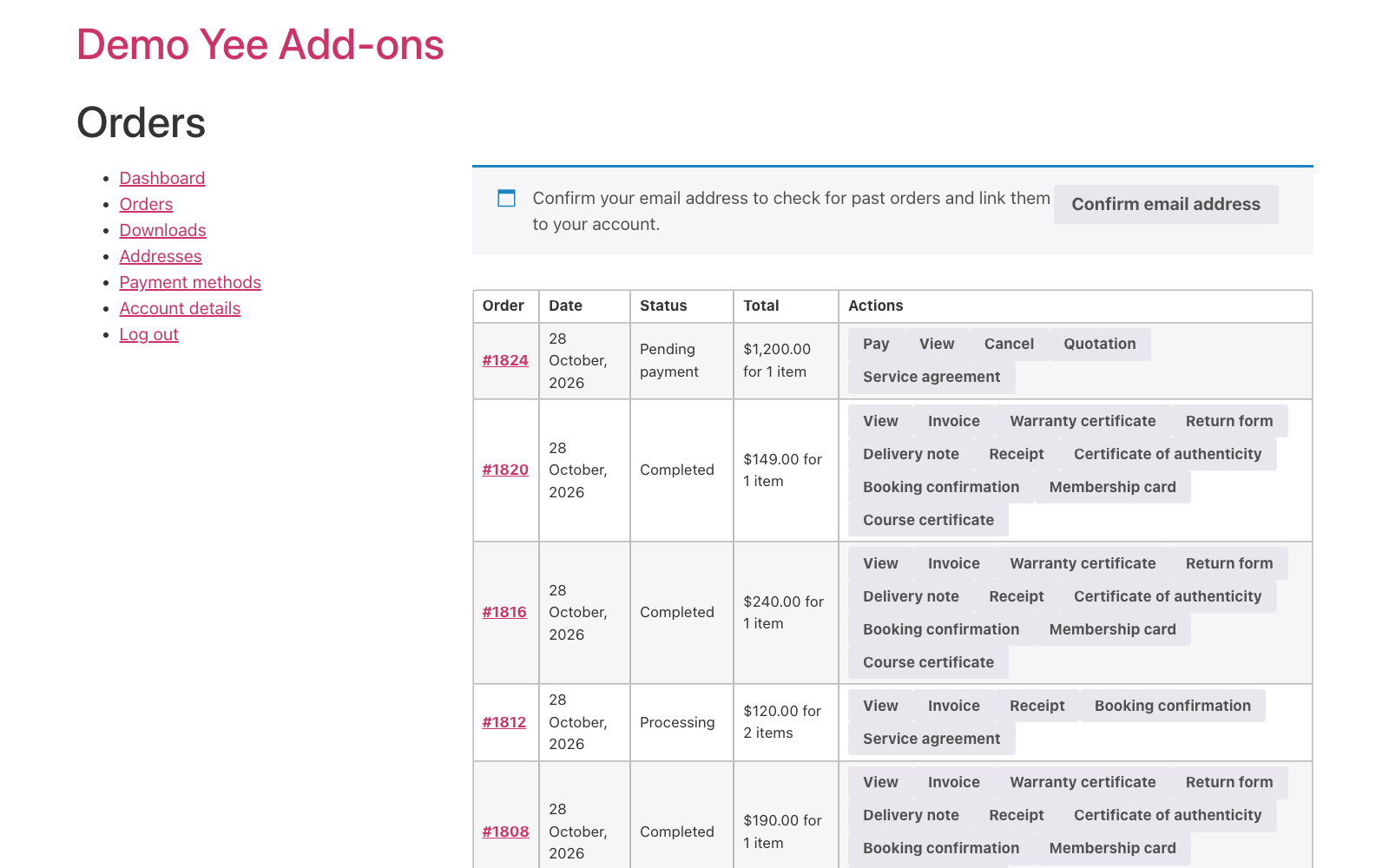
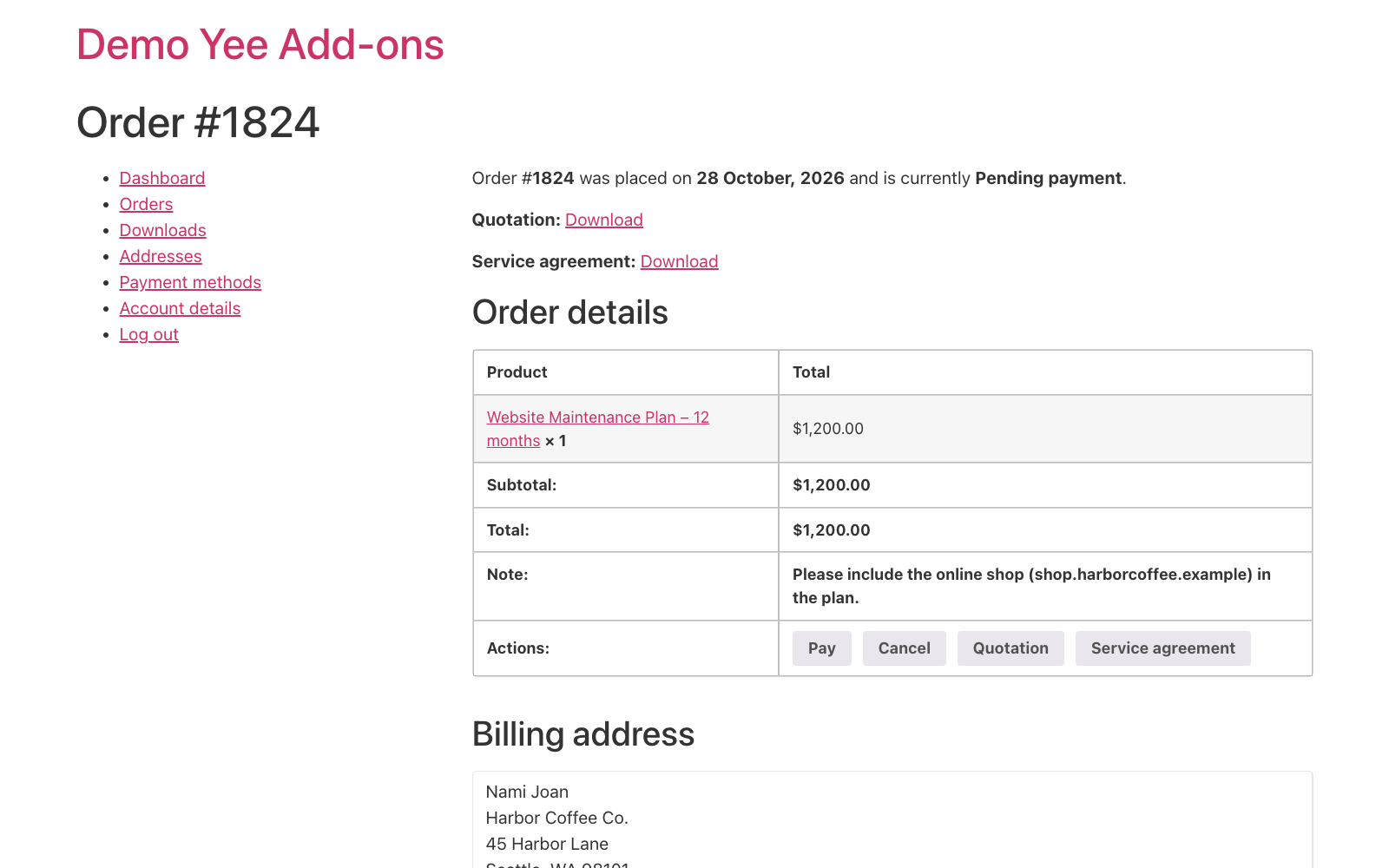
| Label | Service agreement | Button label in the admin and in My Account. |
| PDF Template | Service Agreement | The template from section 2. |
| PDF Name | agreement-AGR-8448 | e.g. agreement-AGR-1824.pdf |
| Enable when order status | Pending payment, On hold, Processing | Generated when you create the order (Pending) and kept through payment. |
| Attachment to | Order details | The Send order details to customer action carries the agreement and the pay link; no automatic email includes it. |
| Allow My Account invoice download | Pending payment, On hold, Processing, Completed | The client can re-open the agreement at any stage. |
4. Send, Sign, Pay
- Go to WooCommerce → Orders → Add order, pick the client, add the service product and type the client’s wishes in Customer provided note. In the Custom Fields box add
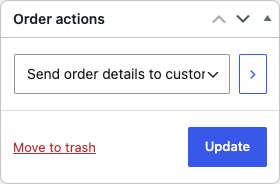
client_website,agreement_startandagreement_end. Leave the status at Pending payment and click Create: the agreement is generated. - Under Order actions choose Send order details to customer: the email carries the agreement PDF and the pay link.
- The client opens the PDF, fills in the three fields, saves and replies with the signed copy, then pays via the link (or from My Account → Orders → Pay). The order moves to Processing and the work starts. Attach the signed copy to the order as a note for your records.
5. Tips
- Checkbox clauses: the Checkbox form element adds tickable options (“I accept the terms”, “Send me the monthly report”); the Textarea element a free-text box for special conditions.
- Drawn signature: PDF readers let the client add a drawn or image signature on top of the page; the typed-name field is the fallback that every reader supports.
- Provider signature image: replace “Signed electronically” with an Image element holding a scanned signature.
- Keep terms short: put the full terms on a page and link to it; the PDF carries the clauses that change per client.
- Revisions: edit the order or its custom fields, click Regenerate and send again; the agreement number stays the same.
- Counter-signed copy: once the signed copy is back, upload it to the Media library and paste its link in a private order note.
6. Frequently Asked Questions (FAQ)
Do the form fields work in every PDF reader?
Text, textarea and checkbox fields are standard AcroForm fields: Acrobat Reader, macOS Preview, Chrome, Edge and most phone readers can fill and save them.
Is a typed name a valid signature?
In many jurisdictions a typed name with intent to sign is an electronic signature for simple agreements; for high-value contracts use a dedicated e-signature service and attach the PDF there.
Can the filled PDF be returned automatically?
No; the client replies with the saved file. The Pro version’s Dropbox saving covers the outgoing copy only.
Can I generate the agreement only for service products?
Use conditional logic on a custom field in the setting, or keep service orders in a dedicated status and tick only that status.
What if the client pays before signing?
The agreement is still available in My Account and the order; ask for the signed copy before starting the work, or add a checkbox field and require it in your process.