
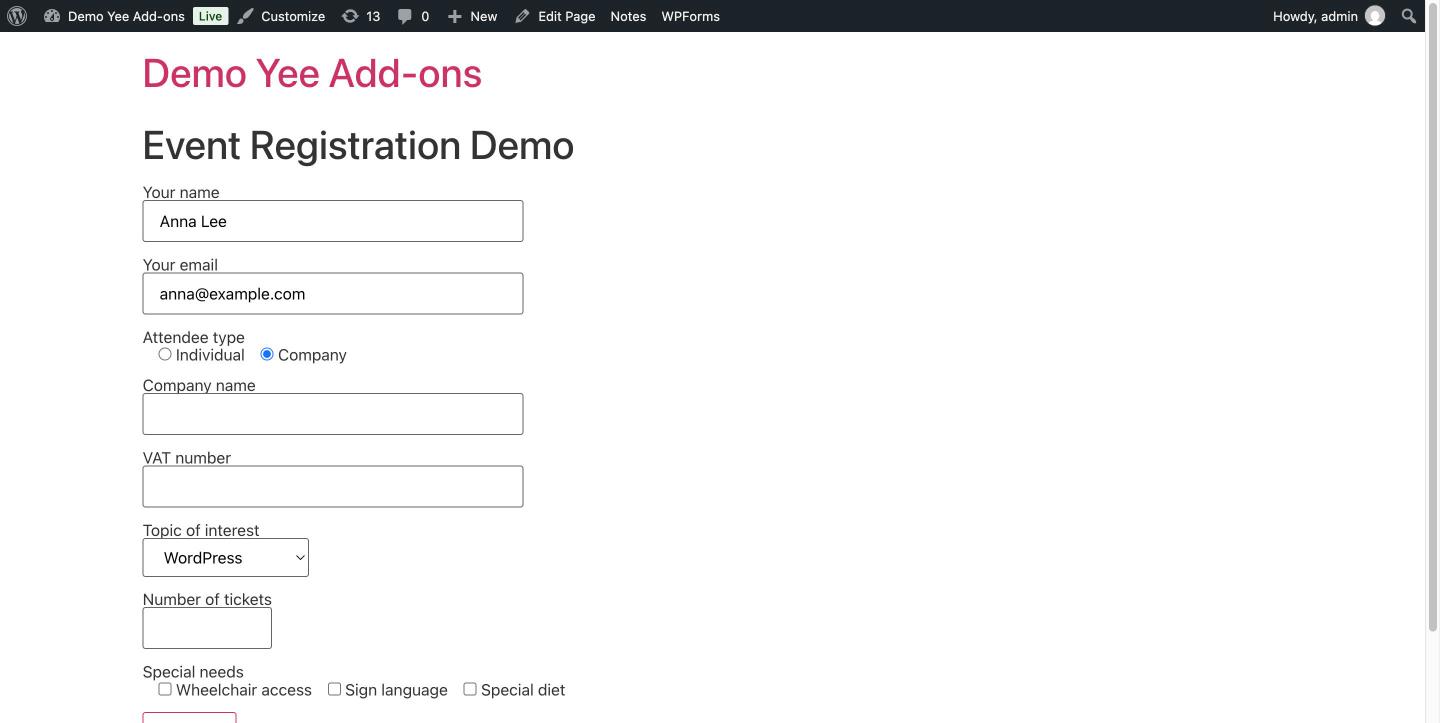
This is the official documentation for the Conditional Logic Fields feature of Conditional Logic Emails and Fields for Contact Form 7 (by add-ons.org). With it, a Contact Form 7 form shows or hides groups of fields in real time depending on what the visitor selects or types: company fields only for company attendees, a “please specify” box only when “Other” is chosen, a discount note only above a certain quantity, and so on. Fields inside a hidden group are not validated, so a required field can be required only when it is visible. This guide covers installation, the [group] tag, creating rules step by step, a complete event-registration example with five rules, front-end behaviour, validation, an operators reference, tips, developer notes and FAQ. Email routing based on the same conditions is documented separately in the Conditional Logic Emails guide.
Video tutorial
1. Installation & System Requirements
- Install and activate Contact Form 7; the plugin requires it.
- Go to Plugins → Add New Plugin → Upload Plugin, upload the plugin ZIP and click Install Now, then Activate.
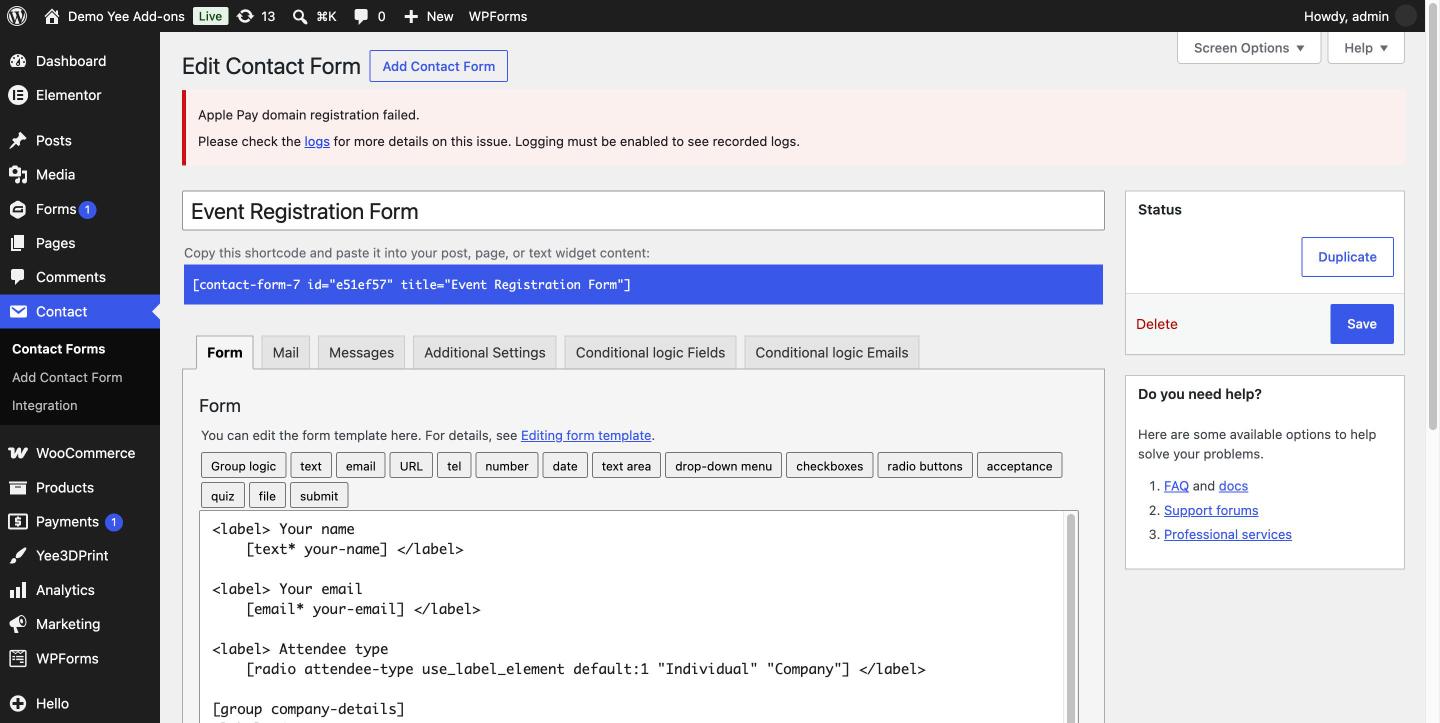
- Open any form under Contact → Contact Forms. You will find a new Group logic button above the form template and two new editor tabs: Conditional logic Fields and Conditional logic Emails.
2. How Conditional Fields Work
- Groups: you wrap one or more fields (and any HTML around them) in a
[group name] … [/group]tag. On the front end the group becomes a<div id="name" class="cf7-group">. - Rules: in the Conditional logic Fields tab you create rules of the form Show (or Hide) these groups when these conditions are met. A rule can target several groups and contain several conditions combined with AND (“All”) or OR (“one”).
- Live evaluation: rules are evaluated in the browser when the form loads and every time a field changes, so groups appear and disappear instantly without reloading.
- Validation: fields inside a hidden group are skipped by Contact Form 7 validation on the server, which is how you make a field required only in some cases.
3. Step 1: Wrap Fields in Groups
Open the Form tab, place the cursor where the group should start and click the Group logic button. Enter a Field name (letters, digits and hyphens, unique in the form) and click Insert Tag. The generator inserts [group your-name]; add the closing [/group] after the fields you want to control.
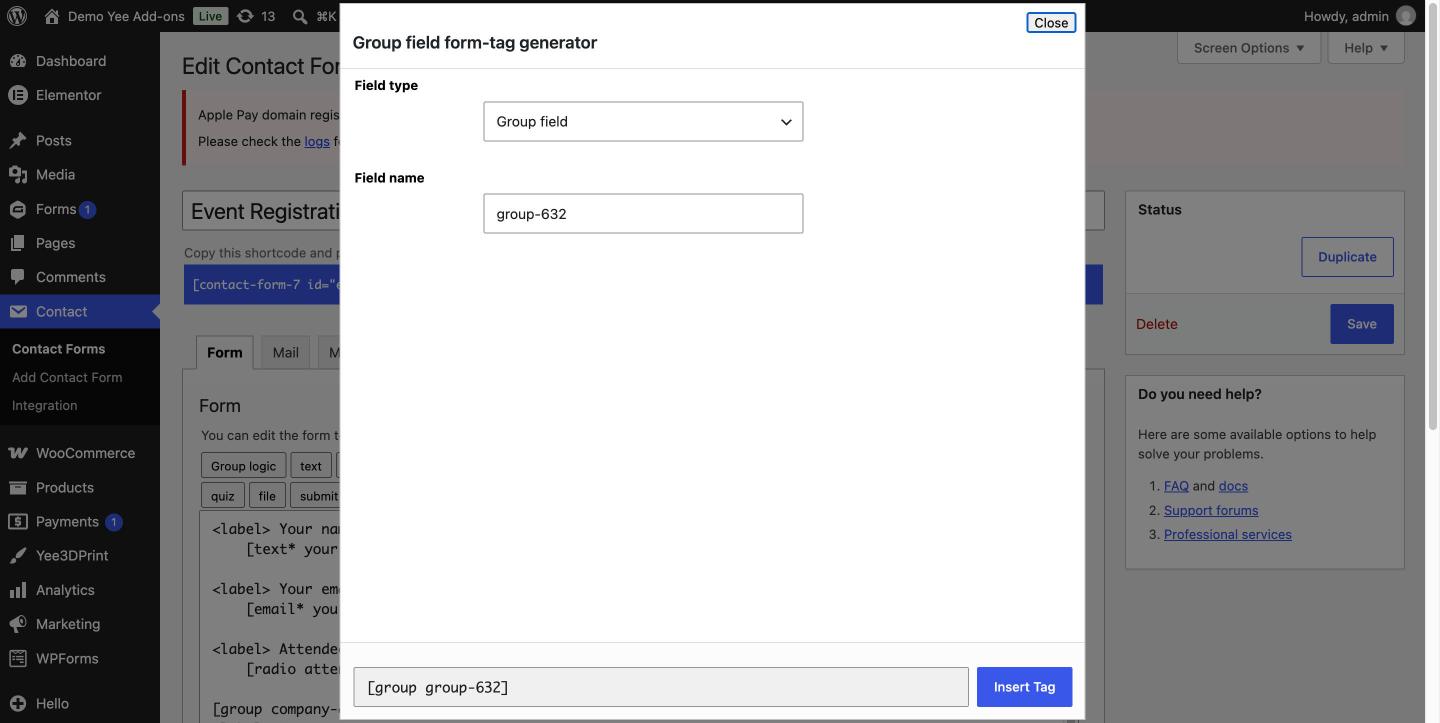
You can also type the tags by hand. Everything between the opening and closing tag belongs to the group: labels, inputs, paragraphs of text, even several fields. The example form below uses five groups.
![The form template showing fields wrapped in [group company-details], [group student-discount] and [group other-topic] tags](https://add-ons.org/wp-content/uploads/2026/10/clf-03-form-template-with-groups.jpg)
4. Step 2: Create a Rule in “Conditional logic Fields”
Click the Conditional logic Fields tab. On a new form it contains only an Add New button.
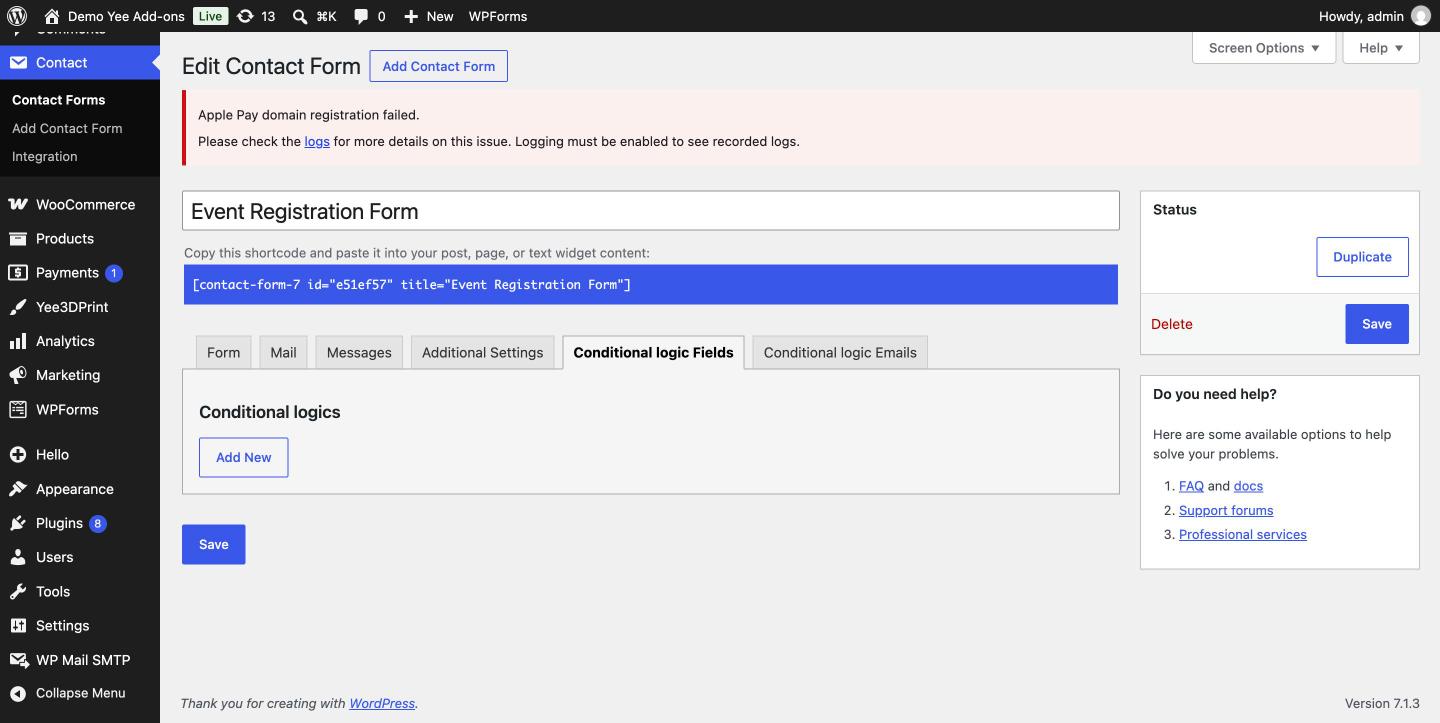
Step 2.1: Click “Add New”
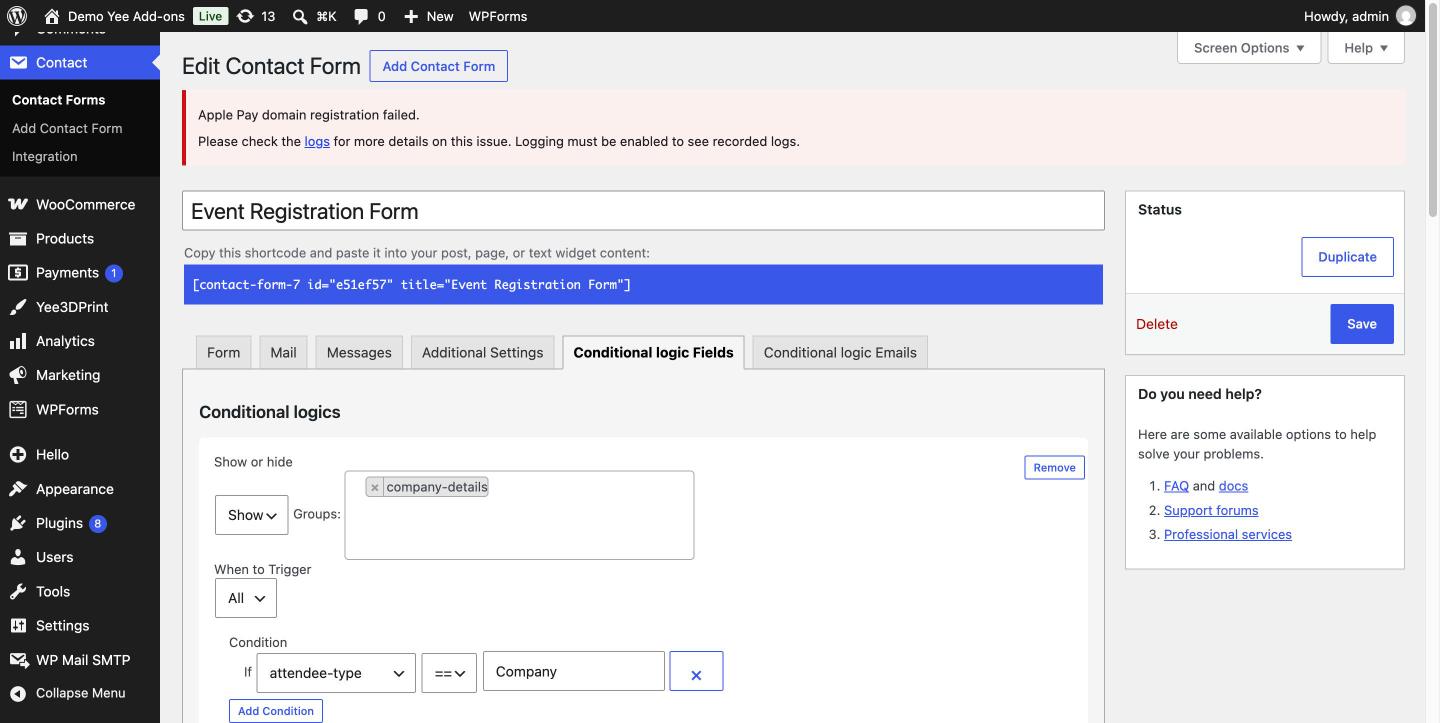
A rule block appears with four settings: Show or hide, Groups, When to Trigger and Condition.
Step 2.2: Choose “Show” or “Hide”
- Show: the groups are hidden by default and appear only while the conditions are met.
- Hide: the groups are visible by default and disappear while the conditions are met.
Step 2.3: Pick the target groups
The Groups box lists every [group] tag found in the form template. Select one or more. Save the form first if a group you just added is not listed yet.
Step 2.4: Set “When to Trigger”
- All: every condition must be true (AND).
- one: a single true condition is enough (OR).
Step 2.5: Add conditions
Click Add Condition and build If [field] [operator] [value]. The field list contains every named form tag except groups. Operators are ==, !=, >, >=, < and <=. For drop-downs, radios and checkboxes the value is the option label exactly as written in the tag. Remove a condition with the × button or the whole rule with Remove.
Step 2.6: Save
Click Save. The rules are stored with the form and are active on the front end immediately.
5. Example Form: Event Registration
The rest of this guide uses an event registration form. It has a name, an email, an attendee-type radio (Individual or Company), a topic drop-down, a numeric tickets field and a needs checkbox group, plus five groups that are shown or hidden by rules.
<label> Your name
    [text* your-name] </label>

<label> Your email
    [email* your-email] </label>

<label> Attendee type
    [radio attendee-type use_label_element default:1 "Individual" "Company"] </label>

[group company-details]
<label> Company name
    [text* company-name] </label>
<label> VAT number
    [text vat-number] </label>
[/group]

[group student-discount]
<label> Student ID (10% discount)
    [text student-id] </label>
[/group]

<label> Topic of interest
    [select topic "WordPress" "WooCommerce" "Elementor" "Other"] </label>

[group other-topic]
<label> Please specify the topic
    [text* other-topic-text] </label>
[/group]

<label> Number of tickets
    [number* tickets min:1 max:50] </label>

[group group-discount]
<p><strong>Group discount:</strong> bookings of 5 or more tickets get 15% off. We apply it automatically.</p>
[/group]

<label> Special needs
    [checkbox needs use_label_element "Wheelchair access" "Sign language" "Special diet"] </label>

[group accessibility-details]
<label> Tell us more about the accessibility support you need
    [textarea accessibility-notes] </label>
[/group]

[submit "Register"]
6. The Five Rules, One per Use Case
Example 1: Show extra fields for one radio option
Show group company-details · When to Trigger: All · If attendee-type == Company. The company name and VAT number appear only for company attendees. Because company-name is a required field (text*), it is required only when it is visible.
Example 2: Hide a field for one option
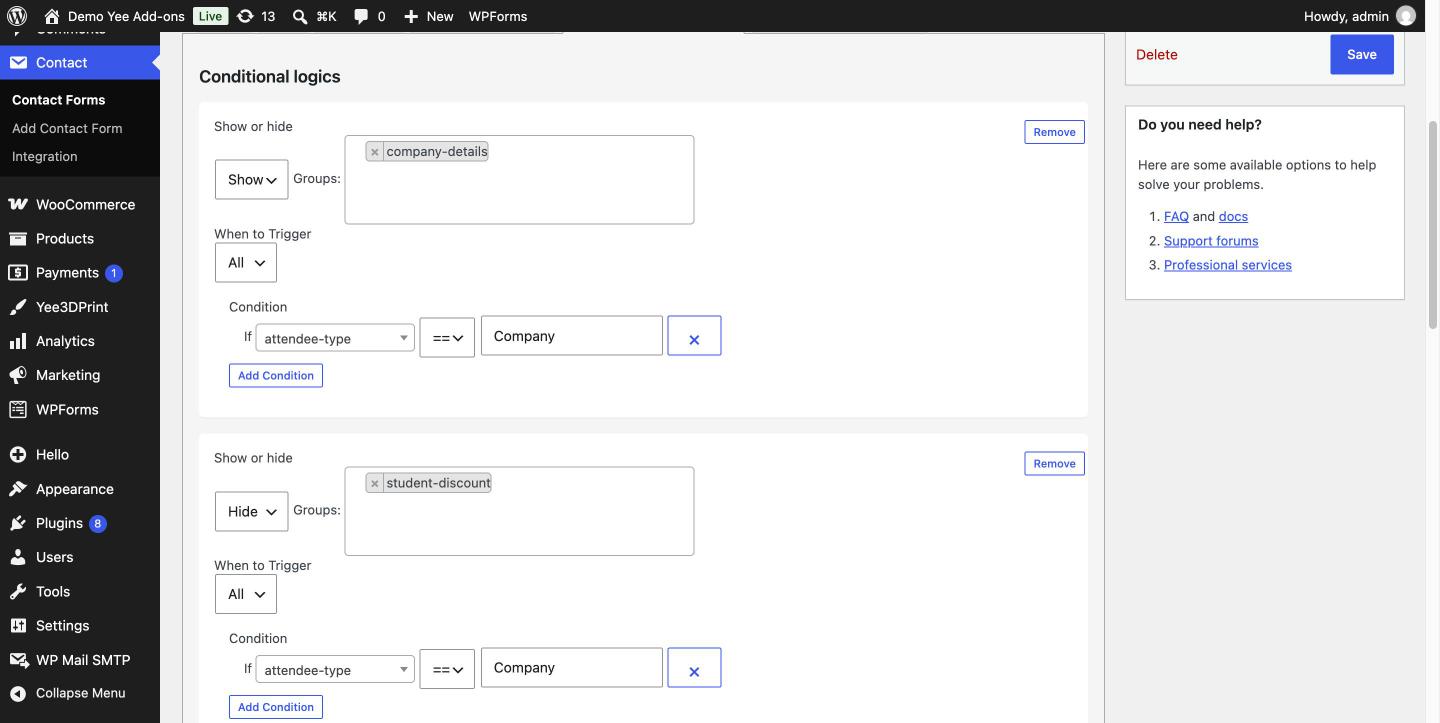
Hide group student-discount · When to Trigger: All · If attendee-type == Company. The student ID field is visible by default and disappears when Company is selected. This is the mirror of Example 1 and shows when to use Hide instead of Show.
Example 3: “Other, please specify” for a drop-down
Show group other-topic · When to Trigger: All · If topic == Other. A classic pattern: the free-text field appears only when the visitor picks Other, and since it is text* it is also required only then.
Example 4: Numeric threshold
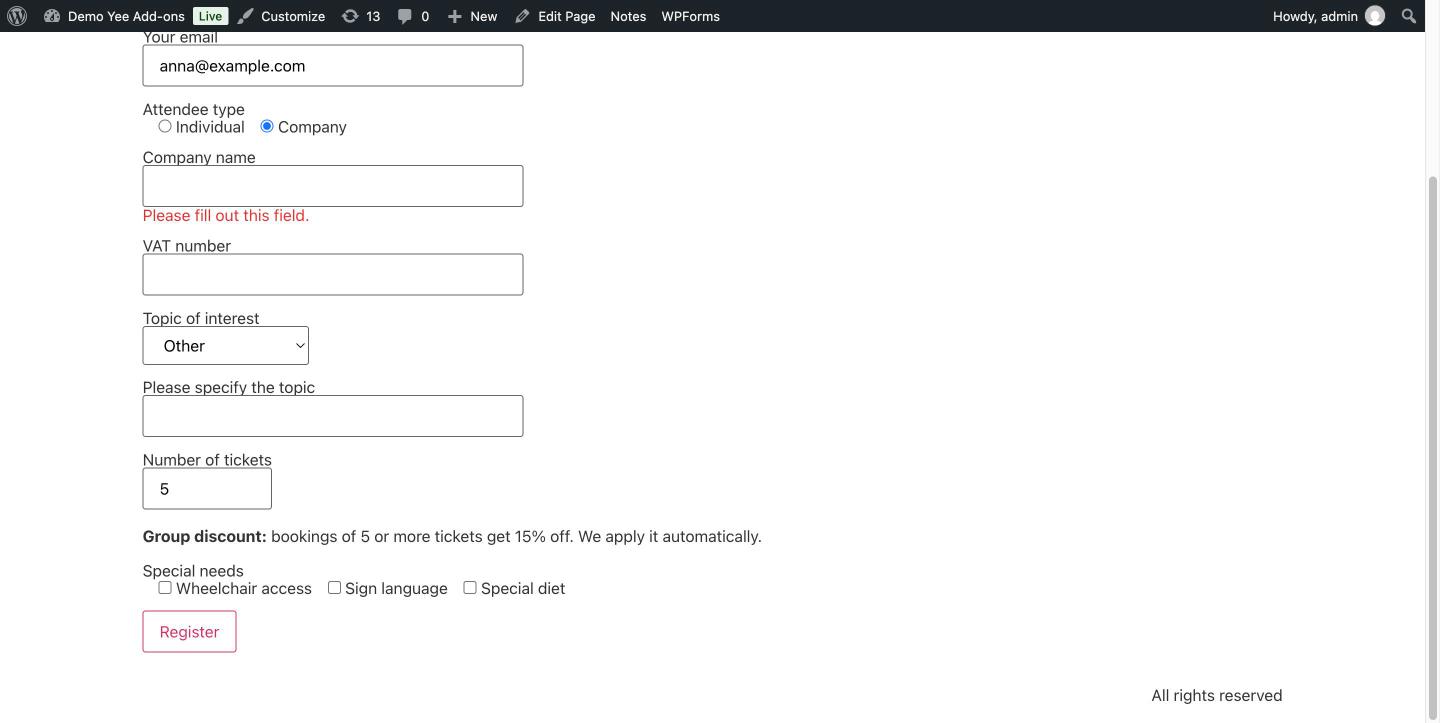
Show group group-discount · When to Trigger: All · If tickets >= 5. The group contains only a paragraph of text, which shows that groups can wrap any content, not only inputs. Numeric operators work with number, range and plain text fields that contain numbers.
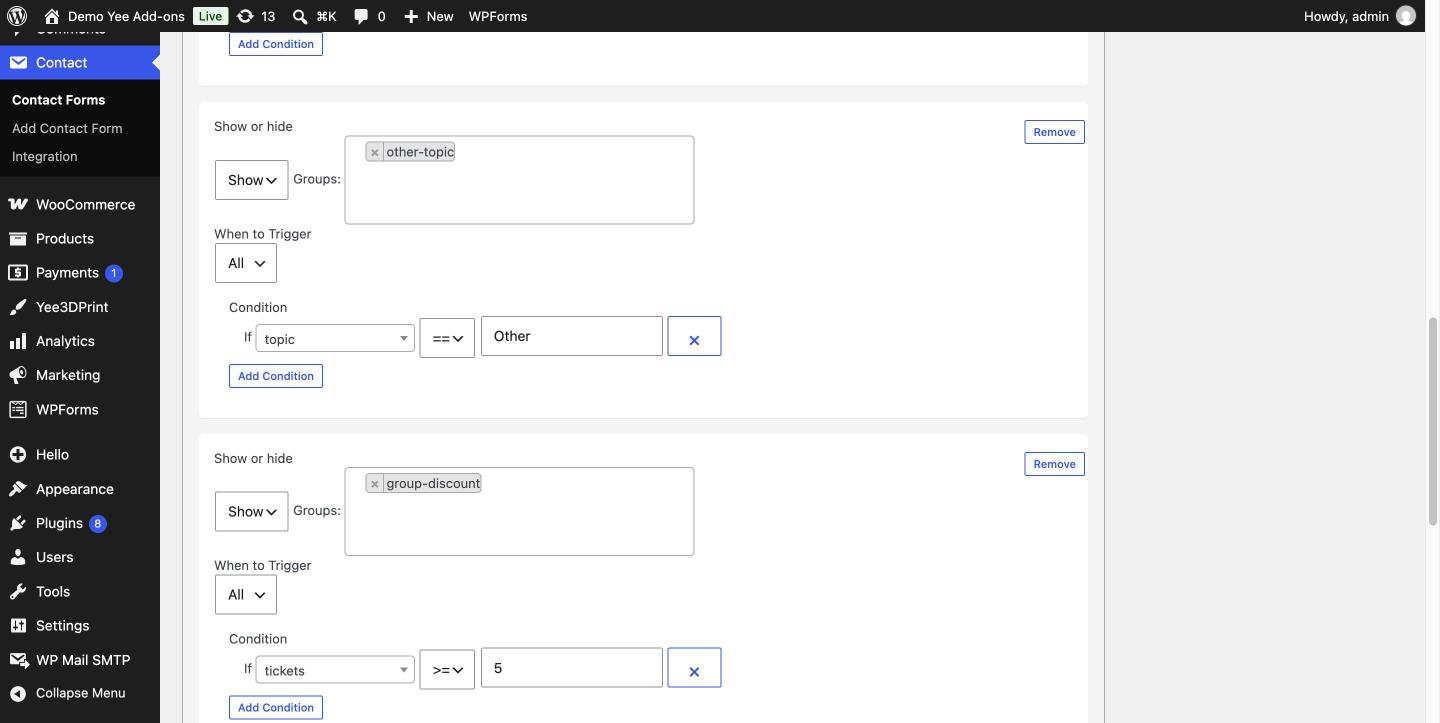 Examples 3 and 4: a drop-down equality rule and a numeric comparison.
Example 5: Checkboxes with OR logic
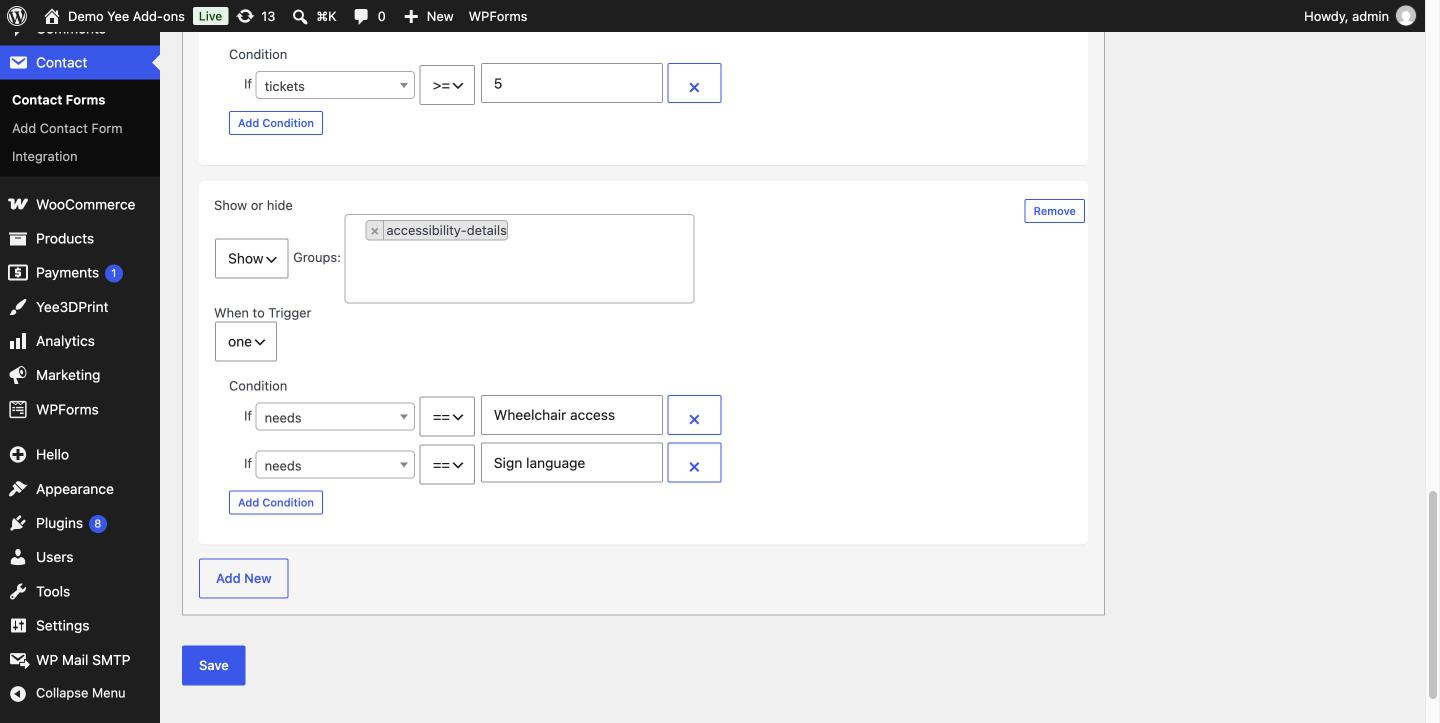
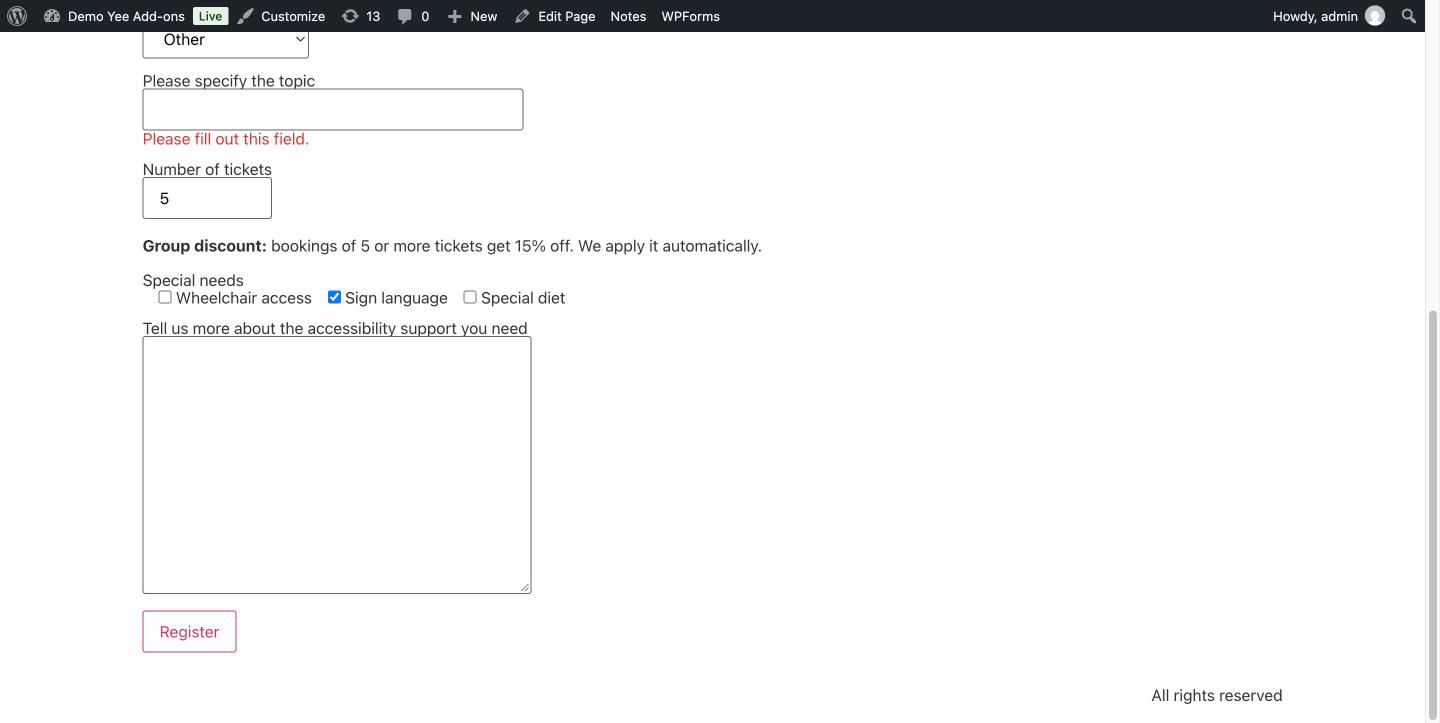
Show group accessibility-details · When to Trigger: one · If needs == Wheelchair access, If needs == Sign language. With checkboxes, == means “this option is ticked”, whatever else is ticked. The trigger mode one turns the two conditions into an OR, so the textarea appears as soon as either option is selected.
7. What the Visitor Sees
On the front end only the fields that are relevant are visible. When the page loads, every Show group is hidden and every Hide group is visible, then the rules are evaluated against the default values (here the radio defaults to Individual).
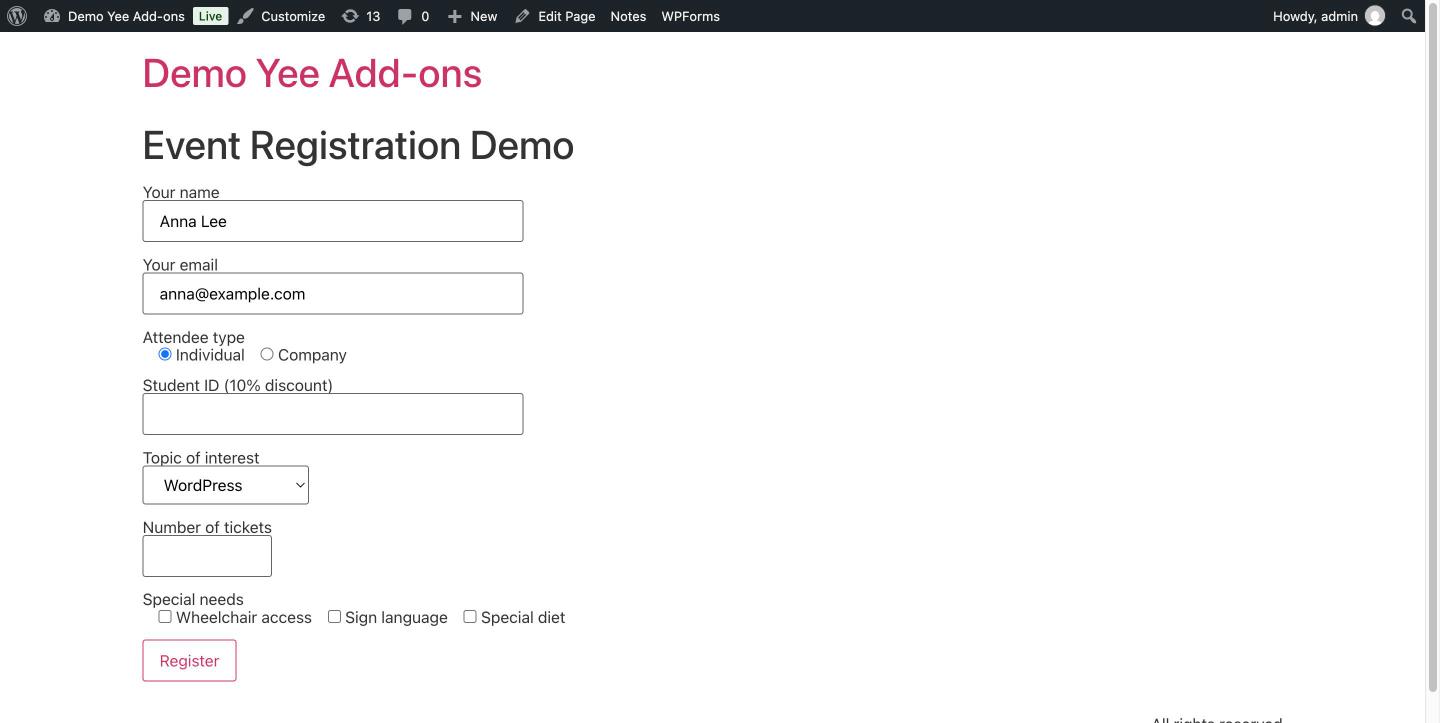
Selecting Company shows the company fields and hides the student ID at the same time (Examples 1 and 2).
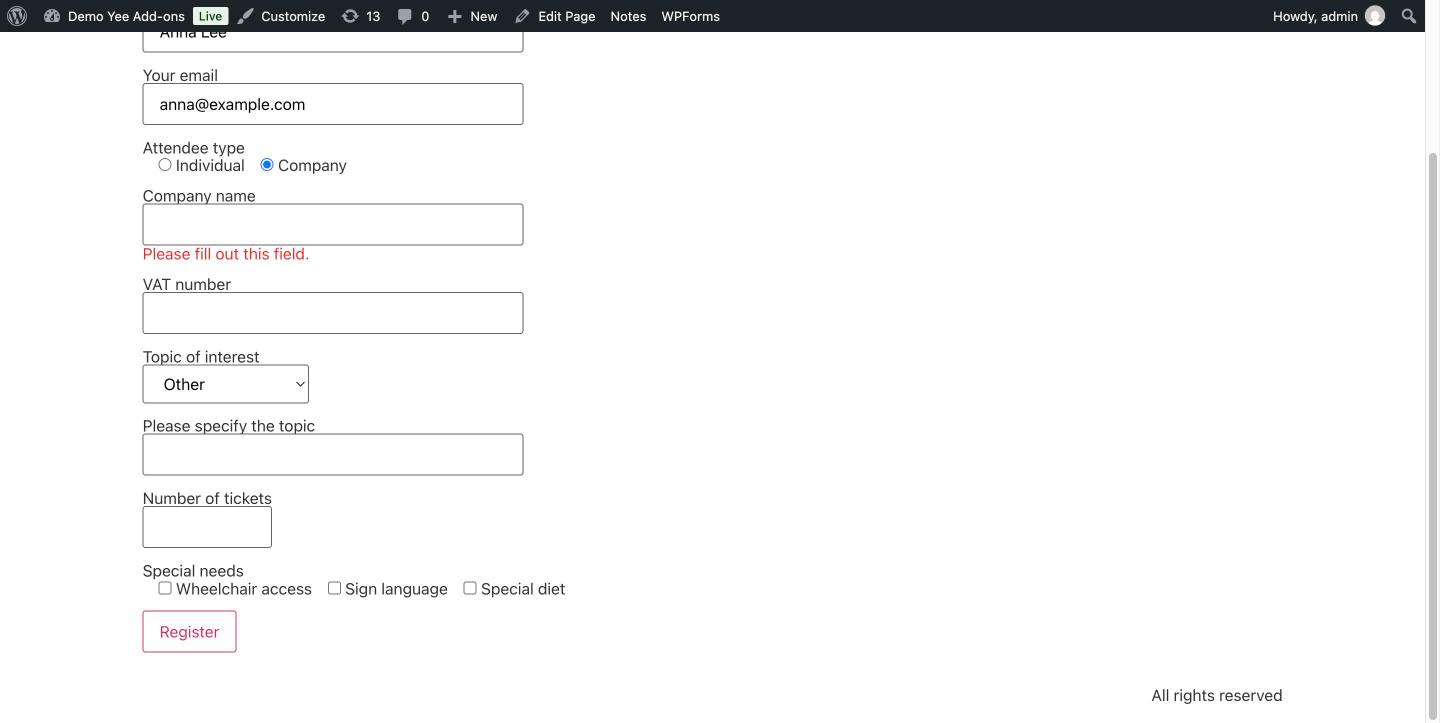
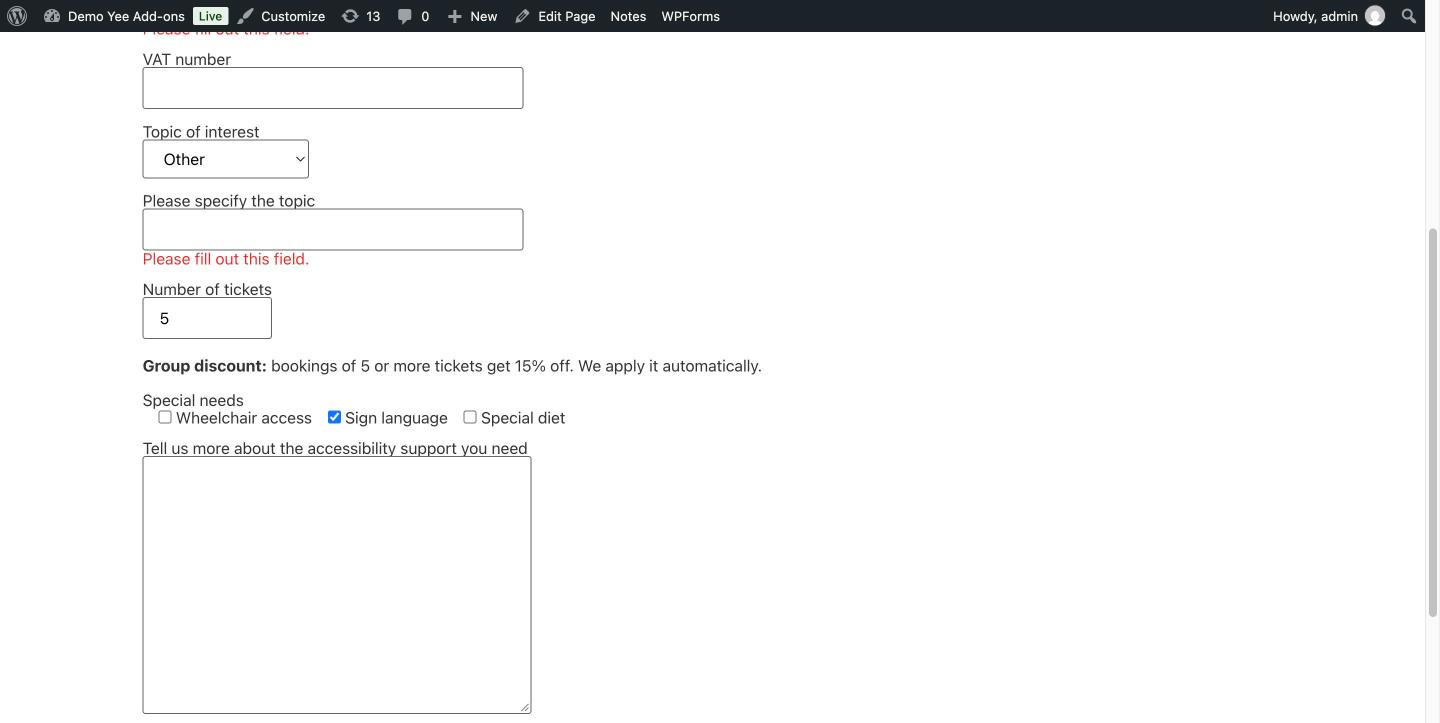
Choosing Other in the topic drop-down reveals the “Please specify the topic” field (Example 3). Contact Form 7 live validation marks the newly visible required field, which confirms it is now required.
Typing 5 or more tickets shows the discount note (Example 4).
Ticking Sign language (or Wheelchair access) shows the accessibility textarea (Example 5).
8. Conditionally Required Fields and Validation
Submitting the form while Company is selected and the company name is empty is rejected: Contact Form 7 reports the required field inside the visible group, exactly as it would for any required field.
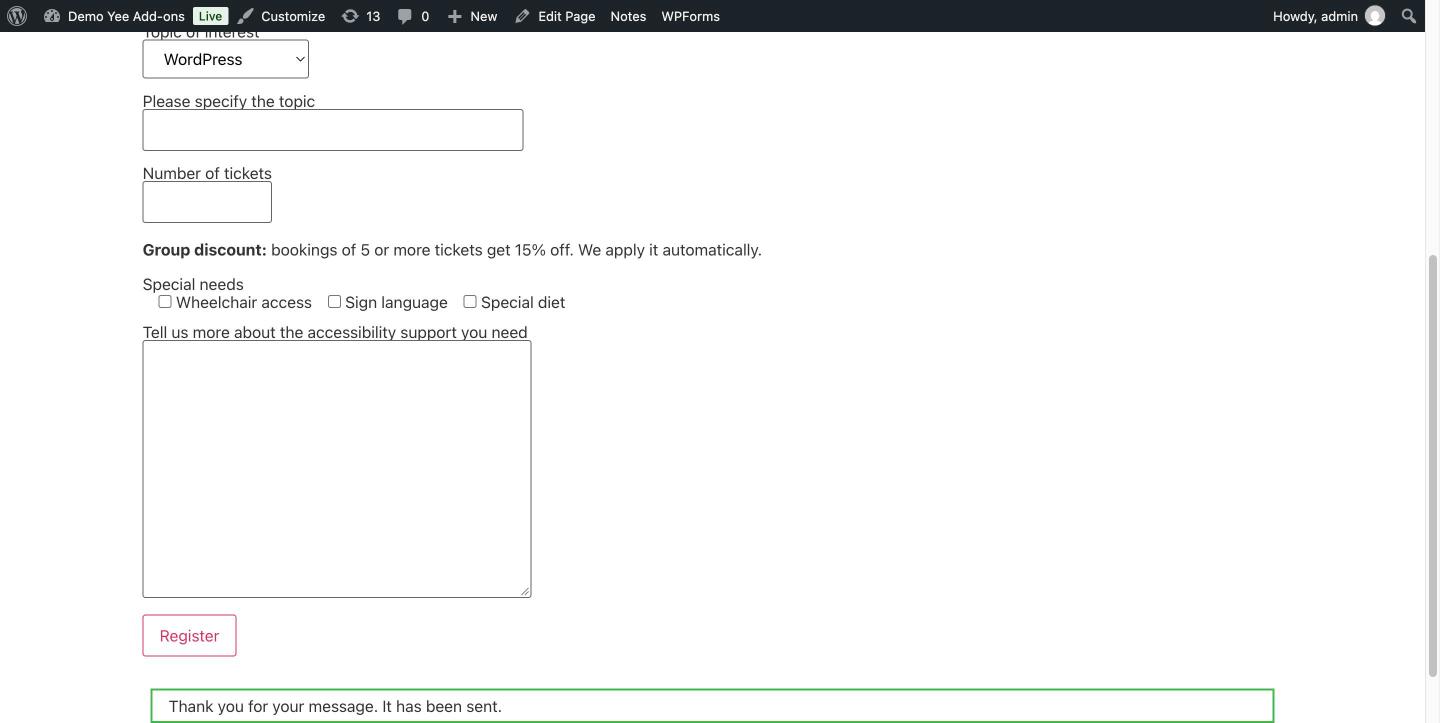
Switching back to Individual hides the company group. The same form now submits successfully even though company-name is a required field: the plugin tells Contact Form 7 which fields are hidden, and their validation rules are skipped on the server.
The notification email of that submission (with Exclude lines with blank mail-tags enabled in the Mail tab) contains only the visible, filled fields:
Name: Anna Lee
Email: [email protected]
Attendee type: Individual
Topic: Other Headless WordPress
Tickets: 5
Needs: Sign language
9. Conditions Reference
| Field type | How the value is compared |
|---|---|
| Text, email, number, date, textarea | The typed value. == and != compare the exact text; >, >=, <, <= compare numerically. |
| Drop-down (select) | The selected option label. For a multi-select, == is true when the option is among the selected ones. |
| Radio buttons | The label of the checked option, or empty when nothing is checked. |
| Checkboxes | == is true when that option is ticked; != when it is not ticked. Numeric operators test each ticked value. |
| Acceptance | Compare with 1 (ticked) using == or !=. |
| Operator | Meaning |
|---|---|
| == | equals |
| != | is different from |
| > | greater than |
| >= | greater than or equal |
| < | less than |
| <= | less than or equal |
- Use
!=with an empty value to mean “the field is filled in” and==with an empty value for “the field is empty”. - Option labels are matched literally, including capitalisation and spaces.
- A condition on a field that is itself inside a hidden group still reads the field’s current value, so chained rules (group B depends on a field in group A) work as expected.
10. Tips & Good Practices
- One rule per group: if two rules target the same group, the rule lower on the page decides. Combine conditions in a single rule instead, using All/one.
- Hide instead of Show when a group should be visible most of the time and disappear only in a special case (Example 2).
- Groups can contain anything: text, HTML, several fields, even nested groups. Use them to show instructions, prices or warnings, not only inputs.
- Values typed into a group before it was hidden are still submitted, because the group is hidden with CSS. Enable Exclude lines with blank mail-tags in the Mail tab and, if needed, clear such fields with a small script before they are hidden.
- Set a default on radios and selects (
default:1) so the initial state of your groups is predictable. - Repeater fields: rules are evaluated per repeater row when the field and the group live in the same row of the Repeater add-on.
- Combine with Conditional logic Emails: the same conditions can route the notification to a different address, see the email routing guide.
11. Developer Reference
| Item | Description |
|---|---|
[group name] … [/group] | Form tag rendered as <div id="name" class="cf7-group">…</div> on the front end. |
.cf7-logic-hidden | CSS class toggled on a group when it is hidden (display:none). Override it in your theme to animate transitions. |
_cf_logic | Hidden input added to the form; contains the names of the fields inside hidden groups, separated by |. Used server-side to skip validation. |
cf7_logic | Post meta of the form holding the rules: type (show/hide), then (group names), when (all/one) and condition[] (name, equals, value). |
cf7_logic jQuery event | Trigger it on a form input, jQuery('[name=tickets]').trigger('cf7_logic'), to re-evaluate the rules after you change a value programmatically. |
wpcf7_swv_create_schema, wpcf7_validate | Hooks the plugin uses to drop validation rules of hidden fields; compatible with Contact Form 7 6.2+ schema validation. |
12. Frequently Asked Questions (FAQ)
Does a hidden required field block the submission?
No. Fields inside a hidden group are excluded from validation, so a required field is only enforced while its group is visible.
Can one rule show several groups?
Yes. Select as many groups as you like in the Groups box; they are all shown or hidden together.
Can I show a group when any one of several options is selected?
Yes. Add one condition per option and set When to Trigger to “one” (OR).
Can conditions combine different fields?
Yes. For example If attendee-type == Company AND tickets >= 10 with When to Trigger set to “All”.
Does it work with checkboxes?
Yes. “needs == Sign language” is true while that box is ticked, regardless of the other boxes.
Can I hide a field based on a number?
Yes, use the >, >=, < and <= operators with number fields, as in Example 4.
Are hidden values sent in the email?
Values that were typed before the group was hidden are still submitted. Empty hidden fields produce blank mail-tags; enable “Exclude lines with blank mail-tags” to drop their lines.
Can groups be nested?
Yes. A group can contain another group; each one needs its own rule.
Why does my new group not appear in the Groups list?
The list is built from the saved form template. Save the form after adding the [group] tag, then create the rule.
Does it work with Elementor, page builders and caching?
Yes. The logic runs in the browser from data printed with the form, so it works wherever the Contact Form 7 shortcode is rendered.
Does it support the Repeater add-on?
Yes. Rules are evaluated for each repeater row when the condition field and the target group are inside the row.