
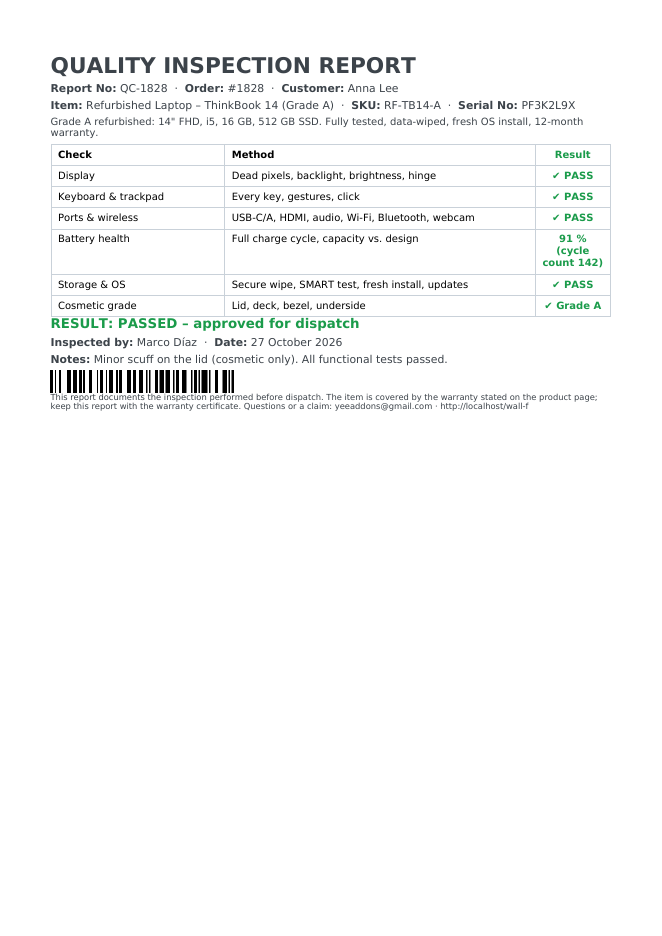
Refurbished electronics, used bikes and cars, serviced appliances, graded collectibles: whenever you sell something that was tested before dispatch, the buyer wants the proof. A quality inspection report lists every check, its method and its result, the serial number, the technician and the date, and travels with the item. With PDF Invoice for WooCommerce + Drag and Drop Template Builder (plugin slug pdf-for-woocommerce, by add-ons.org) the report is generated when the order is completed: the item comes from the order, the serial, battery health, technician, date and notes from order meta fields, the checklist is a styled table in the template, and a barcode of the serial number lets support find the unit later. This guide builds it from a blank template. The warranty certificate guide is the companion document for the same products.
Video tutorial
1. What the Report Contains
| Block | Content | Merge tags |
|---|---|---|
| Title | “QUALITY INSPECTION REPORT”, report number, order, customer | QC-8448, PIERLUIGI CIPRIANI |
| Item | Product, SKU, serial number, short description (grade and spec) | Dynamic Field for Elementor Forms Pro, |
| Checklist | A table: check, method, result (✔ PASS); the battery row prints a measured value | static rows + |
| Result | PASSED line, technician, date, notes | …meta_key="qc_technician", …"qc_date", …"qc_notes" |
| Barcode | Code 128 of the serial number | |
| Footer | Warranty reference and contact | [email protected], https://add-ons.org |
The checklist rows are the same for every unit of a product class, so they live in the template; only the measured values and the identifiers change per order, and those are order meta fields that the technician fills in the order’s Custom Fields box (qc_serial, qc_battery, qc_technician, qc_date, qc_notes) before completing the order.
2. Build the Report Template
Builder note: a new element is inserted just above the element you drop it on. Create the footer first and drop every other block onto it in reading order.
Step 1: New template and checklist styles
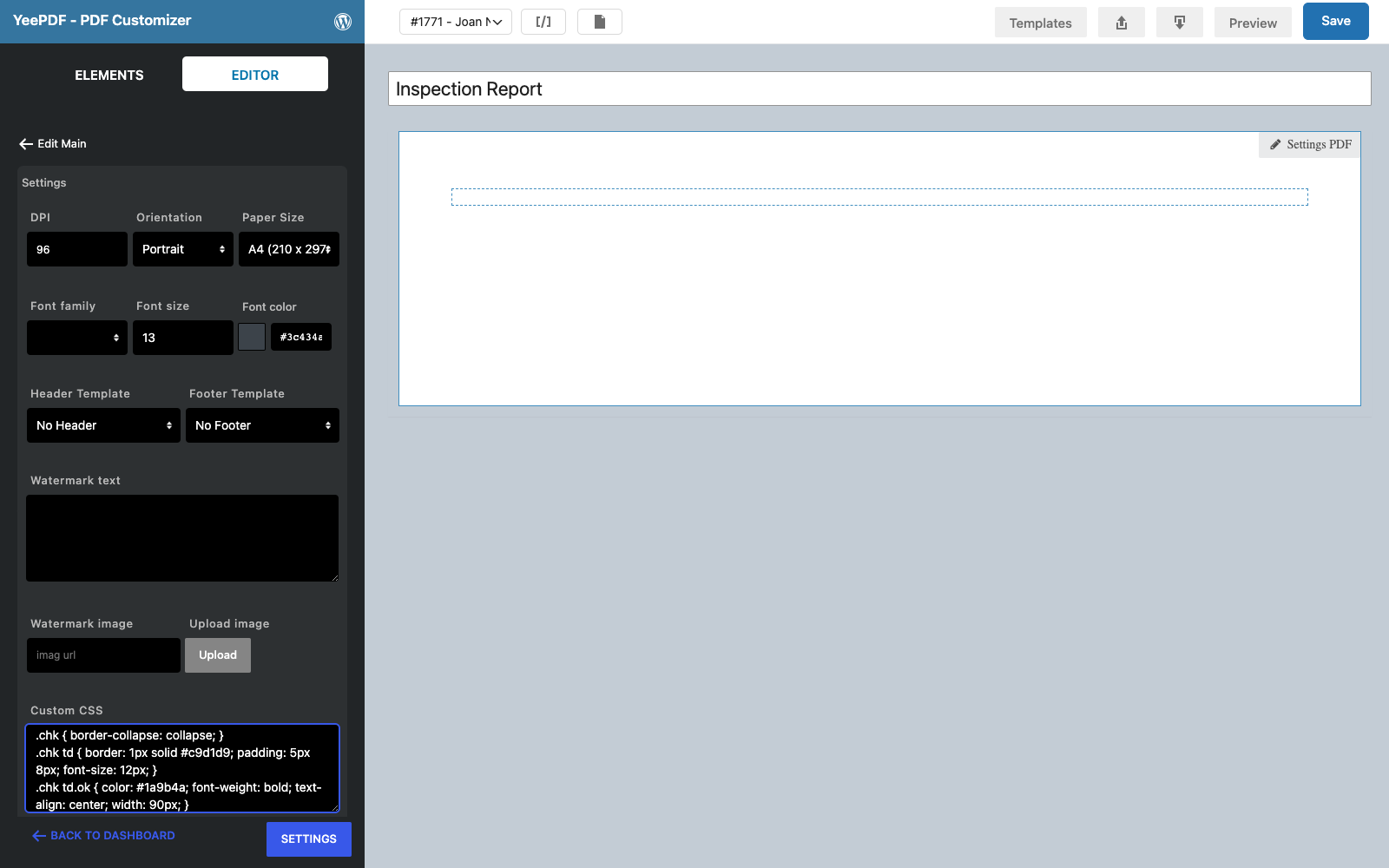
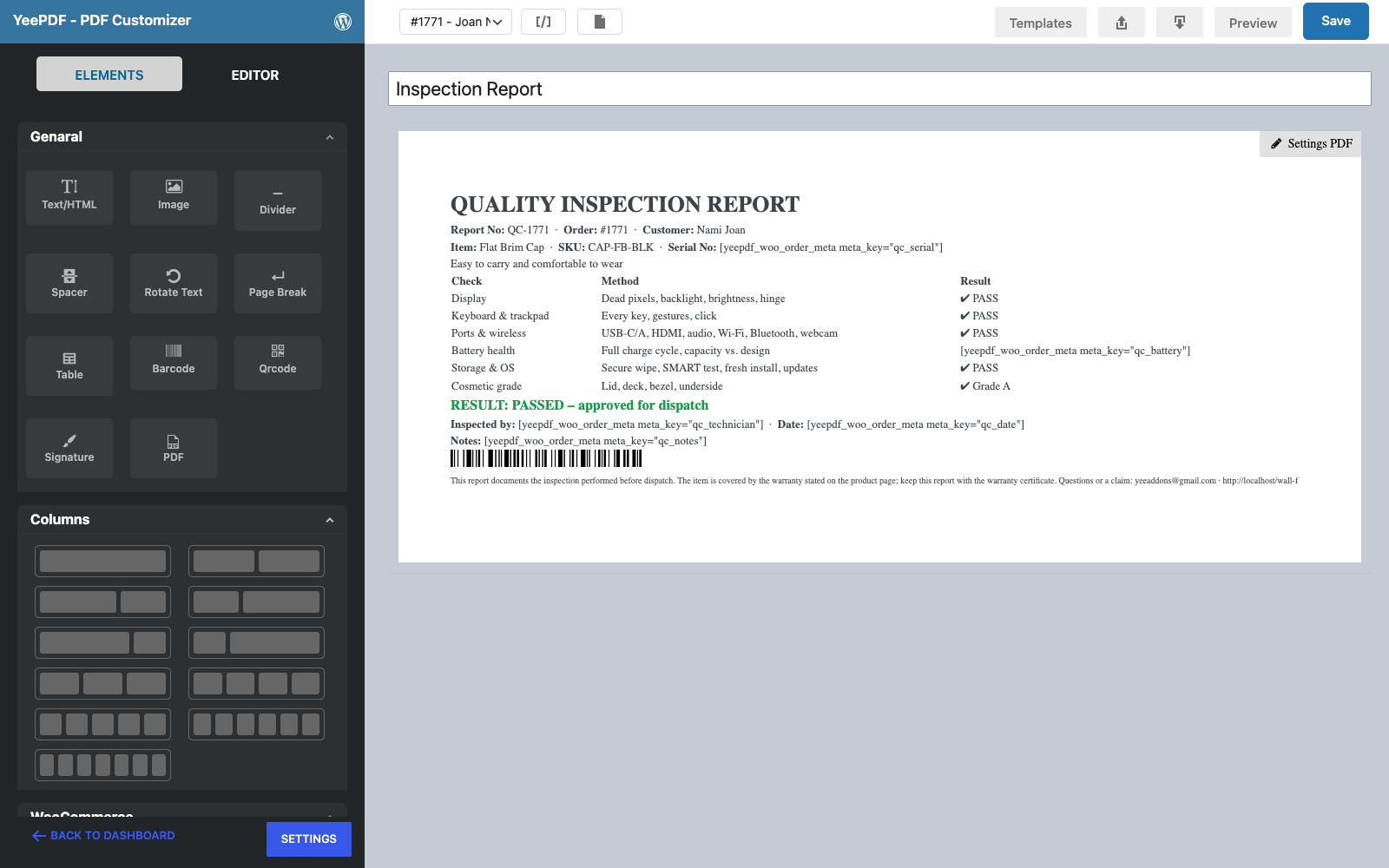
Go to PDF Templates → New Template and name it Inspection Report. Click Settings PDF and paste this under Custom CSS; it styles the checklist table used in step 5:
p { margin: 0 0 6px; }
.chk { border-collapse: collapse; }
.chk td { border: 1px solid #c9d1d9; padding: 5px 8px; font-size: 12px; }
.chk td.ok { color: #1a9b4a; font-weight: bold; text-align: center; width: 90px; }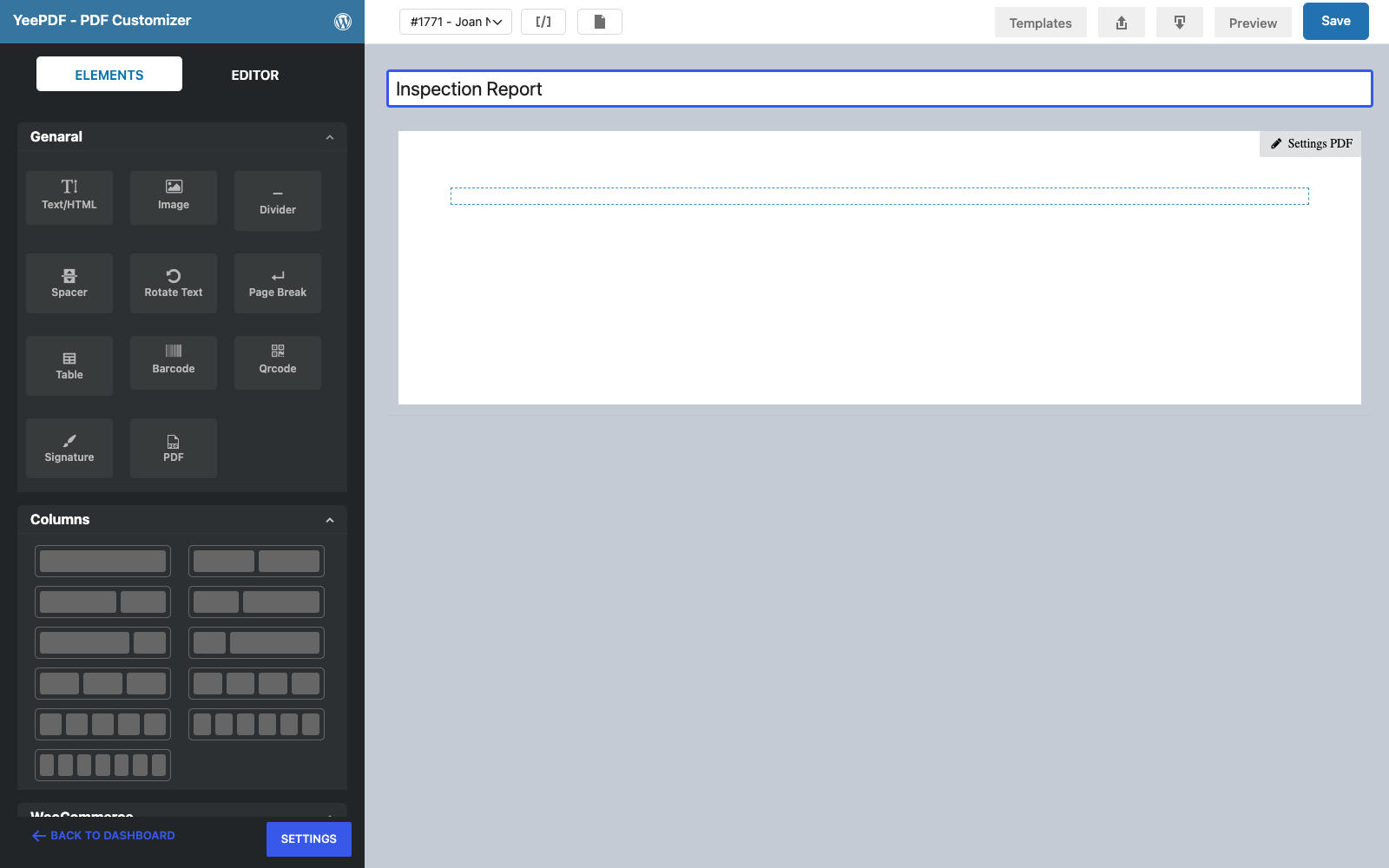
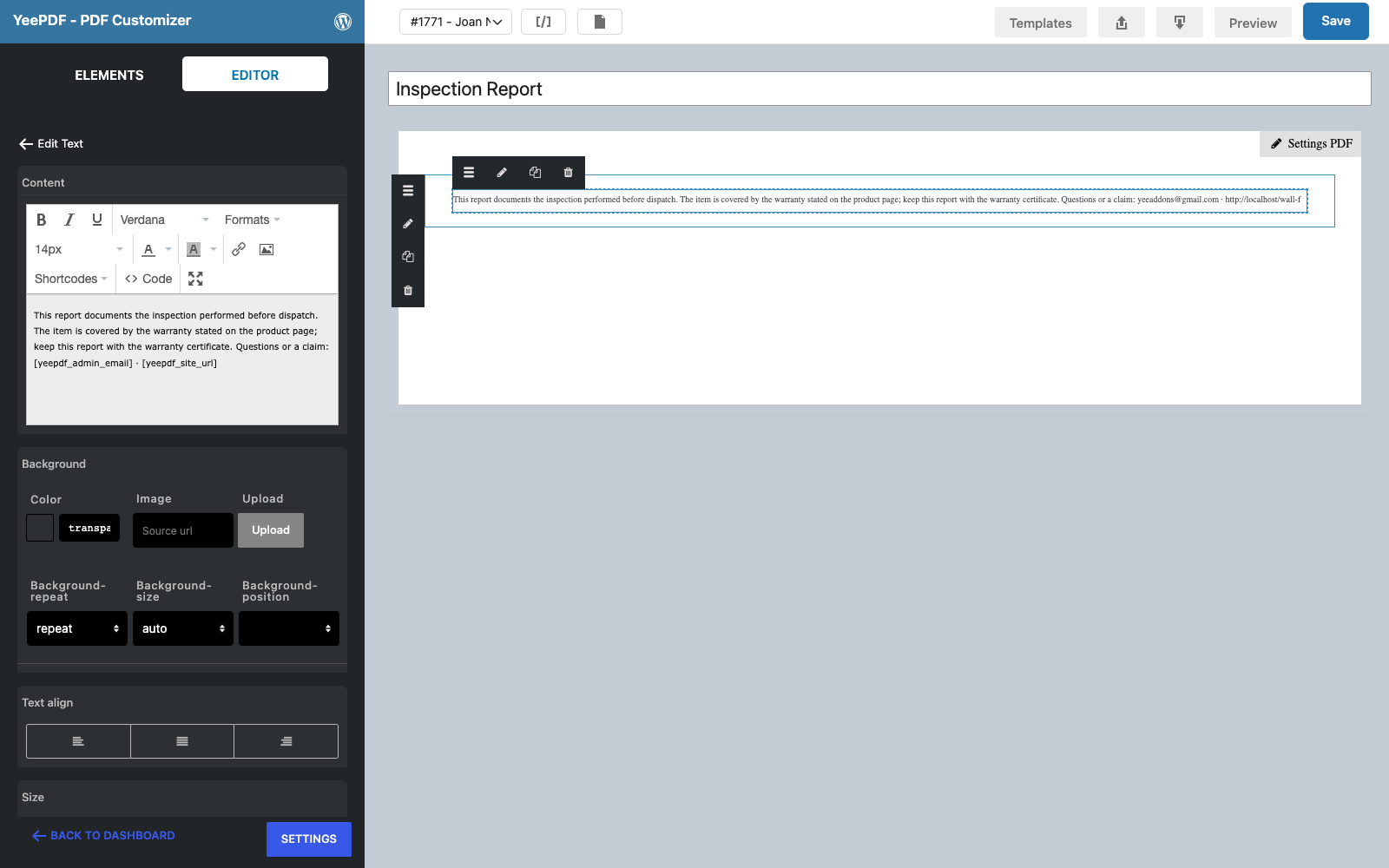
Step 2: Footer
Drag a Text/HTML element into the row and type, in 10 px: This report documents the inspection performed before dispatch. The item is covered by the warranty stated on the product page; keep this report with the warranty certificate. Questions or a claim: [email protected] · https://add-ons.org
Step 3: Title
Drop a Text/HTML element onto the footer:
QUALITY INSPECTION REPORT                                          ← 26 px bold
Report No: QC-8448 · Order: #8448 · Customer: PIERLUIGI CIPRIANI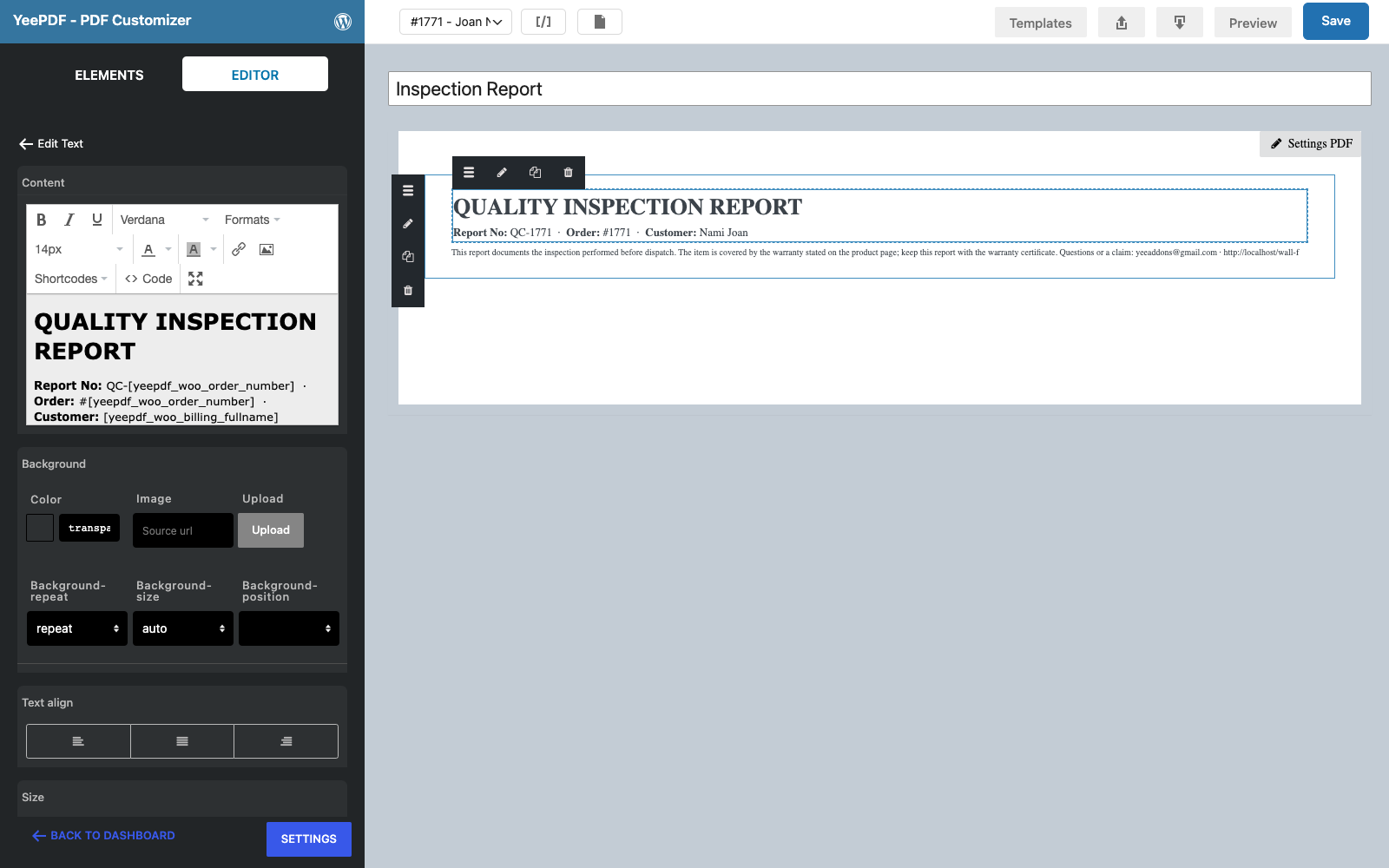
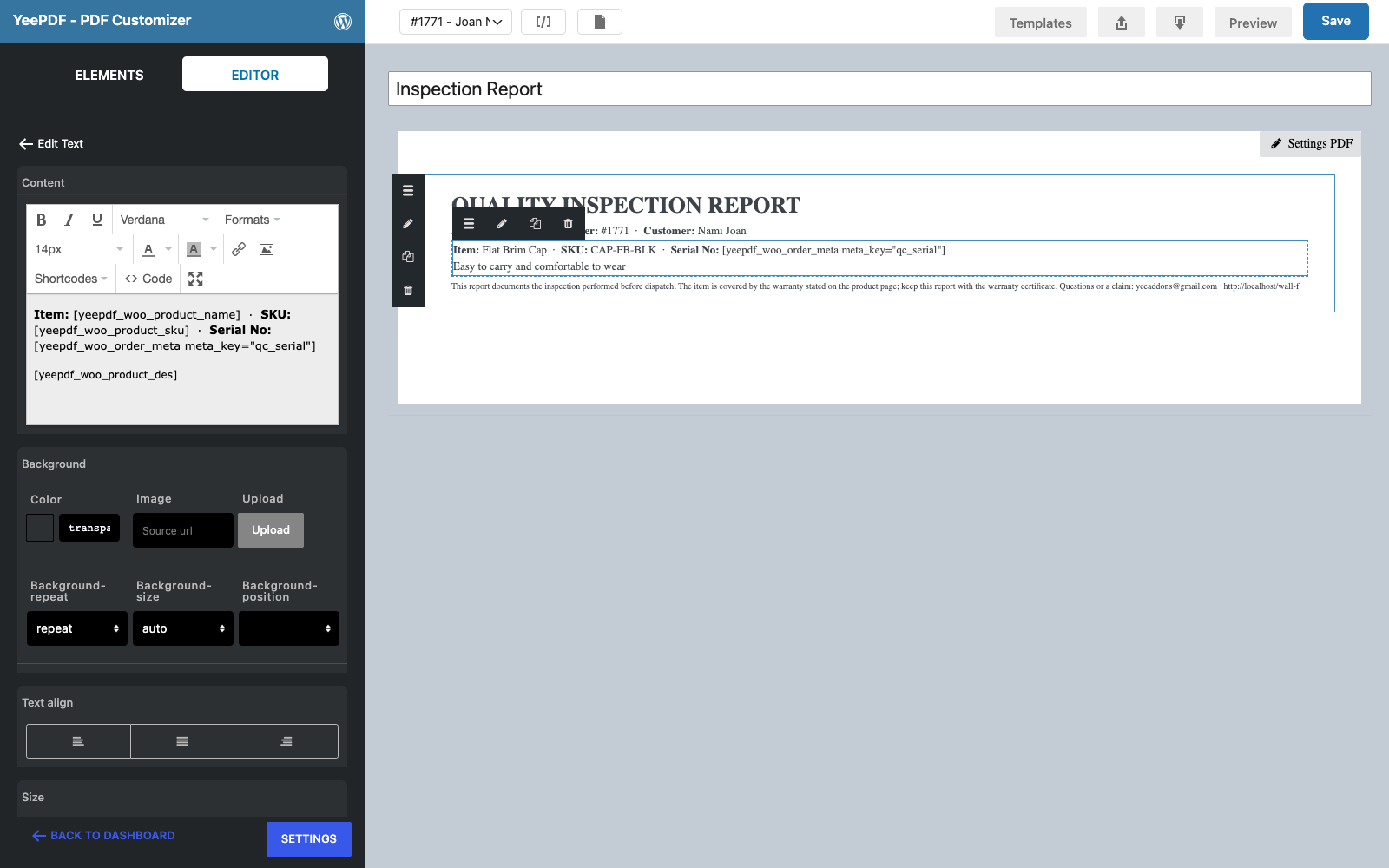
Step 4: Item
Drop a Text/HTML element onto the footer:
Item: Dynamic Field for Elementor Forms Pro · SKU: · Serial No:
Step 5: Checklist
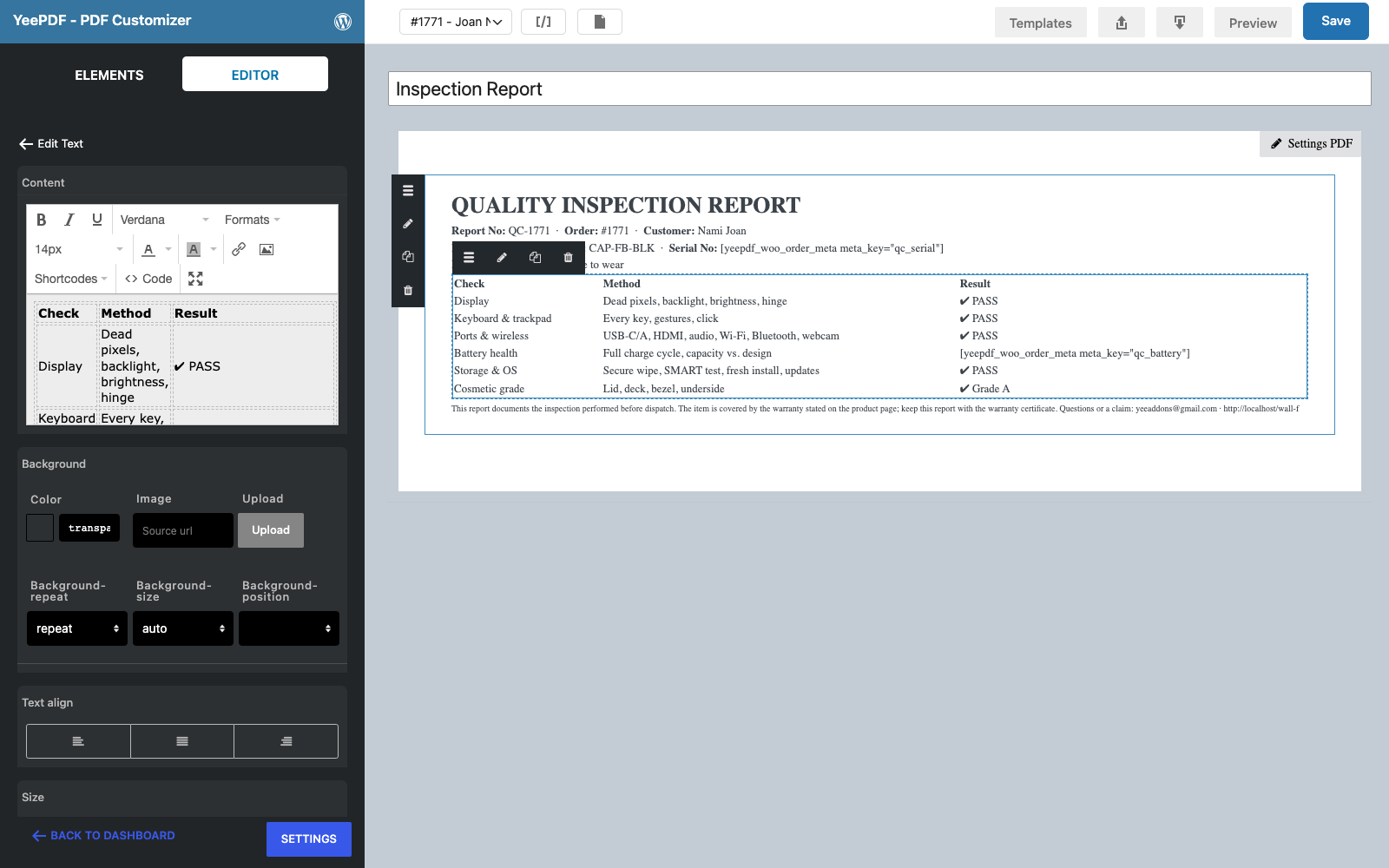
Drop a Text/HTML element onto the footer and paste the checklist table in the editor’s Code view. Each row is a check, its method and the result; the battery row prints the measured value from order meta:
<table class="chk" width="100%">
<tr><td><strong>Check</strong></td><td><strong>Method</strong></td><td class="ok"><strong>Result</strong></td></tr>
<tr><td>Display</td><td>Dead pixels, backlight, brightness, hinge</td><td class="ok">✔ PASS</td></tr>
<tr><td>Keyboard & trackpad</td><td>Every key, gestures, click</td><td class="ok">✔ PASS</td></tr>
<tr><td>Ports & wireless</td><td>USB-C/A, HDMI, audio, Wi-Fi, Bluetooth, webcam</td><td class="ok">✔ PASS</td></tr>
<tr><td>Battery health</td><td>Full charge cycle, capacity vs. design</td><td class="ok"></td></tr>
<tr><td>Storage & OS</td><td>Secure wipe, SMART test, fresh install, updates</td><td class="ok">✔ PASS</td></tr>
<tr><td>Cosmetic grade</td><td>Lid, deck, bezel, underside</td><td class="ok">✔ Grade A</td></tr>
</table>Adapt the rows to your product class: a bike has frame, brakes, gears, wheels; an appliance has leak test, heating, noise. Any row can print a meta field instead of a fixed PASS.
Step 6: Result
Drop a Text/HTML element onto the footer:
RESULT: PASSED – approved for dispatch                           ← 16 px bold, colour #1a9b4a
Inspected by:  · Date:
Notes: 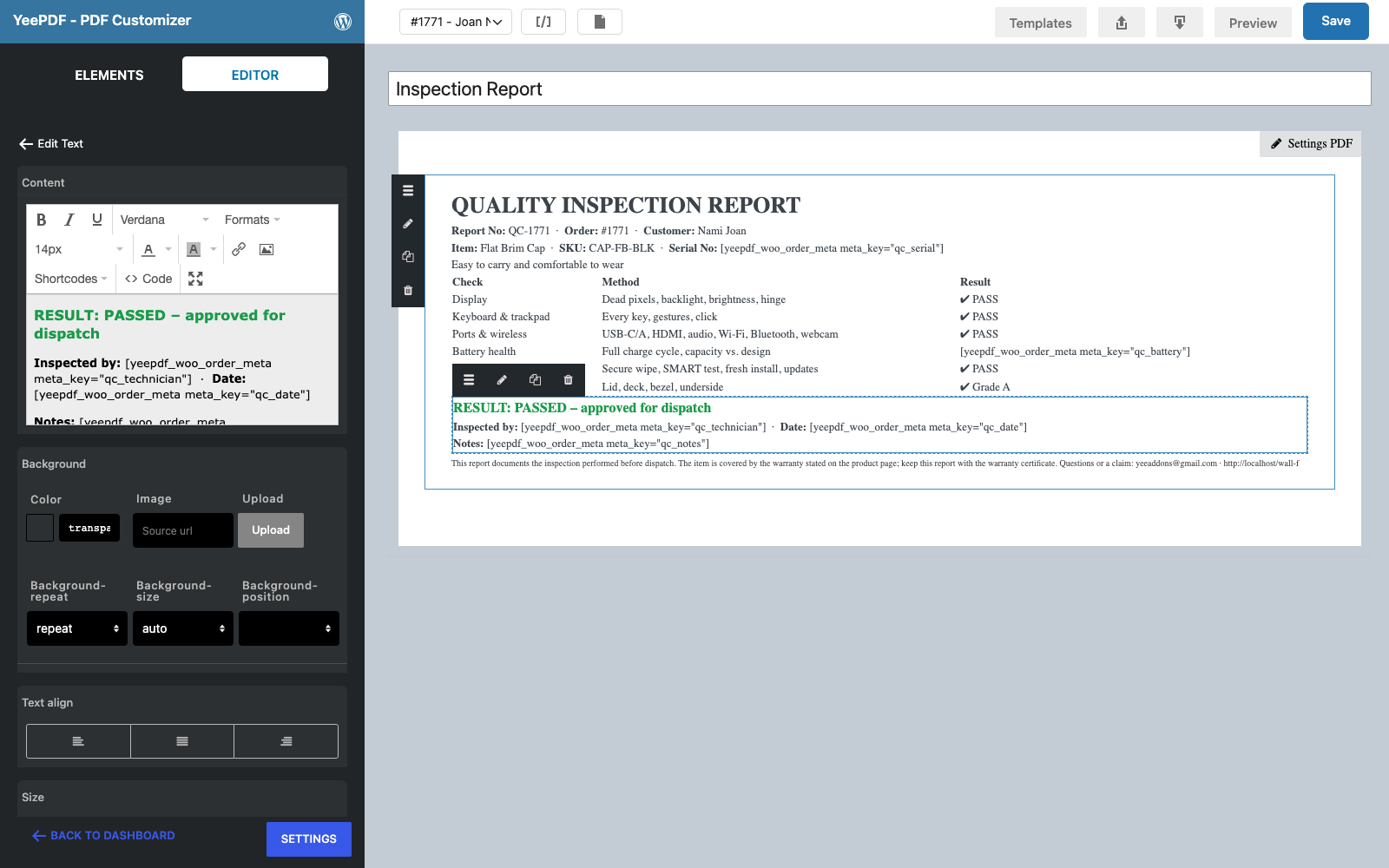
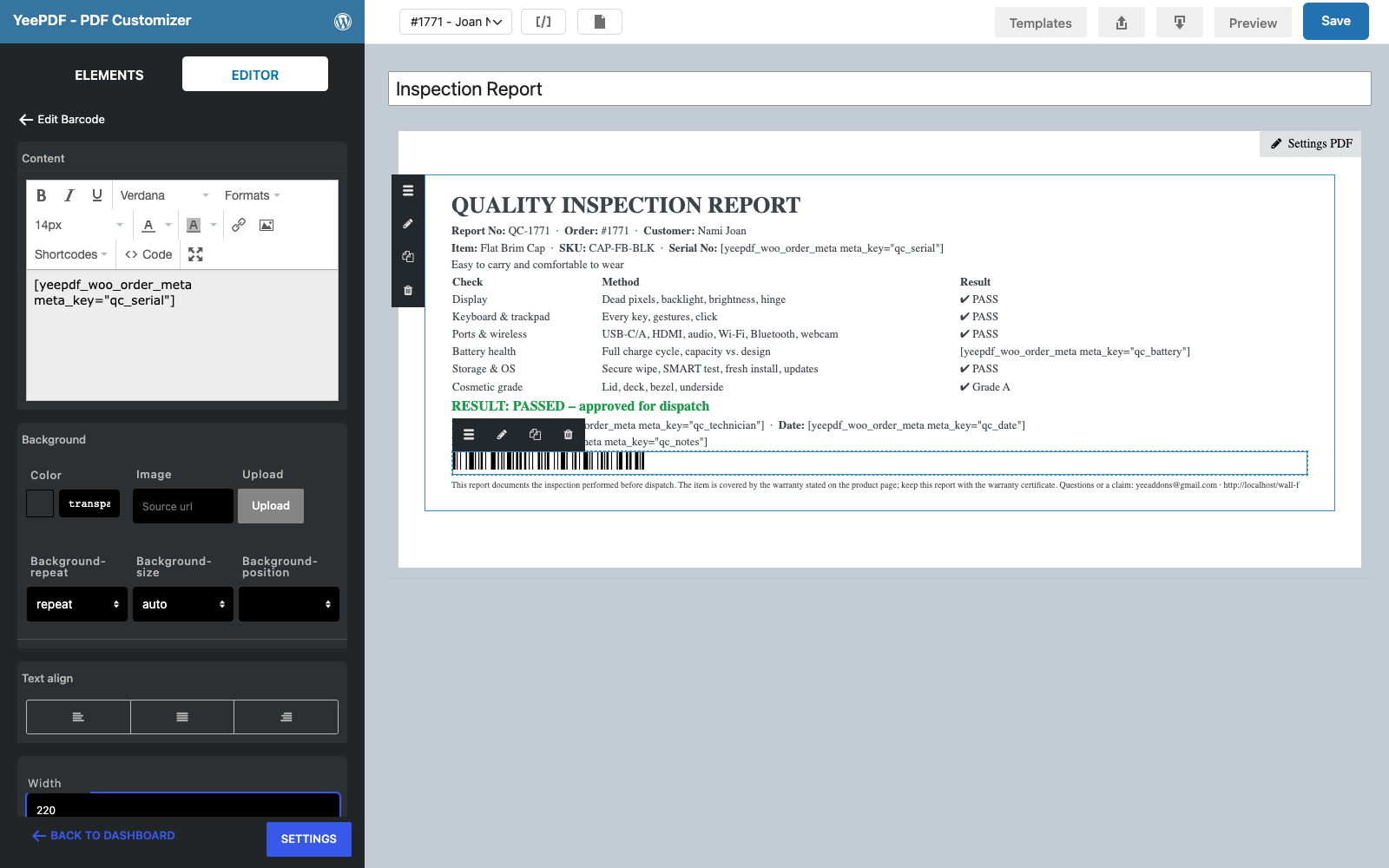
Step 7: Serial barcode
Drop the Barcode element onto the footer, set its Content to and the Width to 220 px: support scans the report and finds the unit. Click Save.
3. Generate the Report on Dispatch
Go to WooCommerce → Settings → PDF → Add new PDF:
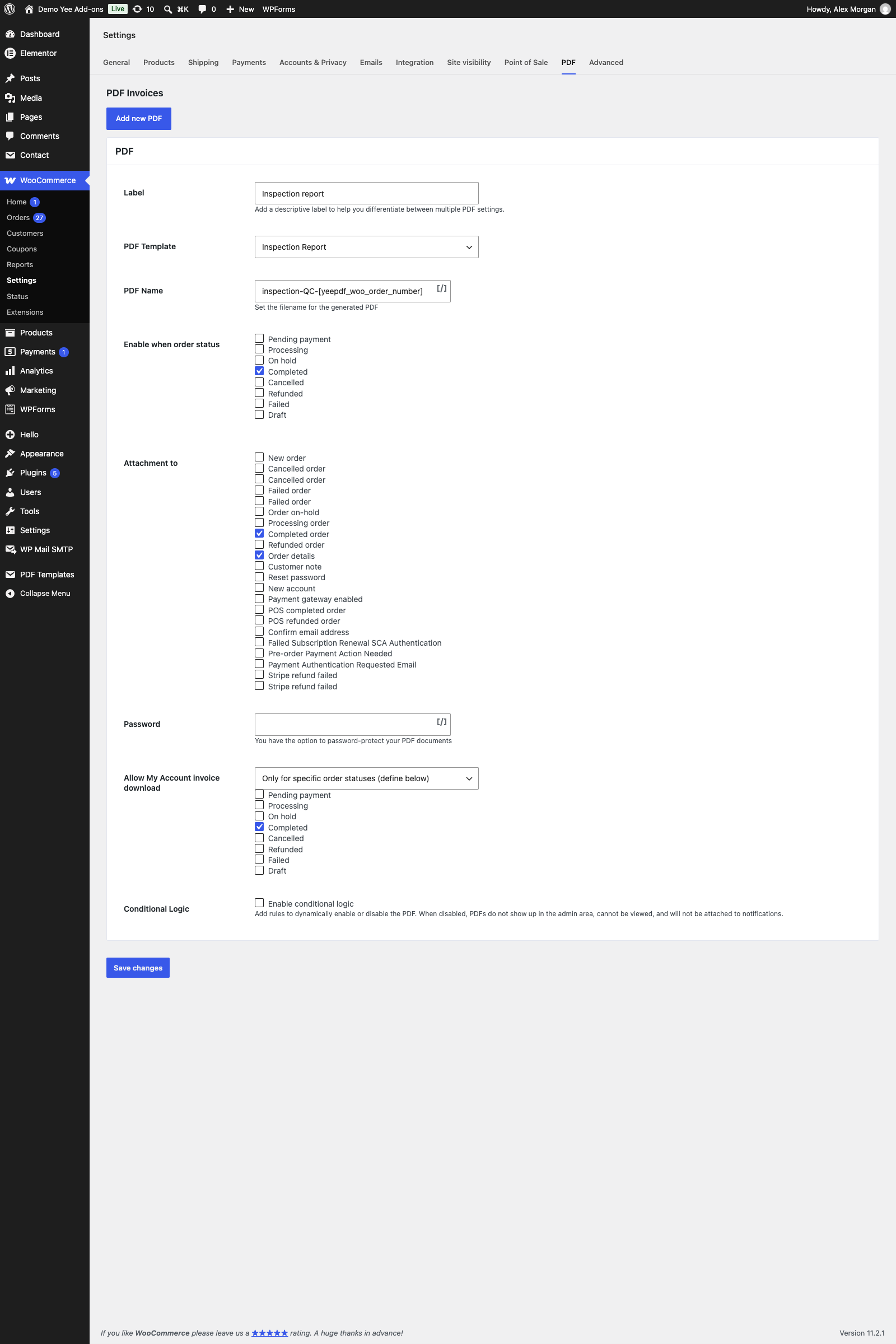
| Field | Value | Why |
|---|---|---|
| Enable this PDF | ticked | |
| Label | Inspection report | Button label in the admin and in My Account. |
| PDF Template | Inspection Report | The template from section 2. |
| PDF Name | inspection-QC-8448 | e.g. inspection-QC-1828.pdf |
| Enable when order status | Completed | The technician completes the order after the inspection; the report is generated with the values entered. |
| Attachment to | Completed order, Order details | The buyer receives it with the “order complete” email; re-send from the order screen. |
| Allow My Account invoice download | Only for specific order statuses → Completed | Available for a later warranty claim. |
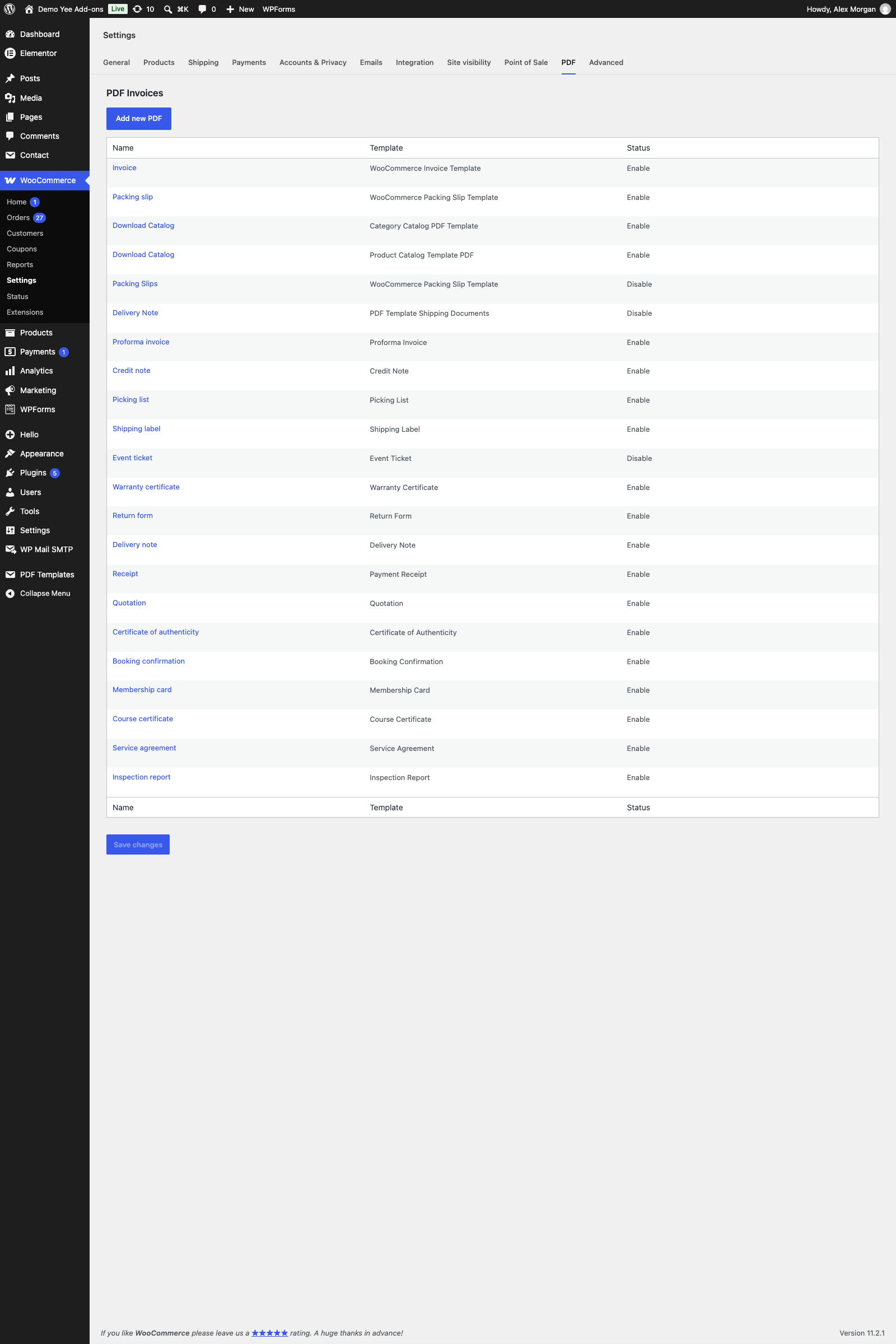
4. Workflow: Inspect, Record, Complete
- The order arrives as Processing; the technician inspects the unit.
- On the order screen the technician adds the Custom Fields
qc_serial,qc_battery,qc_technician,qc_dateandqc_notes, clicks Update, then sets the status to Completed: the report is generated and emailed with the “order complete” notification. - The buyer finds the Inspection report button in My Account → Orders and on the order page.
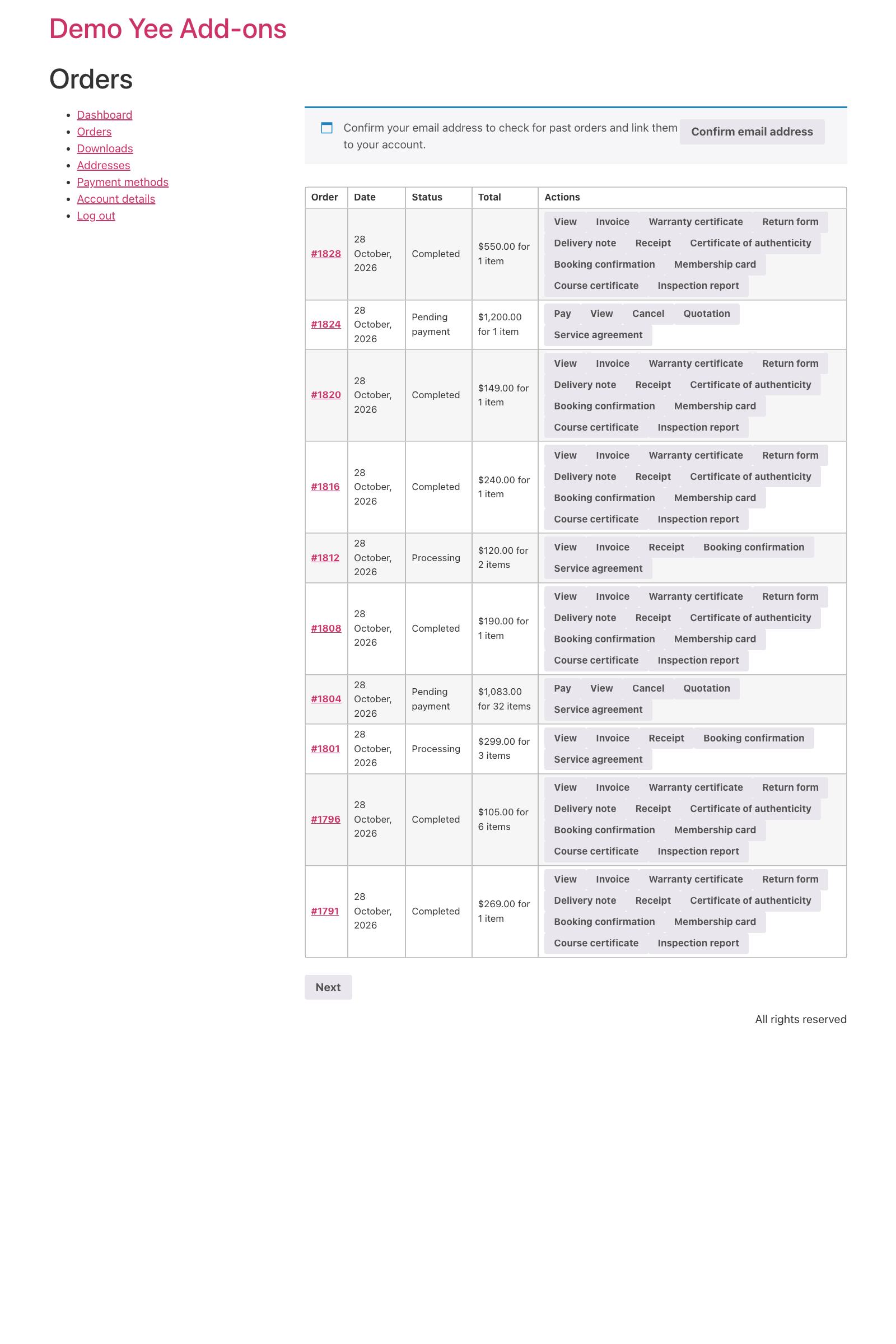
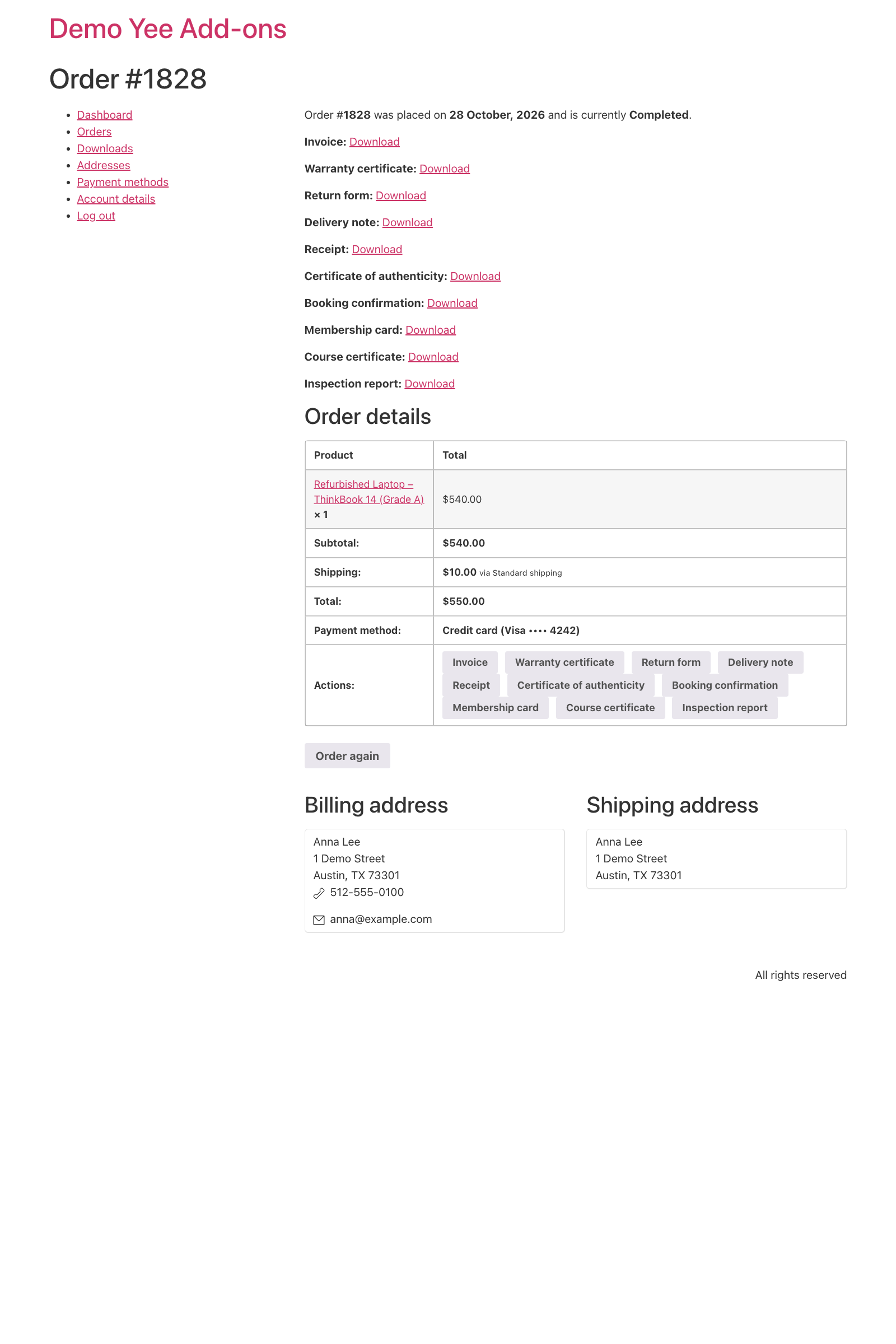
In the admin, the order screen lists it in the PDF box with Download, Preview and Regenerate.

5. Tips
- Failed checks: add meta fields per check (e.g.
qc_display= “✔ PASS” or “✘ FAIL – replaced”) and print them in the result column instead of fixed text; the CSS keeps the column green, change it to a neutral colour if you print failures. - Per-product checklists: one template per product class (laptops, phones, bikes) and a setting per template with conditional logic on a custom field, or a shared template whose rows cover all classes.
- Photos: upload the inspection photos to the Media library and add their URLs in an Image element, or link them in the notes field.
- Technician list: keep the technician name consistent (it is free text); a checkout-fields or admin-fields plugin can turn the meta fields into a dropdown on the order screen.
- Pair with the warranty certificate: both documents are generated at Completed; the report proves the condition at dispatch when a claim comes in.
- Regenerate: after editing the template or the meta fields, click Regenerate on the order; emails attach the stored file.
6. Frequently Asked Questions (FAQ)
Can the technician fill the checklist in the PDF instead?
Yes: build the checklist with the Checkbox and Text input form elements; the report is then a fillable form you complete in a PDF reader and attach to the order as a note. The template in this guide prints finished results instead, so the buyer gets a clean report automatically.
Why does the builder show “Order meta qc_serial”?
The sample order has no such fields. Preview the report for a real order, or change the sample order in the toolbar.
Can I include the inspection date automatically?
The order date tag prints the order date; use a meta field for the actual inspection date as in this guide, or August 28, 2026 if they coincide.
Several units in one order?
The product tags print the first item. Sell one inspected unit per order, or put the serial numbers of all units in the notes field and use the Order Detail table block for the item list.
Is the barcode readable by any scanner?
It is a Code 128 barcode rendered into the PDF; handheld and phone scanners read it. Use the Qrcode element if you prefer QR.