
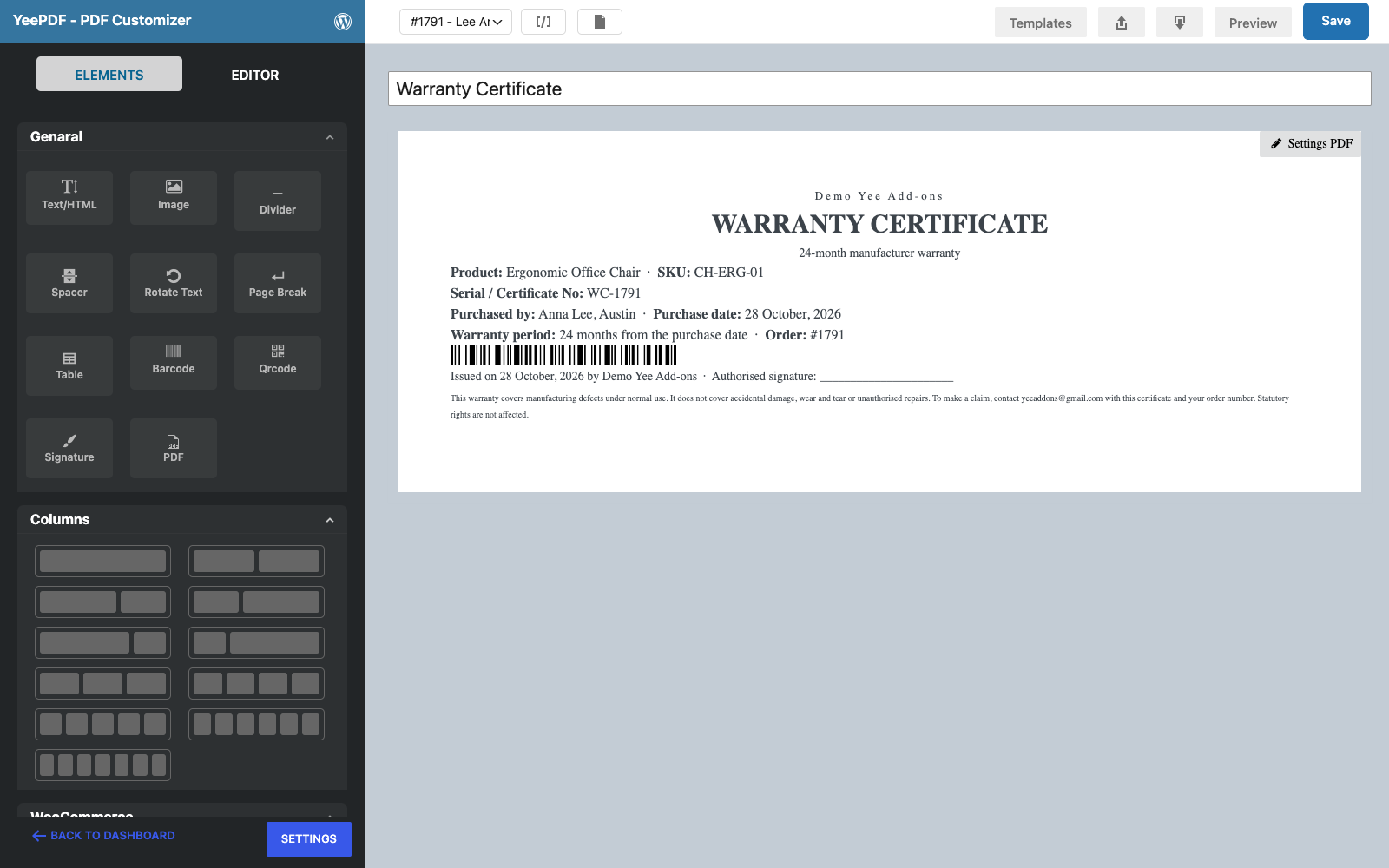
Products with a manufacturer warranty, furniture, electronics, tools, jewellery, deserve a warranty certificate the customer can keep: the product and its SKU, a certificate number, the purchase date, the buyer, the warranty period and the conditions, plus a barcode your support team can scan when a claim comes in. With PDF Invoice for WooCommerce + Drag and Drop Template Builder (plugin slug pdf-for-woocommerce, by add-ons.org) the certificate is generated automatically when an order is completed, attached to the completion email and kept in My Account. This guide builds it on A4 from a blank template. The same structure works for a certificate of authenticity: rename the title and the conditions.
Video tutorial
1. What the Certificate Contains
| Block | Content | Merge tags |
|---|---|---|
| Title | Store name, “WARRANTY CERTIFICATE”, warranty length | Yee Add-ons + static text |
| Details | Product, SKU, certificate number, buyer, purchase date, warranty period, order number | Dynamic Field for Elementor Forms Pro, WC-8448, PIERLUIGI CIPRIANI, VERCELLI, August 28, 2026 |
| Barcode | Code 128 barcode of the certificate number for the support desk | WC-8448 inside the Barcode element |
| Signature | Issue date, issuer and a signature line | August 28, 2026, Yee Add-ons |
| Conditions | What is covered, what is not, how to claim | [email protected] |
The purchase date is the order date and the certificate number is derived from the order number, so every certificate is unique and can be matched to the order in seconds.
2. Build the Certificate Template
Builder note: a new element is inserted just above the element you drop it on. Create the conditions (the last block) first and drop every other block onto it in reading order.
Step 1: New template
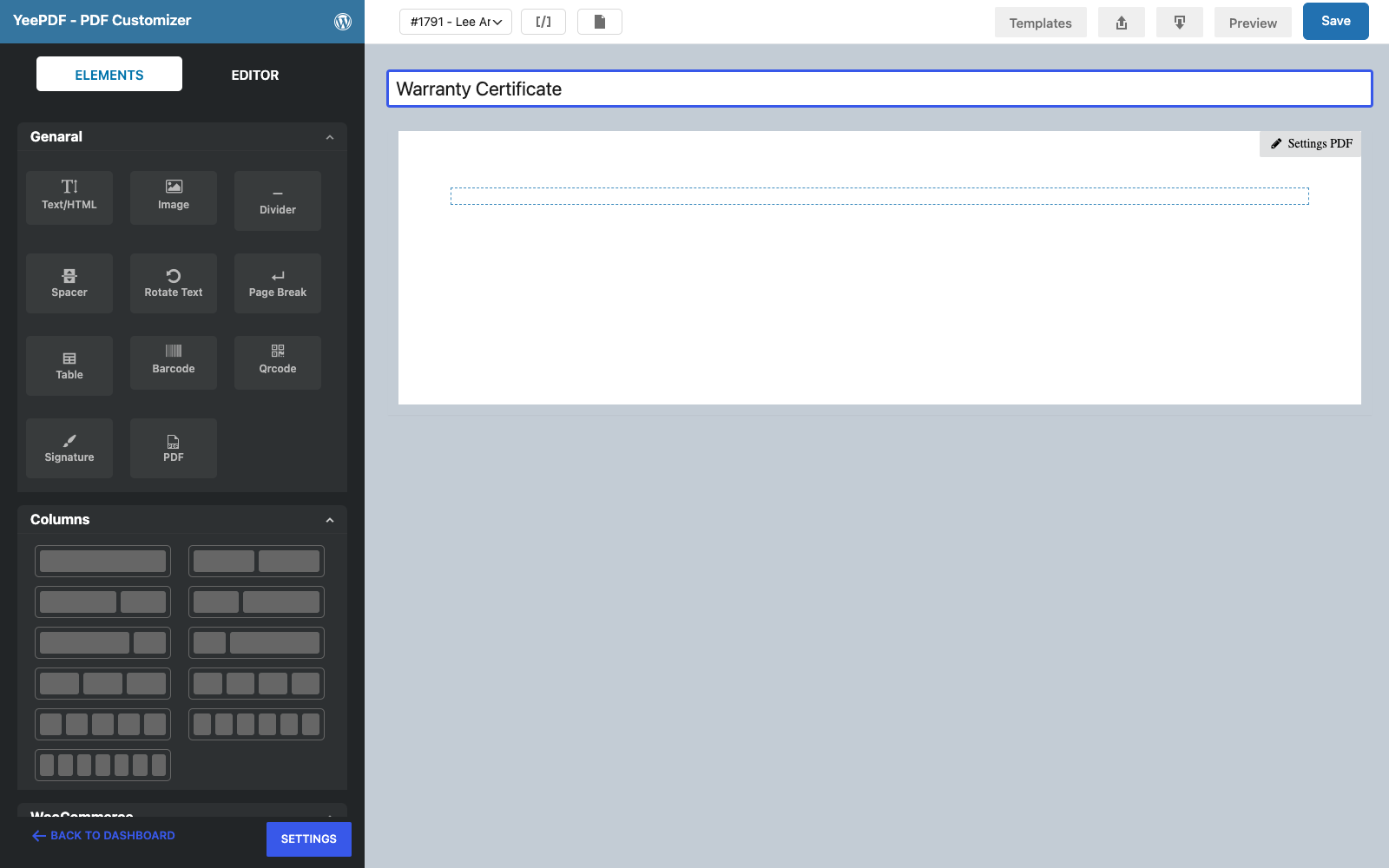
Go to PDF Templates → New Template and name it Warranty Certificate. Keep the default A4 portrait page; certificates are usually printed and filed with the product documents.
Step 2: Conditions
Drag a Text/HTML element into the row and type the warranty conditions in a small font:
This warranty covers manufacturing defects under normal use. It does not cover accidental damage,
wear and tear or unauthorised repairs. To make a claim, contact [email protected] with this
certificate and your order number. Statutory rights are not affected.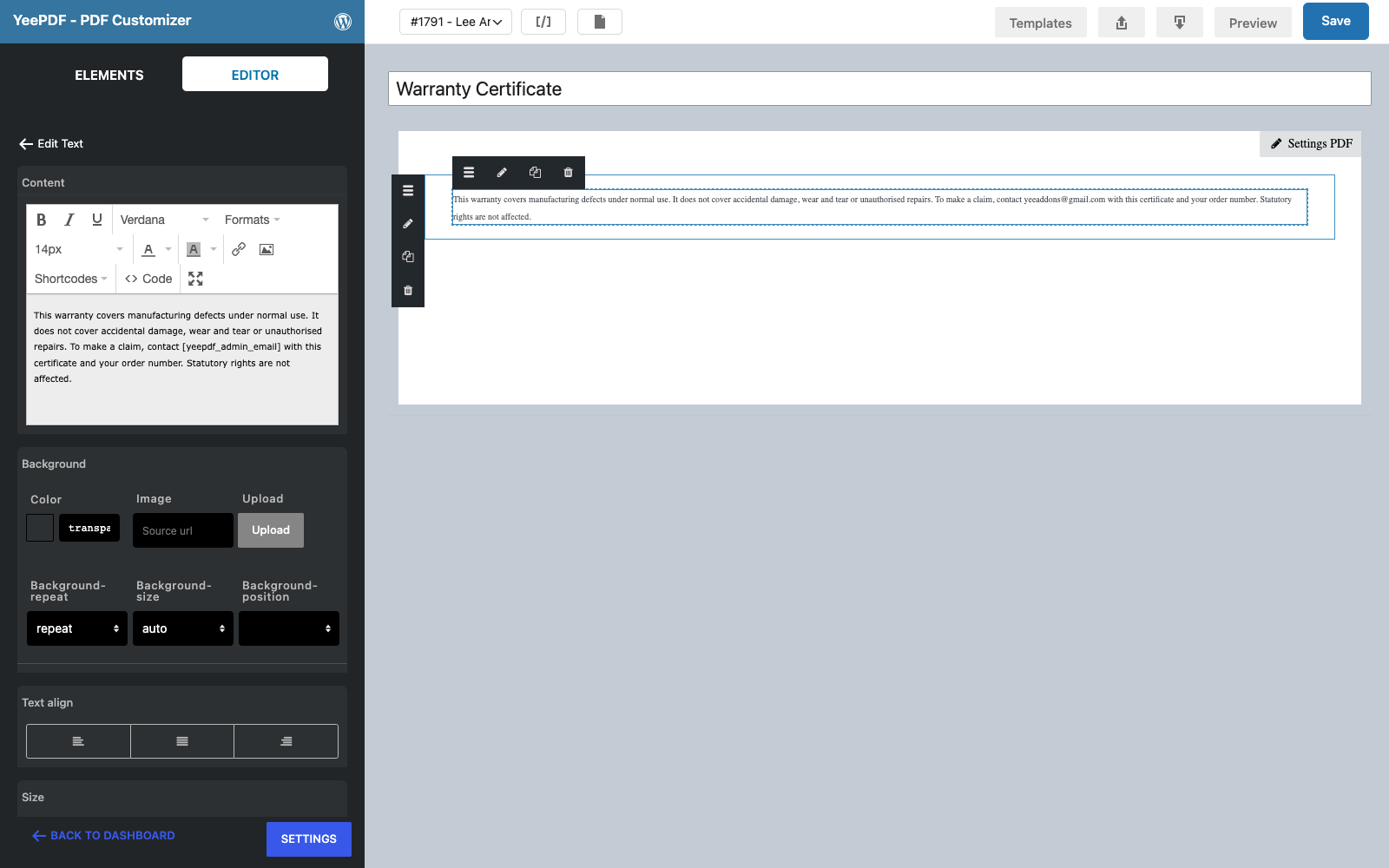
Step 3: Title
Drop a Text/HTML element onto the conditions and centre it:
Yee Add-ons
WARRANTY CERTIFICATE        ← 30 px bold
24-month manufacturer warranty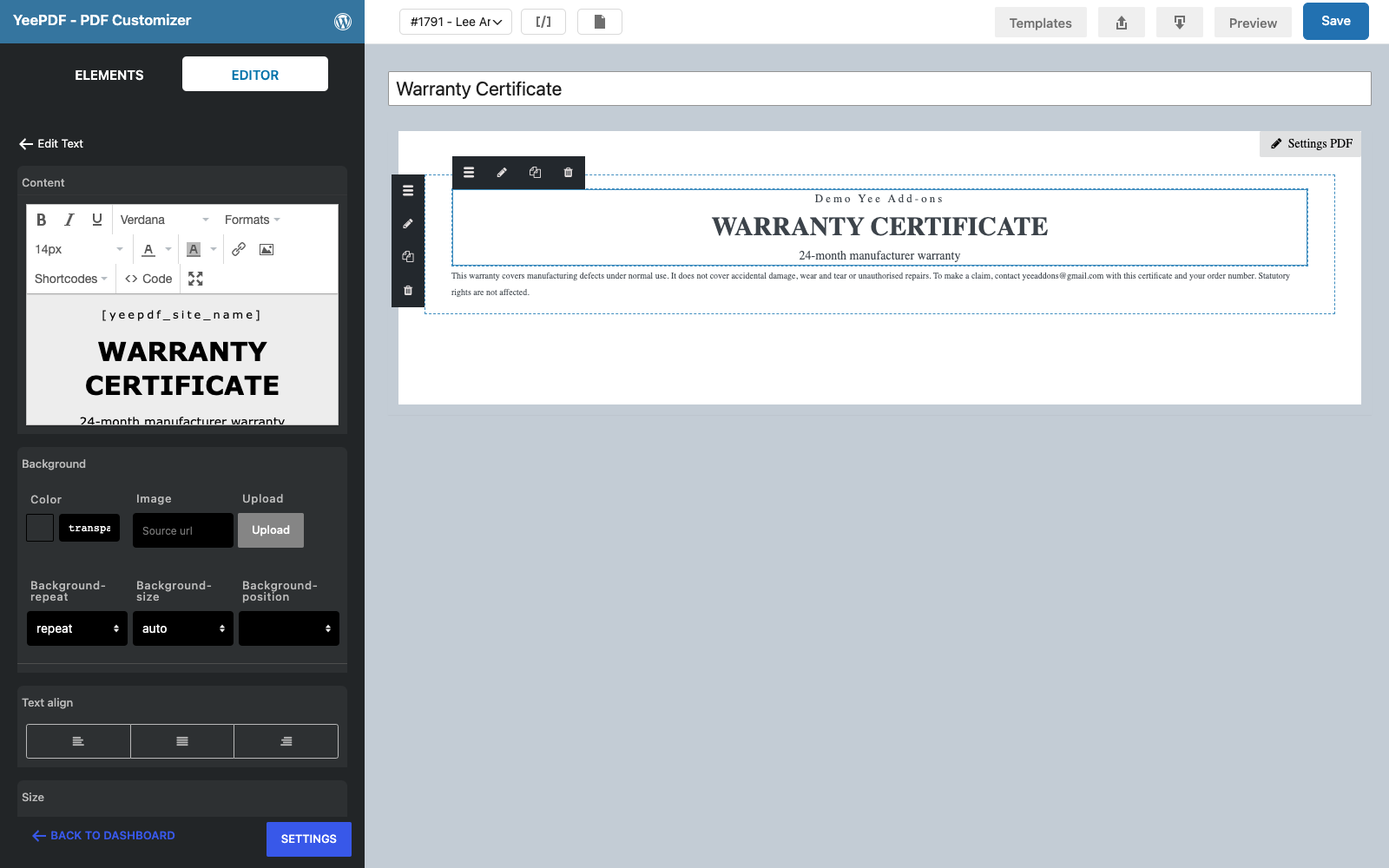
Step 4: Details
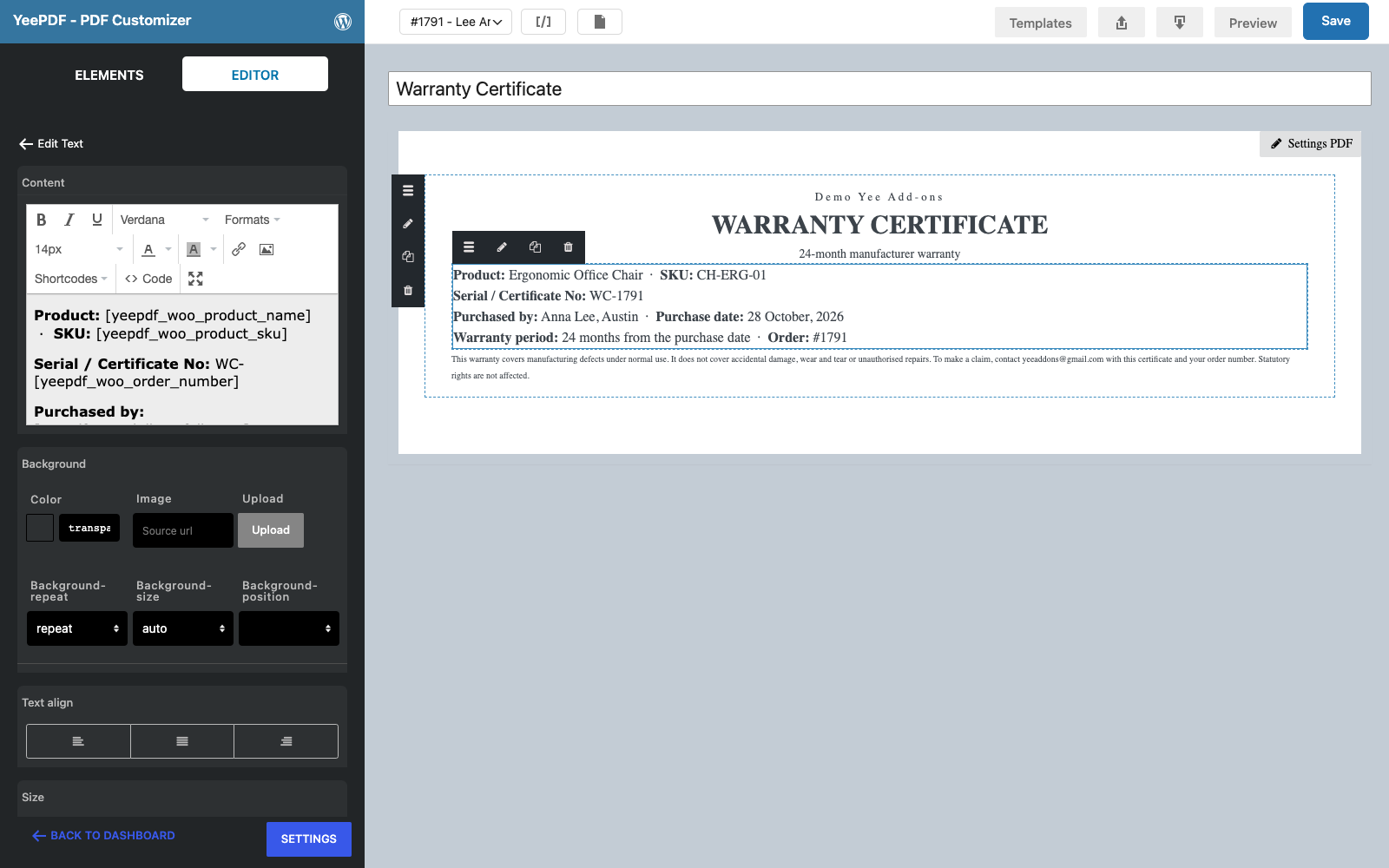
Drop another Text/HTML element onto the conditions:
Product: Dynamic Field for Elementor Forms Pro · SKU:
Serial / Certificate No: WC-8448
Purchased by: PIERLUIGI CIPRIANI, VERCELLI · Purchase date: August 28, 2026
Warranty period: 24 months from the purchase date · Order: #8448
Dynamic Field for Elementor Forms Pro and print the first product of the order. Keep one warranty product per order, or add the Order Detail table block instead if customers buy several covered products at once.
Step 5: Barcode
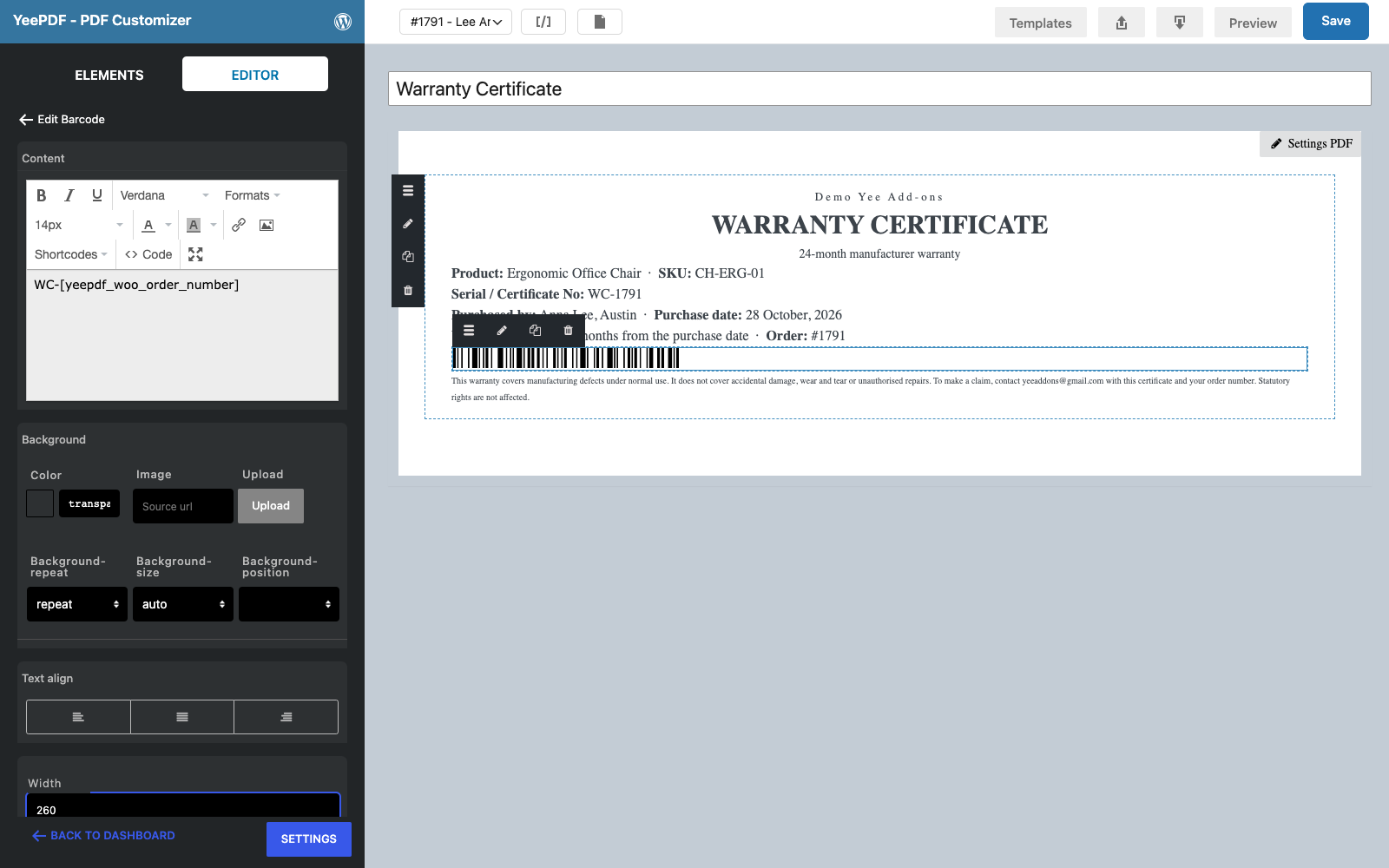
Drop the Barcode element onto the conditions, set its Content to WC-8448 and the Width to about 260 px. It prints a Code 128 barcode that any handheld scanner reads; use the Qrcode element instead if your team scans with phones.
Step 6: Issue date and signature
Drop a last Text/HTML element onto the conditions:
Issued on August 28, 2026 by Yee Add-ons · Authorised signature: ______________________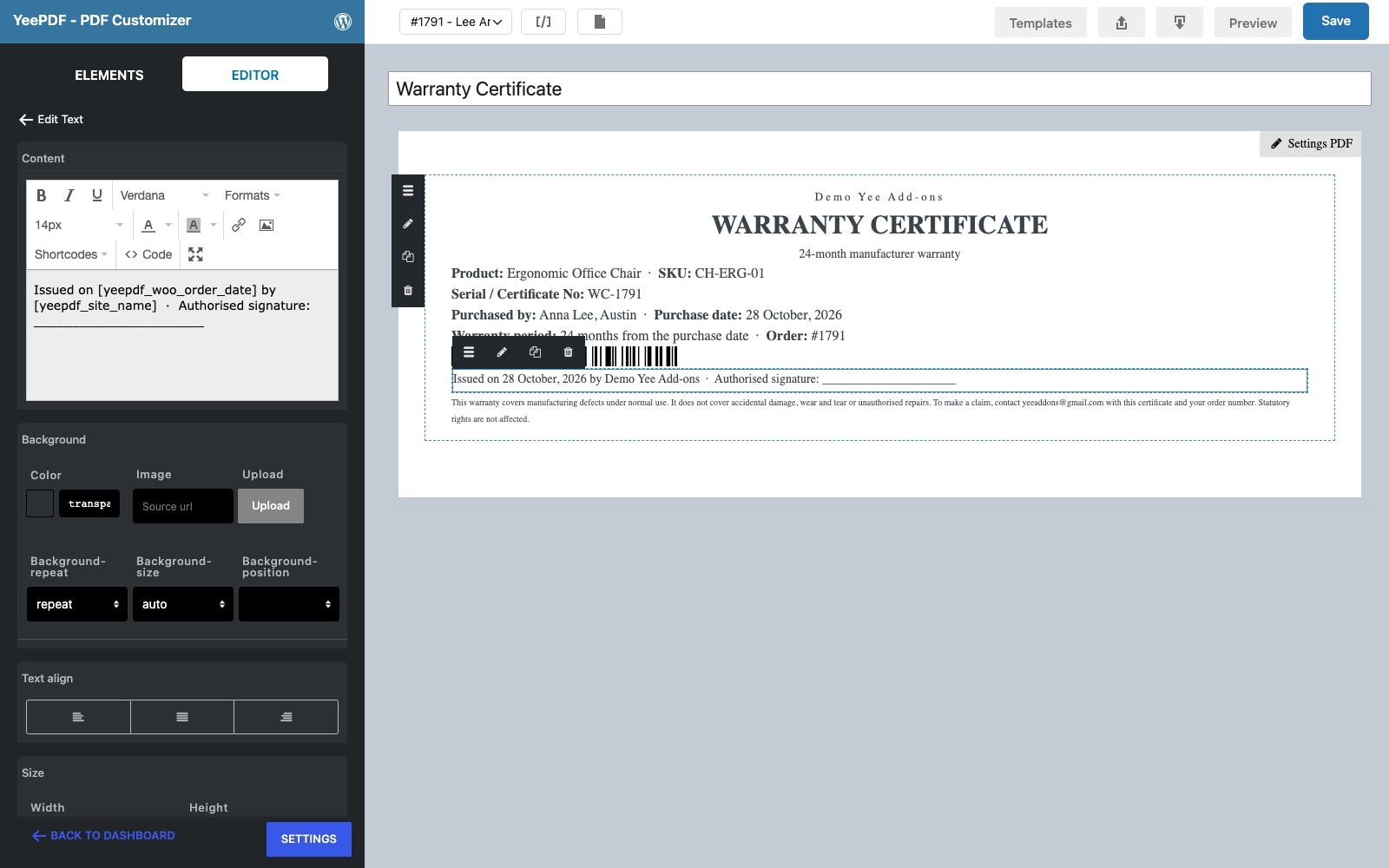
Click Save.
3. Generate the Certificate on Completion
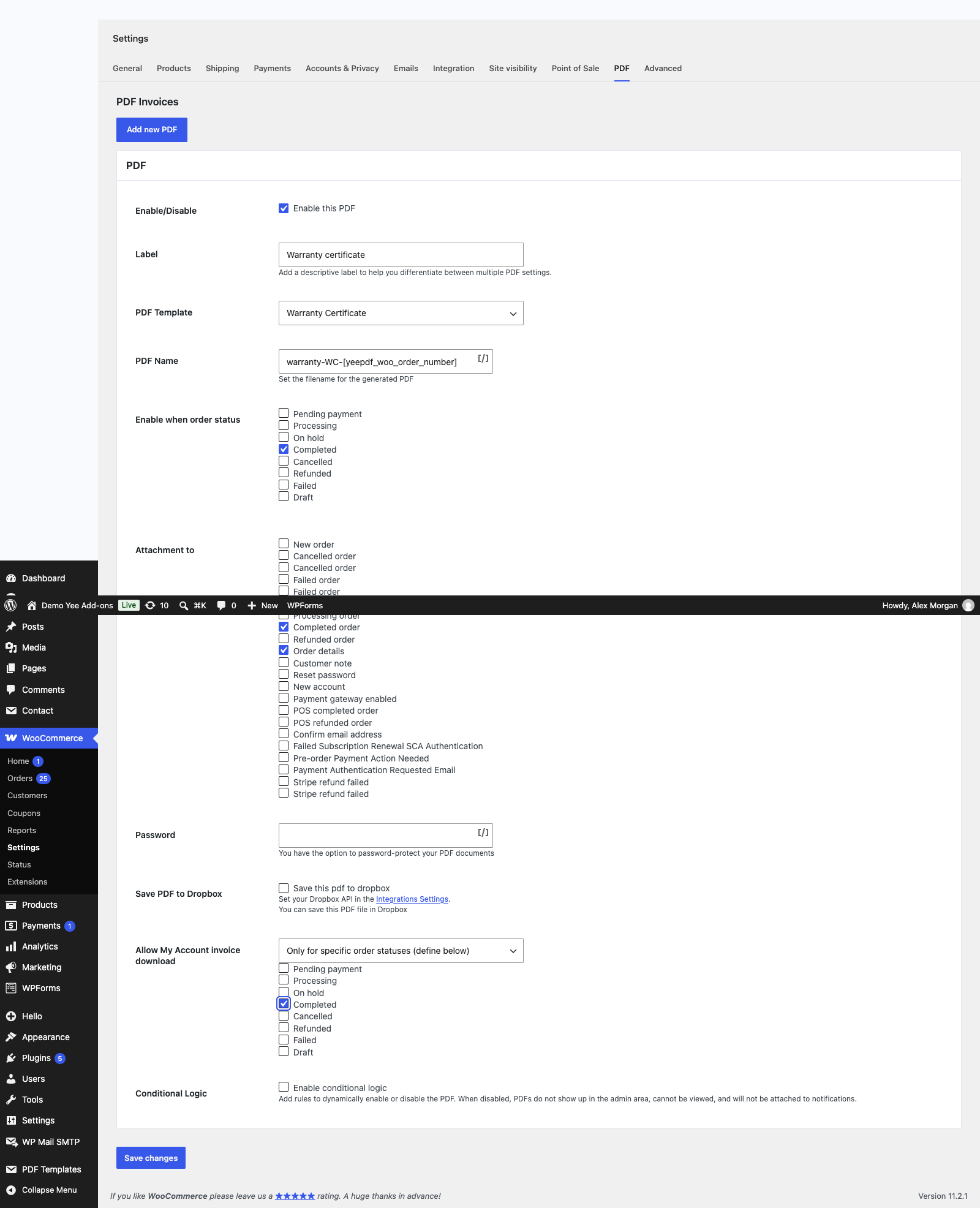
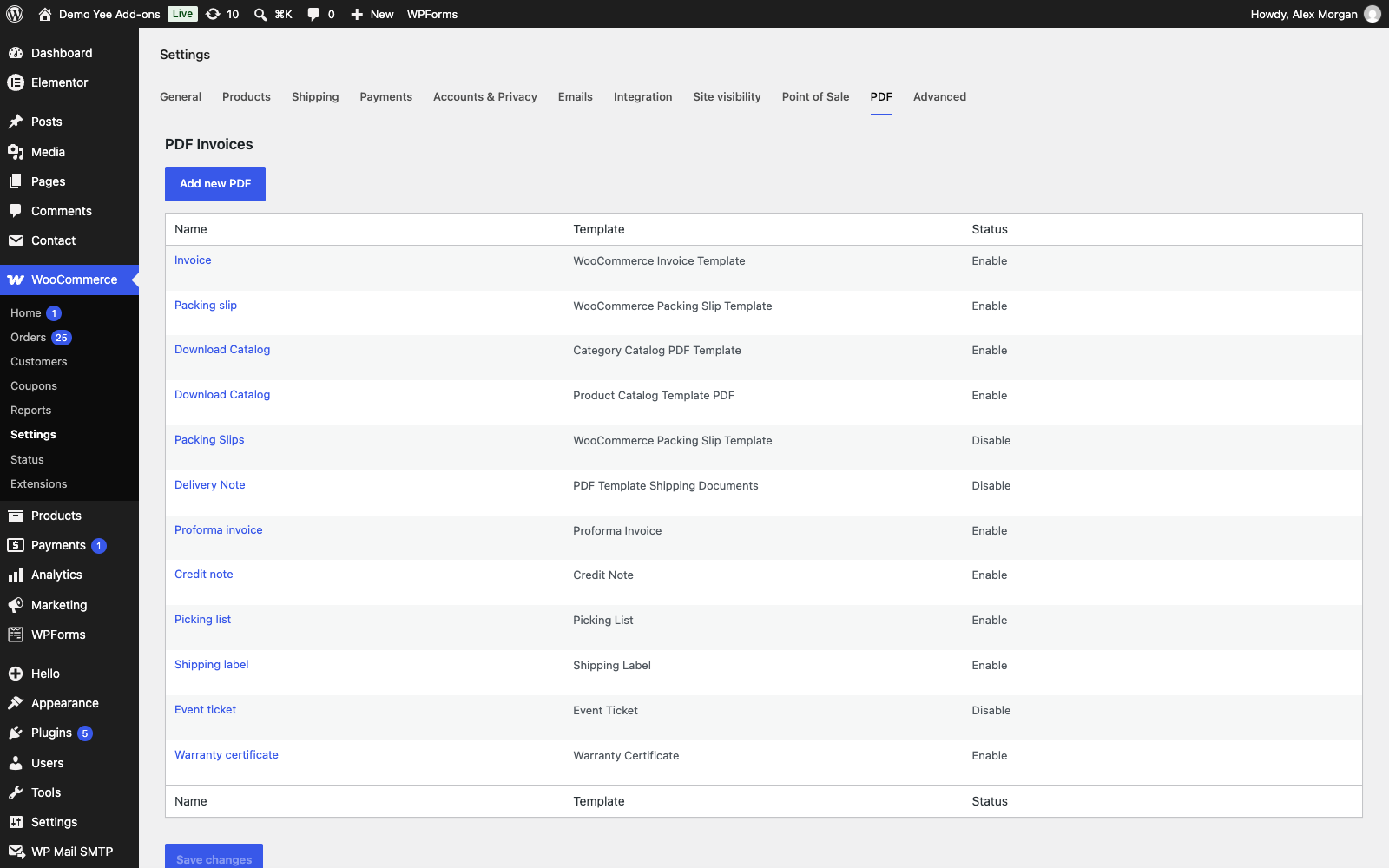
Go to WooCommerce → Settings → PDF → Add new PDF:
| Field | Value | Why |
|---|---|---|
| Label | Warranty certificate | Button label in the admin and in My Account. |
| PDF Template | Warranty Certificate | The template from section 2. |
| PDF Name | warranty-WC-8448 | e.g. warranty-WC-1791.pdf |
| Enable when order status | Completed | The warranty starts when the product has been delivered, i.e. when you mark the order complete. |
| Attachment to | Completed order, Order details | The certificate travels with the “order complete” email and can be re-sent from the order screen. |
| Allow My Account invoice download | Only for specific order statuses → Completed | Customers can download it again years later, as long as the order exists. |
4. What the Customer Receives
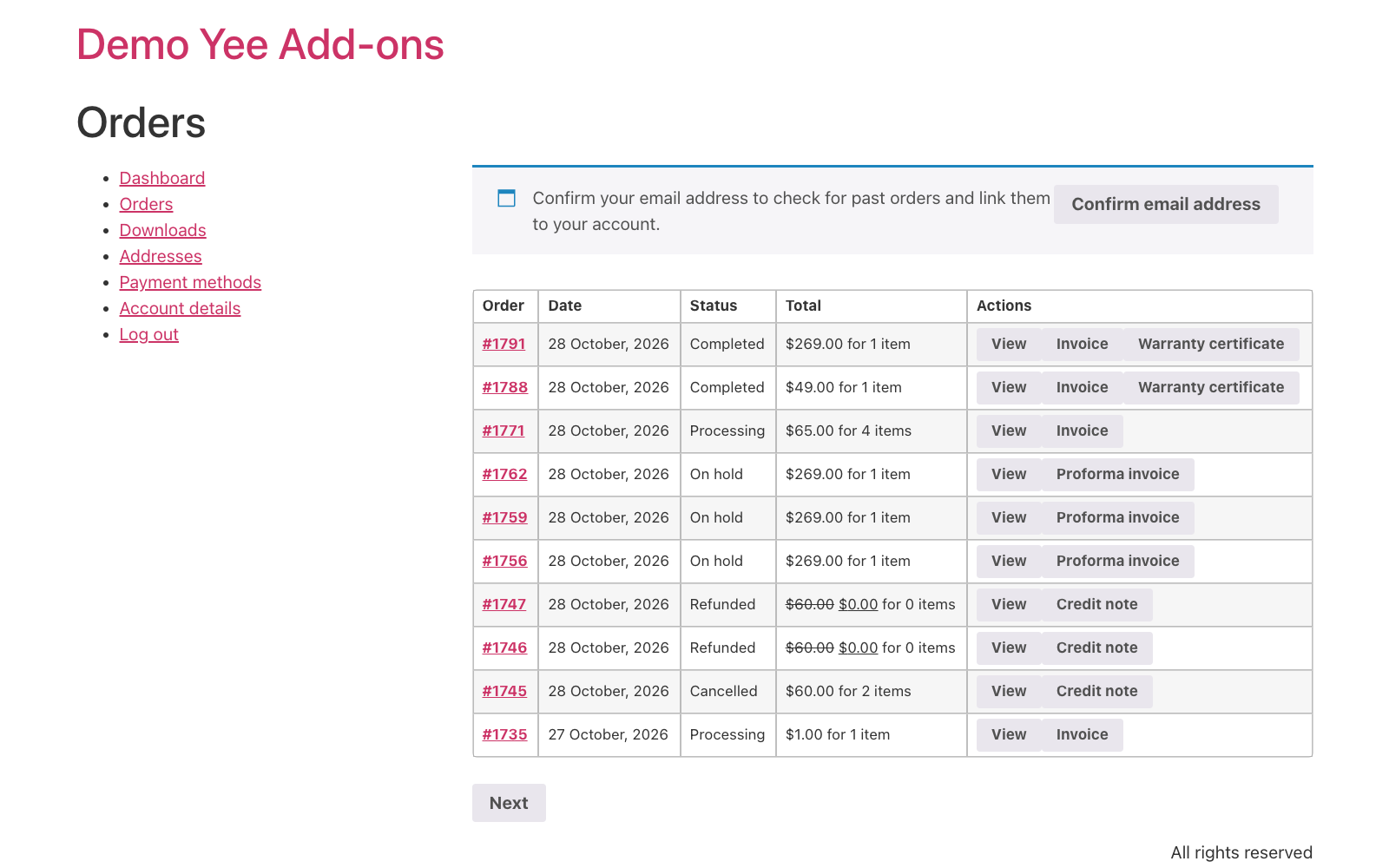
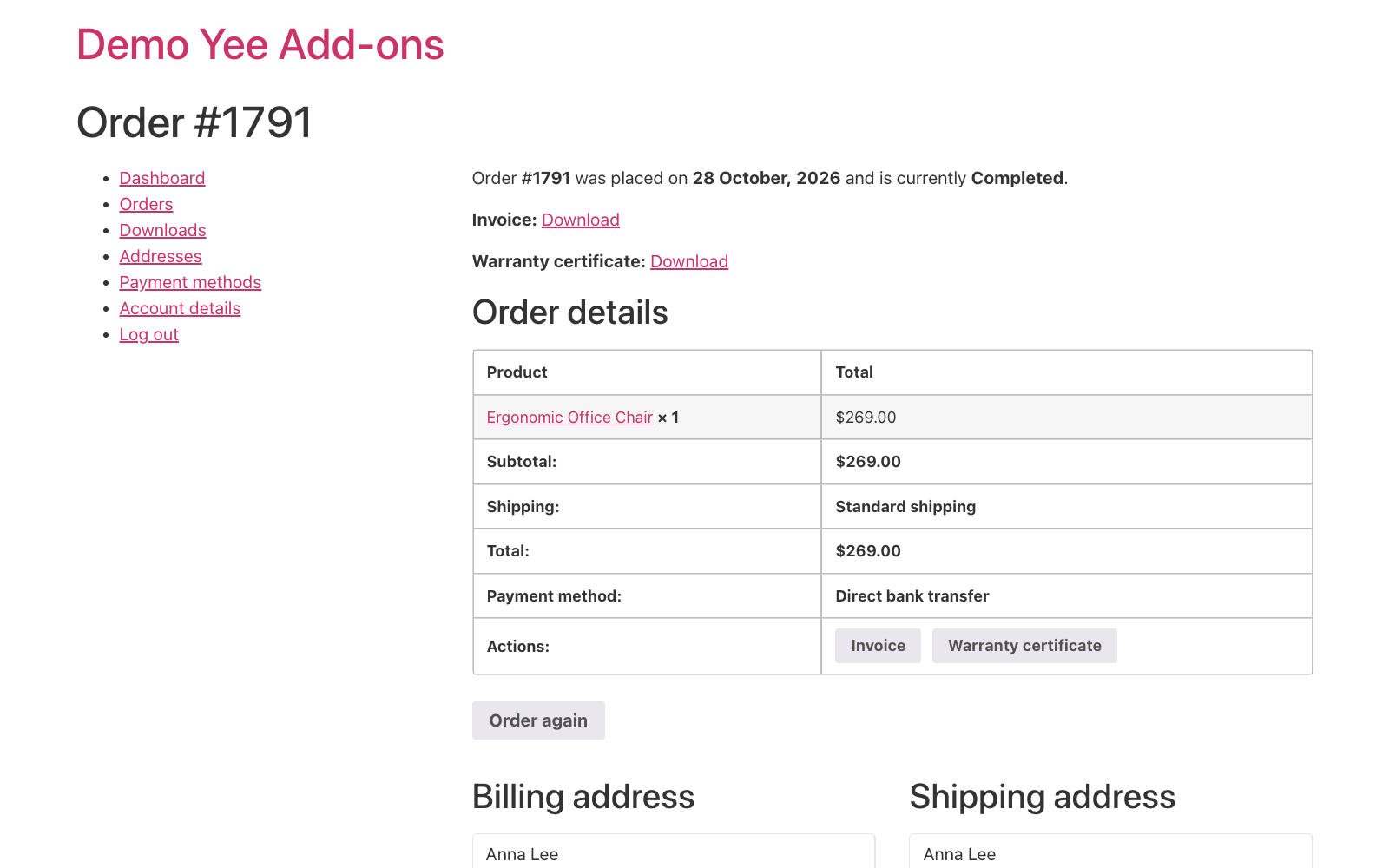
When you complete the order, the certificate is generated and attached to the Your order is now complete email. The customer also finds a Warranty certificate button in My Account → Orders and on the order page.

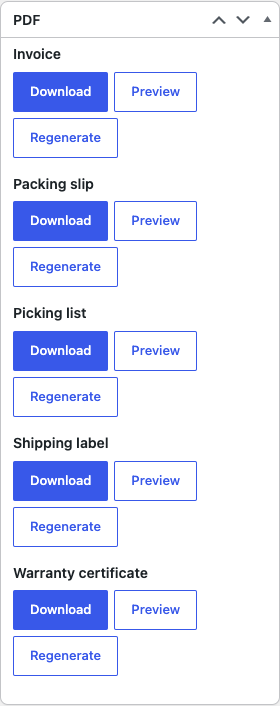
In the admin, the order screen lists the certificate in the PDF box with Download, Preview and Regenerate.
5. Handling a Claim
- Ask the customer for the certificate or scan its barcode: it returns
WC-1791, the order number. - Open WooCommerce → Orders and search for the number; the order date is the start of the warranty period.
- Add an order note with the claim details, so the history stays with the order.
6. Tips
- Certificate of authenticity: duplicate the template, change the title to CERTIFICATE OF AUTHENTICITY and the conditions to a statement of origin; keep the barcode or switch to a QR code that links to the product page.
- Warranty length per product: store the length in a product attribute or meta field and print it with
instead of static text. - Multiple products: replace the details block with the Order Detail table block (SKU on, prices off via Custom CSS) to list every covered item on one certificate.
- Branding: add an Image element with your logo above the title, and a light background image in Settings PDF for a certificate look.
- Regenerate: after editing the template, click Regenerate on an order to rebuild its certificate; emails attach the stored file.
7. Frequently Asked Questions (FAQ)
Can the certificate show the warranty end date?
Merge tags print the order date; there is no date arithmetic. Print the period (“24 months from the purchase date”) as above, or keep the end date in an order meta field and print that.
Does it work for products without a serial number?
Yes: the certificate number WC-<order number> is unique per order. If your products carry their own serial numbers, record them in an order meta field and print both.
Can customers download it later?
Yes, from My Account → Orders, as long as the order exists and its status is Completed.
Can I limit it to warranty products only?
The current conditional logic compares generic fields, not products. Use the order table block to list the covered items, or keep the setting enabled only for a store that sells warranted goods.
Is a barcode better than a QR code?
Code 128 barcodes suit handheld laser scanners at a support desk; QR codes suit phone cameras. Both elements take the same content.