
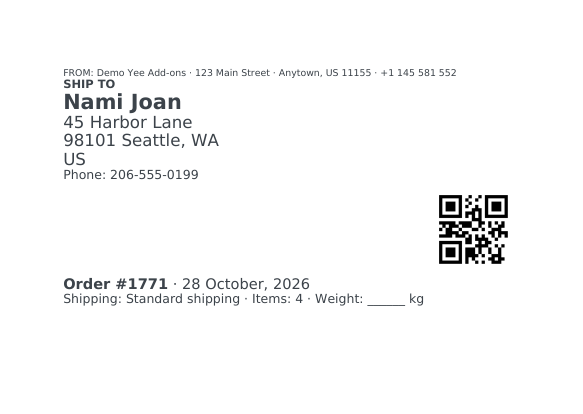
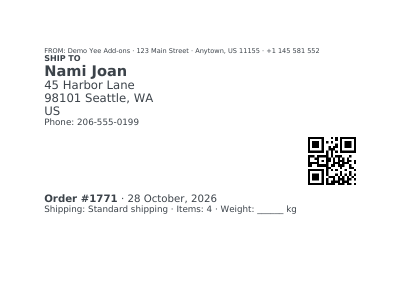
A shipping label is the smallest document in the series and the one you print most: the recipient address in large type, the sender in small type, the order number as a QR code the warehouse can scan, and the shipping method. This guide builds an A6 landscape label from a blank template with PDF Invoice for WooCommerce + Drag and Drop Template Builder (plugin slug pdf-for-woocommerce, by add-ons.org), generates it for every processing order and prints labels one by one or as one merged PDF for a whole batch of parcels. The packing slip and picking list guide covers the related warehouse documents.
Video tutorial
1. What the Label Contains
| Block | Content | Merge tags |
|---|---|---|
| Sender | One small line with the store name and address | Yee Add-ons + static text |
| Recipient | “SHIP TO” plus the full shipping address in 16–20 px | , 3286550379 |
| QR code | The order number, scannable with any phone or warehouse scanner | 8448 inside the Qrcode element |
| Order line | Order number, date, shipping method, number of items, a blank for the weight | 8448, August 28, 2026, 1 |
The plugin prints the label at the paper size you choose in the template, so pick the size your label printer or sticker sheets use: A6 (105 × 148 mm) is the common European parcel label, 4 × 6 in is the US standard. Both are available in Settings PDF.
2. Build the Label Template
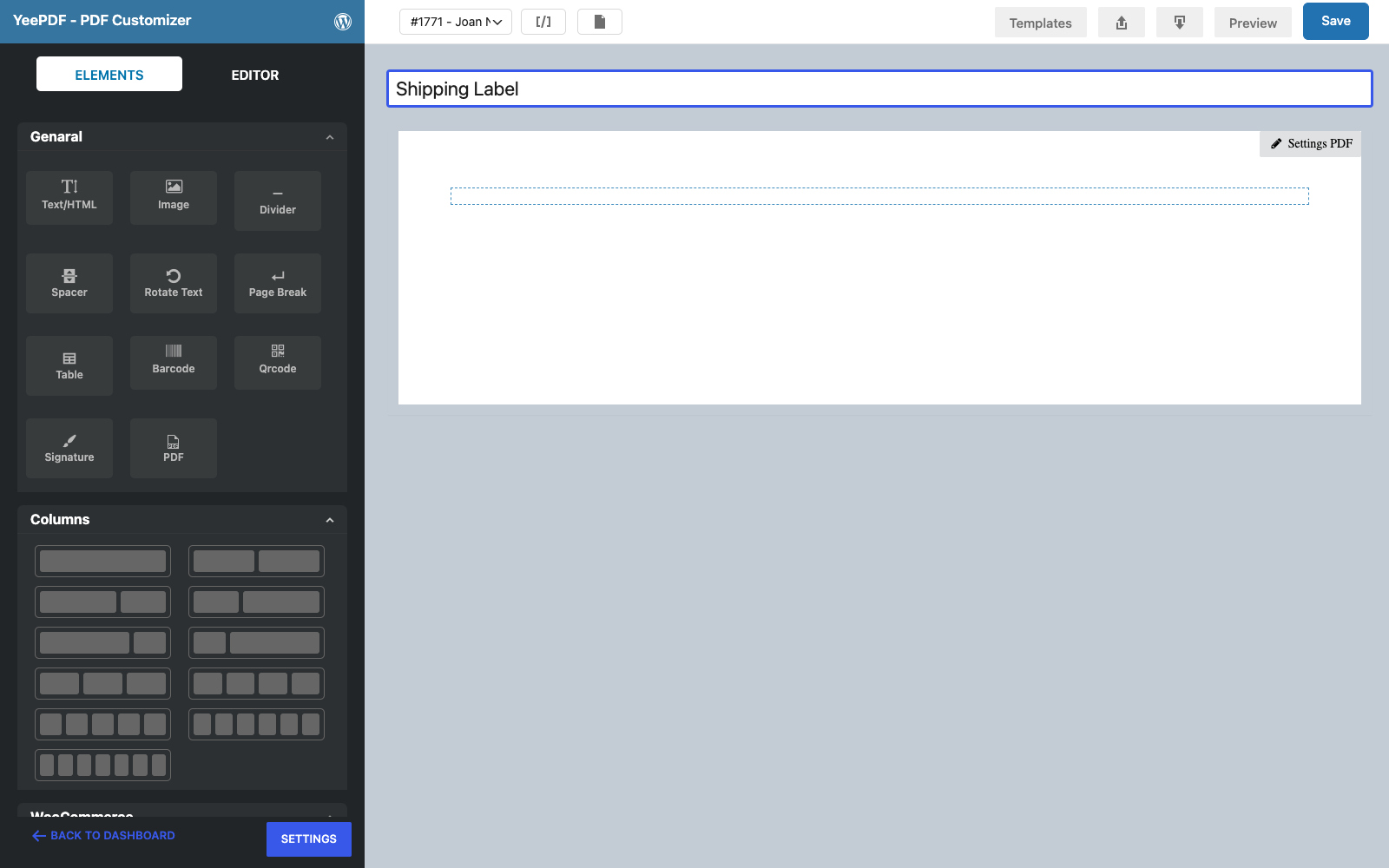
Step 1: New blank template
Go to PDF Templates → New Template and name it Shipping Label. A new template starts with one empty row.
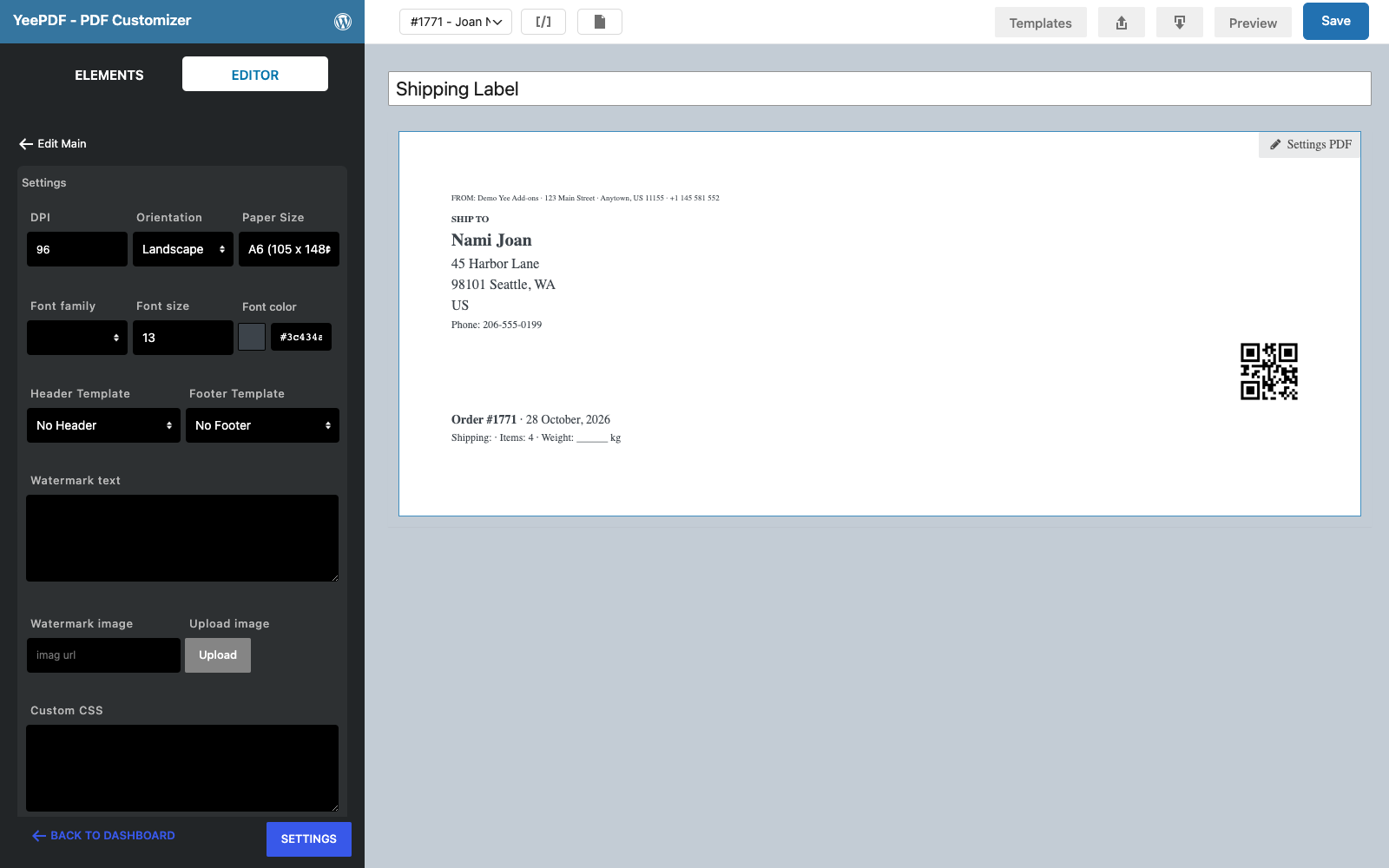
Step 2: Paper size and orientation
Click Settings PDF at the top right of the canvas. Set Orientation to Landscape and Paper Size to A6 (105 × 148 mm). The canvas keeps its width on screen, but the generated PDF uses the real label size.
Step 3: Sender line
Builder note: a new element is inserted just above the element you drop it on (the first element of an empty row is simply added). The quickest way to get the reading order sender → recipient → QR code → order line is to create the order line (step 6) first, then drop each of the other blocks onto it in steps 3, 4 and 5; the blocks slide in above it in the order you add them.
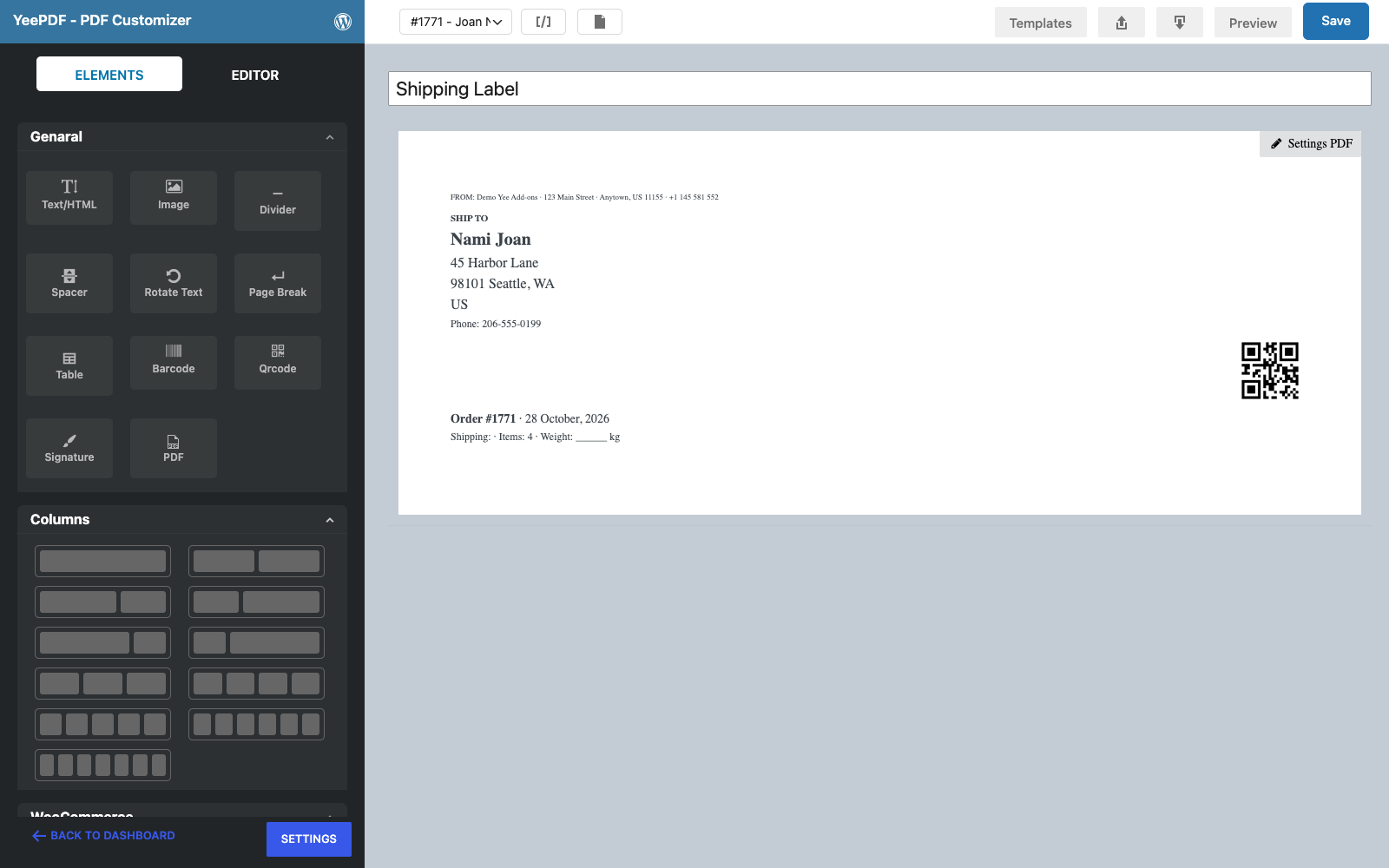
Drag a Text/HTML element from the Elements panel into the row and type the sender in a small font:
FROM: Yee Add-ons · 123 Main Street · Anytown, US 11155 · +1 145 581 552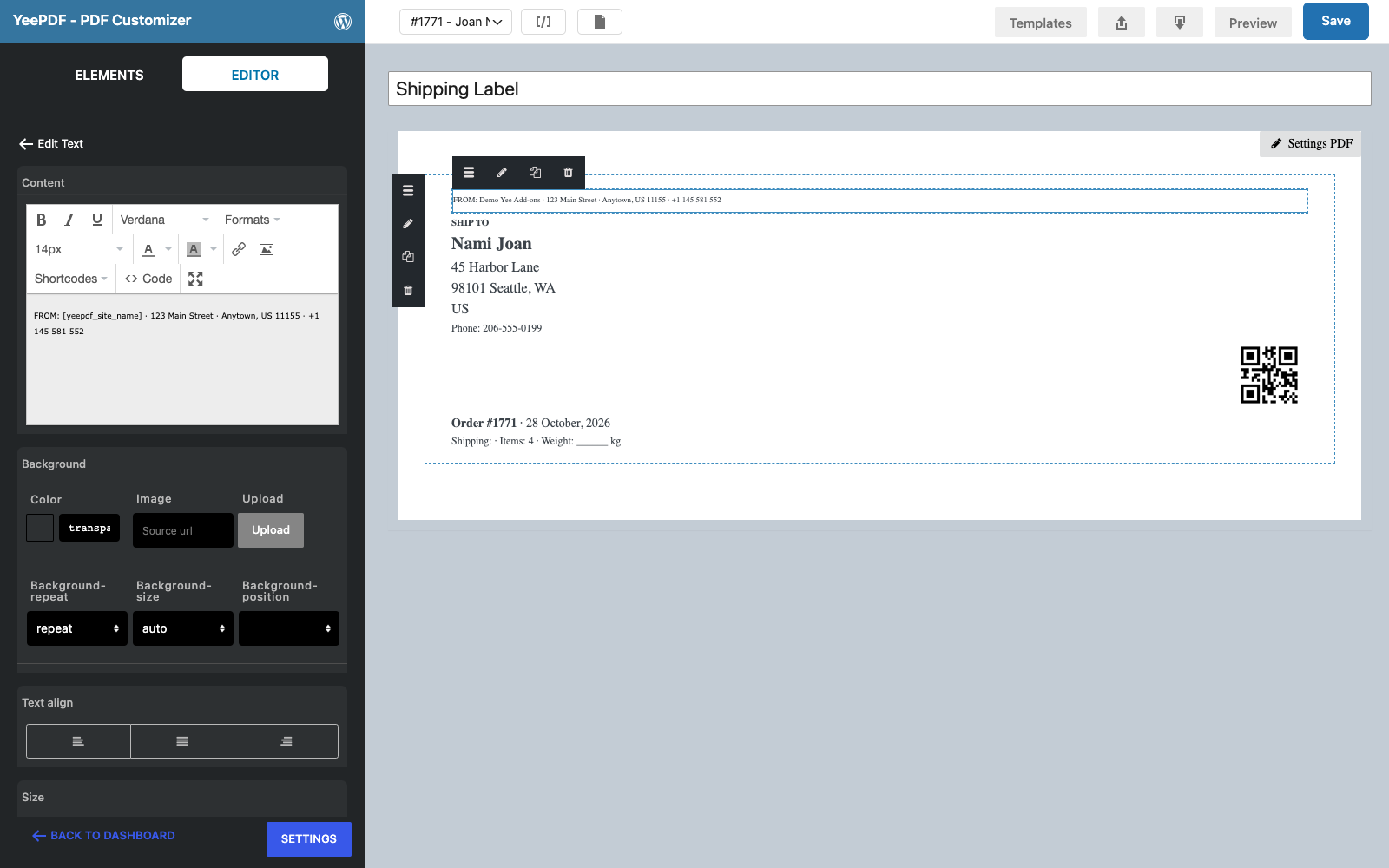
Step 4: Recipient block
Drag a second Text/HTML element below it. Use the Shortcodes menu or type the shipping merge tags, and set the name to 20 px bold and the address to 16 px so it stays readable from a distance:
SHIP TO


 ,

Phone: 3286550379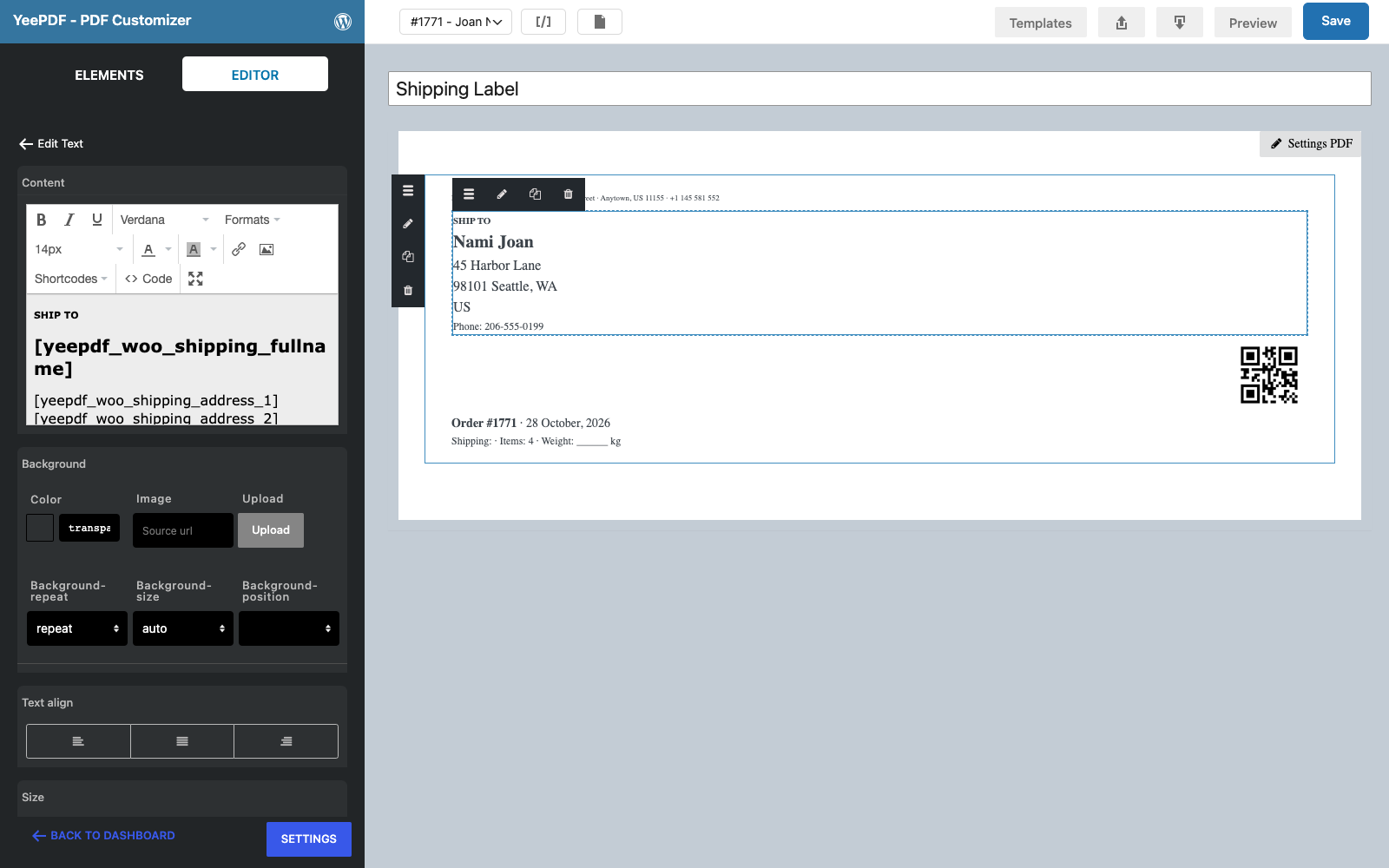
Step 5: QR code
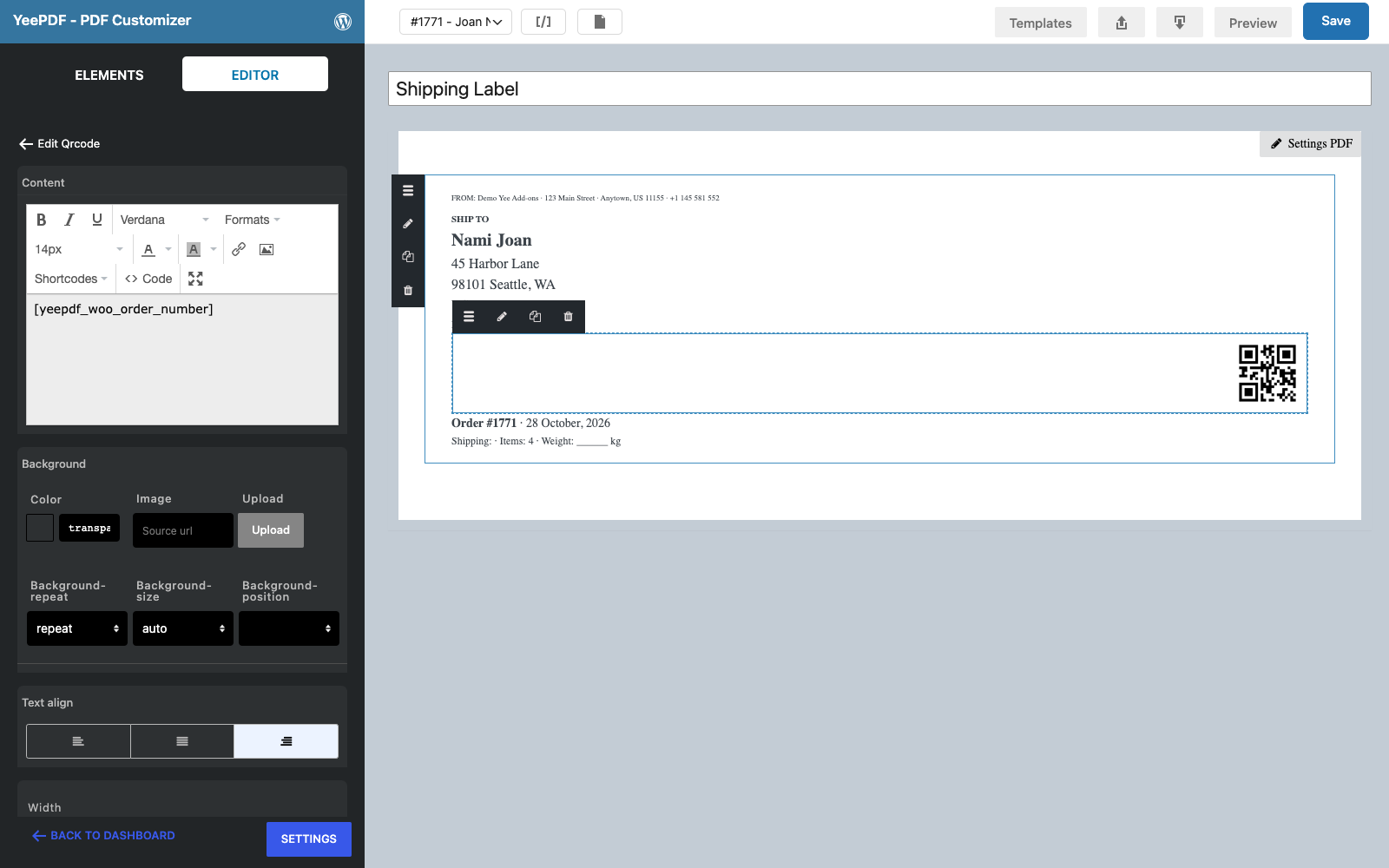
Drag the Qrcode element into the row. In its Editor panel the Content field is the text encoded in the code: enter 8448. Set the Width to about 90 px and align it to the right so it sits next to the address. Scanning the label with a phone or a warehouse scanner returns the order number; you can also encode the order URL or a tracking number from order meta.
Step 6: Order line
Add a last Text/HTML element with the order details the carrier or the packer needs:
Order #8448 · August 28, 2026
Shipping:  · Items: 1 · Weight: ______ kg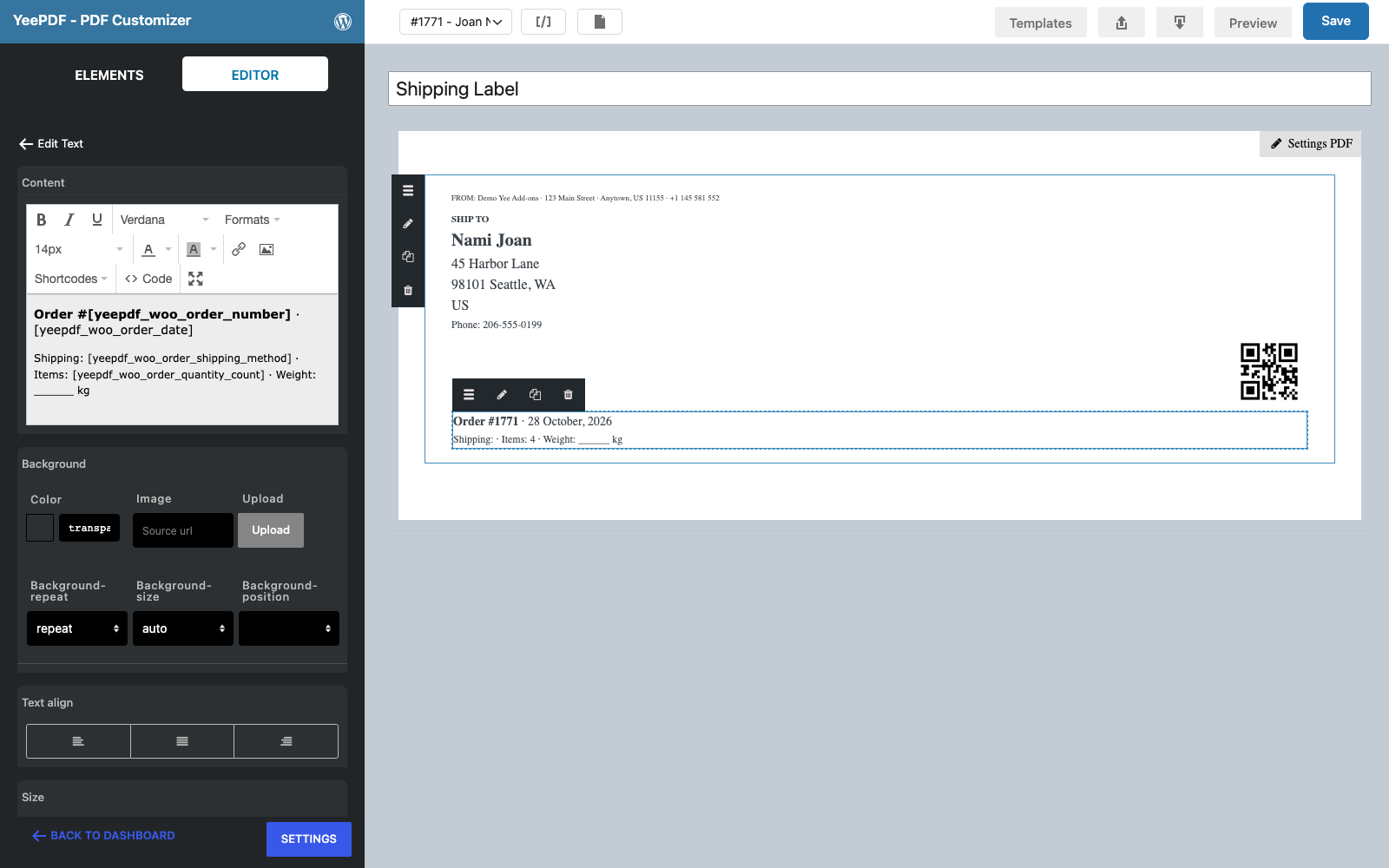
Click Save. The whole template is four elements in one row.
3. Generate the Label for Every Order
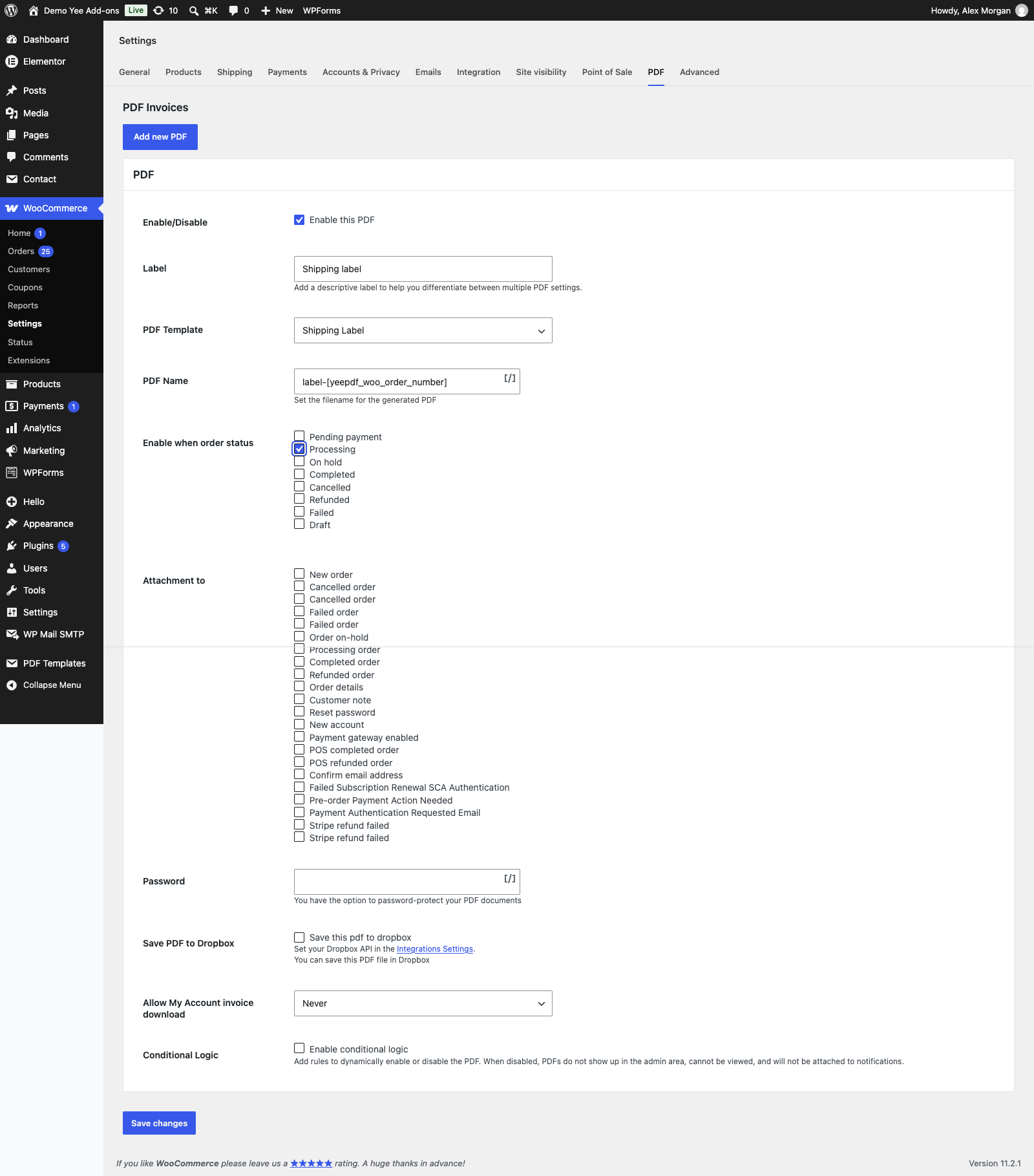
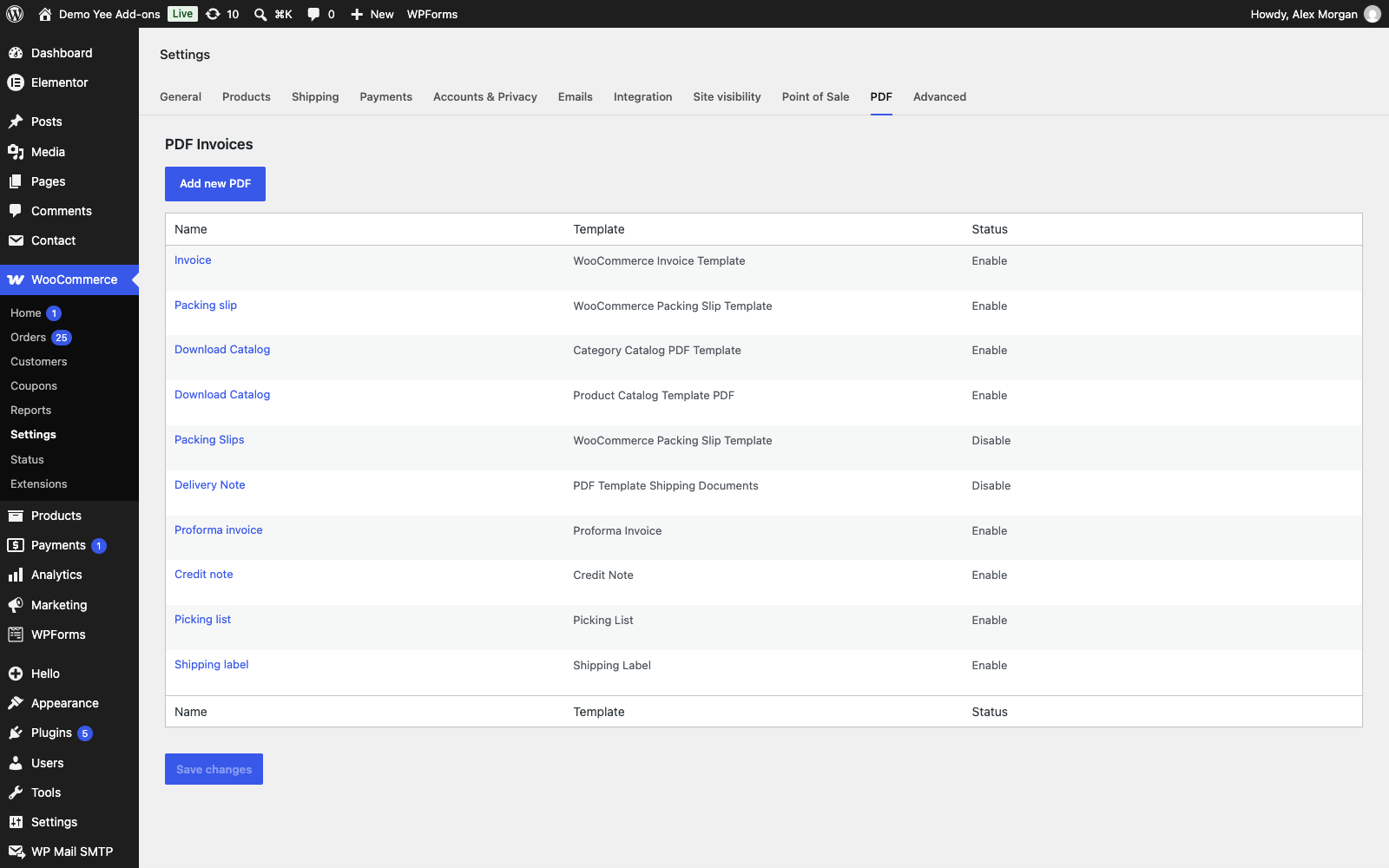
Go to WooCommerce → Settings → PDF → Add new PDF:
| Field | Value |
|---|---|
| Label | Shipping label |
| PDF Template | Shipping Label |
| PDF Name | label-8448 |
| Enable when order status | Processing (paid, ready to ship) |
| Attachment to | none; optionally New order so the admin notification carries the label |
| Allow My Account invoice download | Never |
4. Print Labels
One order
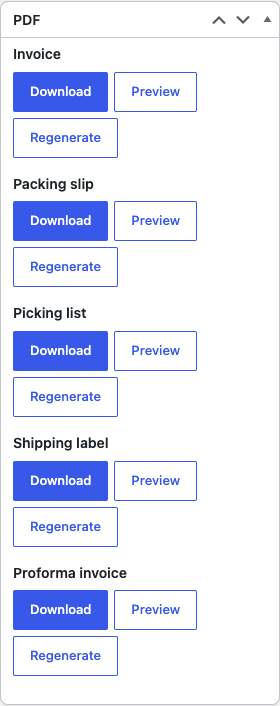
Open a processing order: the PDF box has a Shipping label entry with Download, Preview and Regenerate. Preview opens the A6 PDF in a new tab; print it at 100 % scale on the label printer.
A batch of parcels
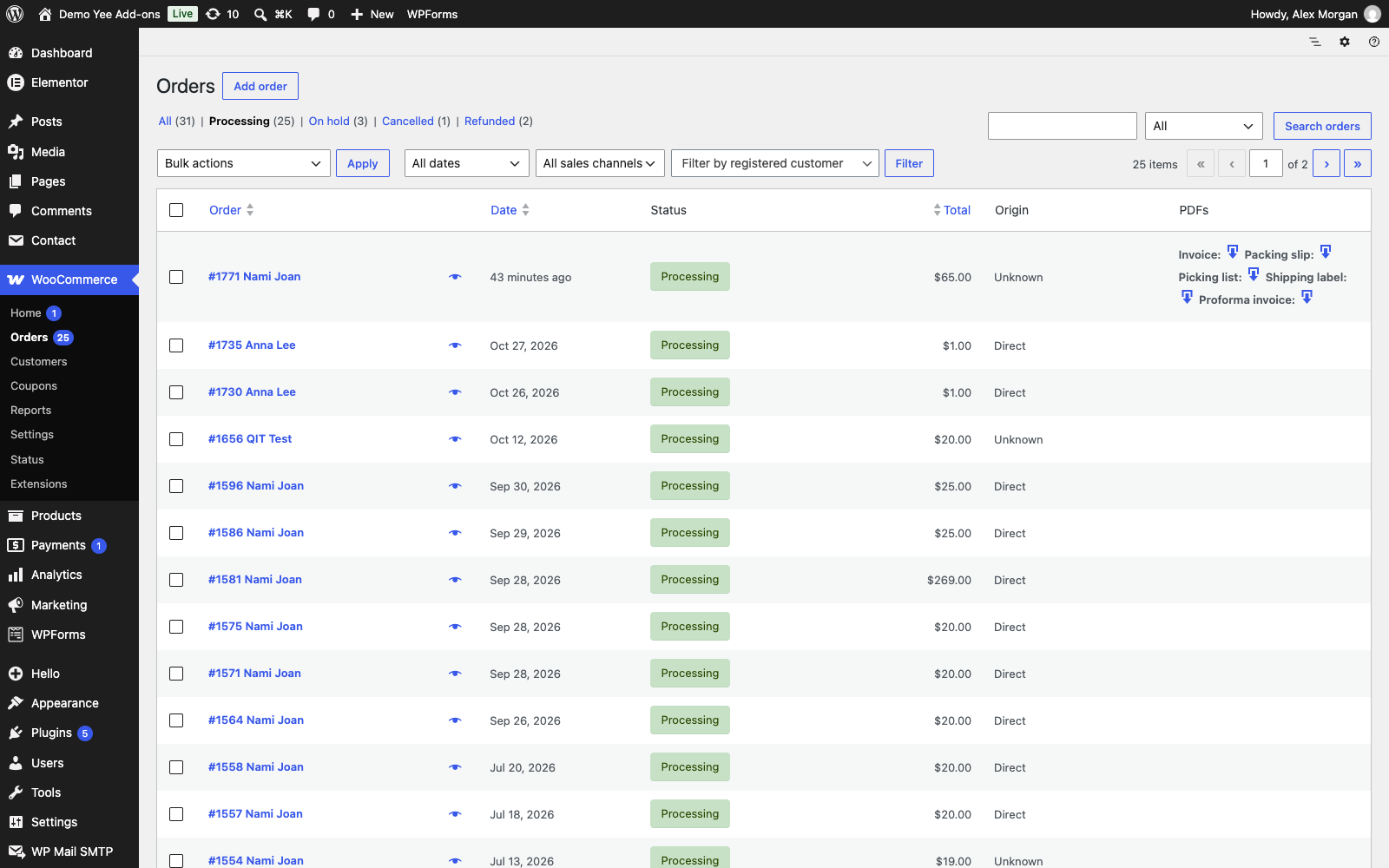
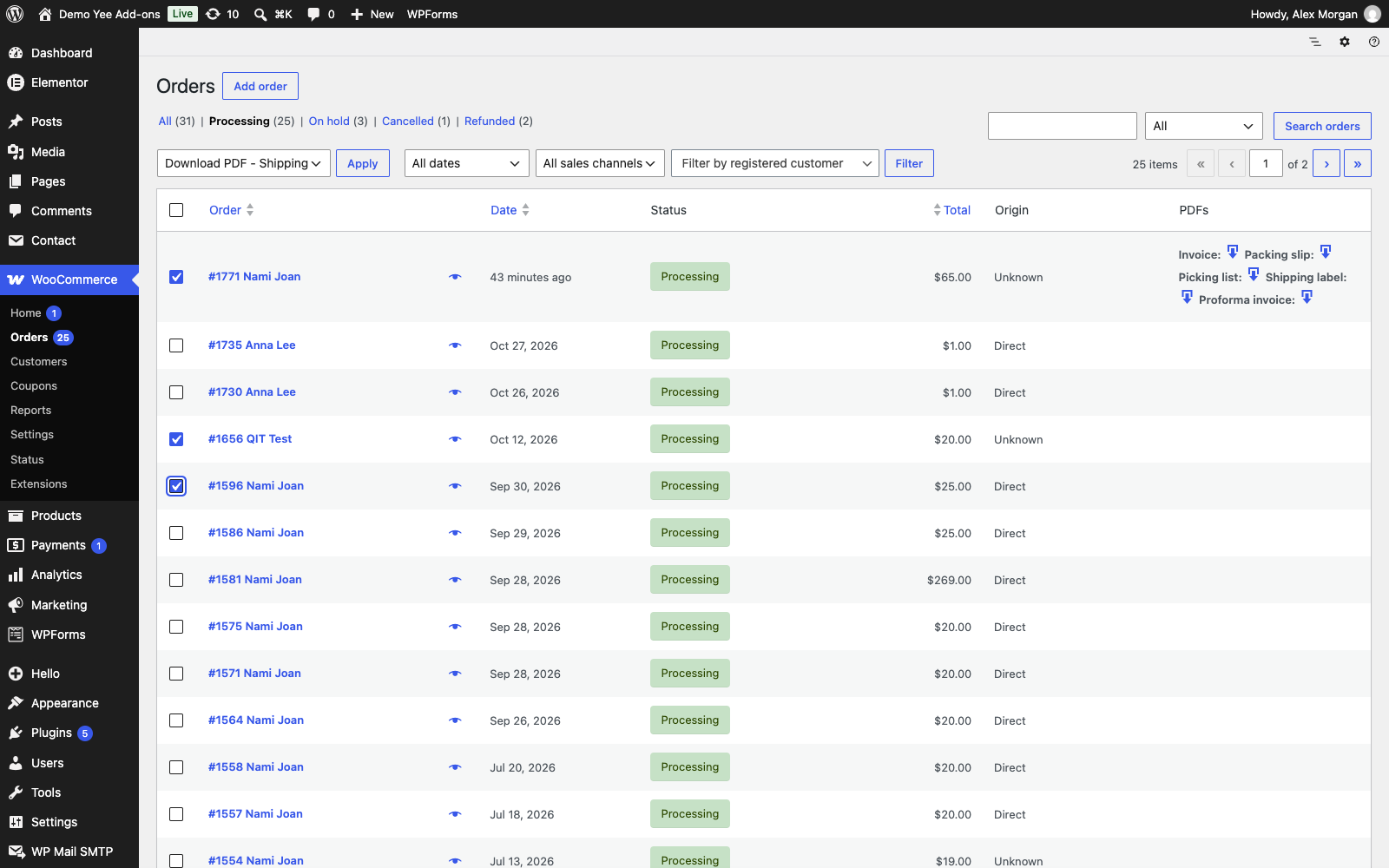
In WooCommerce → Orders filter on Processing, tick the orders you are shipping, choose Download PDF – Shipping label in the bulk actions and click Apply. One PDF with one A6 page per order is downloaded, ready for the label printer.
5. Tips
- Label size: A6 landscape (148 × 105 mm) matches most thermal label printers; choose A7 or a custom size under Settings PDF for smaller stickers, and keep the fonts at 16 px or larger.
- Barcode instead of QR: the Barcode element prints a Code 128 barcode from the same content; use it when the carrier scanner does not read QR codes.
- Tracking number: if a shipping plugin stores the tracking number in order meta, print it with
and encode it in the QR code. - Return address label: duplicate the template, swap the sender and recipient blocks and set the status to Refunded or Cancelled for a prepaid return label.
- Country names:
prints the ISO code (US, DE…); add the full country name in a text block if your carrier requires it. - Regenerate: after editing the template click Regenerate on the order; the bulk download always renders fresh.
6. Frequently Asked Questions (FAQ)
Does the QR code work in downloaded and emailed PDFs?
Yes. The code is rendered on your server as an image inside the PDF; no internet connection is needed to scan it.
Can I print two labels per A4 page?
Keep the template at A6 and set your printer dialog to “2 pages per sheet” or “multiple”, or build an A4 template with a two-column row and two copies of the blocks.
Why is the shipping method empty?
The tag prints the shipping line of the order. Orders without a shipping line (virtual products, free shipping without a method) print nothing; add a fallback text if needed.
Can the label be generated at another status?
Yes, tick any status under Enable when order status, for example Completed if you ship after marking the order complete.
Can I use the label for pickup orders only?
Enable conditional logic in the setting and compare the shipping method or a custom field, so the label is generated only for orders that match.