
A proforma invoice is the document you send before payment: it tells the customer exactly what they will pay and how, without being a final tax invoice. It is the standard way to handle bank-transfer, pay-later and B2B orders in WooCommerce. In this guide you will build a proforma invoice with PDF Invoice for WooCommerce + Drag and Drop Template Builder (plugin slug pdf-for-woocommerce, by add-ons.org): duplicate the built-in invoice template, change its wording, add payment instructions with dynamic merge tags, then attach the PDF automatically to pending and on-hold orders, to the new-order and on-hold emails, and to the customer’s My Account page. Every step is shown with a screenshot. The same workflow works for any other document type: only the texts and the trigger statuses change.
Video tutorial
1. What You Need
- WooCommerce and the PDF Invoice for WooCommerce + Drag and Drop Template Builder plugin installed and activated (it adds the PDF Templates menu and a PDF tab in WooCommerce → Settings).
- An offline or deferred payment method that leaves orders in Pending payment or On hold: Direct bank transfer (BACS), Check payments, or an invoice/pay-later gateway.
- Your bank details or payment instructions, and the wording you want on the document (validity period, legal note).
How the plugin decides when to create a PDF: every PDF setting has a list of order statuses. When an order enters one of those statuses the PDF is generated and stored with the order; the same setting also decides which WooCommerce emails get the file and when customers can download it from My Account. For a proforma invoice the statuses are Pending payment and On hold; a final invoice would use Processing and Completed.
2. Create the Proforma Template
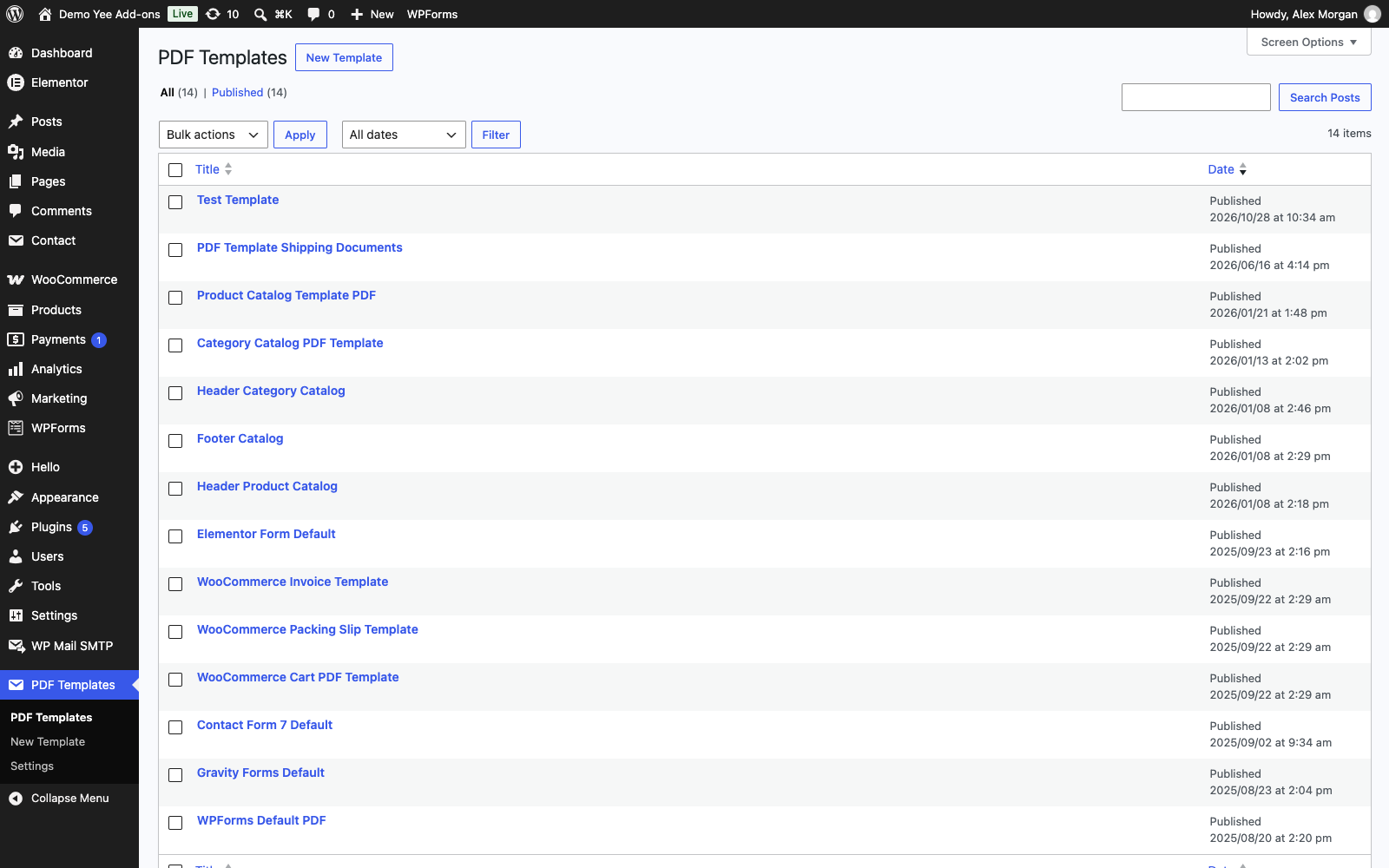
Step 1: Open PDF Templates
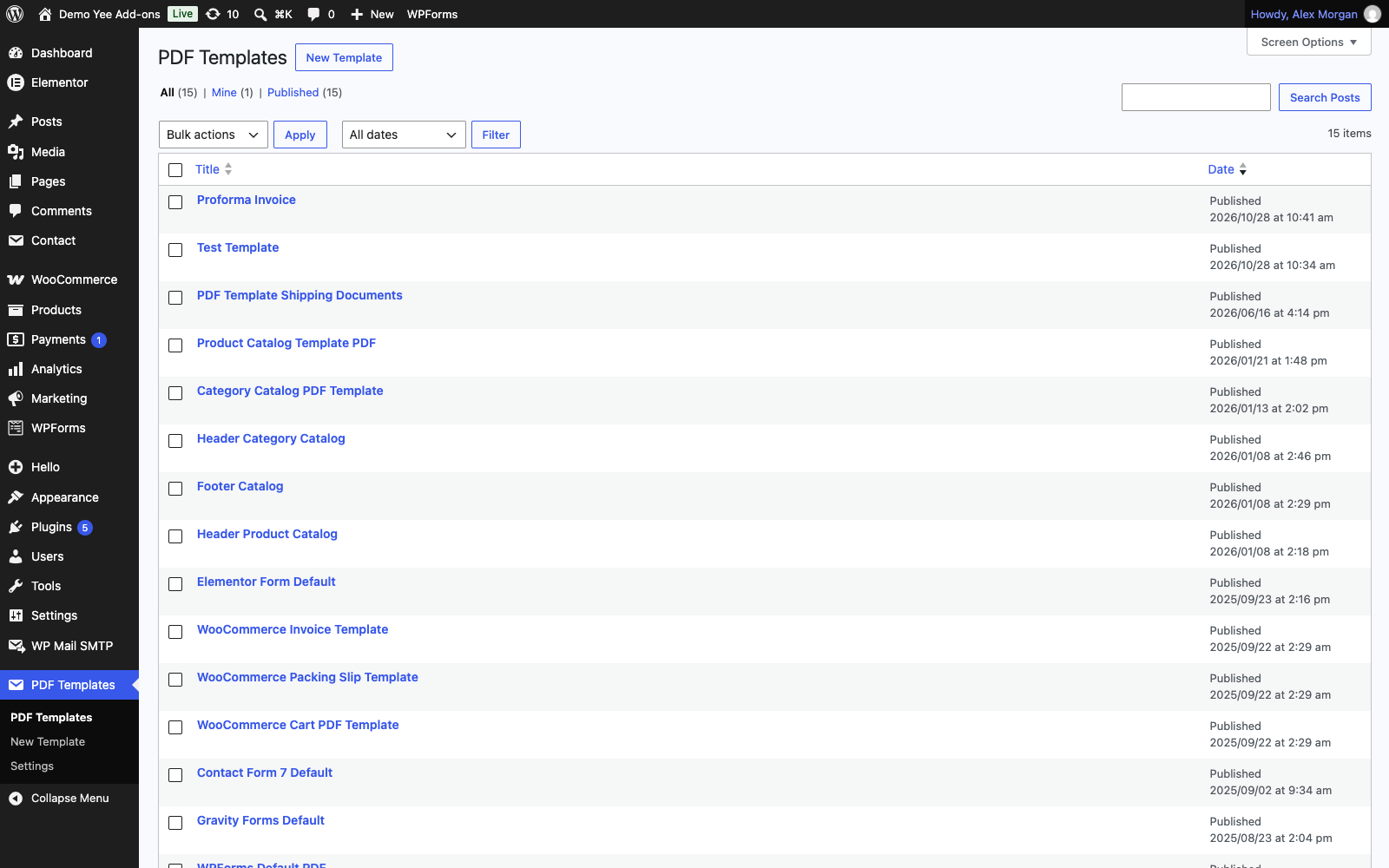
Go to PDF Templates in the WordPress admin menu. The plugin ships with a WooCommerce Invoice Template that already contains the logo, store address, billing and shipping blocks and the order table. We will reuse it instead of starting from a blank page.
Step 2: Export the invoice template
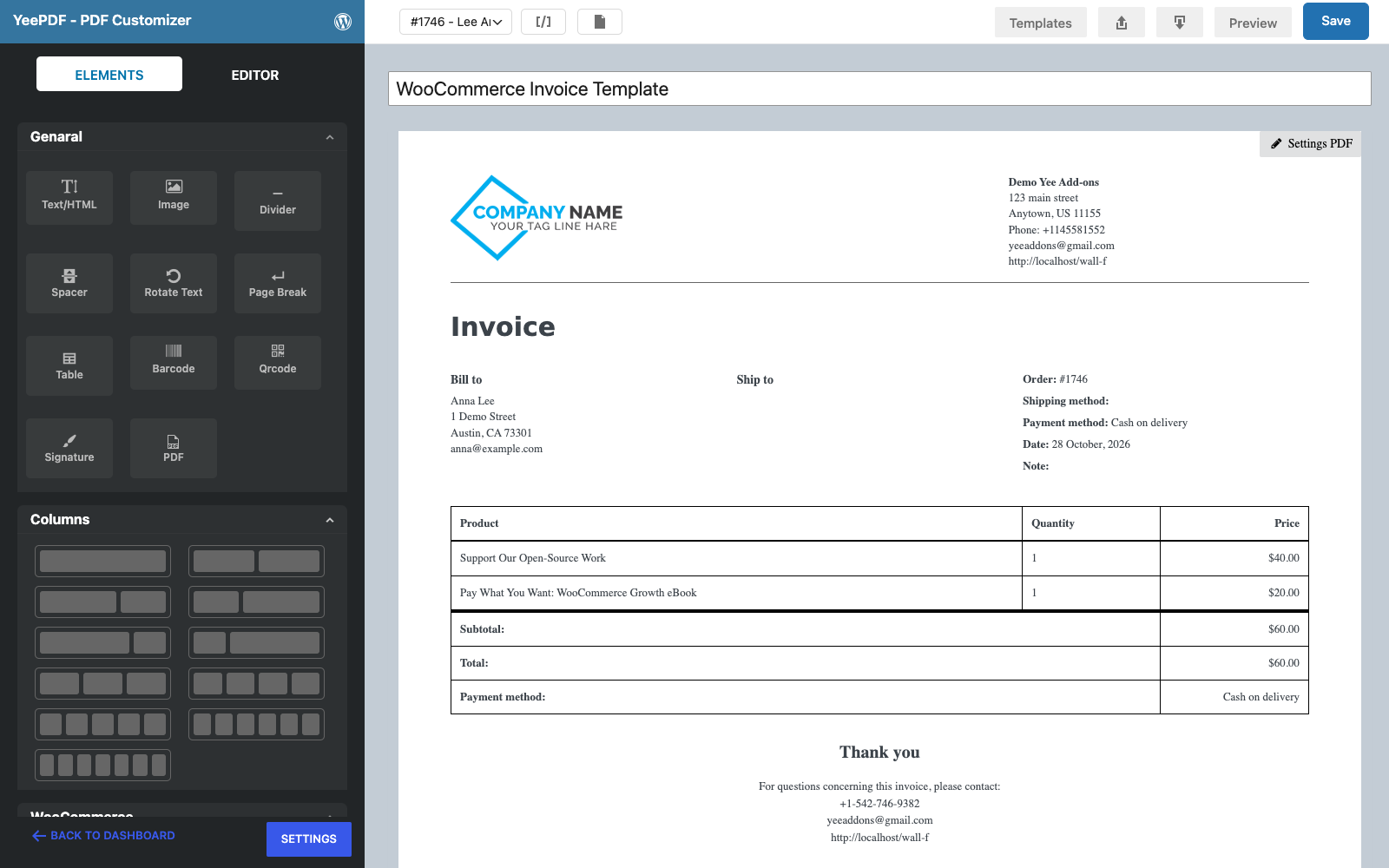
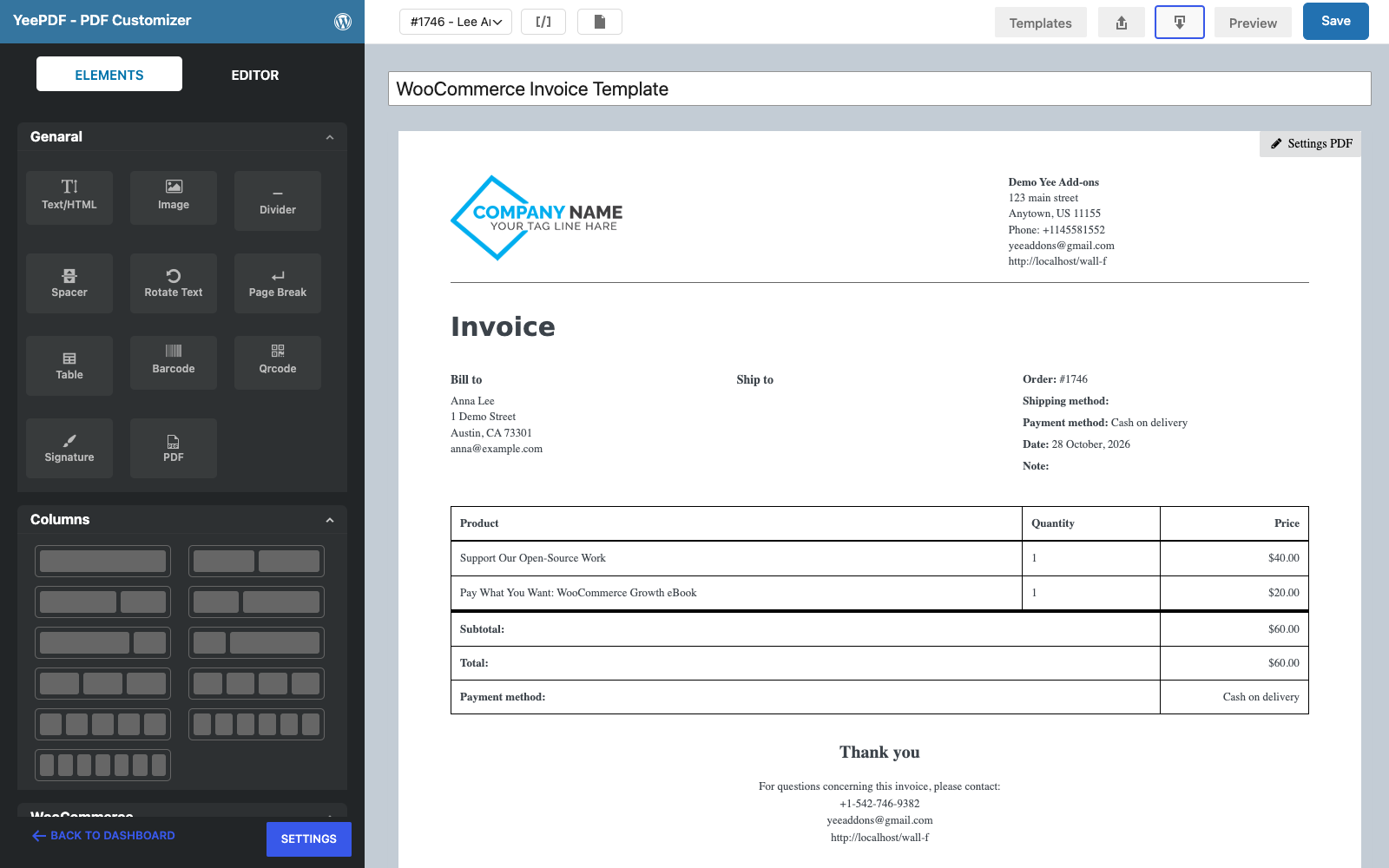
Open WooCommerce Invoice Template. In the builder toolbar click the Export icon (arrow down). A file named yeepdf.json is downloaded: it contains the whole layout.
Step 3: Create a new template and import the file
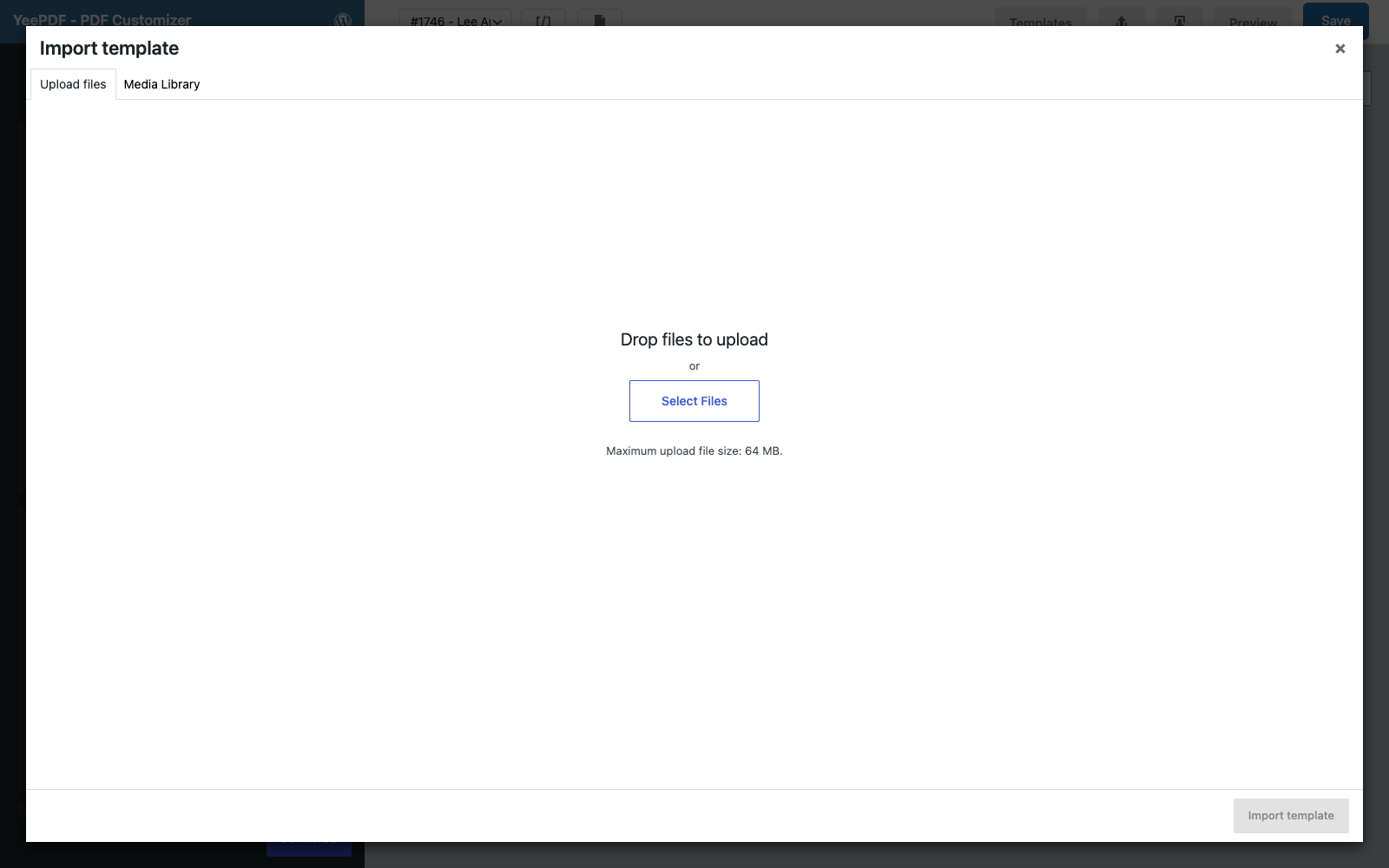
Click PDF Templates → New Template, then the Import icon (arrow up). The WordPress media window opens: upload yeepdf.json, select it and click Import template. The invoice layout appears in the new template. Type the title Proforma Invoice in the title field.
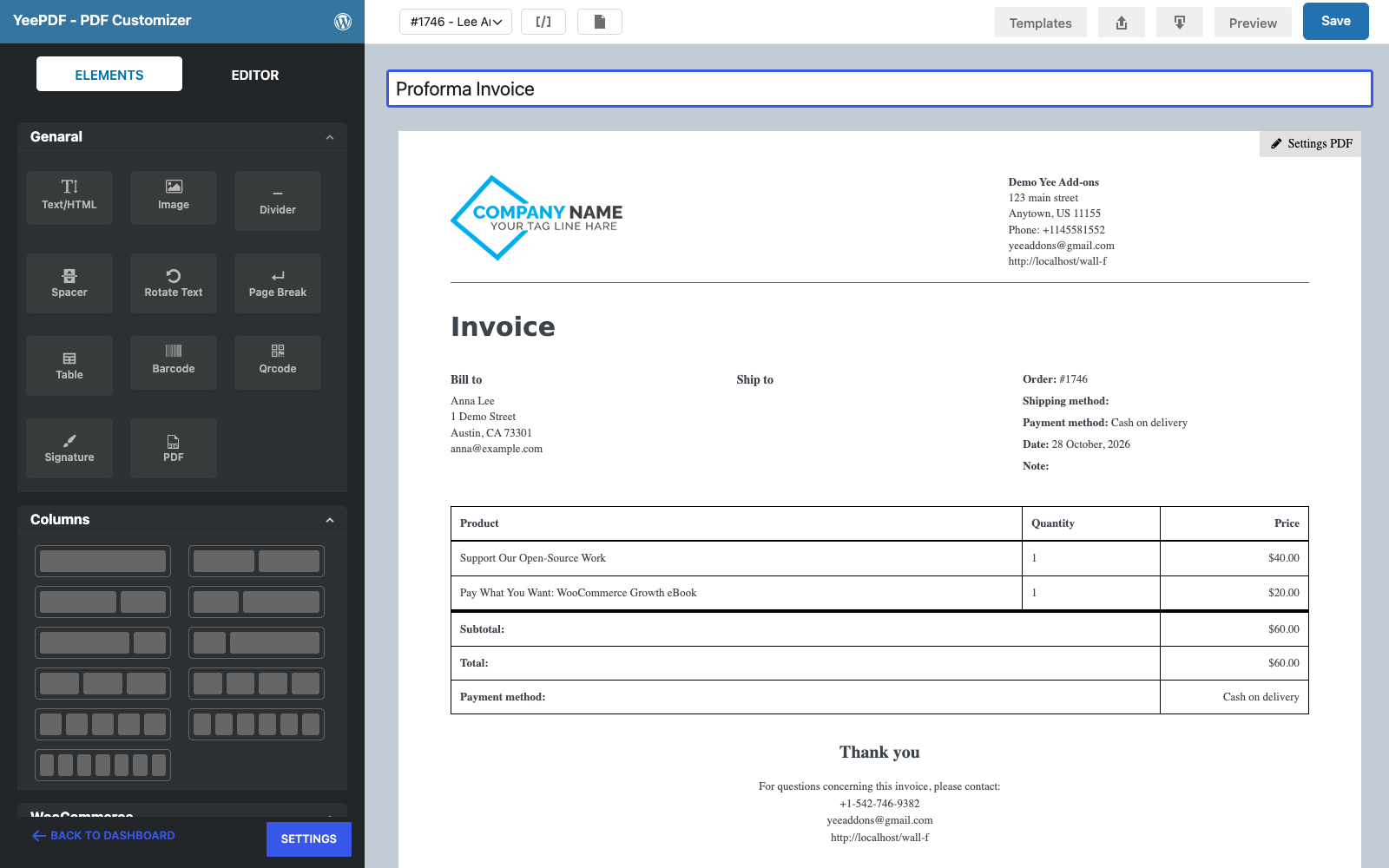
Step 4: Change the heading
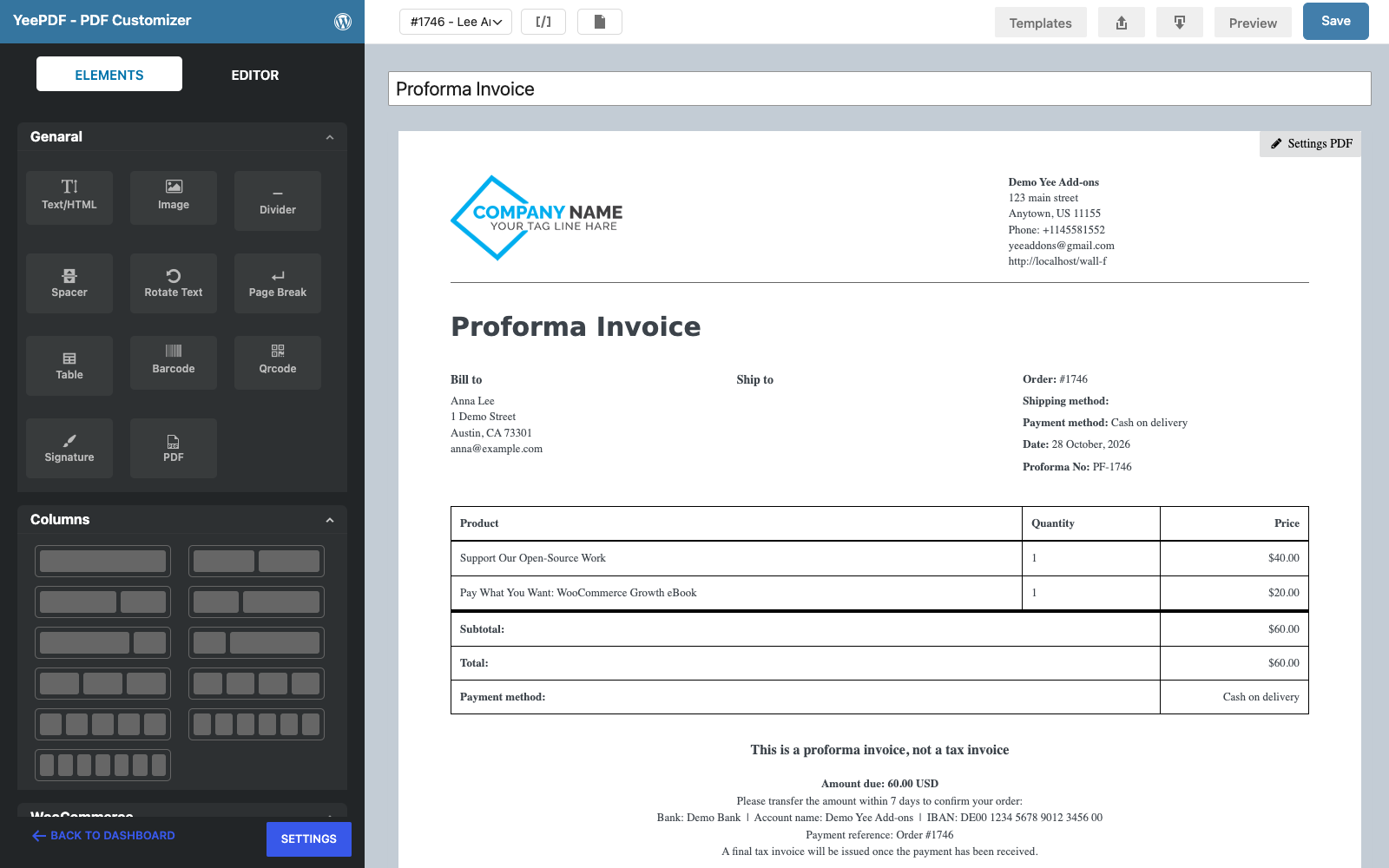
Click the Invoice heading on the canvas. The Editor panel opens on the left with a rich-text editor: replace the word with Proforma Invoice. Keep the bold 30 px styling so it still reads as a title.
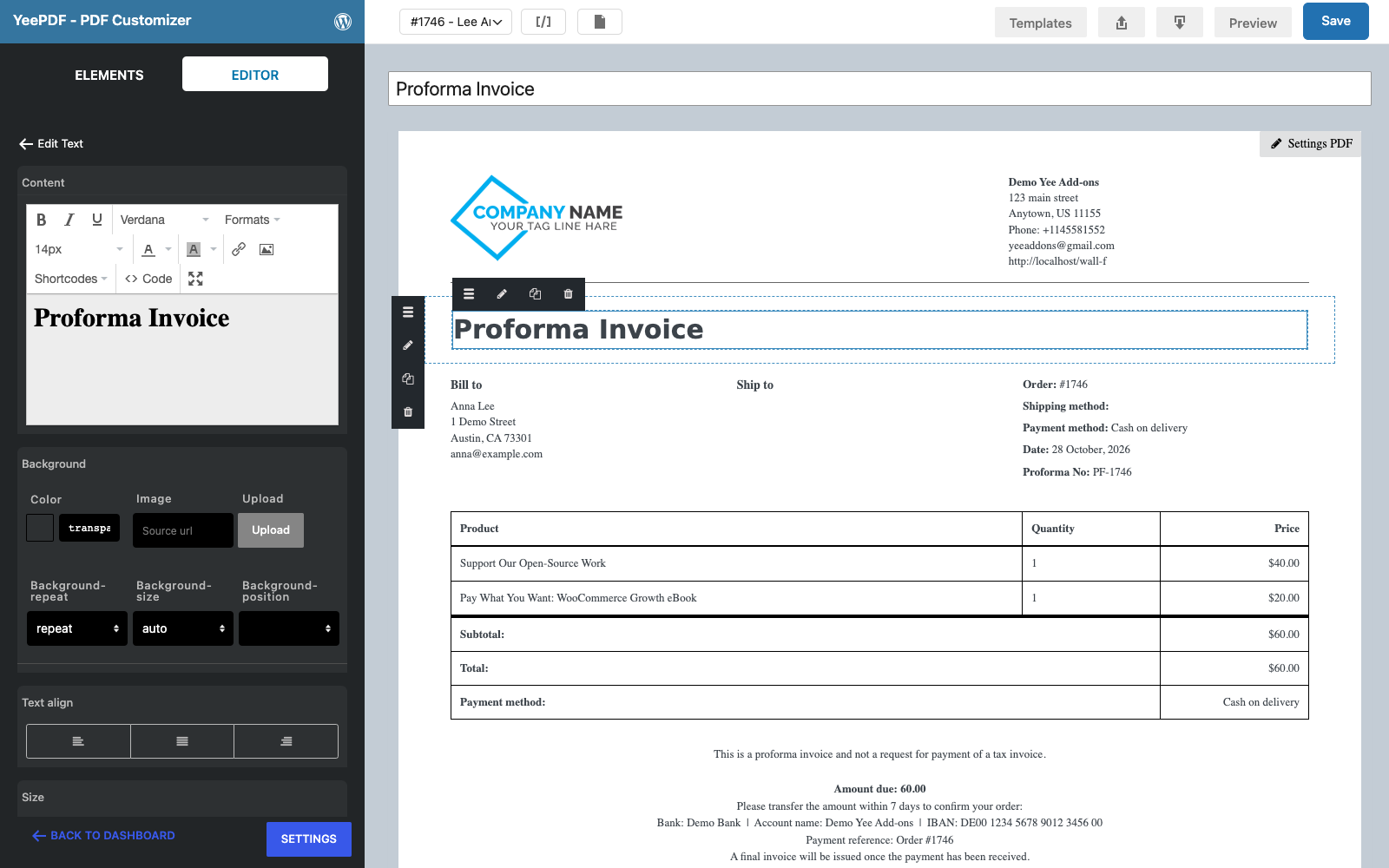
Step 5: Add a proforma number
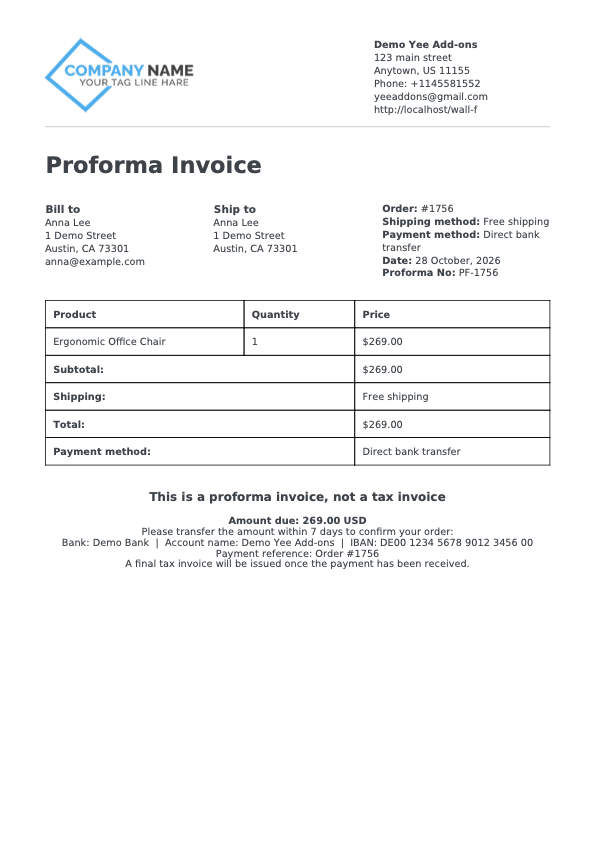
Every proforma should carry its own reference. Click the Note: line in the order-info column and replace it with Proforma No: PF-8448. The tag 8448 is replaced by the order number when the PDF is generated, so each document gets a unique number such as PF-1756.
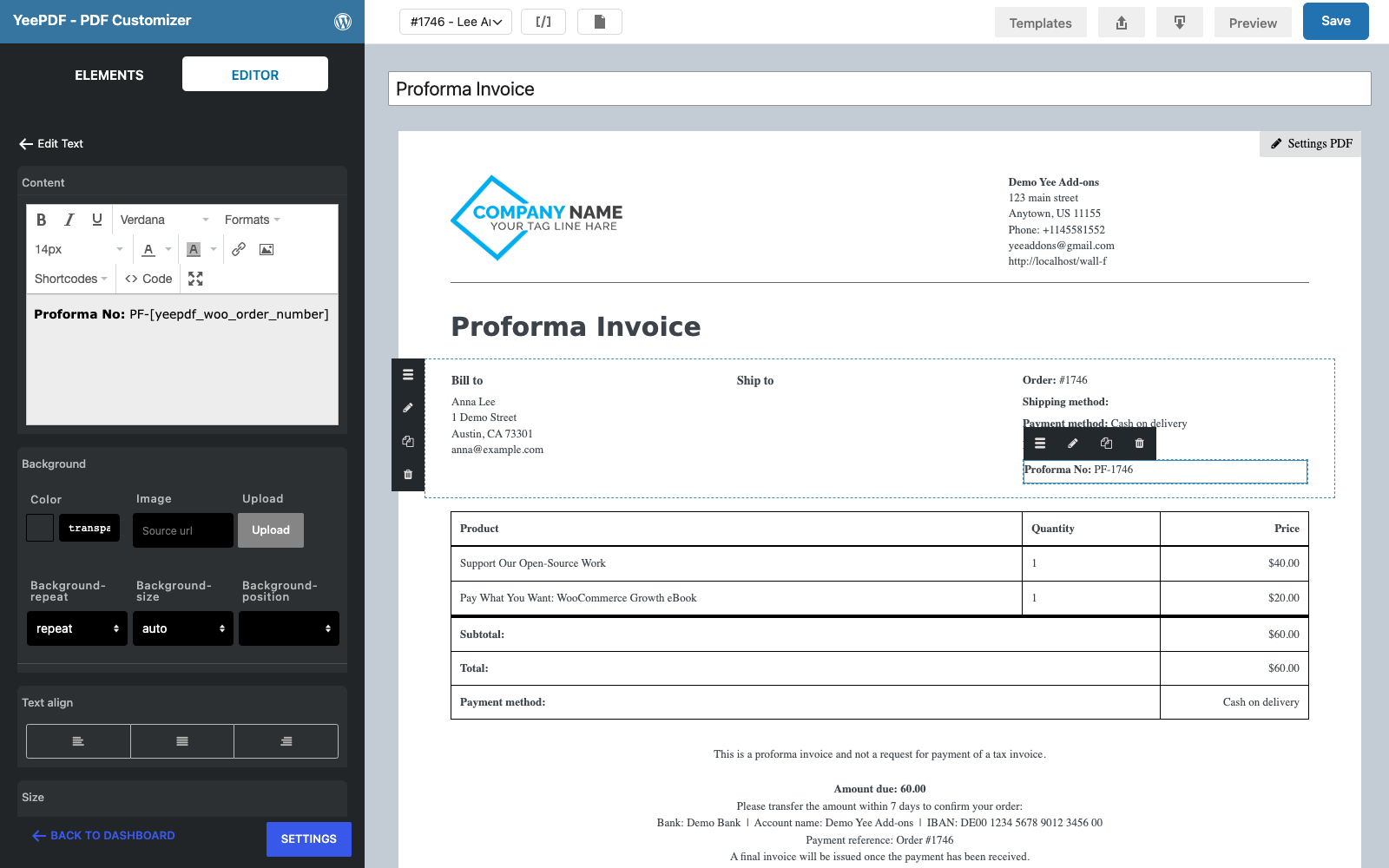
Step 6: Replace the footer with payment instructions
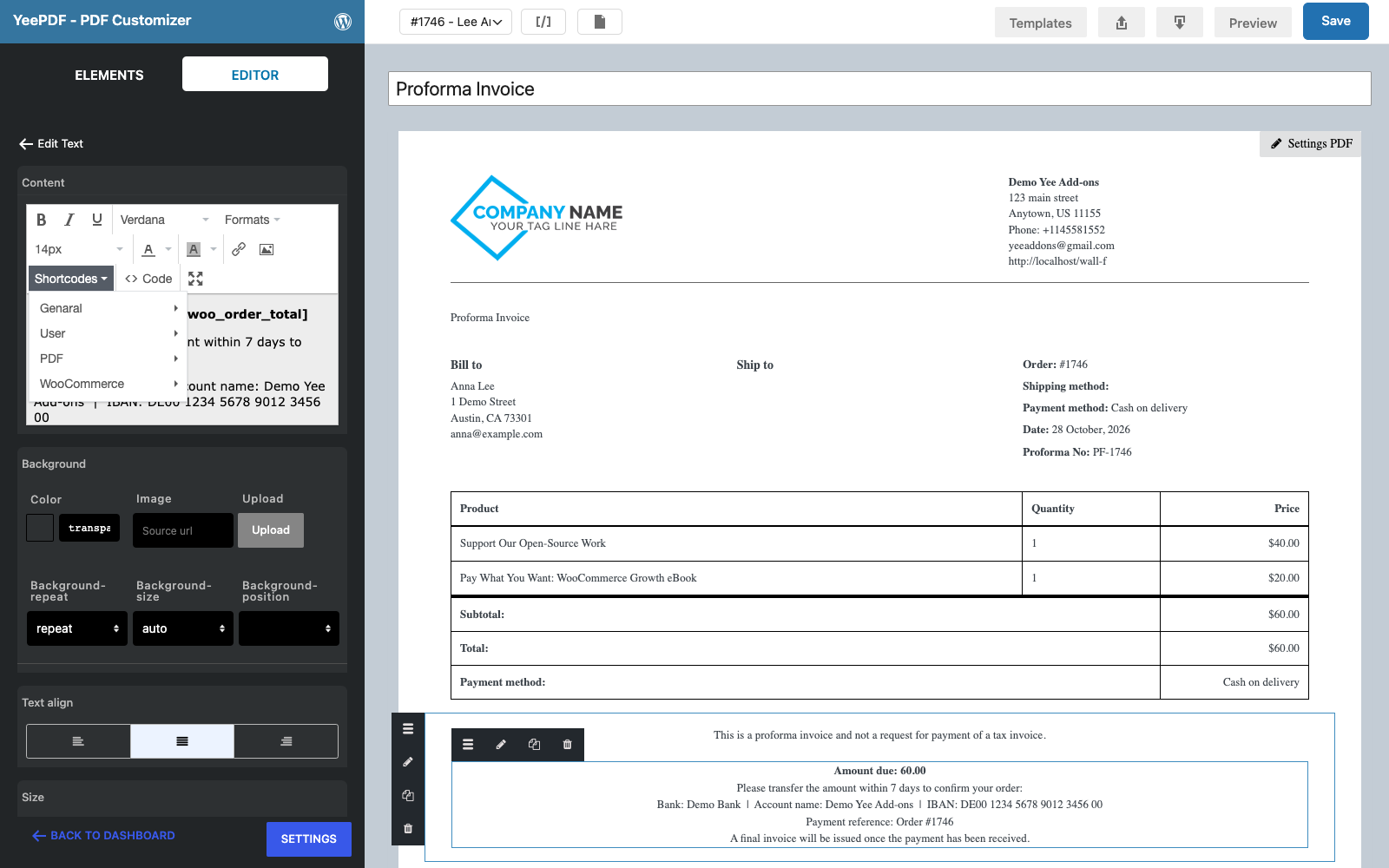
Click the Thank you block and change it to a clear legal note, for example “This is a proforma invoice, not a tax invoice”. Then click the contact block below it and replace it with the amount due and your bank details:
Amount due: 19.00 USD
Please transfer the amount within 7 days to confirm your order:
Bank: Demo Bank | Account name: Demo Yee Add-ons | IBAN: DE00 1234 5678 9012 3456 00
Payment reference: Order #8448
A final tax invoice will be issued once the payment has been received.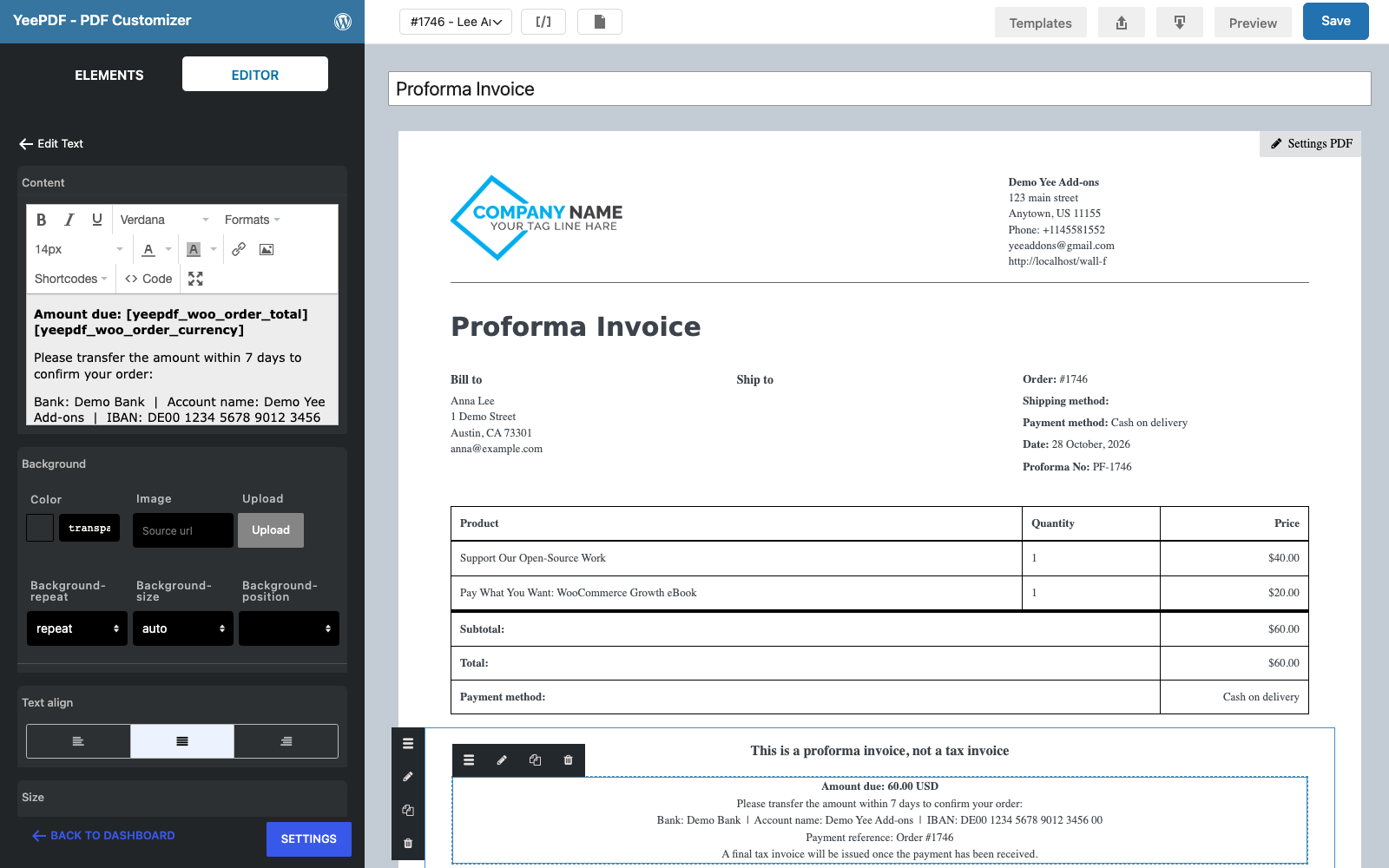
You do not have to remember tag names: the editor toolbar has a Shortcodes menu that lists every WooCommerce merge tag (order, billing, shipping, customer, user, cart) and inserts it at the cursor.
Step 7: Save and preview
Click Save. The template is now listed under PDF Templates. Use the Sample order drop-down in the toolbar to load a real order into the canvas, and Preview to open the generated PDF in a new tab.
3. Attach the Proforma to Orders and Emails
Step 1: Add a new PDF setting
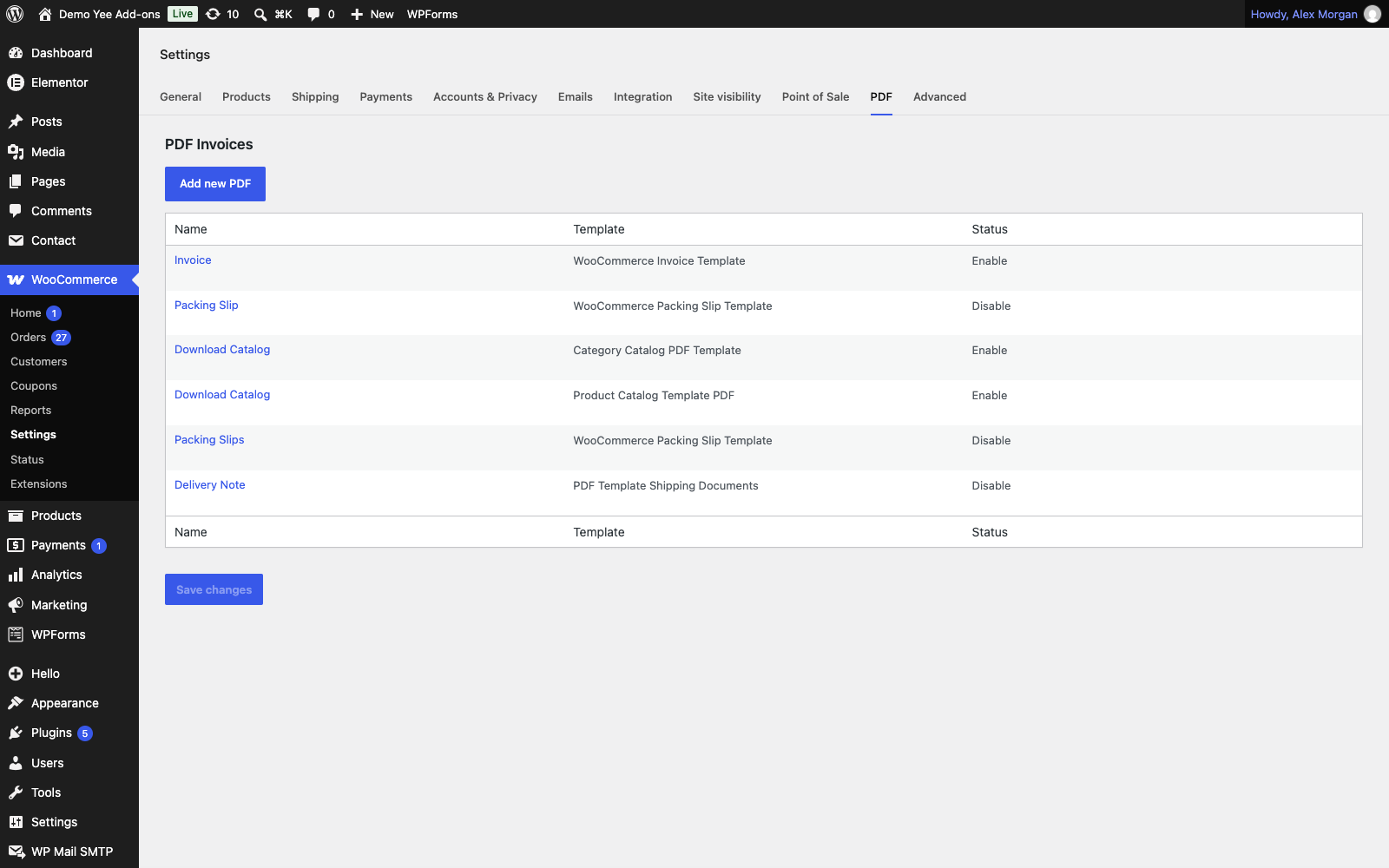
Go to WooCommerce → Settings → PDF. The page lists every PDF document the store produces. Click Add new PDF.
Step 2: Configure when and where the proforma is used
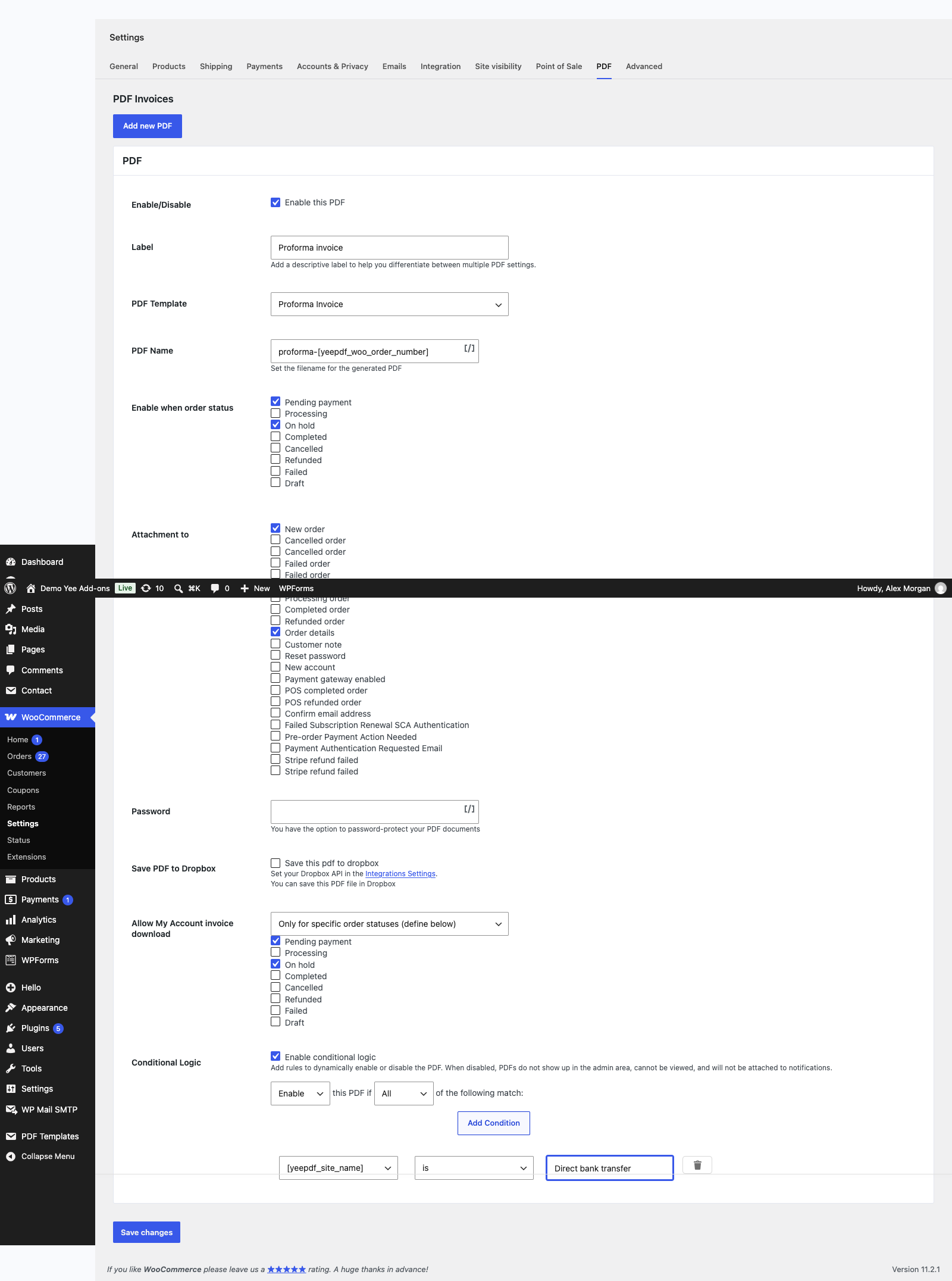
| Field | Value for a proforma invoice | Why |
|---|---|---|
| Enable this PDF | ticked | Turns the setting on. |
| Label | Proforma invoice | Shown as the button label in the admin order box, the orders list and My Account. |
| PDF Template | Proforma Invoice | The template you just built. |
| PDF Name | proforma-8448 | File name of the attachment, e.g. proforma-1756.pdf. Merge tags are allowed. |
| Enable when order status | Pending payment, On hold | The PDF is generated when the order enters one of these statuses. Paid orders never get a proforma. |
| Attachment to | New order, Order on-hold, Order details | New order goes to the shop admin, Order on-hold to the customer right after a bank-transfer checkout, Order details is the email you send manually from the order screen (“Send order details to customer”). |
| Password | empty | Optional PDF password. |
| Allow My Account invoice download | Only for specific order statuses → Pending payment, On hold | Customers see the download button only while the order is unpaid. |
| Conditional Logic (optional) | Enable if Payment Method is Direct bank transfer | Limits the proforma to bank-transfer orders; card payments skip it. |
Click Save changes. The new row appears in the PDF list with status Enable.
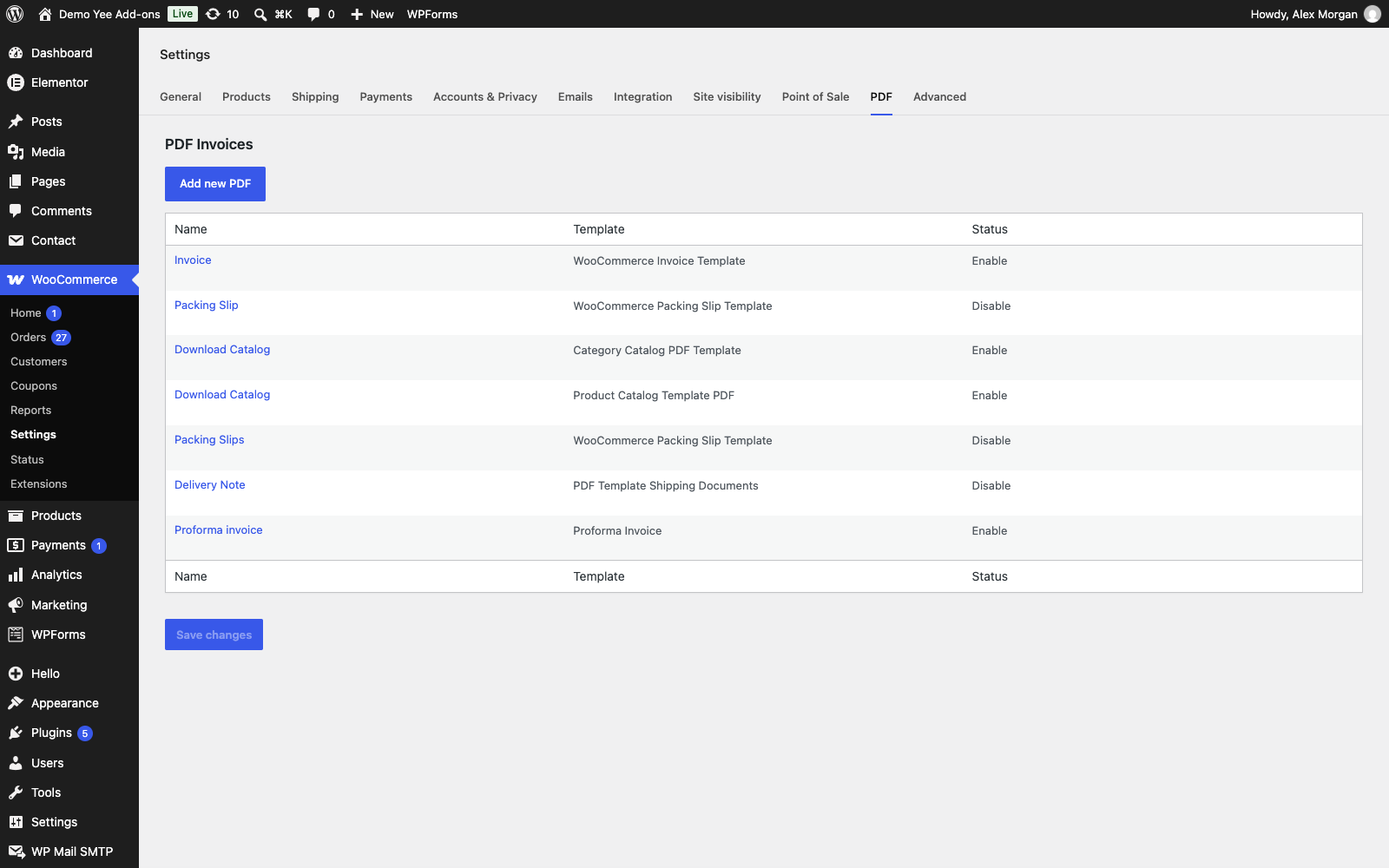
4. What the Customer Sees
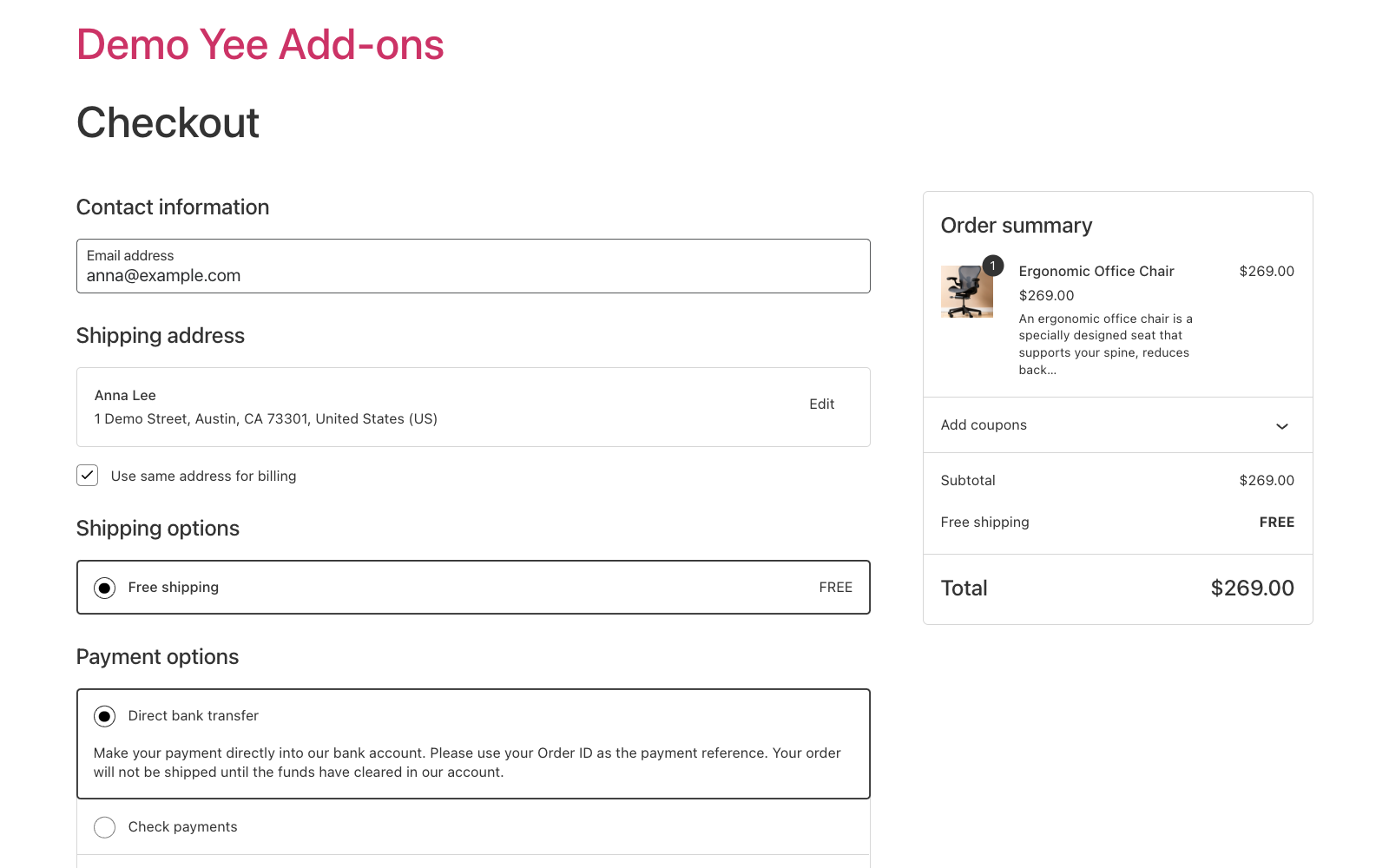
Checkout with bank transfer
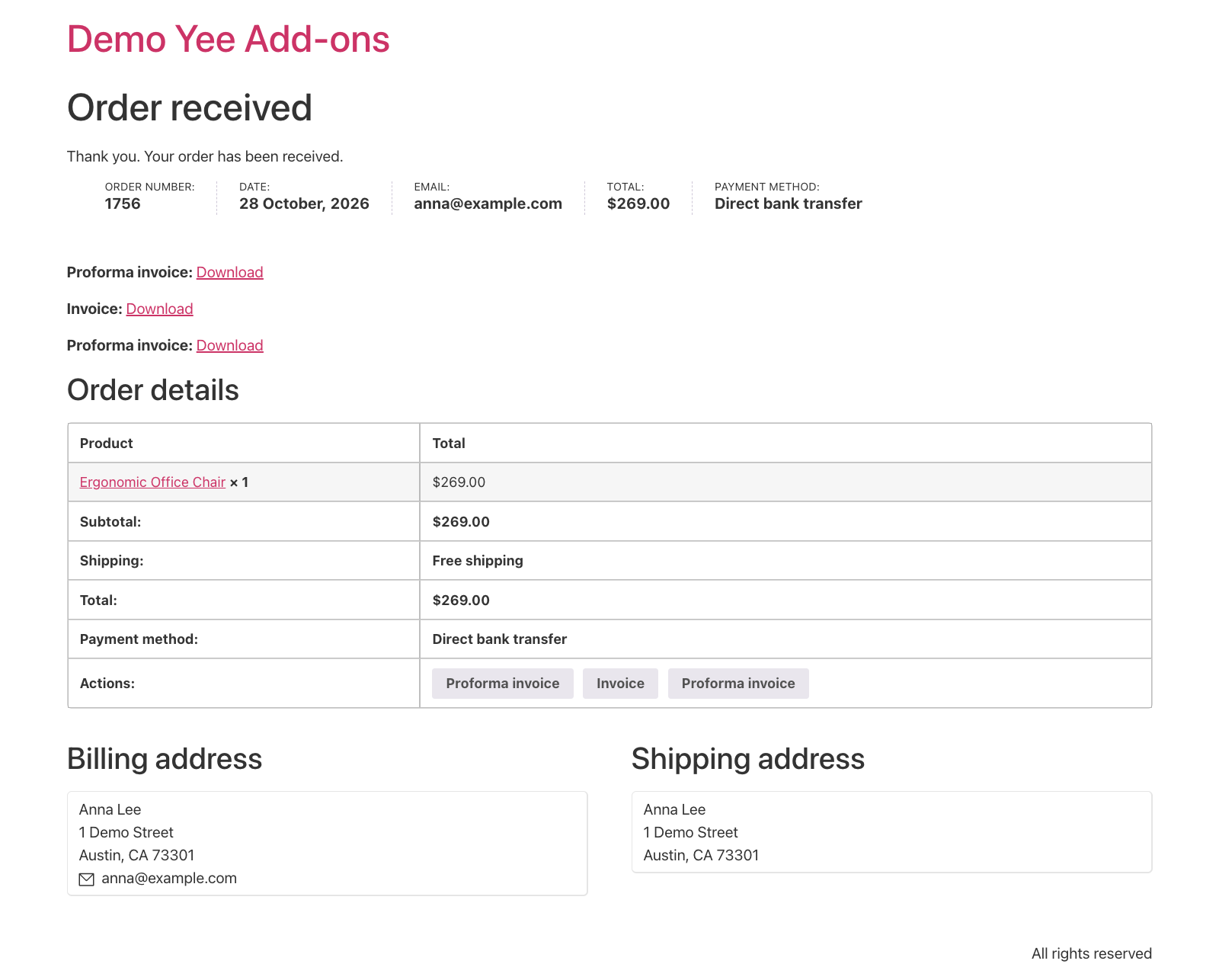
My Account
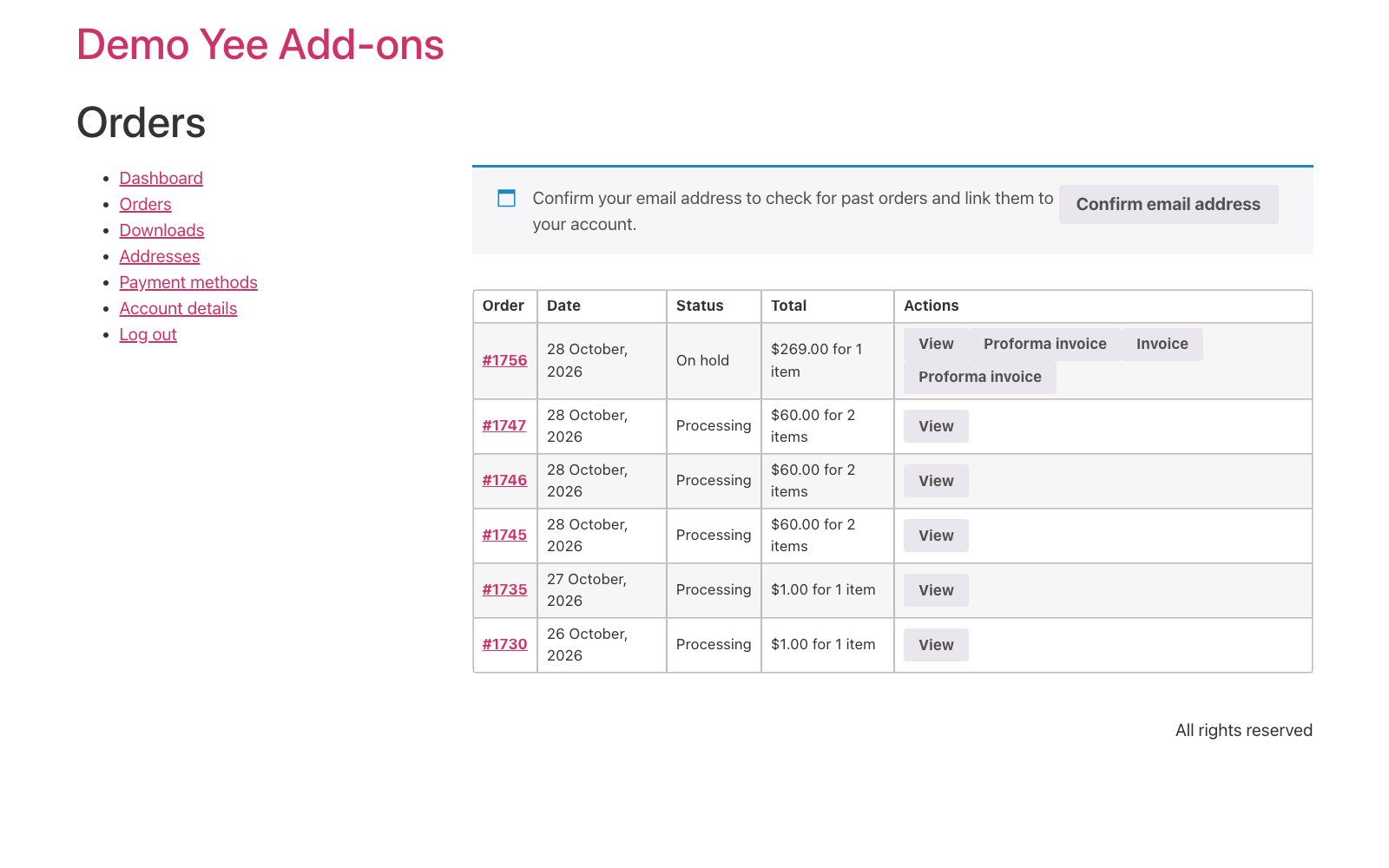
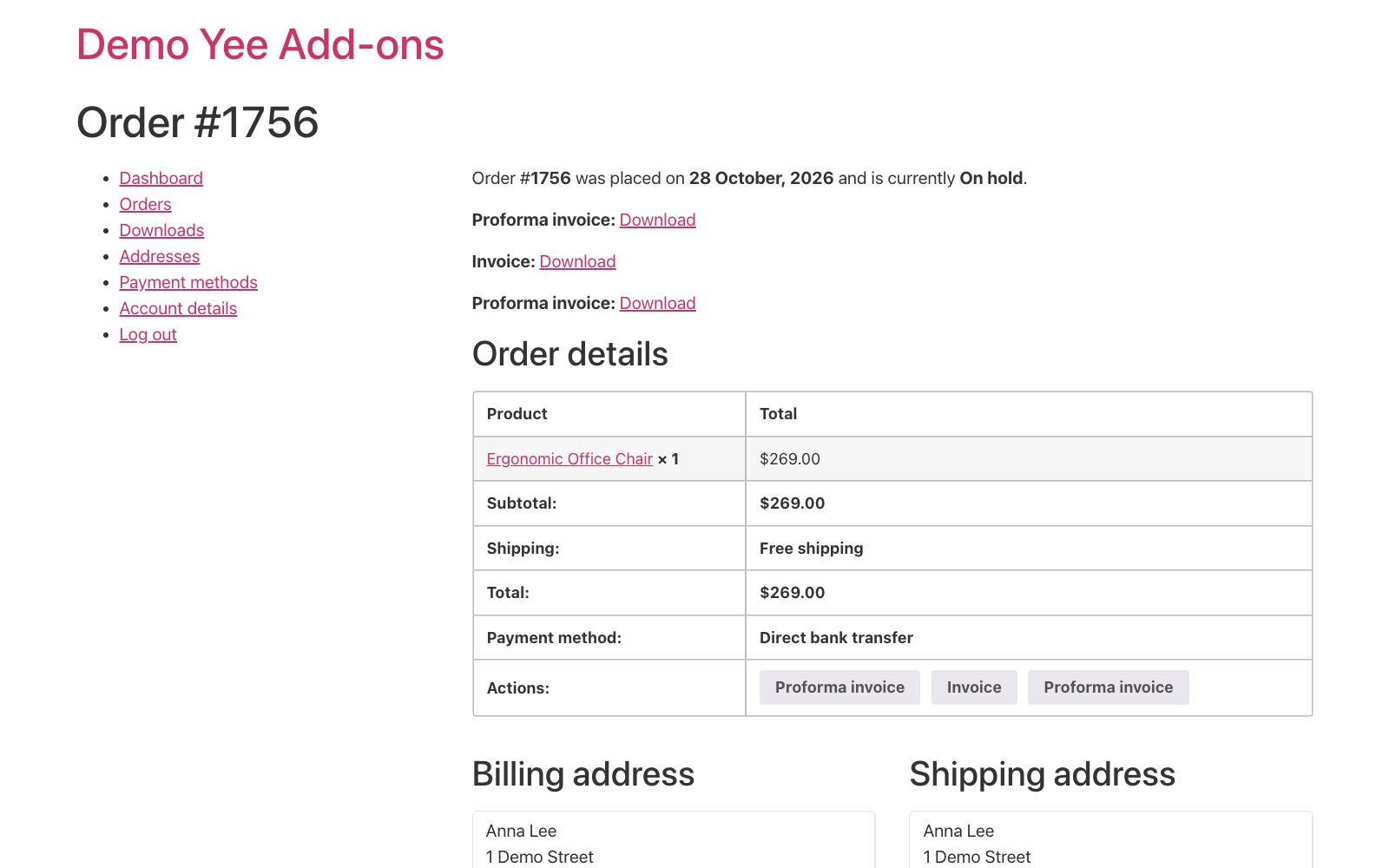
Because the setting allows downloads for Pending payment and On hold, the customer gets a Proforma invoice button in My Account → Orders and a download link on the order detail page. Once the order is paid and moves to Processing, the button disappears and the regular invoice takes over.
The generated PDF
5. Managing Proformas in the Admin
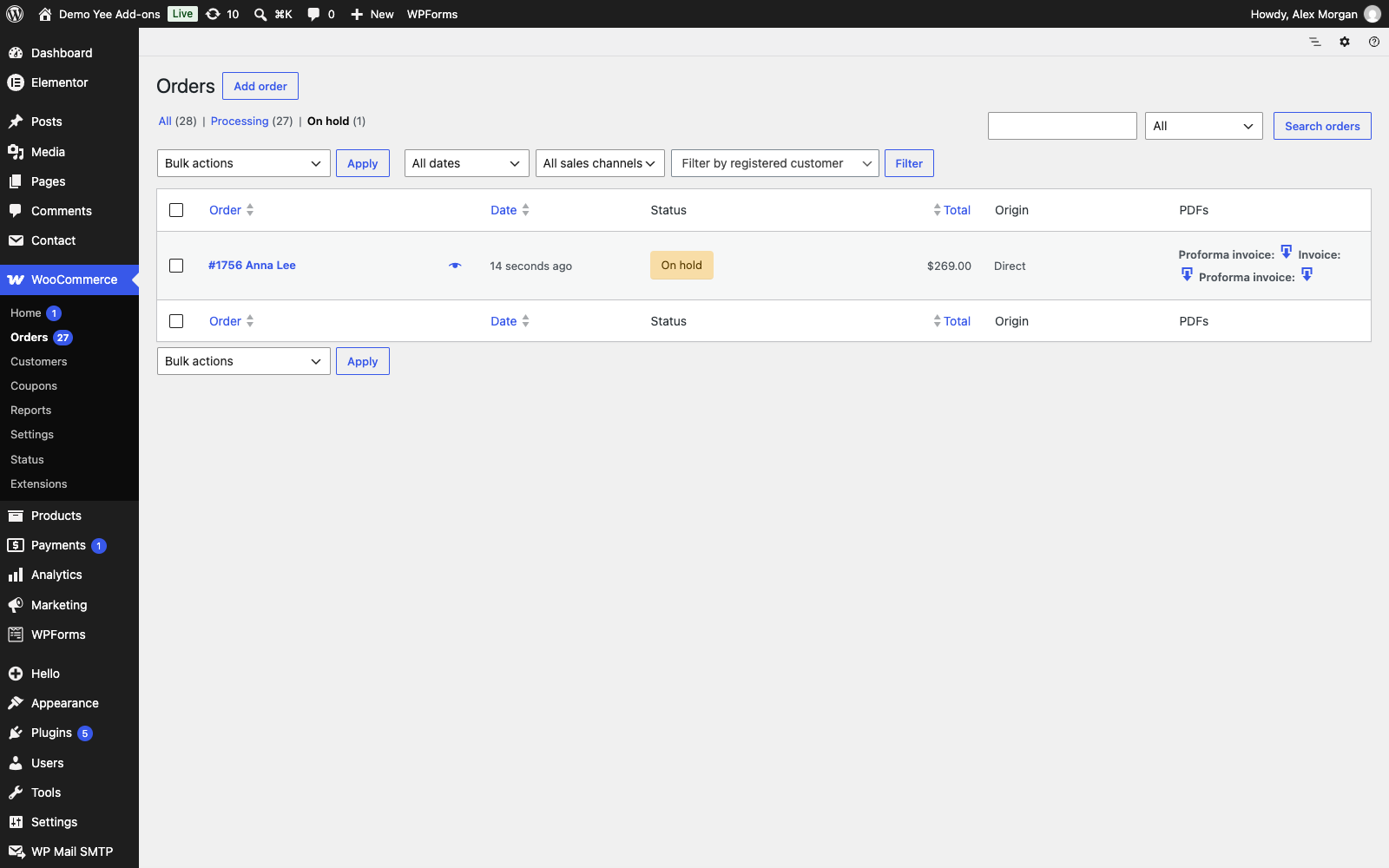
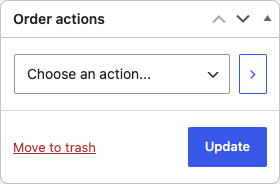
To send the proforma again, for example after the customer asks for it, choose Send order details to customer in the Order actions box: because Order details is ticked under Attachment to, the proforma is attached to that email.
6. Tips
- Final invoice: keep a second PDF setting (the default “Invoice”) enabled for Processing and Completed so the customer receives the tax invoice after payment.
- Validity: add a sentence such as “Prices valid for 7 days from August 28, 2026” to make the offer time-limited.
- Numbering: prefix the order number (PF-8448) to keep proforma and invoice numbers distinct.
- Bank details per currency: duplicate the template and use conditional logic on Order Currency to attach the right one.
- Password: for B2B quotes with confidential pricing, set a PDF password in the setting; share it with the customer separately.
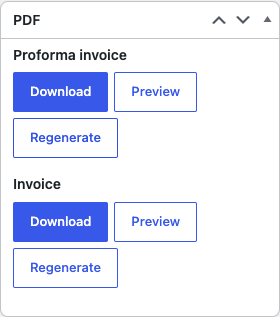
- Regenerate: after editing the template, click Regenerate in the order’s PDF box so the stored file is rebuilt; emails always attach the stored file.
7. Frequently Asked Questions (FAQ)
Why did my on-hold email arrive without the PDF?
Make sure the Order on-hold box is ticked under Attachment to and that On hold is selected under Enable when order status. The PDF is only attached to emails of statuses that are enabled.
Can I add VAT or tax lines to the proforma?
Yes. The order table block already prints subtotal, shipping, tax and total as configured in WooCommerce; you can also add single tags such as 0 in a text block.
How do I stop the proforma once the order is paid?
Nothing to do: it is only generated for Pending and On hold. When the order becomes Processing the Invoice setting takes over and the proforma button disappears from My Account.
Can customers download the proforma without an account?
The download links in emails work for everybody; the My Account buttons need a logged-in customer.
Does it work with HPOS (High-Performance Order Storage)?
Yes, the plugin declares compatibility with custom order tables; the PDF box and the PDFs column appear on both the classic and the HPOS orders screens.
Can I use a different language or RTL layout?
Yes. Texts are yours to write in any language; the builder supports RTL and bundles DejaVu Sans with wide Unicode coverage. Upload extra fonts under PDF Templates → Settings.