
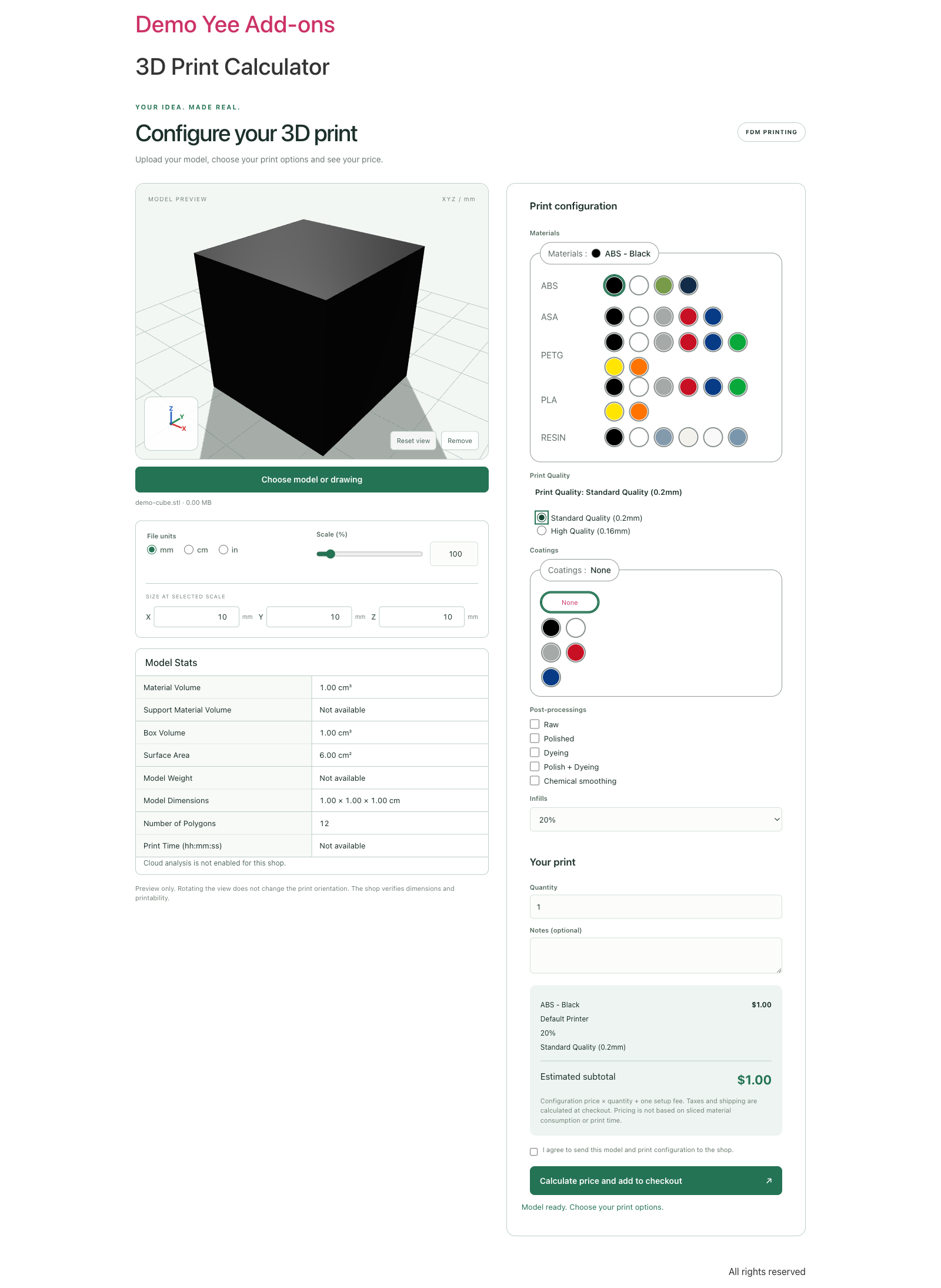
Welcome to the official documentation and user guide for 3D Print Calculator (plugin name Yee3DPrint – 3D Print Calculator, by add-ons.org). The plugin turns a WooCommerce store into a 3D-printing service: customers upload a model, inspect it in an interactive 3D preview, choose material, printer, print quality, coating, post-processing and infill, see an instant price and pay through the normal WooCommerce checkout. Shops that prefer manual quoting can switch the same configurator to an estimate-and-request or request-price mode. This guide covers installation, the sample catalog, every settings tab, the five option catalogs and their pricing rules, the customer journey step by step, the four checkout behaviours, quotes and orders, cloud PrusaSlicer analysis, CNC/DXF cutting, privacy and FAQ.
Video tutorial
1. Installation & System Requirements
- Install and activate WooCommerce. The plugin requires it and shows “Checkout requires WooCommerce.” on the storefront without it.
- Go to Plugins → Add New Plugin → Upload Plugin, upload the plugin ZIP, click Install Now, then Activate.
- A new top-level menu Yee3DPrint appears with Settings, Quotes, Materials, Printers, Coatings, Post-processings and Infills. Every screen needs the manage_woocommerce capability (Administrator or Shop Manager).
- Configure WooCommerce payment methods, shipping and taxes. Test with a test-mode gateway before accepting real payments.
Requirements: WordPress 6.5 or higher, PHP 7.4 or higher, WooCommerce. PHP ZipArchive is needed for 3MF uploads. The customer’s browser needs WebGL, WebAssembly (for STEP files) and Web Workers. Network-wide multisite activation is blocked; activate the plugin per site. Activation creates no catalog entries: use the Sample data tab or add your own options.
2. Quick Start with Sample Data
Open Yee3DPrint → Settings → Sample data. The tab shows a table with the number of options in each catalog and two cards: 3D printing and CNC cutting. Click Create 3D sample data to get a complete, editable starter catalog in one click.
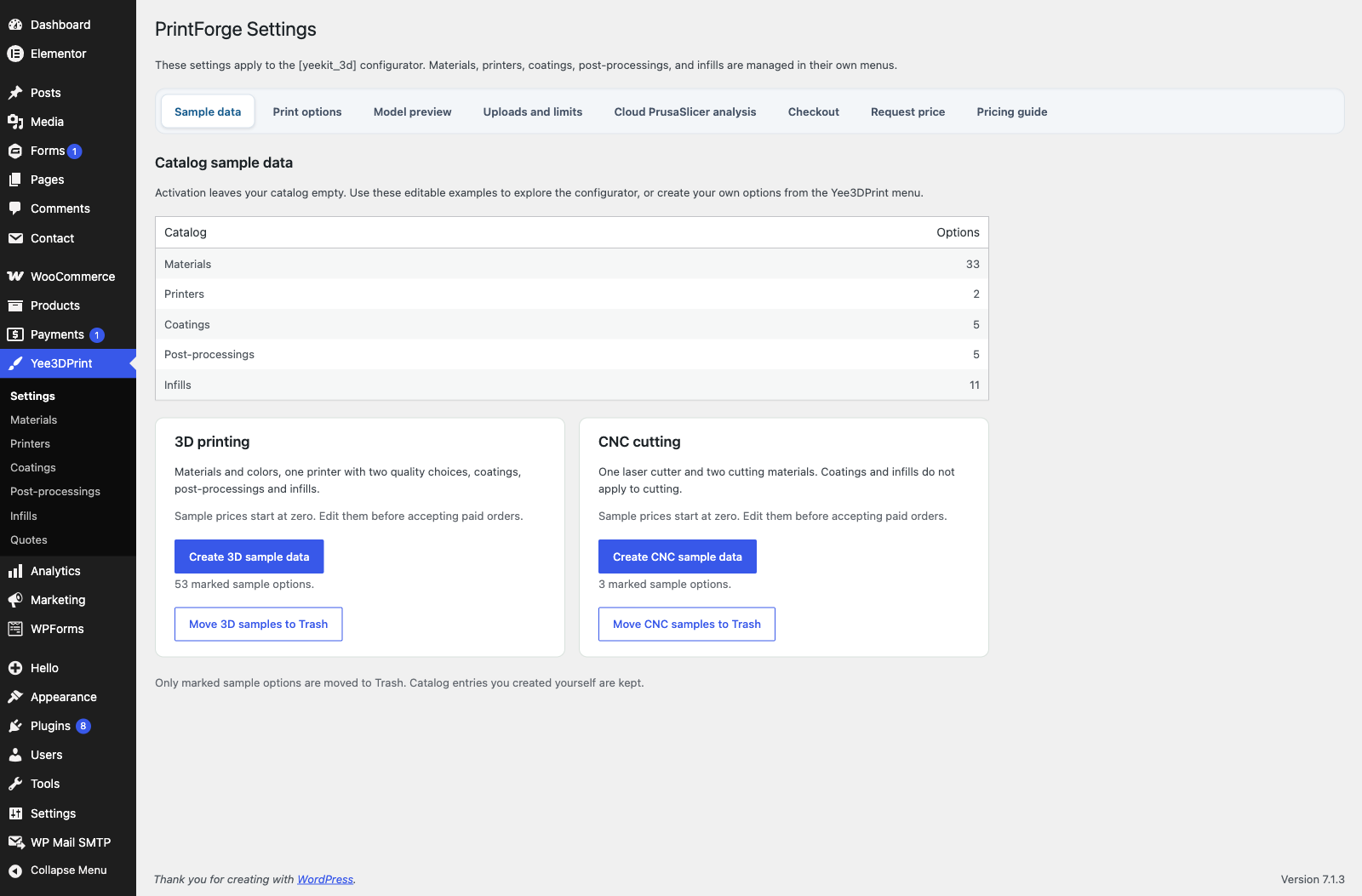
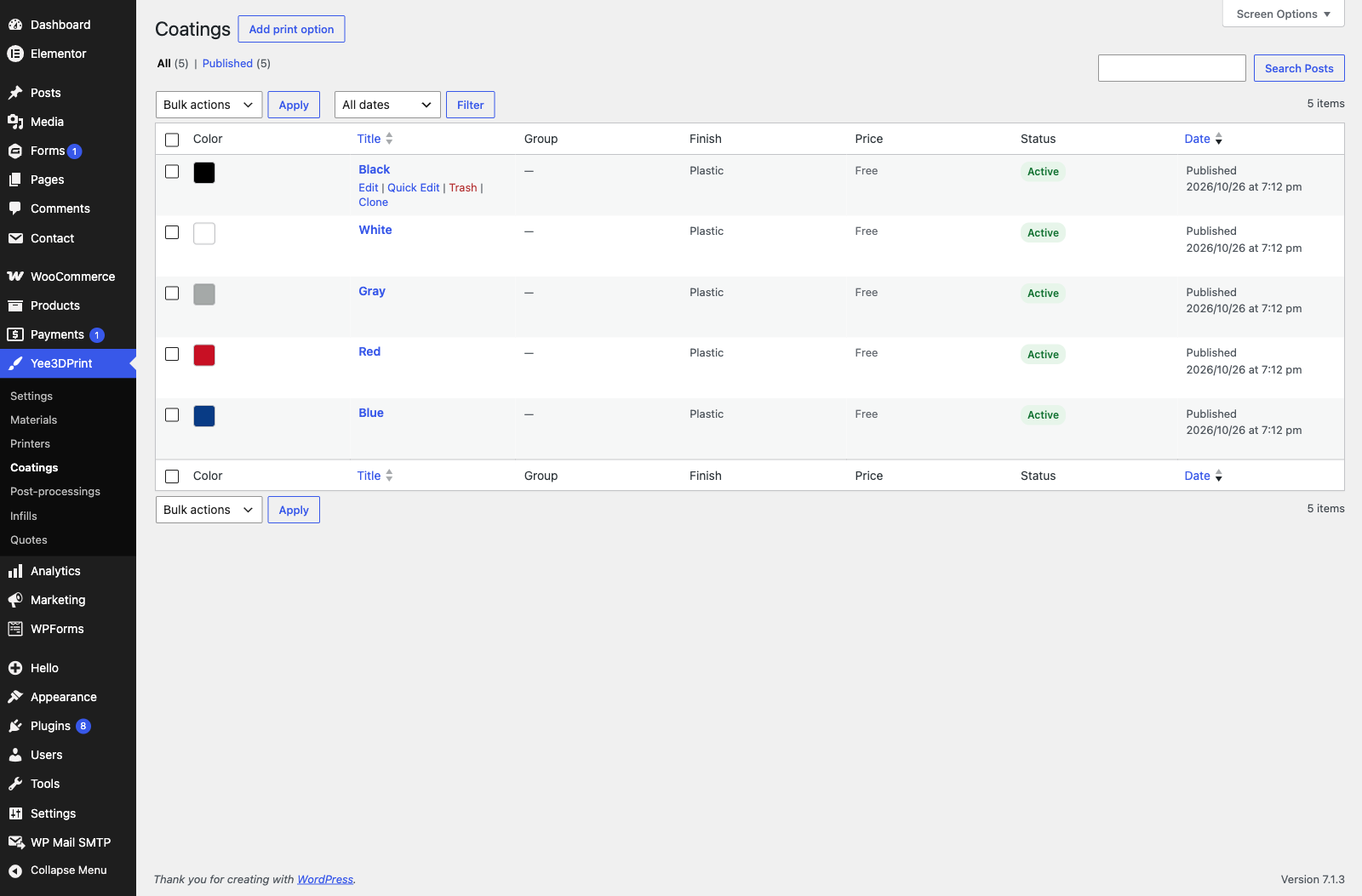
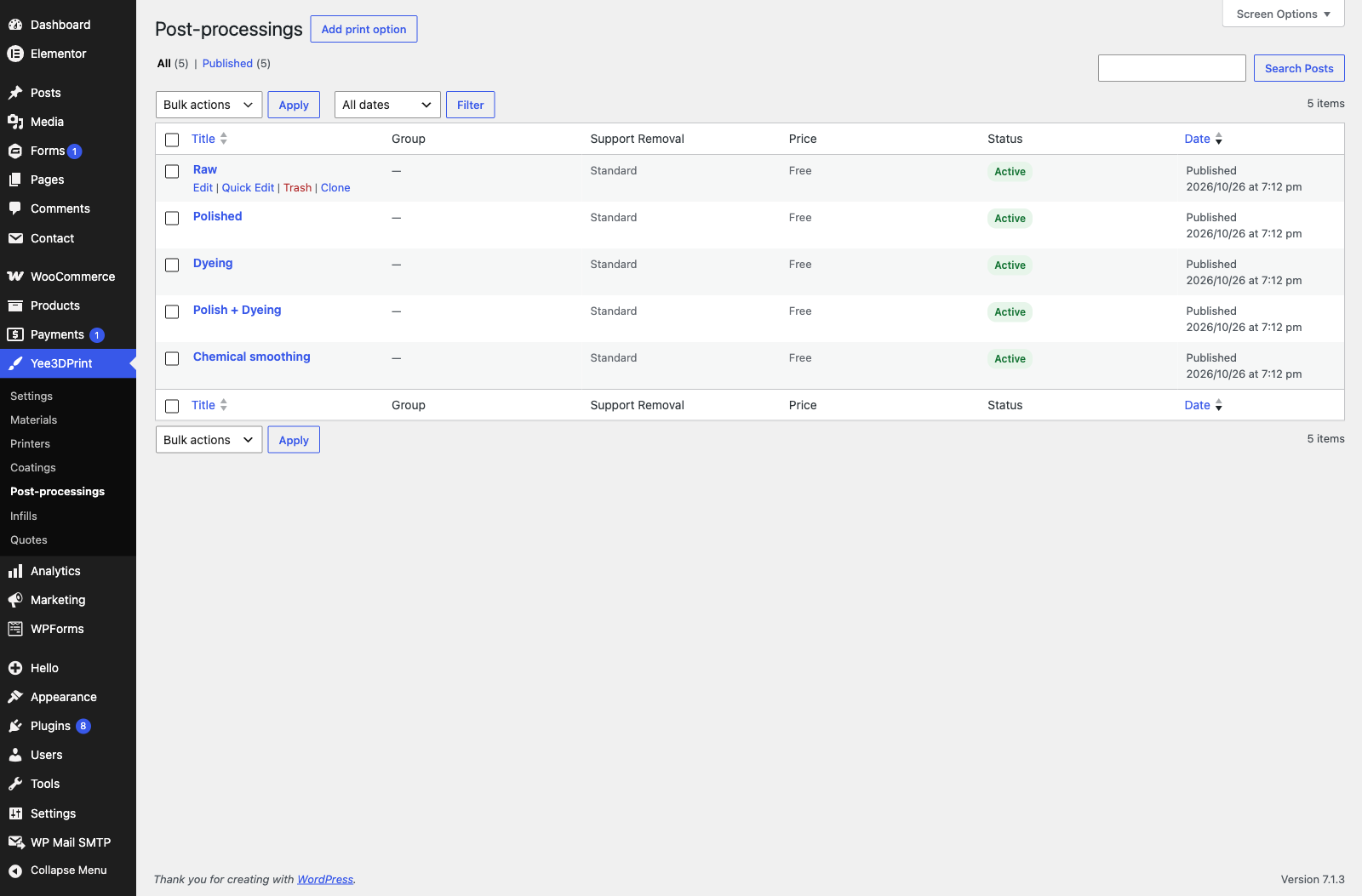
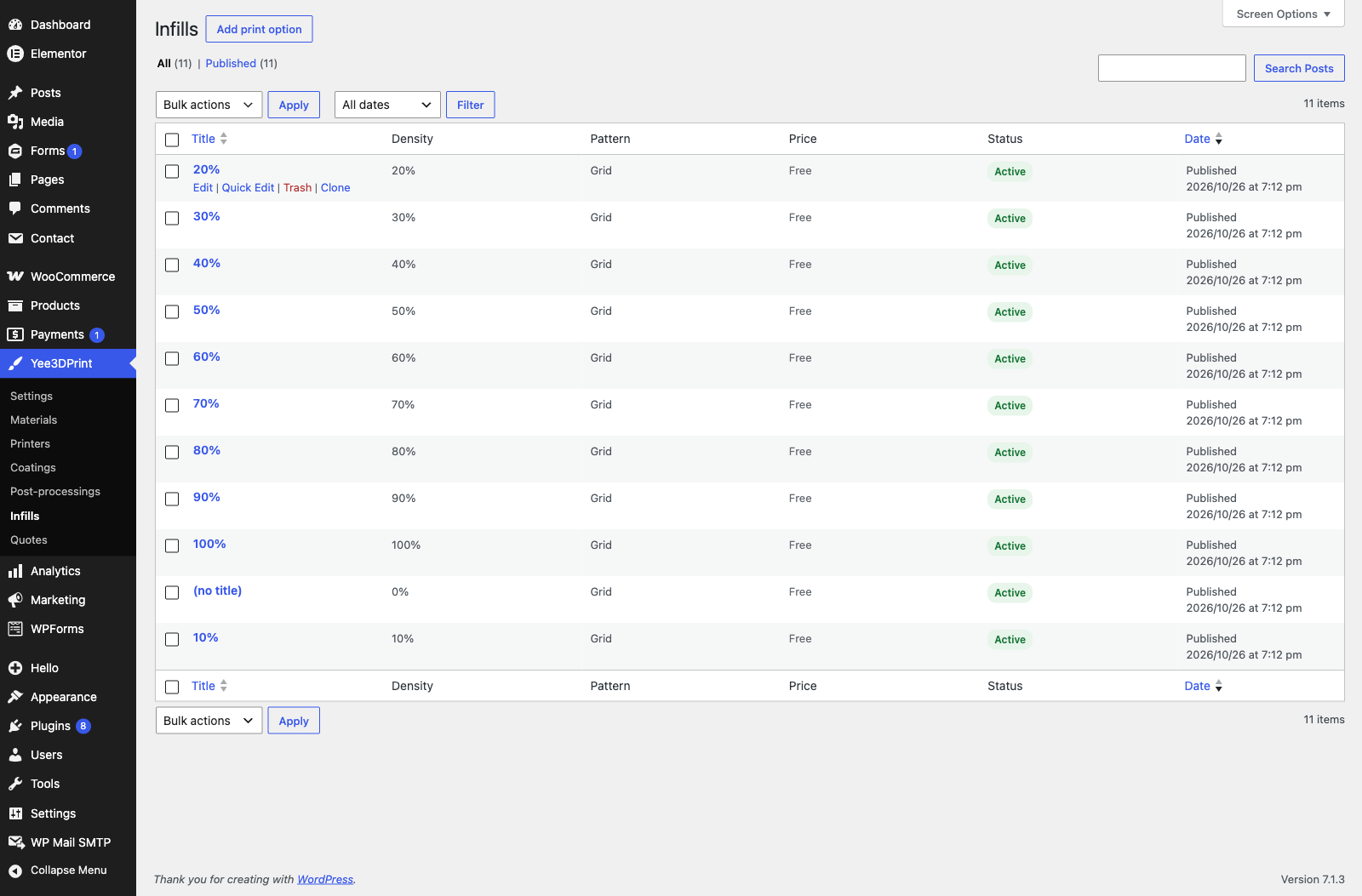
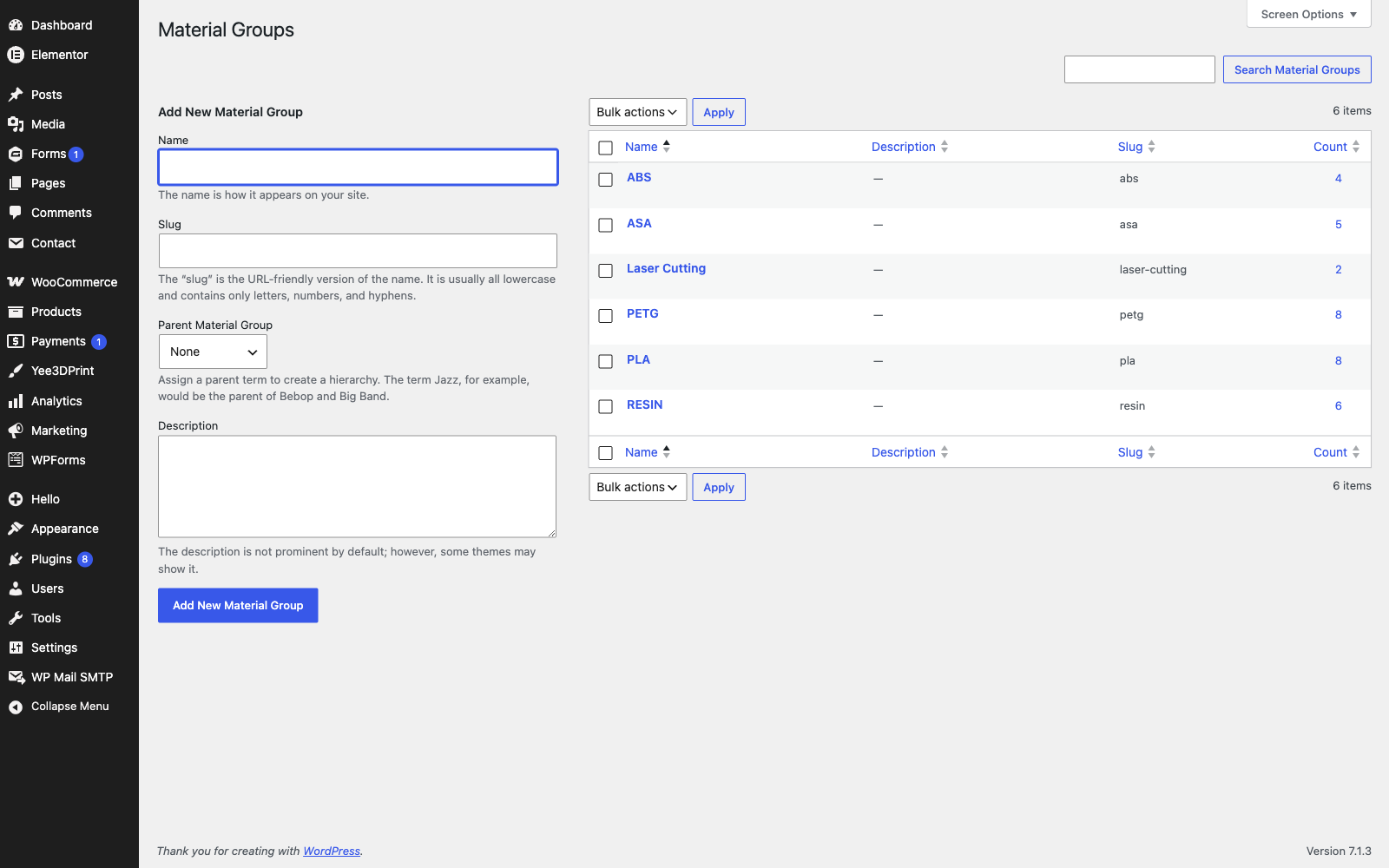
The 3D sample set creates five material groups (ABS, ASA, PETG, PLA, RESIN) with 31 colour variants priced at 1 per cm³ of material volume, one Default Printer (FFF, 250 × 250 × 250 mm, Standard Quality 0.2 mm and High Quality 0.16 mm), five coatings, five post-processings (Raw, Polished, Dyeing, Polish + Dyeing, Chemical smoothing) and eleven infills (0 to 100 %). Everything except the materials is priced at an explicit 0, which means free. The CNC set adds a Default Laser Cutter and two cutting materials (Plywood 3 mm, Acrylic 3 mm) priced at 1 per cm of cutting path.
- Sample options are marked, so the trash buttons remove only them and keep catalog entries you created yourself.
- Running Create again does not duplicate anything; it only refreshes sample materials you have not edited.
- Edit the sample prices and printer specifications before taking paid orders.
3. Settings Reference
All settings live under Yee3DPrint → Settings in eight tabs. Click Save settings at the bottom of a tab to store it.
3.1 Print options
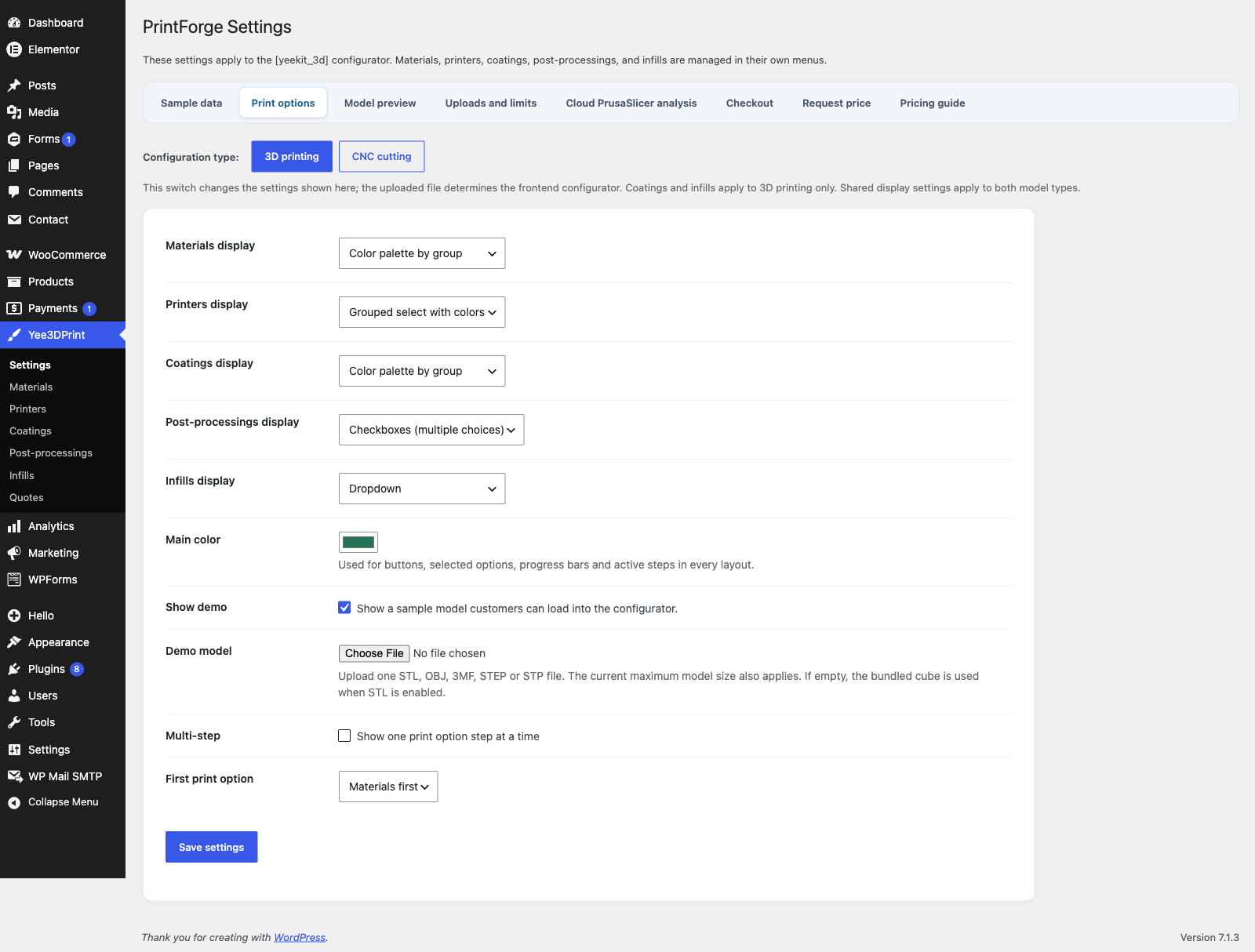
The Configuration type switch (3D printing / CNC cutting) only changes which settings are shown here; the uploaded file decides which configurator the customer sees. The CNC view hides Coatings and Infills because they do not apply to cutting.
| Setting | Options | Default |
|---|---|---|
| Materials display | Disable — hide on frontend · Grouped select with colors · Radio list · Color palette by group | Color palette by group |
| Printers display | same four modes | Grouped select with colors |
| Coatings display | same four modes | Color palette by group |
| Post-processings display | Disable · Checkboxes (multiple choices) · Radio list · Dropdown | Checkboxes |
| Infills display | Disable · Selectable list · Dropdown | Dropdown |
| Main color | colour picker used for buttons, selected options, progress bars and active steps | #247354 |
| Show demo | show the “Explore the Demo” card so customers can load a sample model | on |
| Demo model | upload your own STL/OBJ/3MF/STEP/STP demo (bundled 10 mm cube when empty) | bundled cube |
| Multi-step | show one print option step at a time | off |
| Step style | Standard steps (Back/Next buttons) or Accordion steps | Standard steps |
| First print option | Materials first or Printers first | Materials first |
Display modes explained: Color palette by group shows one row of colour swatches per group with the current choice in a label; Grouped select with colors is a custom dropdown with swatches or photos grouped by group name; Radio list lists the options under group headings; Checkboxes (post-processings only) allows several choices; Dropdown is a plain select; Selectable list (infills only) is a styled radio list. Disable hides the catalog, removes it from the required choices and excludes it from the price.
3.2 Model preview
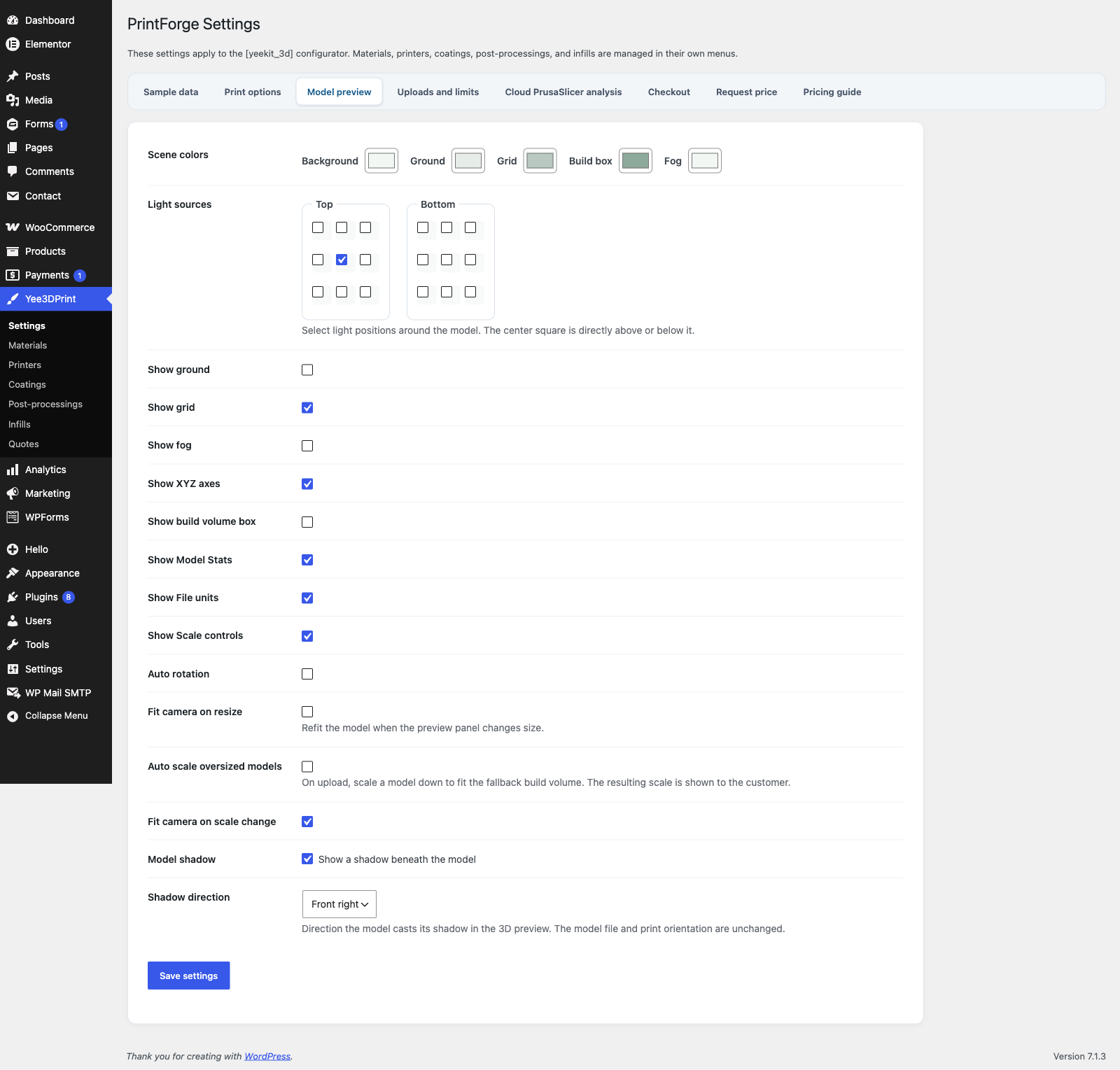
- Scene colors: Background, Ground, Grid, Build box and Fog.
- Light sources: two 3 × 3 grids place the top and bottom lights; the centre square is directly above or below the model.
- Helpers: Show ground, Show grid, Show fog, Show XYZ axes (corner orientation widget), Show build volume box, Show Model Stats, Show File units, Show Scale controls.
- Motion and camera: Auto rotation with speed (1–10) and direction, Fit camera on resize, Auto scale oversized models, Fit camera on scale change.
- Model shadow with a Shadow direction (Front left, Front right, Back left, Back right).
3.3 Uploads and limits
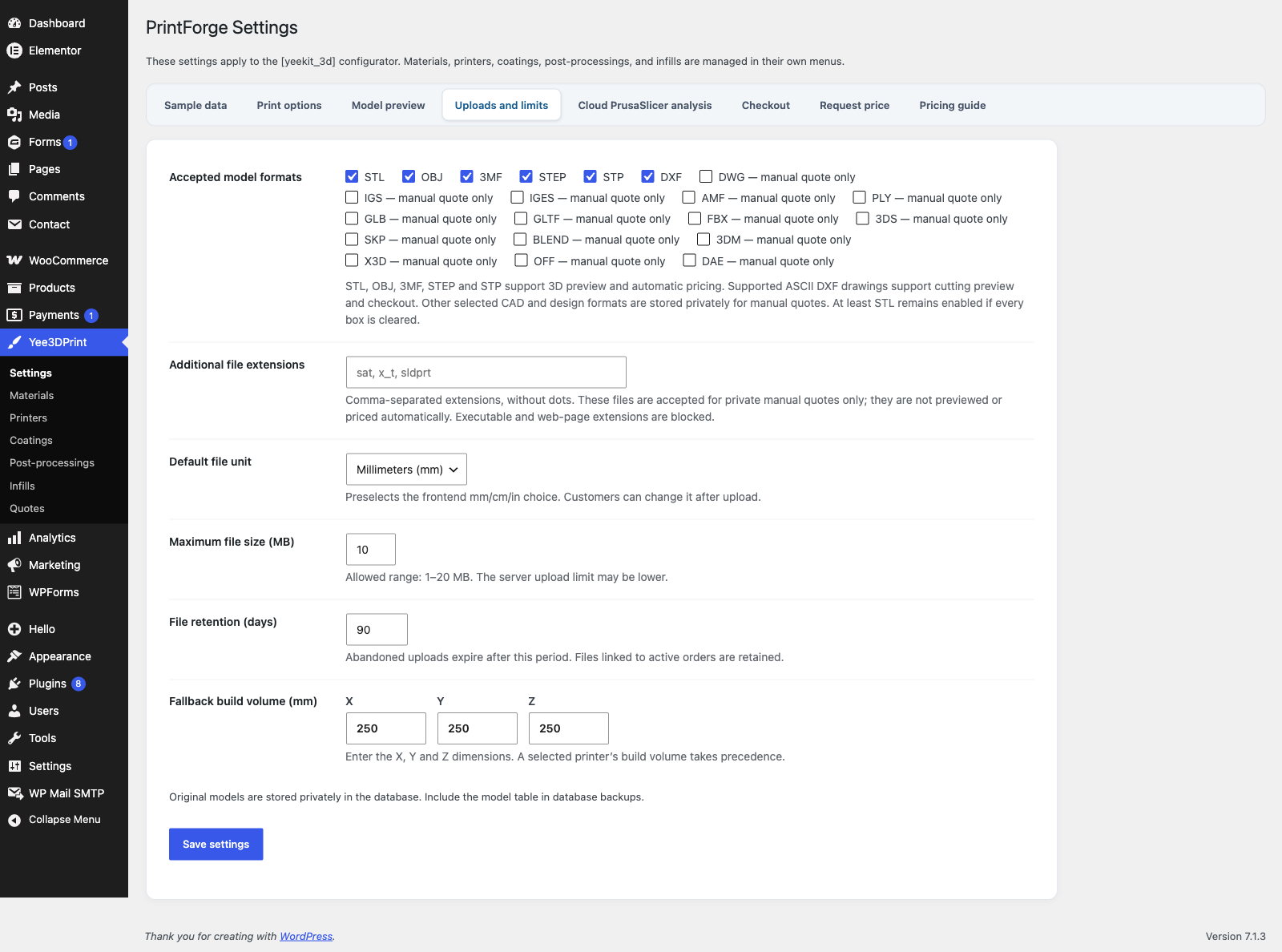
- Accepted model formats: STL, OBJ, 3MF, STEP, STP and DXF are previewed and priced. DWG, IGS, IGES, AMF, PLY, GLB, GLTF, FBX, 3DS, SKP, BLEND, 3DM, X3D, OFF and DAE can be accepted for manual quote only. STL stays enabled when every box is cleared.
- Additional file extensions: a comma-separated list (up to 20) of extra extensions accepted for manual quotes; executable and web extensions are blocked.
- Default file unit: Millimeters, Centimeters or Inches. It is the source unit assumed for STL, OBJ and DXF files; 3MF and STEP always load as millimetres.
- Maximum file size: 1–20 MB (default 10), also capped by the server’s PHP upload limit.
- File retention: 7–3650 days (default 90). Files linked to active orders are kept.
- Fallback build volume: used for the “larger than the build volume” warning when no printer is selected.
3.4 Cloud PrusaSlicer analysis
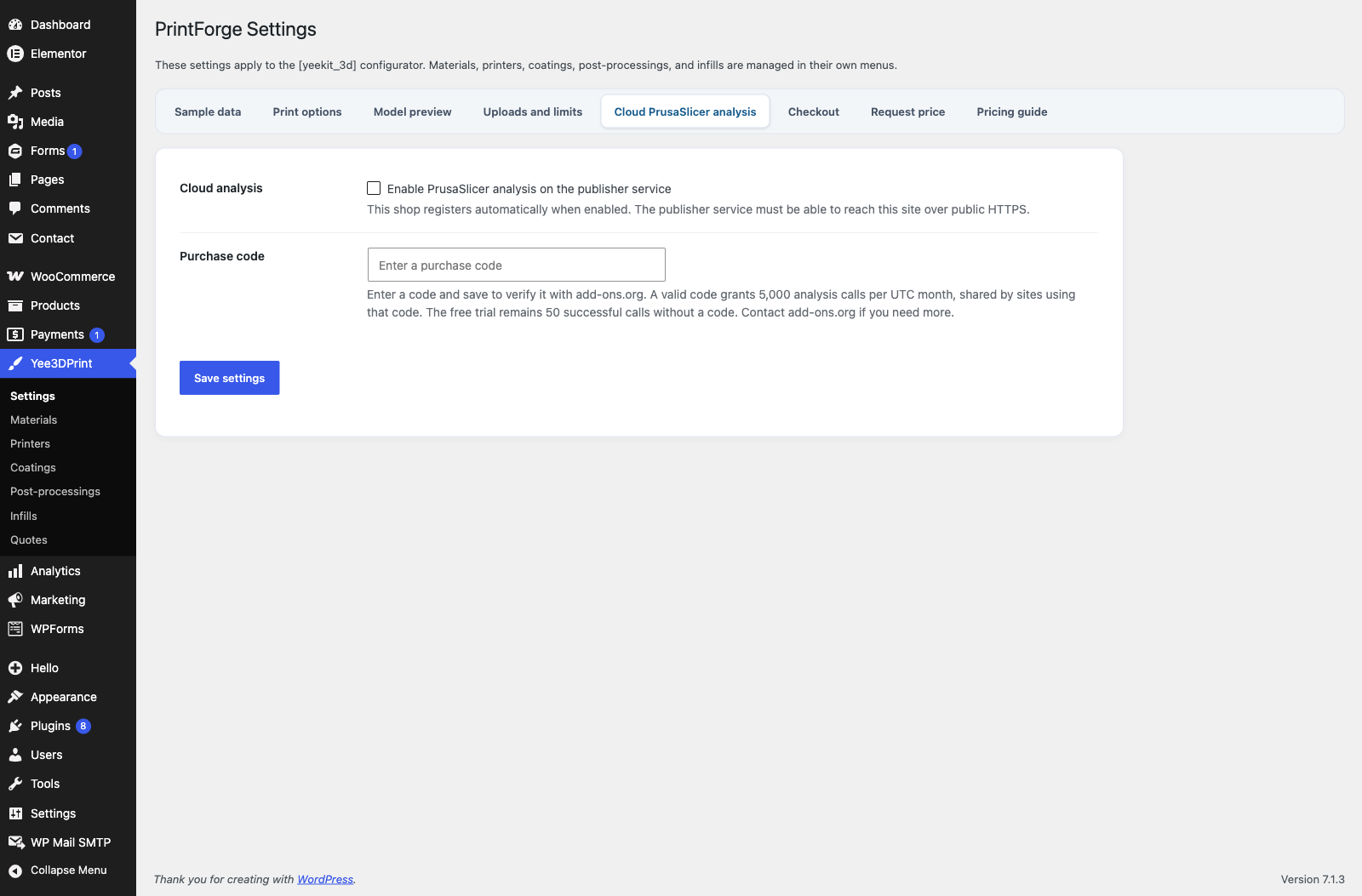
Enable PrusaSlicer analysis on the publisher service to get support-material volume, print time and sliced weight for every configuration, and to price materials per hour or per cm³ of support. Enter your purchase code to unlock the licensed quota; the plugin verifies it with add-ons.org before saving and shows the current usage (“X / Y calls used”) once enabled. See section 10 for details and limits.
3.5 Checkout
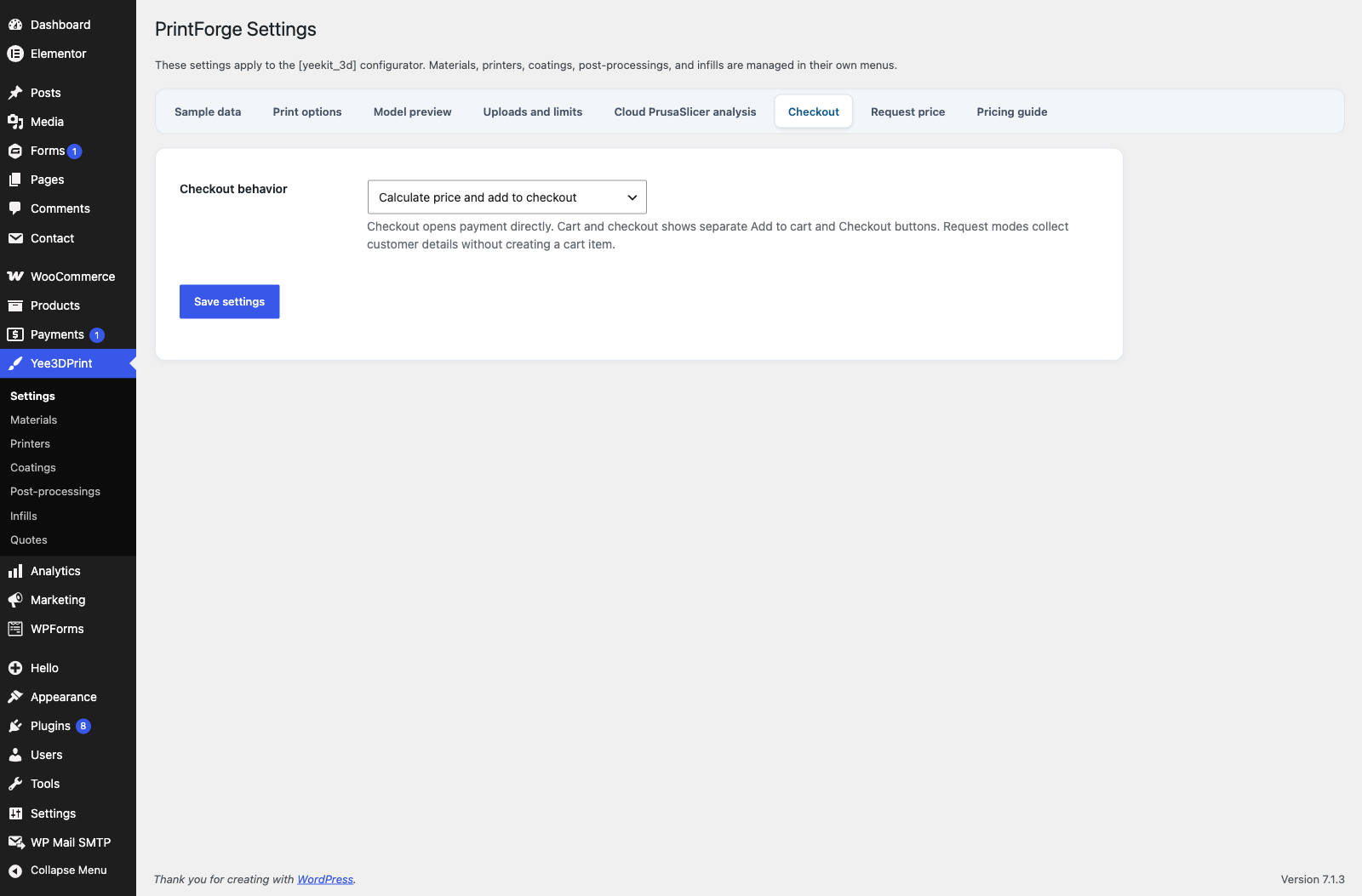
Checkout behavior has four modes: Calculate price and add to checkout (default), Calculate price and add to cart and checkout, Give an estimate and request price and Request price. They are described in section 8.
3.6 Request price
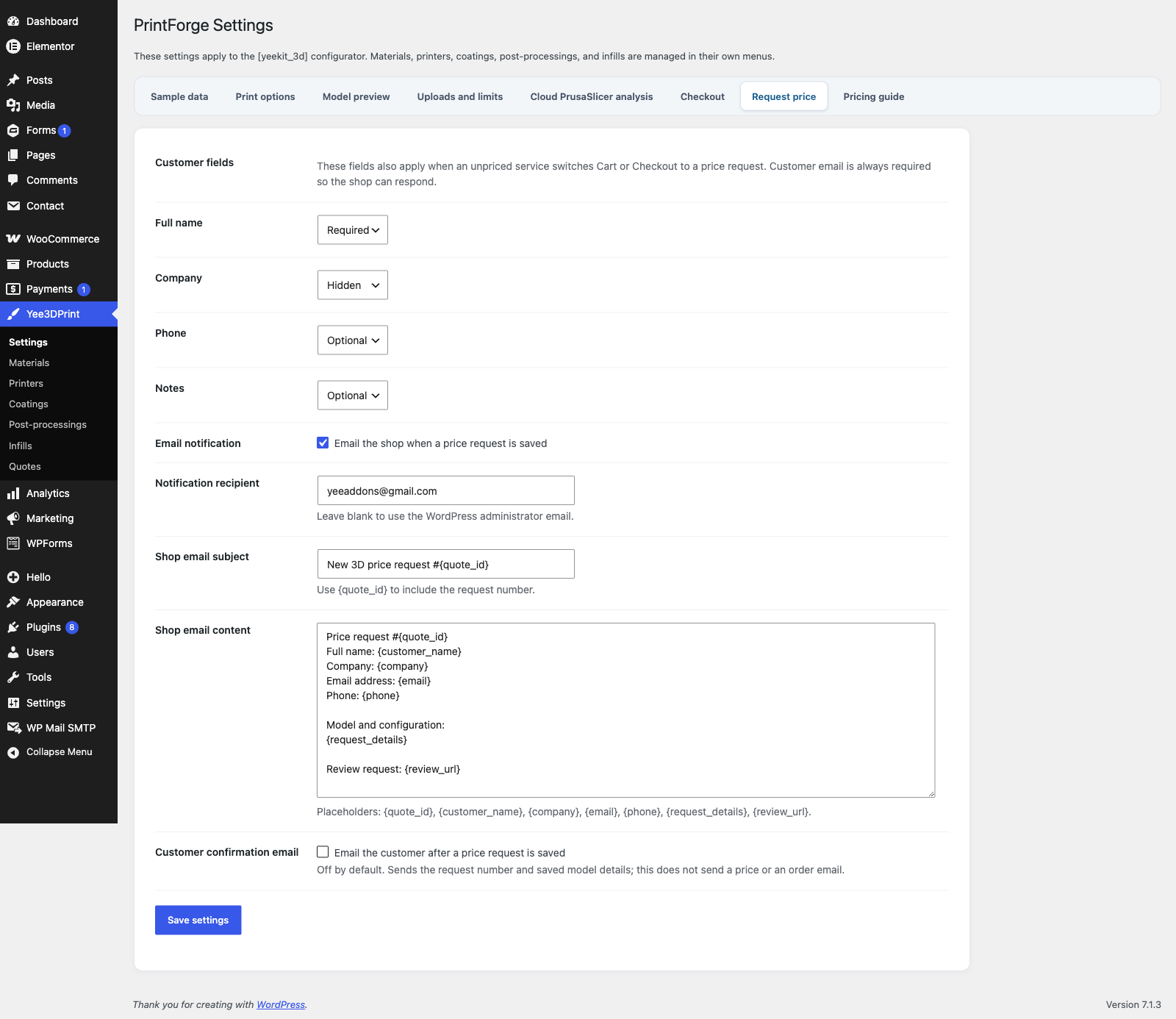
- Customer fields: Full name (required by default), Company (hidden), Phone (optional) and Notes (optional) can each be Required, Optional or Hidden. Email is always required.
- Email the shop when a price request is saved (on by default) with a recipient, a subject (default “New 3D price request #{quote_id}”) and a plain-text body. Placeholders: {quote_id}, {customer_name}, {company}, {email}, {phone}, {request_details}, {review_url}. Reply-To is the customer’s address.
- Email the customer after a price request is saved (off by default) with its own subject and body.
- The tab is available in every checkout mode, because an unpriced option can turn any configuration into a price request.
3.7 Pricing guide
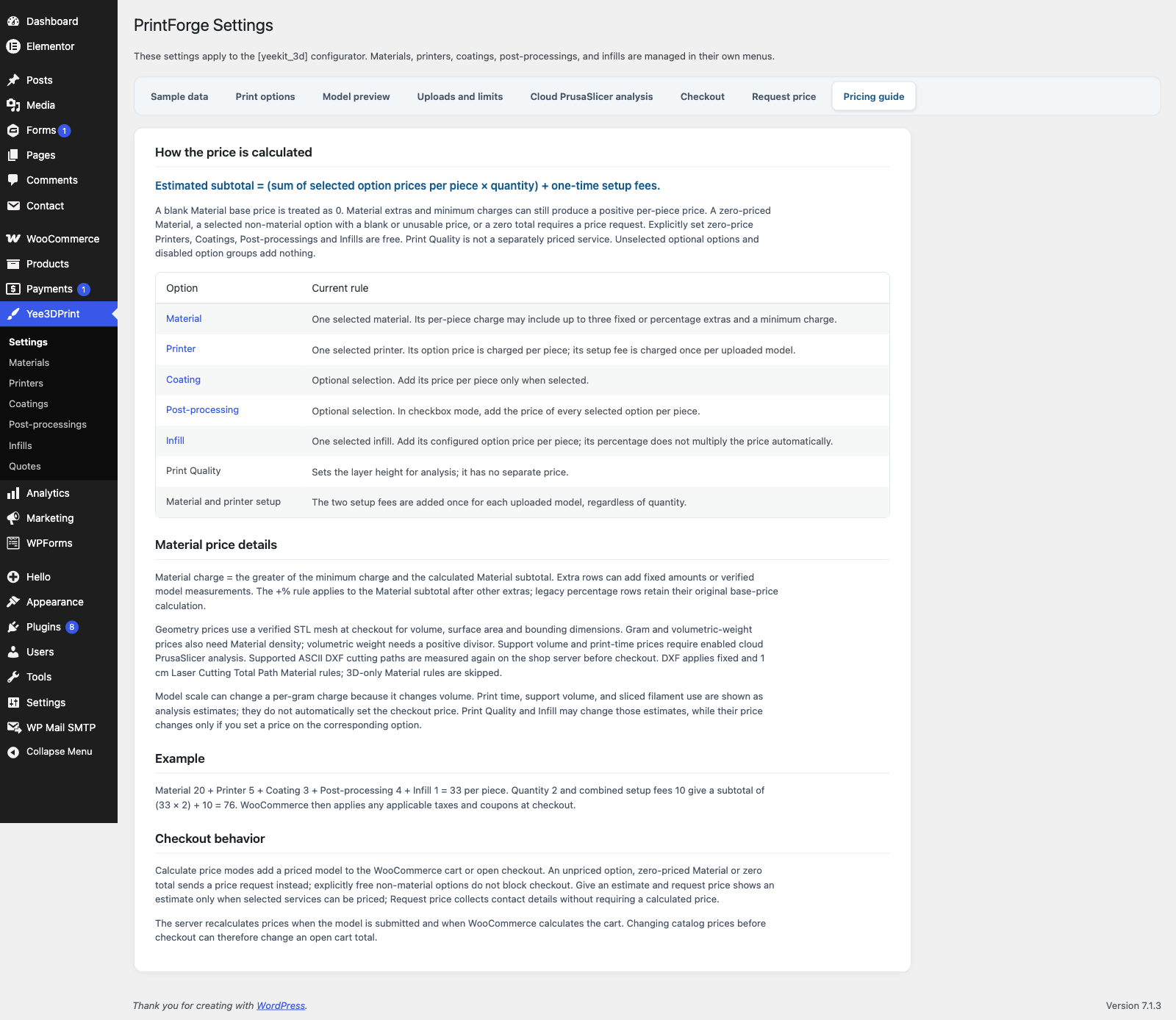
A read-only summary of the formula Estimated subtotal = (sum of selected option prices per piece × quantity) + one-time setup fees, with links to every catalog and a worked example.
4. The Option Catalogs
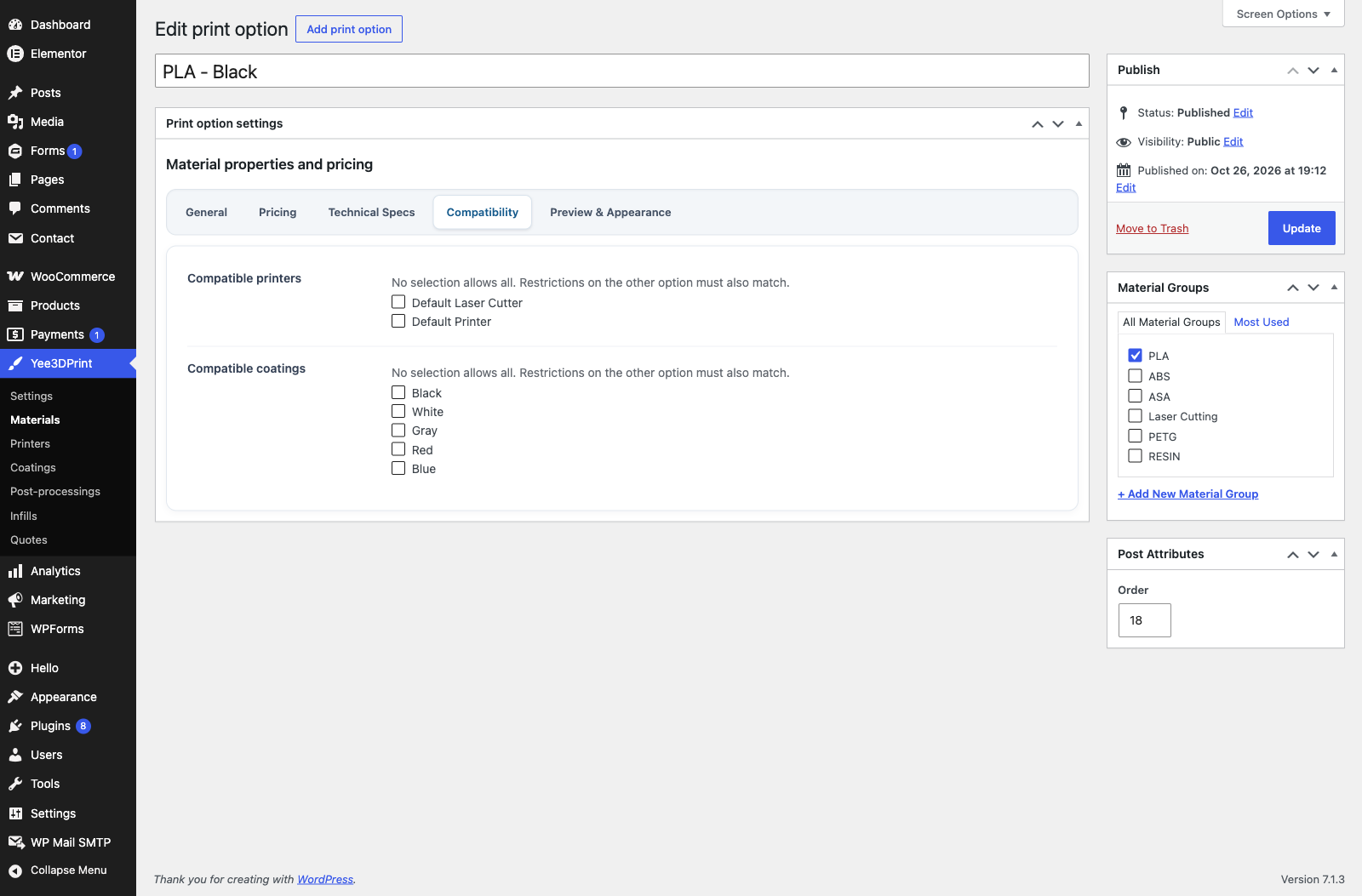
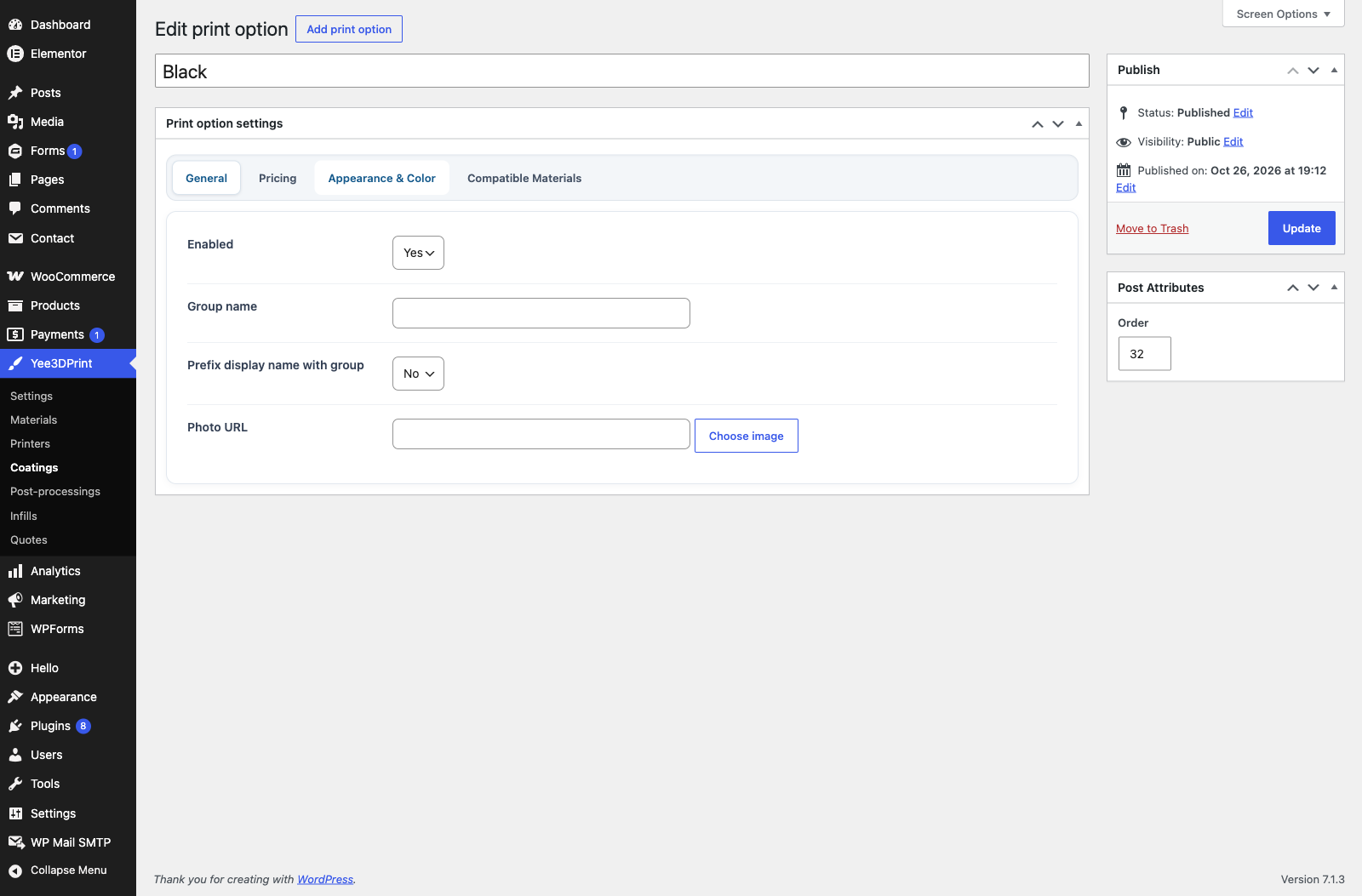
Each option is a post of its own type with a Print option settings box. The Order value (Post Attributes) sets the display order on the storefront. Printers, Coatings, Post-processings and Infills must be published and Enabled to appear; Materials are controlled by their own Enabled setting. Every type has a Compatible materials (or printers/coatings) list: an empty list allows all, and a restriction set on either side is enforced in both directions.
4.1 Materials
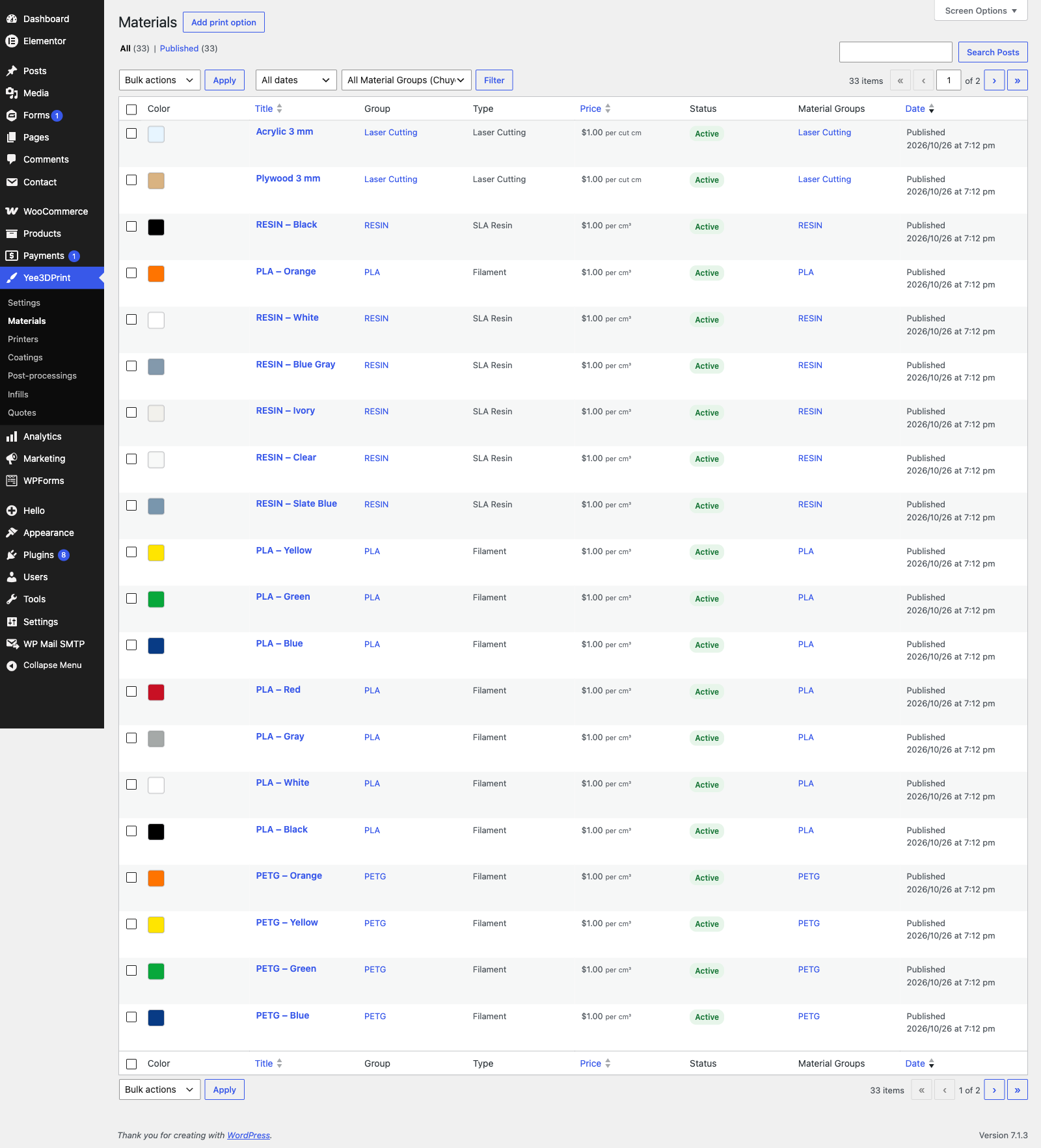
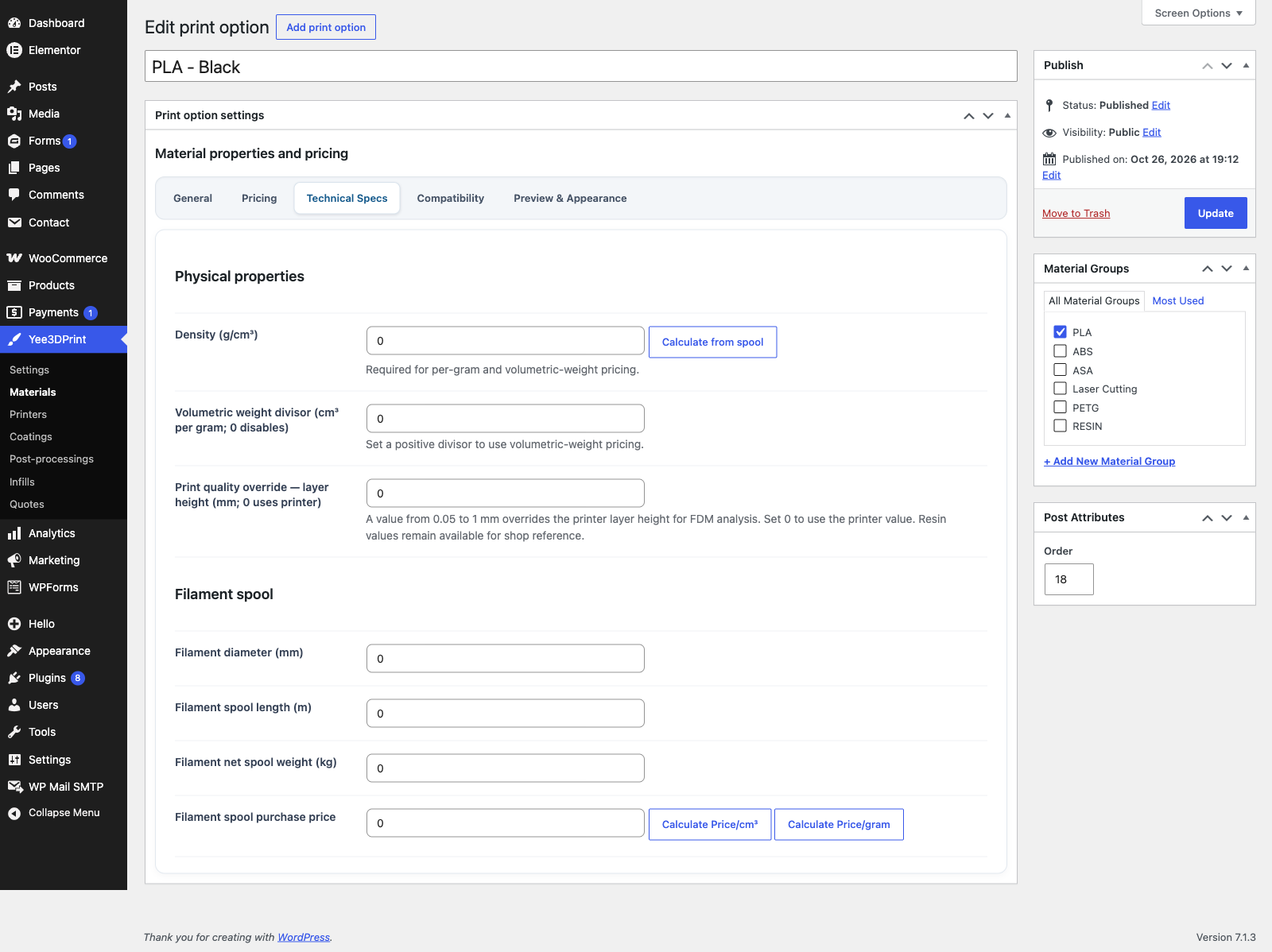
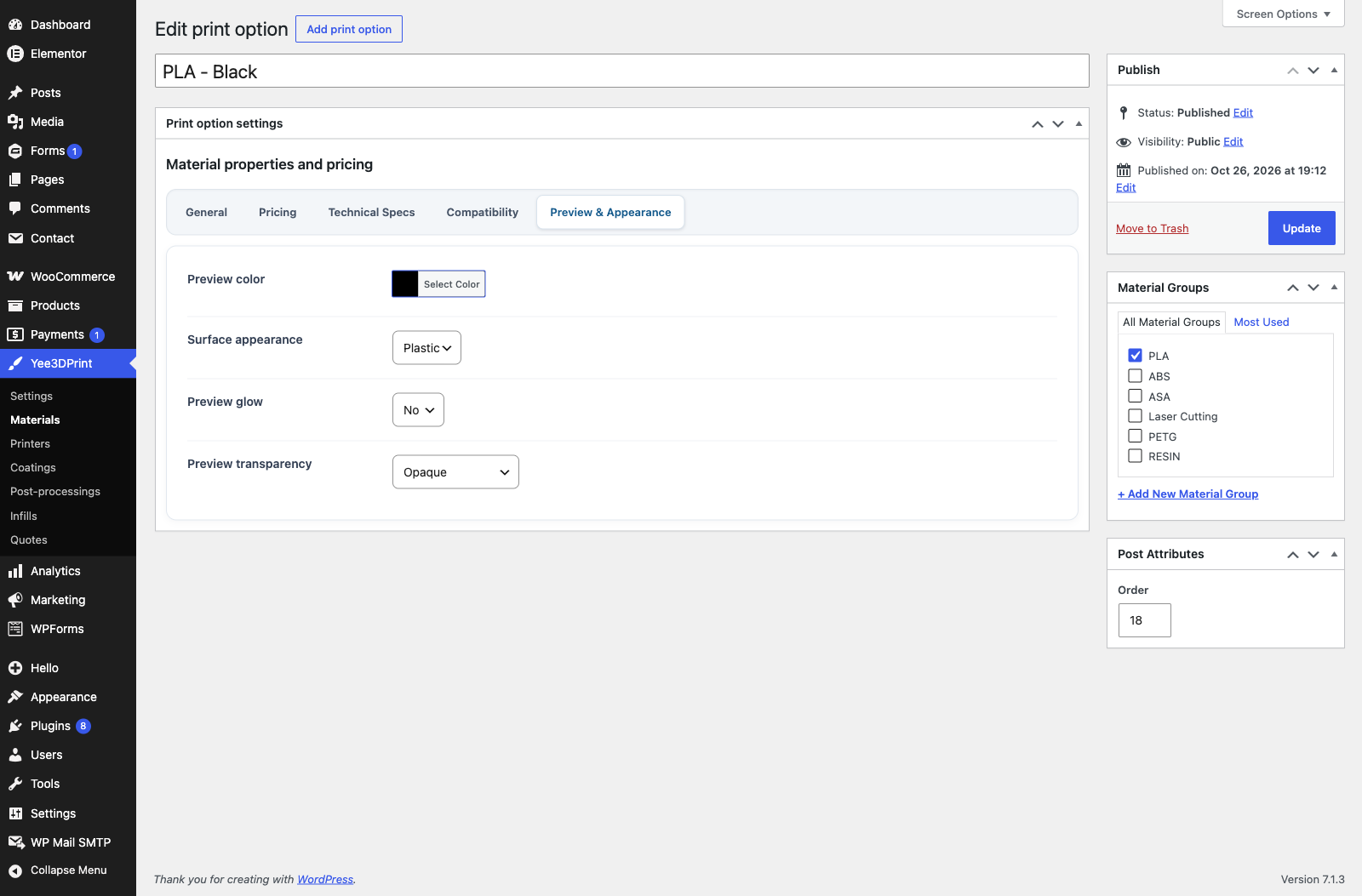
Materials are organised in Material Groups (a hierarchical taxonomy: ABS, PLA, RESIN…). The editor has five tabs.
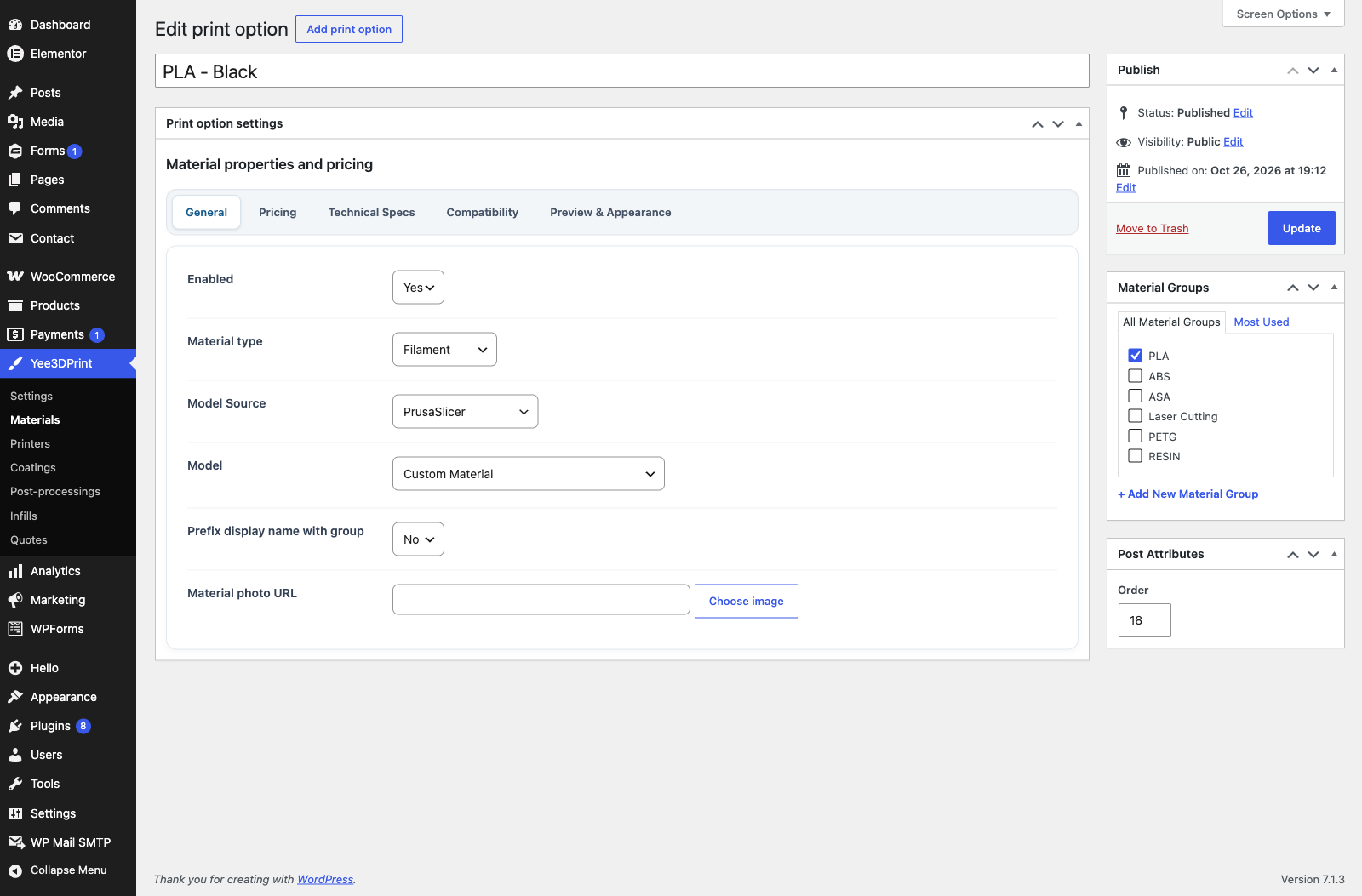
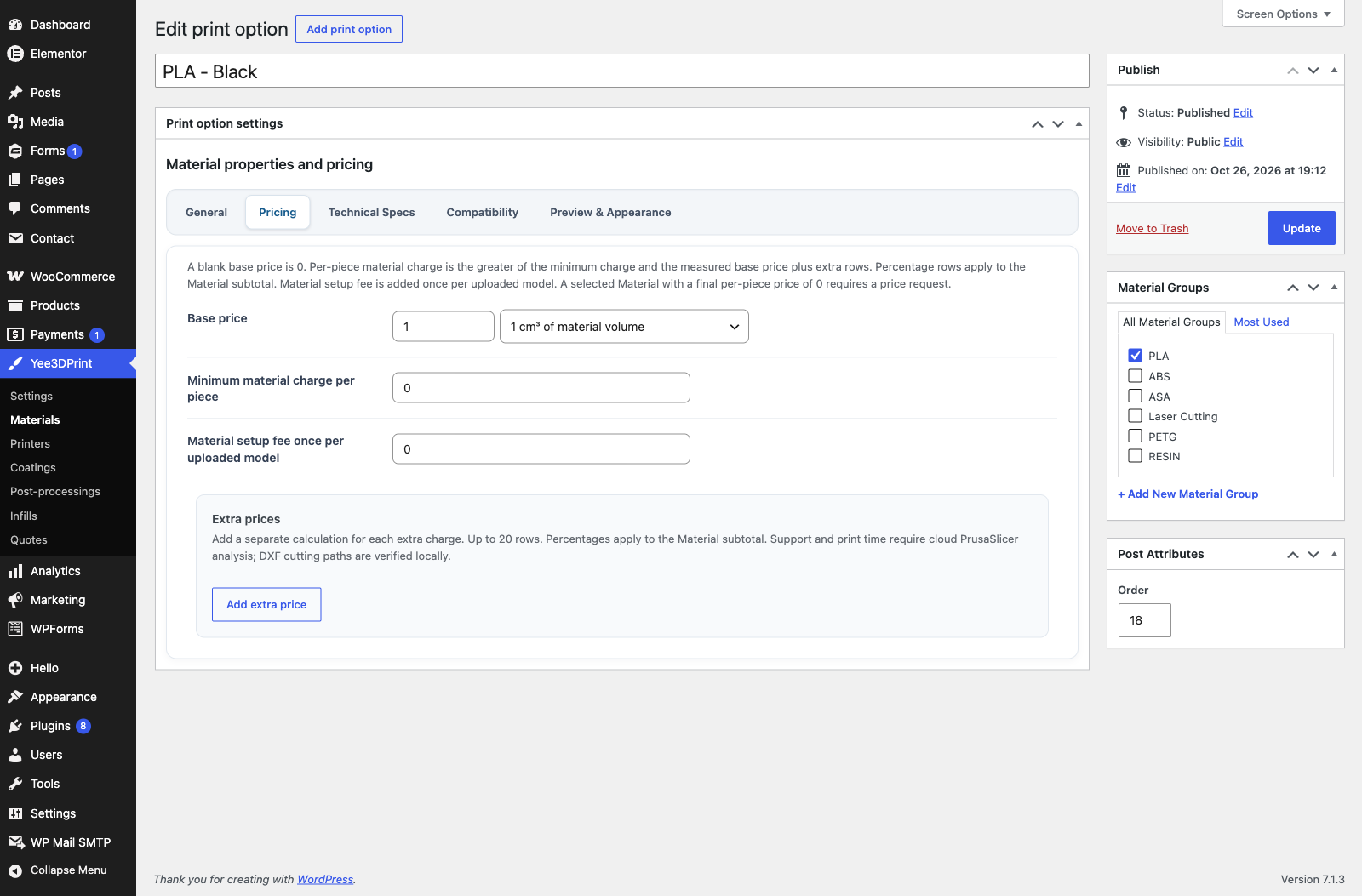
Base price is an amount multiplied by a basis: Fixed Price, 1 cm³ of material volume, 1 cm³ of Bounding Box Volume, 1 cm² of surface area, 1 cm² of Bounding Box XY, 1 cm³ of Support Material Volume, Support Material Removal Fixed Charge, 1 cm³ of Removed Material Volume, 1 cm of Laser Cutting Total Path, 1 gram, 1 gram of volumetric weight, or 1 Hour (requires cloud analysis). Extra prices add rows with the same bases plus +% to total price. A Minimum material charge per piece and a Material setup fee once per uploaded model complete the rule.
How a material charge is calculated
- Base = Base price × measure of the chosen basis (a Fixed basis uses 1).
- Extras = sum of every extra row (amount × its measure).
- Percentage rows multiply the subtotal: subtotal × (1 + Σ % / 100).
- Minimum: the per-piece charge is the greater of the result and the Minimum material charge.
- The Material setup fee is added once per uploaded model, not per piece.
| Measure | Meaning | Needs |
|---|---|---|
| Material volume | solid mesh volume in cm³ | closed mesh |
| Bounding Box Volume / XY | X × Y × Z in cm³, or X × Y in cm² | — |
| Surface area | mesh surface in cm² | — |
| Gram / volumetric weight | volume × density; volumetric weight = max(weight, box volume ÷ divisor) | Density > 0 |
| Removed material | box volume − solid volume (machining) | — |
| Support volume / support fixed charge / hour | from the cloud slicer: support cm³, 1 when support exists, print hours | Cloud analysis |
| Laser cutting total path | cm of DXF layers set to Cut | DXF file |
4.2 Printers
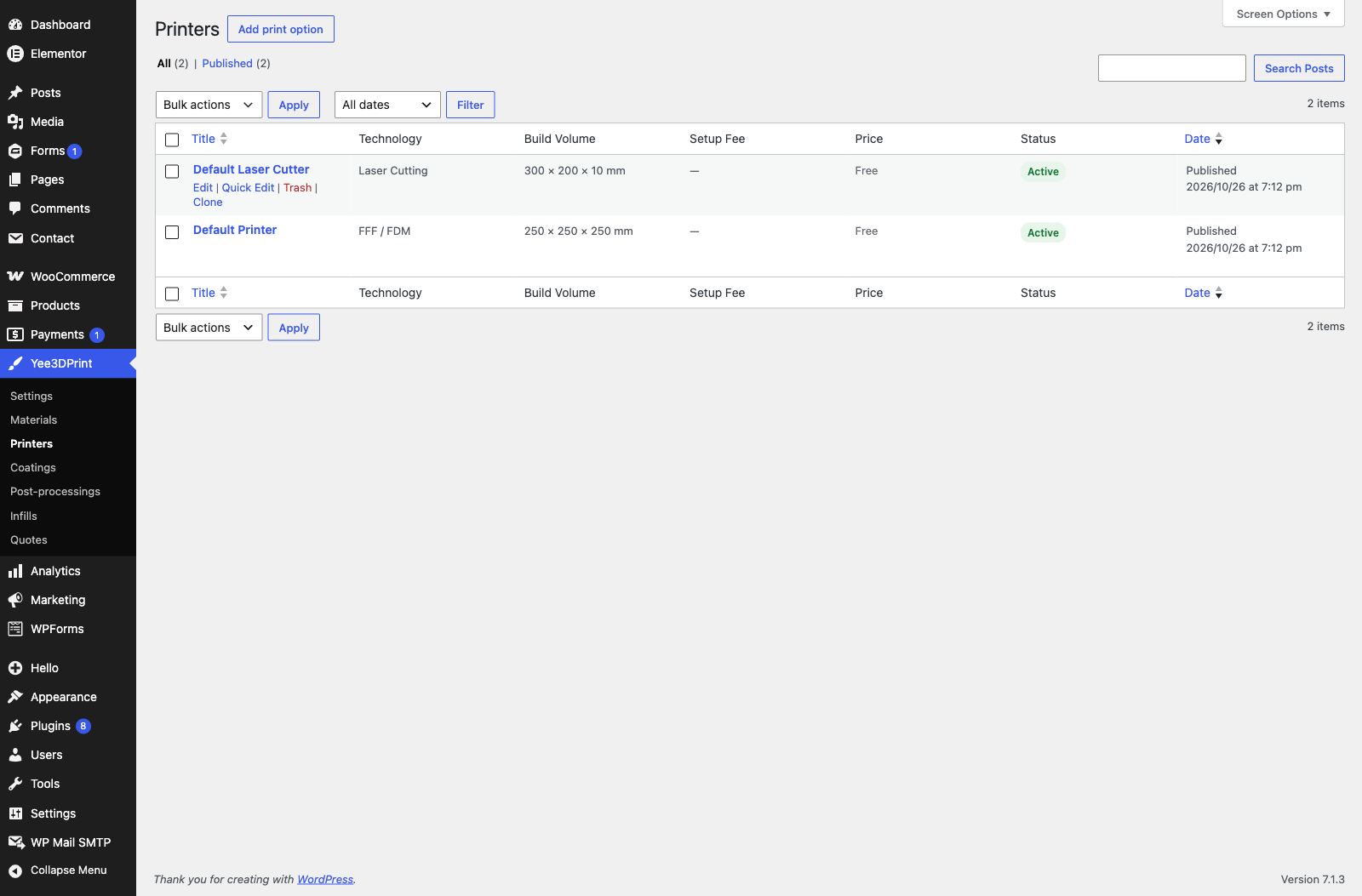
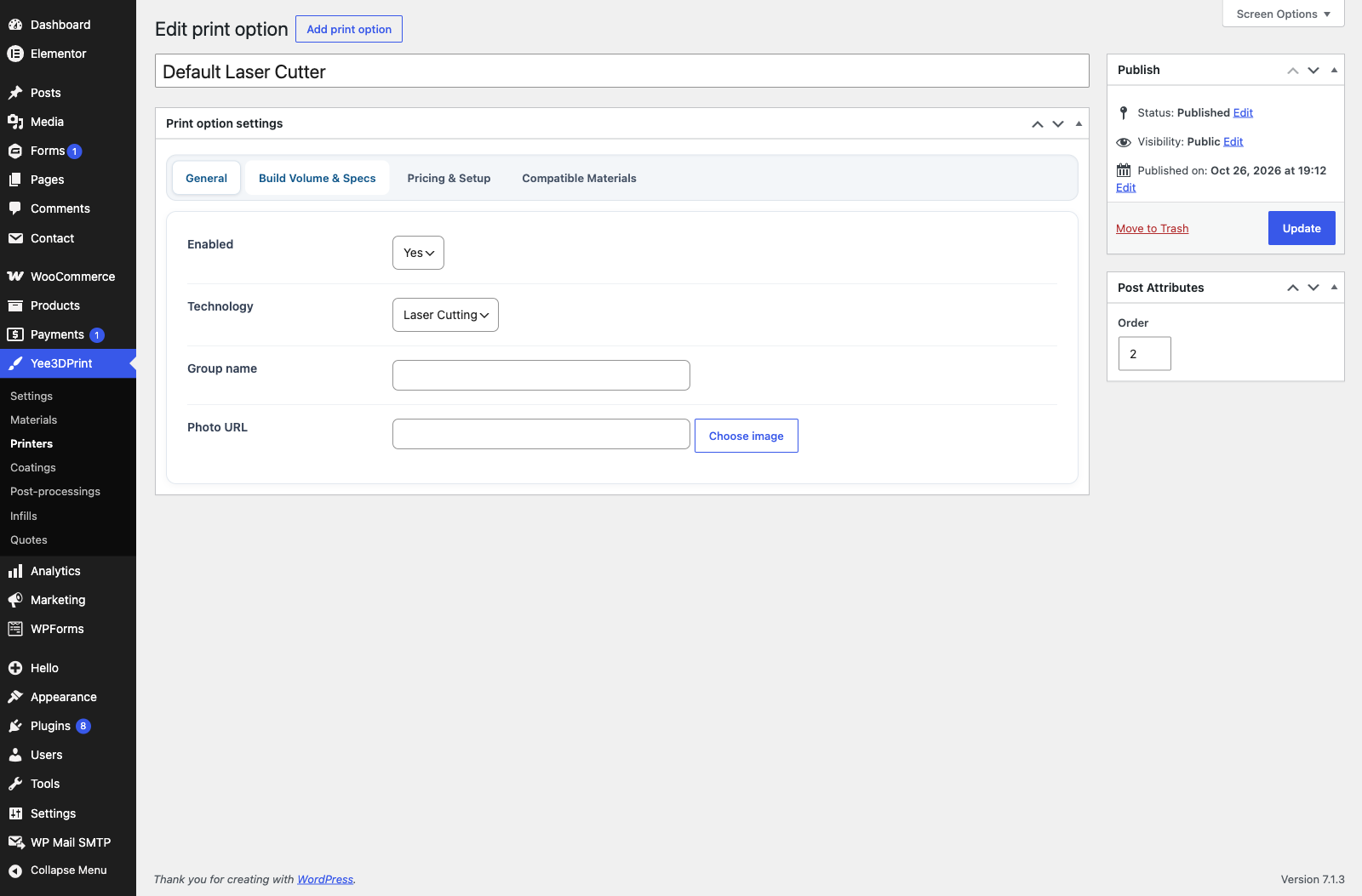
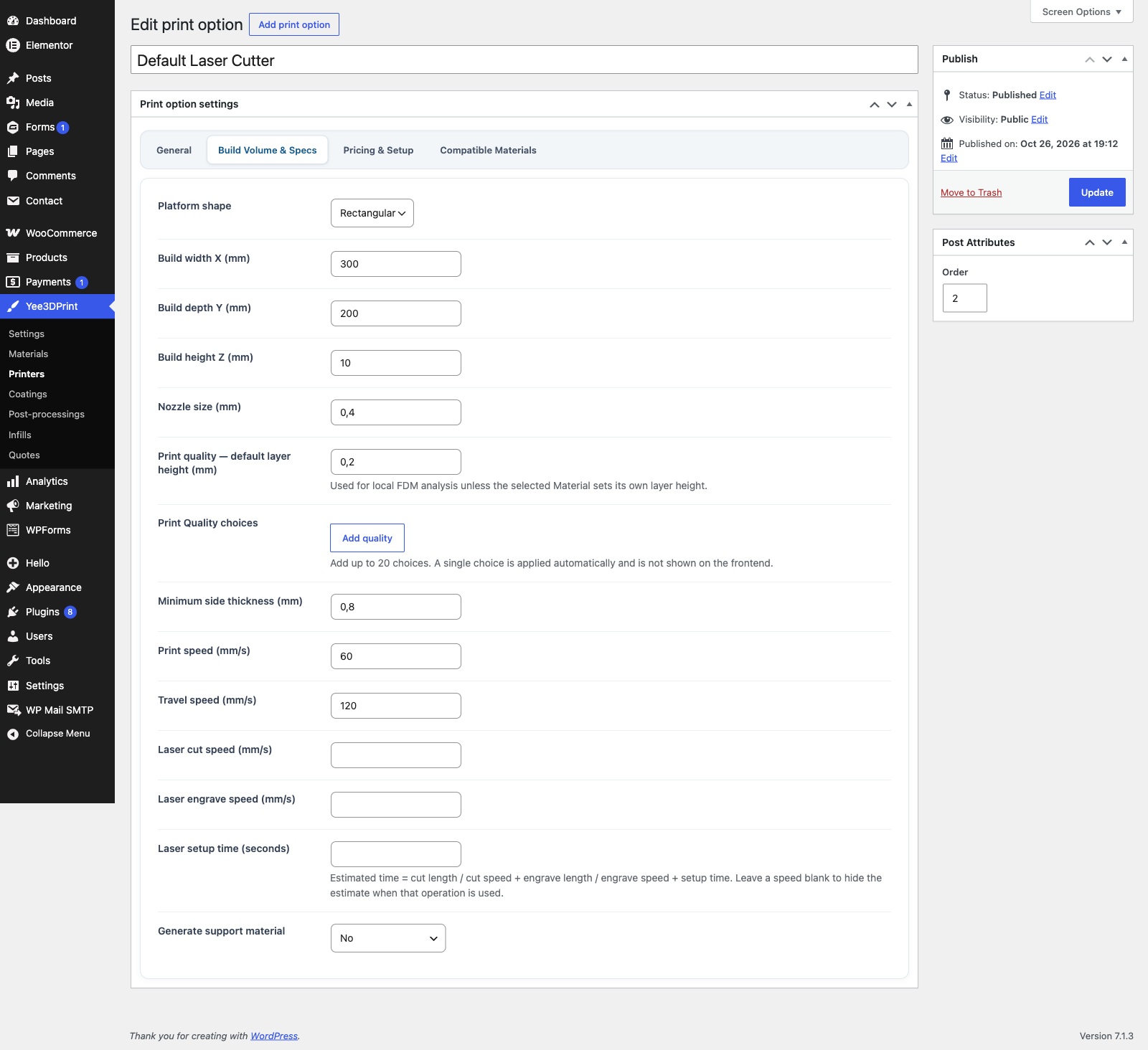
Print Quality choices are name + layer height rows (0.05–1 mm). When a printer has two or more, a Print Quality step appears on the storefront; a single quality is applied automatically. If exactly one non-laser printer is selectable, the Printer step is hidden and that printer is chosen automatically. The build volume drives the “Larger than the configured build volume” warning.
4.3 Coatings, Post-processings and Infills
5. How the Price Is Calculated
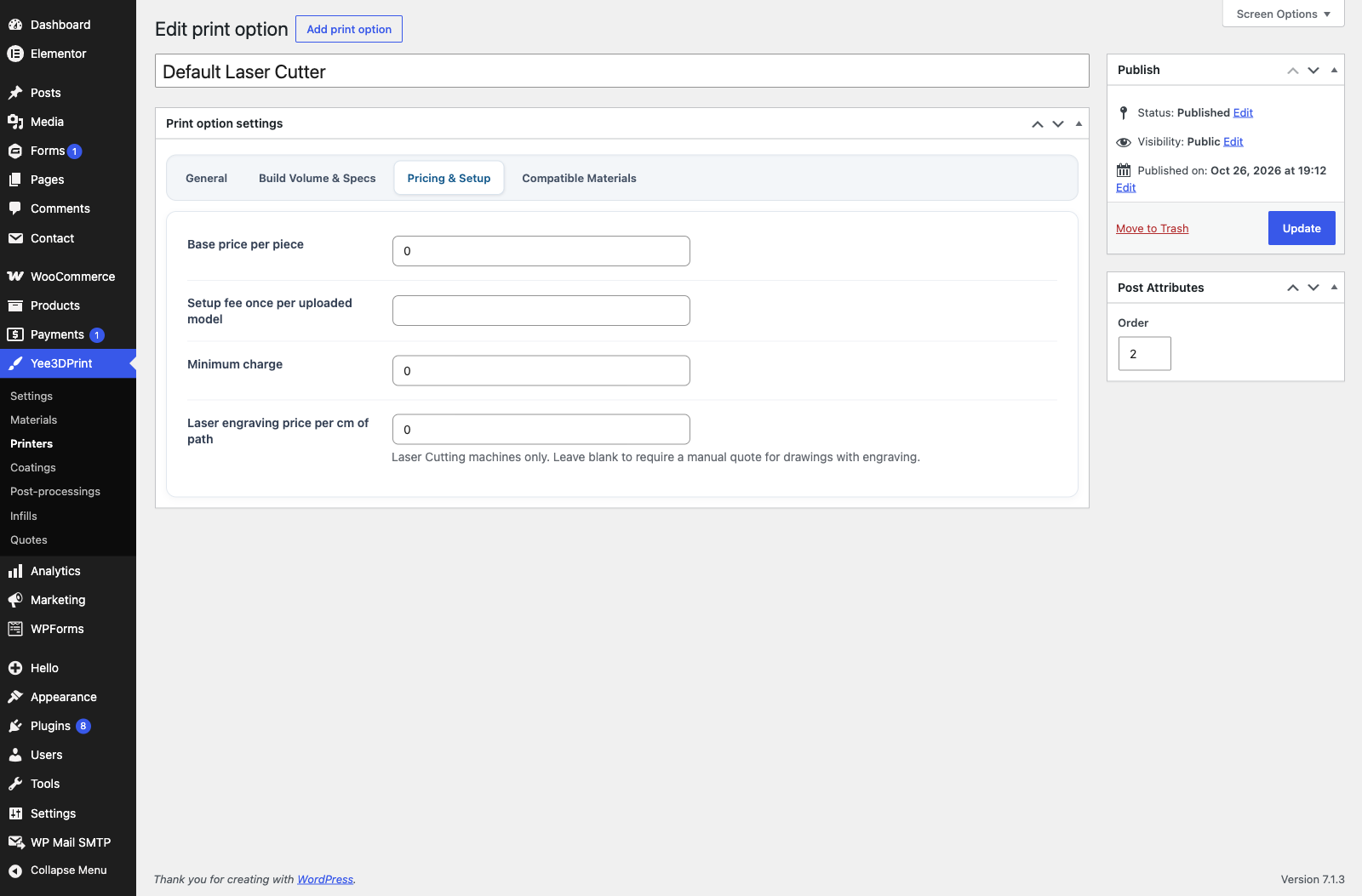
Unit price = Material charge + Printer price + Coating price + Σ Post-processing prices + Infill price (DXF jobs add laser engraving). Setup = Material setup fee + Printer setup fee, added once per uploaded model. The WooCommerce line is unit price × quantity, and the setup is a separate taxable fee named “Setup fee (filename)”. Print Quality never changes the price. The server recalculates the whole price on submission and every time WooCommerce recalculates the cart, so prices cannot be manipulated in the browser.
When a configuration becomes a price request instead of a checkout: the selected material ends with a per-piece price of 0, a non-material option has a blank or invalid price, the whole configuration totals 0, or a DXF drawing has engraved layers on a machine without an engraving rate. Explicitly configured zero-price printers, coatings, post-processings and infills are free options and do not block checkout. A cart item whose file expired or whose pricing now needs a quote is removed with the notice “A configured model in your cart has expired or now requires a price request. Please upload it again.”
6. Adding the Configurator to a Page
Insert the Yee3DPrint block (Widgets category, keywords “3d print”, “3d upload”) in the block editor, or add the shortcode to any page:
[[yeekit_3d]]Both render the same configurator. The shortcode accepts one optional attribute, quote="ID", which lets shop managers open a stored quote in a “Review 3D model” preview.
7. The Customer Journey
Step 1: Upload a model or load the demo
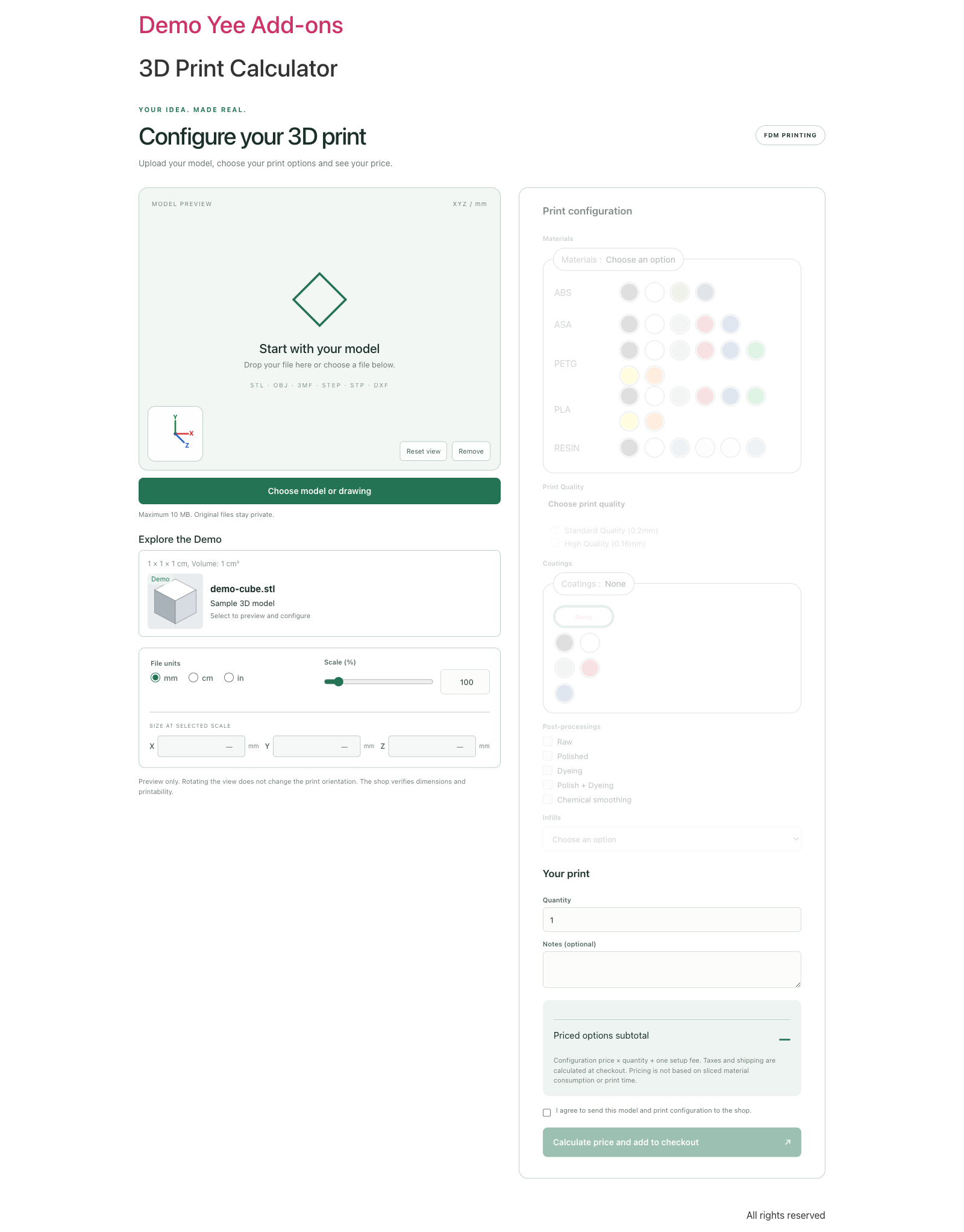
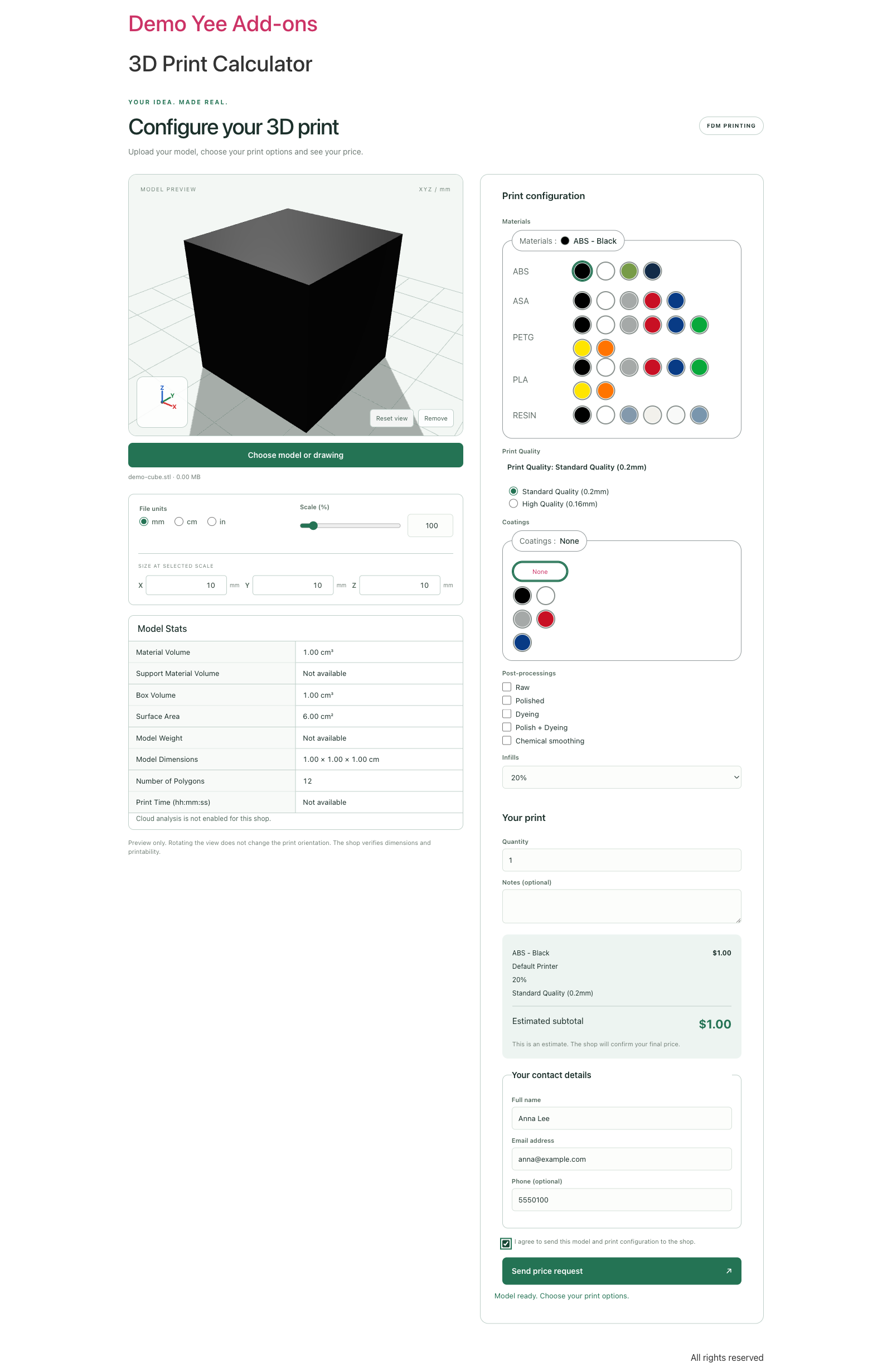
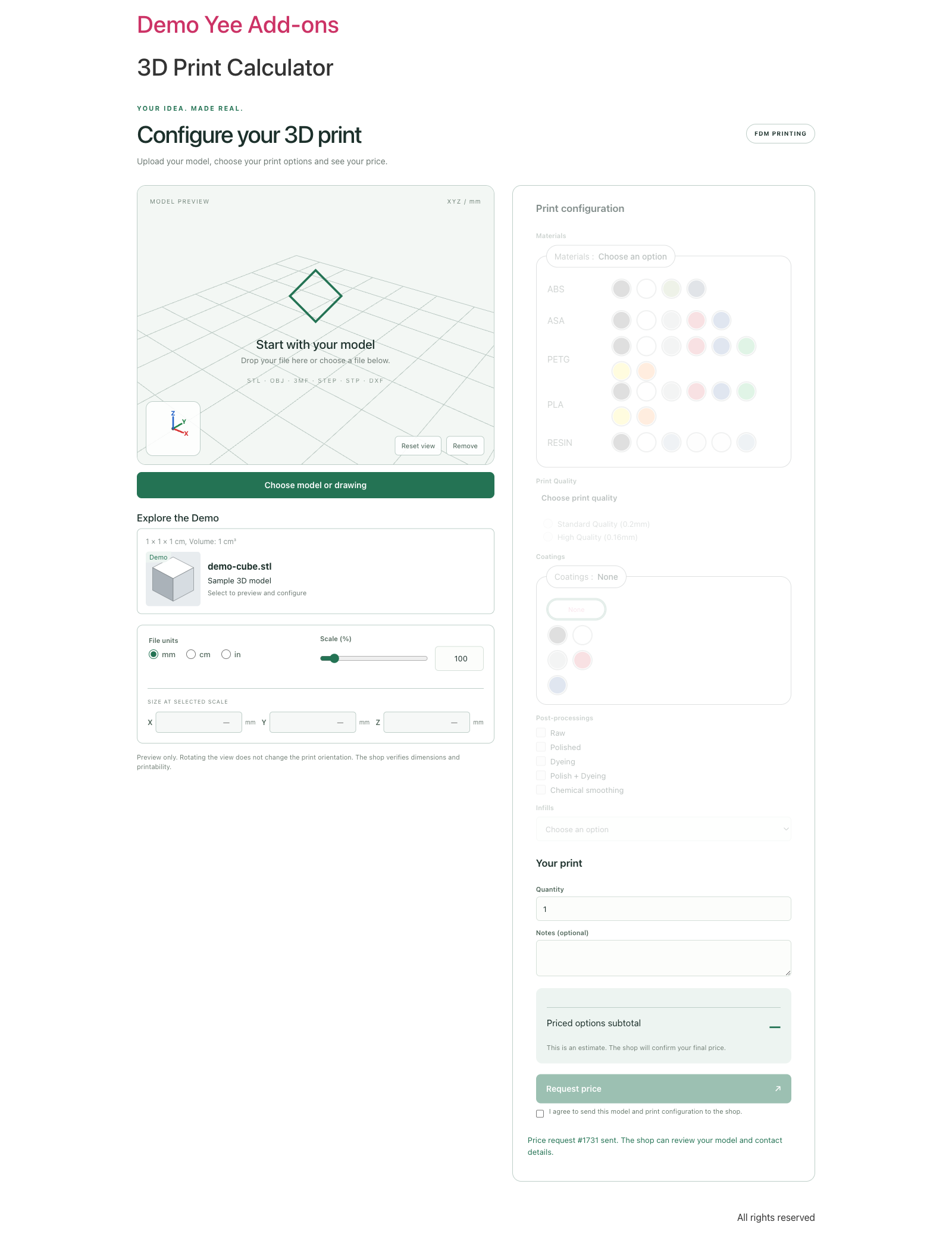
The header reads “Configure your 3D print” with an FDM PRINTING badge (it switches to laser cutting for DXF files). Customers drag a file onto the viewport or click Choose model or drawing; the accepted formats and the size limit are listed below. With Show demo on, the Explore the Demo card loads the bundled 1 × 1 × 1 cm cube. Progress messages read “Reading model file”, “Building 3D preview…” and “Model ready. Choose your print options.”
Step 2: Inspect the 3D preview
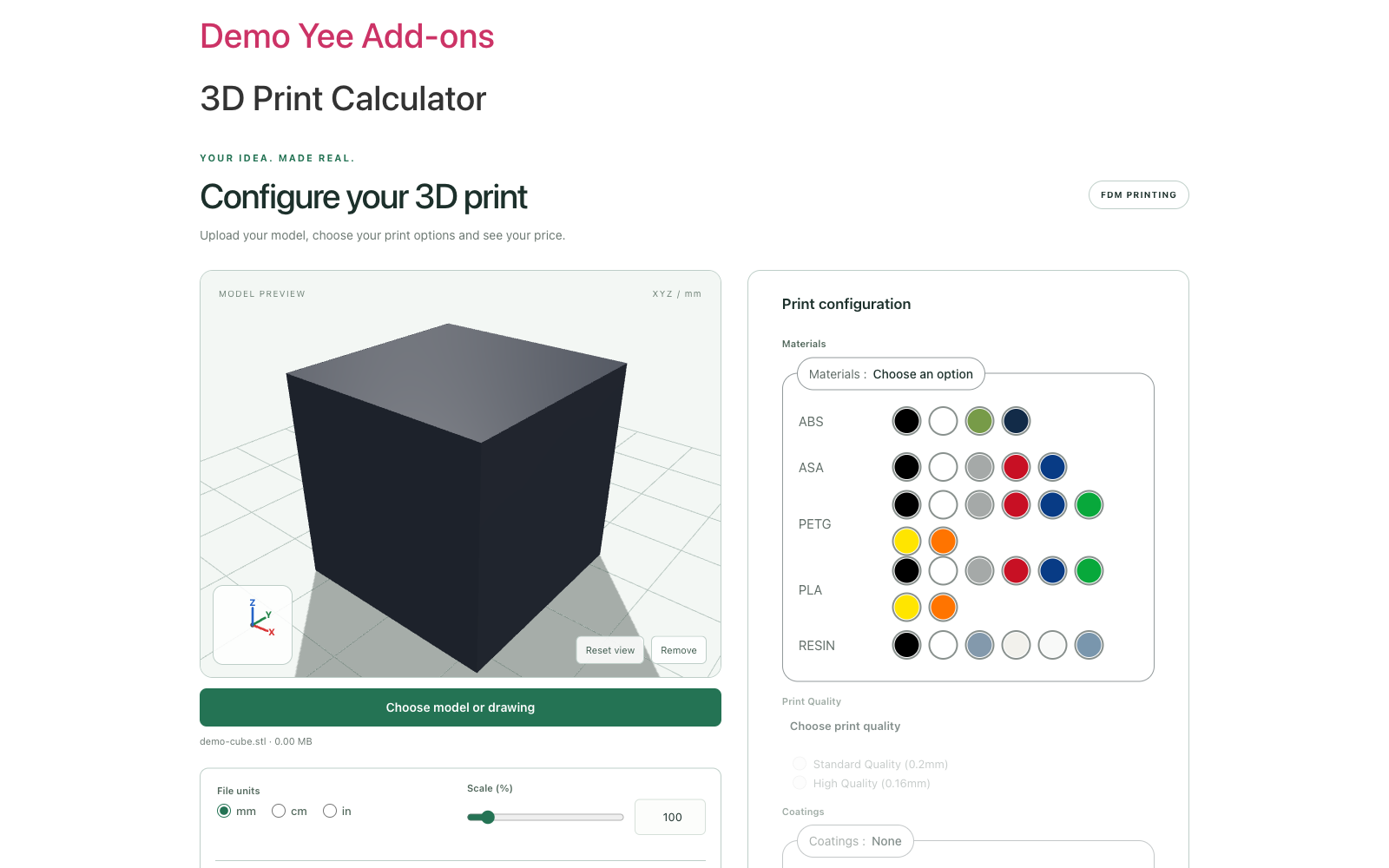
- Reset view returns the camera; Remove clears the model and all selections.
- File units (mm / cm / in) tell the plugin how to read STL, OBJ and DXF dimensions. Choose the unit before uploading; afterwards it only changes how sizes are displayed.
- Scale (%) from 1 to 1000, and editable X / Y / Z sizes that apply a uniform scale.
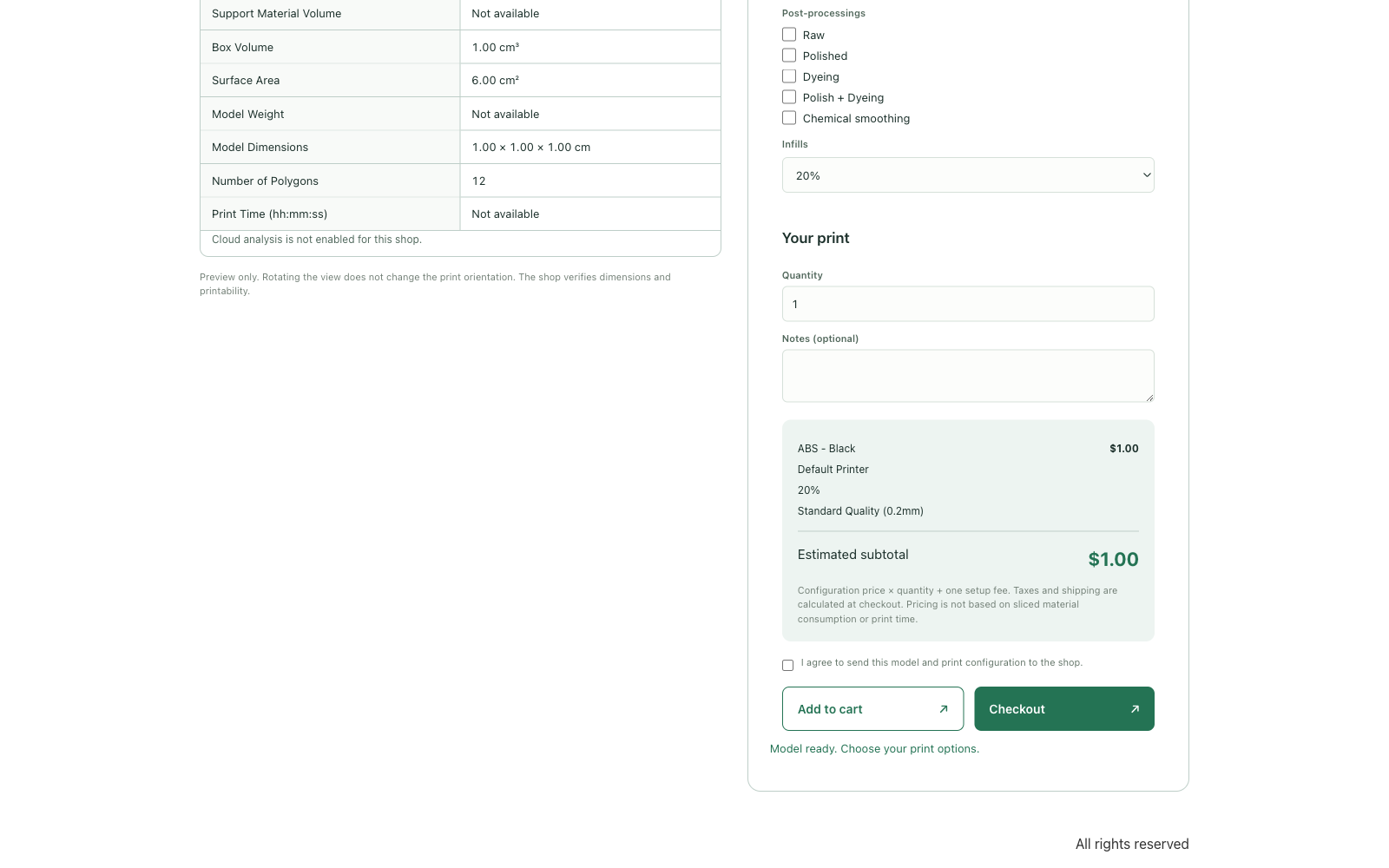
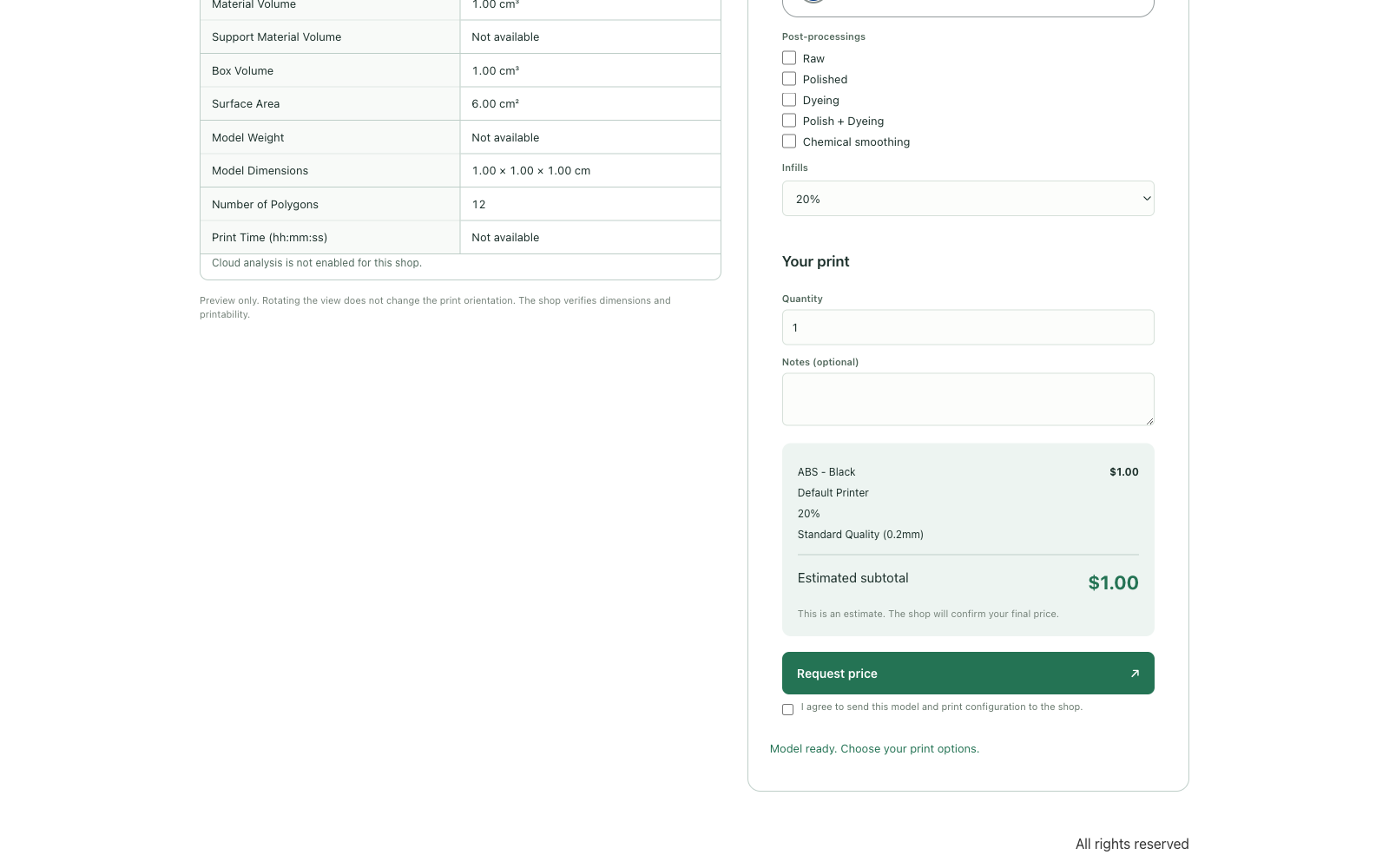
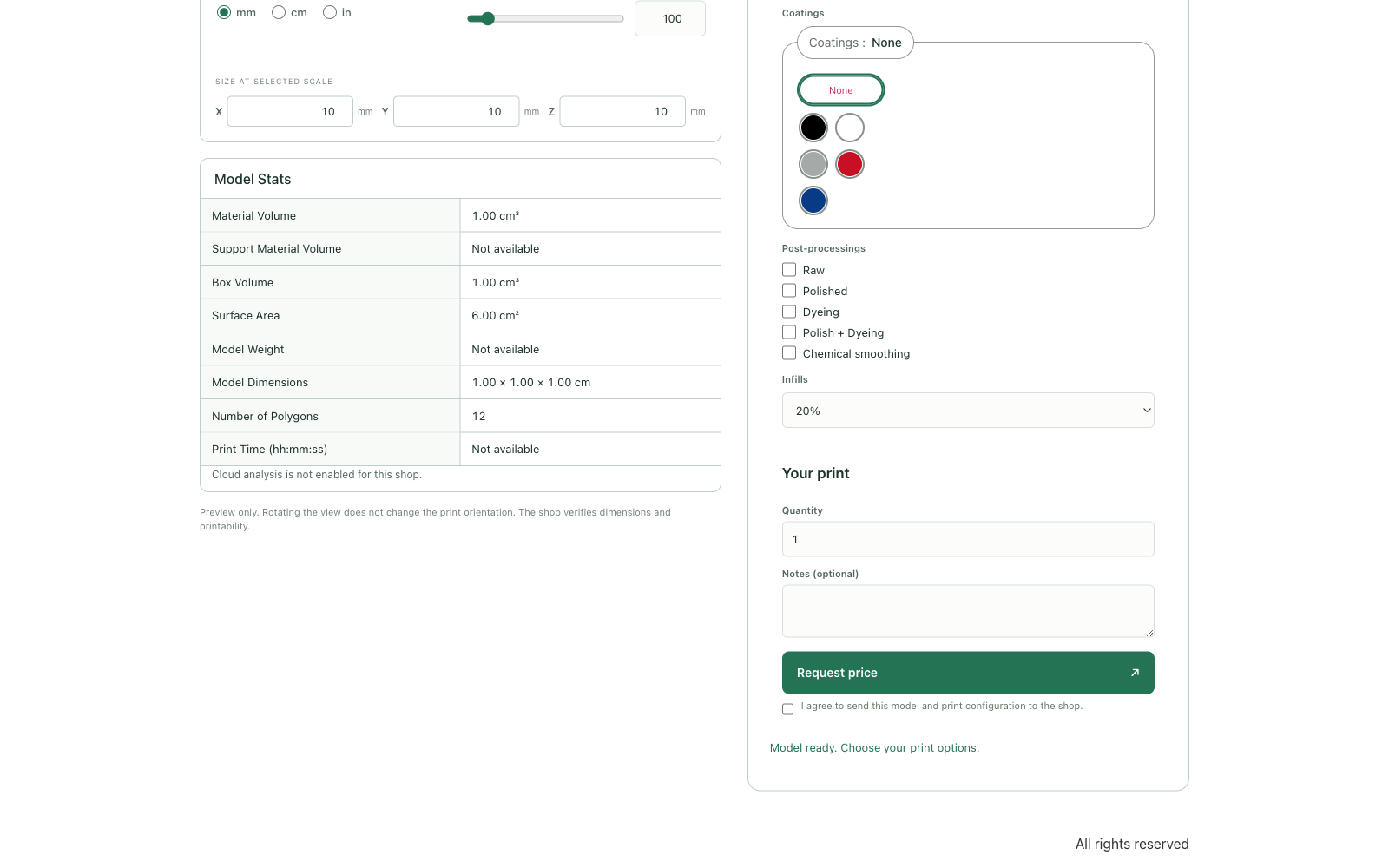
- Model Stats: Material Volume, Support Material Volume, Box Volume, Surface Area, Model Weight, Model Dimensions, Number of Polygons and Print Time. Values that need the cloud slicer show “Not available” when it is disabled.
- A warning appears when the model is larger than the selected printer’s build volume.
Step 3: Choose the print options
The Print configuration panel unlocks once a model is loaded. Steps unlock in order (Materials first or Printers first). After the first choice the other lists are filtered by compatibility, laser materials are hidden for 3D models, and the price panel updates live. The selected material’s colour and finish are applied to the model in the viewer; a coating overrides it.
Step 4: Quantity, notes and price
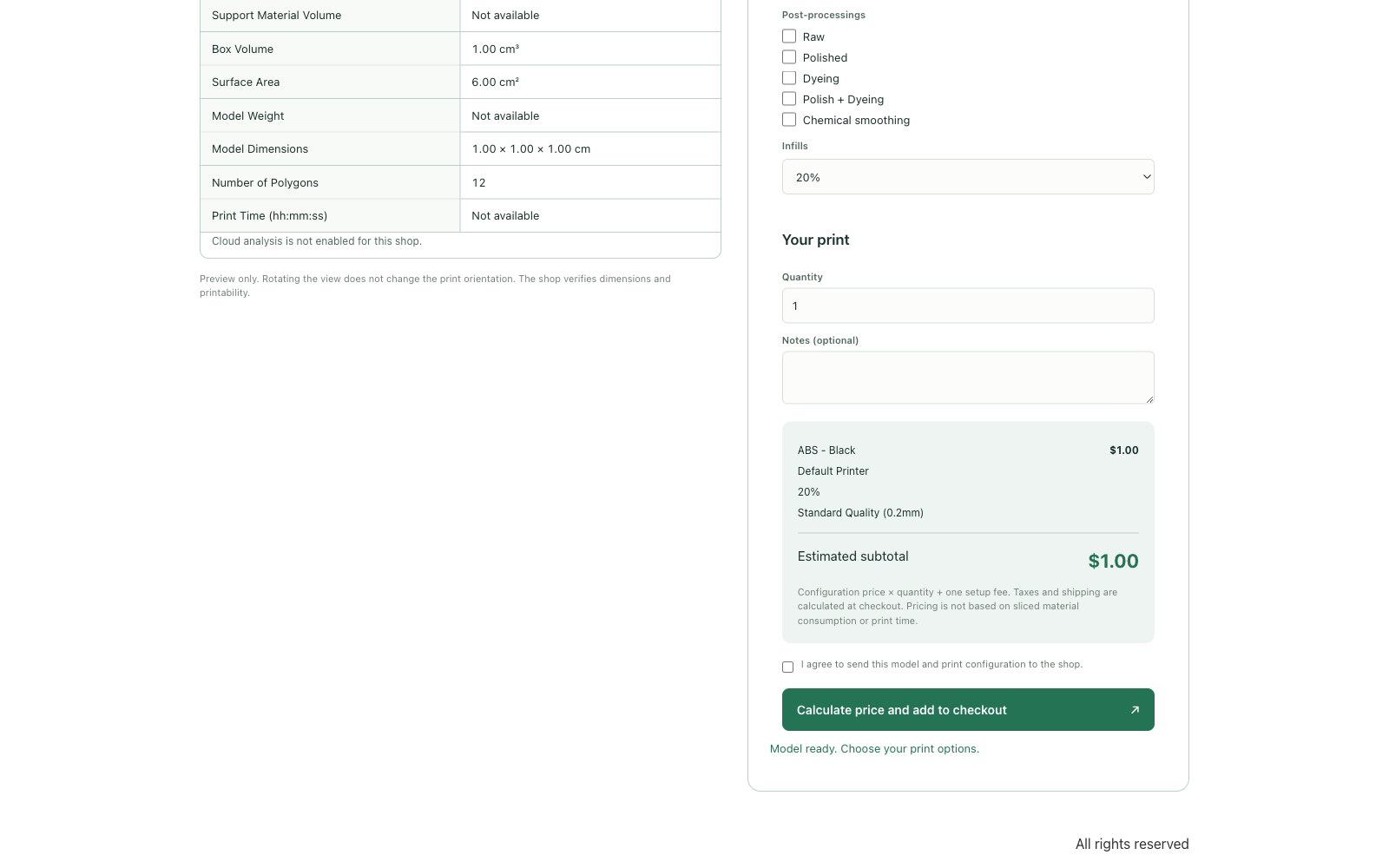
The breakdown lists every option with a price (free options are listed without an amount), the quality, the one-time setup fee and the Estimated subtotal. The customer must tick “I agree to send this model and print configuration to the shop” before the action button becomes active.
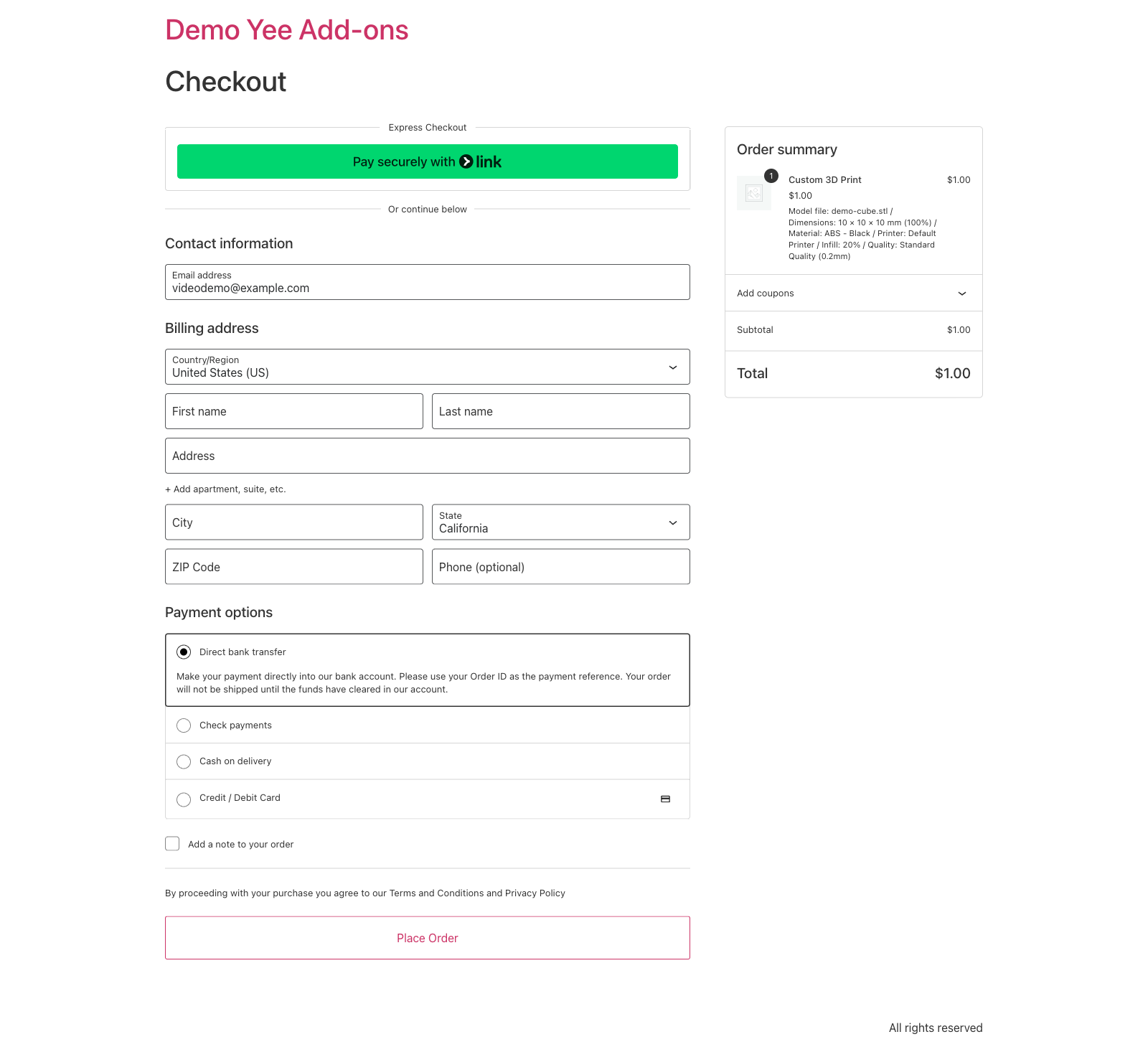
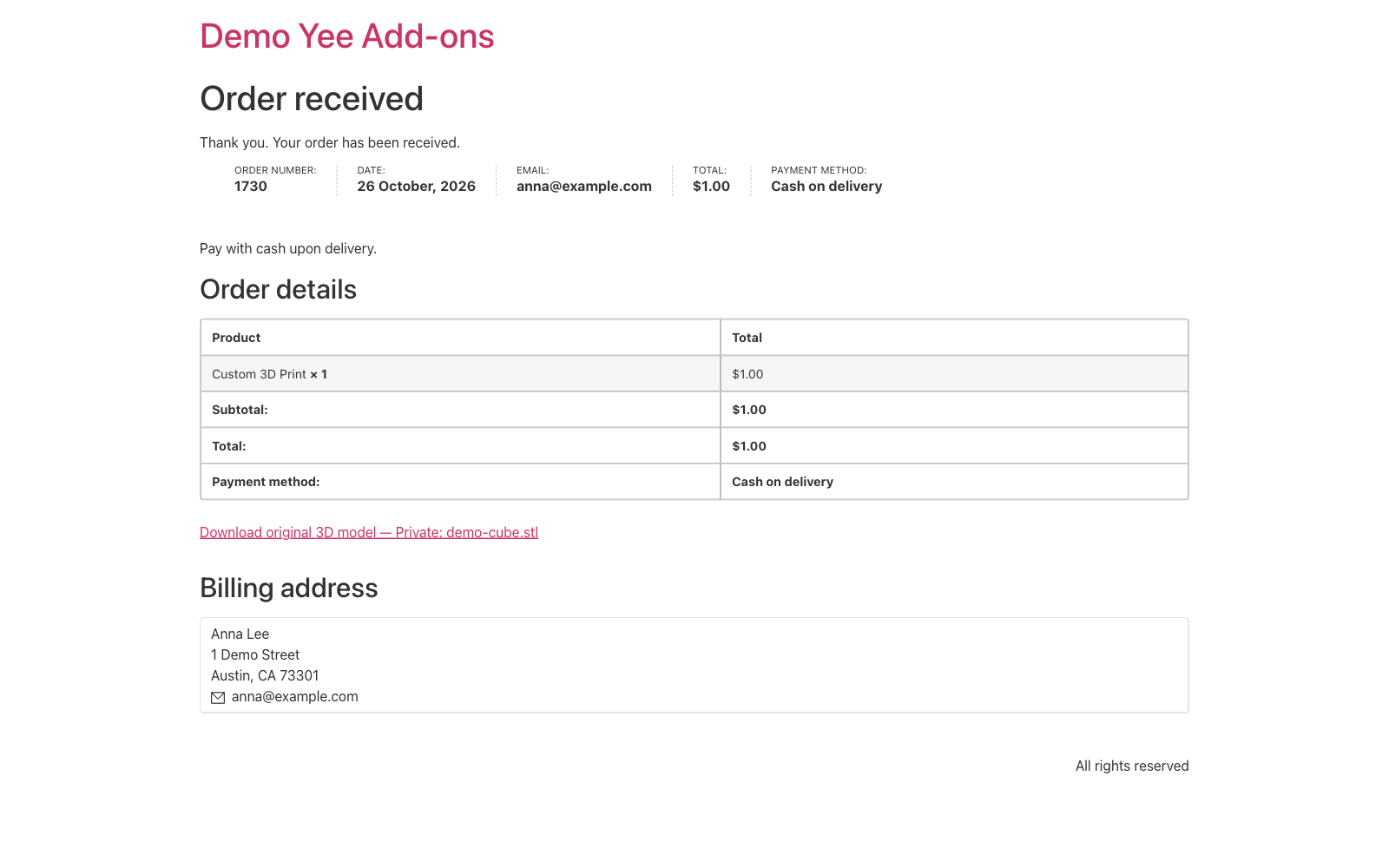
Step 5: Checkout
8. Checkout Behaviours
| Mode | What the customer sees | Result |
|---|---|---|
| Calculate price and add to checkout | one button, “Calculate price and add to checkout” | file uploaded, cart line created, redirect to Checkout |
| Calculate price and add to cart and checkout | “Add to cart” (stays on the page, shows “Model added to cart.” with a View cart link) and “Checkout” | cart line created; Checkout redirects |
| Give an estimate and request price | the estimated subtotal, a “Request price” button and a contact form | a quote is saved; emails are sent; no cart item |
| Request price | no prices at all, the contact form only | a quote is saved; emails are sent; prices never reach the browser |
In the two checkout modes the plugin falls back to the request form automatically whenever the configuration needs a quote (section 5). Files in formats that cannot be previewed (DWG, custom extensions) use a fixed manual CAD quote form with name, email, phone, quantity and notes.
9. Quotes and Orders
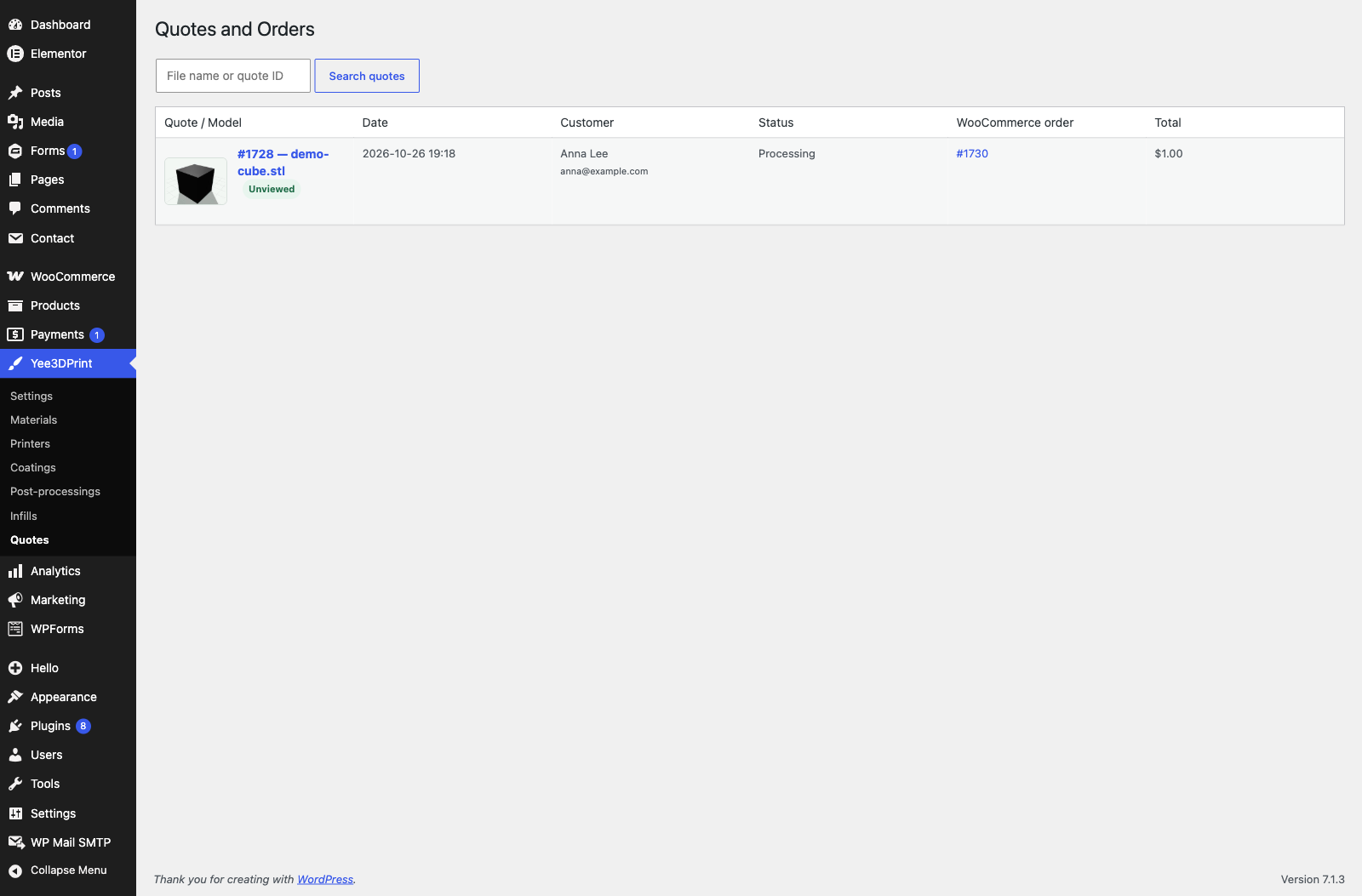
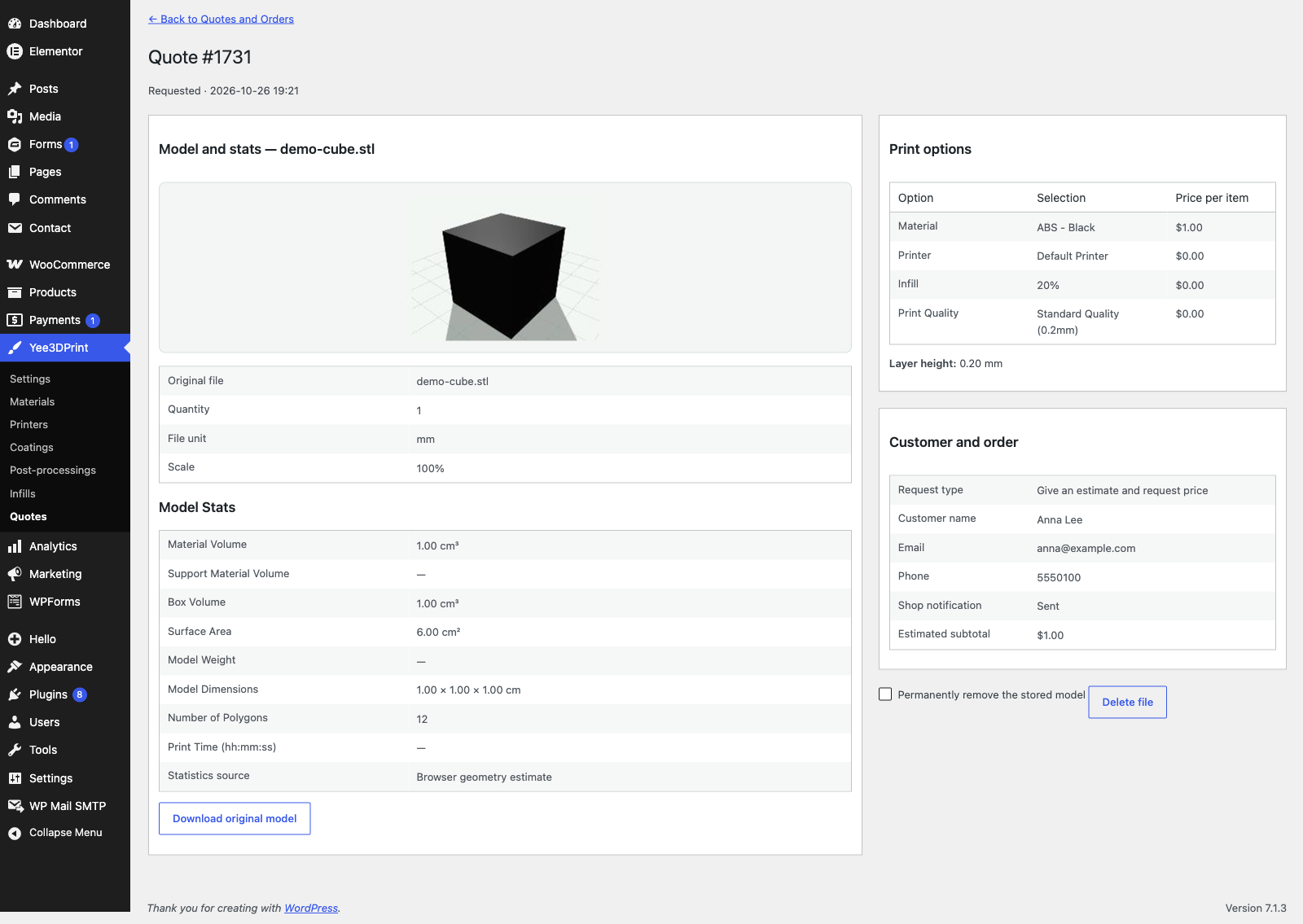
Every submission, whether it ends in an order or a request, creates a private quote record with a thumbnail of the view the customer chose. The list can be searched by file name or quote ID and shows the WooCommerce order status when an order exists.
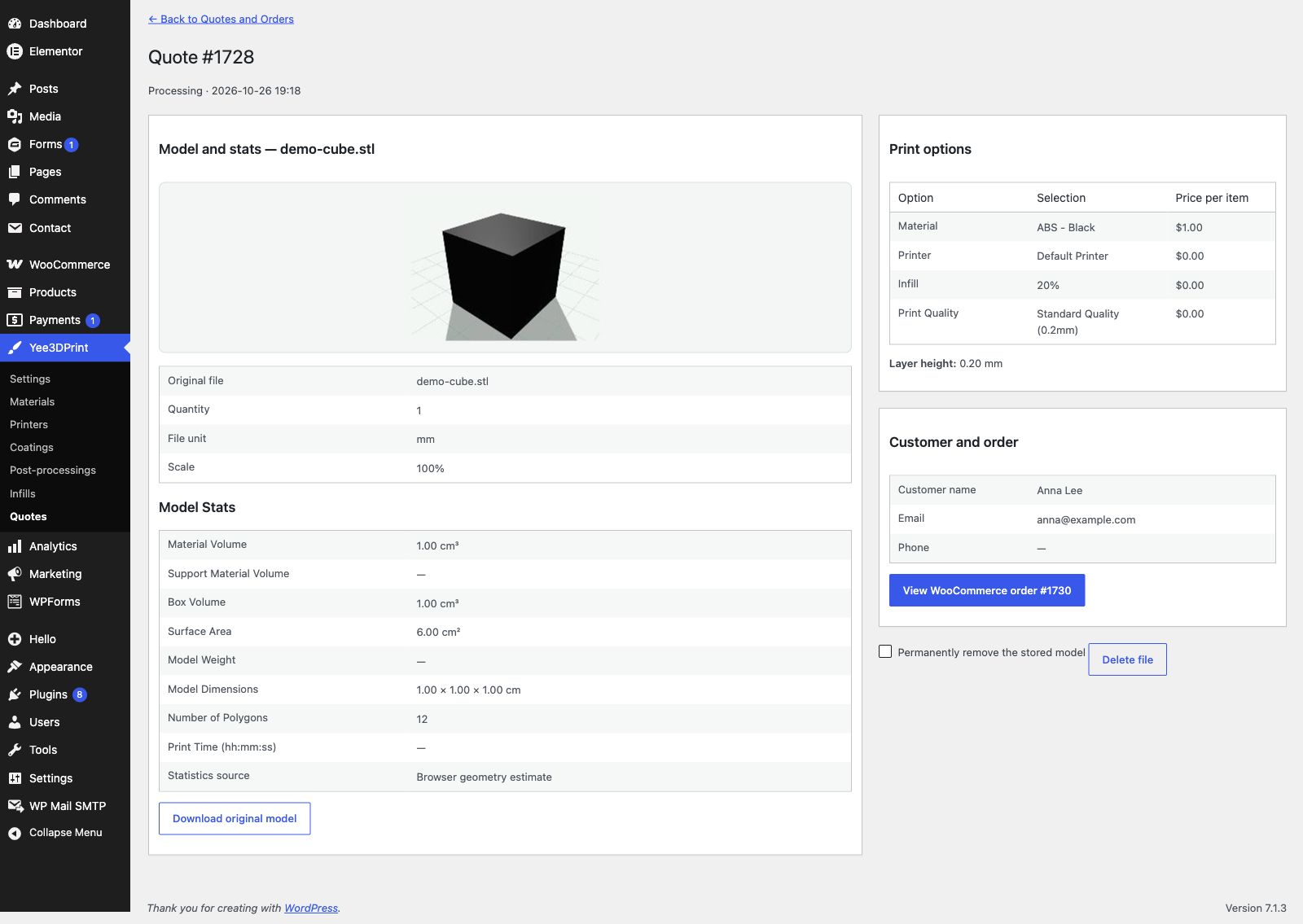
The detail page shows the stats, the options and prices, the customer, the request type, whether the shop and customer emails were sent, and a Download original model button. A “Delete file” form removes only the stored file and keeps the record.
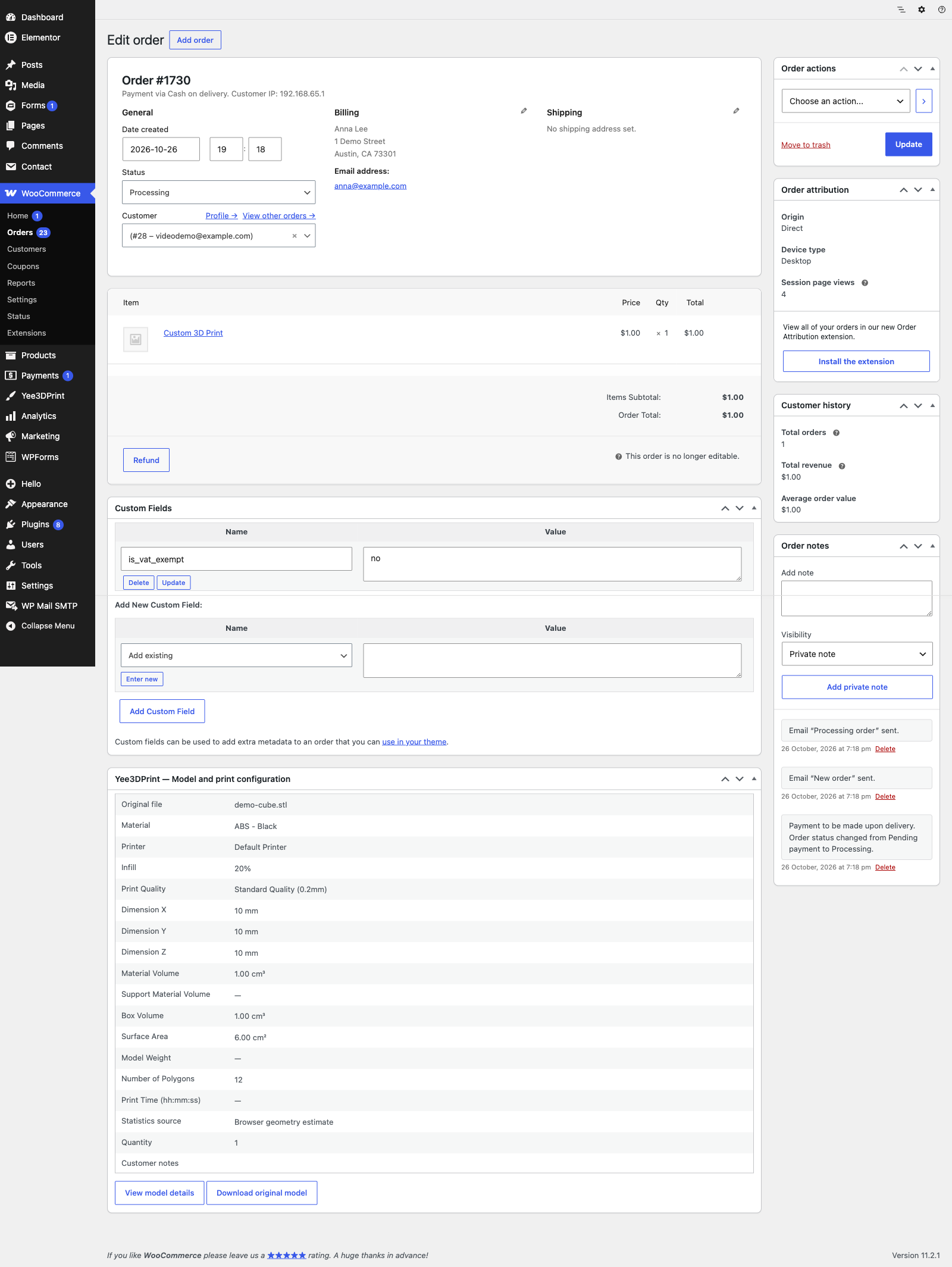
- Hidden product: a virtual product “Custom 3D Print” carries every model into the cart; it is hidden from the catalog and cannot be bought without a valid upload.
- Order emails include a “Model and configuration” table; the My Account order page offers “Download original 3D model”.
- Download endpoint:
admin-post.php?action=yeekit_download"e=ID, available to shop managers and the logged-in owner of the linked order only. - Retention: a daily cleanup deletes files older than the retention period, except files of orders that are not completed, cancelled, refunded or failed. Quote metadata is kept.
10. Cloud PrusaSlicer Analysis
When enabled, the browser sends a binary STL of the scaled model to your site, which forwards it with the printer, quality, infill and material settings to the publisher-hosted PrusaSlicer service. The result (material volume, support volume, print time and weight) fills the Model Stats with the status “Estimated from PrusaSlicer toolpaths” and powers the per-hour and per-support-volume material rules. Results are cached per configuration.
- FFF/FDM printers only, up to 300,000 polygons and a 12 MB STL.
- Registration happens automatically on save and requires a public HTTPS site; localhost or HTTP sites cannot be verified.
- Without a purchase code each site has 50 successful test analyses in total; a valid code grants 5,000 analyses per UTC month shared across sites using that code.
- When the service is disabled, Model Stats shows “Cloud analysis is not enabled for this shop.”, support and hour rules are unavailable, and no model copy leaves your server.
11. CNC and Laser Cutting (DXF)
Uploading a DXF drawing switches the configurator to laser cutting: the header becomes “Configure your laser cutting”, the drawing is previewed in 2D, and a Cutting operations list lets the customer set each layer to Cut, Engrave or Ignore. Only Laser cutting materials and machines are offered; infill, coating and print quality steps are hidden. Pricing uses the material’s cutting-path rules plus the machine’s engraving rate. Supported entities are LINE, CIRCLE, ARC, ELLIPSE, LWPOLYLINE and SPLINE in ASCII DXF files up to 5 MB. Drawings that cannot be measured fall back to the manual quote form.
12. Privacy, Data and Uninstall
- Original model files are stored in a private database table, never in the Media Library, and are streamed only to shop managers and the order owner.
- Quotes are private posts; WordPress privacy tools get an exporter and an eraser. Quotes linked to an order are kept for the shop to review.
- Deactivation sets the hidden product to Draft. Uninstall keeps all data unless
YEEKIT_DELETE_DATAis defined as true; WooCommerce orders are never deleted.
13. Frequently Asked Questions (FAQ)
Does the price depend on the model’s volume or print time?
It can. Set the material base price per cm³, per gram, per cm² or per hour, and add extra rows for support material or print hours. Volume, area and weight are measured from the uploaded mesh; support and time need cloud PrusaSlicer analysis.
Which file formats can customers upload?
STL, OBJ, 3MF, STEP and STP are previewed in 3D and priced; DXF is previewed in 2D for cutting. DWG and other CAD formats can be accepted for manual quotes only.
Does the preview guarantee printability?
No. Dimensions, build-volume warnings and stats are estimates. Review the model in the quote screen before production.
Why does a valid model fail to preview?
The browser decoder has a 45-second timeout, a two-million-triangle limit and bounded 3MF archives (256 entries, 64 MB unpacked). Device memory also matters.
Why does the configurator show a request form instead of checkout?
An option in the configuration has no usable price (a material at 0, a blank option price, or a total of 0). Give every option a price, or set 0 on the free ones, and the checkout buttons return.
Can I offer the same model in several materials or colours?
Yes. Each colour is a material entry; group them with Material Groups and use the Color palette by group display.
Can customers order several models at once?
Yes. Each upload becomes its own line in the WooCommerce cart.
Does the plugin store the customer’s file forever?
No. Files are deleted after the retention period (90 days by default) unless they belong to an active order.
Does it work with the WooCommerce block checkout and HPOS?
Yes. The plugin declares compatibility with both; the order box appears on the HPOS and the legacy order screens.
Can I use it without WooCommerce?
No. Pricing and checkout rely on WooCommerce. The configurator shows “Checkout requires WooCommerce.” when it is missing.