
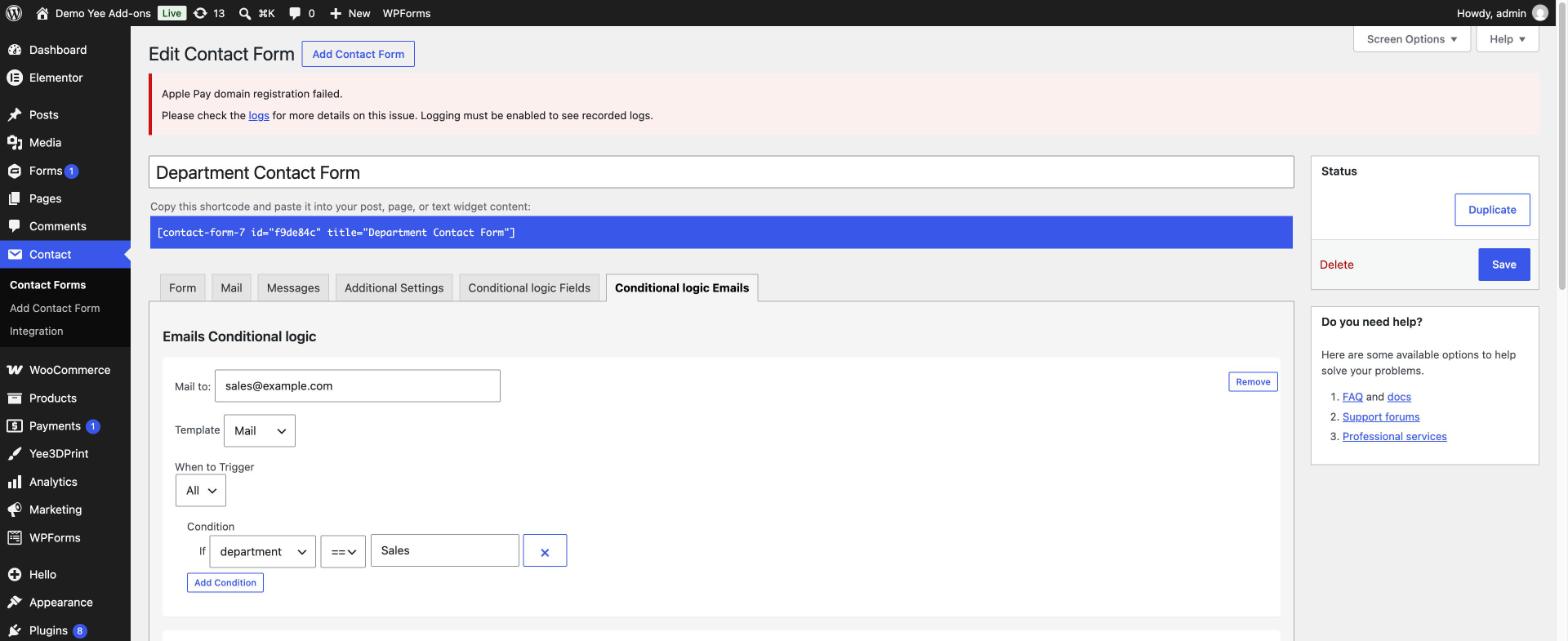
Welcome to the official documentation for the Conditional Logic Emails feature of Conditional Logic Emails and Fields for Contact Form 7 (by add-ons.org). Conditional email routing lets one Contact Form 7 form send its notification to different people, or to extra people, depending on what the visitor selected or typed: the Sales team gets sales requests, Billing gets invoice questions, a manager gets an alert when the budget is above a threshold, and so on. This guide walks through installation, creating routing rules step by step, a complete department-routing example, testing, operators, developer hooks and frequently asked questions. The companion feature, showing and hiding fields, is covered in the Conditional Logic Fields documentation.
Video tutorial
1. Installation & System Requirements
- Install and activate Contact Form 7 (the plugin requires it and cannot be activated without it).
- Go to Plugins → Add New Plugin → Upload Plugin, upload the plugin ZIP and click Install Now.
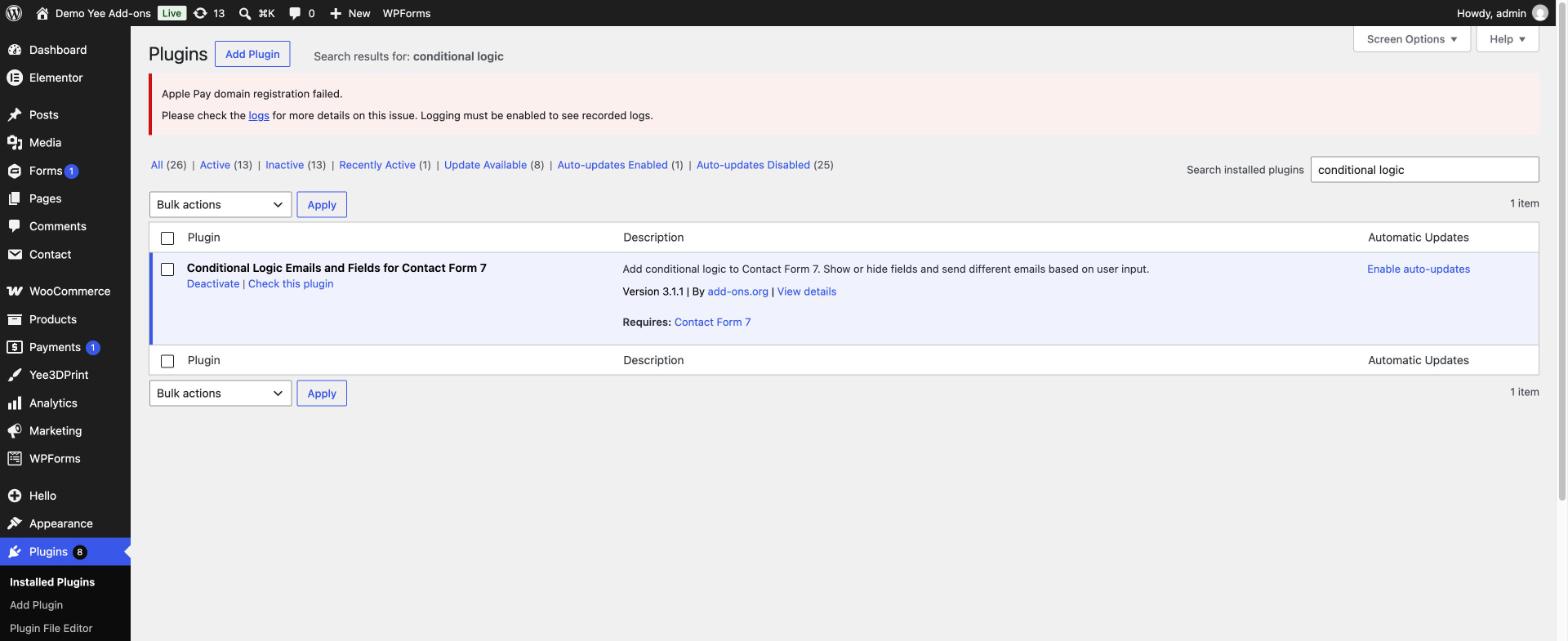
- Click Activate. The plugin appears as Conditional Logic Emails and Fields for Contact Form 7 in the Plugins list.
There is no global settings page. Everything is configured per form, inside the Contact Form 7 editor, in two new tabs: Conditional logic Fields and Conditional logic Emails.
2. How Conditional Emails Work
Contact Form 7 always sends the message configured in the Mail tab to the address in its To field. A conditional email rule does not replace that message. When the conditions of a rule are met, the plugin sends an additional copy of the chosen template (Mail or Mail (2)) to the addresses listed in the rule. In other words:
- Mail (main notification) is sent on every successful submission, to the recipients set in the Mail tab.
- Each conditional rule adds one more email, built from the Mail or Mail (2) template, sent only to the rule’s Mail to addresses when its conditions match.
- If no rule matches, only the normal Mail (and Mail (2), if you enabled it) is sent.
This makes the feature safe to add to an existing form: your current notification keeps working, and the routing rules add targeted copies on top of it.
3. Prepare the Form and the Mail Templates
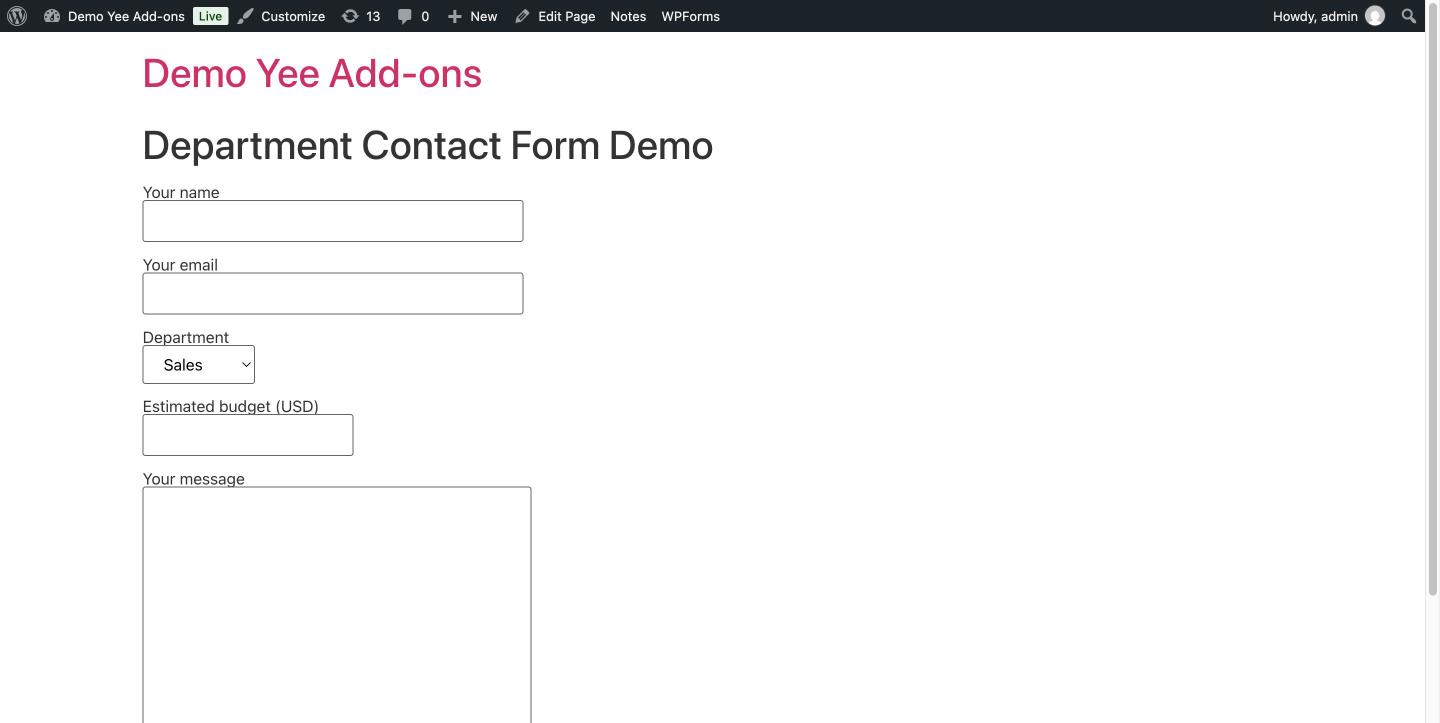
Create or open a form under Contact → Contact Forms. The example used in this guide is a “Department Contact Form” with a name, an email, a department drop-down (Sales, Support, Billing), a numeric budget field and a message:
<label> Your name
    [text* your-name autocomplete:name] </label>

<label> Your email
    [email* your-email autocomplete:email] </label>

<label> Department
    [select* department "Sales" "Support" "Billing"] </label>

<label> Estimated budget (USD)
    [number budget min:0] </label>

<label> Your message
    [textarea your-message] </label>

[submit "Send message"]
Then open the Mail tab and set up the main notification as usual. Its To address receives every submission. The subject and body can use mail-tags such as [department] and [budget], which is handy because the conditional copies reuse this template.
4. Open the Conditional logic Emails Tab
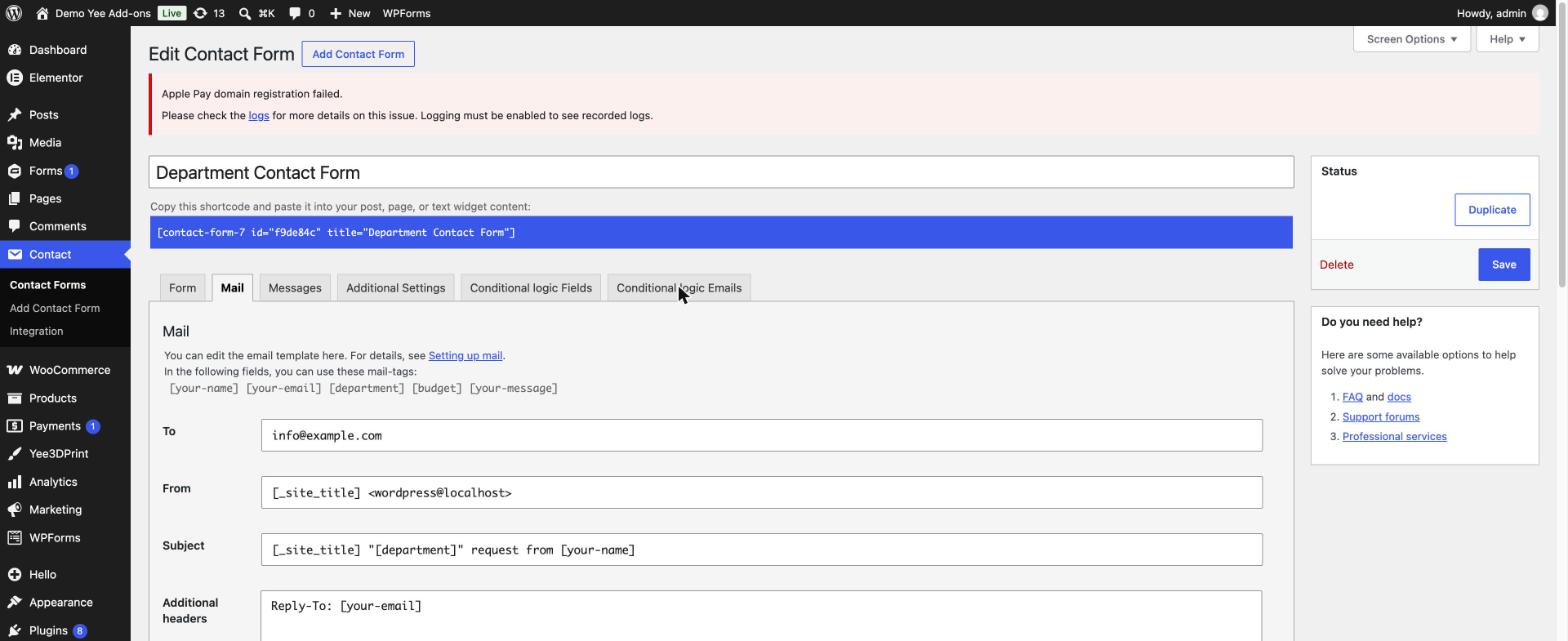
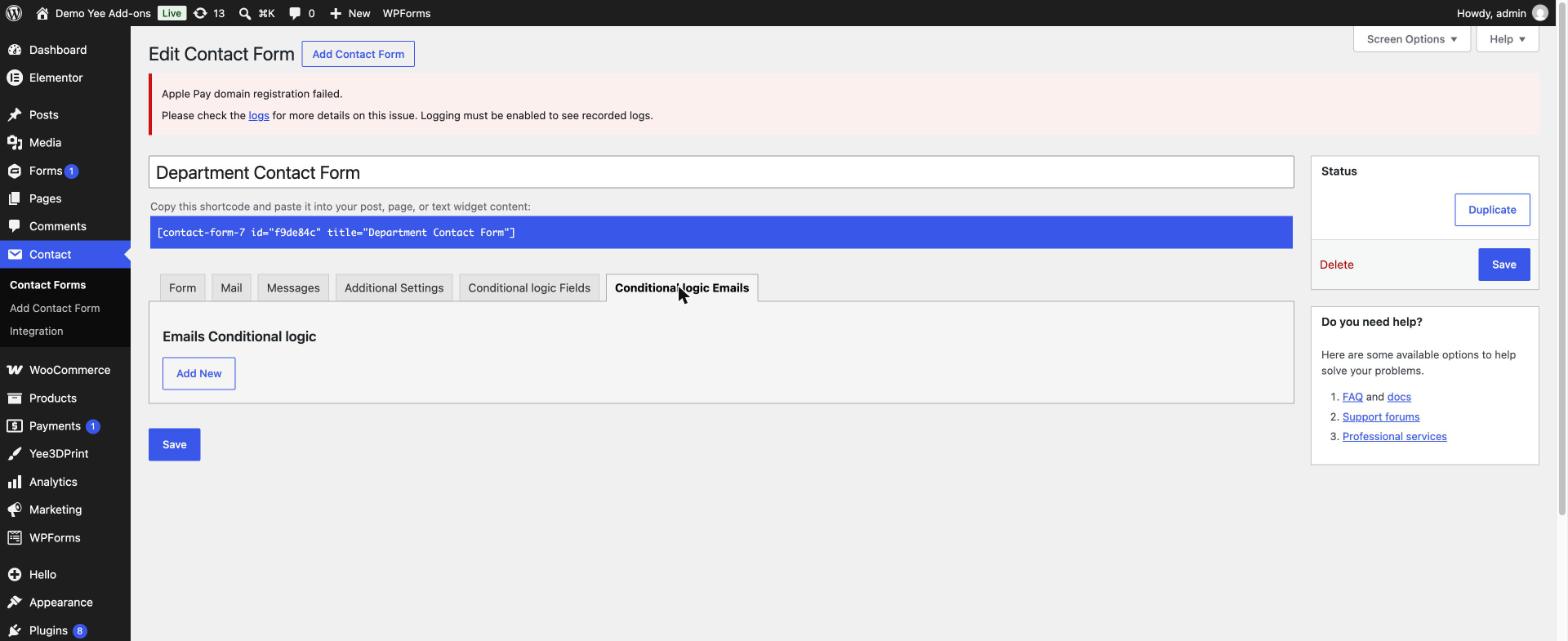
In the form editor, click the Conditional logic Emails tab, next to Additional Settings and Conditional logic Fields. On a new form the panel is empty and shows only an Add New button.
5. Create a Routing Rule (Step-by-Step)
Step 1: Click “Add New”
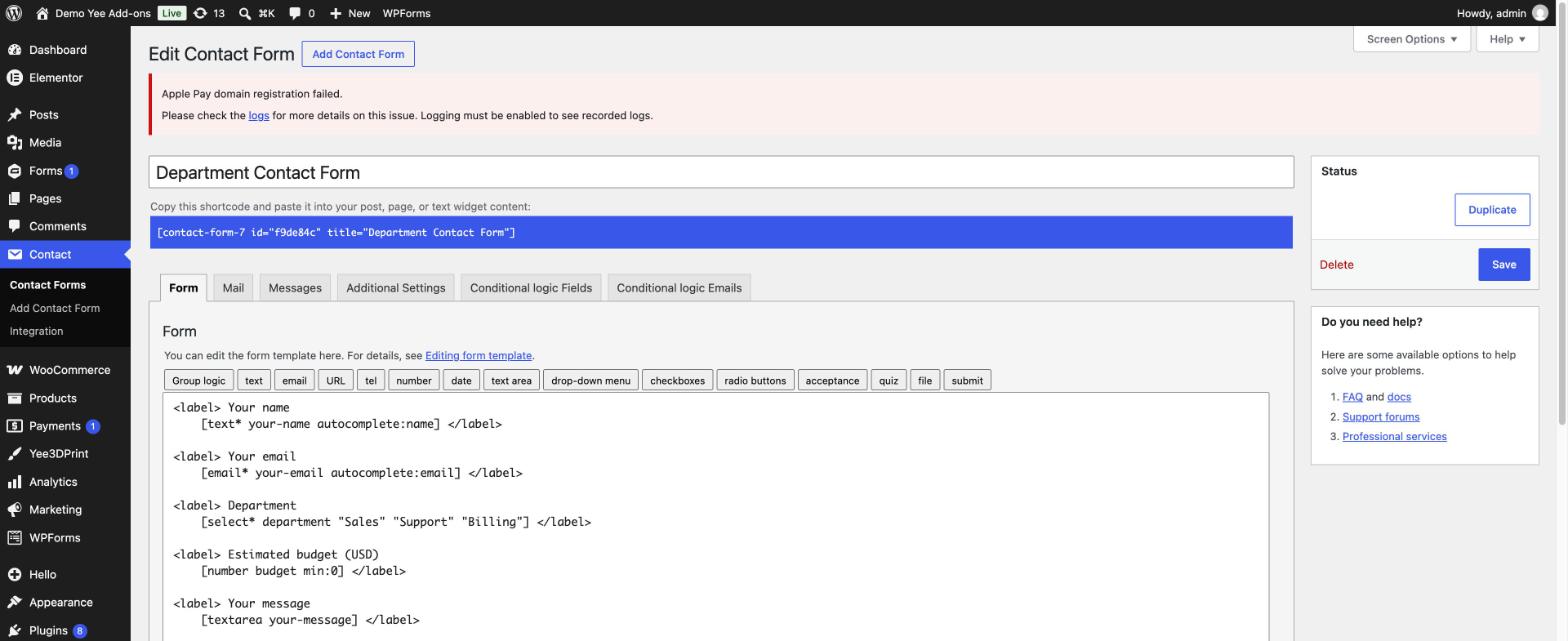
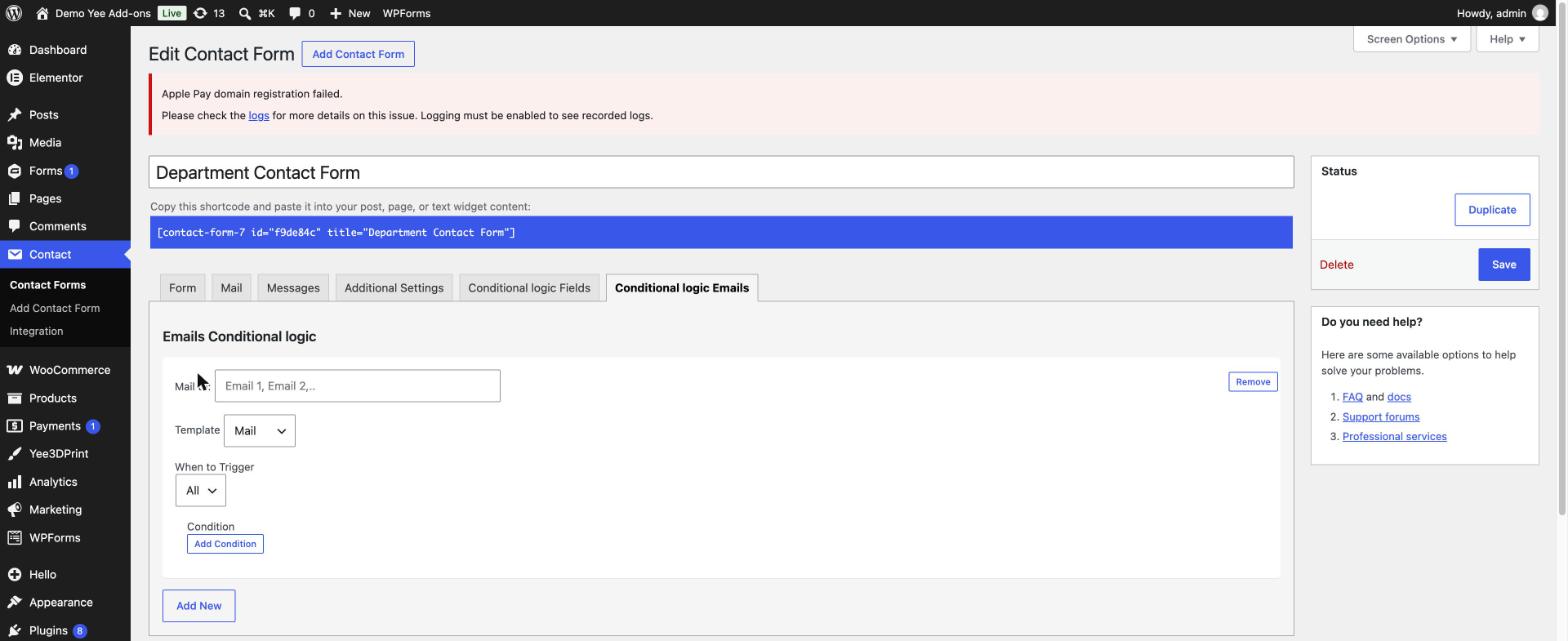
Click Add New. A rule block appears with four settings: Mail to, Template, When to Trigger and Condition. You can add as many rule blocks as you need; each one is evaluated independently on every submission.
Step 2: Enter the recipients in “Mail to”
Type one or more email addresses separated by commas, for example [email protected], [email protected]. You can also use a mail-tag here, such as [your-email] or the value of a drop-down, to build dynamic recipients from the submitted data.
Step 3: Choose the template
- Mail: the conditional copy uses the subject, body and headers of the main Mail tab.
- Mail 2: the copy uses the Mail (2) template. Mail (2) does not need to be enabled with “Use Mail (2)”: the rule activates it on its own, only when the conditions match (see section 7).
- Custom (Pro version): a fully separate subject and body per rule, available in the Pro version.
Step 4: Set “When to Trigger”
- All: every condition in the rule must be true (AND).
- one: it is enough that a single condition is true (OR).
Step 5: Add one or more conditions
Click Add Condition. Each condition is If [field] [operator] [value]: pick the form field by its name, choose an operator (==, !=, >, >=, <, <=) and type the value to compare with. For a drop-down, radio or checkbox field, the value is the option label exactly as written in the form tag (for example Sales). Click the × button to delete a condition, or Remove to delete the whole rule.
Step 6: Save
Click Save. The rules are stored with the form and applied immediately to the next submission.
6. Example: Route Messages by Department and Budget
The example form uses three rules. Together they cover the most common routing needs: a simple equality rule, a second department, and a rule that combines a numeric threshold with OR logic.
Rule 1: Sales requests go to the sales team
Mail to: [email protected] · Template: Mail · When to Trigger: All · Condition: If department == Sales
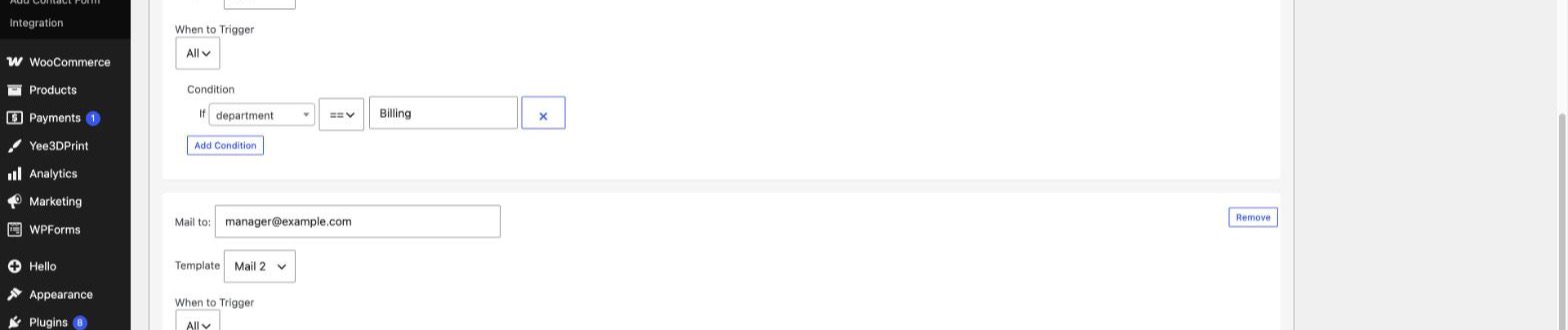
Rule 2: Billing requests go to billing
Mail to: [email protected] · Template: Mail · When to Trigger: All · Condition: If department == Billing
Rule 3: Alert a manager for large budgets or billing issues
Mail to: [email protected] · Template: Mail 2 · When to Trigger: one · Conditions: If budget >= 5000, If department == Billing
Because the trigger mode is one, the manager alert is sent when either condition is true: a budget of 5000 or more, or any billing request.
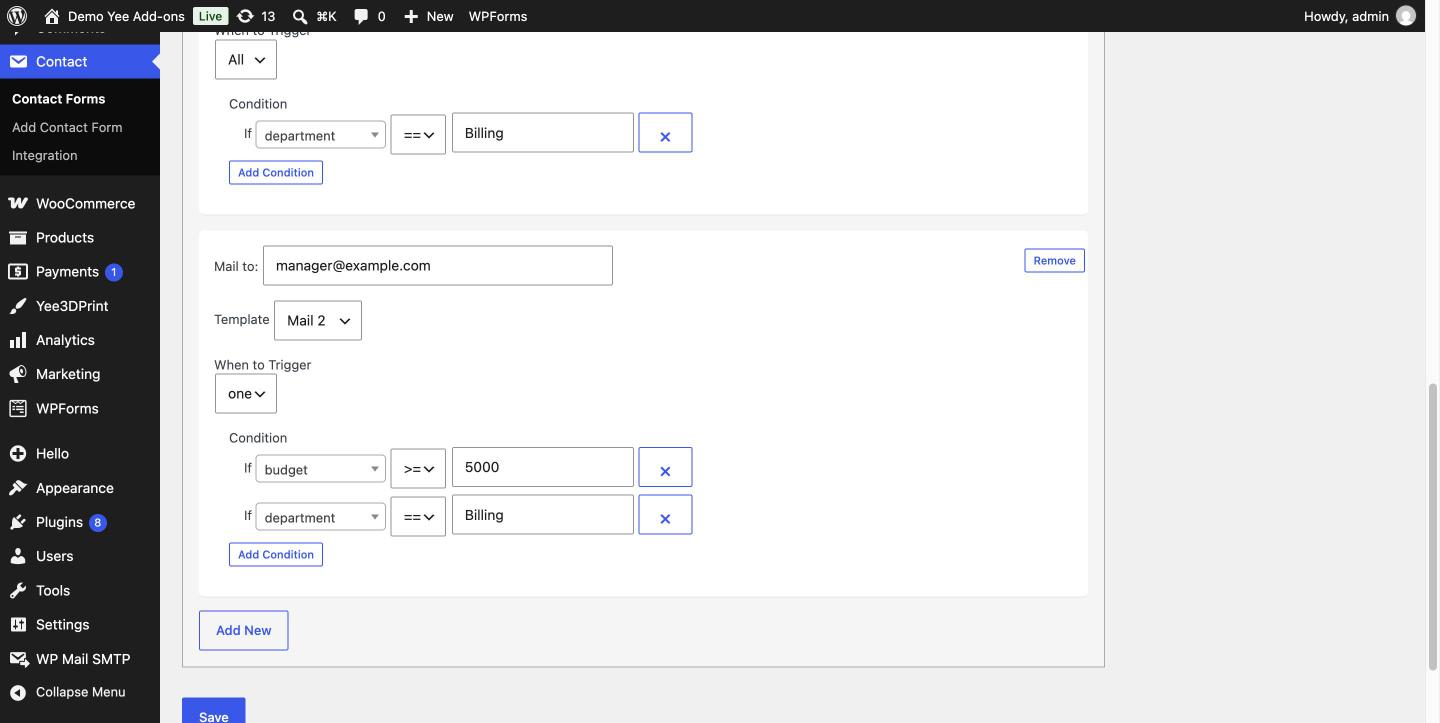 Rule 3: OR logic (“one”) with a numeric comparison and the Mail 2 template.
7. Use Mail (2) as a Dedicated Template
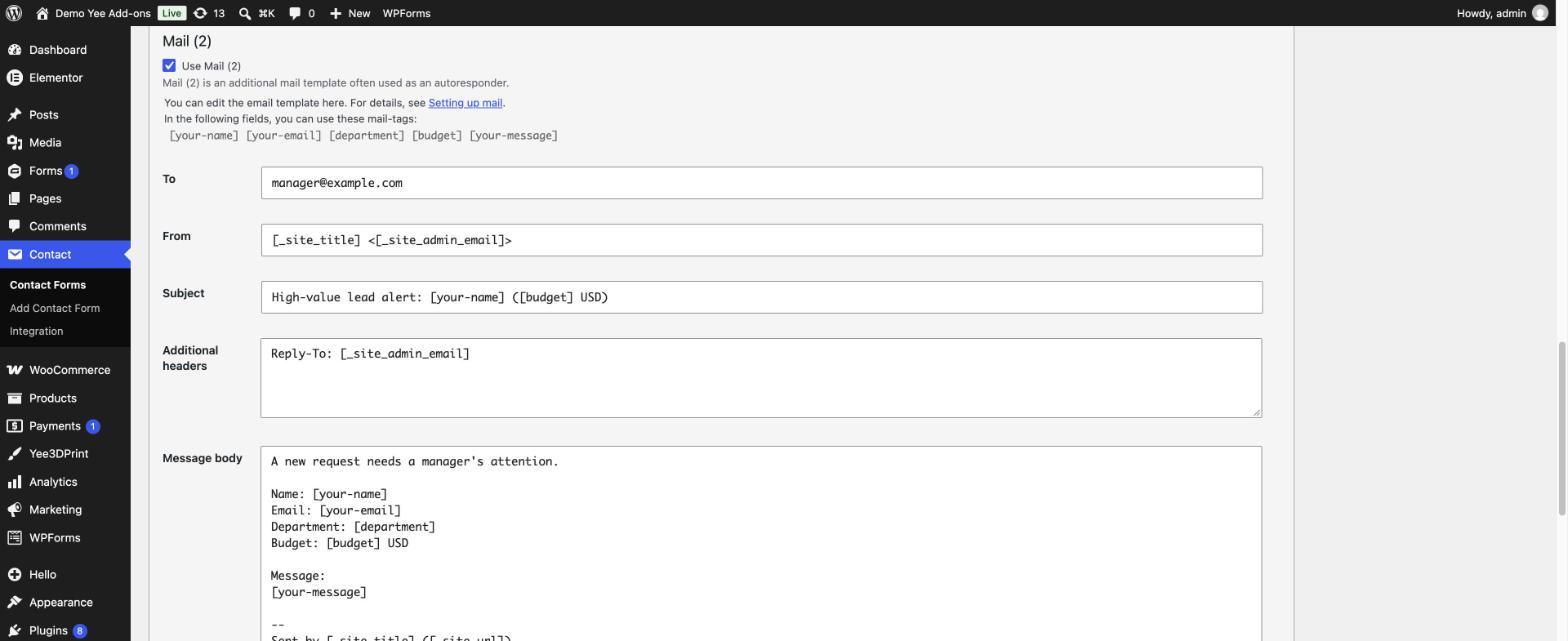
When the conditional recipient needs a different subject or body than the main notification, write that content in the Mail (2) section of the Mail tab and select the Mail 2 template in the rule. In the example, Mail (2) is a short “High-value lead alert” for the manager. Leave Use Mail (2) unchecked if you only want it sent through the rule; the plugin enables it on the fly when the conditions match. If you check it, Contact Form 7 will additionally send Mail (2) on every submission to its own To address, which is the normal auto-responder behaviour.
8. Test the Routing
Add the form to a page with its shortcode, for example Error: Contact form not found.
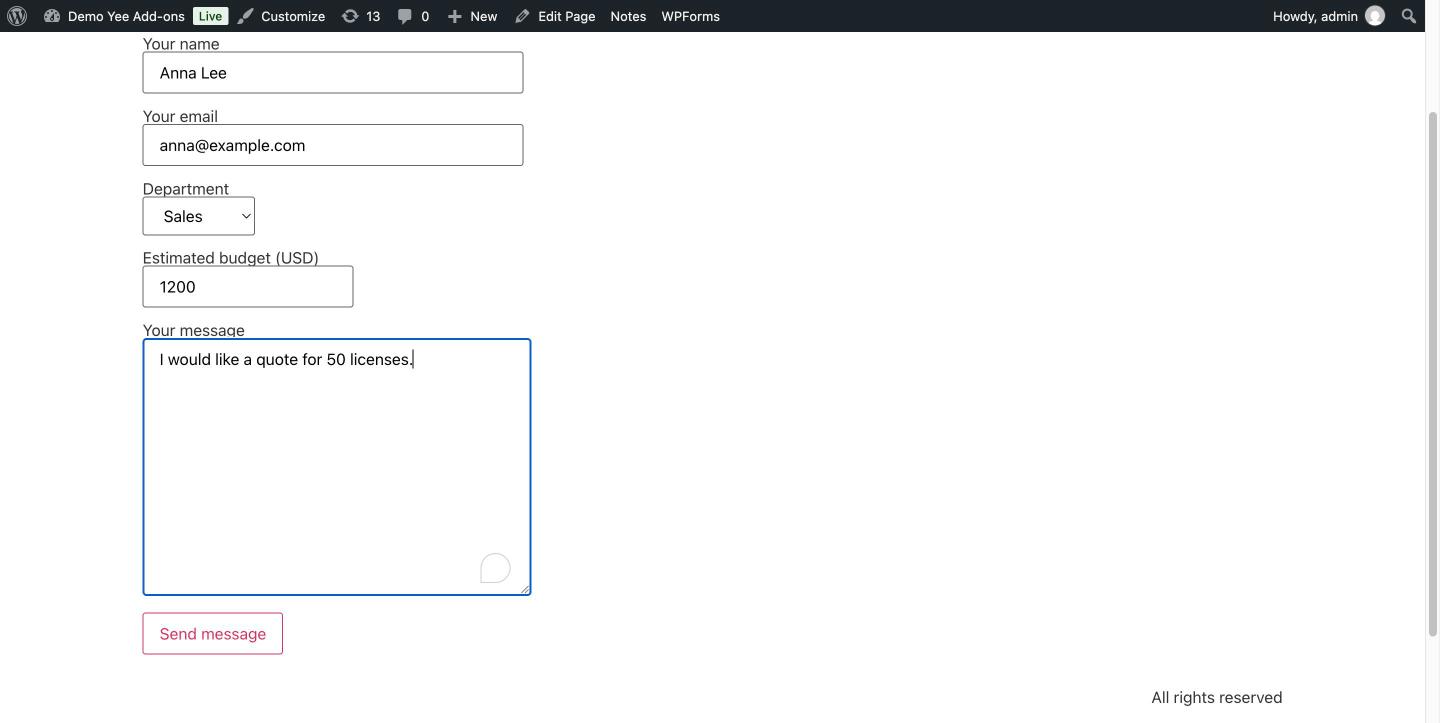
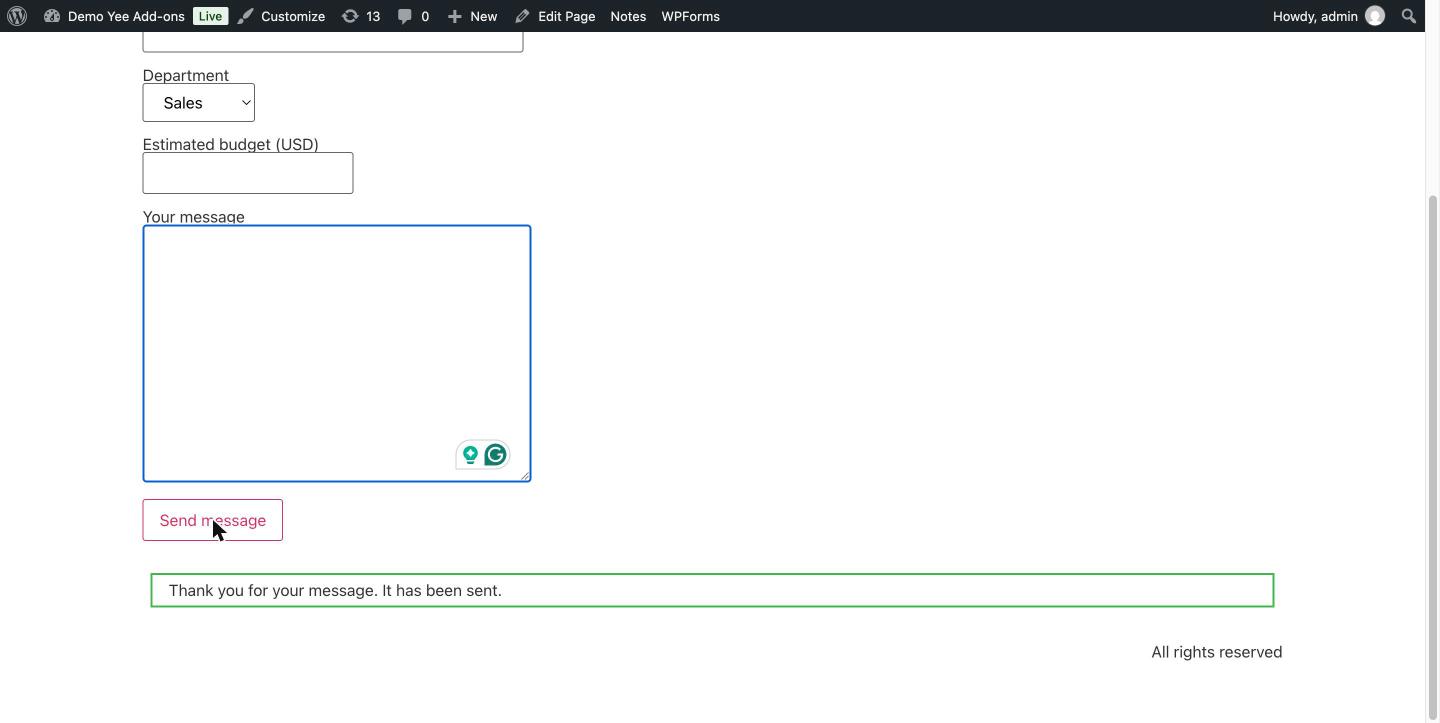
These are the emails produced by three test submissions on the example form (captured with a local mail logger):
| Submission | Emails sent |
|---|---|
| Anna, Sales, budget 1200 | Mail → [email protected] (main) Mail → [email protected] (Rule 1) |
| Ben, Billing, budget 8000 | Mail → [email protected] (main) Mail (2) “High-value lead alert” → [email protected] (Rule 3) |
| Chloe, Support, budget 300 | Mail → [email protected] (main) only; no rule matched |
Note the second row: Ben’s submission matches both Rule 2 (Billing) and Rule 3 (budget ≥ 5000 or Billing), but only one conditional email was sent. See the limitation in section 10 and the FAQ.
9. Conditions Reference
| Operator | Meaning | Typical use |
|---|---|---|
| == | Field value equals the given value | Drop-downs, radios, exact text |
| != | Field value is different from the given value | “Any department except Support” |
| > | Field value is greater than the value | Numbers, quantities |
| >= | Greater than or equal | Budget thresholds |
| < | Less than | Small orders |
| <= | Less than or equal | Caps and limits |
- Field names come from the form tags, for example
departmentin[select* department ...]. Group tags are not listed. - Checkboxes and multi-selects submit several values; the plugin joins them with a comma and a space before comparing, so
==matches only when the full joined string is equal. Use!=with an empty value to detect “something was selected”. - Numeric operators compare the submitted text as PHP does: use them with number, range or numeric text fields.
- A field that is hidden by Conditional logic Fields is not submitted, so a condition on it behaves as if the field were empty.
- All comparisons happen server-side after validation, so they cannot be bypassed from the browser.
10. Tips & Current Limitations
- Several recipients, one rule: to notify several people for the same case, list them all in Mail to separated by commas instead of creating several rules.
- One conditional email per submission: in the current version, when more than one rule matches the same submission, only the last matching rule (lowest on the page) is sent. Keep the conditions of different rules mutually exclusive, or merge overlapping cases into a single rule.
- Dynamic recipients: a mail-tag in Mail to (for example
[your-email]) is replaced with the submitted value. Combine it with a condition such asIf newsletter == Yesto build a conditional auto-responder. - Deliverability: conditional copies are sent through
wp_mail()like every Contact Form 7 message, so an SMTP plugin applies to them too. If the main Mail arrives but the conditional copy does not, check the spam folder of the conditional recipient first. - Testing: use a mail-logging plugin while you build the rules, so you can see exactly which addresses received which template.
11. Developer Reference
| Hook / Item | Type | Description |
|---|---|---|
wpcf7_additional_mail | Core filter | The plugin registers its conditional copy on this Contact Form 7 filter (key yeekit_3), so other plugins hooking it keep working. |
yeekit_cf7_locgic_email_action | Filter | Called for the Custom template type. Receives $additional_mail, the recipient list, the rule data and the WPCF7_ContactForm. Return the modified array to send your own template. |
yeeaddons_cf7_logic_email_template_options | Filter | Add or change the entries of the Template drop-down in the rule editor. |
yeeaddons_cf7_logic_email_template_custom / …_custom_data | Action | Output extra fields inside a rule block (new rule / saved rule). |
cf7_logic_email | Post meta | Array of rules saved on the form post: email, template, when and condition[] (name, equals, value). |
12. Frequently Asked Questions (FAQ)
Does a rule replace the main notification?
No. The Mail tab notification is always sent to its own To address. A rule sends an extra copy of Mail or Mail (2) to the rule’s recipients when the conditions match.
Can I send to several addresses?
Yes. Separate addresses with commas in the Mail to field. All of them receive the same email.
Can the recipient come from the form itself?
Yes. Put a mail-tag such as [your-email] in Mail to; Contact Form 7 replaces it with the submitted value.
What is the difference between “All” and “one”?
“All” requires every condition in the rule to be true (AND). “one” sends the email as soon as any single condition is true (OR).
Two of my rules match the same submission but only one email arrives. Why?
In the current version only one conditional email is sent per submission: the last matching rule wins. Make the rules mutually exclusive, or put all recipients of overlapping cases in one rule.
Do I have to enable “Use Mail (2)” to use the Mail 2 template?
No. A rule with the Mail 2 template activates Mail (2) only when its conditions match. Enable “Use Mail (2)” only if you also want it sent on every submission, for example as an auto-responder.
Can I use a different subject or body per rule?
With the free version, choose between the Mail and Mail (2) templates. The Pro version adds a Custom template with its own subject and body for each rule.
Does it work with checkboxes?
Yes. Selected values are joined with “, ” before the comparison. For a single checkbox compare with its label; for “at least one selected” use != with an empty value.
Does it work with fields hidden by Conditional logic Fields?
A hidden field is not submitted, so its value is treated as empty. Build your email conditions on fields that are visible in that scenario.
The conditional email is not received. What should I check?
Verify the field name and the exact option value in the condition, confirm the rule was saved, test with a mail logger, then check the recipient’s spam folder and your SMTP configuration. The conditional copy uses the same sending path as the main Mail.