
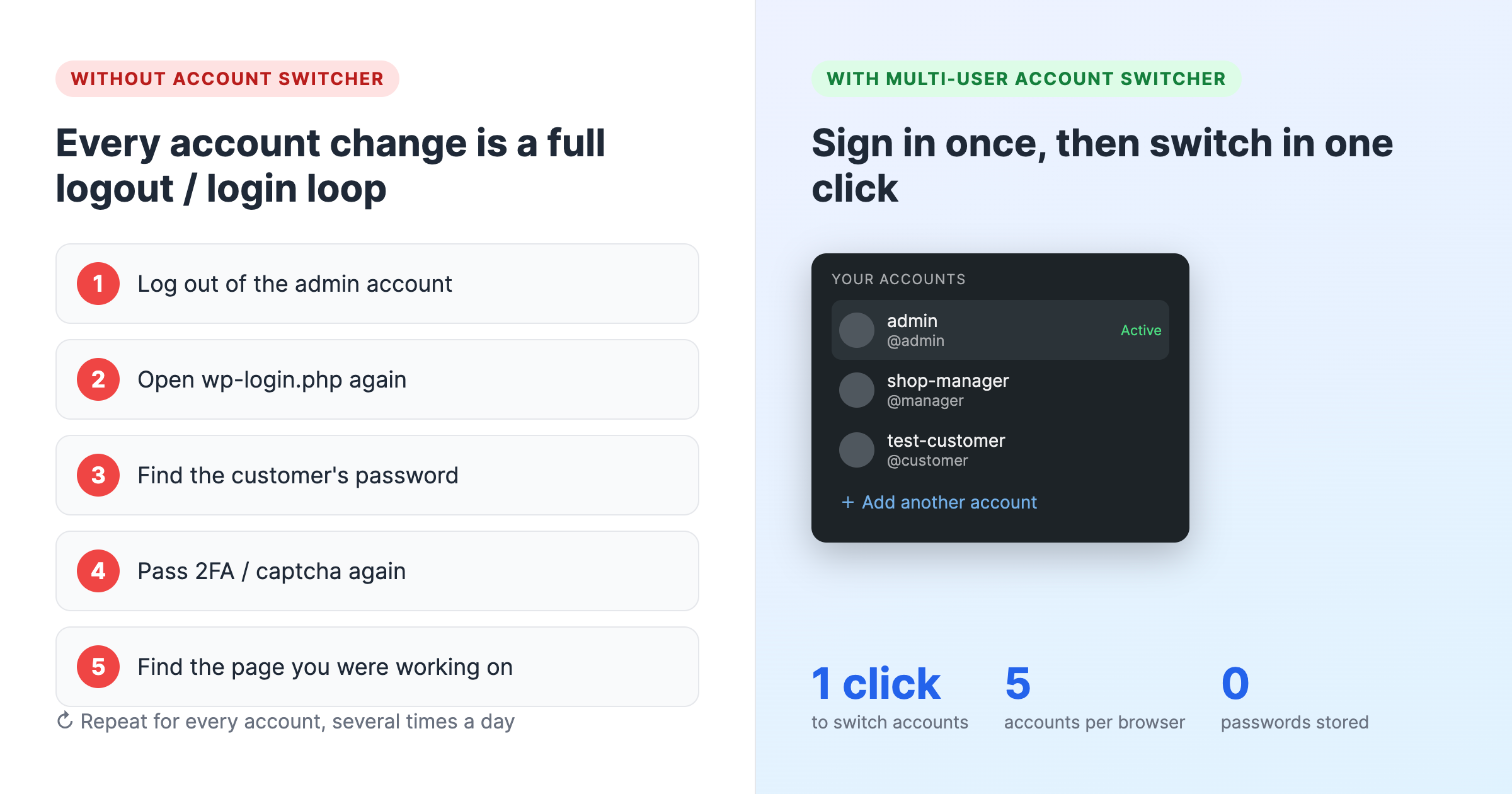
If you run a WooCommerce store, manage client sites, answer support tickets or test role-based features, you probably log in and out of WordPress several times a day. A WordPress account switcher removes that loop: you sign in to each account once, then switch between them in a single click from the toolbar. This article explains why the feature matters, who benefits most, how it stays secure, and answers the questions WordPress users ask most often about switching accounts.
The problem: WordPress only knows one logged-in user per browser
WordPress core was designed around a single session per browser. When you need to act as another user, the only built-in option is to log out, open the login form again, enter the other username and password, pass two-factor authentication or a captcha if your site uses them, and finally navigate back to the page you were working on. Do that for a customer account, a shop-manager account and your own administrator account, several times a day, and the lost minutes add up quickly.
The usual workarounds are not much better. Private windows lose their session when closed. Separate browser profiles work but are clumsy on a laptop and impossible to keep in sync. Password managers speed up the typing but still force the full logout and login cycle. None of them solve the real issue: WordPress needs a way to keep several authenticated sessions side by side and let you choose which one is active.
Who needs a WordPress account switcher?
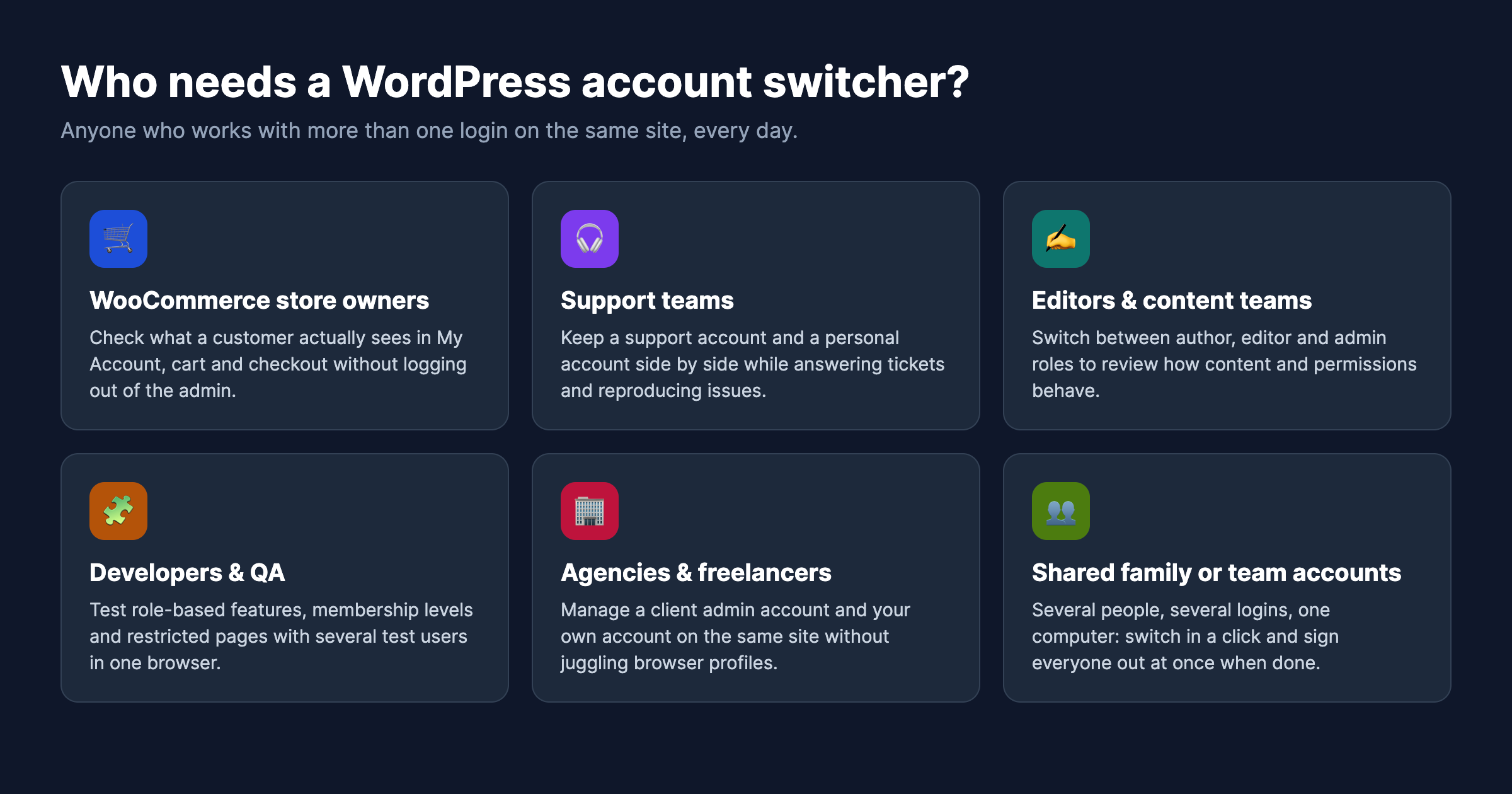
- WooCommerce store owners who want to see exactly what a customer sees in My Account, the cart and checkout, then jump back to the admin to fix a setting.
- Support and customer-service teams who keep a shared support account next to their personal account while reproducing a customer problem.
- Editors and content teams who review how a post, a menu or a restricted page looks for an author, a subscriber and an administrator.
- Developers and QA testers who verify membership levels, role capabilities, conditional content and checkout rules with several test users in one browser.
- Agencies and freelancers who manage a client administrator account and their own account on the same site without juggling browser profiles.
- Families and small teams that share one computer and several logins, and want to sign everyone out at once when they are done.
What you gain with Multi-User Account Switcher
1. Switch accounts in one click, right from the toolbar
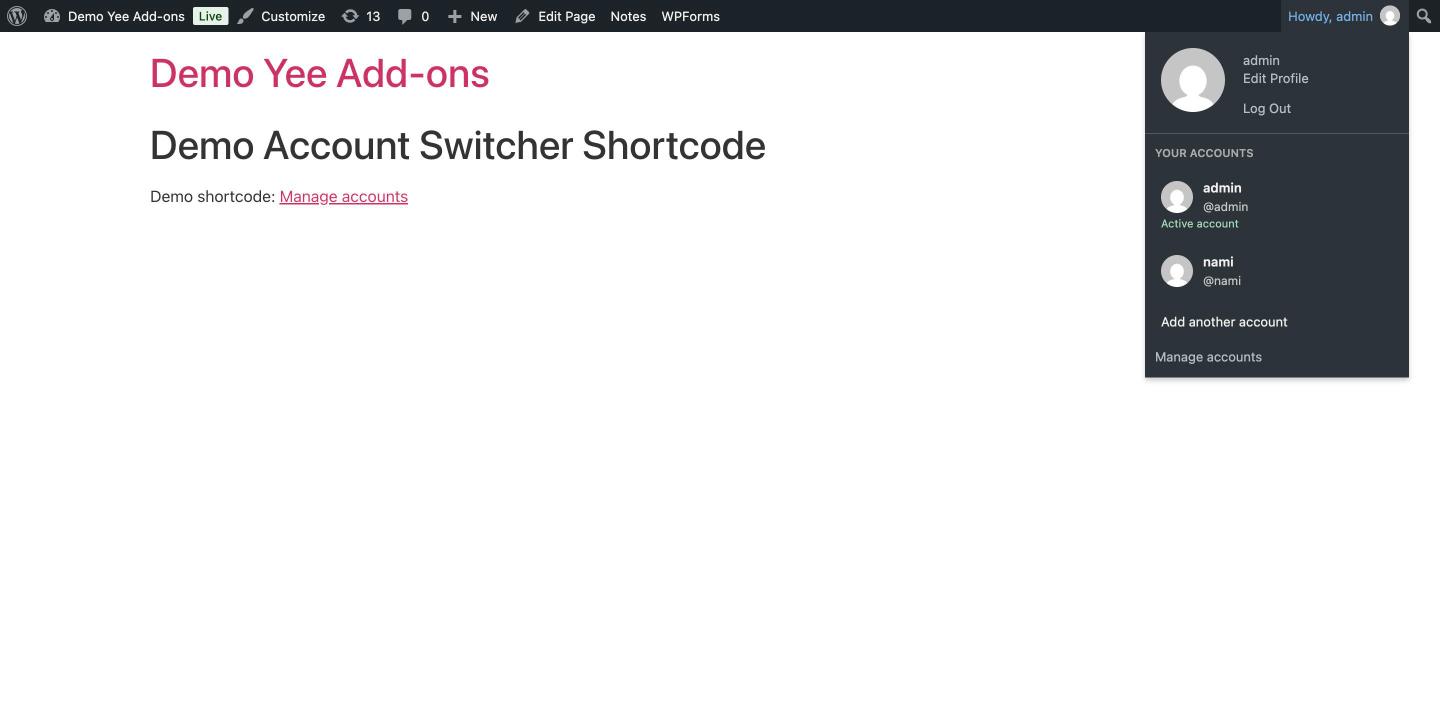
After you add an account, it appears under a Your accounts section in the WordPress toolbar menu, with its avatar, display name and username. The active account is clearly marked. Clicking any other account switches to it immediately and returns you to the same page, path and query string you were on, so you never lose your place.
2. Real authentication, not impersonation
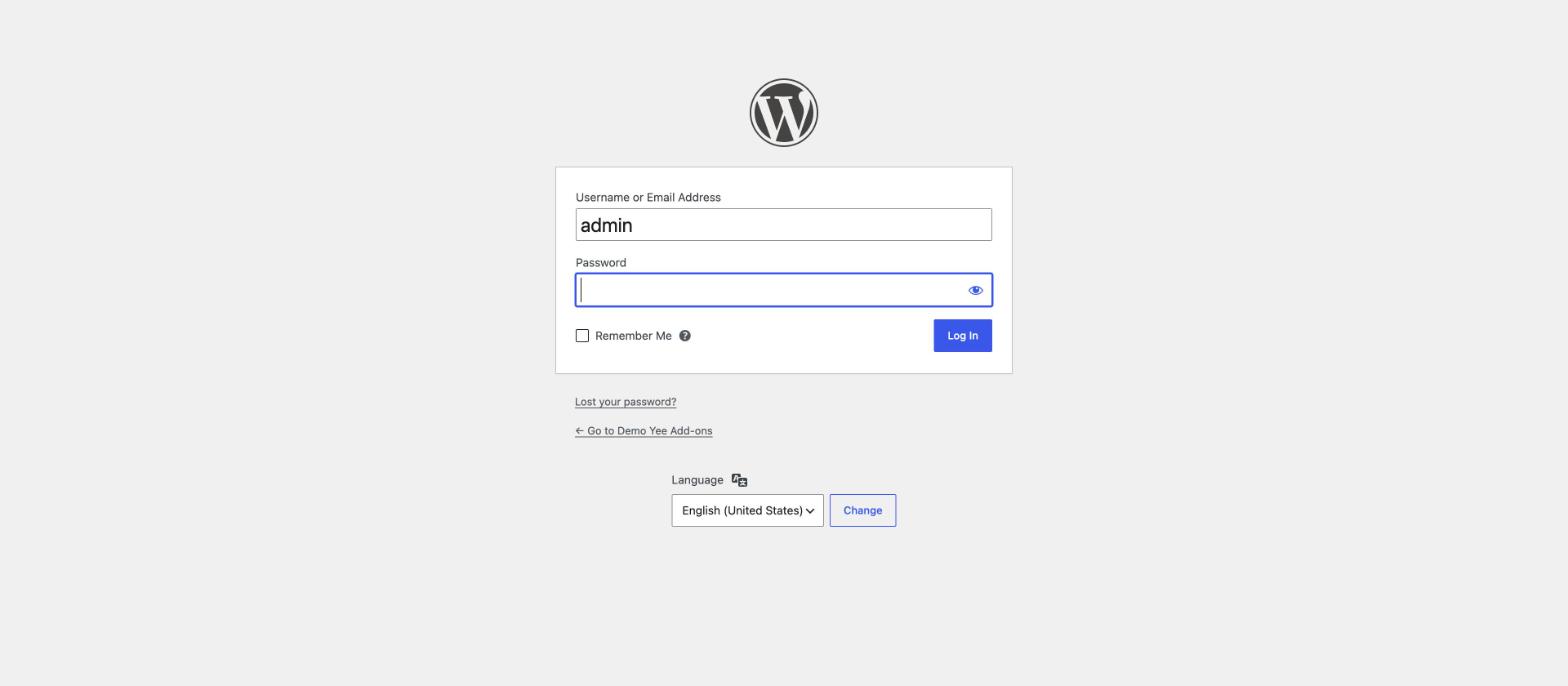
Unlike “user switching” tools built for administrators, every account you add must complete the normal WordPress login form, including two-factor authentication or captcha if you use them. You cannot switch to an account that has never logged in on your browser, and knowing a username or an email address is not enough. That makes the feature safe to offer to customers and non-admin staff, not just to site owners.
3. A clear account manager page
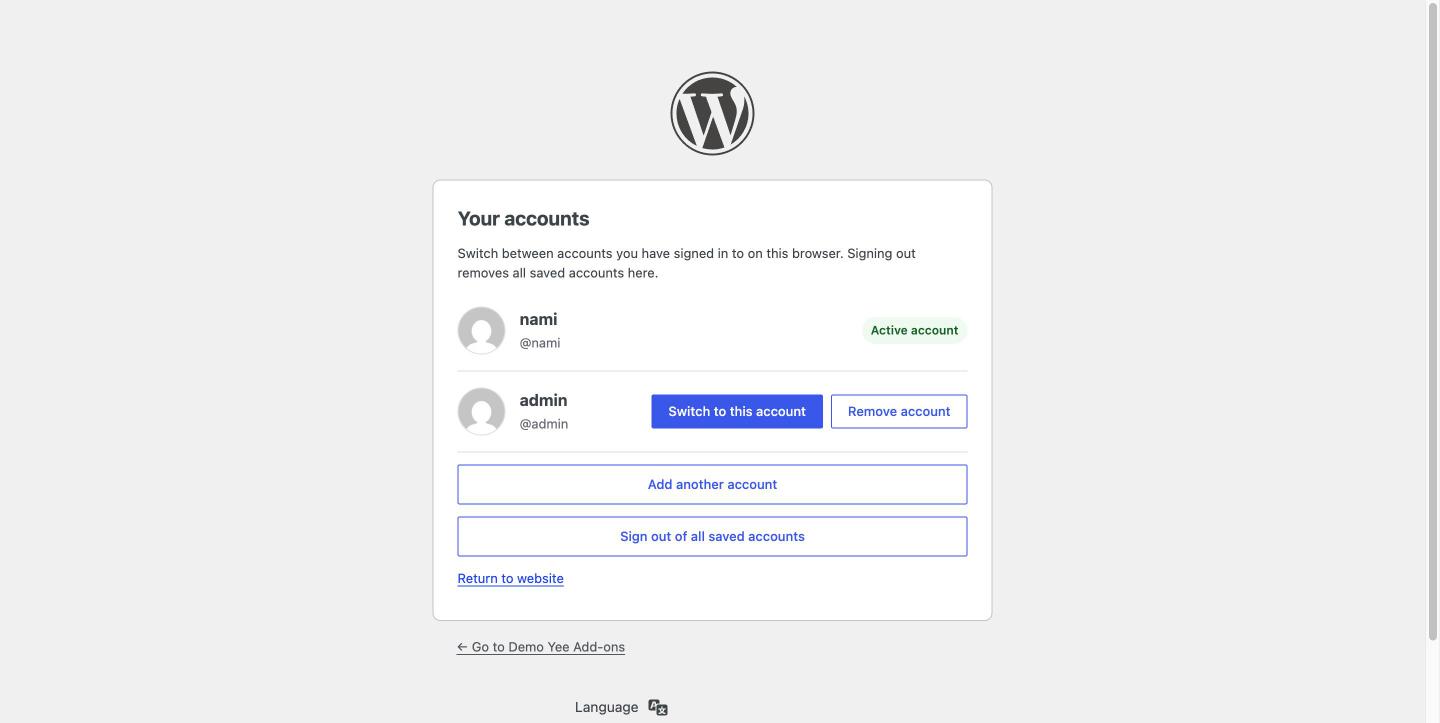
A dedicated Your accounts page lists every saved account with Switch and Remove actions, an Add another account button and a Sign out of all saved accounts button. It is reachable from the toolbar, from the WooCommerce My Account dashboard, or through the [account_dock] shortcode on any page.
4. Security built in
- No passwords are stored. The plugin keeps WordPress-signed session credentials in HttpOnly, SameSite=Lax cookies, marked Secure on HTTPS.
- Every switch verifies the cookie signature, the user ID, the expiration time and the server-side WordPress session token.
- All actions are POST requests protected by WordPress nonces.
- Removing an account or signing out revokes its session on the server, and WordPress password resets invalidate saved accounts automatically.
- Up to five accounts per browser keeps the list short and reviewable.
5. Works with WooCommerce out of the box
When WooCommerce is active, a Manage accounts link is added to the My Account dashboard. Store managers can check a customer view and return to the admin in seconds, and customers with more than one account on your store can switch without logging out.
Frequently asked questions about switching accounts in WordPress
Can WordPress switch between users without logging out?
Not by default. WordPress core keeps one logged-in user per browser. An account switcher plugin such as Multi-User Account Switcher keeps several authenticated sessions side by side and lets you choose which one is active with one click.
Is an account switcher the same as a “user switching” plugin?
No. User-switching plugins let an administrator impersonate any user without that user’s password. An account switcher only works with accounts that have really logged in on the current browser, so it can be used safely by customers, editors and support staff, not only by administrators.
Can I switch to any user if I know their username or email?
No. An account only appears in the list after it has successfully authenticated on your browser through the normal WordPress login form. Knowing a username, email or user ID is not enough.
Does the plugin store my passwords?
No. Passwords are handled by the standard WordPress login flow. The plugin stores WordPress-signed session credentials in HttpOnly cookies, the same kind of protection WordPress uses for its own login cookie.
Does switching ask for two-factor authentication again?
No. Switching reuses a session that already completed authentication, including 2FA. Each new account you add still has to pass 2FA when it logs in the first time.
How many accounts can I save?
Up to five accounts per browser. When the limit is reached, remove an account to add another one.
What does Remember Me do when adding an account?
With Remember Me, the saved account stays available after you close the browser, until its WordPress session expires (14 days by default) or is revoked. Without it, the saved account uses a browser-session cookie.
Can two accounts be active at the same time in different tabs?
No. Only one account is active per browser at a time. After switching, reload your other open tabs. If you need two accounts active simultaneously, use separate browser profiles.
Is it safe on a shared computer?
Anyone who can use the same unlocked browser can switch to any saved account while the sessions are valid. Do not save administrator accounts on shared devices, use HTTPS, and click Sign out of all saved accounts when you are done.
Does it merge WooCommerce carts or orders between accounts?
No. The plugin only changes the active WordPress identity. Carts, orders, addresses and subscriptions stay with their own account.
Does it work with WordPress multisite?
Saved account lists are scoped to the current site URL and blog ID, and only members of the current site are accepted. Network-wide lists are not supported.
What happens if a user changes their password?
WordPress invalidates that user’s sessions. The saved account becomes invalid and is removed automatically the next time the account list is checked, so it has to log in again.
What happens when I deactivate the plugin?
Nothing is left behind except normal user meta. No custom tables or options are created. Sign out of saved accounts before deactivating when possible; any remaining cookies expire with their normal session lifetime.
Conclusion
A WordPress account switcher is a small change to your workflow with a big daily payoff: no more logout and login loops, no more lost pages, and no more browser-profile juggling. Because Multi-User Account Switcher relies on real authentication and WordPress-signed sessions, you get that convenience without weakening the security of your site.
Ready to try it? Read the step-by-step Multi-User Account Switcher documentation to install the plugin, add your first extra account and start switching in one click.