Conditional logic allows you to show or hide form fields, sections, or entire form sections based on certain conditions or user input. It enables you to create dynamic and interactive forms that adapt to the user’s selections or responses.
This makes forms cleaner, more interactive, and user-friendly, and helps you capture relevant information efficiently.
Table of contents:
1. Installation and settings plugin
Before we start, make sure you have plugin installed and activated: Conditional Logic Fields and Emails for Contact Form 7
2. Conditional Logic Fields
- Create a form
- Just wrap the content with [group group-name] … [/group] tags on each field.
- Go to Conditional Logic Fields and add the condition
2.1 Show Field Based on Selection
Showing a field only when the user selects a specific option.
For example, we want to show the “Other Profession” field only when the user selects “Other” from the profession list.
Step 1: Create a form
Step 2: Wrap each field with [group] … [/group] using the Group Logic tab. This is required for conditional logic to work.
[group group-profession]
<label> What is your Profession?
    [radio radio-881 use_label_element "Graphic Designer" "Marketer" "Other"]
</label>
[/group]

[group group-otherpro]
<label> Other Profession:
    [text text-31]
</label>
[/group]
Step 3: Add Conditional Logic
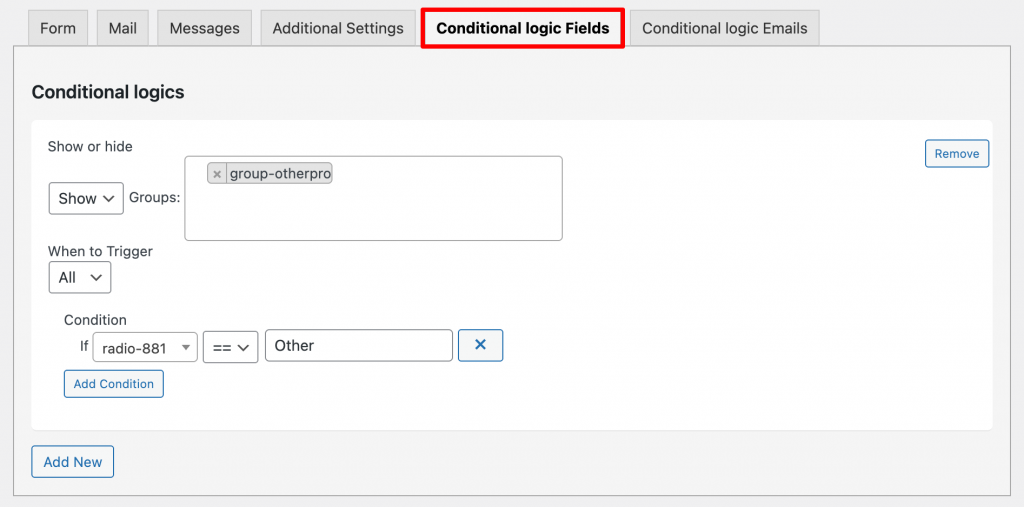
In the Conditional Logic Fields section, set the rule: → Show group-otherpro If radio-881 = Other
Step 4: Save and have a preview
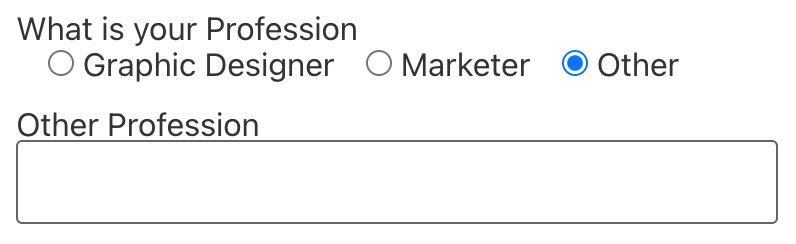
Selecting Graphic Designer or Marketer → “Other Profession” field stays hidden
Selecting Other → field appears dynamically

2.2 AND Condition (Two Conditions Must Be True)
Show a field only when two conditions are both true.
For example: Show Vehicle Registration Number only if:
- User is over 18
- User has a valid driver’s license
Step 1: Create a form
Step 2: Use Group Logic tab to wrap each field
[group group-year]
<label> Are you over 18 years old?
    [select select-475 "Yes" "No"] </label>
[/group]

[group group-license]
<label> Do you have a valid driver’s license?
    [select select-497 "Yes" "No"] </label>
[/group]

[group group-number]
<label> Please enter your vehicle registration number:
[text text-718] </label>
[/group]

[submit “Submit"]
Step 3: Add Conditional Logic
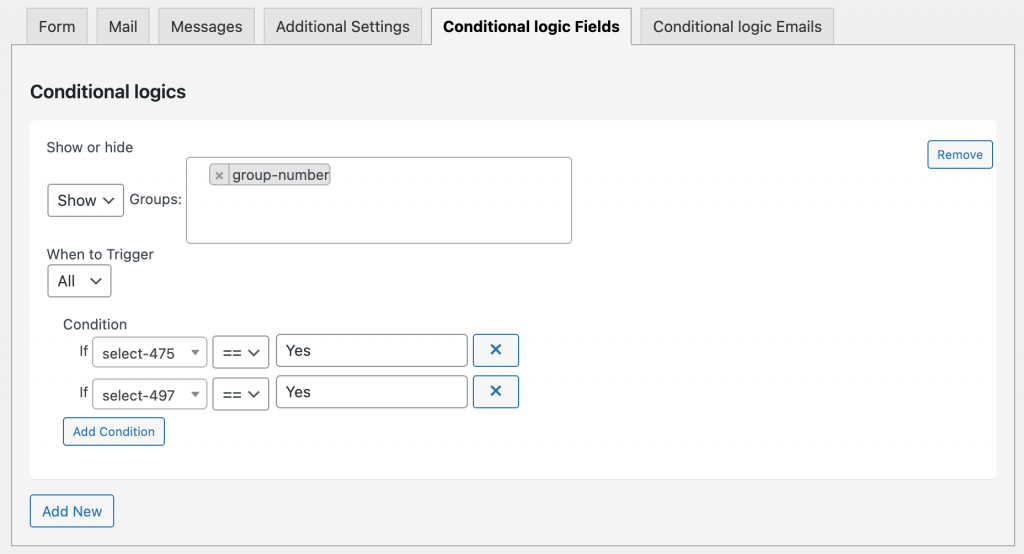
In the Conditional Logic Fields section, set the rule: → Show group-number If select-475 = Yes AND select-497 = Yes
Step 4: Test the form
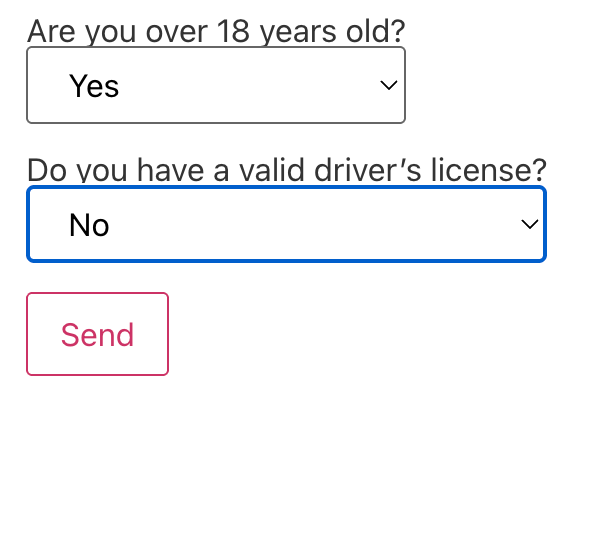
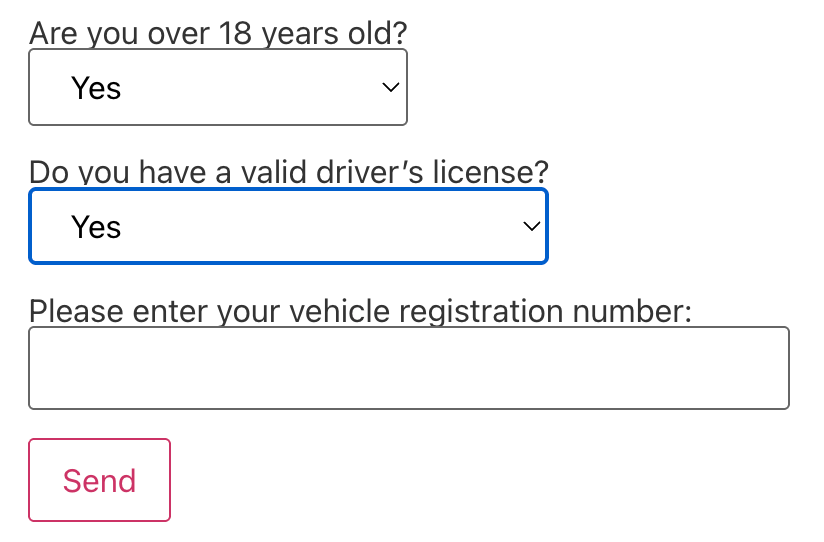
Only when both answers are “Yes”, the Vehicle Registration field appear;
If either is “No”, the field remains hidden.
2.3 Show Entire Section
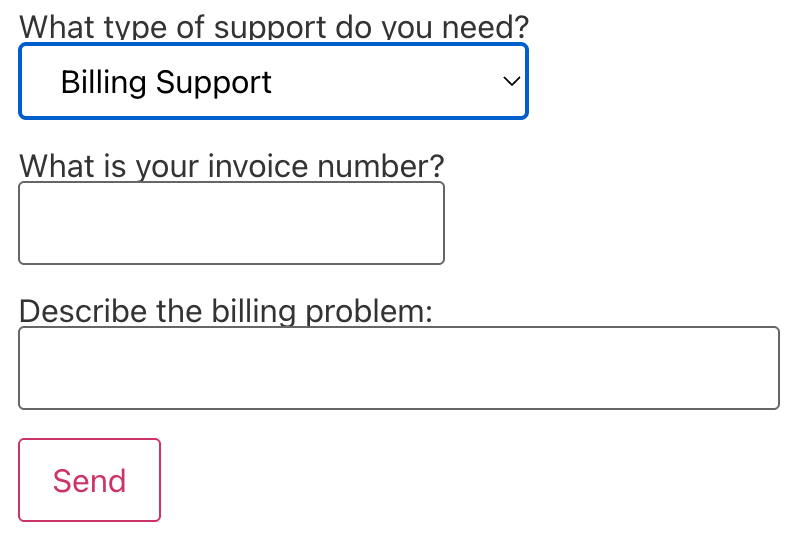
Display a full section of fields based on user selection
For example:
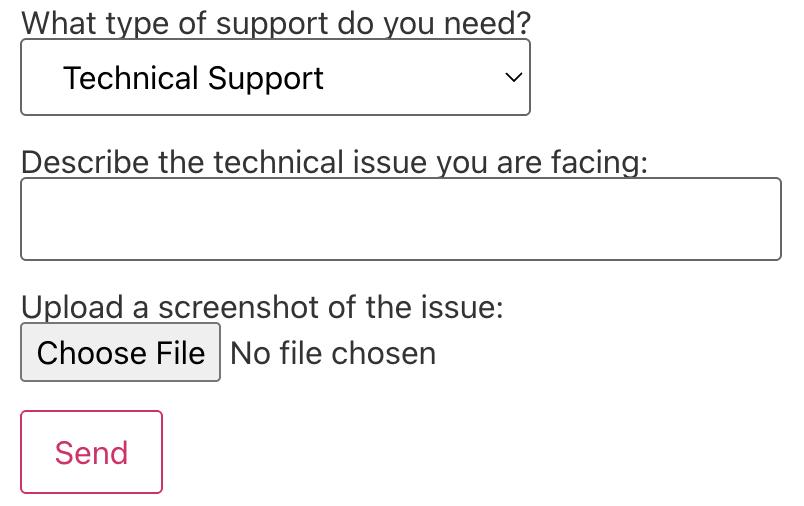
Selecting Technical Support → only technical fields appear
Selecting Billing Support → only billing fields appear
Step 1: Create a form
Step 2: Use Group Logic tab to wrap each field
[group group-type]
<label> What type of support do you need?
   [select select-736 "Technical Support" "Billing Support"] </label>
[/group]

[group group-issue]
<label> Describe the technical issue you are facing:
    [text text-31] </label>
[/group]

[group group-file]
<label> Upload a screenshot of the issue:
    [file file-67 filetypes:audio/*|video/*|image/* limit:1mb] </label>
[/group]

[group group-invoice]
<label> What is your invoice number?
    [number number-391] </label>
[/group]

[group group-problem]
<label> Describe the billing problem:
[text text-718] </label>
[/group]

[submit “Submit"]
Step 3: Add Conditional Logic
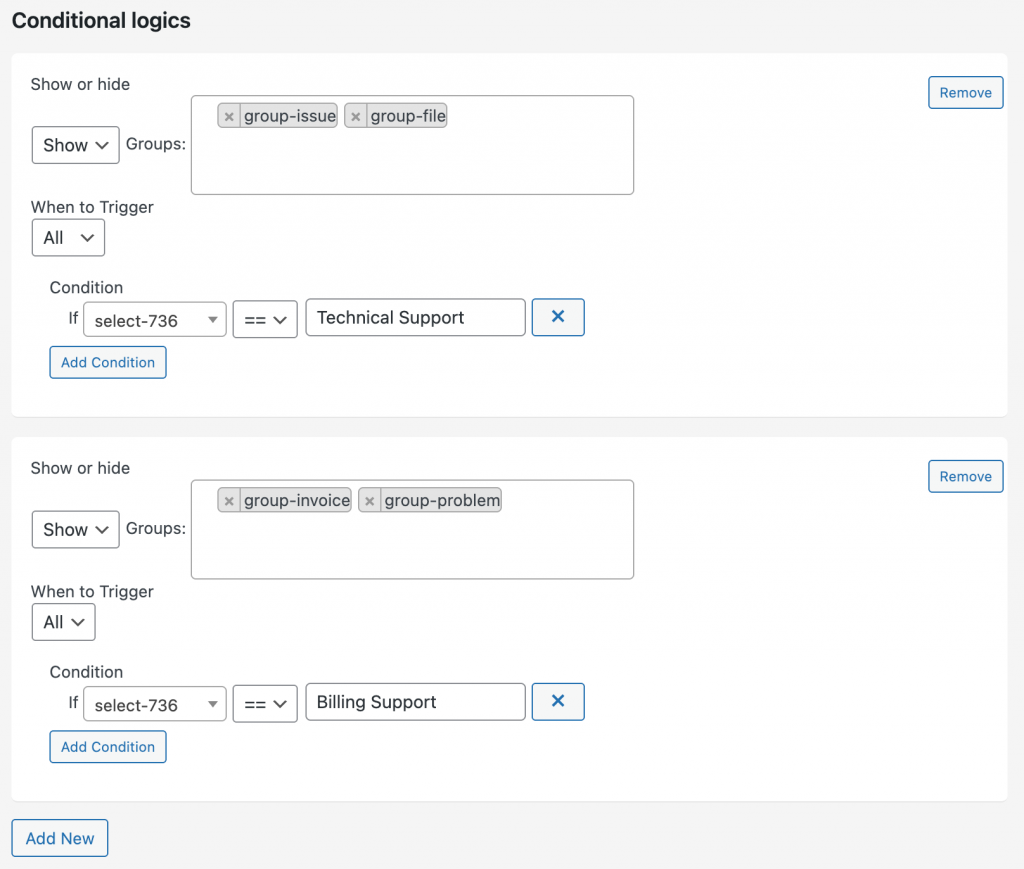
Technical Support Section
• If select-736 = Technical Support
• → Show group-issue and group-file
Billing Support Section
• If select-736 = Billing Support
• → Show group-invoice and group-problem
Step 4: Test the form
3. Conditional Logic Emails
Conditional Email Logic allows you to automatically send emails to different recipients or send emails only when specific conditions are met.
This helps you automate workflows, organize support requests, and control when emails should (or should not) be sent—without writing any code.
Conditional Email Logic lets you:
✔ Route emails
Send the email to different recipients based on user choices.
Example:
• Technical Support → technical team
• Billing Support → billing team
✔ Send emails only when conditions are met
Example:
• User chooses “Yes” AND enters an email → send confirmation
• Otherwise → no email is sent
This gives you full control over when and where emails are delivered.
3.1 Email Routing Conditional Logic
Email Routing means sending emails to different departments or inboxes depending on the user’s selection.
For example, I’m reusing the form we built previously — where the user chooses between:
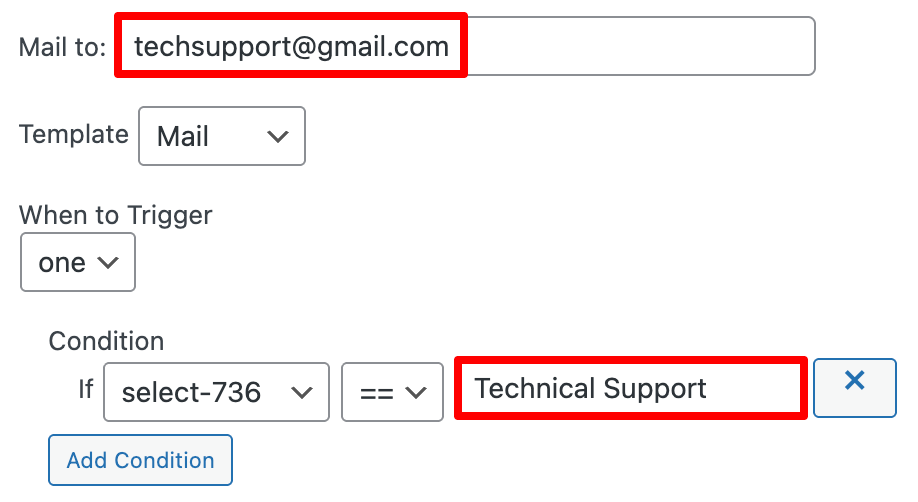
- Technical Support -> send email to technical team
- Billing Support -> send email to billing team
Route 1: Technical Support
Route 2: Billing Support
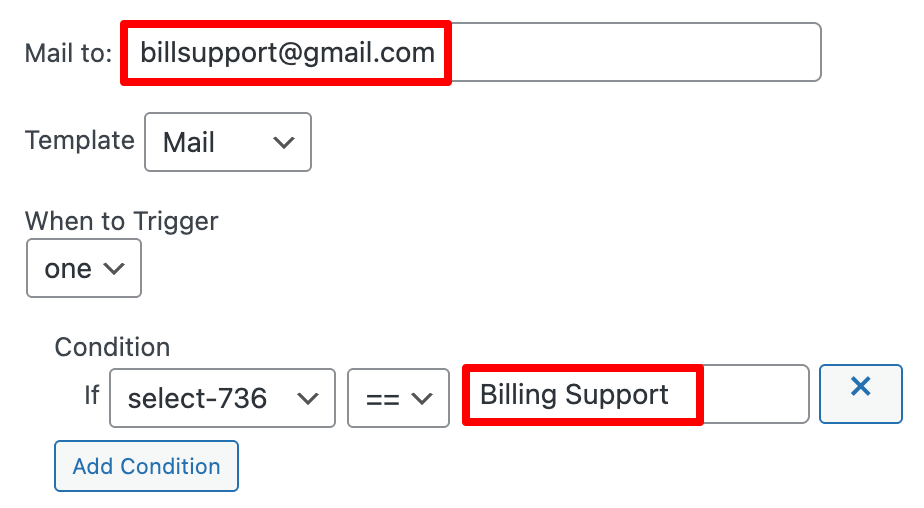
Template: You can choose Mail, Mail 2 or custom template
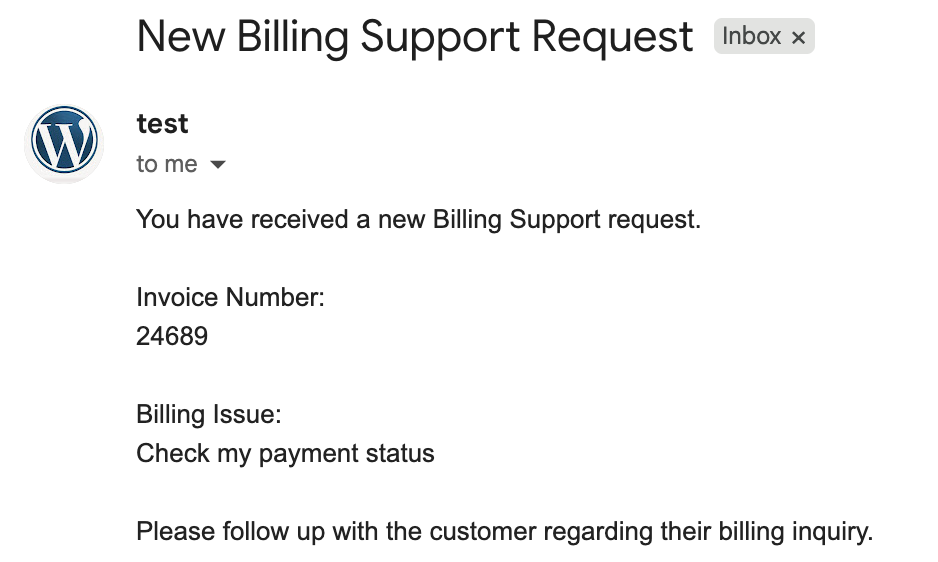
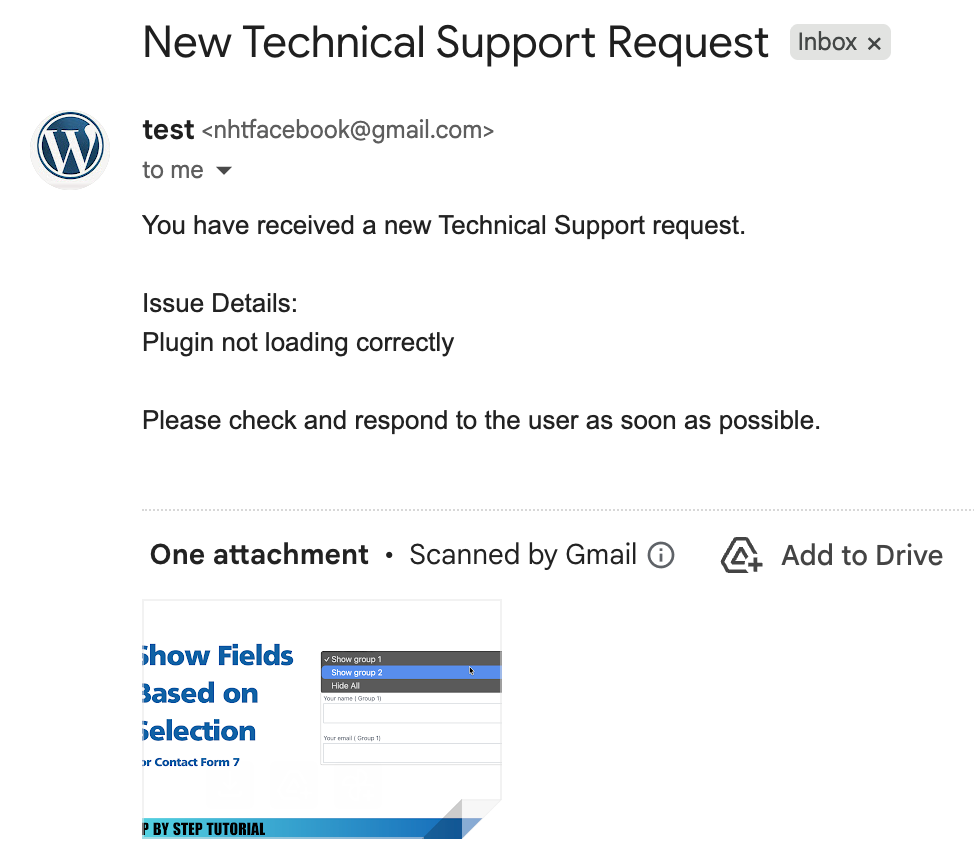
Open the mail and check:
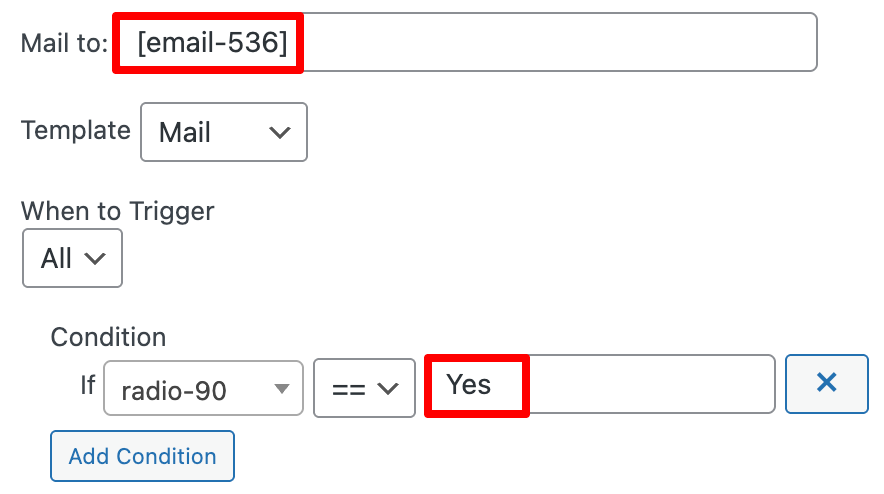
3.2 Send Email Only If Condition = True
This type of logic decides whether an email should be sent at all.
Use cases:
✔ Subscriptions
✔ Notify me / updates
✔ Optional confirmations
✔ Opt-in features
✔ GDPR-compliant forms
For example:
[group group-type]
<label> Notify me about updates
   [radio radio-90 use_label_element "Yes" "No"] </label>
[/group]

[group group-617]
<label> Email
  [email email-536] </label>
[/group]

[submit "Submit"]
Setting the Display Condition
If radio-90 = Yes
→ Show the email field (group-617)
If radio-90 = No
→ Hide the email field
Conditional Email: Send Only When Condition Is True
To create a conditional email:
Condition (AND Rule):
1. radio-90 = Yes
2. email-536 is not empty
Both must be true before email is sent.