
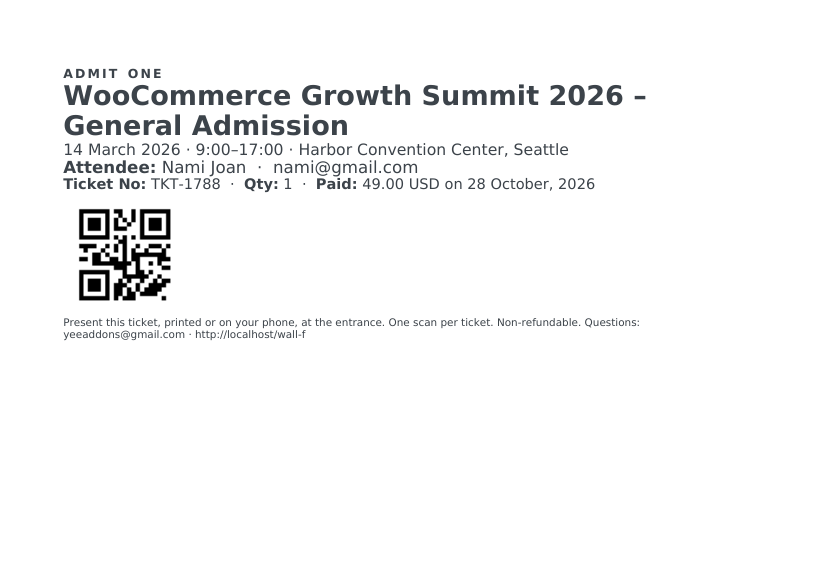
Sell a conference pass, a workshop seat or a show ticket as a normal WooCommerce product, and let PDF Invoice for WooCommerce + Drag and Drop Template Builder (plugin slug pdf-for-woocommerce, by add-ons.org) turn every paid order into an event ticket PDF: the event name, the attendee, a unique ticket number and a QR code for check-in, attached to the order emails and downloadable from My Account. This guide builds the ticket on A5 landscape from a blank template, connects it to paid orders and shows what the customer receives. The shipping label guide explains the QR code element in more detail.
Video tutorial
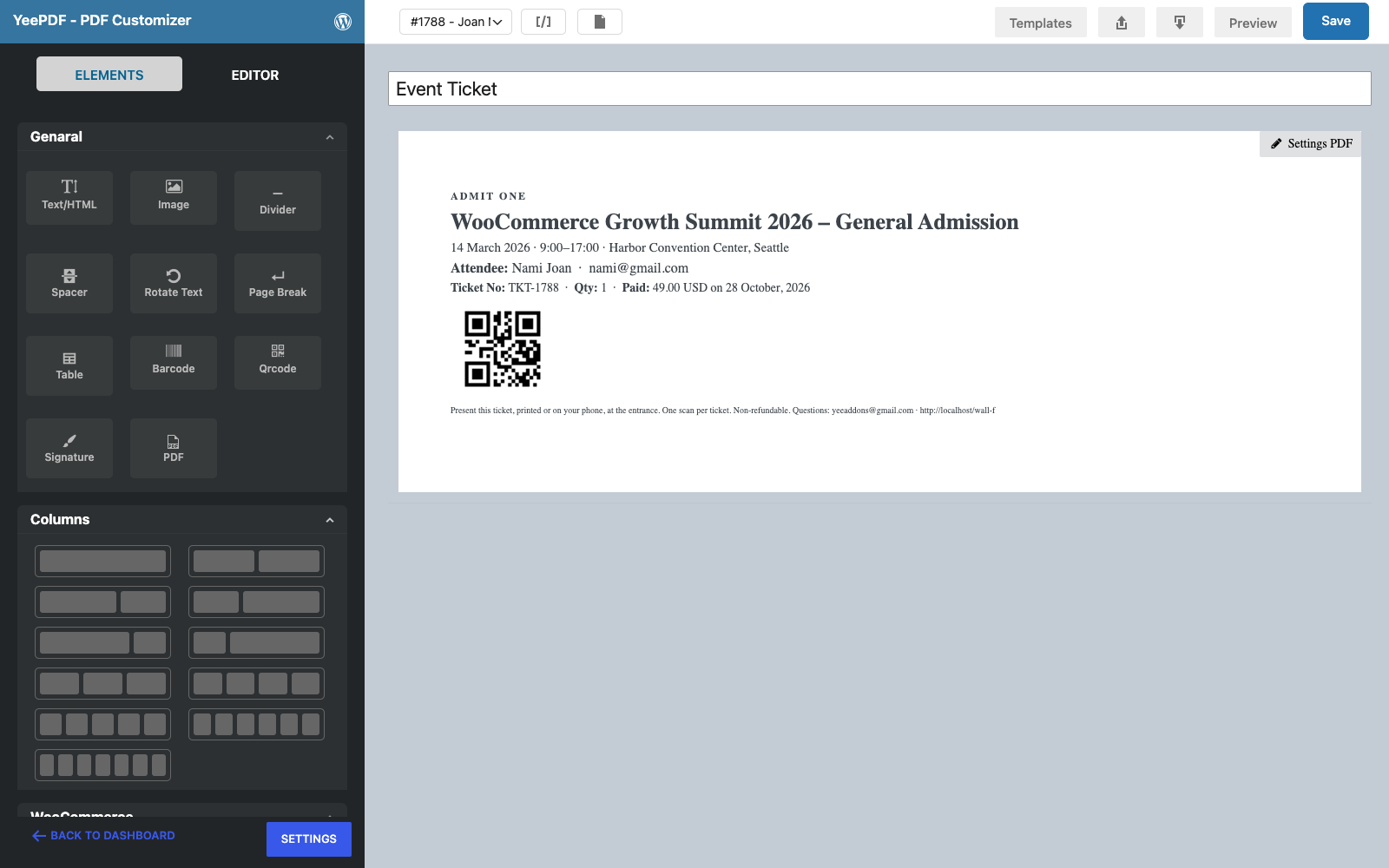
1. What the Ticket Contains
| Block | Content | Merge tags |
|---|---|---|
| Event | “ADMIT ONE”, the event name taken from the ordered product, the date and venue | Dynamic Field for Elementor Forms Pro + static date/venue text |
| Attendee & ticket | Attendee name and email, ticket number, quantity, amount paid and date | PIERLUIGI CIPRIANI, [email protected], TKT-8448, 1, 19.00, USD, August 28, 2026 |
| QR code | The ticket number, scannable with any phone at the door | TKT-8448 inside the Qrcode element |
| Conditions | Entry rules, refund policy, contact | [email protected], https://add-ons.org |
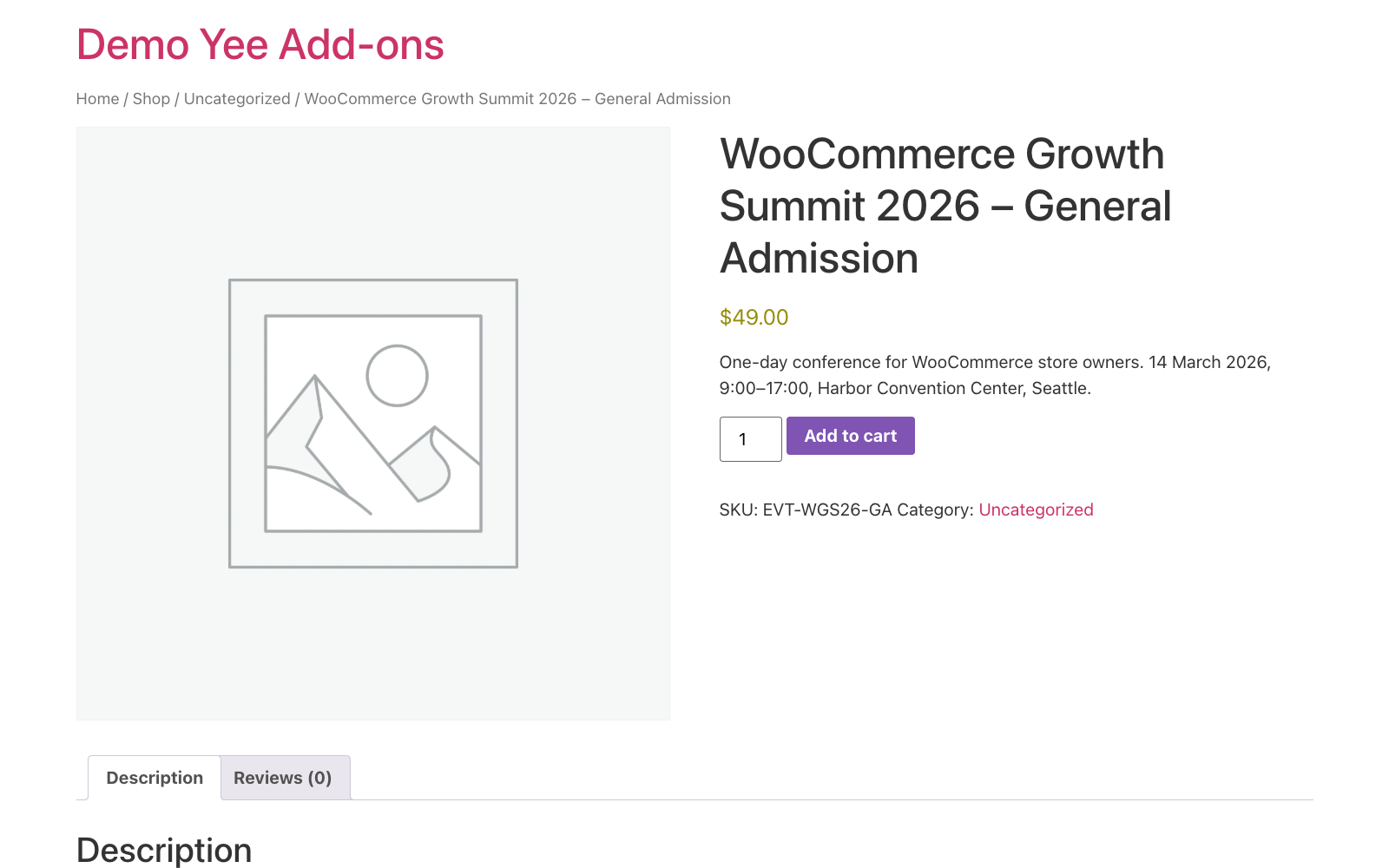
Set up the product first: create a simple, virtual product for the event with the date and venue in its short description, so the shop page and the ticket say the same thing.
2. Build the Ticket Template
Builder note: a new element is inserted just above the element you drop it on (the first element of an empty row is simply added). So create the footer first and drop every other block onto it; they slide in above the footer in the order you add them.
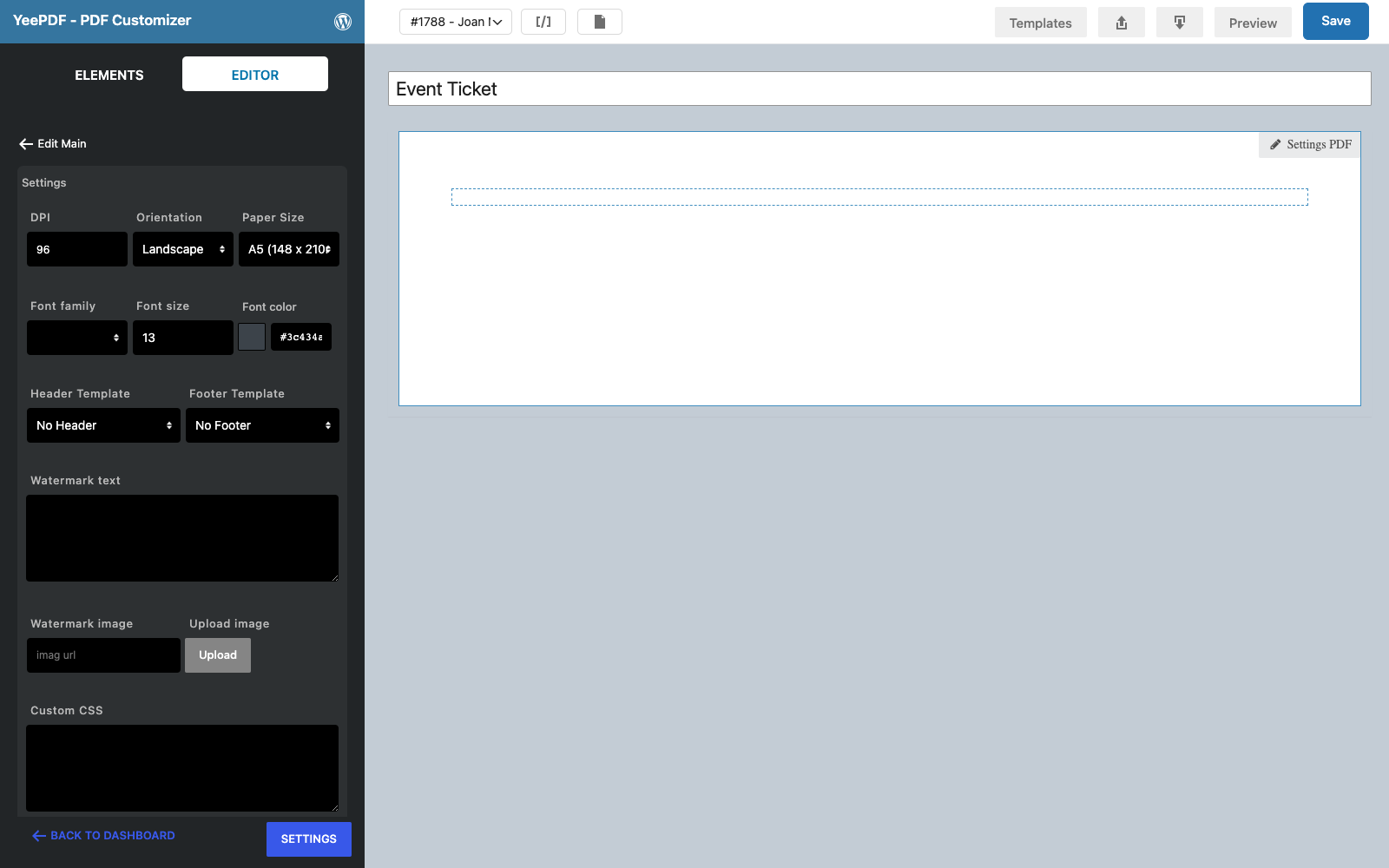
Step 1: New template, A5 landscape
Go to PDF Templates → New Template, name it Event Ticket, click Settings PDF and set Orientation to Landscape and Paper Size to A5 (148 × 210 mm). A5 fits a pocket when folded once and prints two per A4 sheet.
Step 2: Conditions (footer)
Drag a Text/HTML element into the empty row and type the entry conditions in a small font:
Present this ticket, printed or on your phone, at the entrance. One scan per ticket. Non-refundable.
Questions: [email protected] · https://add-ons.org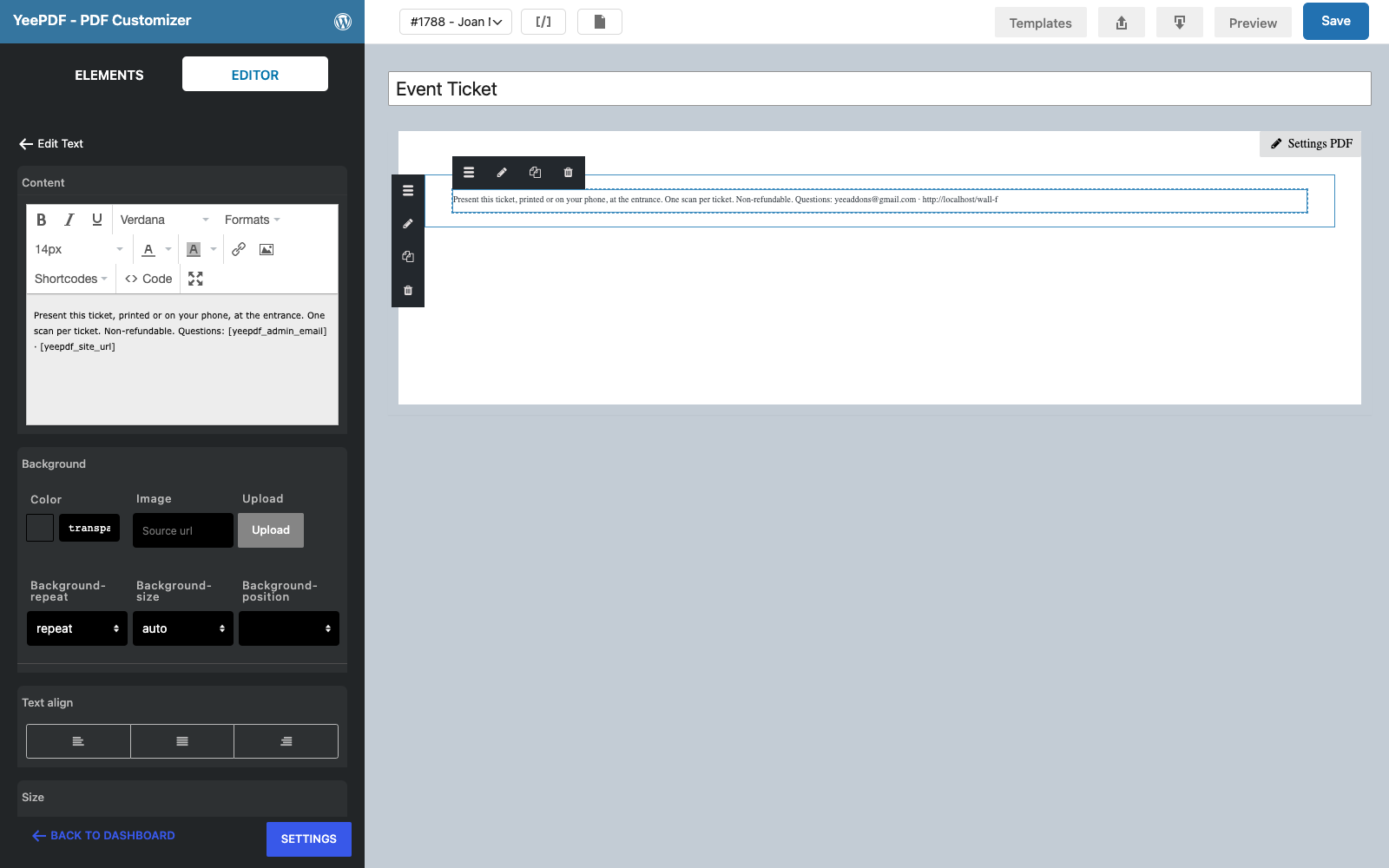
Step 3: Event block
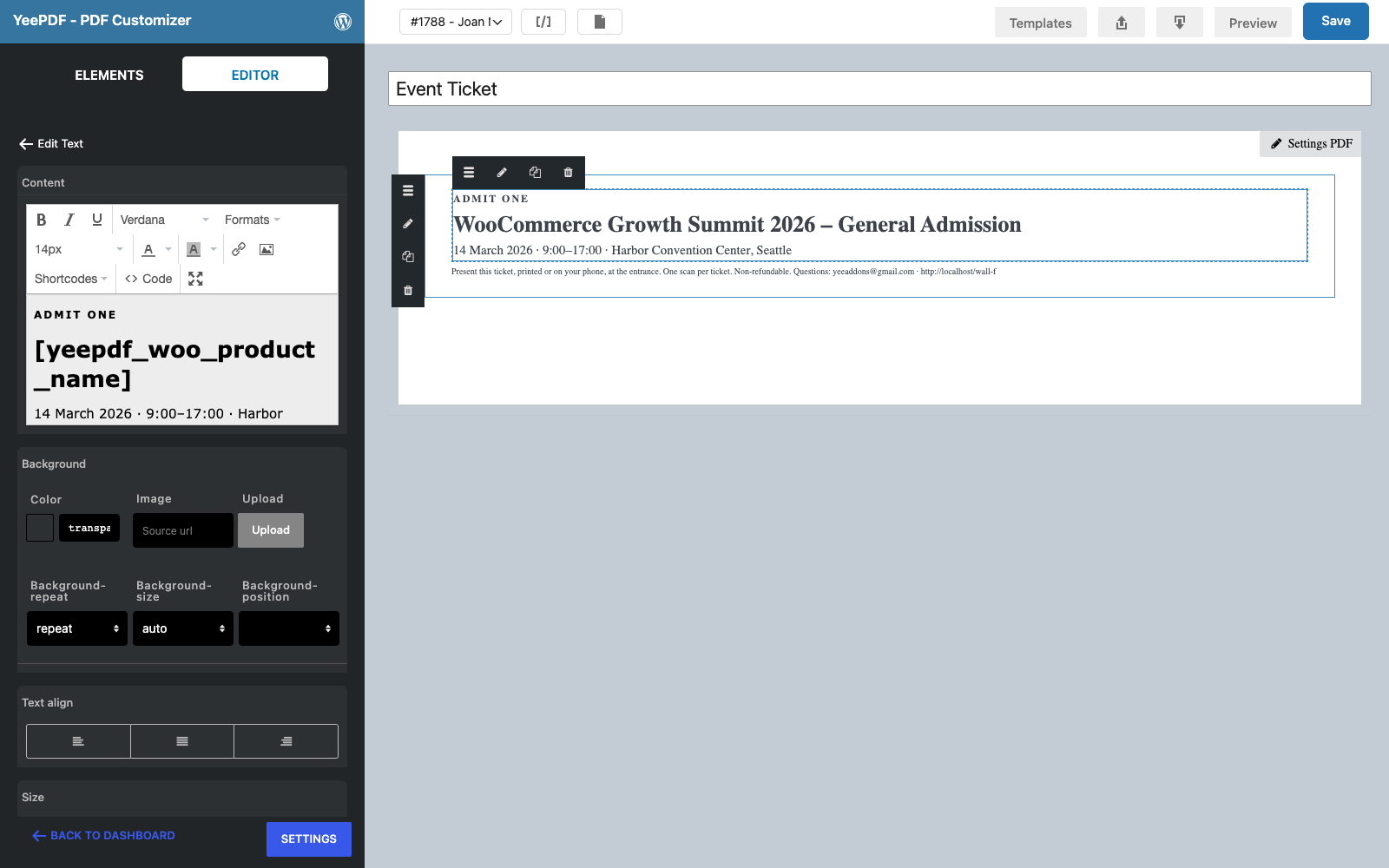
Drop a Text/HTML element onto the footer. It lands above it. Type:
ADMIT ONE
Dynamic Field for Elementor Forms Pro          ← 26 px bold
14 March 2026 · 9:00–17:00 · Harbor Convention Center, Seattle
Dynamic Field for Elementor Forms Pro prints the name of the first product in the order, so the ticket always carries the event the customer bought.
Step 4: Attendee and ticket number
Drop another Text/HTML element onto the footer:
Attendee: PIERLUIGI CIPRIANI · [email protected]
Ticket No: TKT-8448 · Qty: 1 · Paid: 19.00 USD on August 28, 2026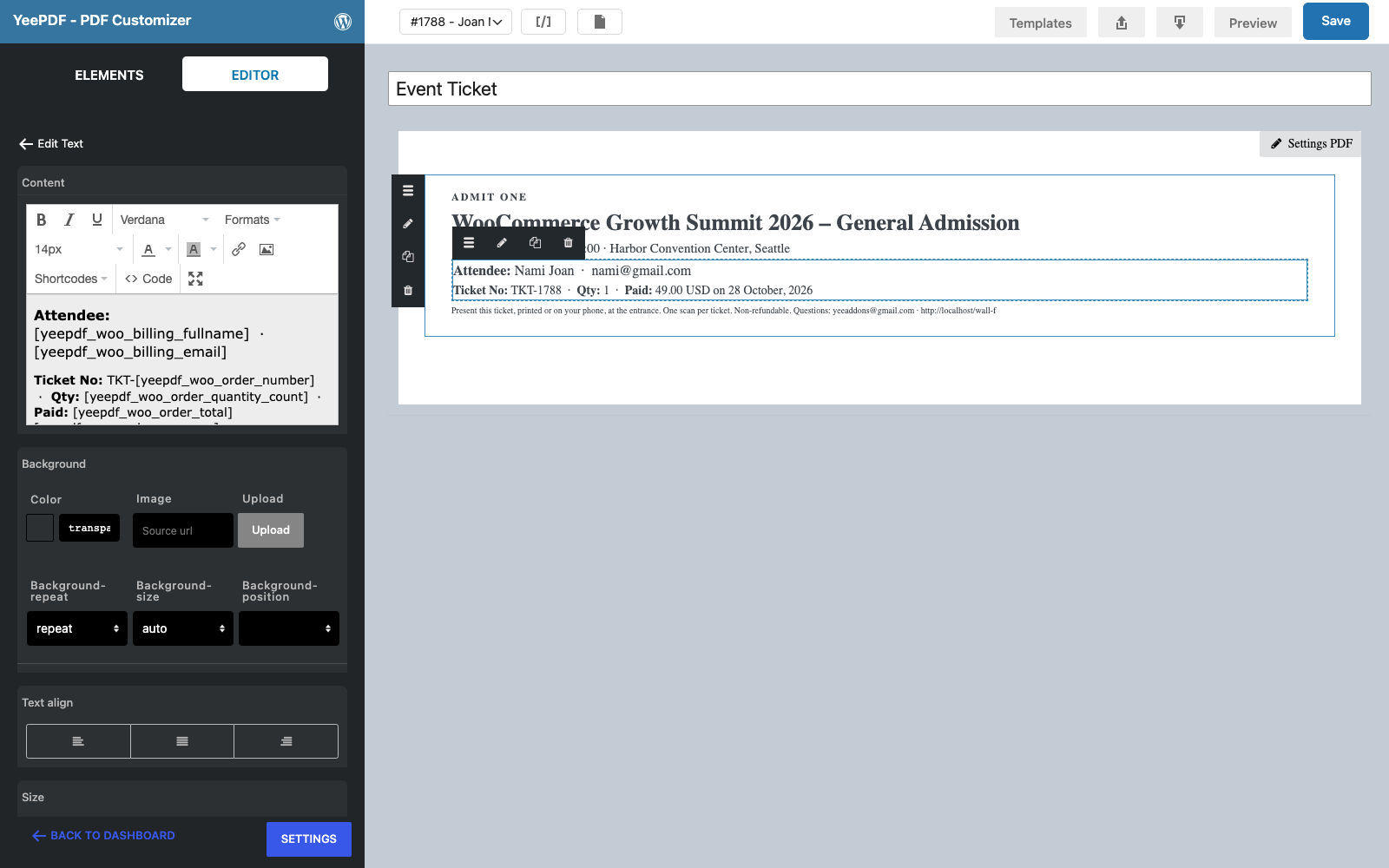
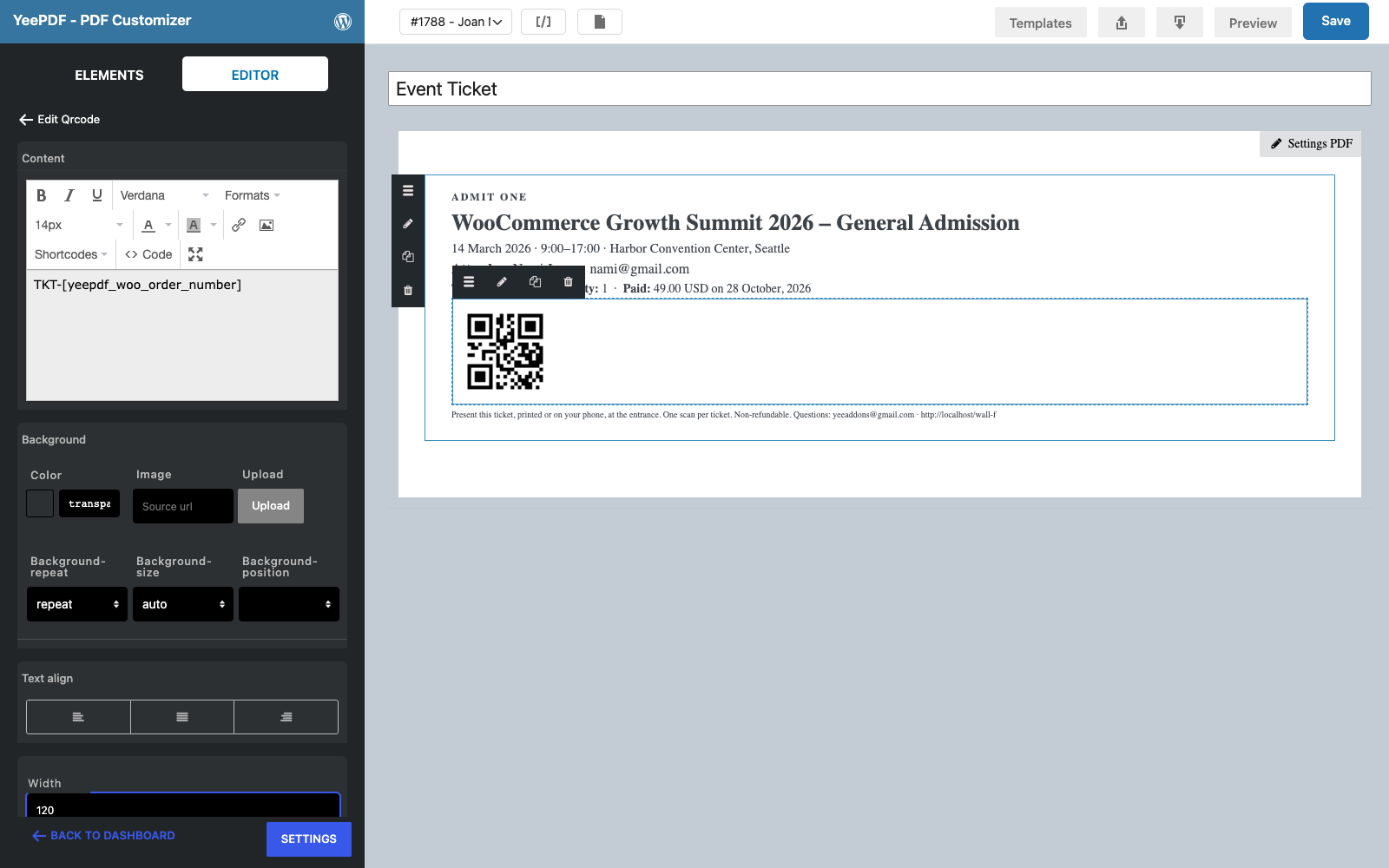
Step 5: QR code
Drop the Qrcode element onto the footer. Set its Content to TKT-8448 and the Width to 120 px. The code is rendered on your server into the PDF, so it works offline and in emailed files.
Click Save.
3. Generate the Ticket for Paid Orders
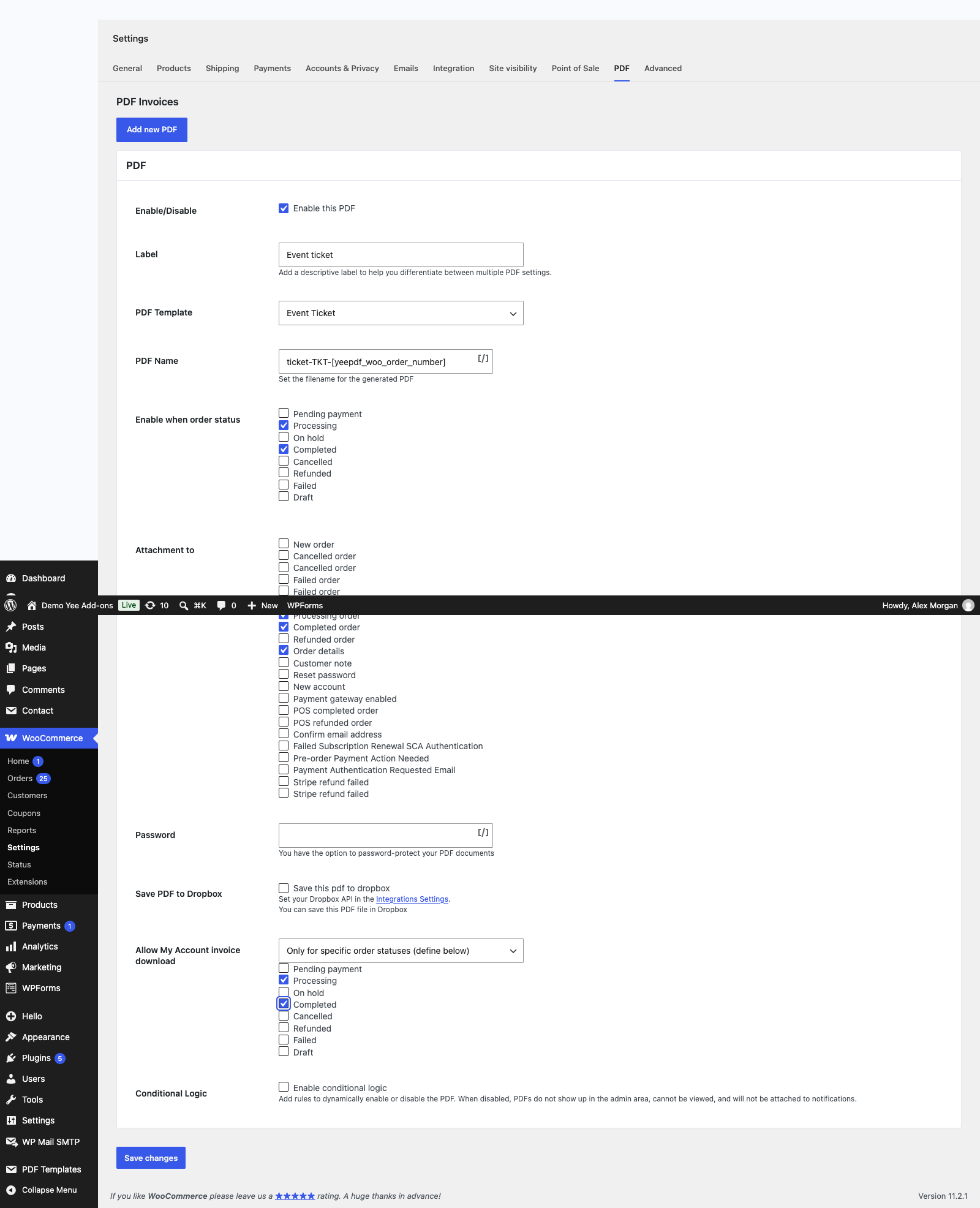
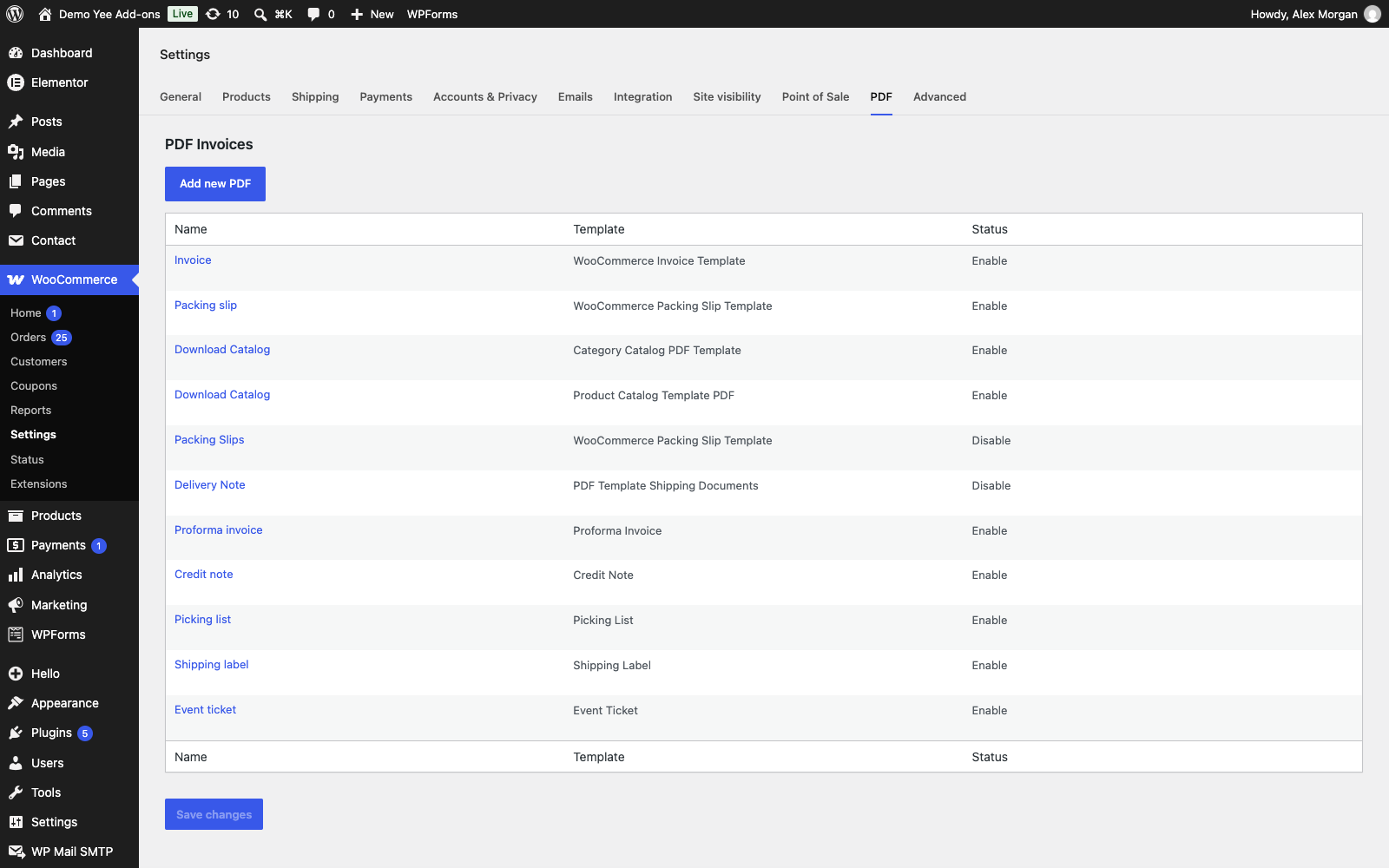
Go to WooCommerce → Settings → PDF → Add new PDF:
| Field | Value | Why |
|---|---|---|
| Label | Event ticket | Button label in the admin, the orders list and My Account. |
| PDF Template | Event Ticket | The template from section 2. |
| PDF Name | ticket-TKT-8448 | e.g. ticket-TKT-1788.pdf |
| Enable when order status | Processing, Completed | The paid statuses; unpaid orders never get a ticket. |
| Attachment to | Processing order, Completed order, Order details | The ticket travels with the order confirmation and can be re-sent from the order screen. |
| Password | optional | Protect tickets for exclusive events; share the password separately. |
| Allow My Account invoice download | Only for specific order statuses → Processing, Completed | Customers can re-download the ticket any time. |
4. What the Customer Receives
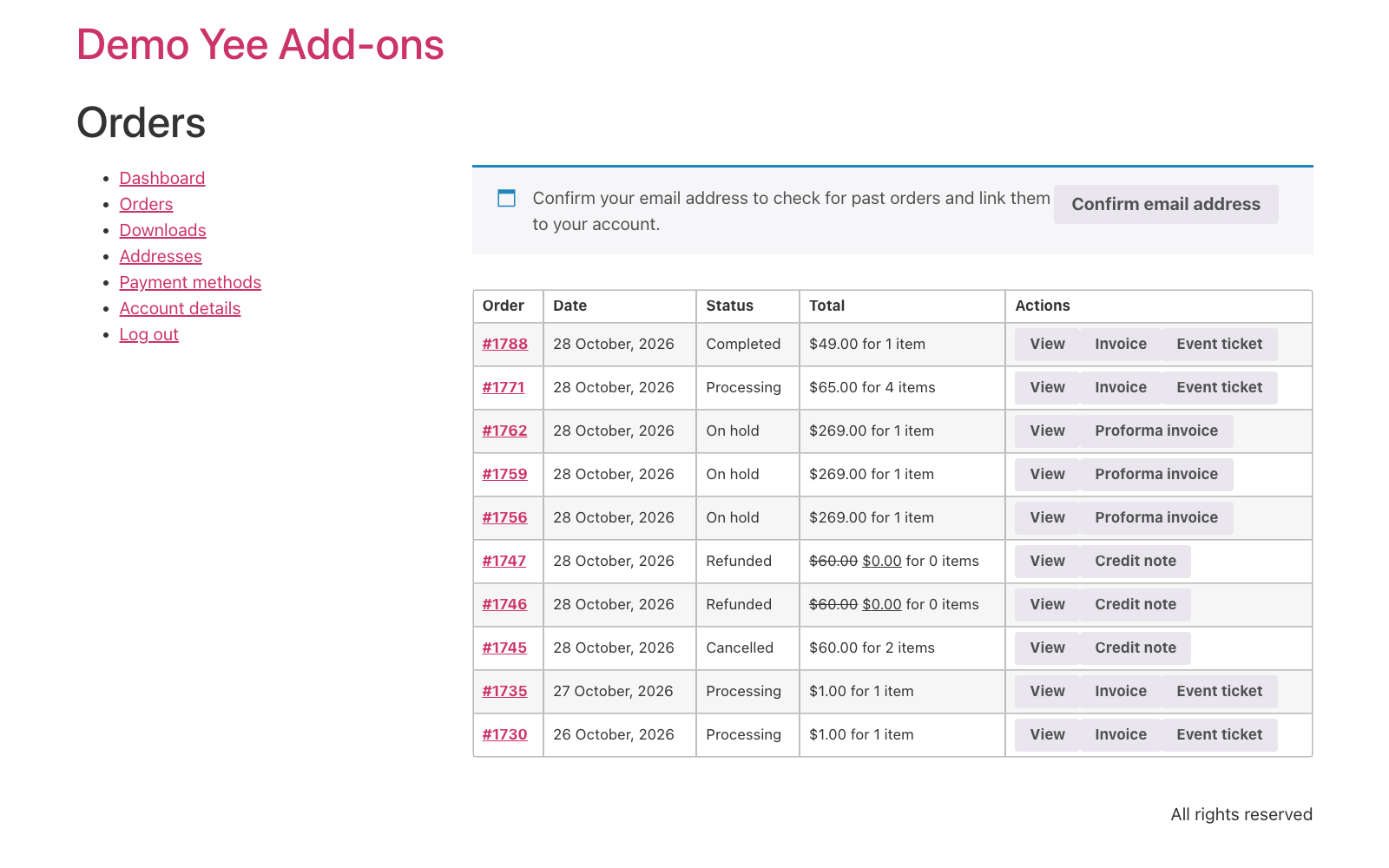
After checkout the order becomes Processing (or Completed for virtual products with automatic completion). At that moment the ticket is generated and attached to the confirmation email. It is also available in My Account → Orders and on the order page.
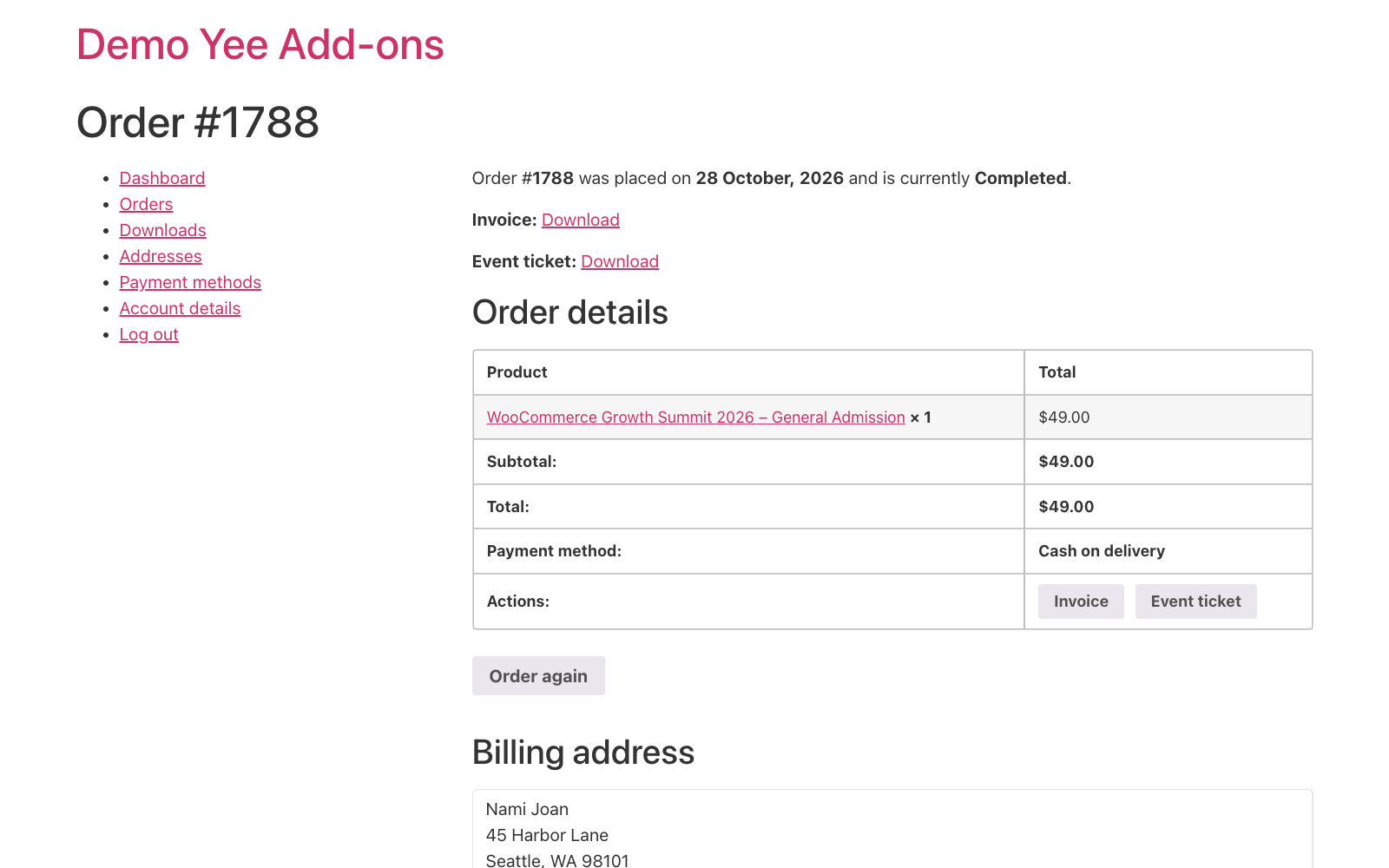
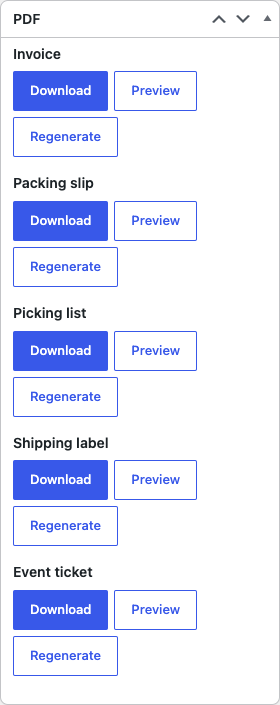
In the admin, the order screen has the ticket in the PDF box with Download, Preview and Regenerate, and Order actions → Send order details to customer re-sends it.
5. Check-in at the Door
- Scan the QR code with any phone camera or a barcode app: it returns the ticket number
TKT-1788. - Export the paid orders (WooCommerce → Orders → filter Processing/Completed) to a sheet before the event and tick each ticket number as it is scanned; the quantity on the ticket tells you how many people it admits.
- For automated check-in, encode the order URL instead (
https://add-ons.org/my-account/view-order/8448/) so staff can open the order on a phone and mark it with an order note.
6. Tips
- One ticket per order: the plugin generates one PDF per order. Print the quantity on the ticket (as above) or ask for one order per attendee if every person needs an individual code.
- Attendee names: if you collect attendee names with a checkout-fields plugin, print them with
. - Several events: the setting applies to every paid order. Keep tickets in a dedicated event store, or disable the setting outside the sales period; the product name on the ticket always matches what was bought.
- Design: add an Image element with the event artwork above the event block, or a background image in Settings PDF; keep the QR code at least 100 px wide for reliable scanning.
- Regenerate: after editing the template, click Regenerate on an order to rebuild its ticket; emails attach the stored file.
7. Frequently Asked Questions (FAQ)
Is the QR code unique?
It encodes the order number, which WooCommerce never reuses, so every ticket has a unique code. Add the order date or the customer ID to the content if you want a longer code.
Can I generate one ticket per seat?
Not from one order: the plugin creates one PDF per order. Use quantity on the ticket, or sell one ticket per order.
Does the ticket work on a phone?
Yes. The PDF is emailed and downloadable from My Account; the QR code scans from the screen.
Can I stop tickets for other products?
The current conditional logic compares generic fields, not products. Keep the ticket setting enabled only while you sell tickets, or run the event shop as a separate store.
Can I add the attendee’s photo or a seat number?
Seat numbers can come from an order meta field (checkout field plugins) with ; photos are not supported.