
Welcome to the official documentation and user guide for Name Your Price for WooCommerce (by addonsorg, add-ons.org). The plugin lets customers enter the price they want to pay for a product: a “pay what you want” amount, a donation, a tip or a custom price within the limits you set. You decide the suggested amount, an optional minimum and maximum, the wording of the field, the shop button text and, if you like, a drop-down of preset amounts. The amount the customer enters becomes the line price in the cart, at checkout and on the order, with no extra configuration. This guide covers installation, every product setting, the customer experience, cart editing, checkout, order management, developer notes, security and a FAQ.
Video tutorial
1. Installation & System Requirements
- Install and activate WooCommerce. The plugin declares WooCommerce as a required plugin and does nothing without it.
- Go to Plugins → Add New Plugin → Upload Plugin, upload the plugin ZIP, click Install Now, then Activate.
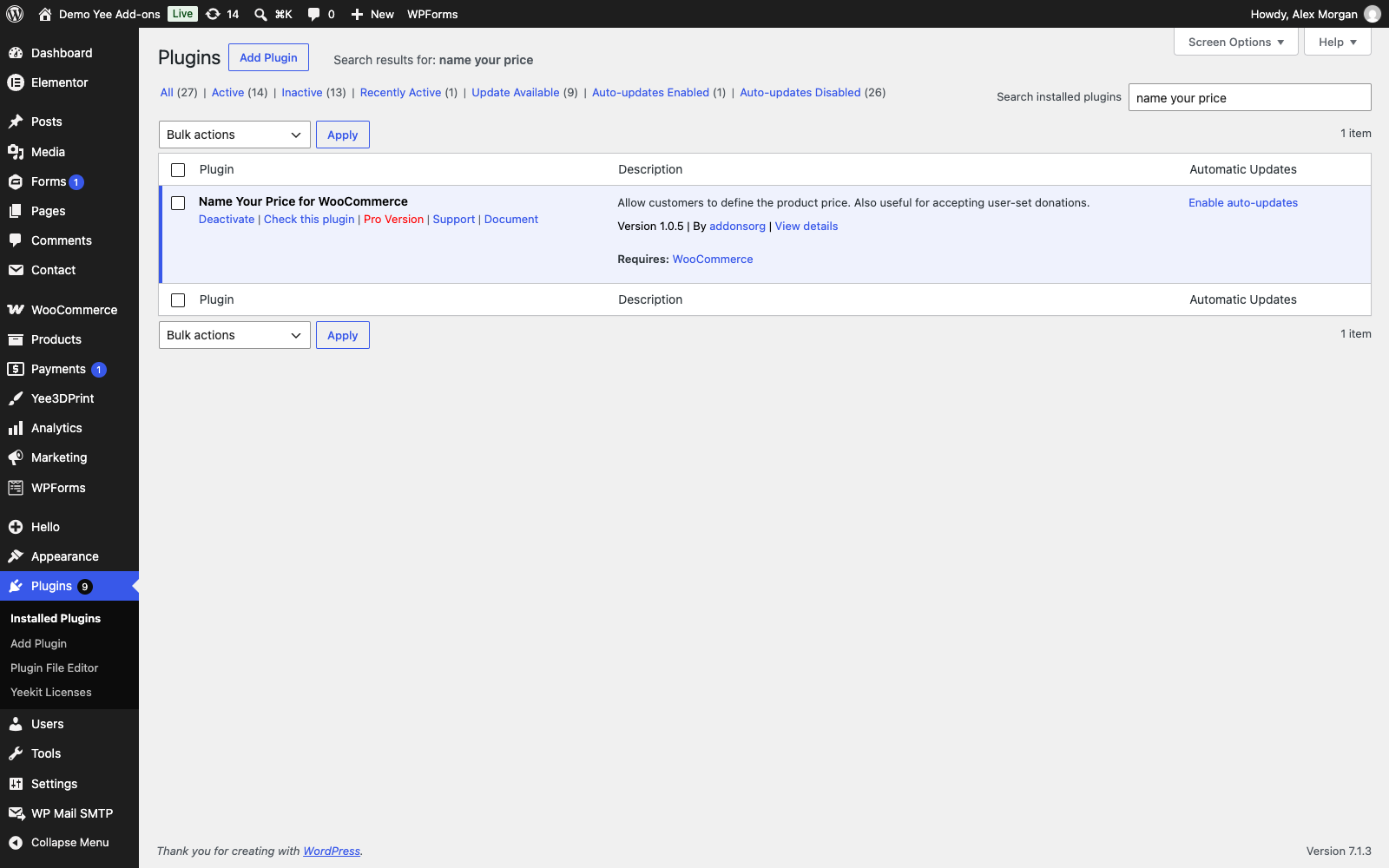
- The plugin appears in the list as Name Your Price for WooCommerce. There is no settings page: everything is configured per product in the product editor.
Requirements: WordPress, WooCommerce (tested up to WooCommerce 9.x, compatible with High-Performance Order Storage) and PHP 7.4 or higher. The plugin uses standard WooCommerce hooks for the product form, the cart and add-to-cart validation, so it works with WooCommerce-compatible themes and the WooCommerce checkout.
2. How It Works
- Tick the Name Your Price checkbox on a simple product. The regular and sale price fields are replaced by the Name Your Price settings.
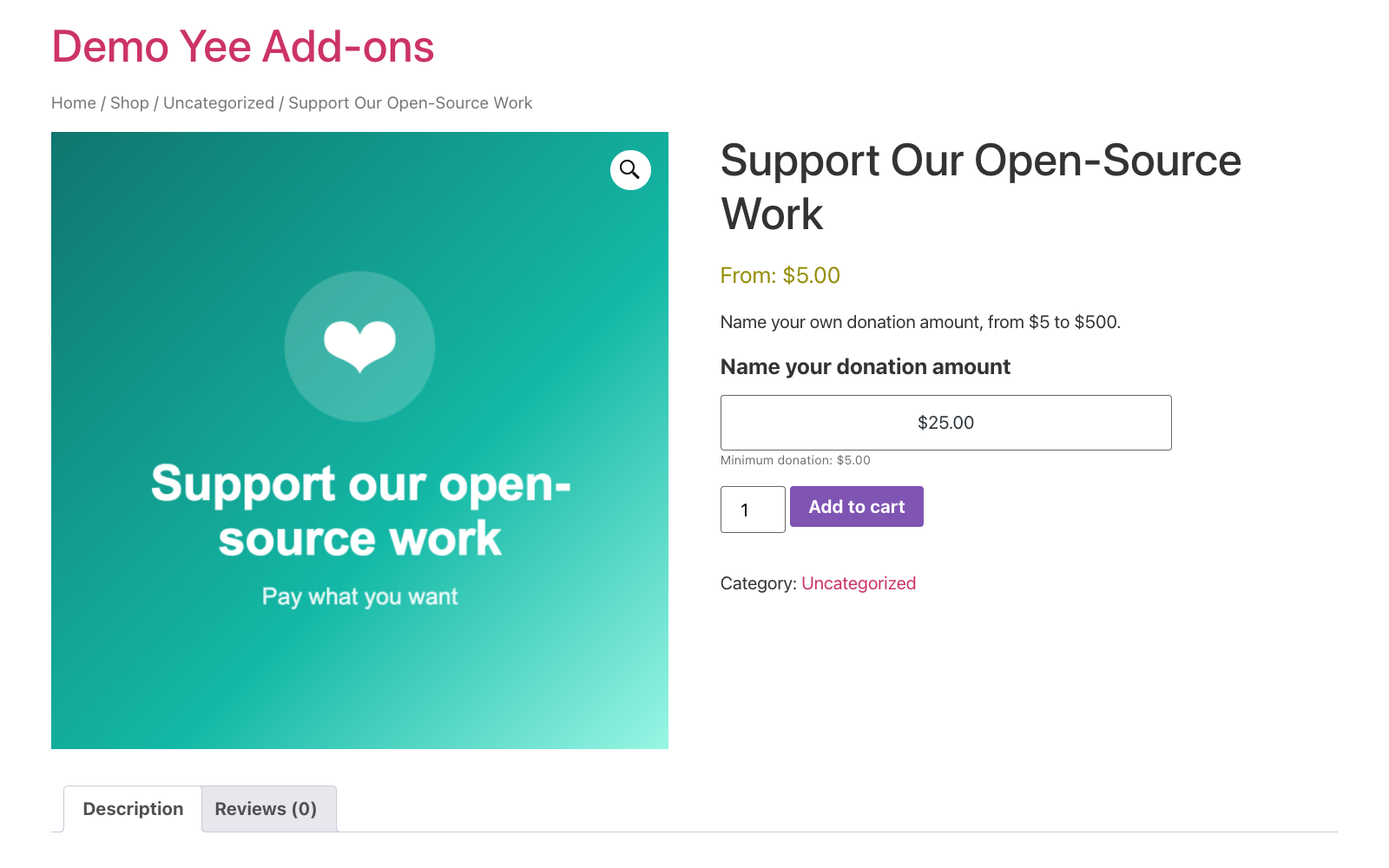
- On the product page the customer sees a label, a price field pre-filled with your Default amount, and an optional “minimum price” note. The field is formatted with your store currency, thousand and decimal separators.
- The amount is validated twice: in the browser as soon as the customer leaves the field (the Add to cart button is disabled while the amount is invalid), and again on the server when the product is added to the cart.
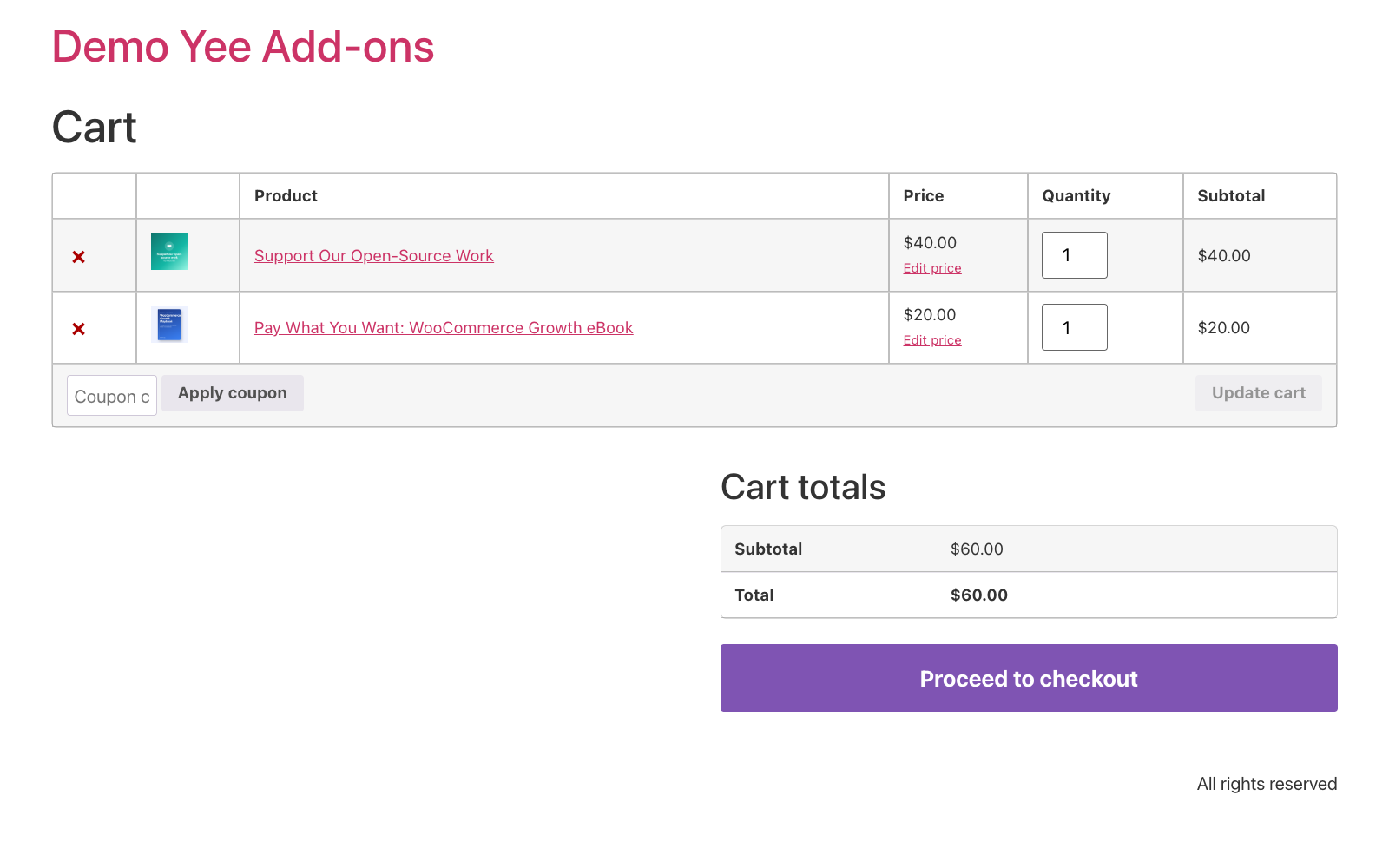
- The entered amount becomes the price of that cart line. Customers can change it later with an Edit price link in the cart.
- On the shop and category pages the price shows as From: [minimum] and the button reads your custom text (for example “Donate”); it leads to the product page because the customer must enter an amount first.
3. Creating a Name Your Price Product (Step-by-Step)
Step 1: Open the product and choose “Simple product”
Go to Products → Add New (or edit an existing product). In the Product data box keep the type Simple product. Virtual and downloadable simple products are supported too, which makes the plugin ideal for donations, tips, eBooks and other digital goods.
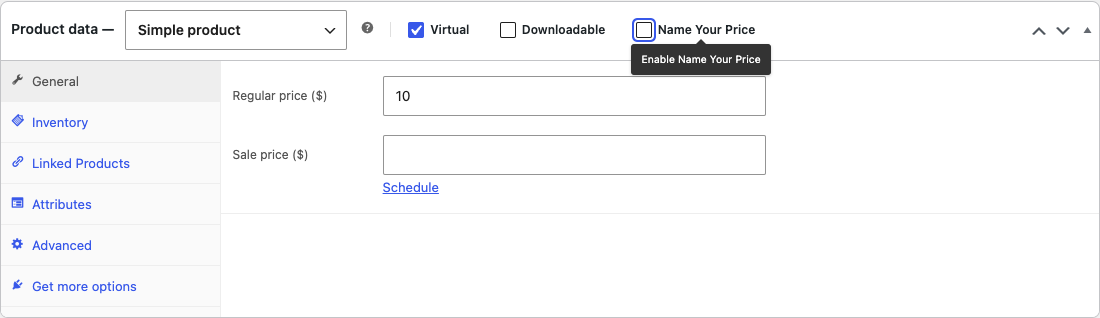
Step 2: Tick “Name Your Price”
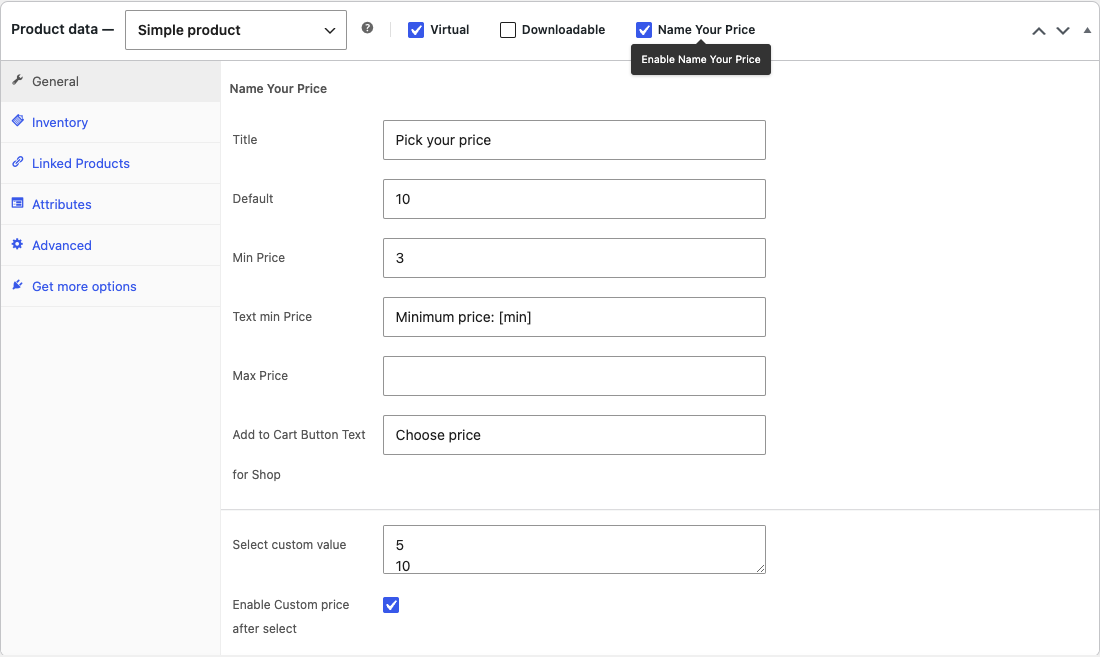
In the row next to the product type you will find the new Name Your Price checkbox, beside Virtual and Downloadable. Tick it: the Regular price and Sale price fields are hidden and the Name Your Price settings appear on the General tab.

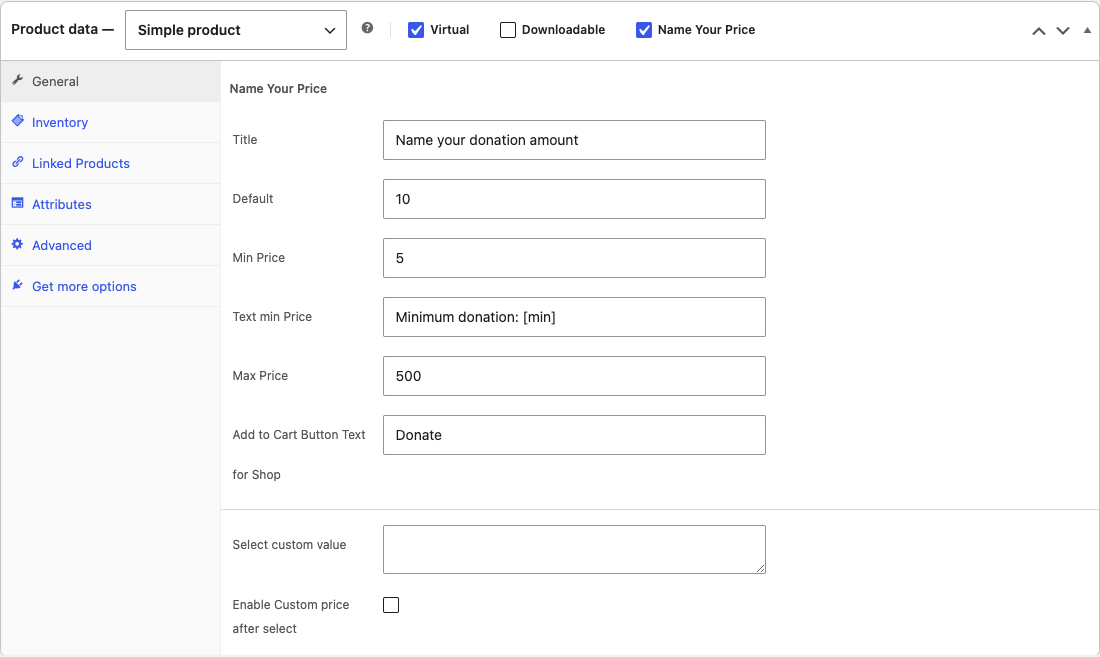
Step 3: Fill in the settings
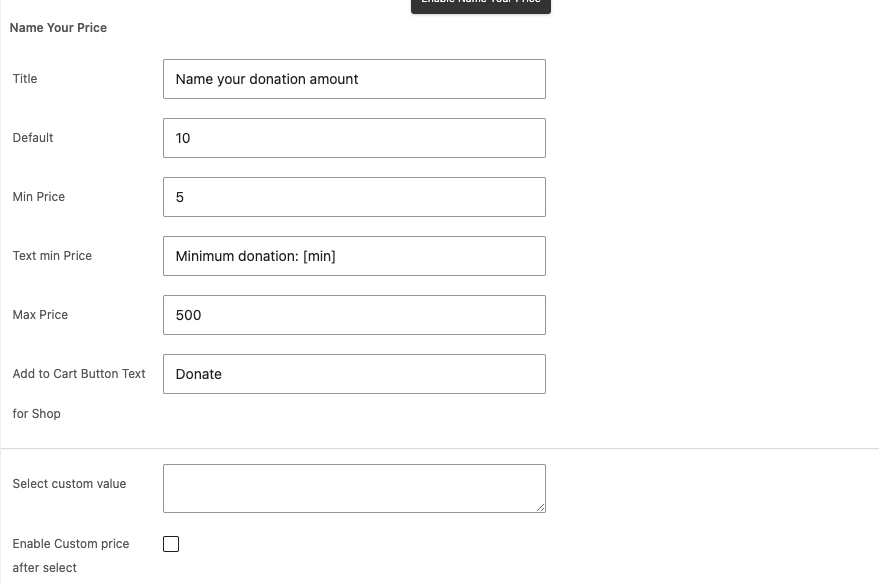
| Setting | What it does | Example |
|---|---|---|
| Title | The label shown above the price field on the product page. HTML is allowed. Default: “Suggested price $”. | Name your donation amount |
| Default | The amount pre-filled in the field. It is also saved as the product price, so it is used for sorting and for the price WooCommerce shows in feeds and structured data. A Default is required when you set a minimum. | 10 |
| Min Price | Lowest amount accepted. Smaller amounts are rejected in the browser and on the server. Leave empty for no minimum. | 5 |
| Text min Price | Small note shown under the field. The placeholder [min] is replaced by the formatted minimum. Default: “Minimum price: [min]”. Leave empty to hide the note. | Minimum donation: [min] |
| Max Price | Highest amount accepted. Leave empty for no maximum. | 500 |
| Add to Cart Button Text for Shop | Text of the button on the shop, category, search and related-products listings. Default: “Choose price”. | Donate |
| Select custom value | Optional list of preset amounts, one per line. When filled, the product page shows a drop-down of these amounts instead of the free field (see section 4). | 5 / 10 / 20 |
| Enable Custom price after select | Adds a “Custom Price” entry to the drop-down. Choosing it reveals the free price field so the customer can enter any amount within the limits. | ticked |
Click Update (or Publish). If you set a minimum but leave Default empty, WooCommerce shows the error “The suggested price must be higher than the minimum for Name Your Price products. Please review your prices.” and the product price stays at 0: enter a Default equal to or above the minimum.
Step 4: Check the product page
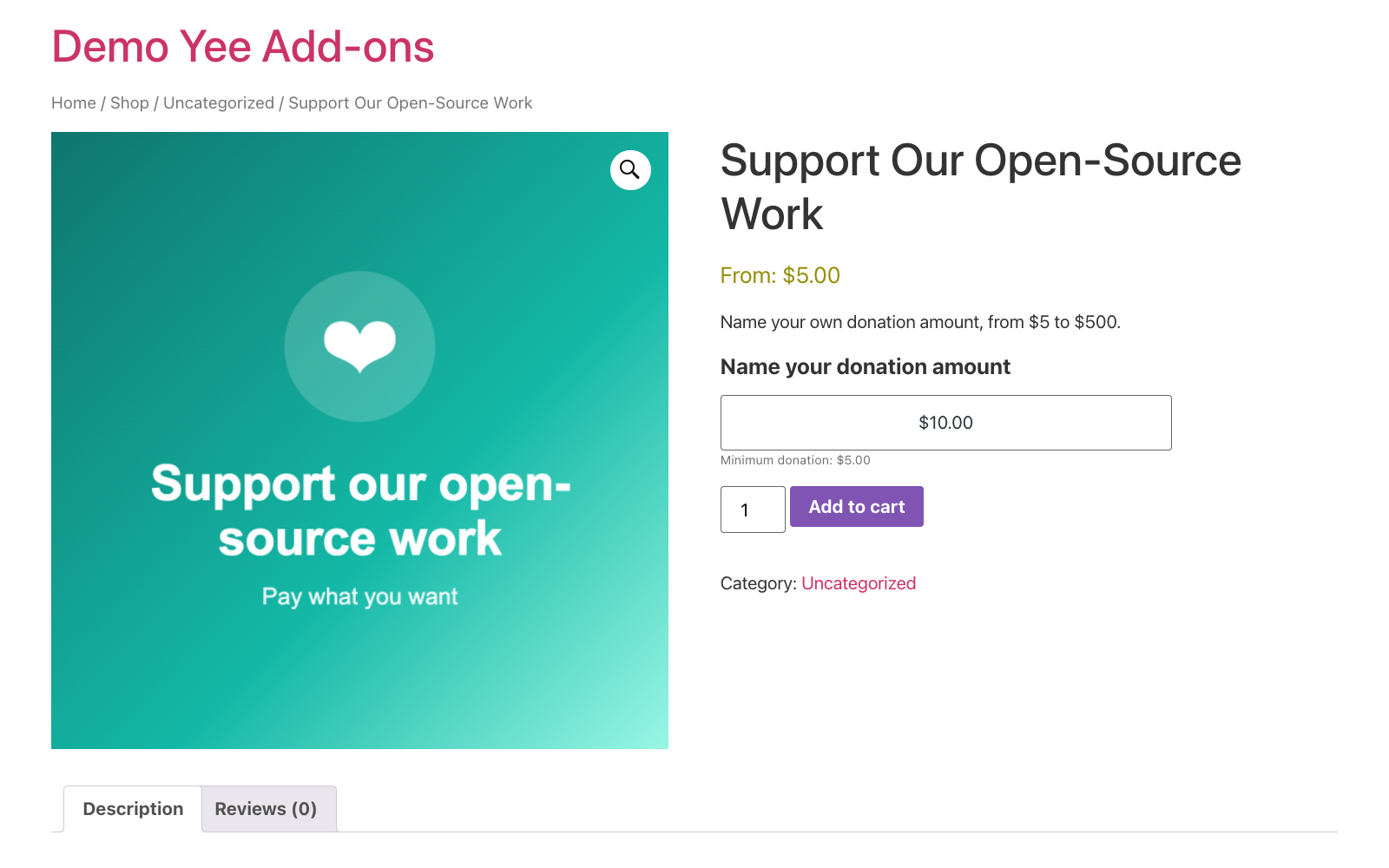
The field shows the Default amount formatted in your store currency. The customer can type any amount; thousand separators and the currency symbol are added automatically while typing.
4. Preset Amounts with a Drop-Down
For campaigns with suggested tiers (for example 5, 10 and 20) fill Select custom value with one amount per line. The product page then shows a drop-down with the formatted amounts. The Default amount is pre-selected when it matches one of the lines, otherwise the first line is used.
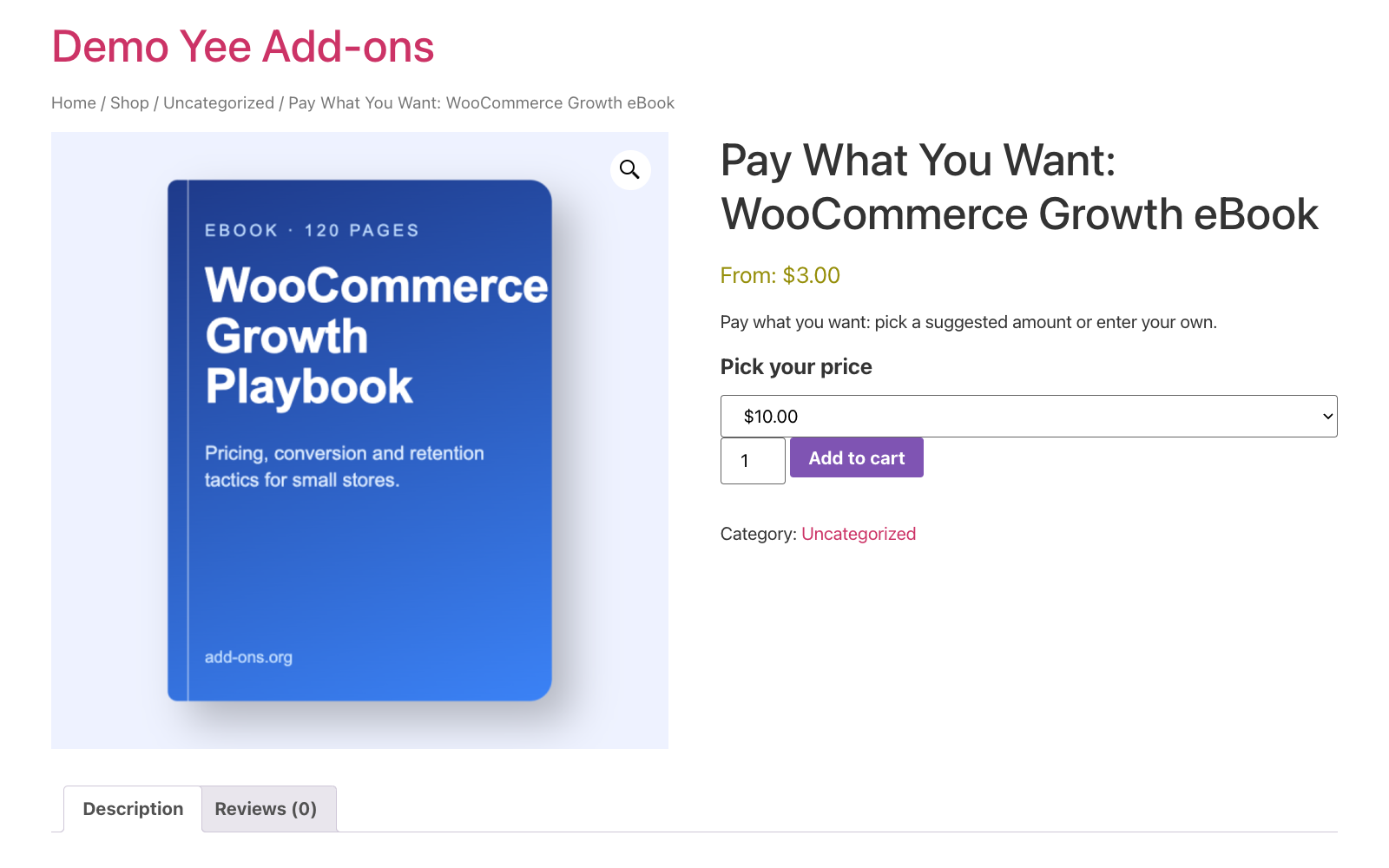
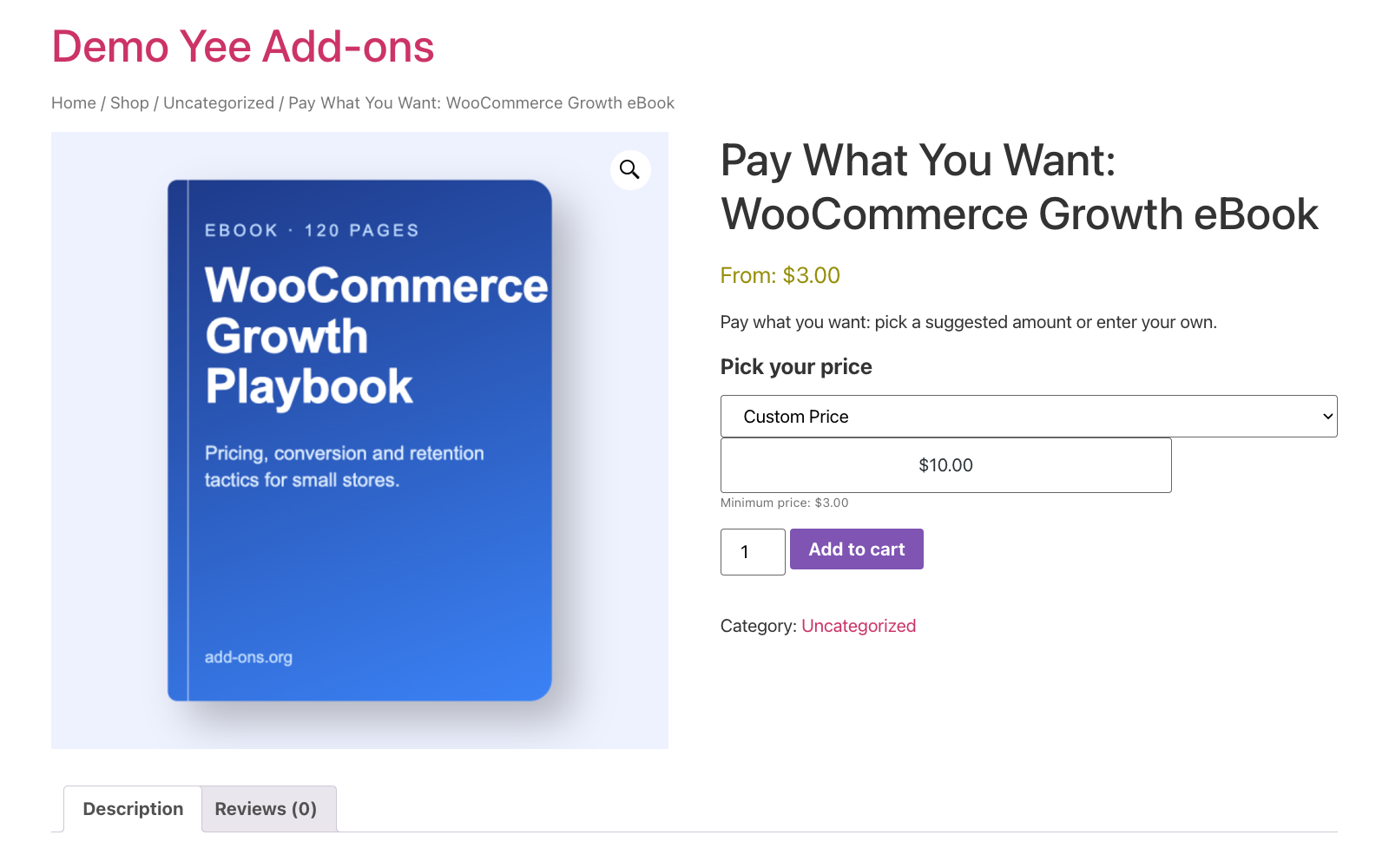
With Enable Custom price after select ticked, the drop-down gets a last entry Custom Price. Selecting it reveals the regular price field and the minimum note, so the customer can enter their own amount; the minimum and maximum still apply.
5. The Customer Experience
5.1 Shop and category pages
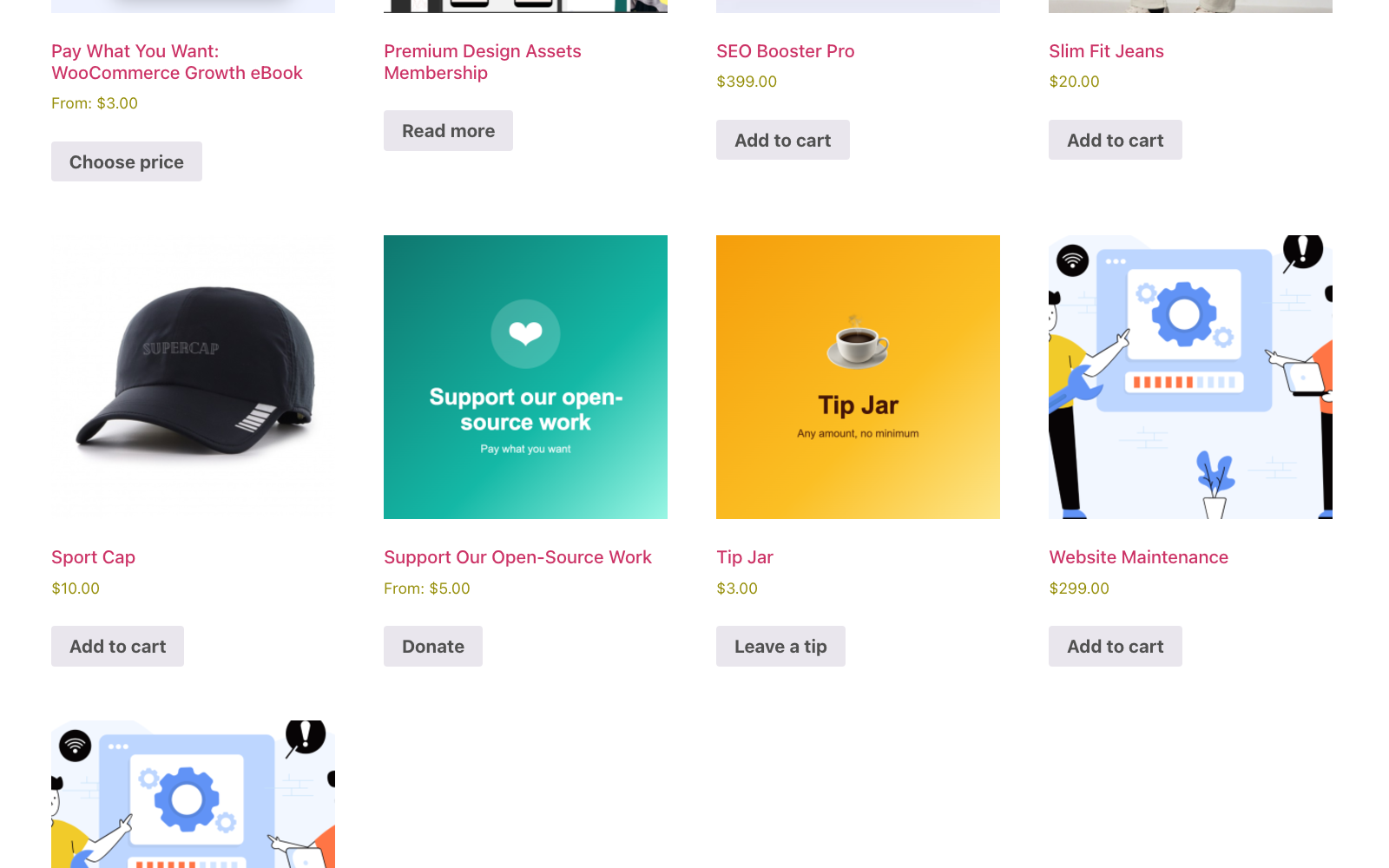
- When a minimum is set the price reads From: [minimum]; without a minimum the Default amount is shown.
- The button shows your Add to Cart Button Text for Shop and links to the product page. AJAX add-to-cart is disabled for these products on purpose, because an amount must be entered first.
5.2 Validation on the product page
As soon as the customer leaves the price field, the amount is checked against the limits. While it is invalid the Add to cart button is dimmed and clicking it only focuses the field again.
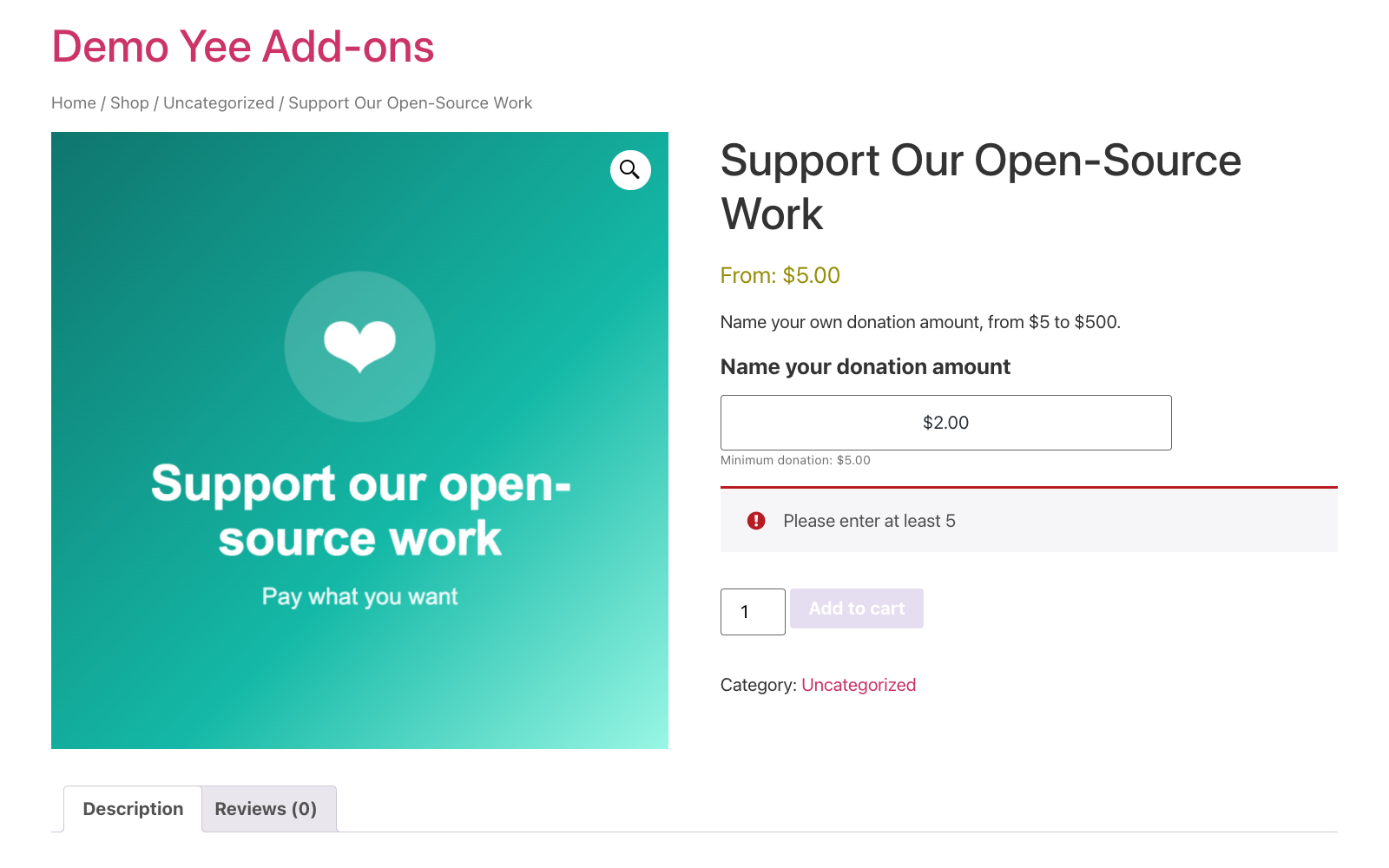
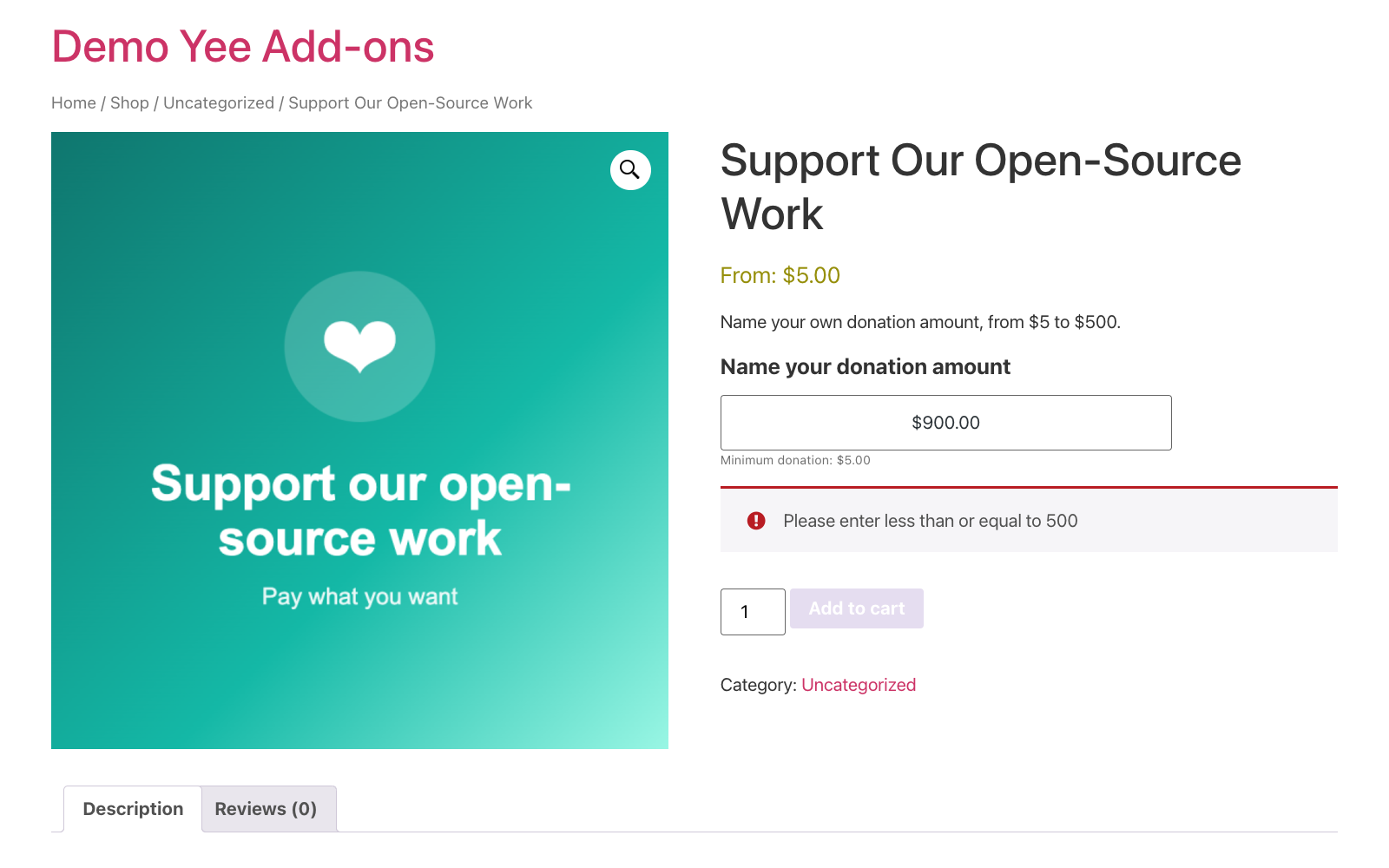
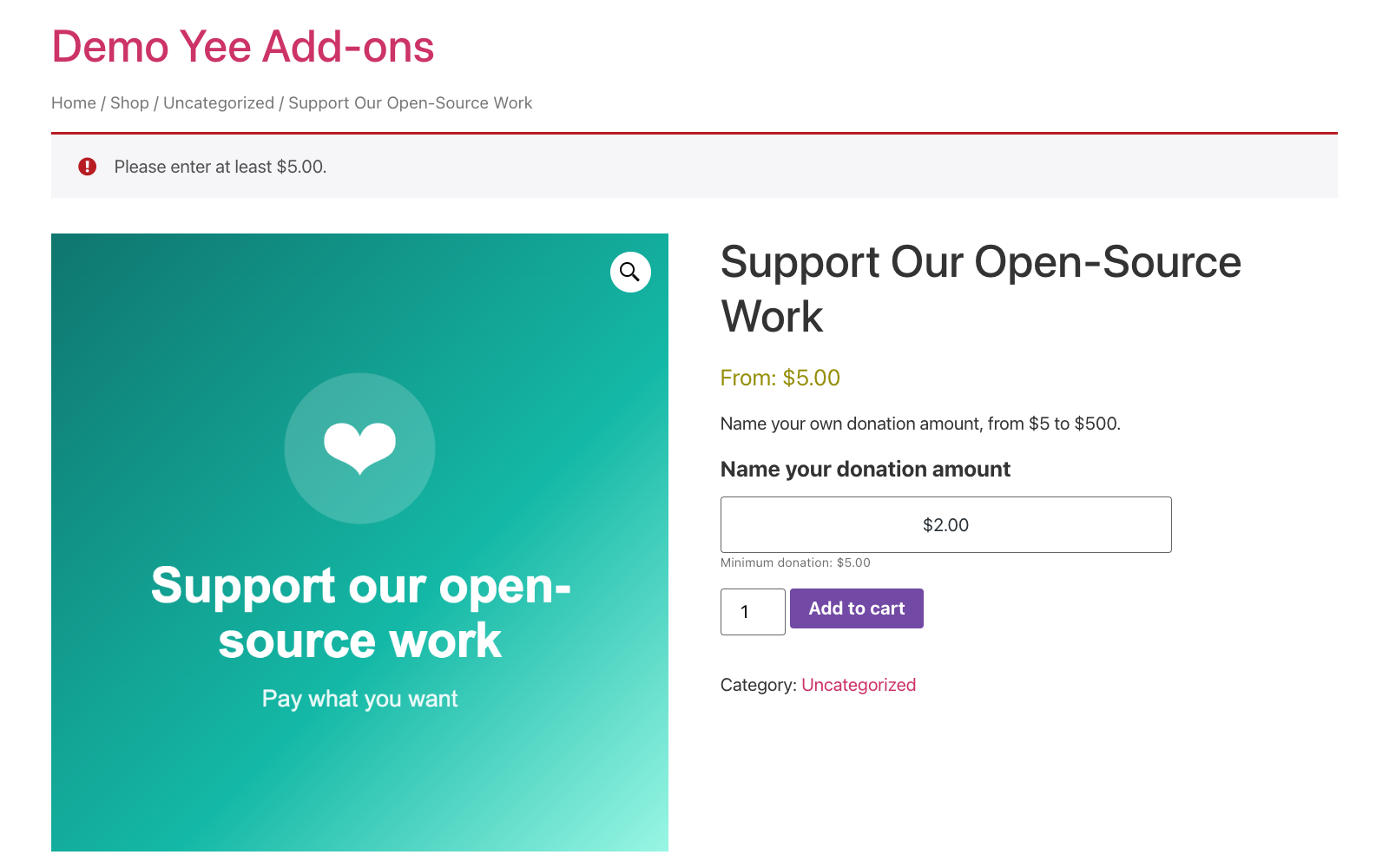
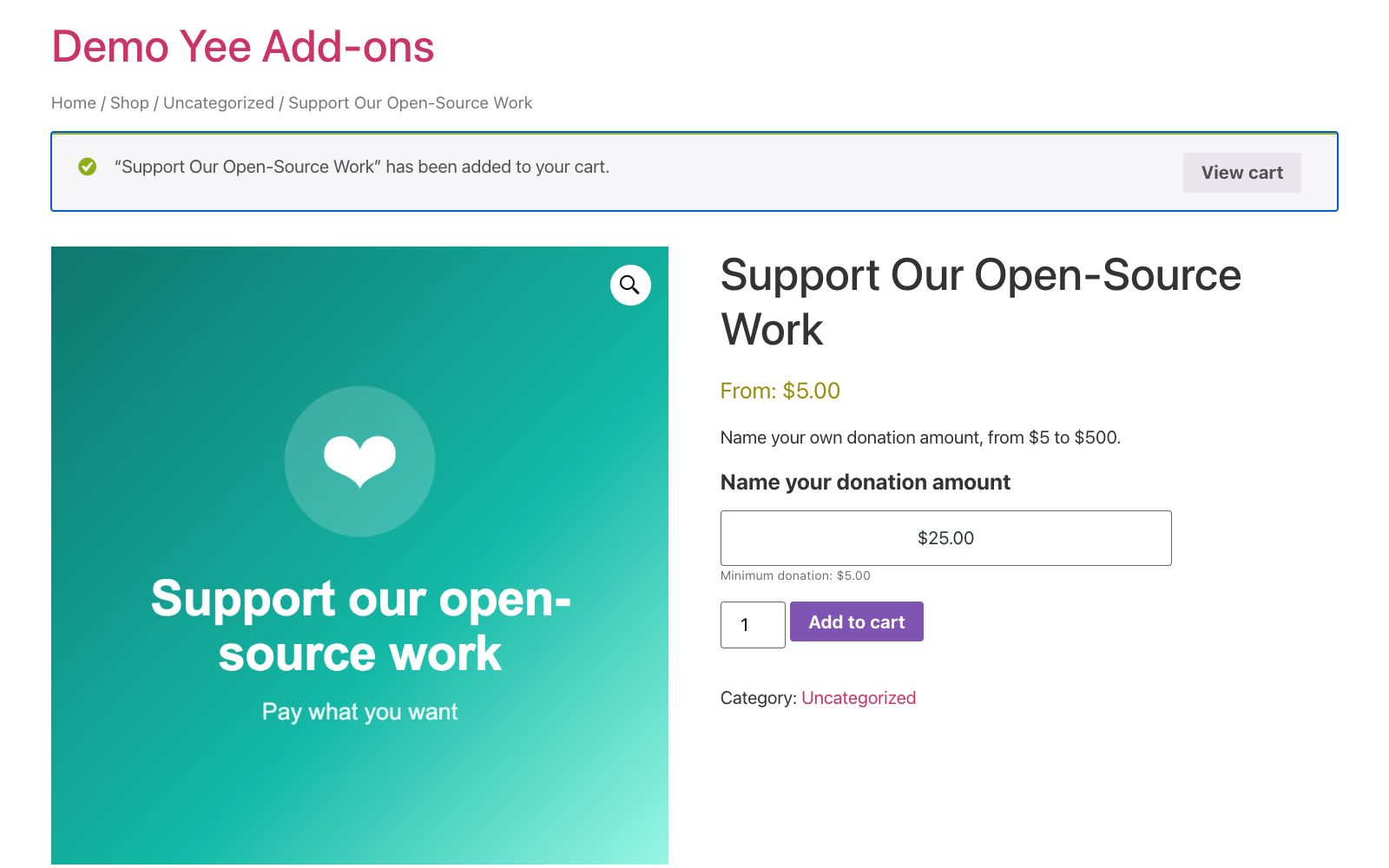
The same rules are enforced on the server when the form is submitted, so a tampered request cannot add a product below the minimum or above the maximum. WooCommerce then shows a notice at the top of the page and nothing is added to the cart.
6. Cart, Edit Price and Checkout
6.1 The cart and the “Edit price” link
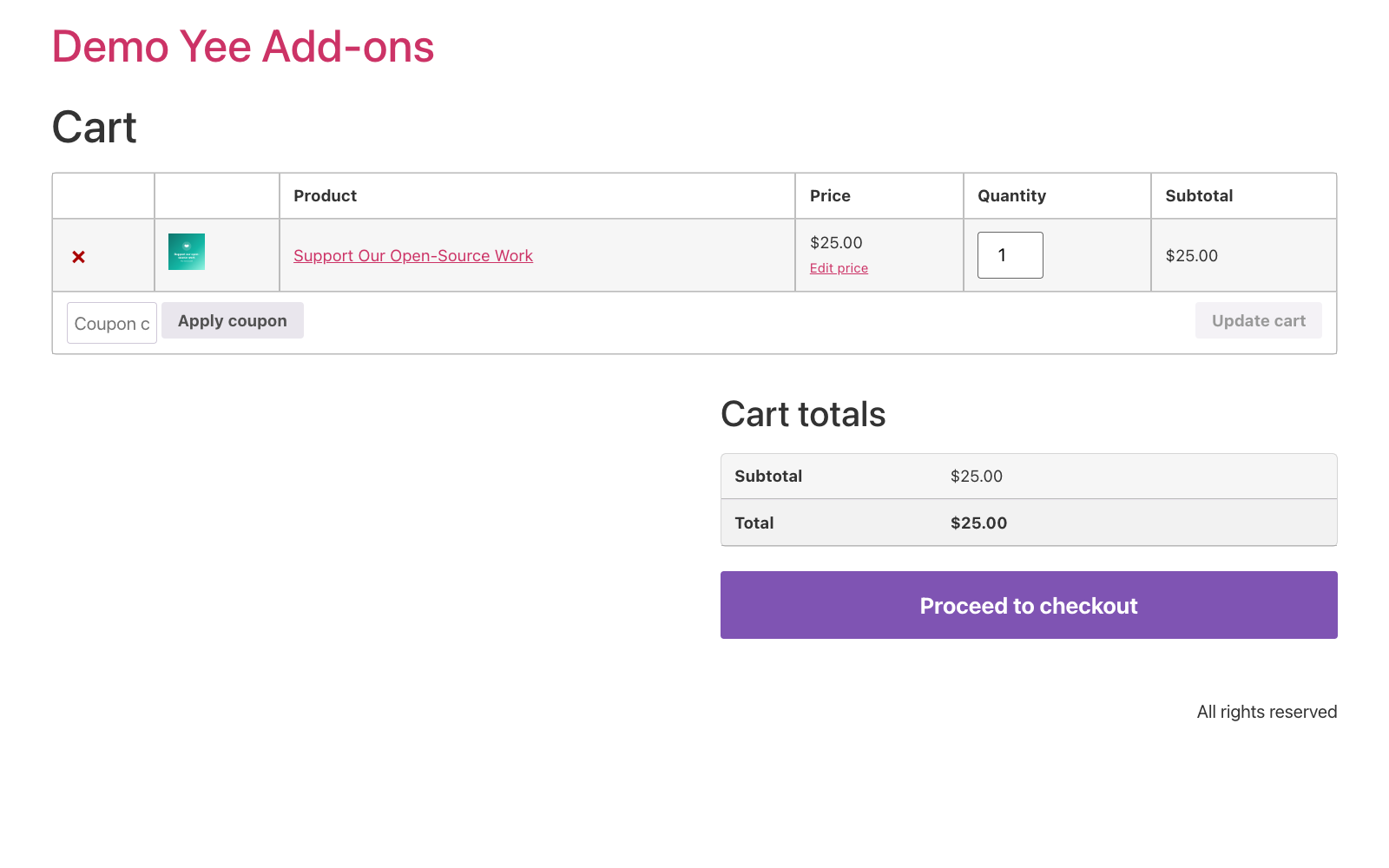
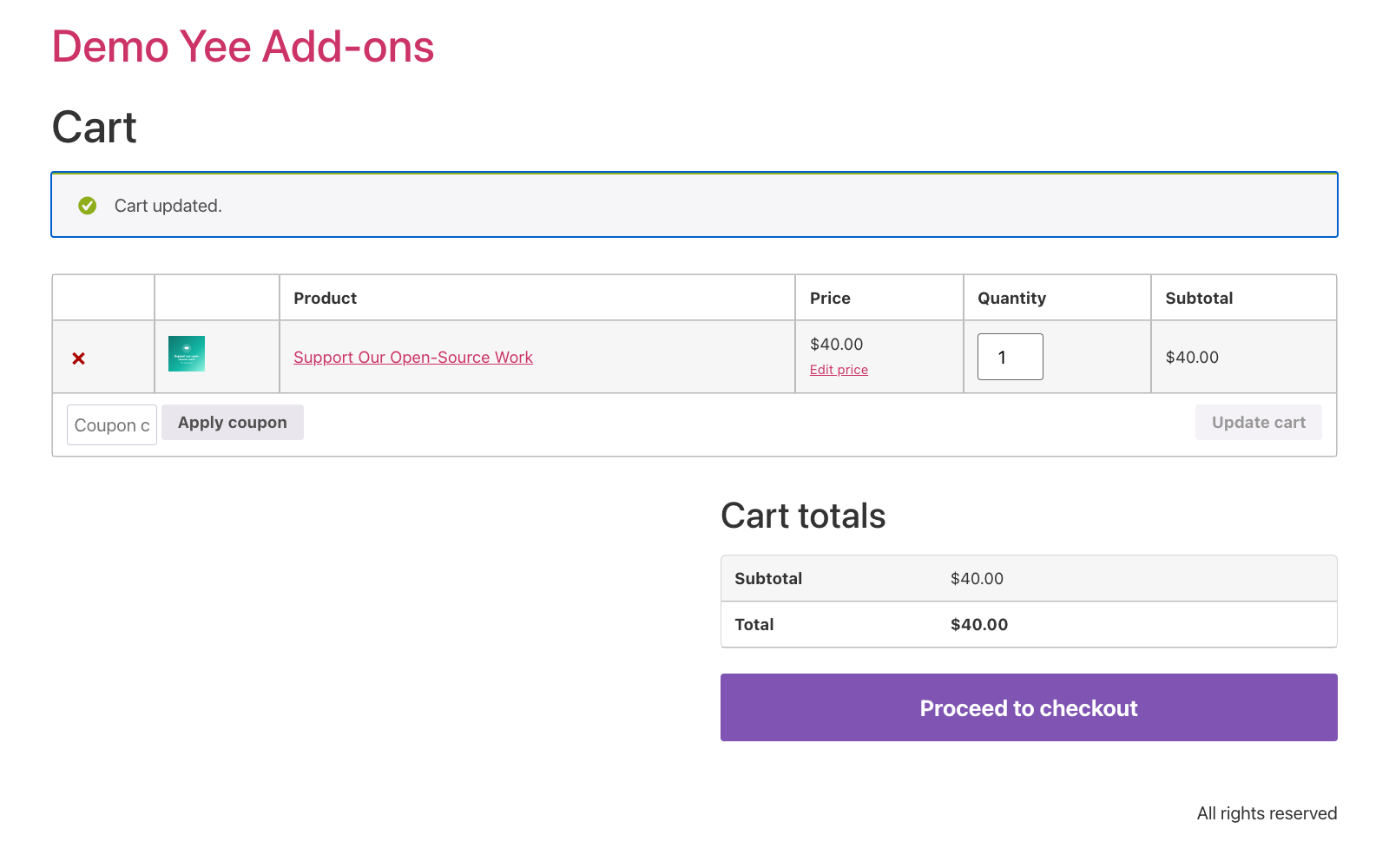
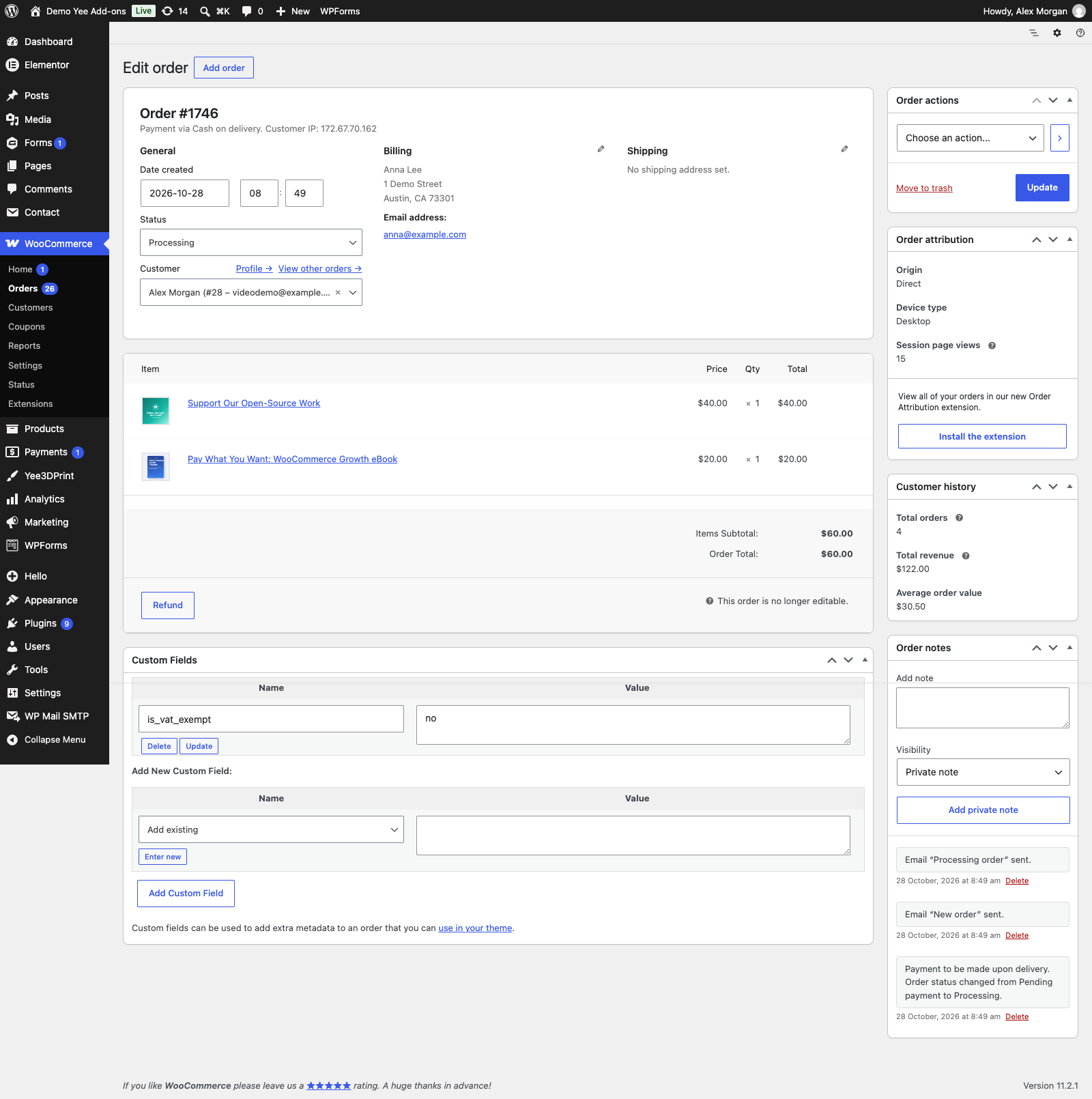
Each Name Your Price line shows an Edit price link under its price. It opens the product page with the current amount pre-filled; submitting the form again replaces the existing line (same product, new price) and returns the customer to the cart with the message “Cart updated.” instead of adding a second line.
6.2 Checkout and order
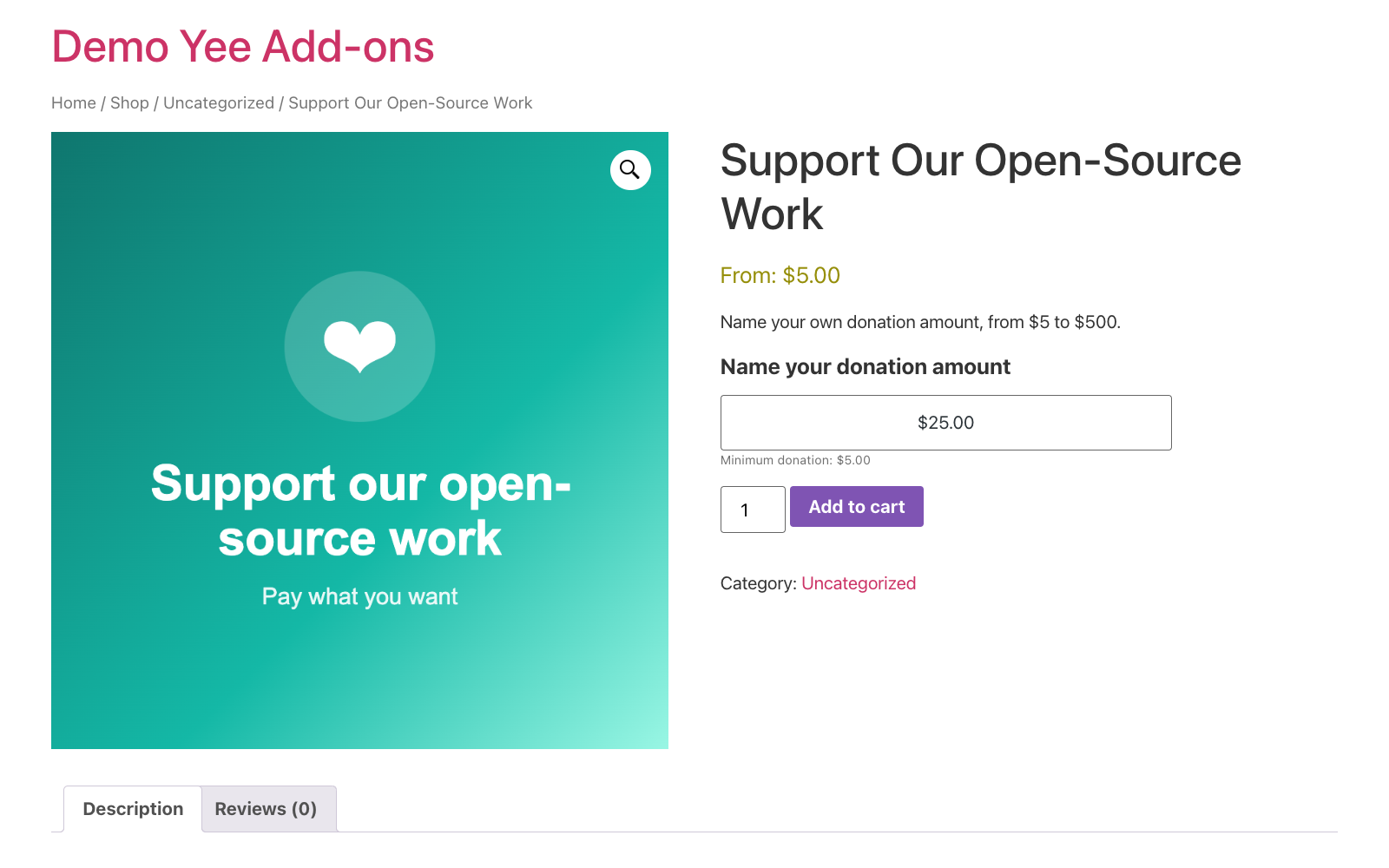
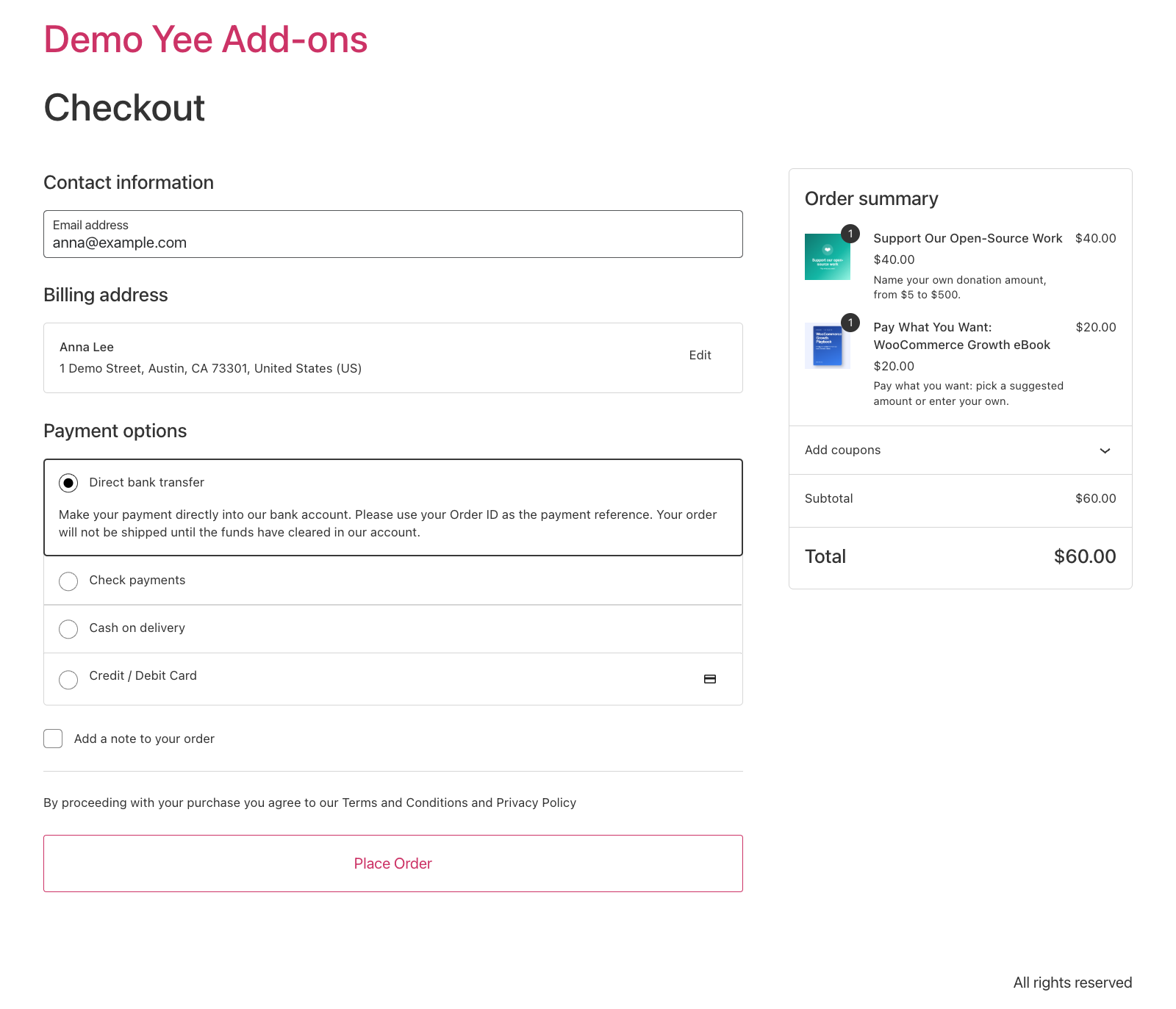
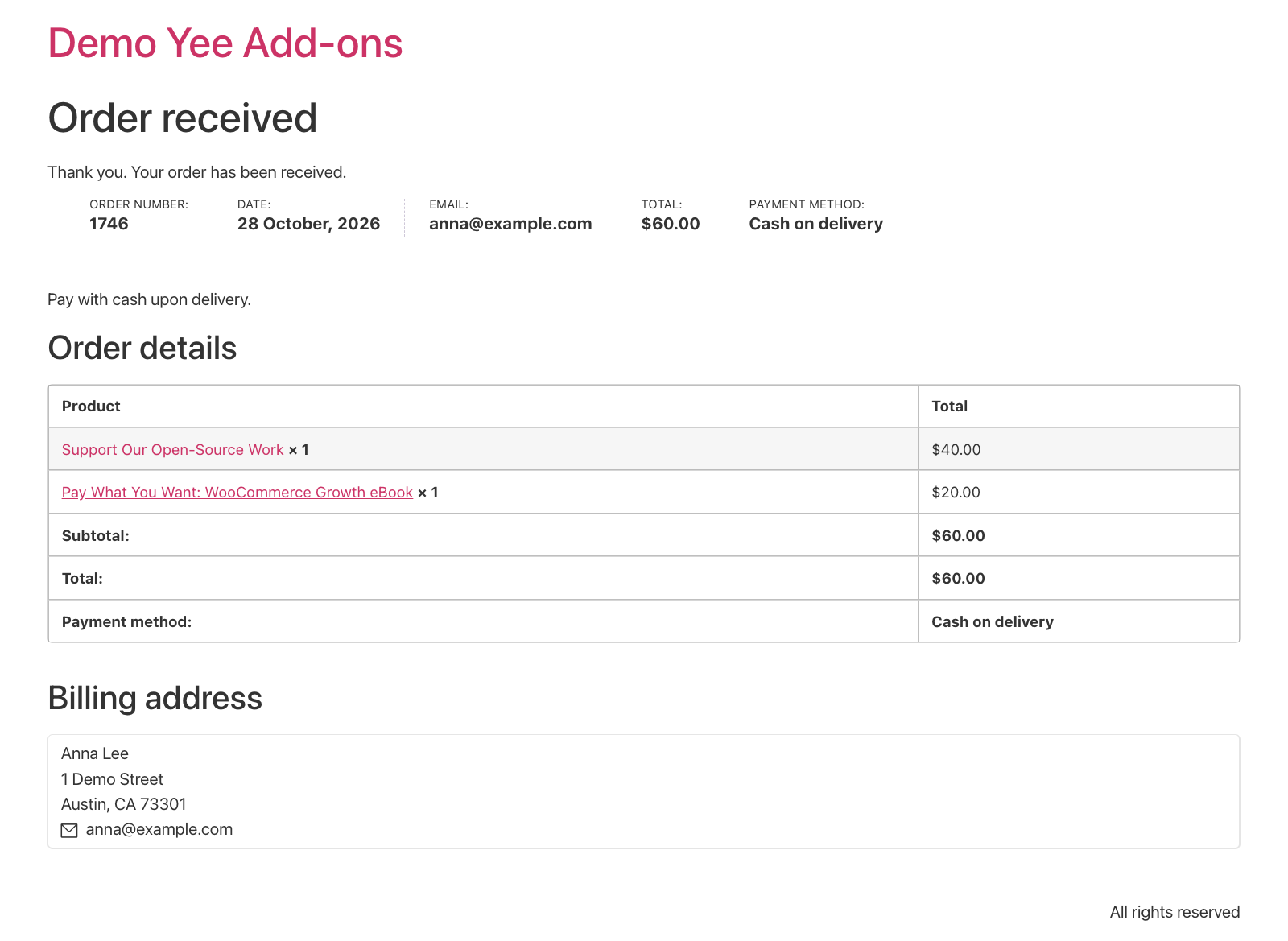
Checkout is the normal WooCommerce checkout (classic or block-based). The amounts entered are the line totals; taxes, coupons and shipping apply as for any product.
7. Managing Name Your Price Products
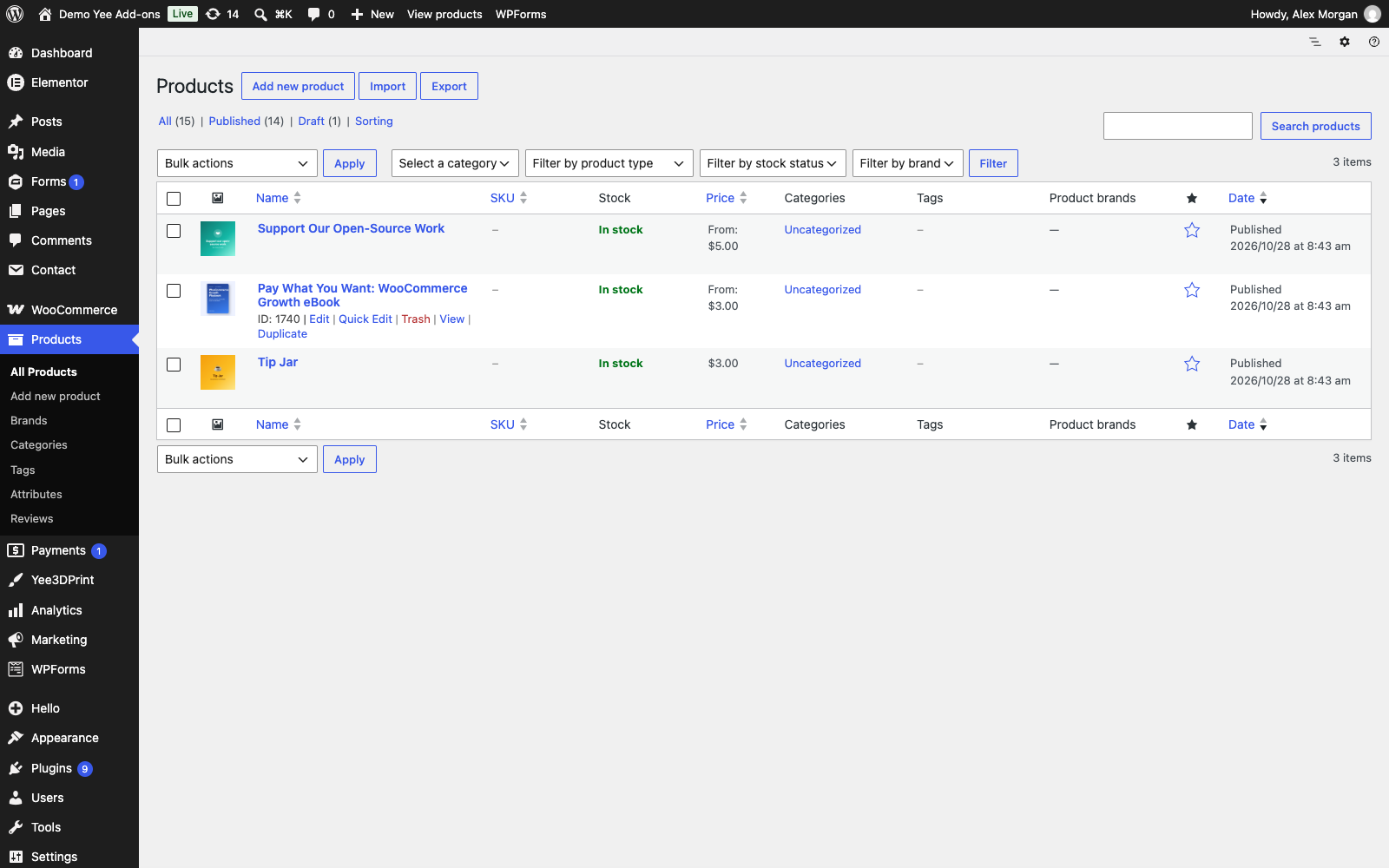
The Products list gets a new entry Name Your Price in the Filter by product type drop-down, so you can list only products with the option enabled. In the Price column these products show From: [minimum] when a minimum is set.
8. Use Cases & Tips
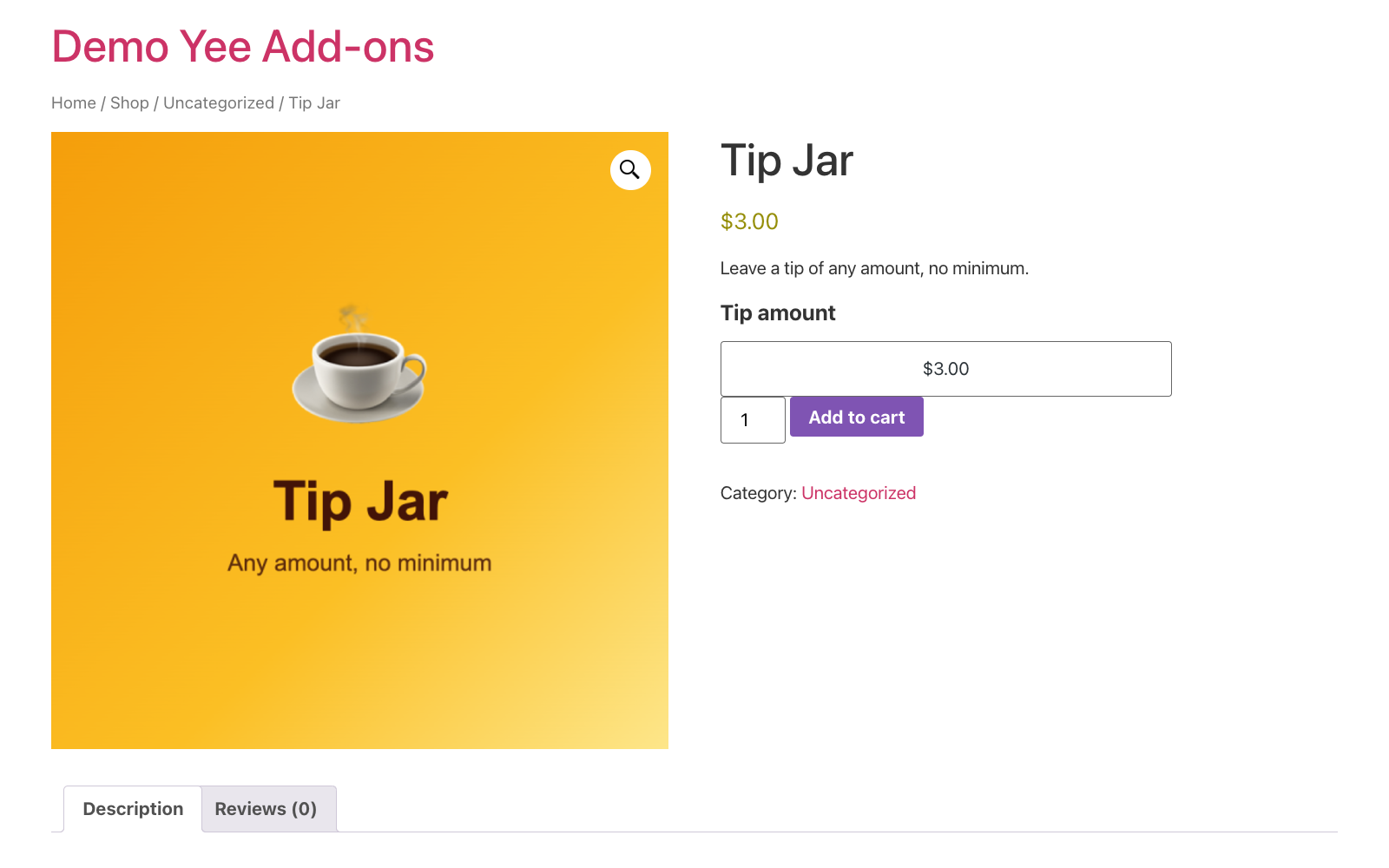
- Donations and fundraising: set a sensible Default, a small minimum to cover payment fees, and a button text such as “Donate”.
- Pay what you want digital products: make the product virtual and downloadable, add preset tiers and enable the custom price so generous customers can pay more.
- Tips and gratuities: leave Min Price and Max Price empty and clear Text min Price to hide the note.
- Gift amounts and deposits: use Min and Max to keep the amount in a reasonable range.
- Wording: the Title and the minimum note accept HTML, and the placeholder
[min]prints the formatted minimum. All texts can be translated with thename-your-price-for-woocommercetext domain. - Currency formatting: the field follows WooCommerce → Settings → General (currency symbol and position, thousand and decimal separators, number of decimals).
- Cart page: the Edit price link is rendered by the classic cart (the
shortcode). With the block-based Cart, customers remove the line and add the product again with the new amount. - Testing: try an amount below the minimum, above the maximum and a non-numeric value to see the three validation messages before launching a campaign.
9. Developer Reference
All settings are stored as product meta, so they can be set programmatically or imported with the WooCommerce product importer (map the columns to the meta keys below).
| Meta key | Value |
|---|---|
_yee_price_name | “yes” when Name Your Price is enabled, otherwise “no” |
_yee_name_price_title | Label above the field |
_yee_name_price_default | Pre-filled amount (also copied to the product price) |
_yee_name_price_min / _yee_name_price_max | Minimum and maximum amount, empty for none |
_yee_name_price_min_text | Note under the field, supports [min] |
_yee_name_price_add_cart_shop | Button text on listings |
_yee_name_price_add_custom_values | Preset amounts, one per line |
_yee_name_price_add_enable_custom_value | “yes” to add the “Custom Price” entry to the drop-down |
The amount travels in the add-to-cart request as the field yee_nyp_price, protected by the nonce _yee_pyn_nonce, and is stored in the cart item as _yee_nyp_price. The cart line price is set through woocommerce_get_cart_item_from_session, so it survives page loads and is copied to the order like a regular price. The admin filter uses the query value product_type=yeeaddons-name-your-price. The browser messages (“Please enter a valid”, “Please enter at least”, “Please enter less than or equal to”) are passed to the script as the yee_nyp object and can be translated.
10. Security & Privacy Notes
- Every submitted amount is sanitized, stripped of formatting characters and re-checked against the product’s minimum and maximum on the server; the browser check is only a convenience.
- The add-to-cart form and the Edit price link are protected by WordPress nonces. Negative, non-numeric and infinite values are rejected.
- The plugin stores no customer data of its own: the chosen amount is saved only in the cart session and on the order, like any WooCommerce price.
11. Frequently Asked Questions (FAQ)
Which product types are supported?
The Name Your Price checkbox is available for simple products, including virtual and downloadable ones. For a variable product, create one simple Name Your Price product per option.
Can I leave the minimum and maximum empty?
Yes. Without a minimum any positive amount is accepted; without a maximum there is no upper limit. Clear “Text min Price” if you do not want the note under the field.
Why does the product show “From: $5.00” on the shop page?
Listings show “From:” followed by the minimum you set, because the final price is chosen by the customer. Without a minimum the Default amount is shown.
Can the customer pay 0?
No. The amount must be greater than zero; an empty or zero amount shows “Please enter a valid” and disables the button.
What happens if the customer edits the price in the cart?
The Edit price link reopens the product with the current amount. Submitting the form replaces the existing cart line with the new amount and shows “Cart updated.”
Does it work with the block-based Cart and Checkout?
Checkout works with both the classic and the block checkout. The Edit price link appears in the classic cart (shortcode); with the block cart customers remove the line and add the product again.
Can I use preset amounts and still allow a custom amount?
Yes. Fill “Select custom value” with your tiers and tick “Enable Custom price after select”; the drop-down then offers “Custom Price”, which reveals the free field.
Why is the regular price hidden in the product editor?
When Name Your Price is enabled the Default amount is used as the product price, so the Regular and Sale price fields are hidden to avoid conflicts. Untick the checkbox to get them back.
Are coupons, taxes and shipping applied?
Yes. The entered amount is a normal line price, so WooCommerce applies taxes, coupons and shipping rules exactly as for other products.
Can I translate the texts?
The field label, the minimum note and the button text are set per product. The validation messages and other strings use the text domain name-your-price-for-woocommerce and can be translated with Loco Translate or a .po file.