
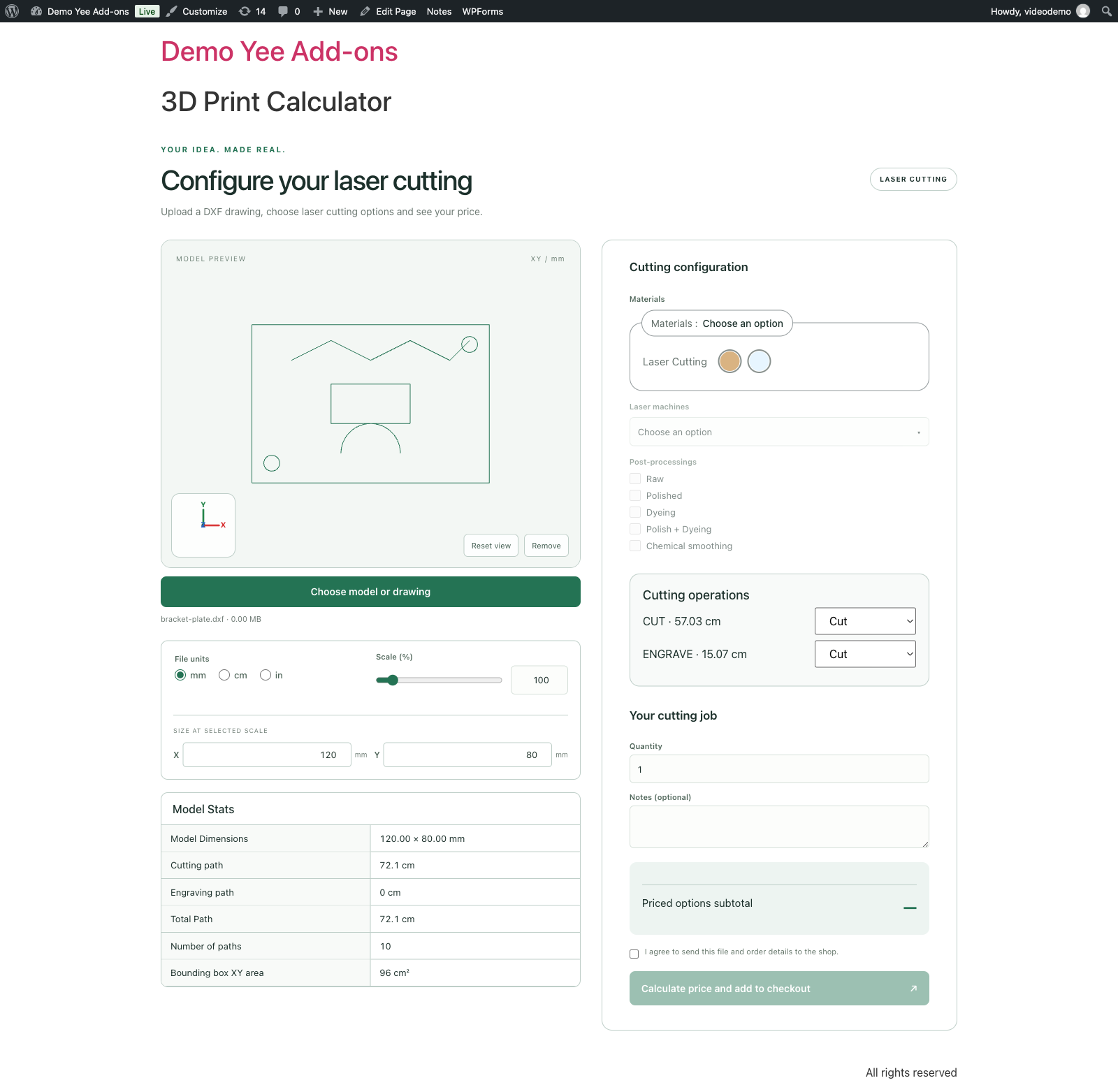
This guide explains how 3D Print Calculator (Yee3DPrint, by add-ons.org) prices CNC and laser cutting jobs. Besides 3D models, the configurator accepts DXF drawings: it measures the cutting and engraving paths on your server, lets the customer decide what to cut, engrave or ignore layer by layer, and turns the measured lengths into a price using the rates of the selected cutting material and laser machine. You will find the setup of the laser catalog, the customer flow, the exact pricing and time formulas, worked examples with real numbers, checkout and quote screens, and a FAQ. For the general plugin documentation (installation, settings, 3D printing), see the main 3D Print Calculator documentation.
Video tutorial
1. What Counts as a CNC Job
- A DXF upload switches the configurator to laser-cutting mode: the heading becomes “Configure your laser cutting”, the badge reads LASER CUTTING, the drawing is previewed in 2D and the price is based on path length instead of volume.
- Only ASCII DXF files up to 5 MB are measured automatically. Supported entities: LINE, CIRCLE, ARC, ELLIPSE, LWPOLYLINE (without bulges) and SPLINE. Limits: 50 layers and 30,000 points.
- Drawings with unsupported entities, binary DXF, and DWG or other CAD formats cannot be measured: the customer gets the manual quote form instead (name, email, phone, quantity, notes).
- Only Laser cutting materials and Laser Cutting machines are offered for a drawing; 3D printing materials, infills, coatings and print quality are hidden. Post-processings stay available.
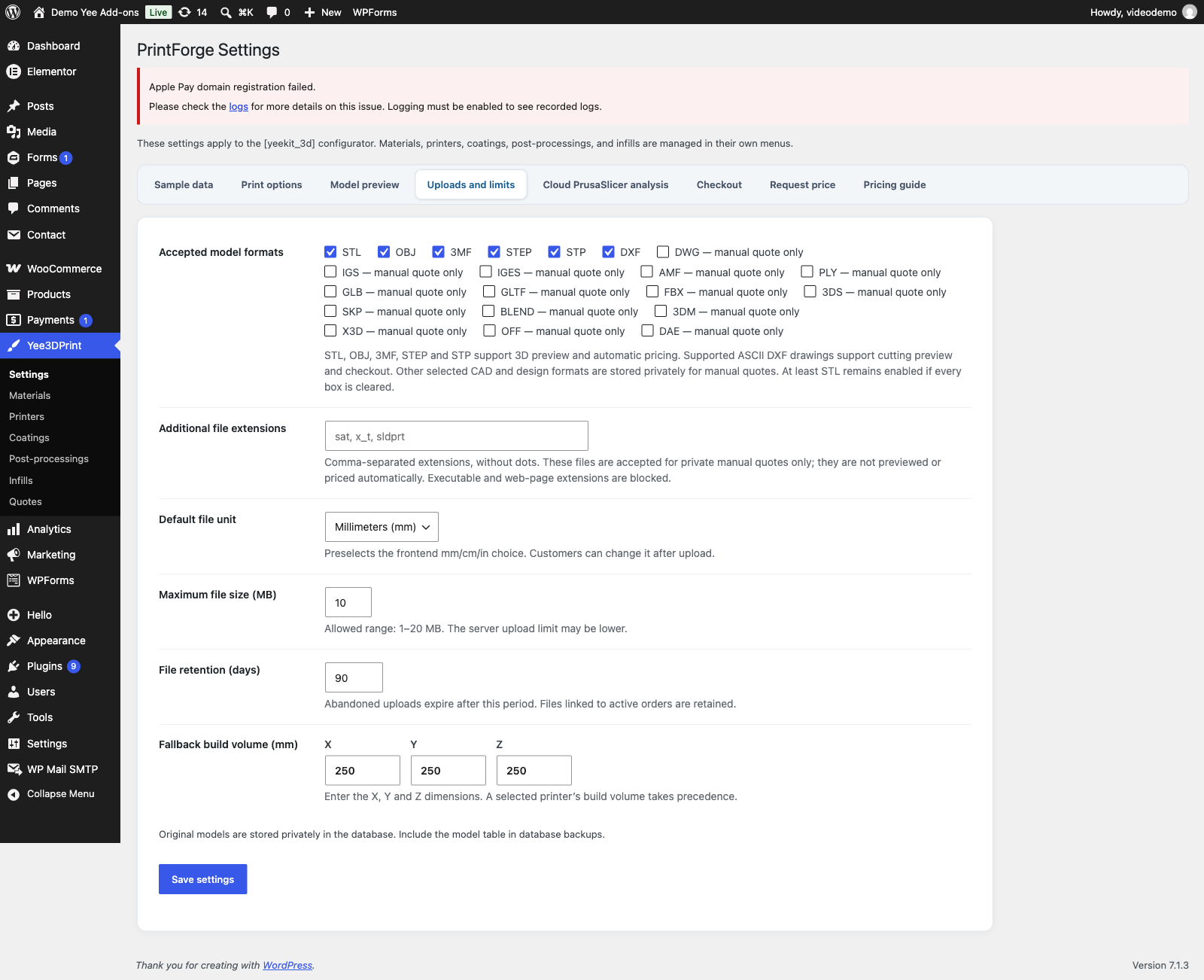
- DXF carries no unit. The File units choice (mm / cm / in) made before the upload, or the default unit from Settings → Uploads and limits, tells the plugin how to read the coordinates.
2. Set Up the Laser Catalog
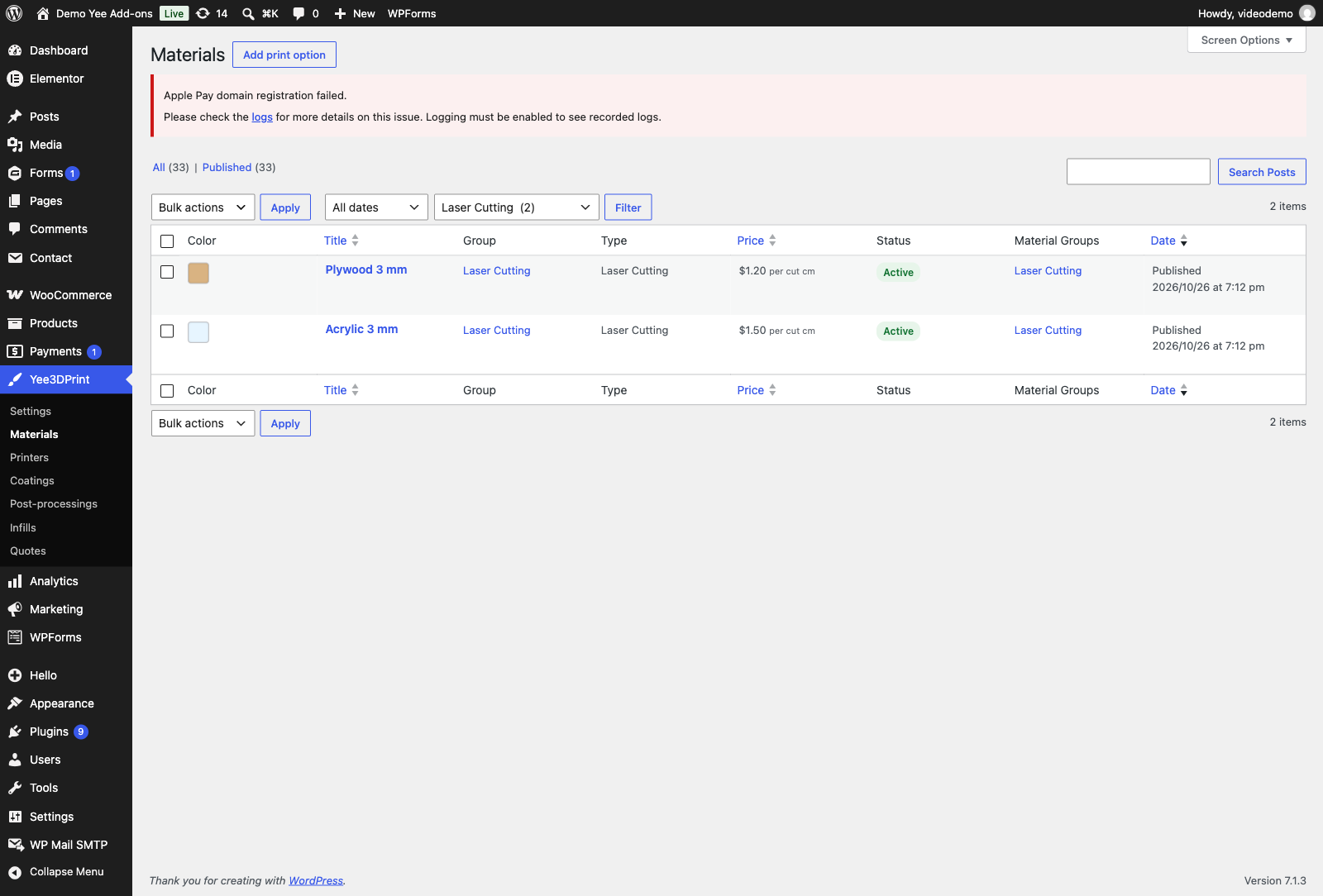
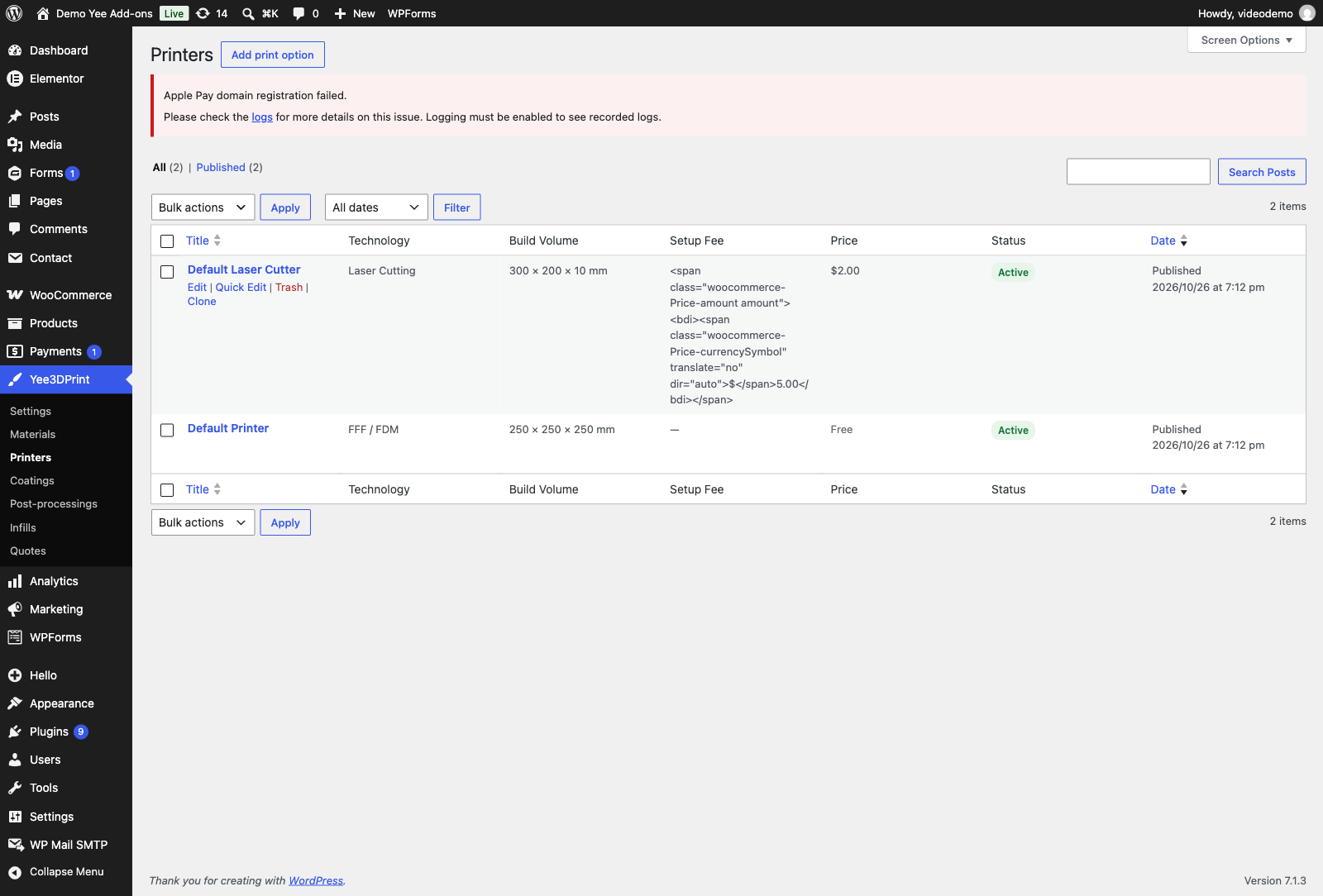
The quickest start is Yee3DPrint → Settings → Sample data → Create CNC sample data. It creates a Default Laser Cutter and two cutting materials, Plywood 3 mm and Acrylic 3 mm, grouped under Laser Cutting and priced at 1 per cm of cutting path. The examples below use those samples with the prices changed to the values shown in the screenshots.
2.1 Cutting materials
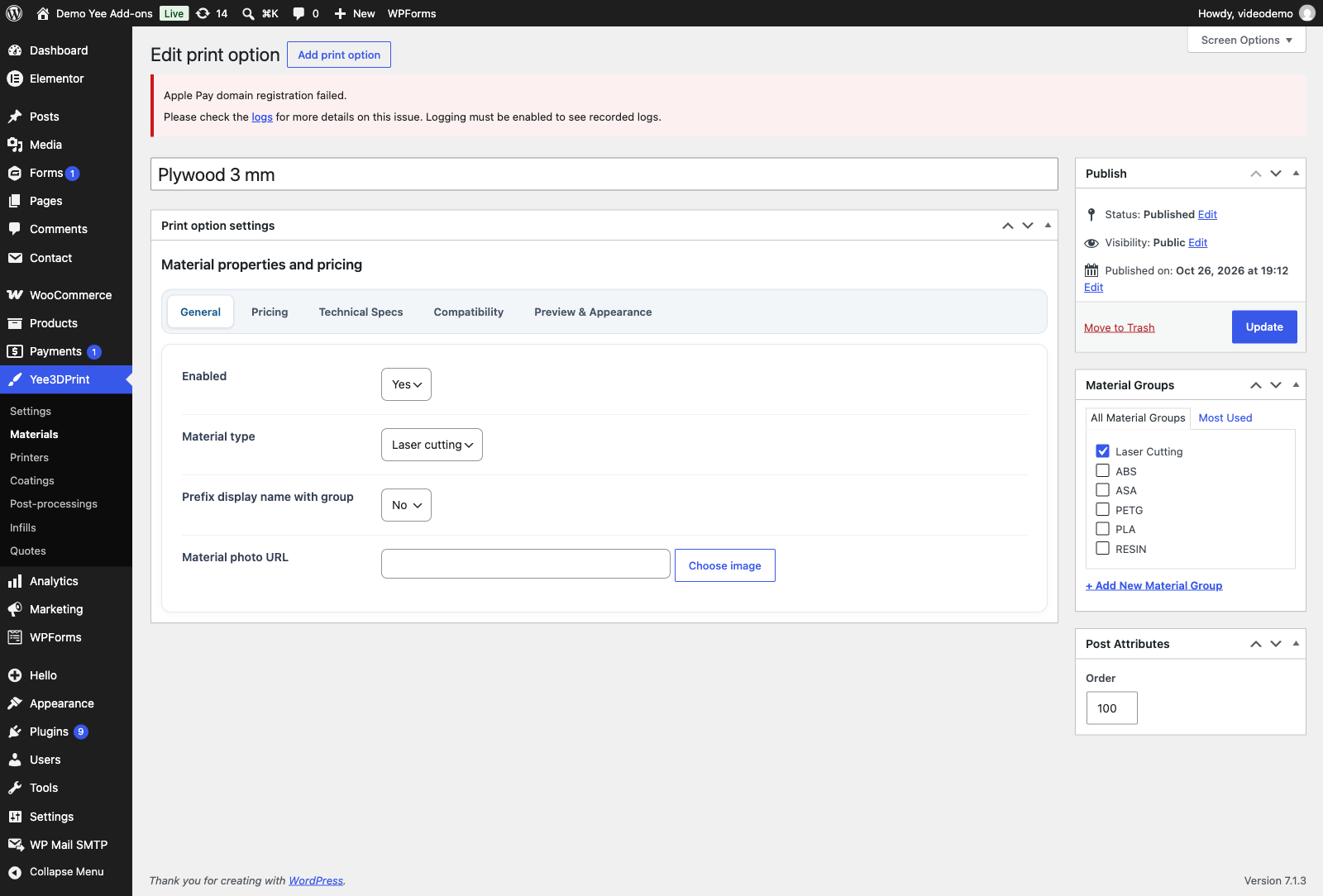
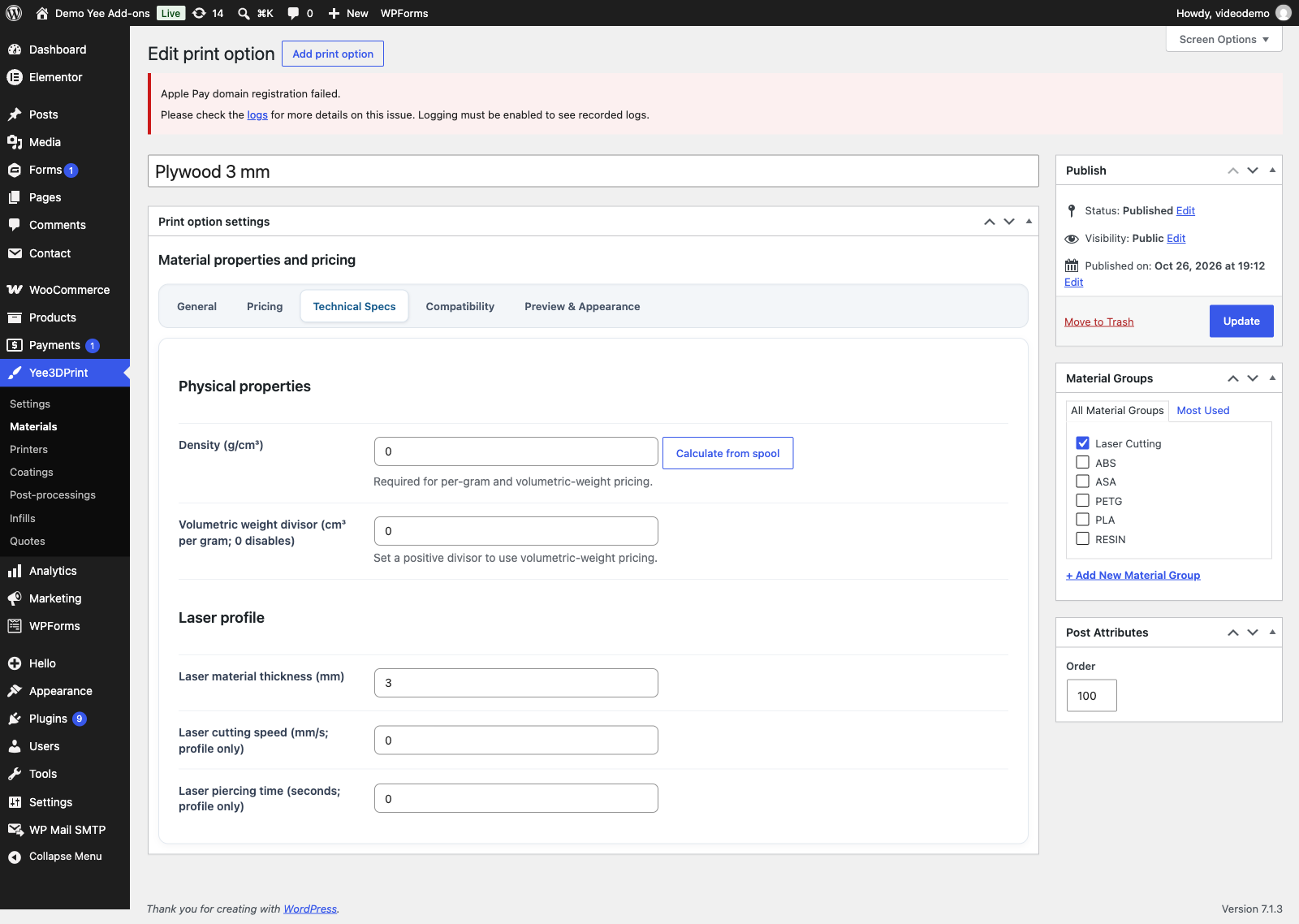
A cutting material is a normal Material entry whose Material type is Laser cutting (General tab). Its thickness and its price per centimetre are set on the other tabs.
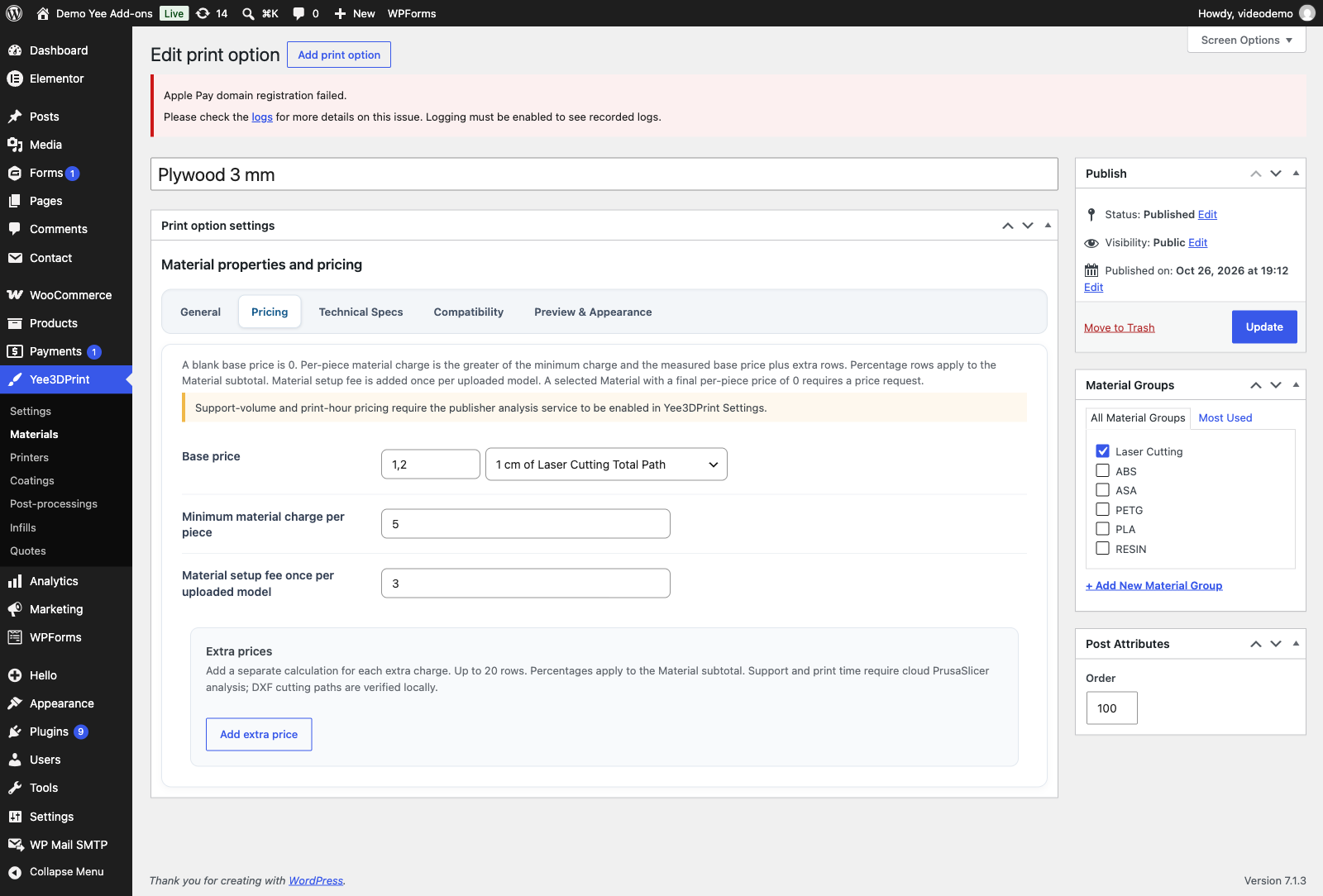
| Setting | Meaning for a drawing | Example (Plywood) |
|---|---|---|
| Base price + basis 1 cm of Laser Cutting Total Path | amount × centimetres of all layers set to Cut | 1.20 per cm |
| Base price + basis Fixed Price | a flat amount per piece, whatever the drawing | — |
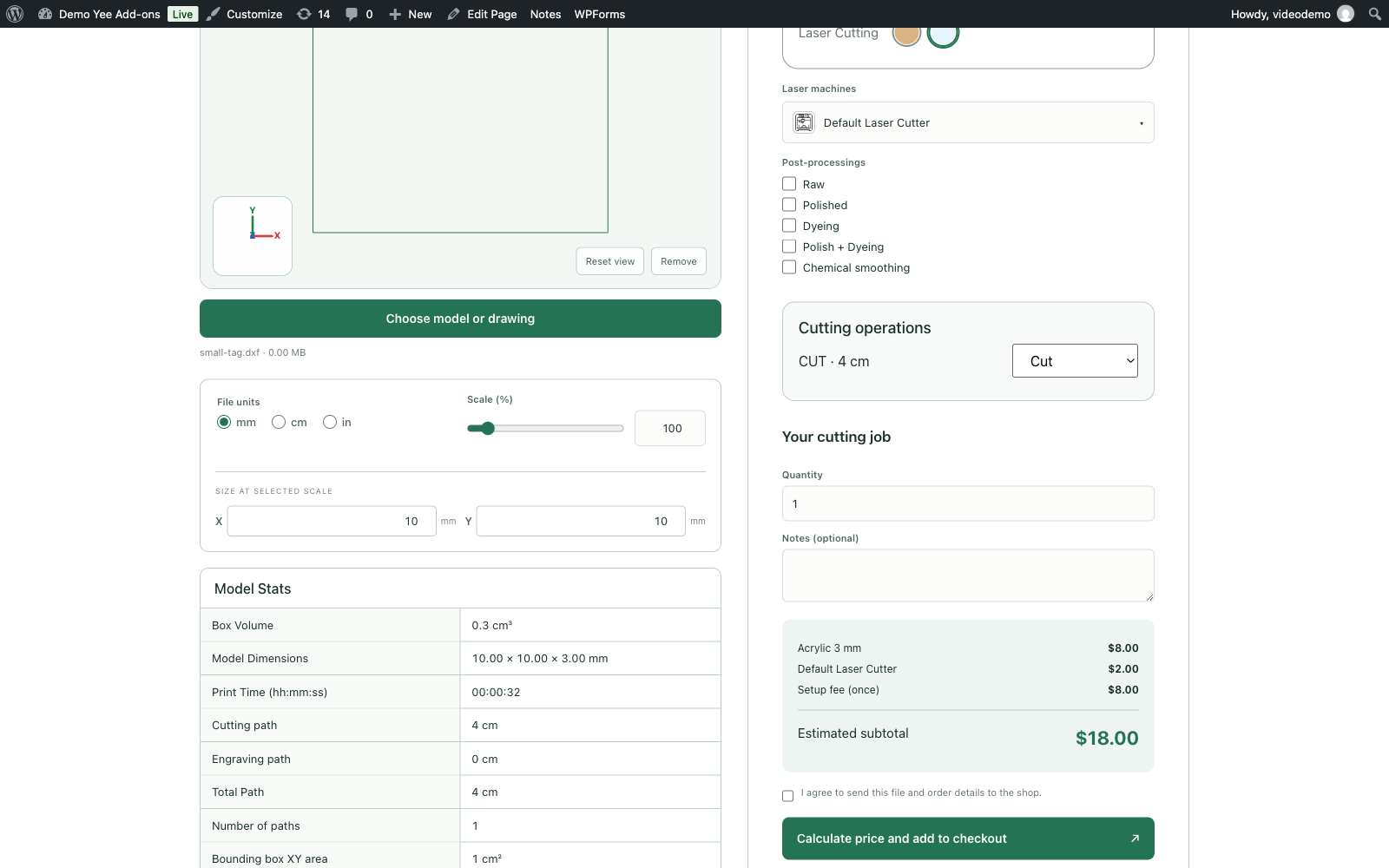
| Minimum material charge per piece | the material charge never goes below this amount | 5.00 |
| Material setup fee once per uploaded model | added once per drawing, not per piece | 3.00 |
| Extra prices | rows with the Fixed or Total Path basis are added; rows with volume, area, weight, support or hour bases are ignored for drawings | — |
2.2 The laser machine
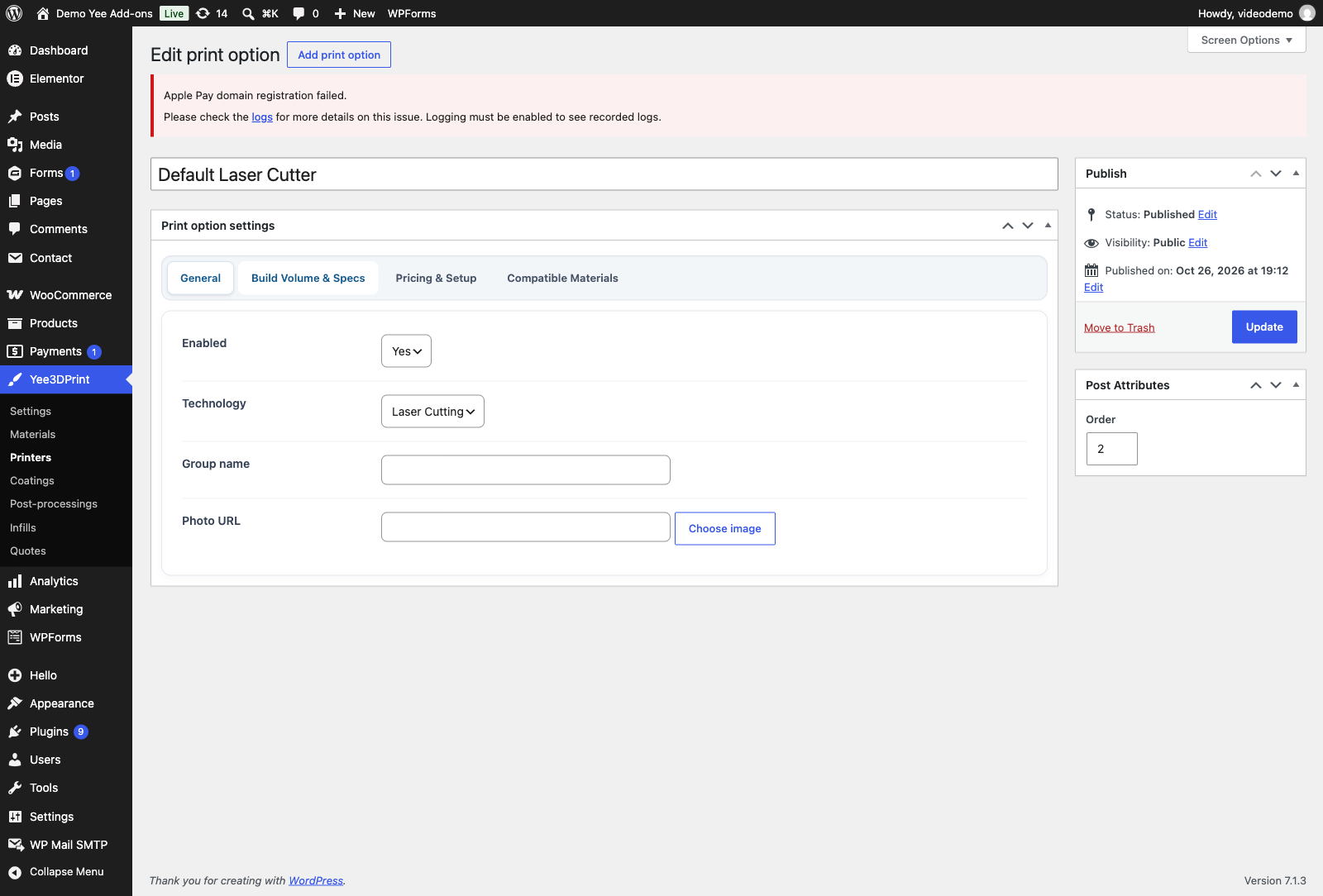
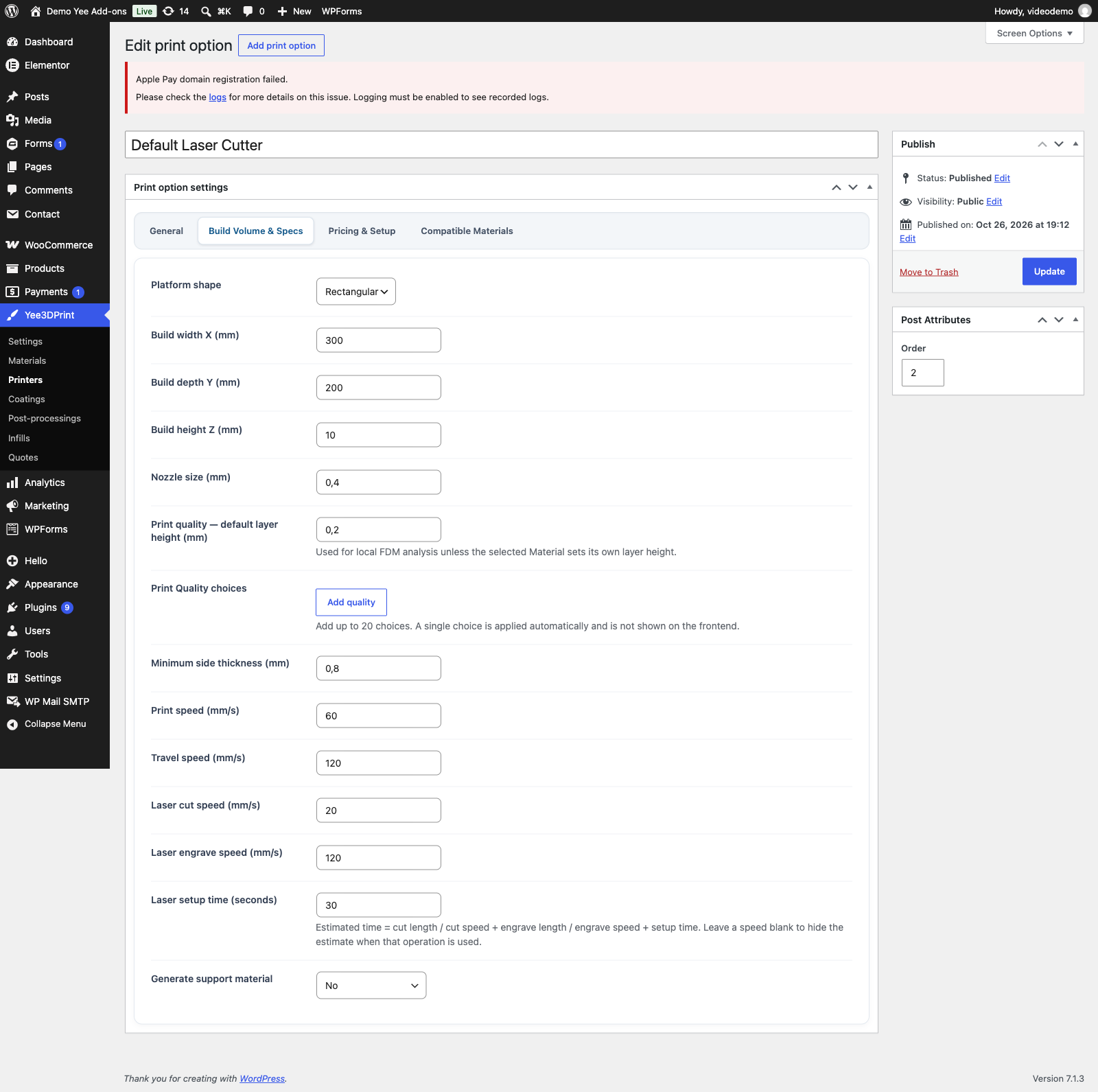
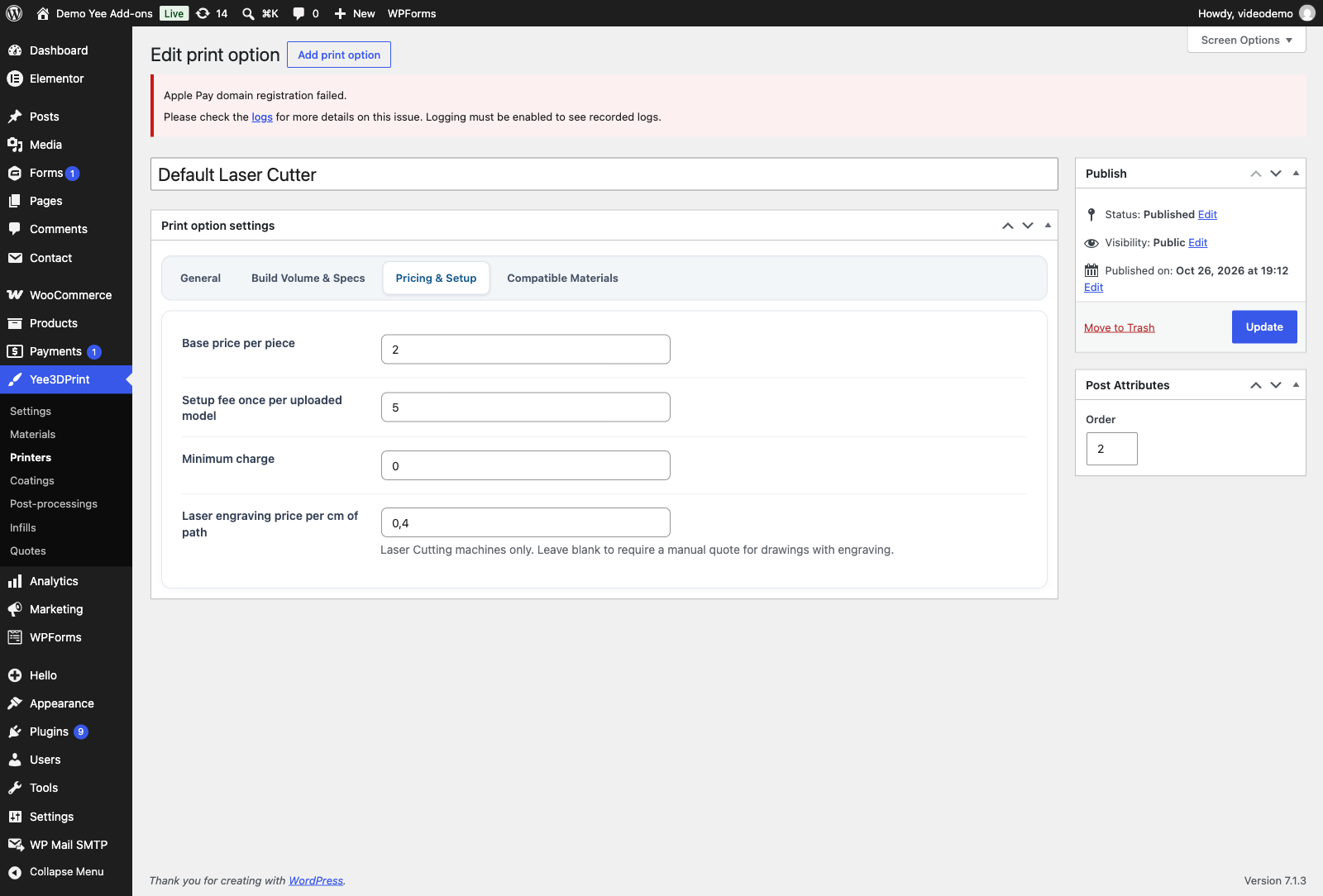
| Setting | Meaning | Example (Default Laser Cutter) |
|---|---|---|
| Base price per piece | added to every piece, whatever the drawing | 2.00 |
| Setup fee once per uploaded model | added once per drawing | 5.00 |
| Laser engraving price per cm of path | amount × centimetres of all layers set to Engrave. Leave it blank to send every drawing with engraving to a manual quote | 0.40 per cm |
| Laser cut speed / engrave speed (mm/s), Laser setup time (s) | only used for the Print Time estimate | 20 / 120 / 30 |
| Build width X / depth Y | drawings larger than the bed show a warning | 300 × 200 mm |
3. The Customer Flow
Step 1: Upload the DXF
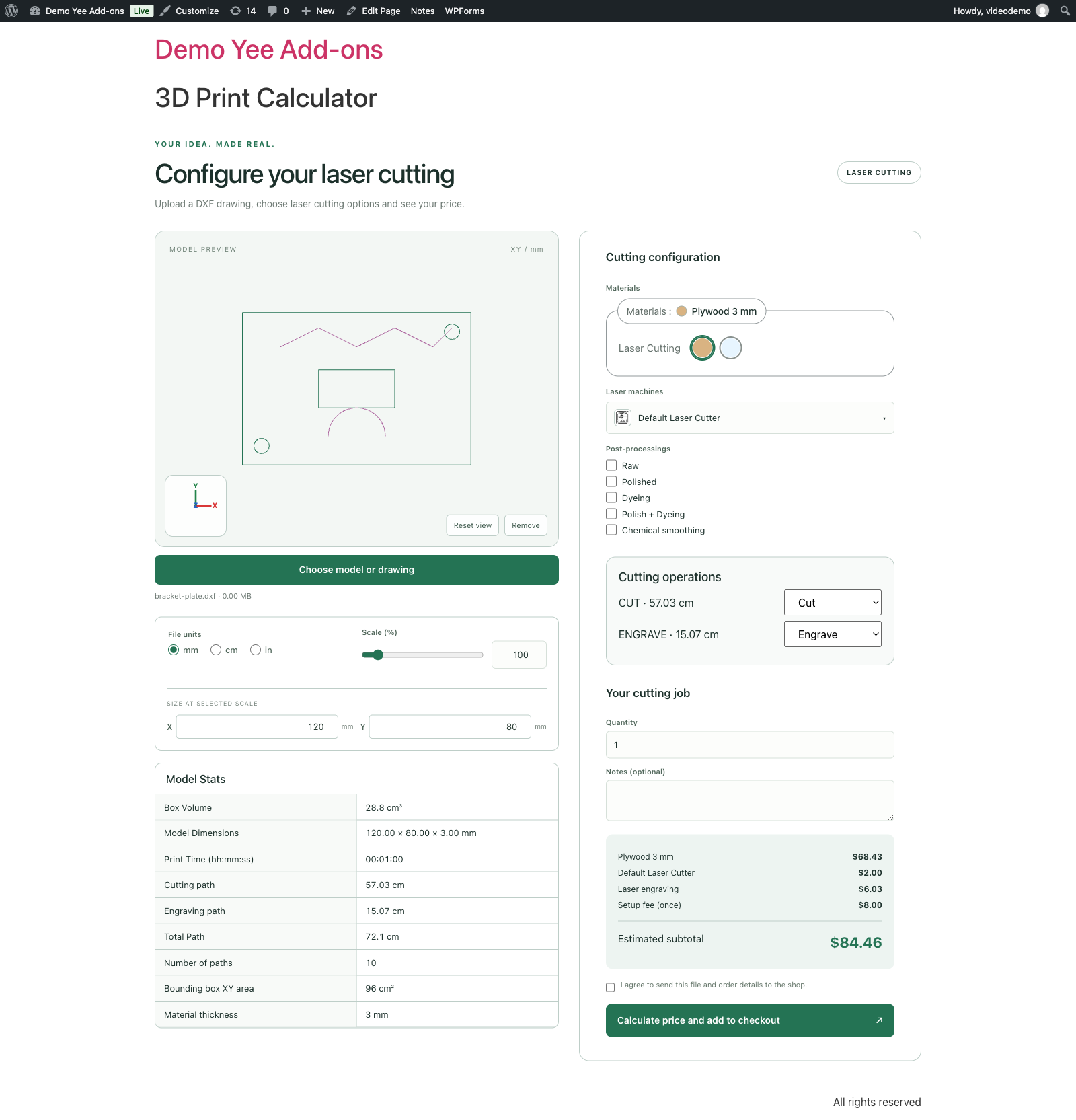
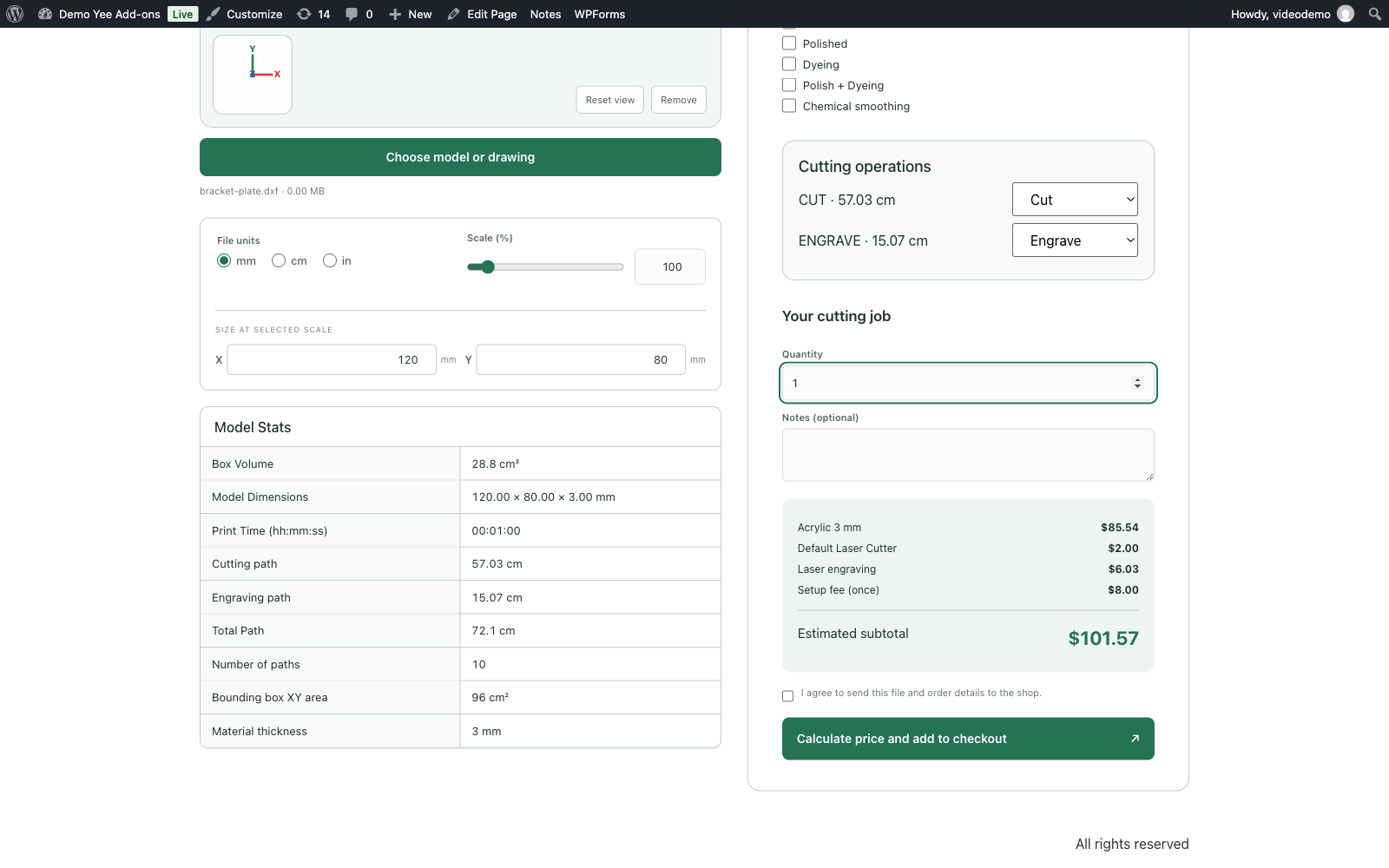
The customer drops a DXF on the viewport or picks it with Choose model or drawing. The plugin measures it on the server, reports “Measuring DXF cutting paths…”, and shows the Model Stats: Model Dimensions, Cutting path, Engraving path, Total Path, Number of paths and Bounding box XY area. Scale and the X/Y size fields work as for 3D models.
Step 2: Choose a cutting operation per layer
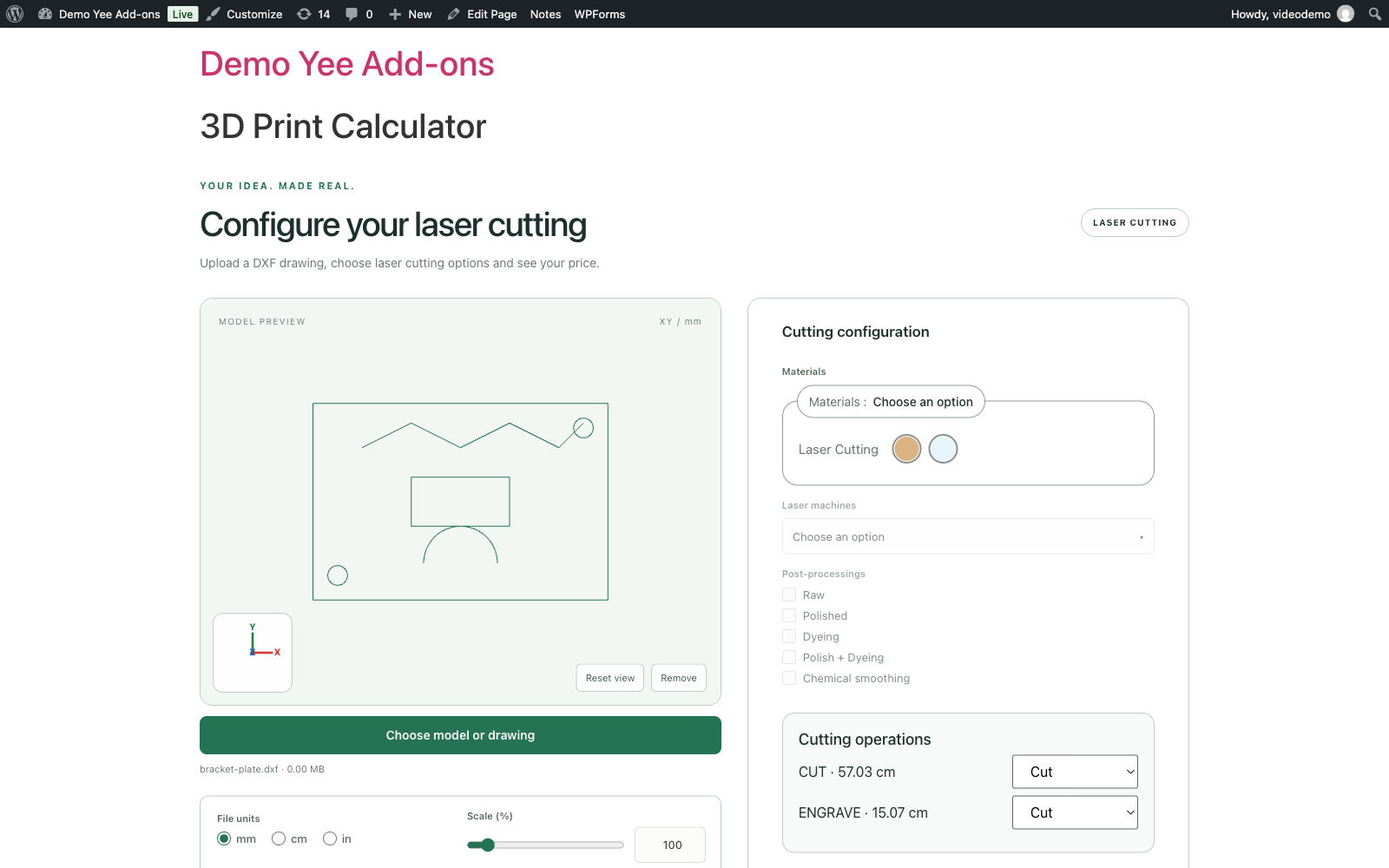
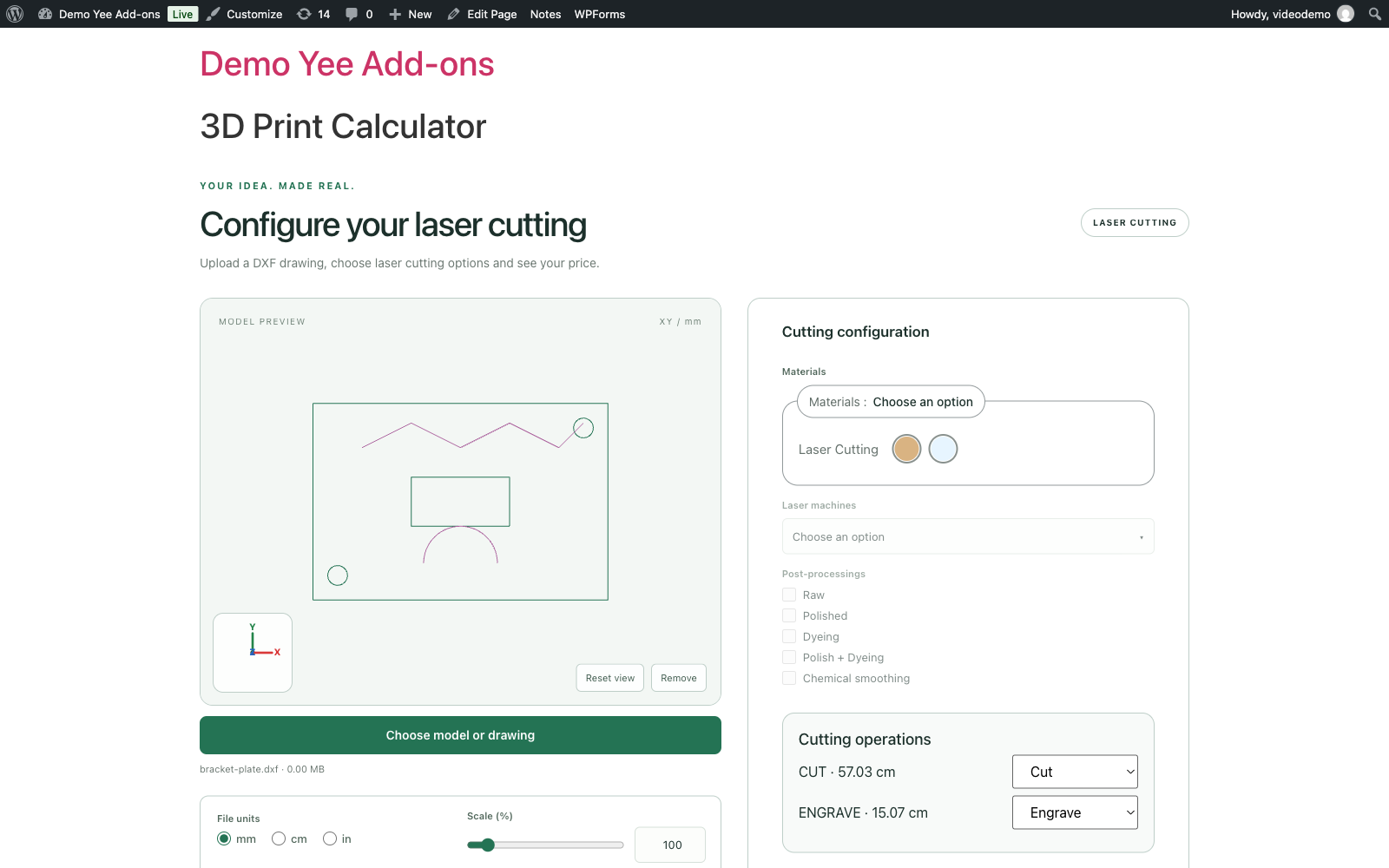
- Cut: the layer’s length is added to the Cutting path and priced by the material.
- Engrave: the length is added to the Engraving path and priced by the machine’s engraving rate; engraved paths are drawn in a different colour.
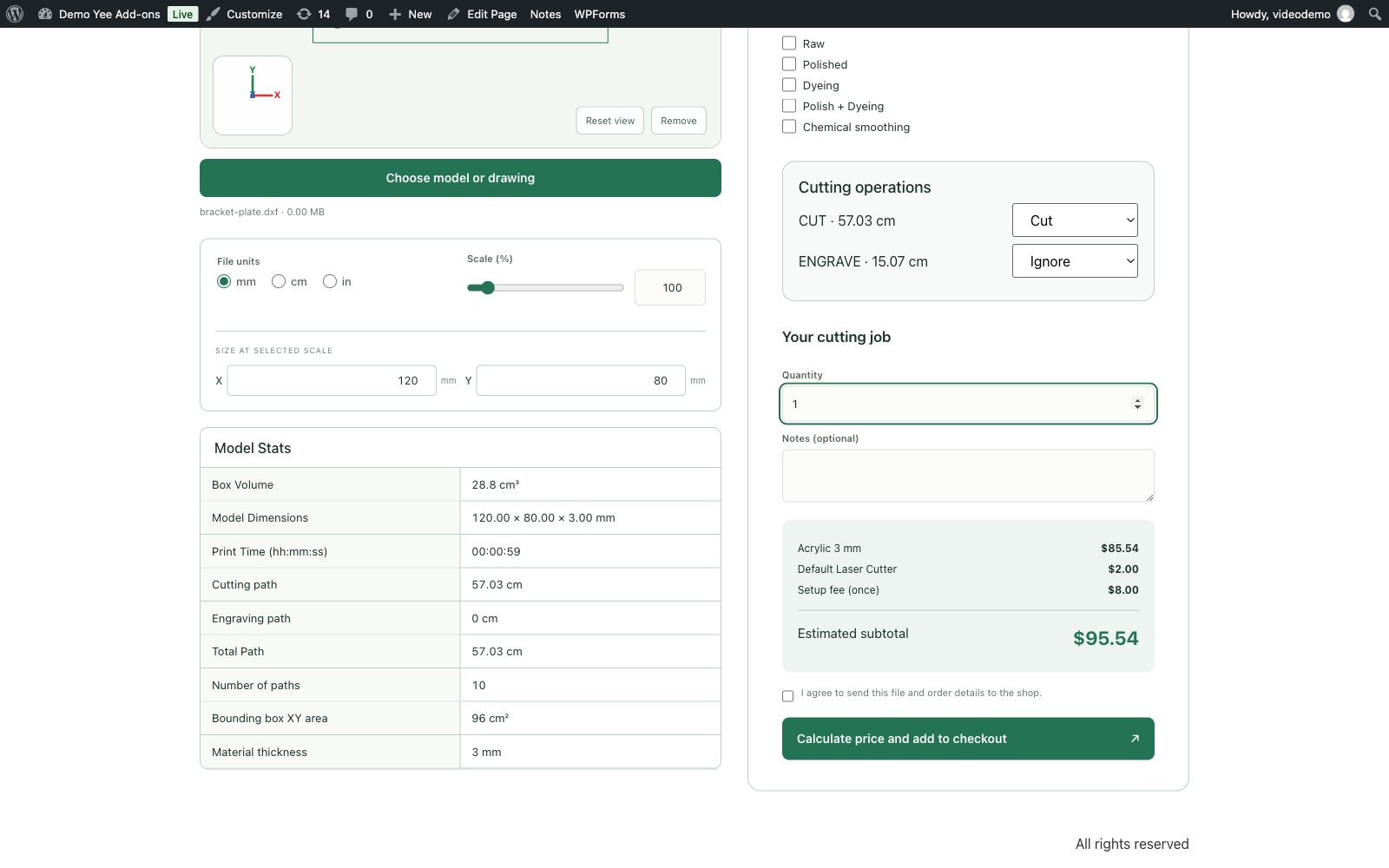
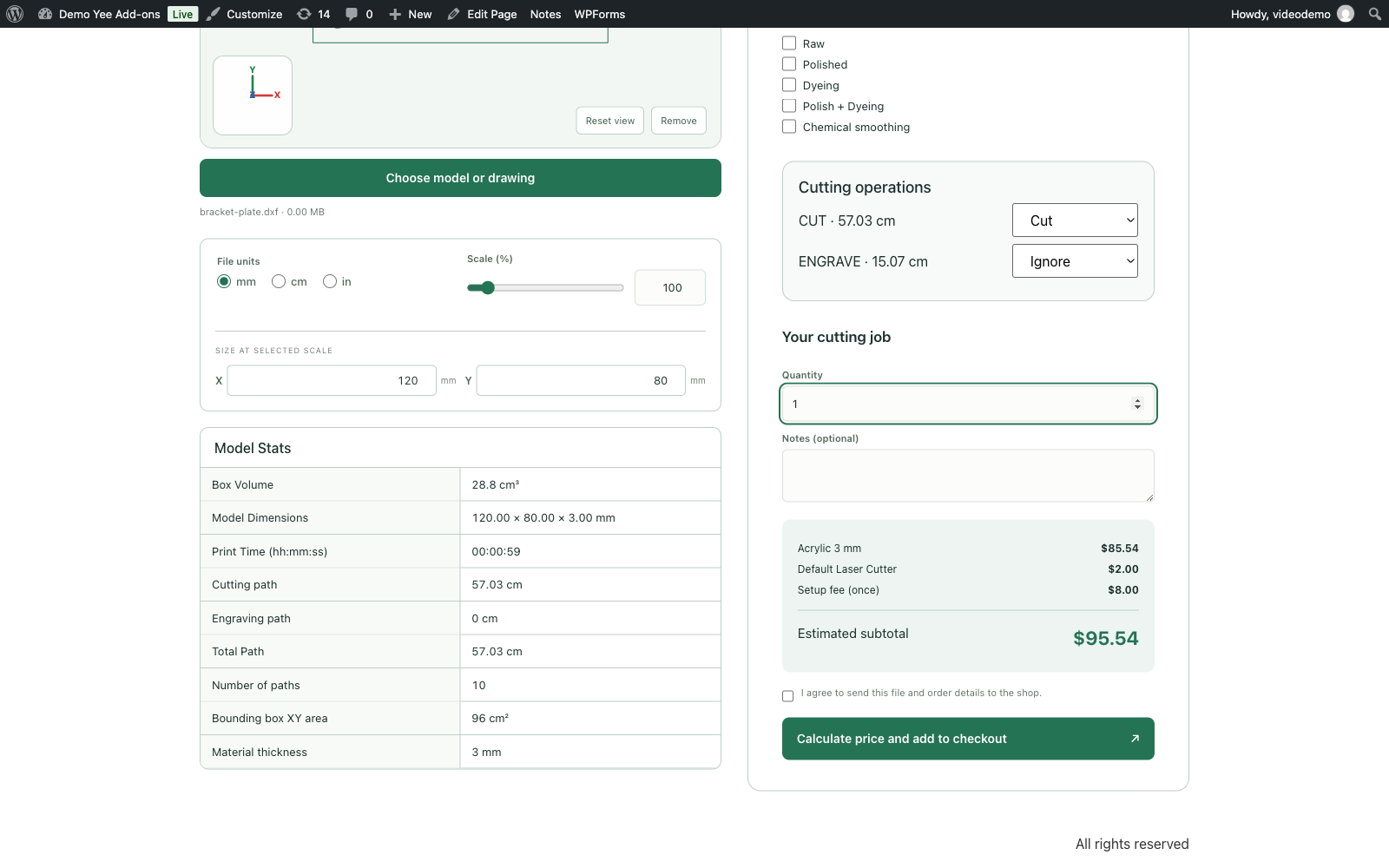
- Ignore: the layer is hidden in the preview and not priced at all.
- Name your layers meaningfully (CUT, ENGRAVE, SCORE…) so customers understand the rows.
Step 3: Material, machine and price
4. How the Price Is Calculated
| Component | Formula |
|---|---|
| Material charge per piece | max( Minimum charge, Base price × cut cm + fixed/total-path extra rows ) |
| Laser engraving per piece | Engraving rate × engrave cm (only when at least one layer is set to Engrave) |
| Machine price per piece | Base price per piece of the laser machine |
| Post-processings | their prices, if any are selected |
| Unit price | material charge + engraving + machine price + post-processings |
| Setup (once per drawing) | Material setup fee + Machine setup fee |
| Estimated subtotal | Unit price × Quantity + Setup |
Lengths are measured from the drawing in its file unit, converted to centimetres and multiplied by the scale. The server repeats the measurement when the drawing is submitted, so a price cannot be altered in the browser. The WooCommerce cart line uses the unit price × quantity, and the setup is added as a separate “Setup fee (filename)” fee.
4.1 Worked example: bracket plate in Plywood
The demo drawing is a 120 × 80 mm plate with two holes and a window on the CUT layer (57.03 cm) and a decorative line on the ENGRAVE layer (15.07 cm). Plywood costs 1.20 per cm with a minimum of 5 and a setup fee of 3; the laser cutter costs 2.00 per piece, 5 setup and 0.40 per engraved cm.
| Step | Calculation | Result |
|---|---|---|
| Cutting | 57.03 cm × 1.20 | 68.43 |
| Engraving | 15.07 cm × 0.40 | 6.03 |
| Machine | base price per piece | 2.00 |
| Unit price | 68.43 + 6.03 + 2.00 | 76.46 |
| Setup | 3.00 material + 5.00 machine | 8.00 |
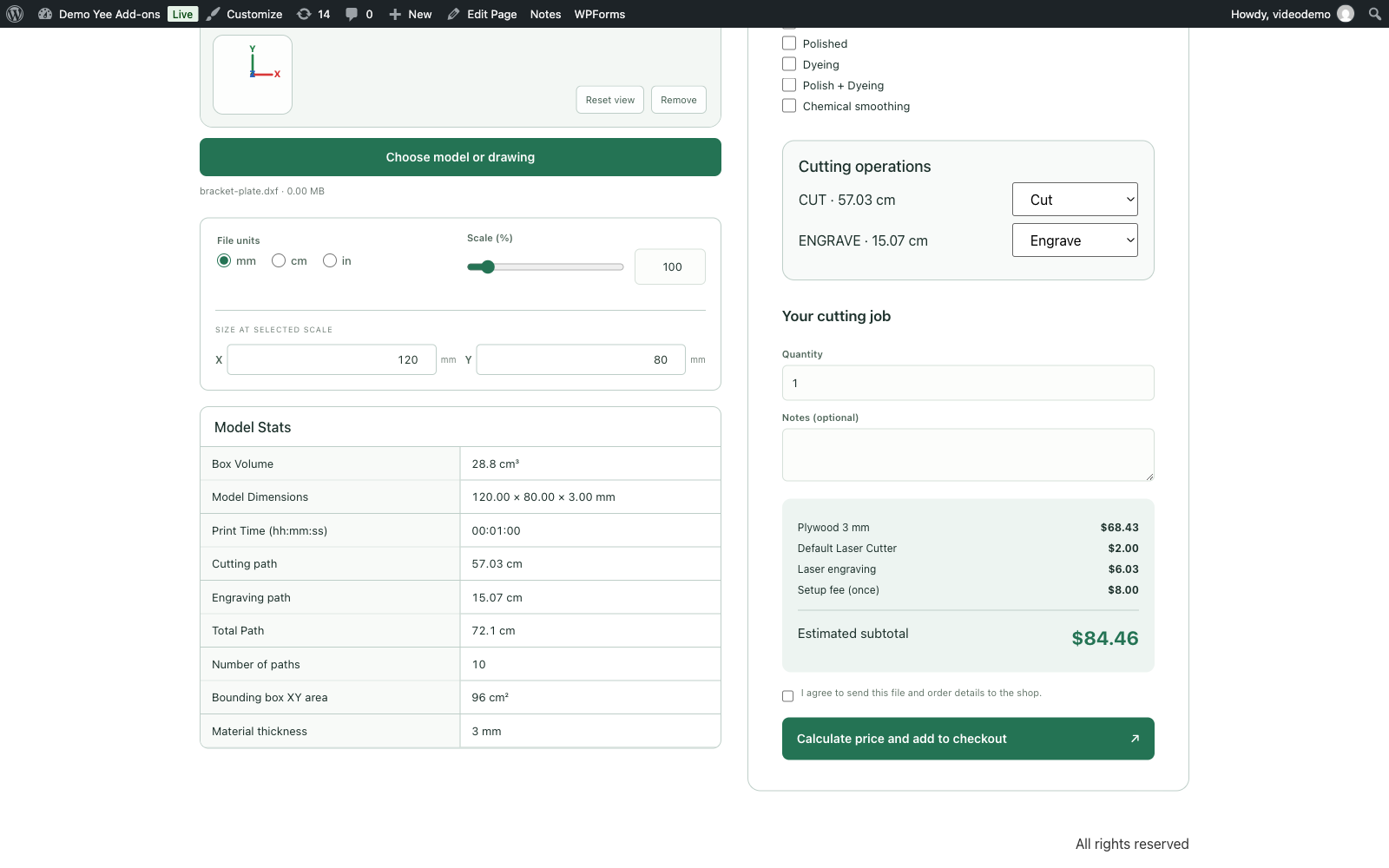
| 1 piece | 76.46 × 1 + 8.00 | 84.46 |
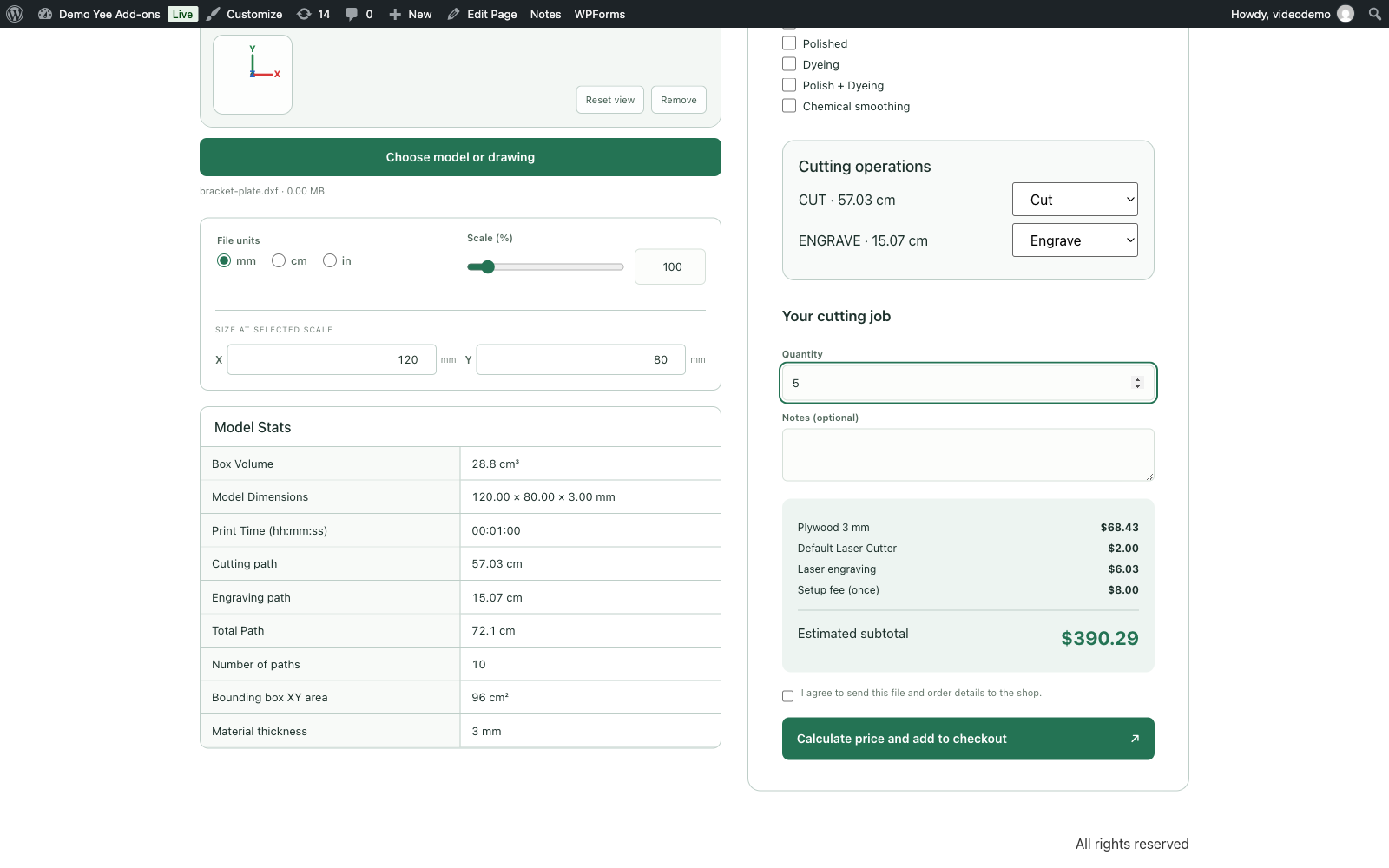
| 5 pieces | 76.46 × 5 + 8.00 | 390.29 (per-line rounding) |
4.2 Changing the material
4.3 Ignoring a layer
4.4 The minimum charge
4.5 When a drawing becomes a price request
- The selected material has no usable price (blank, or a basis that does not apply to drawings) so the material charge is 0.
- A layer is set to Engrave but the machine’s Laser engraving price per cm is blank or 0.
- The whole configuration totals 0.
- In those cases the checkout buttons are replaced by the request form, and the quote is saved for the shop to price by hand.
5. The Time Estimate
When the laser machine has speeds, the stats show a Print Time:
time (s) = cut mm ÷ cut speed + engrave mm ÷ engrave speed + setup seconds
570.3 mm ÷ 20 mm/s + 150.7 mm ÷ 120 mm/s + 30 s = 28.5 + 1.3 + 30 ≈ 60 s  →  00:01:00
Leave a speed blank to hide the estimate when that operation is used. The time is informative only; it does not change the price unless you add a material rule based on hours (which requires cloud analysis and applies to 3D models, not drawings).
6. Checkout and Quotes
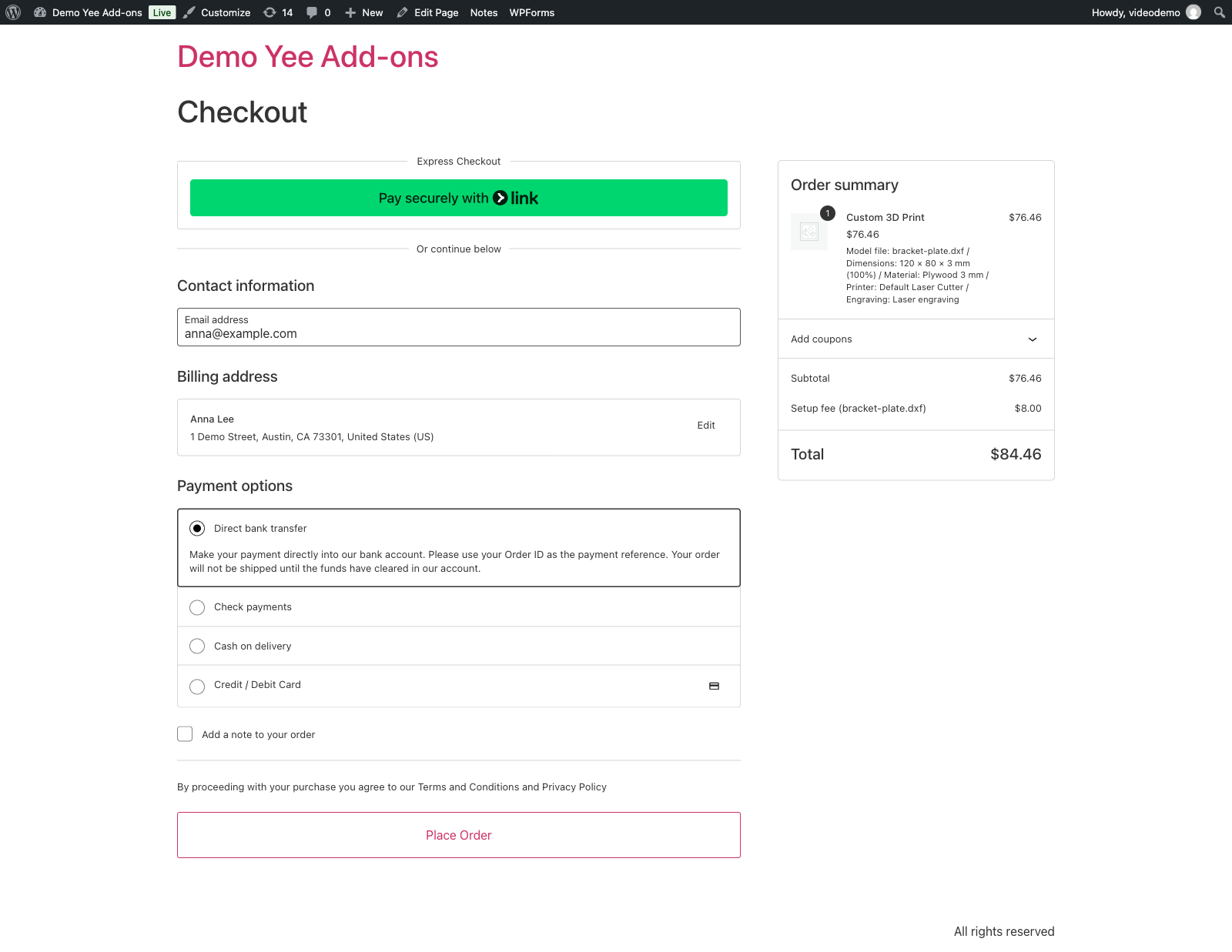
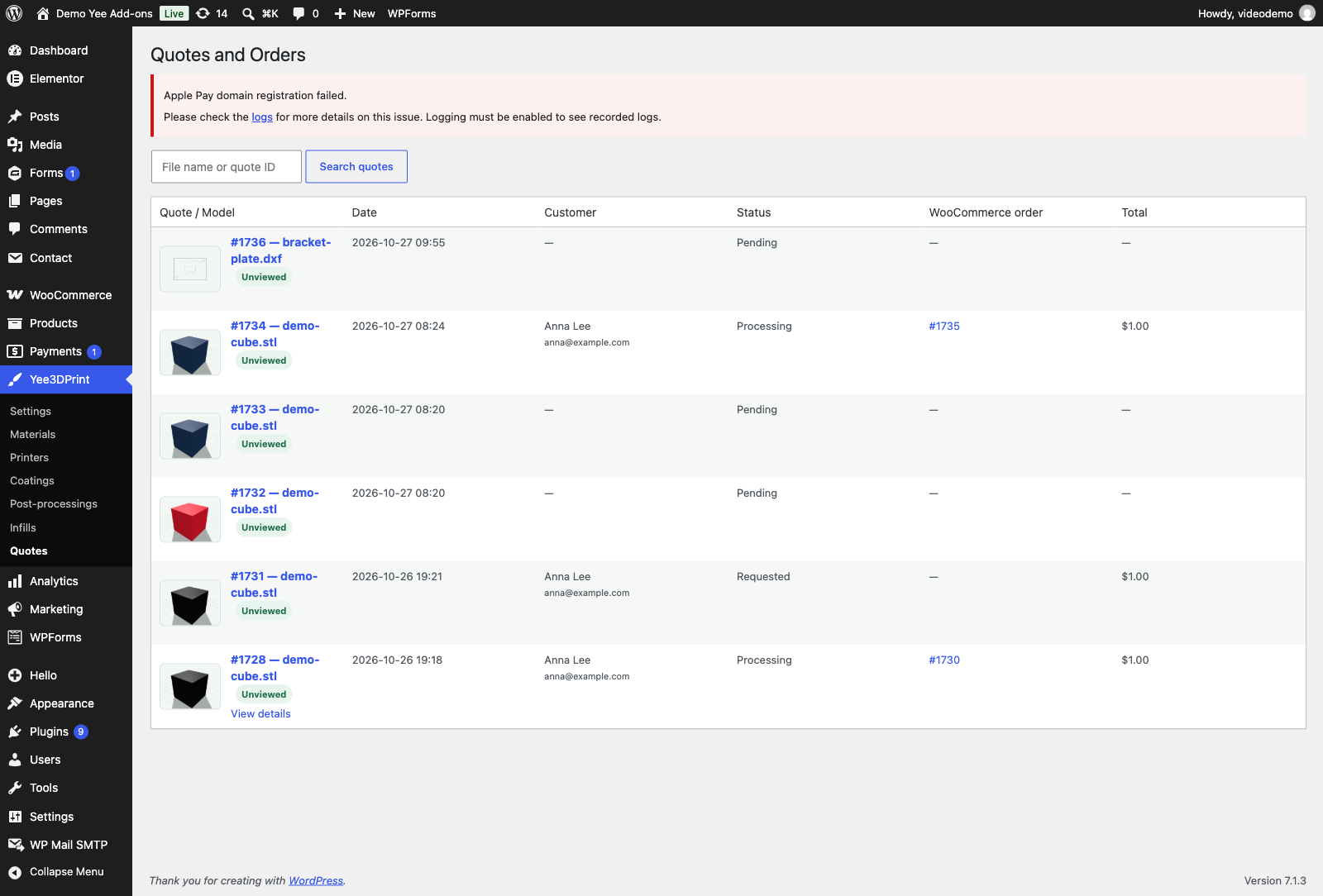
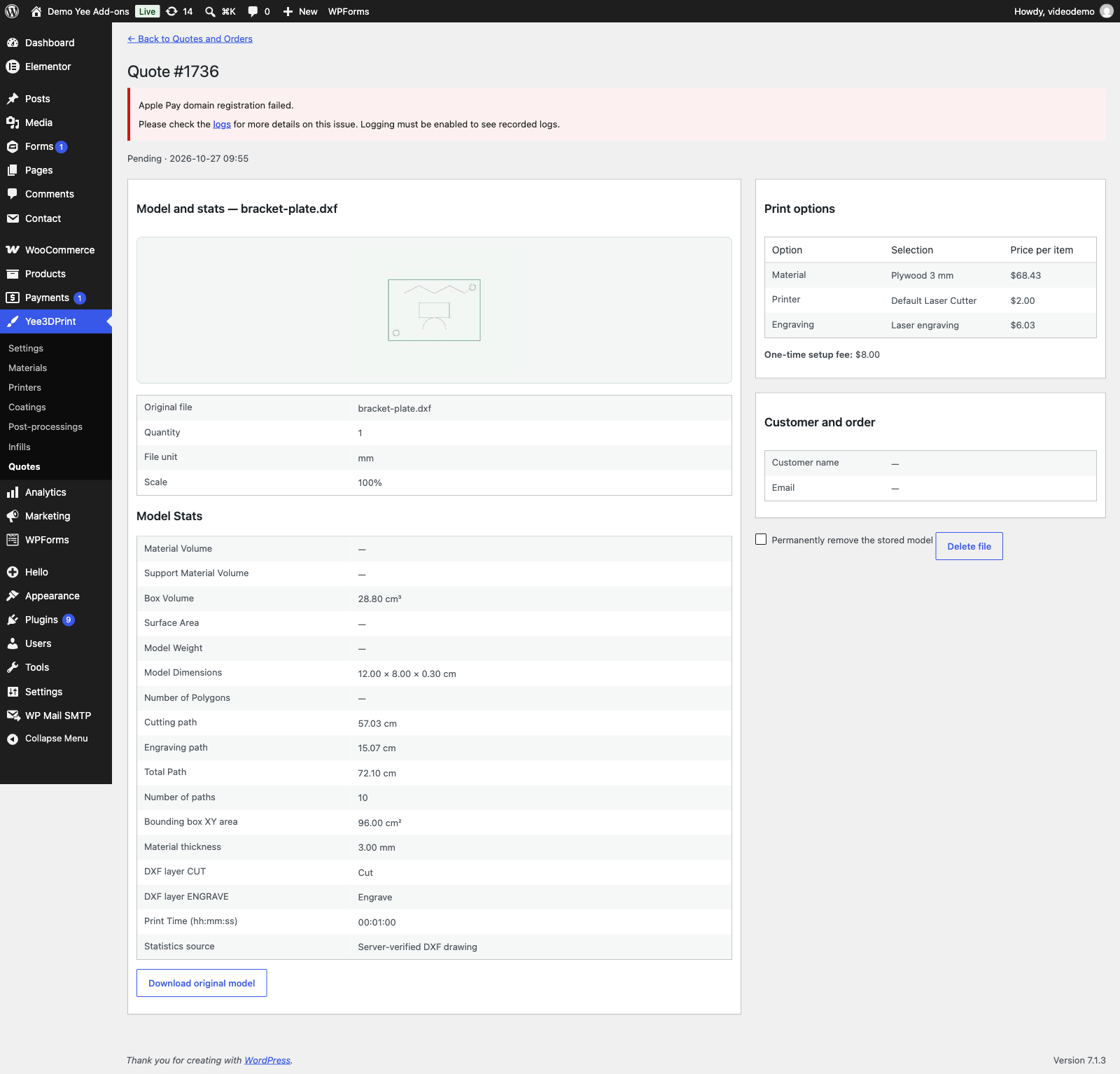
The quote stores the verified lengths, the per-layer operations and the prices, so the shop can check the job before cutting. The original DXF can be downloaded by shop managers and by the customer from the order page.
7. Tips
- Price per material, not per machine: put the cost of the sheet in the material rate (per cm or fixed), and the running cost of the laser in the machine price and the engraving rate.
- Thickness: one material entry per thickness (Plywood 3 mm, Plywood 6 mm…) keeps the price per centimetre honest, because a thicker sheet cuts slower.
- Several machines: customers choose the machine when more than one laser cutter is available; use Compatible materials to pair materials with the right machine.
- Closed polylines: export outlines as closed LWPOLYLINE so the closing segment is counted. Polylines with bulges are not supported; explode them to lines and arcs.
- Units: ask customers to draw in millimetres and keep Default file unit at mm; a drawing in inches must be uploaded with “in” selected.
- Testing: upload a known rectangle (e.g. 100 × 50 mm = 30 cm) and check that the Cutting path reads 30 cm before you publish prices.
8. Frequently Asked Questions (FAQ)
Which file formats are priced automatically?
Only ASCII DXF (up to 5 MB) with LINE, CIRCLE, ARC, ELLIPSE, LWPOLYLINE and SPLINE entities. DWG and other CAD files are accepted for manual quotes when enabled in Uploads and limits.
Does the plugin price by area or by material sheet?
The material rule can be a fixed amount per piece or a price per centimetre of cutting path. Area, volume and weight bases are ignored for drawings. Use a fixed price plus a per-cm rate to approximate sheet cost plus cutting time.
How are engraved layers priced?
By the laser machine: Laser engraving price per cm × the length of every layer set to Engrave. If that rate is blank, drawings with engraving become price requests.
What does “Ignore” do?
The layer is neither cut nor engraved: it is hidden in the preview and excluded from the price. Useful for reference or dimension layers.
Why is the cutting path longer than I expected?
All layers start as “Cut”. Set reference or engraving layers to Engrave or Ignore. Closed polylines include the closing segment; circles count their full circumference.
Can I charge a minimum per job?
Set the material’s Minimum material charge per piece. Use the setup fees (material and machine) for a per-job amount that does not multiply with quantity.
Does the time estimate affect the price?
No. It is calculated from the machine speeds and shown in Model Stats for information only.
Can customers cut several different drawings?
Yes. Each upload becomes its own line in the cart, each with its own setup fee.
Why does my drawing show “Automatic DXF pricing cannot verify these drawing entities”?
It contains entities the measurer does not support (for example TEXT, INSERT blocks, HATCH or polylines with bulges). Explode blocks and convert text to outlines before exporting, or let the customer use the manual quote form.